Category Focus/categories/productivity
Productivity AI Tools
Discover and compare the best productivity AI tools and software. Browse 874+ curated tools with reviews and rankings.
Projects tracked
874
Sort mode
RECENT
Page
4
Discover and compare the best productivity AI tools and software. Browse 874+ curated tools with reviews and rankings.
Projects tracked
874
Sort mode
RECENT
Page
4
Ownfeed is a tool that builds a daily social feed of posts from people who appear to need your product. You paste your product's URL, and Ownfeed reads that page to learn what the product does and who it is for. From there, it searches public posts across Reddit, X, Bluesky and Hacker News and uses AI to keep only the posts where your product helps. The result is a personal timeline of relevant posts, refreshed every day, that you scroll for about five minutes and reply to yourself. It is built for indie makers. The problem Ownfeed addresses is stated plainly on its own site: you built it, you shipped it, nobody came. Launch posts get removed by moderators. Searching for people to talk to eats your whole day. A good product exists, but no one who needs it can see it. The site shows real examples of the frustration: a maker asking how to find the first 10 users without spamming, another spending three hours on Reddit looking for people who might need their app, and another wishing for a tool that tells them when someone asks for something like their product because they keep finding those threads a week too late. Ownfeed's core observation is that the people who need your product are writing about their problem today, you just cannot see them. The product exists to close that visibility gap without keyword setup, alert inboxes or automation. Setup is deliberately minimal. You paste your product's URL, and that is the whole setup. Ownfeed reads your page to learn what the product does and who it is for, then writes about 30 search terms to find your people. Your first feed is ready in a few minutes, with posts from the last 24 hours. The site's own working view shows the process for a sample product: reading the product page and generating 30 search terms, then searching four sources at once. Discovery across sources is the second core capability. Ownfeed searches Reddit, X, Bluesky and Hacker News, and the sample feed shows example result counts per source — 9 posts from Hacker News, 11 from Bluesky, 42 from Reddit and 18 from X in that illustration. AI then picks the posts that matter, keeping only the ones where your product helps. The feed can be filtered between 'Today' and 'All relevant.' The example posts shown include freelancers asking how to chase unpaid invoices, a solo designer looking for a dead-simple invoicing app, a Bluesky post about third reminder emails, an Ask HN thread about late payments, a mention of a specific invoicing tool, and a Reddit request for an invoicing app that sends polite reminders automatically. These illustrate the kinds of posts Ownfeed surfaces and are labeled as pain points, tool requests and mentions. Reading and replying is the third step, and it is intentionally manual. You spend five minutes in your feed each morning and reply to the people you want to talk to. Ownfeed states there is no alert inbox and no keywords to set up, and that you write the replies, not an AI — which is why they land. The FAQ reinforces this: Ownfeed never posts or replies automatically, and it never touches your social accounts. You reply in your own words, as usual. Ownfeed's approach differs from keyword alerts and monitoring inboxes in a few ways the site makes explicit. Instead of you defining keywords, Ownfeed derives roughly 30 search terms automatically from your product page. Instead of delivering an inbox of alerts to triage, it delivers a daily timeline you scroll. Instead of automating outreach, it deliberately leaves the writing to you, on the stated reasoning that human-written replies are the ones that land. The whole workflow is framed as three steps — add your product, AI finds your people, scroll and reply — and as a five-minute-a-day habit. For users, the stated outcome is time saved and better-targeted conversations. Instead of spending hours hunting Reddit for people who might need your app, you get a ready feed of posts where your product helps, drawn from the last 24 hours. Instead of finding relevant threads a week too late, you see people writing about their problem the day they write it. And because you write the replies yourself, there is no automated spam risk to your account and the replies are more likely to land. The concrete use cases shown on the site are indie makers shipping a product and looking for the first users, freelancers and solo operators searching for tools, and makers replying to pain-point threads, tool recommendation requests and mentions of their product. In the sample feed, the product being monitored is an invoicing tool, and the relevant posts are freelancers with late invoices, solo designers wanting a simple invoicing app, an Etsy seller needing automatic polite reminders, and a Bluesky user mentioning they switched invoicing to that tool for automatic reminders. In general terms, Ownfeed suits anyone who wants to find and reply to public conversations where their product is the answer. Pricing starts with a $1 one-day trial that shows a day of your feed before you decide; $1 today, then $39/month starting the next day unless you cancel before then. The monthly plan is $39/month, renewing monthly and cancellable anytime from Billing in Settings. The 3-month plan is $89 every 3 months. Every plan includes one product and a daily timeline, and the 3-month plan additionally includes beta sources: LinkedIn, Threads, TikTok, Instagram, YouTube and Product Hunt, delivered in small daily amounts with no guarantees while in beta. Every option renews automatically until cancelled; prices are in USD and tax may be added at checkout. The trial, monthly and 3-month options all include Reddit, X, Bluesky and Hacker News. Ownfeed is a web product accessed through the browser. In short, Ownfeed's value proposition is visibility without automation: paste your product URL, get a daily feed of posts from people who need what you built, and spend five minutes replying in your own words.
Rool is a full private cloud machine that brings your files, software and AI into a single workspace. Instead of being only a chat window, Rool gives you a complete machine in the cloud that holds your documents, runs software, and keeps the work and memory produced between tasks. The machine is hosted in the EU, and the AI models that run on it are self-hosted by Rool in the EU as well. Rool is built for privacy-conscious individuals, teams and creators who want to work with AI without giving up control of their content. Your workspace stays private to you and to the people you choose to invite, and you can start on a free machine without a credit card. Most mainstream AI tools ask you to trade your data for convenience. Content you upload may be used to train models, advertising may be part of the deal, and your data may sit in jurisdictions far from where you or your customers are. Rool takes a different position. The company states that it sells Rool, not your data: there are no ads, no data sales, and your files and conversations are never used to train AI models. Your data is stored in Finland, under EU law, and your Rool Machine is hosted in the EU. For individuals and teams who care about where their information lives and who can reach it, that difference is the whole point rather than a footnote. Chat is just the surface in Rool. Behind every conversation sits a full machine that holds your files, runs software and keeps your work and memory between tasks. That means a chat is not a dead end: you can start with a conversation and then build from there. The machine keeps the results of what you do and the context around them, so the next task does not begin from zero. Files, software and memory are the three pillars Rool highlights. Writing a document, working with your files, or running software all happen on the same machine, and the outputs stay there, ready for whatever you do next, rather than being scattered across separate tools that forget what happened before. Rool runs AI models on infrastructure it manages in the EU. Those self-hosted models are what you use to work on the documents, files and tasks inside your Rool Machine. Frontier AI models are included in every plan, so the free Standard tier is not limited to a cut-down model. Usage is measured in AI credits: Standard includes 240 AI credits per day, Plus includes 1,200 per day, and Pro includes 4,800 per day, with the balance refilling hourly up to a plan-specific ceiling of 1,000, 2,000 or 5,000. Keeping the models in the EU, on infrastructure Rool manages, means your workspace and the AI infrastructure that serves it sit closer together rather than across jurisdictions. Your existing tools can be connected to your Rool Machine. Rool provides built-in connectors and support for custom MCP servers, which bring external services into the workspace so you do not have to abandon the tools you already use. Connectors and MCP are listed as features of the Plus and Pro plans, and they appear alongside the custom subdomain option. Practically, this means the machine is not a sealed box: it can reach out to the services around your work and pull their capabilities into the same place where your files and memory already live. Rool describes this as bringing the tools you already use into your Rool workspace, keeping one environment instead of many disconnected ones. Privacy is not a setting in Rool; it is the shape of the product. Your machine is private to you and the people you invite, and you choose who gets access. Your files, conversations and memory stay in your own workspace. Rool states plainly that there are no ads and no data sales, and that your files and conversations are never used to train AI models. The European hosting story reinforces the same point: your Rool Machine is hosted in the EU, and the models are self-hosted in the EU too. For anyone whose work involves sensitive material, such as client documents, internal notes or personal writing, having a workspace that is not mined for advertising or model training removes a recurring source of hesitation. The overall approach is to give one person or a team a single persistent machine rather than a collection of disconnected chat sessions. You start with a chat, and the chat is how you get going, but everything it touches lands on the machine: the documents you write, the files you work with, the software you run, and the memory that carries context forward. Rool calls the memory system Object Memory, and full Object Memory is included in the free Standard plan. Because the machine keeps working state between tasks, you do not have to re-establish context every time you come back. Because the models run on Rool's own EU infrastructure, the AI is part of the same environment as your files instead of a separate service consuming them. The benefit is continuity with control. Work you do in Rool does not evaporate when a conversation ends; the results and the context stay on your machine, ready for the next task. You keep your files, conversations and memory in your own workspace and decide who else can see them. There are no ads and no data sales to work around, and your content is not used to train AI models, so you can bring real work into the tool rather than sanitised versions of it. EU hosting and EU self-hosted models give you a clearer answer when someone asks where the data lives. And because every machine starts free, with no credit card and no trial clock, the cost of trying that approach is zero. Rool fits workflows where a person or a small team needs to work across files and tasks with AI in the loop. Writing a document, working with existing files, or running software are the activities Rool names directly, with the machine keeping the results and context ready for what comes next. Teams can invite the people they work with and control who has access to the workspace. Creators get a place to keep ideas, files and AI work together instead of spread across unrelated apps. Anyone who needs to connect external services can do so through connectors or a custom MCP server and then work with those tools from inside the same machine. The pattern in every case is the same: start a chat, do the work, and let the machine hold onto it. Rool is available on the web and as mobile apps for iOS and Android, with download badges for the App Store and Google Play. Pricing is freemium. Standard is free forever: 240 AI credits per day, 2 Rool Machines, 1 GB of storage per Machine, a balance that refills hourly up to 1,000, full Object Memory and frontier AI models included. Plus costs €9 per month and multiplies the daily credits five times to 1,200, with 2 GB of storage per Machine, a refill ceiling of 2,000, faster hourly refills, a custom subdomain, and connectors/MCP. Pro costs €25 per month, twenty times the Standard credits at 4,800 per day, 5 Rool Machines, 10 GB of storage per Machine, a refill ceiling of 5,000, priority support from the Rool team, plus everything in Plus. Rool's proposition is simple to state: a full private AI machine with files, software and persistent memory, hosted in the EU, running models that Rool self-hosts in the EU, under a policy of no ads, no data sales and no training on your content. It takes the convenience of chatting with AI and attaches it to something that lasts, a machine that keeps your work and its context between tasks. For privacy-conscious individuals, teams and creators who want AI they can trust with real work, Rool offers a workspace you control, on your terms, and free to start.
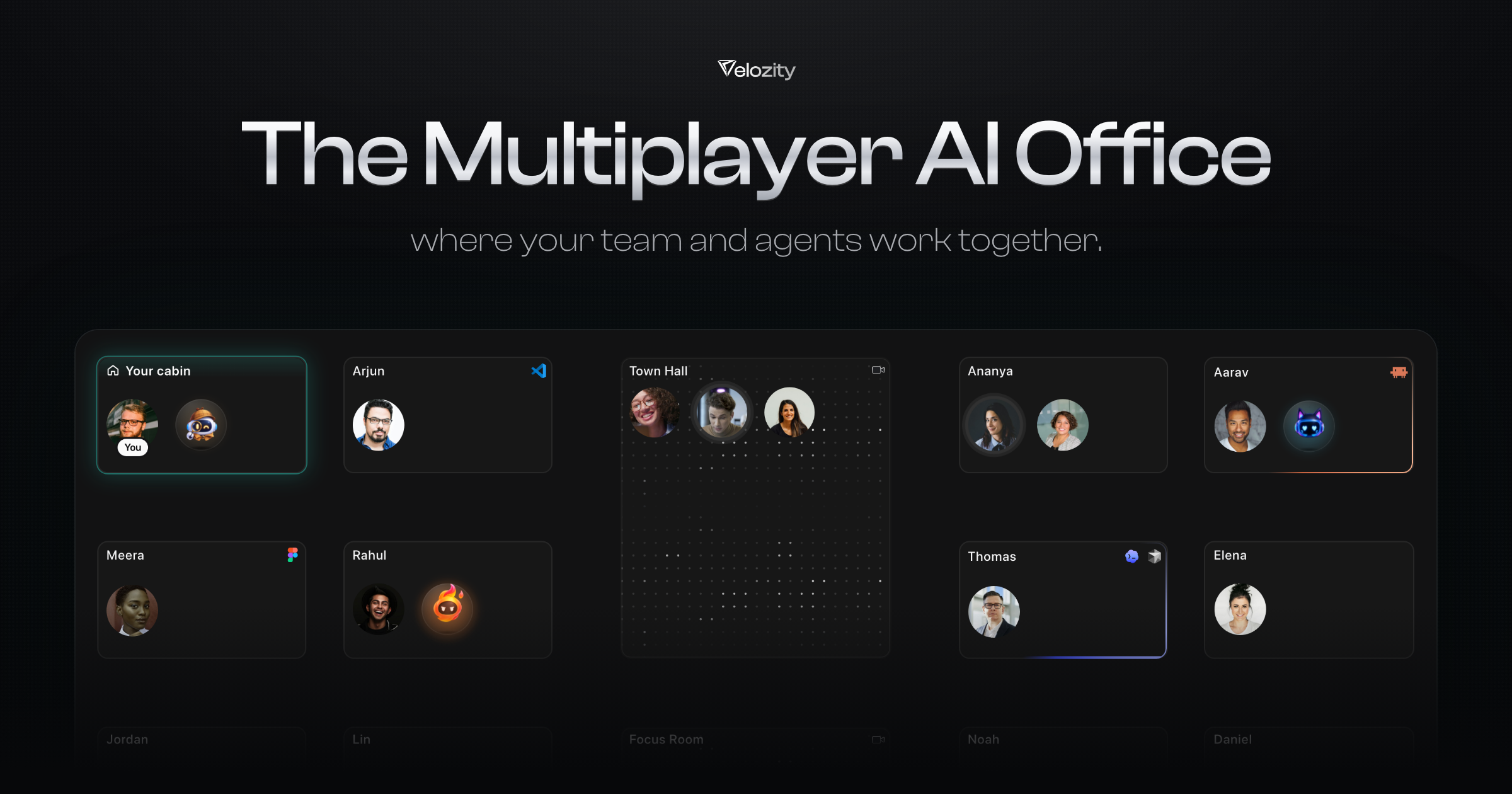
Velozity is the Multiplayer AI Office, a workspace where your team and your AI agents work together in one place. Instead of your team chatting in one app, meeting in another, and every AI working alone, Velozity brings it all into a single window. You can walk into a cabin in Workspace or talk to your agents in AI Space, using chat, audio and video calls with transcripts, tasks, calendar and files alongside AI agents such as Claude and Codex running on the subscriptions you already pay for. It is designed for startups, teams in development, product, sales and operations, and solo users juggling several AIs. Modern teams suffer from tool fragmentation. As the Product Hunt listing describes it, your team chats in one app, meets in another, and every AI works alone, forcing people to constantly switch between tools and re-explain context. Velozity's answer is to bring communication, meetings, tasks, calendar and files into one place, and to give every agent the same shared context so work moves between people and agents without having to re-explain. User stories on the site reinforce this: one describes replacing a whole suite of tools like Slack, Zoom, Notion, Calendly and even physical office setups, and another reports 97% less tool switching. The premise is that context is expensive, and keeping people and agents on the same page saves both time and money, with no second AI bill. Velozity is organized as a virtual office rather than a flat chat app. You walk into a cabin inside Workspace, and you can drag to walk around the floor to see who and which agents are working where. Each cabin and space shows live presence, so you can see that Arjun is using VS Code, Meera is using Figma, or that agents like Atlas, Tabby and Nova are working. From any cabin you can Drop In, chat, or invite someone over. Shared rooms such as a Town Hall and a Focus Room let people join a room for meetings, and the whole experience is designed so your team works there while your agents already know what happened. Velozity bundles the communication tools a team normally pays for separately. It supports chat with reactions, reply, quote reply, forward, copy text and copy link, plus at-a-glance context indicators such as the number of Context items and Routines in a space. It also includes audio and video calls with transcription and recording: the site shows a video call with a recording timer and a live transcript capturing who said what. Presence is continuous, so you can see who is online and what they are doing, and the meeting conversation flows directly into the office's shared context rather than being trapped in a separate app. Beyond communication, Velozity includes the operational tools teams juggle every day. There is a task system with a Smart and Fast AI task mode: Smart checks your existing tasks first and can update one, mark it done or flag a duplicate while picking the assignee and project, while Fast always creates a new task and never looks at existing ones. Tasks can be typed or spoken, with a voice recorder that opens in a small window, and they support due dates and priority. A booking calendar shows a week view of standups, demo calls, design sessions and one-to-ones, and tasks appear in grouped states such as in progress, open and completed. Files and docs live inside spaces, and Guest Pass Management lets you create and manage external guest access with validity options of 7 days, 30 days, unlimited or one-time use, with a Reception where the guest waits until you let them in. Velozity's defining capability is its agents. You use the AI subscription you already pay for, with Claude Code, Codex and Grok shown, to create your agents, and your whole team can tag their own agents in the same conversation. The site demonstrates named agents such as Jack (designs interfaces), Hulky (builds and ships code), Snoop (digs up research), Kai (prototypes screens) and Monkey (writes product copy) all working inside one space. You can spawn a department and watch it run: Engineering triages bugs, opens the fix, gets it reviewed and writes the release note; Marketing plans a campaign, writes it, designs it and reports what it brought in; Sales finds leads, writes the first email and books the demo in your diary; Customer Support answers tickets, escalates real bugs and keeps the customer posted; Finance reads invoices, matches them to orders and lines up the payment run; and HR & People screens CVs, books interviews and has the offer ready. Each department runs with four agents. Crucially, nothing is sent, paid or signed without you. Agents can run on this device or on a cloud computer. A cloud computer keeps agents working 24/7: the example shows Aria answering and following up support tickets overnight while your laptop is asleep, and capturing and qualifying unlimited leads all day. Velozity also ships Speed, its built-in agent that is on your team from day one and needs no Claude Code or Codex subscription. Speed reads your sources such as email, transcripts and files; creates tasks with a priority and due date; captures tasks from transcripts and email; performs deep research that answers questions from your own data; and delivers a morning brief every day at 8 covering what is due, who is waiting and what is on your calendar. Velozity connects to 100+ integrations and pairs them with a cloud computer for legacy apps. Documented integrations include Gmail (reads and sends email), Jira (captures and tracks issues), GitHub (tracks pull requests), Google Sheets (reads and writes rows), Google Drive (finds the right document), Outlook (reads and sends email) and Google Calendar (finds a slot and books it). Where there is no integration, for example Tally, your agent simply uses the app on a cloud computer. The shared context, sometimes framed as a Company Brain, means agents can answer questions such as where the team landed on a customer's pricing by checking calls and docs. The site illustrates an end-to-end flow: a customer email arrives at 09:12, a bug is captured in Jira at 09:13, a refund is posted in Tally at 09:20 with no integration needed, a fix is merged on GitHub at 11:48 and the customer gets a reply at 11:50. The benefits described on the site are practical and measurable from user stories. Consolidating work tools is said to save $214 per user per month, deliver 97% less tool switching, produce 85% less friction in day-to-day collaboration, make team coordination 4X quicker and enable 10X smarter collaboration powered by AI. Because Velozity uses the AI subscriptions you already pay for, there is no second AI bill, and because everything happening in the office is shared context, you do not waste time switching between apps and meeting notes are ready without anyone writing them manually. Founders get complete visibility and accountability without micromanaging, and remote-first teams get a virtual office that makes distributed work feel like working side by side. Velozity suits startups and teams working in development, product, sales and operations, as well as solo users juggling several AIs. Concrete scenarios shown on the site include a support agent resolving tickets around the clock on a cloud computer, a sales agent capturing and qualifying leads throughout the day, an engineering department triaging bugs and shipping fixes and release notes, a finance agent reconciling September invoices against payouts, a hiring agent screening curator portfolios, and a social and content studio pulling the last 30 days of X and LinkedIn performance. It is free to start with no card needed, and guests can be given time-limited or unlimited passes. Ultimately, Velozity positions itself as one office for your people and your agents: calls, presence, tasks and transcripts in the same window, every agent sharing the same context, and the ability to bring your own AI subscription. For teams tired of tool fatigue and of re-explaining context to isolated AIs, the Multiplayer AI Office aims to make remote work feel like working together, side by side.
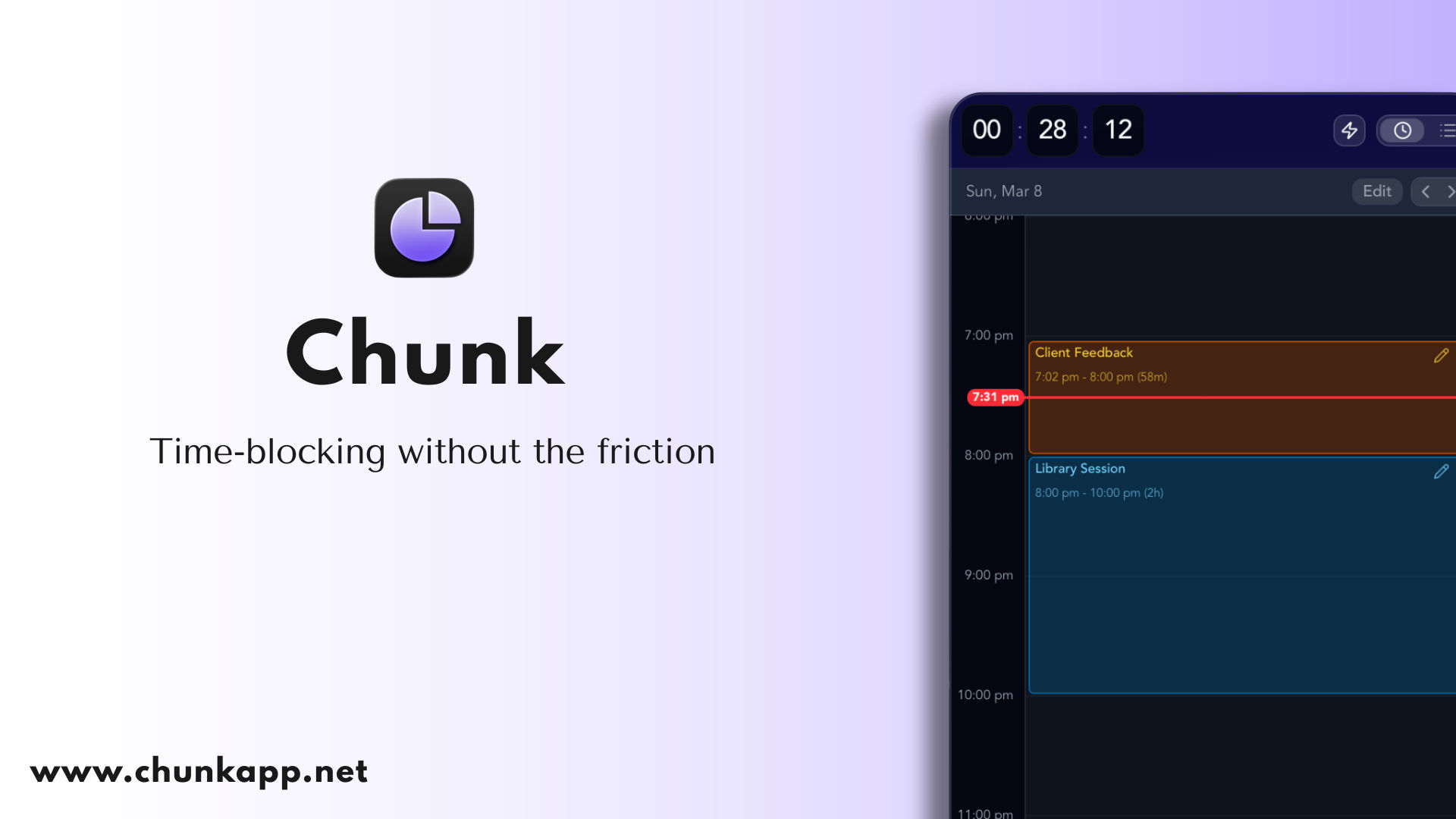
Chunk is a time-blocking app for Mac that puts your tasks and your calendar on one surface you slide between. Tasks live on the left — smart lists, custom lists, Apple Reminders, recurring tasks and template lists — and your full calendar lives on the right as a day, week or month. Its purpose is simple: let you decide where your day goes. You drag a task onto your day and it becomes a block, and a live countdown shows how long is left on it. Chunk is built for people who plan their days deliberately and want their plan and their real calendar to stay in step, rather than living in two separate apps. Most people keep their to-do list in one tool and their calendar in another. The two rarely agree, and the day tends to be shaped by whatever meetings land in the calendar first, with the actual work squeezed around the edges. Time blocking is the practice of giving tasks real space on the calendar, but doing it by hand across multiple apps is tedious and easy to abandon. Chunk closes that gap by making tasks and calendar one continuous surface: block out the day, drop tasks straight from your list, and see the plan and the calendar update together. Because Chunk syncs both ways with the calendars you already use, adopting time blocking does not mean abandoning your existing setup. At the heart of Chunk is the timeline. You drag on the timeline to create blocks, drop tasks straight from your list, or apply a recurring template to fill the day in seconds. The layout slides from the task column to the calendar, so the same plan can be worked as a timeline, a week grid, or a month view. Chunk can compress quiet hours and export a PDF or CSV when you need a copy of your plan. A live countdown stays visible in the system tray, and a fullscreen alert fires as each block ends, letting you mark the block complete or reschedule it in a click. Tasks and their lists live in a single column alongside the calendar. Chunk groups them into Inbox, Today, Upcoming, Overdue and Completed, and supports smart lists, custom lists such as Work, Launch, Personal, Home, Reading, Groceries and Errands, plus Apple Reminders and recurring template lists. Tasks can carry detail: a task like "Write launch post" can hold subtasks, notes, an attached file such as Pricing model.pdf, and a deadline. Schedule the work once and it appears everywhere it should, so a task you place on the timeline is still visible in your list views. Chunk integrates with the calendars people already use. It offers full two-way sync with Apple Calendar, Google Calendar and Outlook, keeping work and personal calendars in one unified view. Because the sync runs both ways, you can drag to move or resize an external event straight from Chunk and the change is written back to the source calendar. A lock toggle lets you freeze external events as read-only whenever you would rather avoid accidental edits. Apple Reminders lists appear inside Chunk's task column too, so you can drag a Reminders item straight onto the timeline to schedule it. Chunk also ships a local MCP (Model Context Protocol) server that connects to Claude Desktop in one click from Settings → AI Integrations, letting you plan your day in natural language. Once connected, Claude can read your schedule, create, edit or delete events, manage task lists, work with recurring templates and view external calendars. The MCP server is a local process: Chunk reads and writes directly to your on-device database, and nothing is sent to any server beyond what Claude itself processes during your prompt. You can disconnect at any time. Chunk is designed to stay one keystroke away. First, open Chunk from the menu bar: click the tray icon or hit ⌘+/ from anywhere, even over fullscreen apps, and Chunk slides in ready to use. Second, block out your day by dragging on the timeline, dropping tasks from your list, or applying a recurring template. Third, stay in flow: the tray countdown and the fullscreen alert at the end of each block keep you moving through the day without breaking focus. The Chunk panel floats above every other window, including fullscreen apps, so you never have to break your flow just to check your schedule. The result is a plan you can actually follow. Because tasks become blocks, you see exactly where your time is going rather than guessing. Because the countdown and the end-of-block alert sit in the tray, you do not have to open a separate window to know what you should be doing. Because external calendars sync both ways, your plan never drifts out of date. And because templates let you reuse a good day — daily, weekly, monthly or yearly — the planning work you do once keeps paying off. Concrete scenarios show how this plays out. Someone planning a focused workday drags "Deep work" onto the timeline for 9:00 to 10:30, adds a standup and lunch around it, and lets the countdown track the block. Someone with a repeating routine builds a "Morning routine" or "Deep work day" template with a daily or weekly rule and applies it in seconds. A user who keeps errands and groceries in Apple Reminders drags those items from the Reminders list straight onto the timeline. Someone who wants their week planned out asks Claude in natural language. And anyone with several Macs installs Chunk on each and switches on syncing so the plan follows them. Chunk is a native macOS app for both Apple Silicon and Intel Macs running macOS 12 Monterey or later. There is no Windows, Linux or Android version, and a separate Chunk for iPhone app is coming soon to the App Store as a one-time purchase with a free 7-day trial that syncs with your Mac through your own iCloud; Apple Family Sharing is supported at no extra cost. Chunk integrates with Apple Calendar, Google Calendar, Outlook and Apple Reminders, and its optional AI planning runs through a local MCP server. You can try Chunk free for 7 days with no credit card required, after which it is a one-time purchase of $29.99 for lifetime access — no subscription. Your data stays on your Mac and, if you switch on cross-device sync, travels through your own iCloud rather than Chunk's servers. Chunk's value proposition is straightforward: one surface for tasks and calendar, real blocks on your day, a countdown that keeps you in flow, and two-way sync with the calendars you already use — all for a single one-time payment. It is time blocking without bloat, fuss or a subscription.
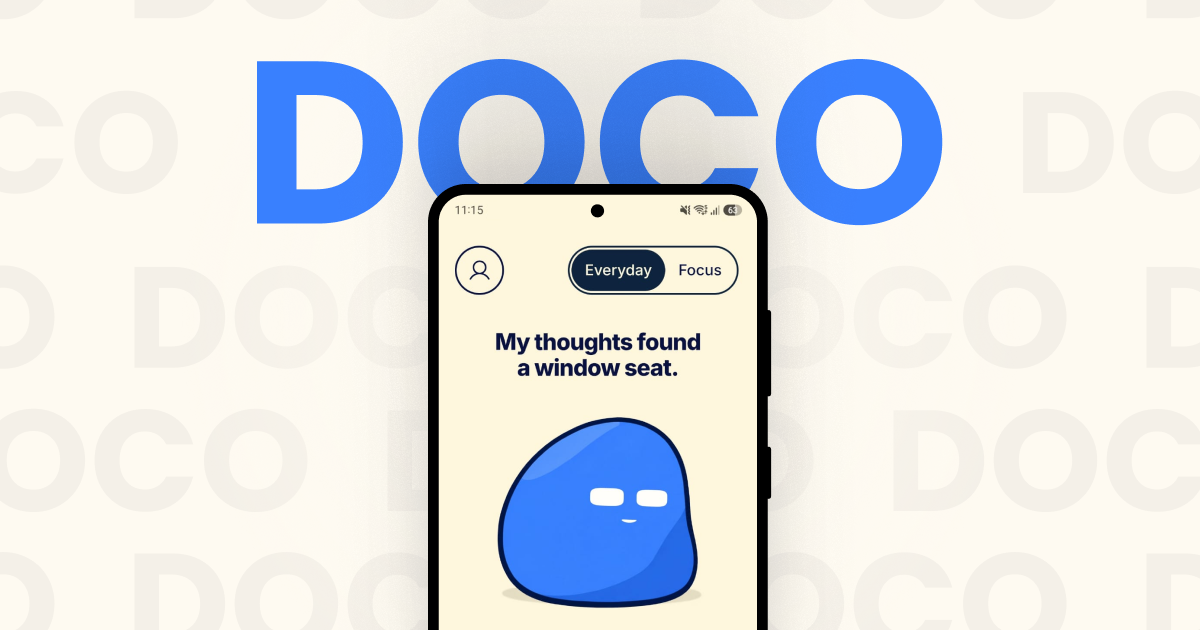
Doco is an expressive companion for focus, music and everyday moments, available as an Android app with an optional Windows desktop client that lets Doco visit your computer. Described by its makers as "a little company for your day", Doco is not a conventional productivity timer or a bare music player: it is a small animated character that keeps you company while you work, listen or step away. It arrives fully animated with zero setup, so there is nothing to configure before it starts sitting beside your day. Doco switches between a playful, warm Everyday mode and a calmer Focus mode, and its music plays through a Spotify connection so that the soundtrack fits the moment rather than fighting it. The context for Doco is the texture of ordinary days: endless scrolling, tasks that compete for attention, slow mornings that need an easier start, and long stretches where a little company goes a long way. The website presents these moments directly, pairing scenarios such as "One task. A little less scrolling." with "A little company goes a long way." Focus mode is framed as the setting that cuts the noise, bringing "a little less distraction—and a little more friendly sarcasm", while Everyday mode stays playful and warm. Instead of another dashboard of metrics to check, Doco responds with tone, expression and music, which is what makes it a companion rather than a tracker. It is built for people who want something friendly in the room while they get on with their day, not another system demanding input. The heart of the product is its two modes. Everyday mode is the lighter, warmer register: Doco is playful, animated and companionable, offering small prompts and expressions that feel like a friendly presence nearby. Focus mode is deliberately quieter — less distraction, fewer interruptions, and a slightly sharper, friendly sarcasm that acknowledges the seriousness of getting something done. The layout supports both portrait and landscape, and the interface is built around character animation, including a thought cloud and small interactive moments such as the "Make a leap" prompt and the line "My thoughts found a window seat." A rotating quote appears as part of the experience — the site shows one from Epicurus about friendship — reinforcing the idea that Doco is there for company as much as for utility. Music is the second pillar. You connect Spotify to play music inside Doco, and song selection "stays close to your listening history, with room for something new." That balance matters: the app leans on the taste it already knows you have, but deliberately leaves space for discovery rather than looping the same familiar tracks forever. The player is presented as part of the companion experience rather than a separate utility, showing cover art, track and artist (the site's example is "God's Plan" by Drake), a progress bar with elapsed and remaining time, and straightforward skip back, play and skip forward controls. The "Music time" scenario sums the intent up: "Familiar favourites. Something new." Doco describes itself as a BYOK — bring your own key — powered companion, and that is because its more advanced expressive behaviours are optional and opt-in. The FAQ is explicit: you do not need a Gemini key, because "Doco has expressions and prompts without one." Adding your own Gemini API key unlocks two additional capabilities: camera-based reactions and AI captions. Because the key is your own, the generative layer is something you choose to switch on rather than a mandatory part of the experience, and the base companion works fully without it. This keeps the core product simple for people who just want the animated companion, while giving people who want more expressive, generative behaviour a way to enable it on their own terms. Doco can also travel. An optional Windows desktop client lets the companion visit your computer. The setup described is simple and account-based: install the Windows client, sign in with the same Google account, and enable visits on both devices. Once that is done, the companion can appear on your desktop as well as your phone, so the same character and the same company follow you between the places you spend your day. The desktop client is framed as a "visitor" rather than a replacement for the mobile experience, which fits the product's overall tone of lightweight, voluntary presence. Taken together, Doco's approach is to keep everything in one small, animated presence. There is no lengthy onboarding — the app is "fully animated right out of the box with zero setup" — and no requirement to configure AI or music before using it. You pick a mode that matches your moment, optionally connect Spotify so the music matches your taste, optionally add a Gemini key if you want camera-based reactions and AI captions, and optionally let Doco visit your Windows machine. Doco is pre-launch; the site currently offers an email waitlist, and joining means agreeing to receive Doco launch updates. A short FAQ on the site answers the practical questions about what Doco is, whether a Gemini key is needed, what changes in Focus mode, how the music works and whether Doco can visit your computer. The promised benefits are deliberately modest and human. Focus mode gives you fewer distractions and a little more room to concentrate on one task. Everyday mode gives you warmth — something friendly sitting with you rather than another notification. The Spotify connection means your soundtrack adapts to the moment instead of being an unrelated background app, and the selection logic keeps familiar favourites close while leaving room for something new. The desktop visit extends that company to the computer where many people do their longest stretches of work. And the BYOK design keeps the AI layer optional, so nobody has to hand over a key to get the core experience. The site names five situations Doco is made for. Deep work is framed as "One task. A little less scrolling." Slow mornings are about easing in and finding your rhythm. Music time is for familiar favourites and something new. Long days are the moments where "a little company goes a long way." Screen breaks are the prompt to "Stretch. Sip. Come back." Together these describe a single companion used across the whole shape of a day rather than a tool you open for one narrow task. In terms of audience and setup, Doco is aimed at people who want a light, expressive presence during focus sessions, music listening and everyday moments, and who prefer something animated and friendly over a clinical productivity dashboard. The explicitly stated integrations are Spotify for music, an optional Gemini API key for camera-based reactions and AI captions, and Google account sign-in for connecting the Android app with the Windows desktop client. The product runs as an Android companion with an optional Windows desktop visitor. No pricing details are published; Doco is pre-launch and access is currently through the email waitlist on the website. Doco's takeaway is simple: it is a companion first. It blends two moods — playful Everyday and focused calm — with Spotify-powered music that fits, optional Gemini-powered reactions and captions, and cross-device visits, all delivered as a fully animated character with zero setup. For anyone who wants a little company during deep work, slow mornings, long days or screen breaks, Doco's promise is that good company and music that fits can make an ordinary day feel less solitary.
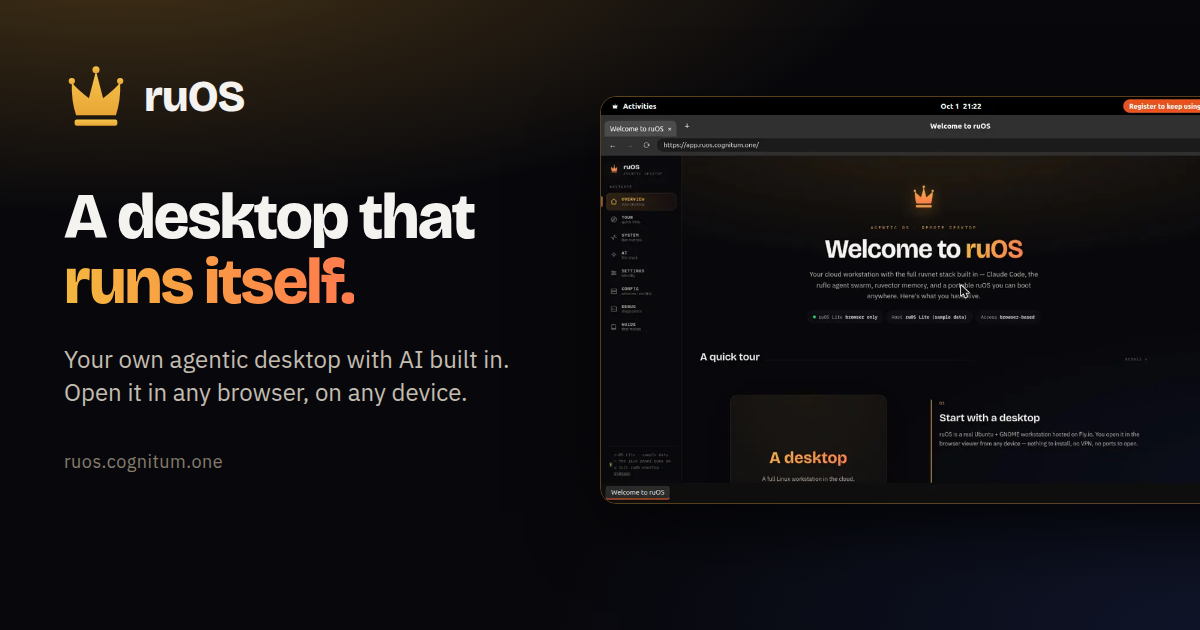
ruOS is a private cloud desktop with an AI team built in. It is designed for people who want an agentic workspace where AI does the work for them — research, writing, and code — without installing anything. You sign up, ruOS sets up your own private desktop, and you open it from any web browser on a Mac, iPad, Chromebook, or Linux laptop. A free option, ruOS Lite, runs a real Chrome browser drawn as your ruOS desktop right in your web page, and opens in about a second with no sign-up required. Most AI tools today live in a single chat window. You ask a question, you get an answer, and then you copy that answer somewhere else to actually finish the work. Your context, your files, and whatever the AI learned are scattered across tabs, apps, and devices. ruOS starts from a different premise: instead of a chat box you visit, you get a desktop that runs itself, with AI helpers already installed, signed in, and working side by side. Nothing has to be configured, and nothing has to be synced, because the desktop and everything on it live in one place that you reach from any browser. Everything is ready the moment you sign in. ruOS ships with smart AI helpers built in that write and run code, research on the web, remember your projects, and understand what is on your screen — all working together from day one. Claude Code is ready to write and run code for you. ruflo is a team of AI helpers. ruvector remembers your work, giving your agents long-term, self-learning memory. ruview understands your screen. Codex is available as extra coding help, and VS Code is the code editor. Because the helpers are preinstalled and signed in, the AI stack is ready as soon as your desktop starts — you do not have to wire up models or connections yourself. ruOS opens in any web browser, so there is nothing to install. The same session reshapes to any screen: sharp on a big monitor and comfortable on a tablet, with no fiddling with zoom. You can start on a laptop and keep going on an iPad, because your whole desktop goes with you. ruOS Lite goes further in simplicity — it draws a real Chrome browser as your ruOS desktop inside your web page, with tabs and windows, a dock of apps, and the ruOS app first. It opens in about a second, and it picks up where you left off: sign-ins, site data, and open tabs are saved and encrypted. Persistence is built in. Your files and everything the AI has learned are saved automatically, so you can come back tomorrow and pick up right where you left off — even from a different device. The desktop is yours and private: your files, your work, and your AI are kept separate and private from everyone else's. In ruOS Lite, VS Code and extensions are available too — vscode.dev sits in the dock, along with 1Password, Bitwarden, Claude, and uBlock Origin Lite when you turn them on. Your AI can drive it: ChatGPT and Claude see and click the desktop through the ruOS connector, never your extensions, and payments wait for you. The workflow is four simple steps. First you sign up: enter your email and ruOS sets up your own private agentic desktop, bound to your account, with no setup and nothing to configure — it is ready in minutes. Second, your desktop turns on: a private desktop starts up in seconds with the whole AI stack preinstalled and signed in, including Claude Code, a team of helpers, and self-learning memory. Third, the AI gets to work: ask for something and it is done, with a whole team of AI helpers researching, writing, and coding side by side while you watch — or step away and come back to finished work. Fourth, you open it anywhere: your desktop streams to any web browser and reshapes to the screen, the same session on your Mac, iPad, or laptop, with nothing to install and nothing to sync. Once you are in, the things you can ask for are simple. It writes and runs code: tell it what you want changed, and it edits the files, runs the tests, and tells you when it is done. It works as a team: it splits a big job across several AI helpers that work side by side. It remembers: it keeps track of what you are working on, so you never explain twice. It researches: ask a question and it browses the web, reads the sources, and brings back the answer. And it goes with you: your whole desktop travels with you, so you can start on your laptop and keep going on your iPad. Hand ruOS a task and it picks the right tool and gets to work. The outcome for users is fewer hand-offs and less copying between tools. Because the AI helpers run on the same desktop where your files live, research, writing, and code happen in one place rather than across scattered apps. Because memory persists, you do not repeat yourself or rebuild context each session. Because the desktop is private and per-account, your files, work, and AI stay separate from everyone else's. And because everything opens in a browser, switching devices does not mean setting anything up again. For developers and power users, ruOS is also a build platform. Under the hood it is a real Linux box with the full ruvnet stack and programmatic control, and everything is already installed on your desktop. ruOS runs an MCP server — ruos-computeruse-mcp — so an AI client like Claude can drive the desktop for real: see the screen, move the mouse and type, run shell commands, trigger system actions, and change the resolution on the fly. The exposed tools include screenshot, mouse_move / left_click, type_text / key (xdotool), run_shell, system_action, and desktop_resolution. You can point an MCP client at your desktop using stdio over SSH, and after launch you can resize with desktop_resolution presets of 720p, 1080p, 1440p, or qxga, or a custom width × height, applied server-side via xrandr. A hosted MCP endpoint is on the roadmap. The ruvnet stack is one command away, all preinstalled. Open a terminal on your desktop and use the same commands the AI helpers run for you: npx ruflo@latest init wizard to set up agent-swarm orchestration, npx ruflo@latest swarm init --topology hierarchical to spin up a team of AI agents, npx ruvector to give your agents long-term, self-learning memory, and npx ruflo to run the ruflo agent runtime. For quick start, ruOS provides an MCP address at https://ruos.cognitum.one/mcp. In ChatGPT you go to Settings → Apps & Connectors → Create, paste the address, and sign in. In Claude you go to Settings → Connectors → Add custom connector, paste the address, and sign in. In Claude Code you run claude mcp add --transport http ruos https://ruos.cognitum.one/mcp. ruOS in ChatGPT uses only the desktops and metered entitlements already assigned to your account. The ChatGPT app and its linked review surfaces do not present pricing, checkout, subscriptions, upgrades, or credit purchases. Getting started is straightforward: you can try ruOS Lite free in seconds with no sign-up, or get early access by signing up, after which your desktop is ready a few minutes later. ruOS takes the idea of an AI assistant and turns it into a place you work. It is a browser-reachable, private, agentic desktop where a team of AI helpers — Claude Code, ruflo, ruvector, ruview, and Codex — researches, writes, and codes alongside you, remembers your projects, and follows you from device to device. Nothing to install, nothing to sync, and nothing to configure: sign up once and the desktop does the rest.
Ghostifier is a privacy tool that finds every company holding your personal information and asks each one in writing to stop selling or sharing your data and to delete it. Instead of filling out one removal form per company, it starts from your Gmail inbox: you connect Gmail once, and the first scan looks back about two years to build a list of every company that has your details. It is built for anyone who wants their personal information removed from marketing lists, company databases and data brokers without chasing down dozens of privacy pages by hand. The problem Ghostifier addresses is laid out plainly on its website. Companies hold your name and address, handed over with every account you open and every order you place. They hold what you buy, kept in a profile with your name on it. They hold how you browse, habits and interests gathered to target ads at you. They hold where you go, location details collected by apps and sometimes sold. On top of that, data brokers collect and sell information about people who never heard from them at all. Because each company handles privacy differently, asking for removal one company at a time is slow and easy to abandon. Ghostifier's starting point is your inbox, because that is where the evidence of who holds your data already sits. It unsubscribes you and opts you out of sale and sharing on day one, waits out return windows, then sends deletion requests and tracks every reply. The first thing Ghostifier does is find the companies. You sign in with Google, and, in the words of the site, one sign-in starts the scan right away. Ghostifier uses your inbox to identify the companies that email you, and the scope of what it can see is deliberately narrow. It sees the sender, the subject line, the date and any unsubscribe link in the header. It cannot see message bodies or attachments, and it never opens your emails. The company states that Gmail access is headers only, so it never reads your email bodies, and that there is no AI: every decision follows fixed rules. From that metadata it builds a list of every company that has your information, along with what kind of company it is, and the free scan shows you the result — for example, a count of how many companies have your data, how many relate to marketing mail, and which ones Ghostifier will not delete. Nothing is sent at this stage. You see every company and the plan before anything goes out. You stay in control of what happens next. After the first scan, you can see every company and the plan for it, and nothing goes out until you say go; you also have the option to approve each company yourself. Ghostifier groups companies by relationship type in a control center, with settings for unsubscribe, opt-out and deletion that can be set to automatic, ask me or leave alone. Under the Balanced preset, marketing-only companies get automatic unsubscribe, automatic opt-out and automatic deletion held for 48 hours first; account and updates companies are set to ask me for unsubscribe and opt-out and to be left alone for deletion; purchase companies are likewise ask-me for unsubscribe and opt-out and left alone for deletion. You can change these settings at any time, for each kind of company, and pick how much Ghostifier does on its own. There is also a set of companies Ghostifier never deletes, whatever you pick: banks, insurers, doctors, schools and employers; password managers, email and storage, domains and crypto; anything you used in the last year; and household names like Google and Spotify. Those companies can still be asked to stop selling your data, according to your settings. When you give the go-ahead, Ghostifier does the work in stages. It unsubscribes you from every list that supports one-click unsubscribe, free on every plan. It opts you out of sales, telling each company in writing not to sell or share your data. Once any waiting period has passed, such as the return window on an order, it asks the company to delete your data. If a company misses its deadline, Ghostifier follows up once. Every step is tracked to the legal deadline where one applies. The deletion request itself is sent as an authorized agent request; the sample letter on the site is made out under the California Consumer Privacy Act, as amended by the California Privacy Rights Act, which the letter states requires a response within 45 days and allows a request to be made through an authorized agent holding signed written permission. Ghostifier contacts companies from its own address on your behalf, and you give it written permission once, when you pick a plan. Receipts are kept for every request: the letter, when it went out, and what each company said back. The activity page shows the status of each request — queued, waiting on them, replied, done or problems — alongside the request type, whether unsubscribe, opt-out or deletion. Data brokers are handled separately. Ghostifier asks 220 registered data brokers to delete your details, even if they never emailed you — a group that by definition collects and sells information about people who have never heard from them. This is included with the Cleanup and Autopilot plans. The dashboard tracks how many brokers were asked, how many replied and how many are done, meaning deleted or with none on file. A separate sample letter shows the broker request, which notes that the broker is registered in California, that you may have no relationship with it, and that the request covers records gathered from other sources; it also asks the broker to instruct service providers and third parties to delete as well, and to say so if it holds no records. Overall, Ghostifier works from a single connection rather than repeated manual requests. You connect Gmail, the first scan builds the list, you review it and say go, and Ghostifier handles unsubscribes, opt-outs and deletion requests. On the Autopilot plan, this becomes ongoing: a daily check of your inbox deals with new companies as they appear, companies still emailing after you unsubscribe are followed up, and you get a weekly summary email. Because companies often write directly to you to verify a deletion request, Ghostifier surfaces those messages in a Needs you area — it can see that the email arrived but cannot read your email or answer from your address, so you open it, do what it says and mark it done. The benefits are the ones the site states directly: fewer companies hold your data, and each request is tracked rather than lost. You get proof in the companies' own words — for example a confirmation reading "Your data has been deleted from our systems," kept as a receipt. You do not have to hunt for contact addresses, write letters or remember follow-ups. Nothing is sent without your approval, nothing is sold, and you can leave at any time. And because Gmail access is limited to headers and the system runs on fixed rules rather than AI, the tool gathers what it needs to identify companies without reading the contents of your inbox. Concrete scenarios follow the company's own examples. Someone who has been online for years signs in, sees a scan result such as 412 companies holding their data, and reviews the list before approving anything. A shopper's purchase data sits in a retailer's profile; Ghostifier waits out the return window before requesting deletion, so an order in progress is not disturbed. A person who keeps receiving mail from companies they never heard of can have broker deletion requests sent to the 220 registered brokers, including firms that never emailed them. Someone who wants to keep a Google or Spotify account can still unsubscribe from marketing and ask those companies to stop selling their data, while the accounts themselves are never deleted. A user who receives a verification email from a company can find it flagged in Needs you, complete the step and mark it done. Ghostifier is aimed at people who want their personal information removed from company databases and data broker files without doing the paperwork themselves. It works with Gmail and is a web application. Seeing who has your data is free forever, and the free plan includes the ability to see every company that has your data and to unsubscribe from every list that supports one-click unsubscribe. Cleanup costs $29 once and adds opt-out and deletion requests to every company found so far, deletion requests to 220 registered data brokers, deadline tracking with a follow-up, and a receipt for every request; it counts toward Autopilot if you upgrade within 60 days. Autopilot is $59 a year — about $5 a month, billed yearly, or $8 monthly — and adds companies found later, a daily inbox check, follow-ups on companies still emailing after you unsubscribe, and a weekly summary email. Upgrading to Autopilot within 60 days means the $29 Cleanup counts toward the first year. Payments go through Stripe, and Ghostifier never sees your card. On data storage, the site states that Ghostifier keeps a list of the companies it found and a few dates, such as when they last emailed you; once requests go out it also keeps each letter and the replies companies send back, encrypted so only you can read them, until 30 days after a request finishes. You can delete them sooner, it does not store your emails, everything it holds is visible in Settings, and you can delete it all in one step. In short, Ghostifier's primary value is turning data removal from an endless series of individual forms into one connected workflow: scan your inbox to find who has your data, decide what should happen, and let Ghostifier unsubscribe, opt out and request deletion while keeping a receipt for every request. Seeing who has your data is free; asking them to delete it is where the paid plans come in.
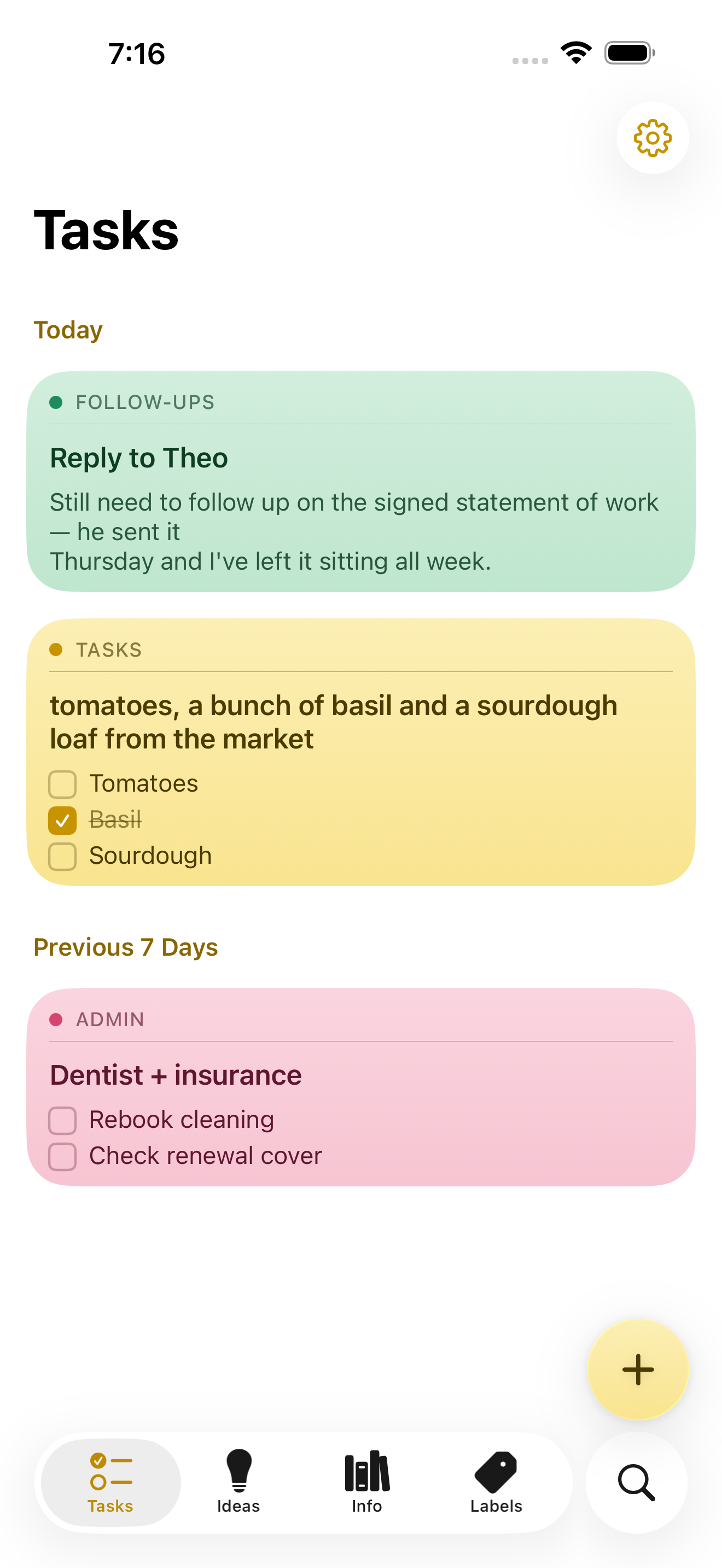
NoteWorthy is a notes app for iPhone, iPad and Mac that finishes the note after you have written it. You jot anything down — a messy line, a quick capture, a scraped list — and NoteWorthy writes a title, summarizes what you wrote, cleans up the formatting and files the note into the right place. Its purpose is captured in its own headline: You write the note. It does the rest. The app is built for people who capture quickly and organize slowly, and it is designed from the ground up to run entirely on the device it is installed on, without an account, without a subscription and without any note leaving the machine it was written on. The app aims at a familiar problem. Note-taking tools are easy to start and hard to keep. Notes arrive without titles, without structure and without a home, and the fixing-up work — naming, tidying, filing — is exactly the work people skip. At the same time, most modern notes apps ask for an account, hold content on remote servers and charge a subscription for the privilege. NoteWorthy's answer is to put the clerical part of note-taking on the device itself, so that titling, summarizing, formatting and filing happen automatically and privately, with nothing to trust beyond the hardware in your hand. Writing in NoteWorthy is rich text with real Markdown underneath. Checkboxes, headings, bold and italic, tables and images all work the way you would expect, and the note is stored as Markdown you can take anywhere. Six paper colors let you separate the look of different notes, you can scan text straight out of a photo, and any note can be exported as Markdown that opens in any other editor. The Markdown foundation matters because it makes the library portable by default: if you ever want to leave, you take your notes with you rather than leaving them behind inside a proprietary format. Two on-device writing tools do the tidying. AI Format turns a scrappy line into headings, bullets and checkboxes without changing your wording — it restructures, it does not rewrite. AI Summarize pulls a page of thinking down to a single sentence. In both cases you see the result before it touches the note, and you can then copy it, insert it, or replace the original with it. Both run on the device with no network in either direction, and on older hardware they fall back to fast built-in heuristics so the feature still works. AI Organize handles placement. Every note gets a title and files itself into Tasks, Ideas, Info or Personal, and you can make your own labels with your own icon and color and pin the ones you use most to the tab bar. A single tap on AI Organize tidies the whole library. The filing is deliberately deterministic: run it twice and nothing moves, because filing reads what is already stored on the note rather than asking a model to guess a second time. That detail is what makes automatic filing safe to rely on — the library does not reshuffle itself every time you press the button. Capture and retrieval extend the app beyond its own window. You can select something in Safari, share it, and it becomes a note; Siri and Shortcuts do the rest. There are five Shortcuts actions, and Summarize and Format work on text from any app. Widgets come in four sizes and include checkboxes you can tick without opening anything. Search works both inside the app and from the Home Screen: keyword search with highlighted matches that can be filtered by color, and every note indexed with Spotlight so the system search finds it without opening NoteWorthy, with Spotlight results opening the note directly. Indexing happens on device, like everything else. Notes also know what they contain: a date becomes a calendar event, a name links to your contacts, an address opens in Maps, and writing "remind me before Friday" prompts the note to offer to set a reminder. All of that detection happens on device and is never uploaded, nothing happens until you tap it, and reminders arrive as a local notification. Privacy here is presented as a property of the build rather than a promise. There is no server to trust because the app makes no network requests at all. There is no account to create and no connection required, so airplane mode changes nothing. The app can be locked with Face ID, notes are written to disk with file protection on iPhone and iPad and stay inside the app's sandbox on a Mac, and nothing is collected and nothing is tracked — no analytics, no advertising and no crash reporter of the developer's own. You can verify the claim rather than believe it: on a Mac the app is sandboxed without the network entitlement, so macOS itself would refuse any connection, and the entitlement list can be printed with a codesign command. On iPhone and iPad you can turn on App Privacy Report, and NoteWorthy never shows up under network activity. Underneath, two models run on the device. Apple's Foundation Models, part of Apple Intelligence running on the Neural Engine, write the words: note titles, summaries and the Markdown rewrite. Google's EmbeddingGemma 300M — a 300-million-parameter embedding model, quantized to 4-bit, bundled inside the app and run through MLX — decides where things go. Because it is an embedding model, it matches a note to a label by meaning rather than by keyword, and it can also conclude that none of the labels fit. It is loaded lazily and never downloads; the weights ship inside the app. As the site puts it, one writes and the other decides where things go, and neither can reach the internet because the app cannot. NoteWorthy is universal for iPhone, iPad and Mac and is a single Universal Purchase covering all three. It needs iOS or iPadOS 26 or later, or a Mac with Apple silicon running macOS 26 or later. Apple Intelligence is required only for the writing features — AI Format, AI Summarize and generated titles — and the app falls back to built-in heuristics without it, with writing, filing and search still working. Everything the app does today is free, with no ads and no subscription. iCloud Sync and Shared Notes are announced but not shipped; when they arrive they will go through your own iCloud account rather than a server of the developer's, and they will be a single one-time unlock. Until sync ships, each device keeps its own notes and you can move one across by exporting it as Markdown. The Mac version is in review for the Mac App Store; until it clears, it can be installed from a DMG or with a Homebrew cask. The intended audience is people who already live on Apple devices and want the convenience of AI assistance without handing their writing to a server. That includes anyone who captures thoughts in a hurry and never gets around to filing them, and anyone for whom privacy is a requirement rather than a preference. Because the app works offline and asks for no account, it also suits people taking notes in places where a connection is unavailable or unwanted, and people who simply do not want another subscription. The outcome for a user is a library that stays organized without a filing session. Notes arrive titled, structured and classified, which means search and Spotlight can find them later and the labels remain meaningful instead of becoming a junk drawer. Because there is no network path at all, notes carry no exposure: nothing to leak, nothing synced to a third party, nothing collected. And because the format is Markdown, the library is not a commitment — it is a set of plain text notes you can carry elsewhere. That plays out in ordinary workflows. You are reading something in Safari and a paragraph is worth keeping, so you select it, share it to NoteWorthy and it becomes a note; later a single tap on AI Organize titles it and puts it under Ideas. You dictate a messy list of errands; AI Format turns it into checkboxes without touching the wording, and the items can be ticked from a widget without opening the app. You have written a long page of thinking about a decision and want the gist, so AI Summarize offers a sentence you can insert while keeping the original underneath. You write "remind me before Friday" in a note about a signed statement of work, and the note offers to set a reminder that arrives as a local notification. The website's own sample notes show exactly this shape of use: a follow-up about a reply, a market list with items already ticked, a dentist and insurance note, a packing list for Lisbon and a sourdough starter idea, each one titled and filed under its own label. NoteWorthy's core proposition is narrow and firm: the AI help in a notes app does not have to travel. Titles, summaries, Markdown cleanup and semantic filing all happen on the iPhone, iPad or Mac you are already holding, the library is stored as Markdown you can export, and every feature the app ships today is free. For anyone who wants smart notes without a smart server, that combination — automatic organization plus an app that makes no network requests at all — is the whole point.
Incredible is an AI that does tasks on your computer. It is a desktop app for macOS and Windows that clicks and types in your browser, in files, and in apps, exactly like you do, so the busywork gets done while you do something else. You give Incredible a task, and Incredible does the work on your computer, in the same places you would. The company describes the product as "vibe computing" and as an AI you control with your voice, built for anyone who spends their day inside a browser, a set of business apps, and a folder of files. The problem Incredible addresses is simple to state and hard to solve. A chatbot writes the answer, but you still have to put it into each app yourself; Incredible puts it there for you. The repetitive parts of knowledge work — clicking through pages, reading reviews, copying numbers between a PDF and a spreadsheet, filling in forms, drafting and sending the same email again and again — still land on a person. Incredible is built to get that repetitive work done faster. The site illustrates the difference with a comparison across repetitive workflows: 1x on your own, 2x with a chatbot, and 14x with Incredible, measured on select repetitive workflows across multiple domains, with results varying by task. Product Hunt lists the product under Productivity, Artificial Intelligence and Menu Bar Apps. Incredible is driven by voice and by what is on your screen. Hold the activation key and say what you need in your own words; you can also type the task instead. When you activate Incredible, Incredible can see the page or document in front of you, so you can say "reply to this" without explaining which email you mean. That awareness is paired with the material already sitting on your machine: Incredible works from what is already on your computer, using your files and the page in front of you as context, so you can give a task without explaining everything first. The app lives up in the menu bar — "Hey! I'm Incredible. I live up here" — with a small set of keyboard commands shown in the interface: fn to talk, Alt+C to add files, Alt+X to capture text, a screenshot command, up and down arrows for history, esc to close, and Enter to send. Apps, browser and files are where the actual work happens. Incredible opens the apps you already use and moves information between them, so you no longer copy and paste from one app to the next. It sends the emails and fills in the forms for you, then tells you when the task is done. In the browser, Incredible uses websites the way you do, clicking through pages and filling in forms on sites you are already signed in to. In your files, Incredible can read and update the spreadsheets and documents on your computer, so you stop copying numbers between them by hand. The site's example shows a proposal PDF, a model spreadsheet with a total updated, a brief document and a deck with slides added, alongside counters such as 12 calls logged and 12 follow-ups booked. More than 3,000 apps connect to Incredible directly, and any other app you can open in your browser works too. Apps named on the site include Gmail, Slack, Notion, LinkedIn, Google Drive, Google Sheets, Google Calendar, HubSpot, Zoom, Microsoft Teams, Salesforce, GitHub, Figma, WhatsApp, Outlook, Excel, Google Docs, Discord, Telegram, Shopify, Trello, Chrome, Jira, Dropbox, iMessage, Airtable, PayPal, X, Google Meet, Zendesk, Confluence, Snowflake, Sentry, QuickBooks, Xero, Zoho, Sage, Odoo, Linear, Vercel, SharePoint and PostgreSQL. Three further controls round out the experience. Reminders let you tell Incredible what needs your attention and when; Incredible reminds you at that time, with the details you gave attached to the reminder. Control means Incredible asks you before anything is sent — you can approve the step or change it first, and you can stop Incredible at any time. Privacy is explicit: Incredible only looks at your screen after you activate Incredible, and the rest of the time your screen stays private. Together these settings keep a person in the loop over anything that leaves the machine. The overall approach is to work inside the tools rather than beside them. Incredible does work for you directly inside your apps, in the same places you would work, rather than producing an answer in a separate chat window that you then have to move into each system yourself. Because it acts on the page, the document and the application in front of it, it can carry a task through several steps and several apps — reading something in one place, clicking or typing in another, filing the result somewhere else, and reporting back when the task is finished. That is why the same assistant can handle a spreadsheet update, a form submission and a reminder without the user rebuilding the workflow by hand each time. The stated outcome is leverage rather than replacement. CellMark, a customer that uses Incredible in its offices in Sweden, France and the United States, describes the effect this way: "It's not about taking the work away from me. It's about boosting me. We are seeing higher accuracy and better results across the board," says Håkan Enhager, VP Global IT & Digital at CellMark. The site frames the benefit as handing over routine work, so the person keeps the judgment while the busywork gets done. The result is fewer manual handoffs between apps, less copying and pasting, and work that continues while you turn your attention elsewhere. Concrete workflows are laid out by role. For sales, Incredible finds and reaches out to prospects — the example task is finding 50 VP of Product at fintech SMEs with personal intros, reading profiles, adding contacts and sending personalized emails — while researching prospects and keeping the CRM up to date work the same way. For marketers, it reads 100 G2 reviews of a competitor, pulls out what users complain about, tags the complaints and writes the summary, and the site notes it can also research competitors and turn the findings into content. For recruiters, it screens a folder of 200 resumes against the role being hired for, scores candidates, builds a ranked shortlist with reasons, and drafts replies to the people picked. For operations, it finds every receipt in an inbox for the month, renames and organizes the files and logs the amounts, and it files invoices the same way every month. For founders, it finds the speakers at a conference, sends requests and dinner invitations, and follows up with everyone met at an event. For everyone, it turns a long email thread into a meeting with all attendees included — reading the emails, finding a slot for all six, and posting the invite in Slack. Incredible is aimed at people and teams who work across a browser, standard business apps and local files, and who have routine tasks they repeat. The company markets a downloadable desktop app for Mac and Windows — "Download for Mac", "Download for Windows", "Try for free", "Get started" and "Book a demo" — and Product Hunt lists it as a Menu Bar App. Security and privacy documentation is published in a Trust Center: SOC 2 Type 2 audited by Sensiba, GDPR compliant, data encrypted at rest and in transit, and no training on your data. The site also lists protection against malicious code, confidentiality agreements with staff and partners, feedback on every response, and a dashboard of your team's usage, plus support from a dedicated success team, priority support with an SLA, guidance on setting up your first tasks, and onboarding for your whole team. Incredible announced a $2.7M pre-seed round. Incredible's proposition is narrow and practical: it is an AI that does tasks on your computer, clicking and typing in the browser, apps and files you already use. You speak or type a task, it works in the same places you would, it asks before anything is sent, and it tells you when the task is done — so the routine gets handled while you do something else.
OpenBot is a free desktop application that runs AI agents as a team on your own computer. Instead of a single chat window, OpenBot gives you persistent AI teammates: each agent has its own name, its own instructions and its own workspace, and agents can message each other, hand off tasks and share files. OpenBot is built for people who already pay for an AI plan and want to turn it into a working team rather than a single assistant. It connects to Codex, Claude Code, Gemini, Grok, OpenCode, Cursor and Cline, to any OpenAI-compatible endpoint, or to local models running in Ollama or LM Studio. Most people who use AI every day are juggling several assistants at once. They may have a ChatGPT plan for one job, a Claude plan for another, and a Gemini or Grok subscription for something else, but each of those assistants works alone, in its own silo, and none of them can hand work to the others. OpenBot brings those providers into a single workspace where agents are given clear roles and can delegate to one another. Because the app runs on your own computer, workspaces, conversations, files and browser data stay on the machine that runs OpenBot rather than on a vendor's servers, and you keep paying only for the AI provider plan or API key you already have. It is also open source, so the code can be read, changed and run for noncommercial purposes. The core of OpenBot is the idea that agents work as a team. Each agent has its own name, its own instructions and its own workspace, so a Research agent and a Builder agent can hold different briefs and different context. Agents send each other messages, hand off tasks and share files. In the product's own walkthrough, a planner asks Research to verify the evidence and Builder to check the rollout path, then references @Research and @Builder by name to turn the work into a final launch brief with the source files attached. Because the handoffs are explicit, you can see who did what and keep every decision traceable. OpenBot does not ship its own model subscription. It runs on the AI plan you already pay for: Codex signs in with your ChatGPT plan, Claude Code with your Claude plan, and Gemini works with a Google AI Pro or Ultra plan. OpenCode offers free models that need no account at all. You can also connect any OpenAI-compatible endpoint, or run local models in Ollama or LM Studio. The providers listed on the site are Codex, Claude Code, Gemini, Grok, OpenCode, Cursor and Cline, and the same names appear in the app's agent picker. The result is that your existing spend on AI is turned into a team of agents instead of a single assistant. Three design choices define how OpenBot behaves in practice. First, everything is stored on your computer: workspaces, conversations, files and browser data stay on the machine that runs OpenBot, not on OpenBot's servers, although the AI provider you choose does receive the prompts your agents send to it, and pages an agent opens use the network. Second, you can change the provider and keep the agent: an agent keeps its workspace and conversation when you restart the app or move it to a different provider, so a long-running piece of work can continue under Claude Code after starting under Codex. Third, OpenBot includes a built-in browser, and agents can open, read and control pages in it, which is how an agent can load a local sign-in page such as localhost:3000/sign-in while doing QA work. OpenBot also lets you work at your own pace and with other people. You can queue the next task: send more work while an agent is busy, and messages wait in a queue that you can pause, resume or cancel. The app is multiplayer, too, so you can invite your team to collaborate live with the same agents, and colleagues can follow work in a shared channel and watch an agent hand a task from one teammate to another. Signing in is optional; the app works without an account, and you need one only to invite other people to your team. Getting started is deliberately short: download OpenBot, connect a provider, then describe the agent you want in one prompt, check its instructions and save it. The methodology behind OpenBot is straightforward. Instead of building one more chat interface, it gives agents roles, a workspace that persists, and the ability to talk to each other. A role is defined by the prompt you write when you create the agent: you describe the agent you want, check its instructions and save it. From then on that agent keeps its name, its instructions and its workspace, and it can be moved between providers without losing its place. Work is passed around by messages and attached files rather than by copy-pasting between tools, and a queue holds new requests until the agent is free. Everything runs on the computer that runs OpenBot, with a browser built in for the pages agents need to read or control. The practical benefit is that you pay nothing extra for the app itself. OpenBot costs $0, with no hidden fees and no locked features; the only cost is whatever you already pay your AI provider, through a plan or an API key. Because agents can hand work to each other, a single request can turn into a chain of checks, an evidence review, a rollout check, a test and a rollback step, without you shuffling between apps. Because the provider can be changed without losing the agent, you are not locked into one vendor's model for the life of a task. And because workspaces, conversations, files and browser data stay on your computer, the material you produce stays with you rather than living only in a hosted service. The scenarios described on the site are concrete. In a launch planning workflow, a planner agent prepares the launch plan, tags it Research and keeps every decision traceable, while a Research agent verifies the evidence and a Builder agent checks the rollout path, producing a launch brief and metrics files. In a coding workflow, an agent reads billing code, reports that six tables use it, moves the billing tables to their own schema, changes four files and writes the migration, then hands the test work to a provider that continues the migration. In a team channel, one teammate reports a failing sign-in test on Safari, passes it to another, who fixes it in session.ts and asks a third to review and merge it. Agents can also load a local sign-in page in the built-in browser, steer a request such as summarizing the support inbox or drafting the release notes, and queue extra work, like checking new sign-ups, while the agent is still busy. OpenBot is aimed at people and small teams who already use coding and chat agents and want those agents to work together: developers, technical teams, and anyone coordinating research, releases or QA with AI. It runs on macOS 13 or newer on Apple silicon or Intel, Windows 10 or newer on x64, and Linux on x64 or arm64 as an AppImage. The app is free at $0, with no account required unless you invite other people to your team. The source code is public on GitHub under the PolyForm Noncommercial License 1.0.0, so you can read, change and run it for any noncommercial purpose; commercial use needs a separate license. Users should note that OpenBot is a development preview: agents can read and change files, run commands, use the network and control the built-in browser without asking each time, so it should be given only tasks you trust, with backups kept. OpenBot's value proposition is simple: a free, local, open-source workspace that turns the AI plans you already pay for into a persistent team of agents that share work, files and conversations on your own computer, and lets your colleagues join them live.