Category Focus/categories/writing
Writing AI Tools
Discover and compare the best writing AI tools and software. Browse 124+ curated tools with reviews and rankings.
Projects tracked
124
Sort mode
RECENT
Page
1
Discover and compare the best writing AI tools and software. Browse 124+ curated tools with reviews and rankings.
Projects tracked
124
Sort mode
RECENT
Page
1
Markdoc is a shared Markdown editor that places the raw source and an editable rendered preview side by side in the same document, live for everyone who has it open. You can type in either surface — the Markdown source or the rich preview — and the other follows instantly, cursors included. The Product Hunt listing describes it as "a shared Markdown editor for people and their agents," which captures its two audiences: people who write and review Markdown, and the AI agents they bring into the document. Its stated purpose is straightforward: write Markdown together in real time, review with comments and suggestions, keep every version, and publish straight to a gist or a repository file. Access is free while the product is in preview, and a GitHub account is required to get started. Markdown has become a common format for documentation, notes, READMEs and repository files, but the act of writing it has largely stayed a solitary, file-based job. Files typically live in gists and repositories, and review tends to happen after the writing is done, through commits and whatever commentary travels alongside them. Markdoc's framing — "Markdown, together" — positions the editor as the place where those activities converge instead of being scattered. Rather than writing in one tool, previewing in another, discussing changes in a third and publishing from a fourth, the product brings authoring, review, versioning and publishing into a single shared document on the web. The tagline "A shared Markdown editor for people and their agents" also signals a newer kind of collaborator: software agents can take part in the same document through MCP, so human and machine editing can happen against the same live text. The first capability Markdoc highlights is its dual-surface editing model: "Two surfaces, one document." A code editor and a rich preview sit side by side, and you can type into either one. Type in the source and the rendered page updates; type in the rendered page and the source follows. The update is described as instant and includes cursors, so both surfaces stay visually in step. Because both views are driven by the same document, there is no need to switch tools to check how your Markdown will render — you see it as you write it. Real-time collaboration is layered on top: presence, live carets and selections, and conflict-free merging on both surfaces. That means multiple people can be in the same document at once, each seeing where the others are working, with concurrent edits merged rather than clobbering each other. The editor also works offline and catches up when you reconnect, so a dropped connection or a flight does not stop the writing. Review in Markdoc happens inside the document. Comments are designed to stick: threads are anchored to text, and they follow the words as the document changes, so a comment stays attached to its subject even after paragraphs move or are rewritten. Threads can be replied to, resolved, and reopened, which supports a back-and-forth review that continues over time rather than a one-off note. Alongside comments, Suggesting mode lets a collaborator propose edits as tracked changes instead of editing the text directly. Owners — the people responsible for the document — can accept or reject each proposed change individually, or accept or reject all of them at once. Together these two features cover the familiar review loop: leave a note where something needs discussion, or make a concrete proposal that someone else decides on, without either side overwriting the other's work. Version history gives the document a memory. Markdoc takes automatic snapshots while you work, so recent states are captured without anyone having to remember to save a copy. When a particular state matters, you can create a named version. Comparing versions is done with word-level diffs, and restoring is a one-click action. For storage, Markdoc is GitHub-native: you can open any Markdown file from a gist or a repository, and publishing creates a real commit on the branch you choose. In other words, the document's home remains the place the file already lives — a gist or a repo — and publishing is not a copy-paste export but a commit. The Product Hunt description adds one more route in and out of the document: you can bring your own agent over MCP, letting an assistant work with the same Markdown file alongside the people in it. The distinctive approach is that everything happens in one place, on one document, in real time. Editing, previewing, discussing and versioning are not separate stages handed off between tools; they are concurrent activities on the same live text. The two-surface design makes the source and its rendered output equal, editable views of that text, and the collaboration layer — presence, carets, conflict-free merging and offline catch-up — keeps every participant, including ones who were disconnected, on the same state. Comments anchored to text and tracked suggestions keep feedback attached to the exact words it concerns. Version snapshots and named versions record how the document evolved, while GitHub-native storage and publishing tie the working copy back to a gist or a repository through real commits. Agents participate through MCP, so they are not a separate chat window but another participant in the document. The benefits follow from that consolidation. Because the preview is always beside the source and updates as you write, you can see how your Markdown renders without leaving the editor or opening a separate preview window. Because collaboration is real time with presence and conflict-free merging, several people can work on one file at once instead of taking turns or merging changes later by hand. Because comments anchor to text and suggestions are tracked, review feedback stays attached to what it refers to and nothing is silently overwritten. Because snapshots are automatic and restore is one click, experiments are less costly and earlier states are recoverable. And because publishing is a real commit to a gist or repository, the file you wrote stays in the place your team already looks for it. Concrete workflows the content describes include writing Markdown alongside other people in the same document, with everyone's cursors and selections visible as they work. A reviewer can comment on a specific passage and hold a discussion in the thread, resolving and reopening it as needed, or switch to suggesting mode and propose edits as tracked changes that the document owner accepts or rejects. Teams can start from an existing Markdown file by opening it from a gist or a repository, work on it together in Markdoc, then publish back — creating a real commit on a chosen branch — when the document is ready. Someone can draft offline and let the editor catch up on reconnection. And a team that uses an agent can bring it into the document over MCP so it works on the same Markdown file as the people. Markdoc is aimed at anyone who writes Markdown collaboratively — the Product Hunt topics list Productivity, Writing and Developer Tools, which matches a product that appeals both to writers who care about the rendered result and to developers who treat Markdown files as part of their repositories. The stated integrations are GitHub-specific: opening files from gists and repositories, publishing as commits to a branch, and the requirement of a GitHub account to get started. Agents integrate over MCP. Pricing is free while the product is in preview. No other technology stack details are stated in the provided content. Markdoc's core promise is simple to state: Markdown, together. It puts source and preview side by side in one live document, lets people edit either surface at the same time, anchors comments and tracked suggestions to the text they concern, keeps automatic and named versions with word-level diffs and one-click restore, and publishes to a gist or repository as a real commit on the branch you choose. Agents can join over MCP. Free while in preview and requiring only a GitHub account, it offers a single shared place for writing, reviewing, versioning and shipping Markdown.
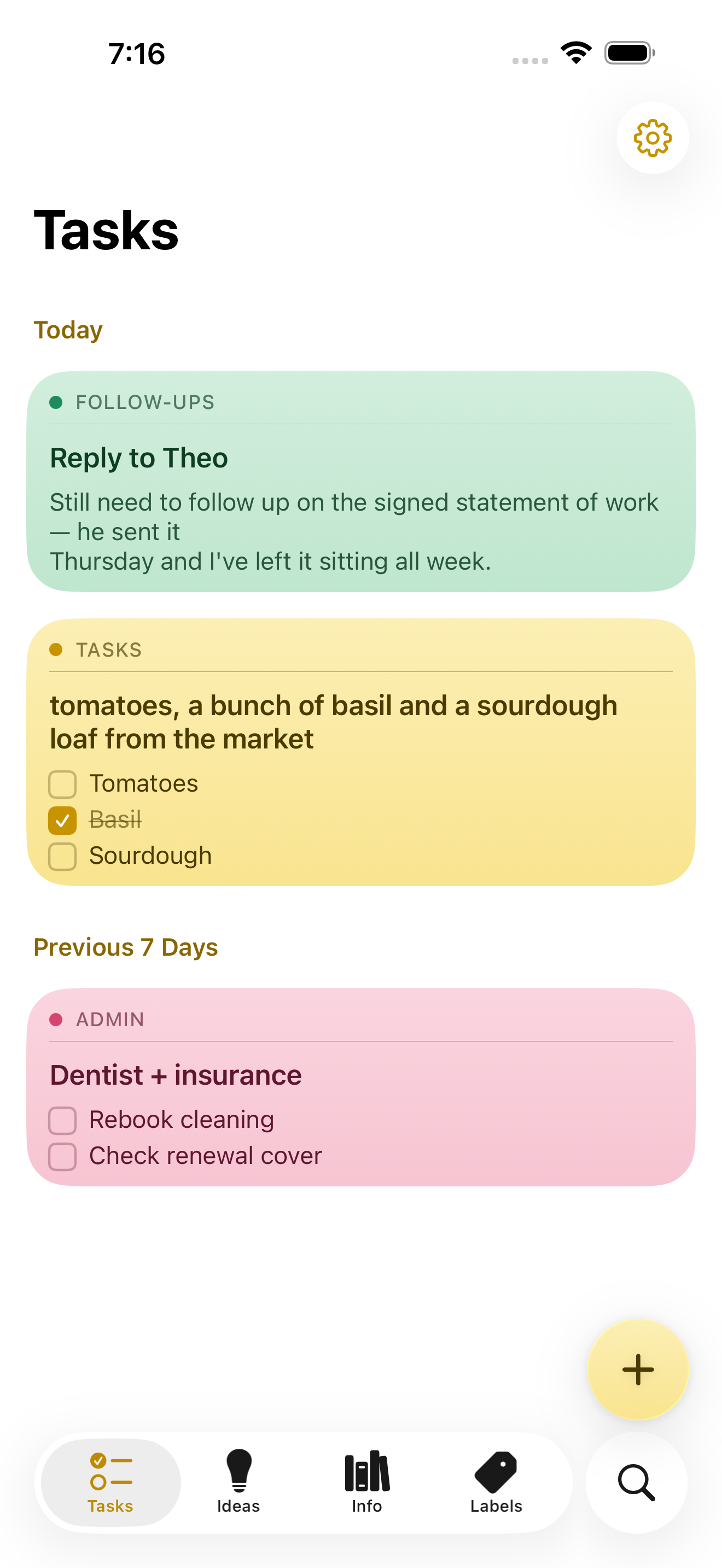
NoteWorthy is a notes app for iPhone, iPad and Mac that finishes the note after you have written it. You jot anything down — a messy line, a quick capture, a scraped list — and NoteWorthy writes a title, summarizes what you wrote, cleans up the formatting and files the note into the right place. Its purpose is captured in its own headline: You write the note. It does the rest. The app is built for people who capture quickly and organize slowly, and it is designed from the ground up to run entirely on the device it is installed on, without an account, without a subscription and without any note leaving the machine it was written on. The app aims at a familiar problem. Note-taking tools are easy to start and hard to keep. Notes arrive without titles, without structure and without a home, and the fixing-up work — naming, tidying, filing — is exactly the work people skip. At the same time, most modern notes apps ask for an account, hold content on remote servers and charge a subscription for the privilege. NoteWorthy's answer is to put the clerical part of note-taking on the device itself, so that titling, summarizing, formatting and filing happen automatically and privately, with nothing to trust beyond the hardware in your hand. Writing in NoteWorthy is rich text with real Markdown underneath. Checkboxes, headings, bold and italic, tables and images all work the way you would expect, and the note is stored as Markdown you can take anywhere. Six paper colors let you separate the look of different notes, you can scan text straight out of a photo, and any note can be exported as Markdown that opens in any other editor. The Markdown foundation matters because it makes the library portable by default: if you ever want to leave, you take your notes with you rather than leaving them behind inside a proprietary format. Two on-device writing tools do the tidying. AI Format turns a scrappy line into headings, bullets and checkboxes without changing your wording — it restructures, it does not rewrite. AI Summarize pulls a page of thinking down to a single sentence. In both cases you see the result before it touches the note, and you can then copy it, insert it, or replace the original with it. Both run on the device with no network in either direction, and on older hardware they fall back to fast built-in heuristics so the feature still works. AI Organize handles placement. Every note gets a title and files itself into Tasks, Ideas, Info or Personal, and you can make your own labels with your own icon and color and pin the ones you use most to the tab bar. A single tap on AI Organize tidies the whole library. The filing is deliberately deterministic: run it twice and nothing moves, because filing reads what is already stored on the note rather than asking a model to guess a second time. That detail is what makes automatic filing safe to rely on — the library does not reshuffle itself every time you press the button. Capture and retrieval extend the app beyond its own window. You can select something in Safari, share it, and it becomes a note; Siri and Shortcuts do the rest. There are five Shortcuts actions, and Summarize and Format work on text from any app. Widgets come in four sizes and include checkboxes you can tick without opening anything. Search works both inside the app and from the Home Screen: keyword search with highlighted matches that can be filtered by color, and every note indexed with Spotlight so the system search finds it without opening NoteWorthy, with Spotlight results opening the note directly. Indexing happens on device, like everything else. Notes also know what they contain: a date becomes a calendar event, a name links to your contacts, an address opens in Maps, and writing "remind me before Friday" prompts the note to offer to set a reminder. All of that detection happens on device and is never uploaded, nothing happens until you tap it, and reminders arrive as a local notification. Privacy here is presented as a property of the build rather than a promise. There is no server to trust because the app makes no network requests at all. There is no account to create and no connection required, so airplane mode changes nothing. The app can be locked with Face ID, notes are written to disk with file protection on iPhone and iPad and stay inside the app's sandbox on a Mac, and nothing is collected and nothing is tracked — no analytics, no advertising and no crash reporter of the developer's own. You can verify the claim rather than believe it: on a Mac the app is sandboxed without the network entitlement, so macOS itself would refuse any connection, and the entitlement list can be printed with a codesign command. On iPhone and iPad you can turn on App Privacy Report, and NoteWorthy never shows up under network activity. Underneath, two models run on the device. Apple's Foundation Models, part of Apple Intelligence running on the Neural Engine, write the words: note titles, summaries and the Markdown rewrite. Google's EmbeddingGemma 300M — a 300-million-parameter embedding model, quantized to 4-bit, bundled inside the app and run through MLX — decides where things go. Because it is an embedding model, it matches a note to a label by meaning rather than by keyword, and it can also conclude that none of the labels fit. It is loaded lazily and never downloads; the weights ship inside the app. As the site puts it, one writes and the other decides where things go, and neither can reach the internet because the app cannot. NoteWorthy is universal for iPhone, iPad and Mac and is a single Universal Purchase covering all three. It needs iOS or iPadOS 26 or later, or a Mac with Apple silicon running macOS 26 or later. Apple Intelligence is required only for the writing features — AI Format, AI Summarize and generated titles — and the app falls back to built-in heuristics without it, with writing, filing and search still working. Everything the app does today is free, with no ads and no subscription. iCloud Sync and Shared Notes are announced but not shipped; when they arrive they will go through your own iCloud account rather than a server of the developer's, and they will be a single one-time unlock. Until sync ships, each device keeps its own notes and you can move one across by exporting it as Markdown. The Mac version is in review for the Mac App Store; until it clears, it can be installed from a DMG or with a Homebrew cask. The intended audience is people who already live on Apple devices and want the convenience of AI assistance without handing their writing to a server. That includes anyone who captures thoughts in a hurry and never gets around to filing them, and anyone for whom privacy is a requirement rather than a preference. Because the app works offline and asks for no account, it also suits people taking notes in places where a connection is unavailable or unwanted, and people who simply do not want another subscription. The outcome for a user is a library that stays organized without a filing session. Notes arrive titled, structured and classified, which means search and Spotlight can find them later and the labels remain meaningful instead of becoming a junk drawer. Because there is no network path at all, notes carry no exposure: nothing to leak, nothing synced to a third party, nothing collected. And because the format is Markdown, the library is not a commitment — it is a set of plain text notes you can carry elsewhere. That plays out in ordinary workflows. You are reading something in Safari and a paragraph is worth keeping, so you select it, share it to NoteWorthy and it becomes a note; later a single tap on AI Organize titles it and puts it under Ideas. You dictate a messy list of errands; AI Format turns it into checkboxes without touching the wording, and the items can be ticked from a widget without opening the app. You have written a long page of thinking about a decision and want the gist, so AI Summarize offers a sentence you can insert while keeping the original underneath. You write "remind me before Friday" in a note about a signed statement of work, and the note offers to set a reminder that arrives as a local notification. The website's own sample notes show exactly this shape of use: a follow-up about a reply, a market list with items already ticked, a dentist and insurance note, a packing list for Lisbon and a sourdough starter idea, each one titled and filed under its own label. NoteWorthy's core proposition is narrow and firm: the AI help in a notes app does not have to travel. Titles, summaries, Markdown cleanup and semantic filing all happen on the iPhone, iPad or Mac you are already holding, the library is stored as Markdown you can export, and every feature the app ships today is free. For anyone who wants smart notes without a smart server, that combination — automatic organization plus an app that makes no network requests at all — is the whole point.
Jarq is a Mac app that acts on text right where your cursor already is, inside whatever application you happen to be using. Instead of copying text into a separate translator tab or assistant window, you select a passage, point at the dot that appears beside it, and choose an action: translate, shorten, fix, or rewrite. The result lands where you wrote it, replacing the selection in place. Jarq also dictates: you press a hotkey, speak, and finished text with punctuation and capitals appears at the cursor. It is built for people who write, read and answer messages all day on a Mac — in email, chat, documents or code — and who lose momentum every time they have to leave the app they are working in. Jarq exists because of a specific, repeated annoyance: every trip to a translator tab drops your train of thought. The website lays out the old way in seven steps — select the text and copy it, switch to a translator tab, paste and wait for the answer, copy the result, switch back, paste again, and then ask yourself where you were. That is seven steps and two app switches. Jarq reduces the same job to two steps and zero app switches: select the text, click a language button. There is a second, unplanned benefit the team highlights: because translations appear next to the original text in its real context, rather than in an isolated tab, words tend to stick, and phrases you translate today eventually stop needing a translator at all. The core interaction is minimal. Select text anywhere on your Mac and a small set of buttons appears right beside the selection — the product calls this the dot. From there you can translate, shorten or fix any text in the app you are in, and the answer lands where you wrote it. Where an application blocks text selection, Jarq has a fallback: the ⌥T hotkey grabs the text anyway, which the site says makes it work in places others cannot, naming Figma and terminals. Actions can be applied as a replacement in place, or copied for pasting elsewhere. Jarq runs from the menu bar and answers its keys wherever you are already typing. Translation is available for any selection across thirteen languages, including English, Russian, Spanish, Portuguese, French and German. You can translate between any two of them, or speak one language and get clean text in another — say it in Russian and English lands in the input. The site draws an explicit contrast between word-for-word translation and the way you would actually say it: Jarq aims for natural wording while keeping your tone intact rather than producing a literal rendering. Language buttons such as EN and RU sit beside the selection, and the site lists English, Russian, Spanish, French, German, Portuguese, Italian, Turkish, Kazakh, Arabic, Chinese and Japanese among its language options. Dictation follows the same in-place philosophy. You press ⌥ ` (Option plus backtick), talk, and press it again; polished text — punctuation and capitals included — appears right at the cursor of any app, whether that is Slack, Mail or your IDE. Dictation can also translate as you speak, so a spoken sentence in one language can land as written text in another. The site positions this against Apple's built-in dictation by noting that Jarq drops finished text into any app, can translate while you speak, and keeps working in the apps macOS dictation trips over. The microphone opens with the hotkey and closes when you stop, and the recording is not kept once it has become text. Beyond the built-in actions, Jarq lets you build your own buttons. You write an instruction in your own words — shorten this, fix the grammar, make it formal — and it becomes a button beside the language buttons, one tap away, listed alongside EN, RU, Shorten and a plus control for adding more. A notable design detail: selected text is never read as a command, only as material, so an instruction you have written is treated as the instruction and your selection is treated as the thing to be acted on. This keeps behaviour predictable when you are rewriting someone else's words, or text that itself looks like an instruction. Jarq is designed to stay out of the way and stay under your control. Every hotkey can be remapped, and your history stays on your Mac. The app installs as one file dragged into Applications, sits in the menu bar, and answers a key wherever you are already typing. The download page lists version 1.0 (84) at 15.1 MB, and the product is described as needing macOS 13 or later on Apple Silicon. Privacy is addressed directly on the site because, as the page puts it, an app that hears you and types for you owes you a straight answer about both. Two paths are described. On your Mac, history is a file on your own disk, and with on-device recognition your voice never leaves the Mac. In the cloud, a recording or a selection becomes text in memory and comes straight back — stored nowhere, trained on never. Jarq itself does not keep your text on its servers, and the microphone only opens with the hotkey and closes when you stop. A full privacy policy is linked from the site. Dictation through the optional on-device model is free and unlimited on every plan precisely because it never reaches Jarq's servers, so there is nothing to charge for. The outcome Jarq promises is continuity. Your flow stays intact: instead of a long chain of small context switches a day, there is one selection and one click. Writing speeds up too — you write the draft fast, then tap a sentence to make it shorter, cleaner or more formal, so a rushed first pass can leave the app already polished. Because translations appear in context, the site argues that words stick and repeated phrases gradually stop needing translation. And because actions are applied where the text already lives, there is no round trip through a browser tab or a separate assistant window: the same edits happen in place, in whatever app you are already working in. Four scenarios anchor the product on its website. The first is bilingual work: reading a message in one language and replying in another — the example is a Telegram conversation where a Russian message is read in your language and a reply goes out in theirs. The second is email: long drafts, typos and the wrong tone, handled by tapping a sentence in a Mail draft to shorten, clean or formalise it. The third is talking instead of typing — pressing the hotkey and speaking into Slack, Mail or an IDE and having clean text land in the field. The fourth is custom buttons: writing an instruction once and running it with a tap on whatever sentence is in front of you. A fifth case is any app that resists selection, where ⌥T reaches the text anyway, from Figma to a terminal to a PDF. Jarq is aimed at Mac users who work across languages and live in text: people who read in one language and answer in another, people whose email eats their day, and people who would rather talk than type. It is a native macOS app — the download requires macOS 13 Ventura or later on Apple Silicon (M1 or later). Pricing has three tiers. Free keeps working after the trial with 5 dictations or translations a day, unlimited on-device dictation, no account and no expiry. Pro is $4.99 a month or $39 a year for unlimited dictation and translation on up to 2 Macs, cancellable any time. A lifetime option at a $179 launch price (from $200) includes everything in Pro plus every future version, up to 2 Macs. Every install begins with 14 days of Pro at no cost, without a card or an account, prices are in USD with tax included, payment can be by card, PayPal or Apple Pay, and there are 30 days to change your mind. Jarq's value proposition fits in a sentence: translate, shorten, fix or rewrite any text right where your cursor is, in any app on your Mac — and dictate there too, without tabs and without copy-paste. Select, hit a hotkey, and the answer replaces the selection in place. Fourteen days of Pro are free, the free plan keeps working afterwards, and dictation can stay entirely on your machine.
Arc is a free AI assistant app that works on the screen you are already looking at. On Android it appears as a floating sidebar layered over every app; on Mac it is a panel you summon with Control+Space over any window. Rather than asking the user to describe their situation, Arc reads the current screen and acts on it — summarizing, reading aloud, rewriting, chatting, extracting structured details and running automated actions. It is designed for people who move between many apps and want AI help without leaving the app they are in, including students, writers, researchers, knowledge workers and anyone who benefits from hearing text read aloud. Arc is available on Android and Mac, with Windows in beta and iPhone in development. The problem Arc addresses is the friction of the conventional chatbot workflow. With a chatbot, the content that matters is never where the assistant is: a user has to select the text, copy it, open the AI app, paste it and explain the context, then copy the answer back. Arc's own site frames that as "5 steps · 2 apps · context lost every time." That overhead is small per action but constant in aggregate, and it discourages people from using AI for the long tail of everyday tasks — trimming a long email, checking the tone of a reply, pulling a tracking code out of a shipping message, or hearing an article while commuting. Arc's premise is the inverse: chatbots make you bring the screen to them, while Arc is already on it. Because it sits over the app you are using, the context is available without description, and the answer lands where the work is happening, producing "1 step · 0 app switches." Arc's summarizing capability turns articles, PDFs, long emails and message threads into numbered key points with an auto-detected title and source, so a reader can grasp the argument of a document at a glance. Because the summary is generated from the screen the user is on, follow-up questions can be asked about that same page without re-explaining the context, and the content can be explained or translated in more than ten languages, including English, Spanish, French, German, Hindi and Chinese. Summaries can be listened to, copied or saved to the library. The Listen feature complements it with natural text-to-speech voices and automatic language detection: any screen — article, document or message — can be read aloud with one tap from the floating sidebar, which Arc notes was built with accessibility in mind. That makes it practical to consume long material while commuting, cooking or resting the eyes. AI Writer works inside the text box the user is already typing in. It can rewrite a passage in a chosen tone, fix grammar, draft a reply or turn rough notes into a post, and then insert the finished text directly back into the focused field — in Gmail, WhatsApp, Slack or any other app with a text field — without any copy-paste. Replies can also be generated from the context of the conversation on screen, which is useful when a message needs an answer in a particular tone and there is no time to craft one. Smart Extract covers the opposite need: pulling structured facts out of a screen. It reads what is visible and returns dates, contacts, links, phone numbers, addresses, meeting times and tracking codes in a single pass, with nothing to highlight first, and every item can be copied with one tap. Beyond built-in actions, Arc lets users turn their best prompts into one-tap actions. A prompt written once is saved as a custom action that can be run on any screen, and it can be bound to a global hotkey so a repeated task becomes a single keystroke. For people who would rather not build from scratch, Arc hosts a community library of more than 500 ready-made actions created by other users for work, study, writing and research; the library can be filtered by category and language, added to the sidebar with a tap, and users can share their own actions in return. Arc also includes a study feature: it can generate a flashcard deck from the page, lecture notes or paper on screen and review it inside the app in a question-and-answer mode, with decks saved to the library across devices. Arc's workflow is deliberately short. On Mac, pressing Control+Space opens the panel over whatever is on screen; on Android, tapping the floating Arc bubble opens the sidebar over any app. From there the user picks an action — summarize, read aloud, write, chat, extract, or one of their own custom actions — or simply types a prompt. The result arrives in place: it can be inserted straight into the field the user was typing in, listened to, copied, or saved to the library, and pressing Escape returns them to work. Arc describes the whole sequence as "three seconds from question to answer" and contrasts it with the chatbot route, which takes five steps across two apps and loses context on every hand-off. There is also a chat mode that holds a conversation about the content on screen, so questions, clarifications and further exploration stay anchored to the document in front of the user. Privacy is treated as a condition of the product rather than an add-on. Arc reads the screen only when an action is run — there is no background monitoring and no keylogging — and it disables itself automatically in nearly 400 sensitive apps such as banking, crypto and password-manager tools, with users able to add their own exclusions. Screen content is processed to produce the answer and then discarded rather than stored on Arc's servers, and saved items remain on the device unless the user switches on Google Drive backup. Arc also never runs in the background, requires no account to start, shows no ads and has no expiring trial. A single account and a single subscription carry saved items across platforms, so summaries, answers and flashcard decks follow the user from phone to laptop. The practical uses follow directly from the actions. A reader facing a long article, PDF or email thread can get numbered key points in seconds and then ask follow-up questions about the same page. Someone answering messages can draft, rewrite or correct a reply in the right tone without leaving Gmail, WhatsApp or Slack. A commuter or someone resting their eyes can have any screen read aloud with automatic language detection. Anyone dealing with logistics can Smart Extract meeting times, addresses, phone numbers or tracking codes from a confirmation message, with each item ready to copy. A student can turn lecture notes or a paper into flashcards and review them in question-and-answer mode. And anyone who repeats the same AI task every day can bind a custom action to a global shortcut and run it on whatever is on screen. Arc is available now on Android, where it runs as a floating sidebar with every feature, and on Mac, where it runs as a Control+Space panel notarized by Apple and requires macOS 14.0 or later on Apple Silicon or Intel. A Windows beta is open, and an iPhone version is in development. The free plan costs nothing forever on every platform and includes seven requests per week on basic features; it can be used as a guest with no account, and Google Sign-In is optional, needed only for cloud backup and community features. Premium removes the limit for power users with unlimited AI summaries, unlimited text-to-speech, AI chat about any screen and workflow automation with custom actions, priced in local currency inside the app, with one subscription covering every platform. Arc's value proposition is narrow and clear: the AI should already be where the work is. By living on top of the screen instead of in a separate tab, it removes the copy-paste loop, keeps the context intact and puts the result back into the app the user never left — free to start on Android and Mac.
Lattice is a text rewriting tool that reshapes your writing through multiple language paths, creating a fresh expression while preserving the original idea. Its promise is simple: make any text sound like you wrote it. You type or paste a draft into the input box, select an input language and an output language, and press Transform. The rewritten version appears in the output panel, ready to be copied. Lattice is aimed at anyone who writes regularly — people polishing academic writing, drafting emails and communication, creating content, producing reports and documentation, expressing themselves across languages, or simply handling everyday writing — and who wants the result to read naturally rather than generated. Most drafts lean on the same handful of phrases. Lattice's own framing is that it finds those phrases and rewrites them in plain language, so your message lands the way you meant it. The before-and-after example on the site is a short request that opens with "I hope this message finds you well," asks to circle back on a project timeline, and calls a quick sync "a crucial step to ensure we're all aligned." The rewritten version reads: "Hi Sarah, quick follow-up on the project timeline so we stay on the same page. Free for 15 minutes this week?" The site labels the original as carrying four em dashes and stock phrases that read as AI-written, and the result as half the length with the same request. That gap between what a writer means and how a draft sounds is the problem Lattice addresses: writing bloated with filler and an overly even rhythm can bury the actual point. Lattice's core interface is built around a straightforward transformation workflow. An input language selector defaults to English, and an output language selector also defaults to English, so you can reshape text within a single language or move between languages. There is a 1000-character limit on the input, indicated by a counter such as 0 / 1000, which keeps requests focused and quick to process. A Transform button runs the rewrite, and the output panel displays your transformed text alongside a Copy button for lifting it straight into an email, document or draft. An advanced options section and a hop control — shown as "4 hops" by default — give you a way to adjust how the transformation runs before you commit to the result. Clear controls let you reset the input and the output panel. Lattice describes its rewriting in three principles. Drops the tells: stock openers, filler transitions and a too-even rhythm get replaced with wording people actually use. Keeps what matters: names, numbers, technical terms and the point you were making all come through untouched. Reads like you: sentences vary in length and flow naturally, so the result sounds written, not generated. Together these principles explain the site's headline example, where a wordy opener is replaced by a direct request. The emphasis on keeping names, numbers and terminology means Lattice is positioned not as a blanket paraphrase that quietly changes facts, but as a way to re-express a message while holding its substance in place — an important distinction for anyone whose text contains details that must survive a rewrite. The distinctive mechanism is Lattice's use of language paths. The site's explanation is that every language says things its own way, and Lattice passes your text through a few of them, so what comes back keeps your meaning but loses the stiff, predictable phrasing. A visual on the page traces the journey as English (your draft) to Spanish (hop 1) to German (hop 2) to Japanese (hop 3) and back to English, presented as a different path to the same idea. Lattice also offers writing modes: academic writing, emails and communication, content creation, reports and documentation, multilingual expression, and everyday writing, presented across six options. The academic writing mode is described in detail — good research writing is precise, not padded, so Lattice smooths out clunky sentences and repetitive transitions while leaving your terminology, citations and argument exactly where you put them. Put together, Lattice's approach is to treat rewriting as a journey rather than a single pass. You supply a draft of up to 1000 characters, choose the language you are writing in and the language you want back, optionally adjust how many hops the text makes, and then transform. The text travels along the language path — for example through Spanish, German and Japanese — and returns in your target language carrying the same idea in different words. Because the transformation is driven by the ways other languages phrase the same thought, the output tends to avoid the stock constructions that a straight rewrite would reproduce. The hop setting and advanced options let you steer that journey before running it, so you can experiment with how far the text should travel before landing back in your original language. The stated benefits follow directly from those mechanics. Your message lands the way you meant it because filler and predictable phrasing are replaced with plain language. The result reads naturally rather than generated, since sentence lengths vary and the flow is less even than a templated draft. At the same time, the substance of your writing survives: names, numbers, technical terms and your central point come through untouched. For people writing in a second language, or writing for audiences who read in another language, the language path offers a way to produce a fresh expression of the same idea, and multilingual expression is called out as one of the modes the tool supports. Shorter, clearer text is the typical outcome — the site's flagship example roughly halves the length while keeping the request intact. Lattice presents six ways it is used, listed as academic writing, emails and communication, content creation, reports and documentation, multilingual expression, and everyday writing. Academic writing is the mode described in most detail: Lattice smooths clunky sentences and repetitive transitions while leaving terminology, citations and argument in place, which suits research writing where precision matters more than flourish. In emails and communication, the site's own sample turns a padded follow-up message into a two-sentence request for a 15-minute call. Content creators can reshape drafts that lean on the same handful of phrases. Reports and documentation benefit from plainer language that keeps the point and the numbers, multilingual expression is for moving a text through other languages and back, and everyday writing covers routine messages that still deserve to sound like they came from a person. The tool is aimed at people who write every day and want their text to read like a person wrote it: academic and research writers, professionals handling email and communication, content creators, those producing reports and documentation, multilingual writers, and anyone writing everyday messages. The interface labels input and output languages and defaults both to English, and it enforces a 1000-character input limit. Beyond the language selectors, the hop setting and the advanced options panel, the site reviewed here does not detail integrations, underlying models, or a technology stack, and no pricing or plan information is published on the page. Lattice's value proposition is easy to state: same meaning, a more natural expression. By passing your text through multiple language paths, it strips out the stock openers, filler transitions and too-even rhythm that make writing read as generated, while leaving your names, numbers, technical terms and core point untouched. Whether you are smoothing an academic paragraph, tightening a follow-up email, or shaping content for readers in another language, Lattice offers a fast, adjustable way to make any text sound like you wrote it.
Ryu Journal is a journaling app for iPhone and iPad, available now on the App Store, built to give busy minds a quiet place to put a thought down and let it go. Its name comes from the Japanese word for “flow,” and that single idea shapes the whole product: open the app, write what is on your mind, and get back to your day. Ryu Journal presents itself not as a social platform and not as a productivity system, but as a calm, private space — no accounts, no social feed, no pressure. It is made for people who want to record a thought quickly and then release it, rather than build a public archive or maintain another online presence. The problem Ryu Journal addresses is subtle but familiar. Many journaling and note-taking tools ask for an account, add a feed, push notifications, and quietly collect data — turning a personal reflection into another corner of the internet. For a busy mind, that friction is enough to stop the habit before it starts. Ryu takes the opposite approach: the app describes journaling as a way to let a thought flow and then let it go. There is no sign-in, no social layer and no tracking, and that restraint is the point. Instead of asking users to manage a profile or an audience, the app asks only for a few written words, which makes writing feel less like publishing and more like exhaling. The wording used in the app itself — “Write it down. Let it flow. Let it go.” — summarizes the intent, and the app describes itself simply as a quiet place to put a thought down and let it go. At its core is a clean, distraction-free editor. Writing happens through the simplest possible gesture: tap the plus button, write, and save. Any entry can be reopened later by tapping it, so a thought started in the morning can be continued in the evening without hunting for a file or a folder. The app does not require titles, tags, notebooks or formatting decisions, which keeps the act of writing as short as the moment allows. Over the course of a week, entries gather softly into one simple timeline, giving the user a plain chronological view of what they have written. That timeline is deliberately quiet rather than analytical — it shows the week as it happened instead of scoring it or ranking it. Pulling the journal down reveals Trends, a summary of what has been written. Trends includes a streak, a word cloud and a mood signal, all derived from the user's own entries. These are presented as gentle reflections rather than metrics to optimize: the streak acknowledges consistency, the word cloud surfaces the keywords and themes that recur in the writing, and the mood element reflects the mood signals derived from the entries. Trends also uses the phone's motion sensors only to tilt its colors as the phone moves — a small piece of visual liveliness that stores nothing from the sensors. Because Trends sits behind a pull gesture, it stays out of the way when the user only wants to write. A Home Screen widget keeps a gentle zen quote visible without opening the app. The widget reads a small snapshot of the user's latest entry and its quotes from local storage, shared only between the app and the widget on the same device. The quotes shown draw from a curated set of sources, including Zen proverbs such as “Let go or be dragged” and “The obstacle is the path,” Lao Tzu (“Nature does not hurry, yet everything is accomplished” and “When you realize nothing is lacking, the whole world belongs to you”), Ram Dass (“The quieter you become, the more you can hear”), Thich Nhat Hanh (“Feelings come and go like clouds in a windy sky” and “Smile, breathe, and go slowly”), Eckhart Tolle (“Wherever you are, be there totally”) and Glen Hansard. Placed on the Home Screen, the quote acts as a small, persistent reminder of the app's underlying idea. How the app works overall is defined by where the data lives: on the device. Everything written in Ryu Journal — entries, and the keywords, themes and mood signals derived from them — is stored locally. The app has no accounts and no sign-in, so there is no identity attached to the writing. It ships without analytics, telemetry or crash reporting SDKs, without third-party services, ads or trackers, and without network requests that carry content, which means it works fully offline. If the user turns on app lock, the passcode is kept in the device's keychain and never leaves it. The result is a journaling tool whose privacy model is architectural rather than a setting buried in a menu. The practical benefit is a journal that asks nothing back. Because there is no account, no feed and no analytics, users can write honestly and then close the app; there is nothing to check, nobody to update and no profile to maintain. The friction that normally interrupts a journaling habit — logging in, choosing a notebook, worrying about who might read it — is removed, leaving only the page. The Trends view offers a low-effort way to notice patterns over time, such as which words keep returning or how a mood shifts across a week, without turning reflection into another dashboard. Users also keep direct control of the content: entries can be deleted, and the privacy policy states plainly that your journal never leaves your device. Concrete uses follow from that design. Someone in the middle of a busy working day can tap the plus, type a single thought that is taking up mental space, save it and get back to work — later, tapping that entry lets them keep writing if the thought returns. Another user might end the day by writing freely in the distraction-free editor, then pull the journal down to see the streak, the word cloud and the mood reflected in what they wrote. Someone who wants to see the shape of a week can scroll the timeline, where entries gather into one simple view. Others may keep the Home Screen widget as a quiet daily touchpoint, glancing at a zen quote without opening anything, or switch on app lock so the passcode protects the journal inside the device keychain. Ryu Journal is aimed at busy minds — people who want to write a thought down and let it go rather than publish it, and who care that their writing stays private. It runs on iPhone and iPad and is distributed through the App Store, and it is listed alongside topics such as iOS, Writing and Meditation. Beyond the App Store, the app has no third-party integrations by design, and it makes no network requests that carry content. The only external data path described is a device-level one: if a user has iCloud device backups enabled, their device may include the app's local data in the encrypted backup, which is governed by Apple's privacy policy and is not accessible to the developer. The provided content does not describe any pricing or subscription plans. Taken together, Ryu Journal is best understood as a small, deliberate tool rather than a feature-rich platform. Its value proposition is the combination of an instant, distraction-free writing flow, a gentle weekly timeline and Trends view built from the user's own words, and a privacy model in which nothing leaves the device. “Let it flow. Let it go.” is not just a slogan here — it is the product's operating principle, from the tap-plus-and-write editor to the absence of accounts, analytics and social feeds. For anyone with a busy mind and a preference for quiet software, Ryu Journal offers a place to put a thought down and walk away.
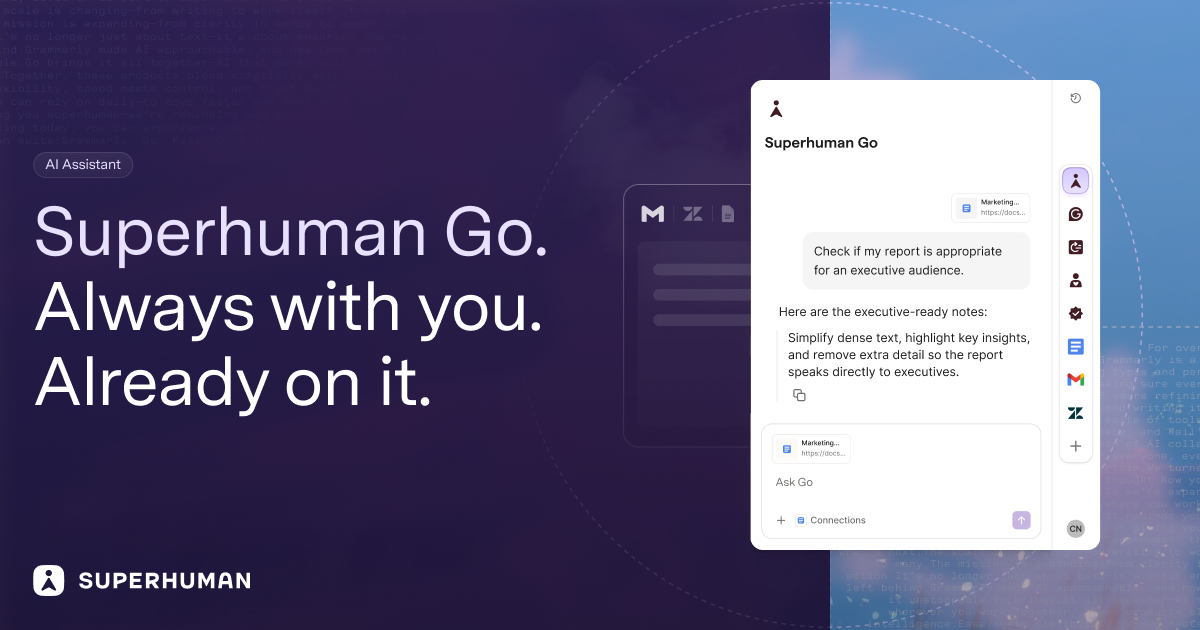
Superhuman Go is an AI assistant and agent platform that works everywhere you already work. Rather than waiting for a prompt, Go looks for opportunities to help you say something better or do something faster, offering proactive suggestions inline across more than 1 million apps and websites. It runs inside Gmail, Slack, your documents, and your browser, and it can also be used through a dedicated Go app for focused work with AI. The product is built for people who want AI help in the flow of what they are already doing, and it is designed to fit into an existing workflow rather than replacing it. Superhuman describes Go as an AI assistant that moves with you to save time, improve focus, and make work effortless. The problem Go addresses is that most AI assistants are destinations. The Superhuman Go FAQ frames this directly: tools like ChatGPT, Claude, Cowork, and Gemini are powerful general-purpose chatbots, but you have to open a separate window, describe what you need, and copy the result back into your work. That means switching tabs, re-explaining context, and pasting answers back and forth. Go is built for the opposite experience. Because it lives inside the apps where you already write and work, it already understands the email you are replying to, the document you are drafting, or the message you are about to send, so no prompt engineering is required. Instead of waiting for a request, Go surfaces the right suggestion at the right moment, the way Grammarly's underlines always have. The result, according to Superhuman, is depth where it matters most: drafting, rewriting, replying, and getting tone right across every app you use. Suggestions as you type. Everywhere you write, Go annotates in real time and points out where you could be clearer, more convincing, or simply wrong. It can give you the knowledge you need as you type, whether that is a grammatical rule, a company-approved stat, or a forgotten tidbit from last week's meeting. The writing intelligence comes from a customizable Grammarly agent: you tell it which underlines you find useful and it adjusts its feedback going forward. A separate Knowledge Checker agent acts as a researcher behind the scenes, searching your data sources for evidence to back up your claims and preventing you from making the wrong one. Managing email and meetings. Go sorts your incoming mail and pre-drafts replies in your voice and with your context, so you can respond in record time. That work is handled by the Email Assistant agent, which is informed by your voice, calendar, and connected apps and is powered by Superhuman Mail. Go also serves as a meeting co-host: you can ask it to handle the prep and the follow-through, having it crowdsource the agenda before a team sync or auto-assign tasks when the meeting ends. A team of agents. Go comes with a powerful set of default agents and lets you build your own. The Agent Store is a growing library of ready-made agents from Superhuman and its partners, with agents for schoolwork, sales teams, accountants, and more. A Daily Brief agent starts every day with a custom report based on your apps, showing deals about to close in Salesforce, Jira tickets from last night, and tasks and meetings that need your attention. Custom agents are designed for your own workflows and routines, and can be configured to show up as you type, on a schedule, or after an event, such as when a meeting ends or someone sends you an email. Agents are described as your team of AI collaborators, built for common tasks that fill up your workday, like summarizing long threads, drafting reports, or finding information across tools. No coding required. Anyone on the Pro, Business, or Enterprise plans can build custom agents through a simple chat conversation or a visual agent builder, and agents can be shared directly with teammates or published to a company agent directory. For deeper integrations, the Superhuman Agents SDK lets developers build agents that plug into an organization's unique tools, systems, and workflows. Connectors and context. AI is only as good as the context you give it, so Go connects to the apps you use most through pre-built or custom MCP connectors. Everything Go says and does is grounded in your knowledge, which is what allows it to take on more complex tasks, such as building out a team project tracker and keeping it up to date. Superhuman calls this your second brain: the combination of connected data sources and agents that makes the assistance genuinely useful rather than generic. Go changes shape to meet you where you are and conform to how you work. In your text it appears as an underline that delivers the knowledge you need as you type. A context-aware side chat is always at your side, ready to chat about whatever you are reading, writing, or wondering. On your cursor, highlighting text in any app cues a list of actions from your favorite agents. In Slack, you can message Go like a teammate or at-mention it in a group channel for a quick answer or task. Because Go understands what is on your screen, you never have to copy-paste or describe what you are working on. The standalone Go app is the home base for tackling complex tasks and managing all of your Go agents. The intended outcome is time saved, improved focus, and work that feels effortless. Superhuman positions Go as a practical AI work assistant that reduces your daily admin tasks, and it states that nothing happens without your approval: Go suggests, and you decide. On trust, Superhuman maintains Grammarly's 17-year track record of safe, responsible AI, and its infrastructure is trusted by over 40 million people. The company follows industry best practices in security and privacy, you control whether your content is used to train Go's AI models, and for Enterprise users AI training is off by default. Use cases include drafting and refining documents inside the tools you already use, coordinating meetings end to end from scheduling to follow-up, managing tasks across tools like email, Asana, and Jira, and surfacing past decisions or context on demand. Go is aimed at professionals and teams who need real results rather than just a chatbot, and the Agent Store also lists agents for schoolwork, sales teams, and accountants. It is available through the Superhuman desktop app for Windows and Mac, browser extensions for Chrome and Edge, and mobile apps for iOS and Android, and it can also be used in your browser with nothing to install. Go is free to start and included in every Superhuman plan, while custom agent building is available on Pro, Business, and Enterprise plans. If you already use Grammarly, you can switch on 'Use Superhuman Go' in your Grammarly settings with no new install, and you can switch back anytime. Superhuman Go's primary value proposition is proximity: it brings proactive, context-aware AI to the apps and websites where work actually happens, backed by a team of customizable agents and Grammarly's writing intelligence, so better phrasing, faster replies, and well-prepared meetings arrive without you having to go looking for them.
Brainlist Calendar is a task and calendar app built from someone with ADHD, for people who want to get tasks and events done. It helps you plan your day with a list view that shows all events and tasks in one timeline, alongside a monthly calendar view that syncs automatically. The product's core promise is simple and stated plainly in its tagline: every notes entry shows up in your list AND your calendar. That means notes, tasks and events live in one place rather than being scattered across separate apps, and anyone who wants to finally get organized and stick with a single system can use it. It is designed with particular attention to people who struggle with normal calendars. The app grew out of a very specific frustration. The maker explains that she has ADHD, tried hundreds of calendars, and went back to her notes app every single time. Using a notes app simply worked better for her: as she puts it, her brain needs a list, not a sheet. But that approach had a cost — notes would get lost all the time, and she got sick of forgetting things, which is why she built Brainlist. A commenter on the launch pointed at the related flaw in most task apps: they assume you can categorize a thought the second you have it, and that is exactly the step that kills the habit. Brainlist is built around the opposite flow — capture now, triage later — so the moment of capture never depends on making decisions. The two primary surfaces of Brainlist Calendar are a list and a calendar. The list view shows all events and tasks in one timeline, so a task and an appointment from the same afternoon sit next to each other instead of in different tabs. The monthly calendar view syncs automatically, and the central behaviour of the product is that every notes entry appears in both places. In practice this means you write or dictate something once and it shows up as an item in your running list as well as an entry on your calendar, with no duplication and no manual copying between apps. For someone who has repeatedly abandoned conventional calendars, keeping the list as the working surface while the calendar stays in sync preserves a visual overview without forcing the spreadsheet-like grid that the maker says does not work for her brain. Brain Dump is the capture layer. With it you quickly capture a thought by typing it or dictating it, and then you can get back to it later without the note being buried away forever. This is the anti-forgetting mechanism at the heart of the app: rather than trusting memory or a note that sinks to the bottom of a long document, the captured item is preserved and flows into the rest of the system. The maker describes the capture as genuinely frictionless, and says the resulting pile goes into the Eisenhower matrix on its own. A user on the launch thread called the brain dump now, triage later flow the part that would actually get them to use the app daily, because it removes the categorization step from the moment of capture. Two features help turn a captured pile into a plan. The Eisenhower importance/urgency Matrix sorts items according to how important and how urgent they are, giving a structured view of where attention should go. The captured pile feeds into the matrix automatically, but the maker is explicit that triaging still happens manually: it takes two toggles and a tap-out per item to place something in a quadrant. She has said she is excited to improve this, and has asked users whether they would prefer a pop-up that lets them drag an item into a quadrant or an AI that decides the quadrant for them. The second feature is a spin-the-wheel picker for when you cannot decide what to start with — it picks a task for you, which short-circuits the hesitation that often stalls the start of the day's work. The Pro version is mainly about unlocking AI planning. According to the maker, Pro estimates event times, breaks tasks down for you, and preps reminders. If you record a meeting, Pro can break the recording down into tasks. If you travel somewhere, Pro also checks how long it takes to reach your event and reminds you when to leave, turning a static calendar entry into a travel-aware prompt. Pro additionally lets you track your actual houseplants with watering and feeding reminders, which shows how far the app stretches beyond conventional task lists into recurring real-world care routines. The maker has been open about what Pro includes and has invited users to suggest features they would want to see in the plan. Overall, Brainlist Calendar works by merging three things that are usually separate — notes, tasks and the calendar — and by splitting the act of capture from the act of organizing. You dump a thought, a task or an event into the app by typing or dictating, and it immediately exists in the list and on the synced monthly calendar. Later, when you are ready to think about priority, items move into the Eisenhower matrix, where you triage them by hand into importance and urgency. When you are ready to act, the spin-the-wheel picker can choose a task for you. The unique approach is this ordering: nothing requires a decision at the moment of capture, and no entry lives in only one view. The stated outcome for the maker is significant: she says the app genuinely changed her life, that she wanted to get organized and finally stick with something, and that she did. The design targets the two failure modes that made earlier attempts collapse — notes getting lost, and calendars that a list-shaped brain will not keep up with. A user who had been using the app for two days reported really liking it so far and called having notes, tasks and calendar all in one place pretty neat. The benefit is not a longer feature list; it is that one system holds everything, so there is nothing to migrate to and nothing that quietly disappears. Typical use cases follow the daily rhythm the app was designed for. Planning your day means opening the list view, which already contains both events and tasks in one timeline, and checking the synced monthly calendar for what is ahead. Capturing a thought on the go means either typing it or dictating it into Brain Dump so it can be dealt with later rather than being lost. When a long list makes starting hard, the spin-the-wheel picker chooses for you. When you are ready to sort, you triage the dumped pile inside the Eisenhower matrix. Pro adds use cases such as recording a meeting and having it broken into tasks, checking travel time to an event so you are reminded when to leave, and tracking houseplants with watering and feeding reminders. Brainlist Calendar is available as an iOS app, distributed through the Apple App Store. It is free to use, and a Pro subscription unlocks the AI planning features; subscriptions are available Weekly, Monthly or Yearly, each with a 7-day free trial. The product was launched on Product Hunt by maker Lara Hopf and lists Claude Code, Gemini 3.7 Flash and RevenueCat among the tools it was built with. Product Hunt topics for the launch are Task Management, Notes and Calendar. The maker is openly gathering feedback, including from users who struggle with normal calendars, and has said that a V2 is planned. Brainlist Calendar's value proposition is that it stops the split between notes and calendars. Every entry you capture shows up in your list and in your synced monthly calendar, the Eisenhower matrix and spin-the-wheel picker help you decide what matters and what to start, and Brain Dump makes sure nothing gets buried. For people whose brains work better with a list than a grid — and who have tried and abandoned plenty of calendars — that combination is the point.
GoodSocials is an AI social media manager for LinkedIn. It writes high quality LinkedIn posts from deep research or from your own data, you approve them on a board, and it schedules them so you post regularly — five times a week, close to daily. The example board on the site is set up for TimeTuna.com, a scheduling service, with the stated goal of inbound leads. Signing in with LinkedIn and pasting your website fills a board with seven posts in 90 seconds. GoodSocials says it is built for the person whose name is on the profile, and it is positioned around only authentic content: research, deep dives and your numbers, nothing else. The problem GoodSocials addresses is cadence and cost. A social media manager costs around $3,000 a month. Against that, GoodSocials notes that a manager posts most weeks, needs about a week of onboarding before first drafts arrive, and stops when you are on holiday — while the product posts every weekday, delivers first drafts in 90 seconds, and posts what you queued while you are away. The cadence section frames the issue bluntly: three posts in your last three months versus twenty posts next month, with the promise that profile views, followers and inbound leads follow a steady month. There is also an explicit quality argument running through the marketing, which is built around avoiding 'AI slop', cringe openings and clichés such as 'nobody talks about this' or 'it's not X, it's Y'. Every post GoodSocials writes is one of three kinds: market research, deep dive, or your numbers. Market research posts draw on comparisons of the market — for example, one card reports that of 12 scheduling tools compared that month, 9 put round-robin behind a paid tier and two moved it there last quarter. Deep dives go further into a single source: one card codes the most frequent week-one question from 1,200 support threads and notes it points somewhere the roadmap had not looked; another reviews Iyengar & Lepper (2000) and Scheibehenne et al. (2010) to explain why a product shows three slots, weighing one famous jam study against a meta-analysis of 50 experiments. Your numbers posts report figures read from your own connected tools, such as failed deploys per release falling about 62% after one CI rule on a small sample of 11 releases, or 31% of August signups choosing annual, up from 19% in July. The claim is that the content comes from research, deep dives or your numbers — nothing else. GoodSocials is also explicit about what it will not write. The site shows a rejected example: 'Nobody talks about this, but scheduling is broken. I spent 10 years in SaaS. Here is what I learned: It's not about the tool. It's about the mindset. Agree?' The stated rules are no cringe, no 'no one talks about this', and no 'it's not X, it's Y'. What it writes instead is grounded in a specific number with the source attached — for example a post reporting that reschedules fell from 18% in May to 7% in August after one change, with n = 9,412 meetings, an acknowledgement that seasonality could explain part of it, a holdout running in October, and a next question about no-shows. That stylistic discipline is the differentiator the site leads with. You stay in control through an approval board. Posts arrive as cards, you review and revise them, and only approved items are scheduled. Cards display the posting time, such as 'Publishes Tue 09:00', and the board reflects a weekday cadence of five posts a week. The pipeline shown on each card is: reads your tools, writes the post, draws the image, you approve, publishes. The cadence section states the product takes you from three posts in your last three months to twenty posts next month, and the aim is to show up every weekday because the rest — profile views, followers and inbound leads — follows a steady month. Correcting the output is a first-class feature, described as 'Correct it once. Every post after follows.' The mechanism has three steps. First, you leave a note on a card, such as 'Open on the number, not a question.' Second, that note rewrites the card and becomes a rule in your voice; rules accumulate under a VOICE heading, with examples like 'Reports, does not sell' and 'Opens on the number.' Third, every next post follows the accumulated rules. The site illustrates the compounding effect with a timeline: Week 1, one rule; Week 4, two rules; Week 12, five rules, every one from a note of yours. The Pro plan also lists three brand principles that learn from every revision. GoodSocials works from your own data by reading your tools. The example board lists connected data sources: PostHog, Stripe, GitHub, Plausible and Notion, all connected read only. Those sources feed the 'your numbers' post type, which is why a card can quote reschedule rates, signup mix or deploy frequency with the tool named underneath it. Images are generated as part of the workflow, since the pipeline includes 'draws the image', and the Pro plan includes up to 200 generated images a month. The site also notes what is coming next: Codex, Claude Code and Grok bot integrations. The overall approach is a repeating loop rather than a one-off generation. You sign in with LinkedIn and paste your website; the board fills with seven posts in 90 seconds, with 7 days free and then $100 a month. Each post then runs through the same five-step pipeline: it reads your tools, writes the post, draws the image, you approve, and it publishes at a scheduled time such as Tuesday 09:00. Research and deep dives come from outside sources with citations, while your numbers posts come from connected analytics. Because approval happens before publishing, and because corrections become persistent voice rules, the system is designed to improve week over week instead of resetting each time. The outcomes GoodSocials claims follow from the cadence: profile views, followers and inbound leads follow a steady month of showing up every weekday. The comparison table against a $3,000 a month manager lists the concrete differences — posts every weekday rather than most weeks, first drafts in 90 seconds rather than after a week of onboarding, and posting what you queued when you are on holiday rather than stopping. The board is full in 90 seconds, so there is no long ramp before the first post appears. And because every correction becomes a rule, the site argues the output moves closer to your voice over time, which is the basis for its 'only authentic content' positioning. GoodSocials is built, in its own words, for the person whose name is on the profile: founders, consultants, operators and agencies. The site maps each group to the kind of data it writes from — founders to Stripe numbers, consultants to Notion-based client work and engagement patterns, operators to GitHub and engineering numbers, and agencies to each client's own data. Pricing has three tiers with 7 days free on each and no setup fee. Pro is $100 a month for one LinkedIn profile, including three brand principles that learn from every revision and up to 200 generated images a month. Agency is $1,000 a month for up to 10 profiles with one board per client, where each client authorises their own profile so you never hold a password, and GoodSocials emails you before a client's access runs out. Consultancy is $2,000 a month, where Pasha, the founder, sets up your themes, principles and sources with you and holds a call with you every week. Plans can be changed or cancelled from the pricing page or settings. In short, GoodSocials is a LinkedIn posting system that combines deep research and your own product data with a human approval board and a voice that improves from every correction. Its value proposition is showing up every weekday with content drawn from real research or real numbers, at $100 a month instead of the $3,000 a month a social media manager costs.
Paragraph Notes is a privacy-focused Markdown notes app for Mac, created as a private place to write and keep notes in plain text. The app is built around a simple, distraction-free plain text editor that supports Markdown formatting, so users can structure their writing with Markdown while their notes stay as plain text. It is intended for Mac users who want a straightforward environment for writing notes rather than a large, feature-heavy system. Its stated purpose is to let people write notes and keep them on their own machine: Paragraph Notes collects no data, never connects to the internet, and stores notes locally in an open, portable format. Many modern note-taking tools run in the cloud, require an account, move notes between servers, and gather information about how the app is used. For people who would prefer their writing to stay on their own device, that model creates friction: the notes live somewhere else, and the tool's behaviour depends on a network connection and on a company's policies. Paragraph Notes takes a different position. It is described as privacy-focused, it collects no data, it never connects to the internet, and notes are stored locally in an open, portable format. Without network access and without data collection, the writing happens entirely on the Mac, so the notes are not sent anywhere and no usage information is gathered. At the centre of the app is its Markdown editor. The website describes the editor as plain text with Markdown formatting, which means writing happens in a plain text field where Markdown is used to add formatting as you write. This keeps the writing surface simple and predictable, and it keeps notes tied to a widely understood, text-based syntax rather than to a proprietary rich-text format. For anyone already comfortable with Markdown, this is a familiar way to write; for anyone new to it, the app provides a user guide to help them get started. The combination of plain text and Markdown is what makes the notes practical to read, edit, and move around. The interface is described as a distraction-free writing environment. That means the app is designed to keep attention on the text rather than on toolbars, panels, or surrounding chrome. A distraction-free editor matters because note-taking is often a small, frequent act: a thought to capture, a paragraph to draft, a list to jot down. Reducing the interface to the essentials makes it faster to start writing and easier to stay with what you are writing. Because the app never connects to the internet, the writing environment is also independent of a network connection, so starting a note does not depend on being online. Privacy is the headline characteristic of Paragraph Notes. The app collects no data and never connects to the internet, so notes are not transmitted to a server and no usage information is gathered. Notes are stored locally in an open, portable format, which means they live on the Mac rather than in a company's cloud, and they are kept in a form that is not tied to the app itself. For users who think about where their writing lives, that combination is the point: private by default, offline by design, and stored in a format that stays useful outside the app. The website's one-line summary captures the intent exactly: Paragraph Notes is a private Markdown notes app for Mac. Overall, Paragraph Notes follows a simple model. You install the Mac app, open it, and write notes in plain text with Markdown formatting in a distraction-free editor. Notes are written and kept locally on your Mac in an open, portable format; the app collects no data and never connects to the internet. The product is distributed through the Mac App Store, where it is listed as Paragraph Notes, and a user guide is available on the website for getting started. The business model is equally simple: the app is free to use for up to 20 notes, and a Pro upgrade is available through a one-time in-app purchase for unlimited notes, priced at $19.99. The benefits follow directly from those choices. Writing in plain text with Markdown keeps notes simple and readable, with structure added through syntax rather than through heavy formatting controls. Local-only storage keeps notes on the user's own Mac and removes dependence on a network connection or on a third-party service staying online. Because no data is collected and the app never connects to the internet, users do not have to weigh up what information about their writing might be gathered. And the notes themselves, stored in an open, portable format, are not trapped inside the app. For people whose main concern is owning their own notes, these are the outcomes that matter most. In practice, Paragraph Notes fits workflows built around writing on a Mac. A user might keep a personal notebook of notes, drafted in plain text and formatted with Markdown, on the machine rather than in the cloud. Someone who already writes in Markdown can use the app as a quiet place to draft, keeping the same plain text conventions they use elsewhere. Because notes are stored locally in an open, portable format, they can be kept, backed up, and read outside the app rather than being confined to it. Writers who want minimal tooling can use the distraction-free editor to remove everything but the text, and anyone who starts with the free tier can keep up to 20 notes before deciding whether to upgrade. The user guide on the website provides starting instructions for these workflows. Paragraph Notes is aimed at Mac users who want a private, simple notes app rather than a cloud-connected service. It suits people who care about where their notes are stored, who prefer plain text and Markdown over proprietary formatting, and who want a distraction-free place to write. The app is distributed through the Mac App Store, and the website links directly to its App Store listing. Pricing is straightforward: Paragraph Notes is free for up to 20 notes, and Pro is a one-time $19.99 in-app purchase that removes the note limit, giving unlimited notes. The website and the user guide are the primary sources of documentation, and the app itself is presented in English. Paragraph Notes positions itself on a single, clear promise: a private Markdown notes app for Mac. It combines a plain text Markdown editor, a distraction-free writing environment, and local-only storage in an open, portable format with a policy of collecting no data and never connecting to the internet. Free use covers up to 20 notes, and a one-time $19.99 Pro purchase unlocks unlimited notes. For Mac users who want their notes to stay on their own machine, written in plain text and formatted with Markdown, Paragraph Notes offers exactly that and little else.