Category Focus/categories/productivity
Productivity AI Tools
Discover and compare the best productivity AI tools and software. Browse 874+ curated tools with reviews and rankings.
Projects tracked
874
Sort mode
RECENT
Page
6
Discover and compare the best productivity AI tools and software. Browse 874+ curated tools with reviews and rankings.
Projects tracked
874
Sort mode
RECENT
Page
6
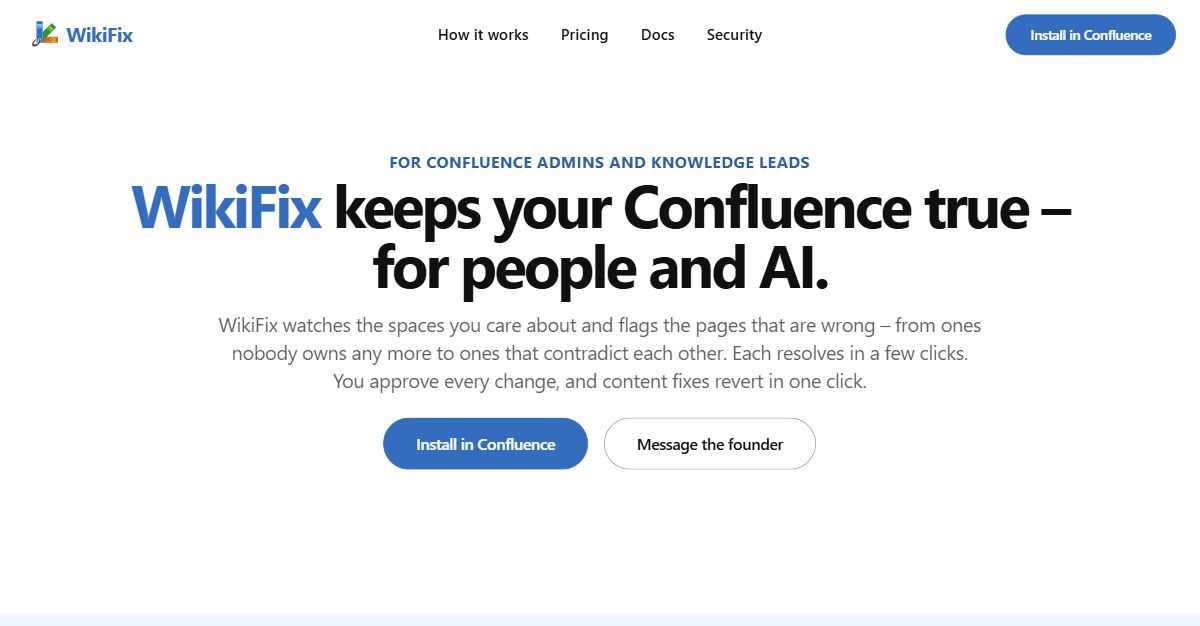
WikiFix for Confluence is a knowledge base maintenance tool built for Confluence admins and knowledge leads. It watches the spaces you care about and flags the pages that are wrong — from pages nobody owns any more to pages that contradict each other — and each finding resolves in a few clicks. You approve every change before it is written, and content fixes revert in one click, so nothing happens until you decide it should. Its purpose is to keep your Confluence true for people and for AI. The problem WikiFix addresses is documentation drift. Pages quietly go stale, and the page you needed to be right is often the one that quietly drifted. An incident hits and you pull up the payments outage runbook, only to find half the steps do not match reality: one tells you to SSH into a host that is not found, another to restart a service that no longer exists. A new hire works through the developer setup guide step by step on day one and nothing works — old screenshots, dead links and steps that no longer exist — so a day is burned before they ship a line. The same drift reaches AI: Rovo and every copilot answer from the same Confluence your team does, so whatever mistakes live in your docs get repeated back and acted on, confidently and at scale. The reason these problems persist is scale — as the site puts it, you cannot read 5,000 pages to find the ten that are wrong. The first capability is that WikiFix finds what is actually wrong, not just what is old. It is explicitly not a date filter. WikiFix reads the content and finds the pages that disagree with each other, then lays the claims side by side, quoted from each page, so you can settle which one is right. A finding might show that a leave policy page and an onboarding checklist both say five days of unused leave carry over, while the HR handbook says ten. Because each claim is quoted from its source page, you can decide the correct answer without opening page after page yourself. Second, each finding is reviewable without opening the page: see it, click, and it is fixed. You pick the answer that is right, WikiFix writes the fix, you check it and click — no busywork, no going through page after page. WikiFix only surfaces findings it is confident about. Today it catches pages that contradict each other, duplicate and near-duplicate content, and pages whose owner has left. For contradictions, you choose which claim is right and every page that disagrees is corrected. For duplicates, you pick the page and the unique facts that survive, and the rest fold and point to the source of truth. For an orphaned page, a scan spots it and you can reassign the owner in one click. Third, nothing happens without you. WikiFix writes nothing until you approve it, and a content fix reverts in one click — the page goes back as it was. Reassigning the owner of an abandoned page is the one action that does not undo, and the card tells you before you click. If the finding is not yours to settle, Ask owner posts an inline comment on the page that lays out what each page says and @mentions the owner and the space admins; the finding then moves to the Escalated tab. Findings that reference a page you cannot access are hidden. WikiFix works where your docs already live: there is no migration and no new tool to roll out, because it runs inside the Confluence you already have. It monitors the spaces you choose and scans them, keeping a running view of each space — Engineering, Product, Support, IT runbooks, People, Sales and others — with counts of conflicts, unowned pages and duplicates. It also sends a weekly scan summary that shows how many issues are open across which spaces and how that compares with the last scan, so review happens on signal rather than on a calendar. Credits are spent only on pages that are new or changed since the last scan. The outcome is that people trust what they find in Confluence again. WikiFix keeps your runbooks current, so the page is right when you reach for it. It turns a sprawling wiki into docs your team can actually follow. And it makes your wiki a source of truth your AI can rely on, since the copilots answering from Confluence are working from pages that have been checked and corrected. Instead of re-reading the same spaces every quarter hoping to catch something, you act on the concrete contradictions WikiFix surfaces — so nobody goes numb to the process. Concrete scenarios show where this matters. During an incident, an on-call engineer opens a payments outage runbook and finds steps that no longer match production; WikiFix flags the contradictions so the runbook can be corrected before it is needed again. On day one, a new hire follows a developer setup guide full of dead links and outdated screenshots; WikiFix surfaces the pages that are wrong so the guide can be fixed once and reused. HR and People teams can settle whether five or ten days of unused leave carry over across a leave policy, an onboarding checklist and an HR handbook. Teams can consolidate duplicate and near-duplicate content into a single source of truth, and reassign pages whose owners have left. Anywhere AI assistants answer from Confluence, cleaner docs mean fewer confident mistakes. WikiFix is aimed at Confluence and space admins, knowledge or documentation leads, IT and sysadmins, and engineering or platform teams. You install it in Confluence through the Atlassian Marketplace, and there is nothing to migrate. Pricing is billed through the Atlassian Marketplace on its per-user model, at roughly $0.10–$0.20 per new or changed page on average; whatever you pay converts into scan credits spent only on pages that are new or changed since the last scan. The Standard plan runs $1.68–$0.29 per user a month with everything WikiFix does and a monthly credit allowance sized for an average wiki. The Advanced plan runs $6.70–$1.15 per user a month with more credits for larger or busier wikis, plus the option to run scans on your own Anthropic key. A Custom option lets you adjust the volume to your needs, and every install starts with $50 of scan credits. In short, WikiFix keeps your Confluence true for people and AI by finding the pages that are actually wrong, letting you approve every fix, and letting you revert any content change in one click — so your team, your new hires and your AI assistants can all trust what they read.
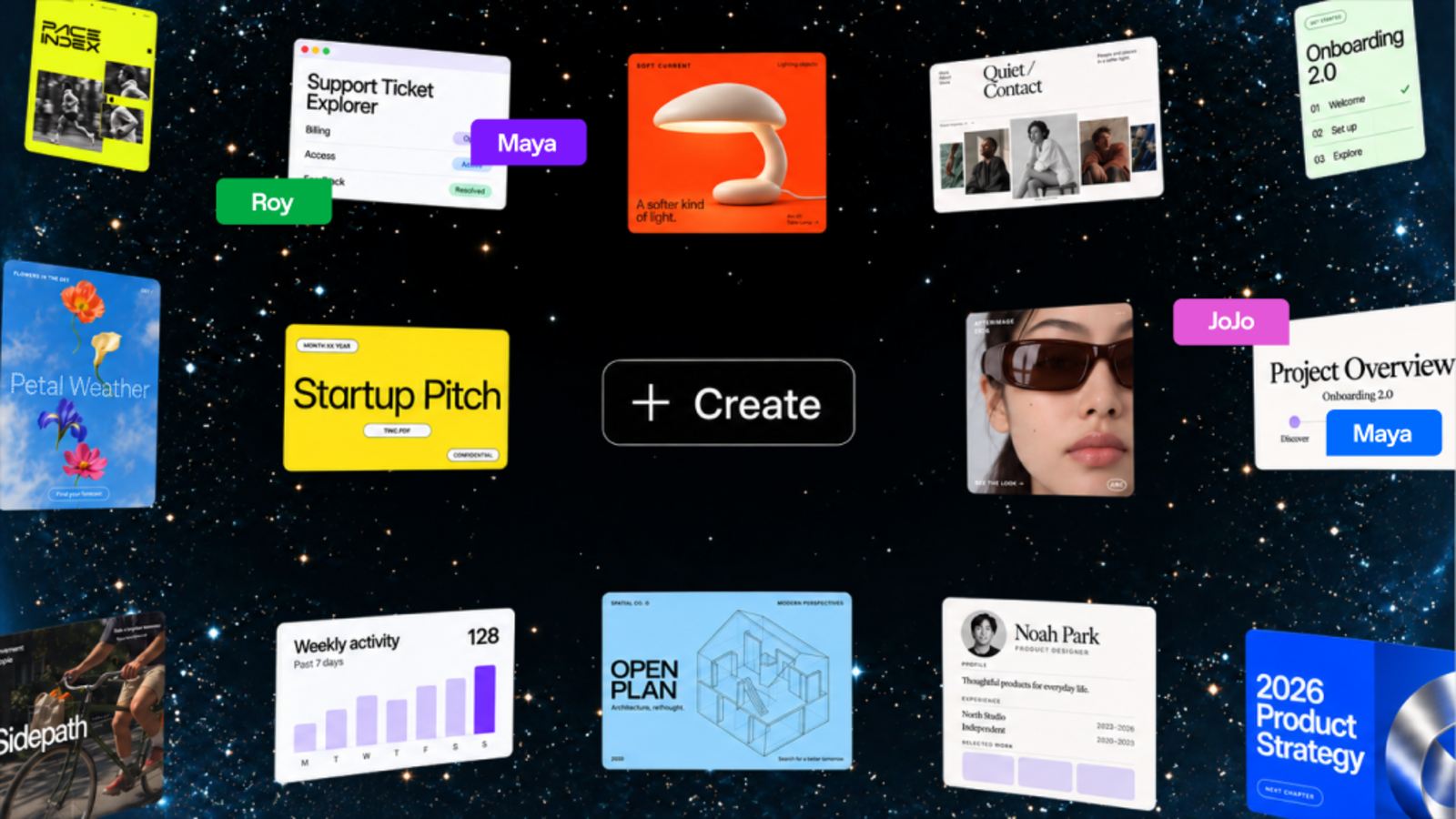
ChatGPT Space is a shared workspace from OpenAI where people and AI create living documents together. It gives teams one place to keep project context, files, and shared pages, and lets them tag in ChatGPT, Codex, or a dot to help move work forward. Pages bring together text, images, charts, and interactive tools, and can be edited with teammates in real time. Space replaces Library and is the home for the pages and files you create, upload, and share in ChatGPT, including spreadsheets and presentations. It is built for collaborative work where both people and agents contribute to the same source of truth. Work is usually scattered across documents, chat threads, files, and separate tools, so context drifts and documents go stale. Space addresses that by making shared context the foundation of the work: instead of copying information between tools, teams keep pages, slides, spreadsheets, and files in one shared place that ChatGPT and their dot can reference. Pages can stay updated from connected tools, so teams can focus on the work rather than on updating the doc. Because AI assistance lives inside the same page as the people and the content, suggested changes happen where the work already is. Powerful, self-updating pages are a new type of document built for work you do with agents. On a page you can write, visualize, research, and code, and pages can stay updated from your connected tools so you do not have to keep the doc current by hand. You can ask ChatGPT or your dot to organize the work with checklists, images, charts, and tables, then keep improving it together right on the page. You can also give a page instructions, telling ChatGPT what to update, which sources to use, and when to check, then return to review what changed and decide what comes next. Space is designed for working together with AI. Teammates with edit access can work on the same page at the same time, each person working with their own ChatGPT to ask questions or make changes to the shared page. You can leave feedback in comments or tag others for feedback, and @mention ChatGPT or your dot in a comment to make changes or take on next steps without leaving the page. Sharing happens through the Share menu: invite people or teams in your ChatGPT workspace on workspace plans and choose view or edit access, or on eligible personal plans invite people by email or share by link where available. Space is a home for shared knowledge. You can bring your team's files, pages, slides, spreadsheets, and more into one shared place, and ChatGPT and your dot can use that context to help your team build on what is already done. That shared context is available for both teammates and agents: you can ask ChatGPT or your dot to keep dashboards updated, turn a teammate's design into engineering tasks, or flag blockers. New work your team creates builds on that shared context, so goals, plans, and designs stay connected to the work that follows them. Other capabilities extend the same idea. A to-do list that updates itself pulls to-dos from Slack, email, and your calendar into a page, and ChatGPT or your dot can keep items, due dates, and next steps current as priorities shift, so you spend more time doing the work and less time making the list. You can also visualize anything on a page, including prototypes, research, data, or key decisions, editing together with your team and tagging ChatGPT, Codex, or your dot to work through changes. Dots work natively across files in Space, and wherever you work with your dot, in ChatGPT, Slack, or Microsoft Teams, you can also ask it to keep the page up to date as plans change. Texting is coming soon. Getting started follows a simple pattern. You can begin with a conversation or a template: ask ChatGPT to turn an existing conversation into a page or slides, or start from a template. From there you refine the work with ChatGPT, then bring others in by sharing the page and editing together in real time. You can create a team space by giving it a name and adding individual team members or your entire team, and tell ChatGPT about your projects and priorities. Recurring updates are handled by setting up an automation with instructions for what to update, which sources to use, and how often to run, after which you return to the page to review the changes. Pages can also be browsed or searched, and favorites saved for quick access. The outcome is a workspace where context accumulates instead of fragmenting. Because files uploaded into a page follow that page's permissions, and because sharing a page does not give collaborators access to your private chats or personal memory, teams can collaborate on the work itself while keeping individual conversations private. Linking to a separate file does not grant access to it, since its own permissions still apply, and any content copied or summarized onto the page is visible to collaborators. For Business and Enterprise, OpenAI does not train on ChatGPT Business or Enterprise data by default, while individual accounts follow their own training and memory settings. Concrete scenarios described for Space include visualizing an onboarding prototype on a shared page with teammate cursors, turning a conversation into slides using a team's template, and turning a teammate's design into engineering tasks. Teams can maintain dashboards that stay updated, flag blockers, and keep a launch plan current by having ChatGPT or a dot pull in changes. Meeting notes created by the Meetings plugin can be reviewed and then turned into research, a drafted message, or an updated plan that is brought into a page and selectively shared with the team. To-dos pulled from Slack, email, and the calendar keep daily priorities current. Space is available on ChatGPT Pro, Business, and Enterprise plans and replaces Library. You can create, edit, and collaborate on pages on web and desktop, while on mobile you can find, read, and share pages; creating and editing pages is not supported at launch, and mobile editing and collaboration are coming soon. Collaborative slides and spreadsheets are also coming soon. Content can be brought in from connected tools such as Google Drive and Slack, and the Meetings plugin, available in beta on Pro and Business plans in the ChatGPT desktop app for macOS, creates private, personalized notes and suggests follow-ups. Workspace availability and sharing are subject to admin settings. ChatGPT Space turns a workspace into a shared canvas where people and AI build on the same context. By keeping pages, files, slides, and spreadsheets together and letting teammates tag in ChatGPT, Codex, or their dot directly on the page, it keeps projects moving and teams aligned in one place.
CamCue is a desktop AI interview and meeting assistant for Mac and Windows. It drafts answers to spoken questions and tasks on your screen using your CV, job description, and documents. Use it for interview practice, coding questions, client conversations, and team calls.Listen recognizes complete questions from your computer's audio and drafts answers as the conversation unfolds. Capture analyzes your entire screen, while Select focuses on the area you choose. You can ask about a question, a paragraph, a coding problem, or another task without copying it into a separate app.Add your CV, the role you're applying for, or project documents to give the assistant useful background. Choose Interview, Coding Interview, Quiz/Test, or Call mode, then set the response language and length. Save context presets for different conversations.Focus Mode puts answers in a compact, movable window with adjustable transparency. Global shortcuts control Listen, Capture, Select, and the window. Try the built-in Listen demo before a call and revisit questions and answers in local session history.Speech recognition runs on your computer. Raw Listen audio is not saved or uploaded; recognized text and relevant screen or document context are sent for AI processing. CamCue requires an internet connection and an account. Stealth requests screen-capture exclusion where supported; compatibility depends on your operating system and capture app.Start with the Free plan's limited AI credits. PRO includes unlimited AI credits for Listen, Capture, and Select at US$9 every 3 days, US$19 per week, or US$69 per month. Subscriptions renew until canceled; technical rate and session limits apply. Mac requires Apple Silicon and macOS 14.2 or later. Windows requires x64 and Windows 10 version 2004 or later, or Windows 11.Website: https://camcue.app/Contact: support@camcue.app
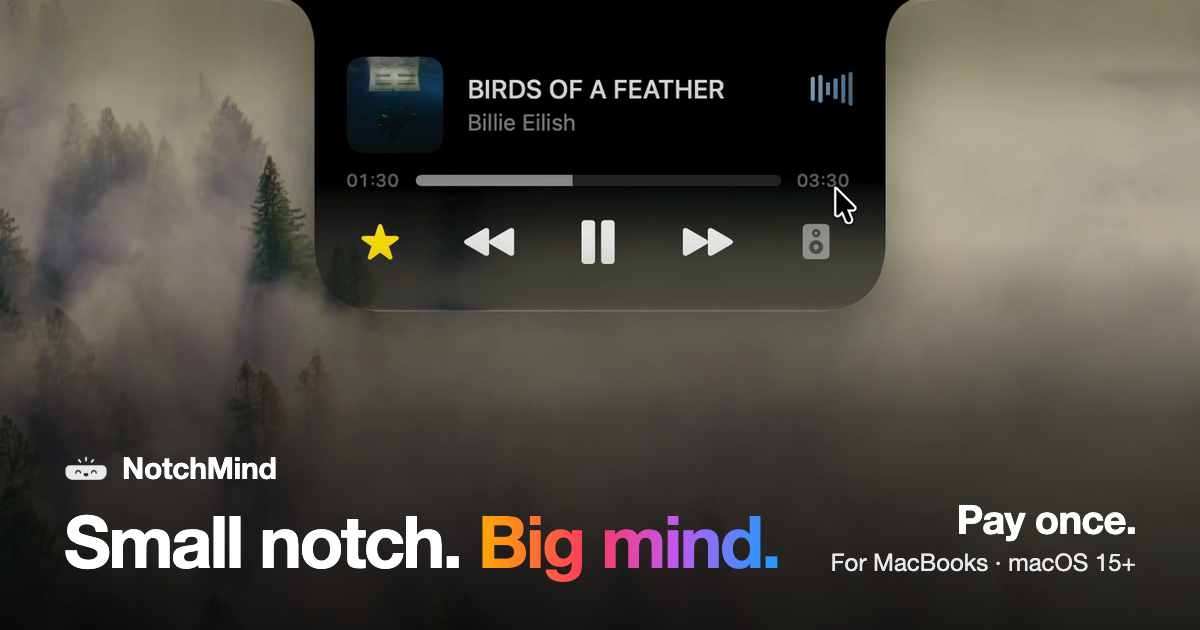
NotchMind is a native macOS app that turns the MacBook notch into a home for your music, files, clipboard history, timers, downloads and 28 everyday tools. Move your pointer to the top of the screen and the notch opens, bringing everything you reach for into the one spot your eyes already go. It is built for MacBooks with a notch, requires Apple silicon and macOS 15 or later, and is sold as a one-time purchase rather than a subscription. The tagline sums up the idea: small notch, big mind. The product addresses a piece of everyday friction that Mac users know well: the controls and status updates people reach for most often — what is playing, a file they want to park for later, a download in progress, something they just copied, the next meeting on the calendar — normally live in separate apps, browser tabs and menus. NotchMind collects them in the notch instead, so rather than switching context you hover at the top of the screen and the information comes to you. The site frames this as "everything, one hover away," and notes that every clip in the product tour is a real recording. For music and media, NotchMind shows what is playing and lets you skip a track or pause it without switching apps, and you can switch speakers from the same place. The Music tool covers now playing, skip, pause, lyrics and speaker switching. A Lock screen tool keeps now playing and lyrics visible on your lock screen, and a Camera mirror tool lets you check yourself before joining a call. Because the controls live in the notch rather than in a separate window, playback stays available while you work in another application. For files, the app provides a set of tools that operate from the notch itself. The File Tray lets you drag files up to park them and drag them out anywhere later. AirDrop lets you drop a file on the notch to send it in one move. Downloads shows progress filling the notch while a file downloads, so you know when it is done without opening your browser. The File Converter handles PNG, JPEG, HEIC, PDF, ZIP and more, running on your Mac, so you can pick a file and pick a format in place. Screenshots and recordings can be grabbed, dragged or deleted from the notch. Clipboard handling is a core part of the product. Clipboard history keeps up to 500 things you copied, with one click to paste again. Clipboard actions recognize what you copied and offer the right tools: copy a color and get tools to preview and convert it, copy JSON and format it in one click, and links, emails, paths and commands are recognized too — all on your Mac. Secret Guard watches for a copied password or API key, keeps it on your Mac and clears it in a tap. For the rhythm of your day, the Timer gives you a countdown that stays at the top of your screen; you set it on the ruler and start. Reminders let you type what to remember and when, such as "in 30m," and NotchMind reminds you on time. Calendar shows your next meeting before it starts. Weather shows today and the next few days in °C or °F, with no app or tab needed. Notifications surface banners from Slack, WhatsApp, Chrome and other apps, Messages and Mail show new messages and email with the sender's name, and the Inbox (beta) ranks the emails most likely to need a reply on your Mac. For your Mac itself, Volume and brightness changes appear in the notch instead of over your work. Battery covers charging and low-battery alerts. AirPods and Bluetooth show your headphones and their battery the moment they connect, and Drives lets you see a drive plug in and eject it from the notch. System stats present live CPU and memory graphs, while Focus, Wi-Fi and VPN keep you aware of Focus changes, Wi-Fi status and your VPN connections. Small moments are surfaced too: plugging in power shows your battery level, and connecting headphones or changing volume appears briefly before the notch gets out of the way. For makers, the app includes a dedicated set of tools. Developer tools format JSON, encode Base64 and URLs, and make UUIDs, along with colors and timestamps. AI usage tracks tokens used by Codex and Claude Code, today and this month. Revenue shows your Dodo Payments sales right in the notch, and Site traffic reports visitors from Plausible or Umami. All 28 tools come with every license, and you can use all of them or switch off the ones you don't need. Visually, NotchMind offers four finishes you can change any time in Settings: Black, a solid black like the notch itself; Semi, glass with a soft tint; Liquid Glass, clear glass that bends your wallpaper just like the rest of macOS; and Glass Dark, glass with a deeper tint. The site presents these as "pick your finish," with the default experiences for plugging in, connecting AirPods, changing volume and spotting drives all rendered live in the notch. NotchMind is explicit about how it handles your data: your Mac comes first. Clipboard actions, Secret Guard checks and text recognition in images run on your Mac, and there is no account to create. The optional Smart Mode is off by default; if you turn it on, short text snippets are classified by NotchMind's server using TypeSafe Jev, and files and screenshots are never uploaded. Clipboard history, clipboard actions, Secret Guard and file conversion all stay local. Pricing is a one-time purchase: one license unlocks the whole app, with no subscription, no account and no automatic renewal. The site lists US$5.99 one time for 2 Macs as a launch price for the first 50 customers, US$15.99 after that, and "from US$9.99 one time" depending on how many Macs you choose (1 Mac, 2 Macs or 5 Macs). Every license includes all 28 tools from day one, all 1.x updates, and a 14-day window to ask for a refund. There is no free trial; instead, purchases carry a 14-day money-back guarantee. After payment, the page shows your license key and the download, and Dodo Payments also emails the key and receipt; you install NotchMind, open it and paste the key into Settings → License. One license works on 2 of your Macs at the same time, and you can deactivate it in Settings → License on the old Mac to move it. Typical use cases follow directly from the tool set: keeping music and lyrics reachable while you work in another app, dragging a file up to the notch to park it or AirDrop it in one move, watching a download complete without leaving the browser window, copying a color or a block of JSON and getting the right tool automatically, setting a visible timer or typing "in 30m" for a reminder, and checking AI token usage, sales or site traffic from the notch. It is aimed at MacBook users with Apple silicon running macOS 15 or later who want the little things of their day in one place. NotchMind's core value proposition is simple: the notch is already where your eyes go, so it becomes the place where your music, files, clipboard, timers, downloads and system updates live — native, private by default, and paid for once.
Starlie is a native Mac app for Jira that brings your Jira projects, issues, and workflows into a fast desktop experience. It is built for the Jira work people do every day: find an issue, see what is going on, update it, leave a comment, move it across the board, and get back to work. Instead of relying on the browser, Starlie connects to Jira's API and presents your projects, issues, and workflows in a native macOS application. It supports both Jira Cloud and self-hosted Jira instances, so teams using different Jira setups can work from the same kind of desktop client. During setup you choose the Jira site you want to use, and you do not need a separate Starlie account. The problem Starlie addresses is the absence of a native Jira desktop app on the Mac. Atlassian stopped supporting its own Jira Cloud for Mac app in February 2022 and now offers the web app and mobile apps instead. That leaves Mac users working with Jira primarily through a browser, which the product's own materials describe as an experience that will never match a native app. Starlie was created to fill that gap. One App Store reviewer described it as a better answer to Jira's sunsetted native app, calling the web experience inferior to a native app and the app a game changer compared with the old app Jira put out. Starlie positions itself as the native Mac option for people who spend their day in Jira and want less friction from the first search to the last update. Search and JQL are central to the Starlie experience. Pressing Command-K lets you find an issue, summary, or project. For a more specific view, you can write JQL with suggestions for fields, operators, and values, so you can build precise queries such as filtering a project by high priority. This means you can move from a quick lookup to an exact list of the work that needs you. The product also links to a dedicated JQL query builder and a keyboard shortcuts guide, reinforcing that search and navigation are designed to be fast and keyboard-driven. Sprint boards in Starlie show the active sprint at a glance. You can drag a card to its next column and the change syncs to Jira, giving you smooth Kanban drag and drop without leaving the desktop app. Issue details bring the whole conversation into one Mac window: you can read the description, subtasks, and comments together, and change the status, assignee, or priority right from the issue. The Outline feature goes further by bringing epics, stories, and subtasks from multiple projects into one expandable tree, so you can see who is doing what and how the work is progressing. Quick filters, custom fields, Quick Look, and reminders are also part of the app, along with Command-K for recent issues. Starlie is deeply integrated with macOS in ways that make it feel at home. You can jump into search with Command-K and move through your work with keyboard shortcuts. You can open multiple windows to keep more than one issue in view. Native macOS notifications keep you in the loop, and the app supports light or dark appearance. The app is built with native macOS technologies rather than an Electron wrapper, which supports native notifications, light and dark mode, multiple windows, and fast issue loading. It requires macOS 15 or later and is installed from the Mac App Store; setup takes about five minutes. Starlie also connects to coding workflows. You can open coding tasks in Claude Code or Codex with issue context and your local project attached, bridging the gap between tracking work in Jira and actually implementing it in your development environment. Starlie is an Atlassian Marketplace partner, reviewed and approved for distribution, with an Atlassian Marketplace privacy and security review completed. It is private by design, with no analytics or tracking. Your credentials are stored in the macOS Keychain, and issues, comments, and attachments travel directly between your Mac and Atlassian's official API. Starlie's server handles secure sign-in but never sees your Jira content. By keeping your Jira projects in Jira while presenting them in a fast native Mac app, Starlie aims to reduce the friction of everyday Jira work. Search, sprint management, issue editing, and notifications all happen in a desktop environment designed for the Mac, which means fewer distractions and quicker interactions. The focus is on small interactions that add up across a working day, from the first search to the last update, so that routine Jira tasks become smoother and less disruptive to the rest of your work. Concrete scenarios include finding a specific issue, summary, or project with Command-K, writing a JQL query to list high-priority work in a project, reviewing the active sprint and dragging a card to its next status column so the change syncs to Jira, reading a description, subtasks, and comments together in one window while updating status, assignee, or priority, and viewing epics, stories, and subtasks from multiple projects in a single expandable outline. You can also open multiple windows to compare issues, receive native macOS notifications to stay informed, and start a coding task in Claude Code or Codex with issue context and your local project attached. Starlie works with Jira Cloud and self-hosted Jira and installs on Macs running macOS 15 or later. It is distributed through the Mac App Store and is an Atlassian Marketplace partner app that has completed Atlassian's privacy and security review. Pricing begins with a 7-day free trial, after which there is a choice of $2.99 per month, $14.99 per year, or a $29.99 lifetime license. No separate Starlie account is required; you connect the Jira site you want to use during setup. For Mac-based teams and individuals who work in Jira every day, Starlie offers a native, keyboard-friendly, privacy-conscious desktop client that fills the gap left by Atlassian's discontinued Mac app. It keeps your projects in Jira while making everyday issue work faster and more comfortable on the Mac.
Chat.sh is a help center that answers the question instead of handing back a list of titles. You type your question in your own words, and the AI search reads it, retrieves the relevant passages, writes the answer, and shows the pages it used. It is built for teams that need a public help center for their product and want it served on their own domain — either as a custom domain such as help.yoursite.com, or in a folder on the site they already run, such as yoursite.com/help. The product exists because its maker was a longtime Intercom customer until Intercom's help center search broke. The fix did not come fast enough, so he built his own. The frustration he describes is familiar to anyone who has run support documentation: most help centers give you a subdomain, a keyword search, and a monthly bill, and the old stack hands every team the same URLs, the same search, and the same page with a different logo on it. When a keyword index is handed the word "domain", it returns five titles that all contain that word rather than the one page that answers the question. Chat.sh is a deliberate response to that fixed format. The centrepiece is search that reads the question. A model retrieves the relevant passages from the knowledge base and writes an answer, then displays the pages it used, so the reader can verify where the answer came from. Answers come from published articles only, which keeps the output grounded in documentation the team has actually written and approved. The result is closer to a colleague answering than a search box listing: instead of a list of titles the reader must open one by one, they get the answer directly, with its sources attached. Underneath sits one knowledge base that feeds three ways of answering. Content goes in once as articles, web links, files, or TXT and markdown, and the help center, the messenger, and the markdown you hand to an AI assistant all come from that same source. The help center is a public site that answers rather than handing back a list of titles, reachable at yoursite.com/help, help.yoursite.com, or your-team.chat.sh. The chat messenger, shipping next, puts the same answers in a widget on your app so a stuck customer never has to leave the page they are stuck on; each AI reply in it uses one credit from the monthly allowance. The AI agent side lets you copy any page as markdown, view it as plain text, open it directly in ChatGPT or Claude to ask questions about it, or copy every published article at once for pasting into AI tools, and an agent can also start from llms.txt. Presentation is treated as part of the product. You can name a folder — /guide, /help, or whatever you call it — and the help center is served from there on the domain you already run, keeping the same domain and the same analytics with no subdomain to explain. If you prefer, you can point a domain you own at the help center instead. Article addresses are written for people: there is no numeric id wedged into the path, and the slug is the title and is yours to change. Each page draws its own preview card, so a link dropped in Slack arrives as the article rather than as your logo, and theming lets you pick the accent and the mark. Every page follows that choice and stays readable, because the colour is darkened until it is. Put together, the product's approach is to treat support content as a single source that is published to several surfaces rather than as a website bolted onto a subscription tool. You maintain one knowledge base; Chat.sh answers from it in a help center on your own domain or in a folder on your existing site, will answer from it inside an app widget, and exports it as markdown for assistants such as ChatGPT and Claude. Nothing is duplicated per channel, and the answer always cites the pages it drew on. The benefits follow from those choices. Readers get answers instead of search results, with the sources shown so they can check them. The help center lives on a domain the team already owns, so it inherits existing analytics and needs no new subdomain to explain to anyone. Documentation becomes usable inside AI tools through markdown export and llms.txt. And commercially, the product is bought once rather than rented: your own domain is $399 once, never a subscription, and the price rises by $100 each time a new capability ships, so buying early costs the least. Concrete uses follow the same shape. A team that wants docs at yoursite.com/guide names the folder and publishes there, keeping the help center alongside the rest of the site. A team that prefers a dedicated address points a custom domain at it. A support lead drops an article link into Slack and the preview card carries the article itself. A developer copies a page as markdown and opens it in ChatGPT or Claude to ask follow-up questions, or copies the whole help center into an AI tool. Live examples cited in the content are testimonial.to/guide and chat.sh/help. Chat.sh is free for 50 pages and 100 AI answers a month with no card required. Every price tier includes the help center, 1,000 pages and 1,000 AI credits a month per workspace; one credit is one answer, here or in the messenger, and when the month's credits are gone, 1,000 more cost $20 as a one-time purchase. Page counting is defined rather than vague: a link counts as one page for every 2,500 characters of its text, an article you write counts as one page, and a PDF counts as one page per page of the file. The lifetime deal adds your own domain, bigger ceilings, and your agents. The chat messenger is shipping next and the inbox is shipping after it; the inbox lets teammates take over a conversation, with three people per workspace and each person after that at $10 a month, and human replies do not use AI credits. Launch-day buyers get $200 off any lifetime deal with the code PHLAUNCH, taking $399 to $199 and $799 to $599, until October 2 at 12 AM PT. Chat.sh's value proposition is narrow and clear: a help center whose search answers the question and cites its sources, hosted on your own domain or in a folder on the site you already run, with the same knowledge base exported as markdown for AI assistants — and paid for once rather than every month.
Dots by OpenAI are always-on agents that live inside ChatGPT and are built to handle everything. Each dot is powered by GPT-6 Astra and has its own cloud computer and browser, so it can act on your behalf rather than simply reply to a question. A dot connects to over 4,000 apps through plugins and can work toward your goals 24/7 — around the clock, every day of the week. You reach a dot the way you would reach a colleague: message or call it in ChatGPT on desktop, web, and mobile, or message it in Slack and Teams. The dot then brings you finished work to review. The design goal behind Dots is continuous work rather than one-off answers. The tagline describes them as "always on agents built to handle everything," and the description stresses that each dot works toward your goals 24/7 instead of stopping after each exchange. Ongoing work rarely fits neatly into a single conversation, because it spans multiple applications, a browser, and long stretches of time. Instead of keeping yourself in the loop and moving information between tools by hand, you hand a goal to a dot that has its own environment and a set of connected apps, and it carries the task forward until there is finished output to look at. Because that work continues without you watching every step, the product also includes Custom Rules, Activity View, and auto review so the work stays visible and steerable. The foundation of every dot is the always-on agent model. Each dot has its own cloud computer and its own browser, which is what allows it to operate the way a person would when working in software — opening pages, using applications, and progressing a task rather than only describing how it might be done. Dots run on GPT-6 Astra, the model named in the product description, and that model is what drives each dot's behaviour as it pursues a goal. Because the agent is always on, the work does not have to wait for you to return to a chat window; a dot can keep moving toward the objective while you are doing something else entirely, and it can do so twenty-four hours a day. Connectivity is the second pillar. A dot connects to over 4,000 apps through plugins, which lets it reach into the tools where your work already lives instead of operating in isolation. You can interact with a dot across the surfaces you already use: message or call it inside ChatGPT on desktop, web, and mobile, or send it a message in Slack and Teams. That range of entry points means starting a dot's work does not require opening a special dashboard — a quick message in a team channel or a call from your phone is enough to set it going or check on progress. The result is an agent that fits into existing communication habits rather than demanding new ones. Dots are built to learn and to be controlled. A dot learns your preferences from feedback, so the way it approaches tasks can shift as you respond to its output. When a dot finishes work, it brings the finished result to you for review rather than leaving you to assemble the pieces yourself. Three named features keep you in control of that ongoing activity: Custom Rules, which let you define how a dot should behave; Activity View, which shows what the dot has been doing; and auto review, which supports the review step in the workflow. Together they are presented as the way continuous, always-on work remains accountable to the person who set it in motion. Putting it together, the workflow is straightforward. You give a dot a goal, and the dot — powered by GPT-6 Astra and equipped with its own cloud computer and browser — begins working toward that goal while connected to more than 4,000 apps through plugins. It runs continuously, 24/7, rather than only when you are present. You can check in, message, or call it from ChatGPT on desktop, web, or mobile, or from Slack and Teams. As it receives your feedback it learns your preferences. When the task reaches a point of completion, the dot delivers finished work for you to review, with Custom Rules, Activity View, and auto review providing the oversight layer around that delivery. The practical benefit is finished work rather than more open loops. Because a dot is always on, tasks can progress without being restarted every time you return to your computer. Because it has its own cloud computer and browser and connects to over 4,000 apps through plugins, it can pursue a goal across the tools involved instead of forcing you to relay information between them. Because it learns from feedback, its output can move closer to what you actually want over time. And because it hands over finished work to review, with Custom Rules, Activity View, and auto review, you keep a clear picture of what has been done and stay in control of it. Several concrete workflows follow directly from how Dots are described. You can give a dot a goal and let it work toward that goal 24/7, then review the finished work when it is ready. You can message your dot in Slack and Teams, which places the agent inside the channels where team conversations already happen. You can call or message your dot in ChatGPT from desktop, web, or mobile, making it reachable whether you are at a workstation or away from it. You can connect it to over 4,000 apps through plugins so that it works across the tools involved in a task. And you can use Custom Rules, Activity View, and auto review to set expectations, see what the dot has been doing, and manage the review of its output. Dots by OpenAI are rolling out now to ChatGPT Pro and Business Premium, which defines both the initial audience and the access model. The product is aimed at ChatGPT users on those plans — individuals on Pro and organizations on Business Premium. A dot can be messaged or called in ChatGPT on desktop, web, and mobile, and can be messaged in Slack and Teams. Its integrations come from plugins that connect it to over 4,000 apps. The product description names GPT-6 Astra as the model powering the dots. The website at chatgpt.com/dots is gated behind a login, with sign-in options that include continuing with Google, Apple, or phone, or entering an email address. Dots by OpenAI turn ChatGPT into a place where always-on agents work on your behalf. Powered by GPT-6 Astra, each dot has its own cloud computer and browser, connects to over 4,000 apps through plugins, and works toward your goals 24/7. You message or call it in ChatGPT on desktop, web, and mobile, or in Slack and Teams; it learns your preferences from feedback and brings you finished work to review, while Custom Rules, Activity View, and auto review keep you in control. Rolling out now to Pro and Business Premium, Dots are built to handle everything — continuously.
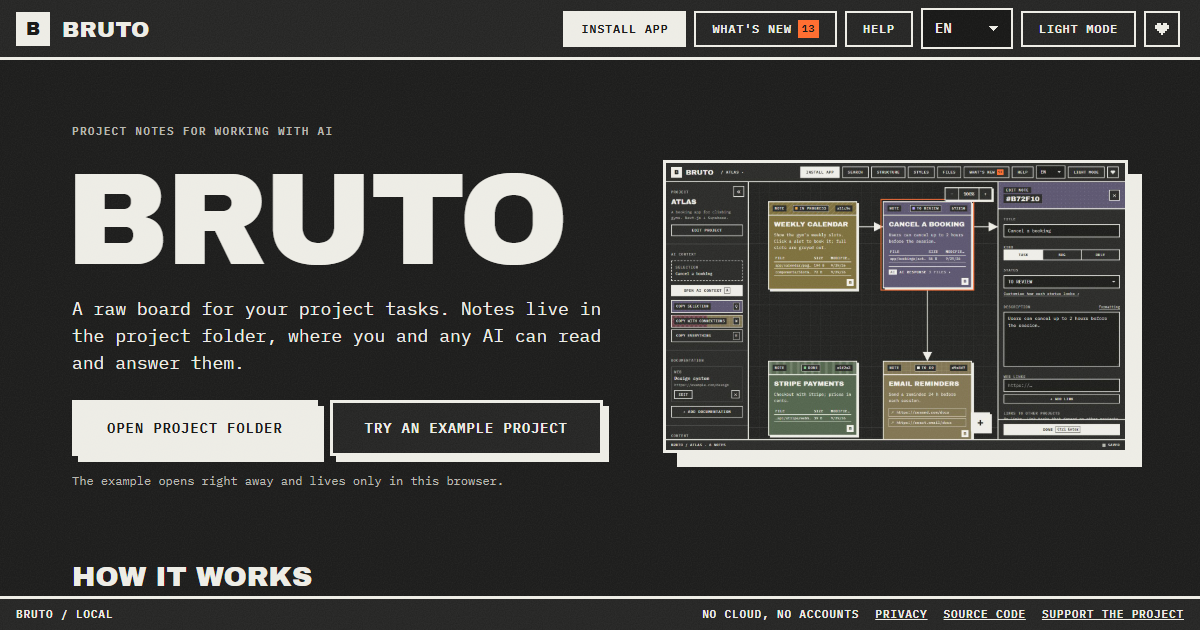
Bruto is a free, open-source task board for working on projects with AI. It describes itself as a raw, brutalist board for your project tasks, and its defining trait is where those tasks are stored: notes live in the project folder, inside a .bruto/workspace.json file, where both you and any AI can read and answer them. You begin by opening your project folder, and Bruto creates that workspace file — nothing leaves your computer. From there you write tasks, each note holding a description, files, links, screenshots and a status, connect them to show how they relate, and then hand them to an AI. It is built for people who code alongside assistants such as Claude Code, Cursor or ChatGPT and want a single board that the human and the model can both see. The problem Bruto addresses is the gap between the place work is planned and the place an AI can actually see it. Tasks usually sit in a separate hosted tracker while the AI sits inside the repository, so context has to be retyped, pasted and reformatted every time a model is asked to help. Bruto removes that translation step by putting the board in the project folder itself. Because the notes are files next to the code, an AI with access to your files can read them directly, and you can copy exactly the context a model needs with a single key. Nothing is sent to a server, there are no accounts, and the notes never leave your folders, which matters for private or client code. The core capability is the way context is handed to the AI. With the Q, W and E keys you copy the current selection, the selection together with everything it points to, or the whole project, and it comes out as clean Markdown with instructions for the model. A preview shows exactly what will be copied and how many tokens it amounts to, so you can inspect the payload before pasting it into Claude, ChatGPT, Gemini or DeepSeek. A global context carries your stack and decisions into every copy, which keeps the model aligned with the project's conventions instead of forcing you to restate them each time. Bruto is still a real board. Notes carry a status, files, links and screenshots; you drag them, connect them with arrows to show relationships, and edit many at once. A note can also be a rule rather than a task — for example, "run the tests before finishing". Standing rules go into every copy you make, and the AI applies them on each task until you close the rule, which is a way to encode project policy once instead of repeating it inside every prompt. The structure view shows where the work is: folders appear as blocks marked with the notes that point at them. When Bruto recognises the project, it draws it for what it actually is, showing screens with their components, API resources with their endpoints, and tables with their keys and policies. Recognised stacks include web frameworks such as React, Vue, Svelte, Next.js, Nuxt, SvelteKit, Astro and Angular; API frameworks such as .NET, NestJS, Express, Fastify, FastAPI, Flask and Spring; and databases and data tools such as Oracle PL/SQL, PostgreSQL, Supabase, SQL, Prisma and Drizzle. Notes can also reach across projects: a note can block, or wait on, a note in another project, so front-end, API and database boards all show the dependency and one click takes you to the other board. Agents can work the board directly. With the MCP server, Claude Code and other agents list and read notes, mark the note they are working on and answer it, without touching the JSON by hand. If the AI can edit files, it answers inside the note and marks it for review; whatever the AI answers stays in the note, and if something is still wrong you write what and mark it "Changes requested", sending it back with all of its context. To coexist safely with other tools, every save reads the file first and merges what changed elsewhere, note by note. A broken file is never overwritten and there is always a backup. Finding things is covered by Ctrl+F, which searches by text, path or id and filters by status and by what a note contains — files, an AI response, images or a link. The interface is keyboard first: every action has a shortcut, notes are reachable with Tab, and everything has a name for screen readers. Bruto ships in nine languages and two themes, can be installed as an app, works offline and tells you when a new version is out. It is local only — no server and no accounts, just anonymous usage stats and no cookies — so your notes never leave your folders. Setting up an agent is one line in AGENTS.md or CLAUDE.md, or a single command to add Bruto as an MCP server. Concrete workflows look like this. You open your project folder in Bruto and write a note describing a task, attaching the relevant files, links and screenshots. You press one key to copy the task with everything it points to, paste it into Claude, ChatGPT, Gemini or DeepSeek, and paste the answer back — or, if the assistant can edit files, it answers inside the note and marks it for review. If the answer is not right, you write what is wrong, mark the note "Changes requested", and it goes back with all of its context intact. On a bigger effort, a note in the front-end board can wait on a note in the API or database board, and one click moves you between them. Anyone can try it first with an example project that opens right away and lives only in the browser. Bruto is aimed at developers and small teams who build with AI assistants and want the task list, the code and the model to share one place. It suits people working in repositories that use React, Vue, Svelte, Next.js, Nuxt, SvelteKit, Astro, Angular, .NET, NestJS, Express, Fastify, FastAPI, Flask, Spring, Oracle PL/SQL, PostgreSQL, Supabase, SQL, Prisma or Drizzle, because Bruto recognises those stacks and draws them in the structure view. It works with Claude, ChatGPT, Gemini and DeepSeek through copy and paste, with Claude Code and other agents over MCP, and with any agent that can read files via one line in AGENTS.md or CLAUDE.md. Bruto is free and open source, and opening your folders needs Chrome, Edge, Brave or Opera on a computer. The outcome for users is one shared source of truth for human and machine. Because the tasks live in the repo, the AI works from the same notes you do, so there is less re-explaining, less copy-pasting and less drift between the plan and the code. The context preview and its token count make each hand-off deliberate rather than guesswork, standing rules keep conventions enforced automatically, and cross-project links keep front-end, API and database work visibly connected. Merge-safe saving means Bruto can sit alongside other tools that touch the same file without one silently overwriting the other, and the local-only design keeps sensitive code out of third-party servers. In short, Bruto is a task board that stops treating the AI as an outside party. By keeping tasks in the project folder, copying model-ready context with one key, letting agents answer inside the notes they were given, and enforcing standing rules on every pass, it turns planning and prompting into a single loop. It is free, open source, needs no account and runs locally, so the board you plan on is the same one your AI works from.
m’kay is a voice interface for the AI coding agents already running on your Mac. Rather than sitting at a terminal or an editor window to check on a task, you open a browser page or pick up your phone and simply talk to Claude, ChatGPT/Codex and Cursor. It is built for developers who want to stay in touch with their coding agents when they step away from the desk, and its main purpose is to give one voice to all of your agents — not just a single assistant — while the agents themselves keep running as the real desktop apps you already use. Most voice tools for AI are designed around talking to one assistant. That model breaks down for developers, because real work is often spread across several coding agents running side by side on the same machine. m’kay was built for that reality: it talks to all of your agents rather than one. It also drives the real desktop applications instead of a remote copy, which means the sessions and projects you already have stay exactly where they are. The problem it solves is one of distance — your work lives on your Mac, but you are not always sitting in front of it, and the tools you use to reach it should not force you to relocate that work somewhere else. Getting started is described as a short linking step. A small open-source connector runs on your Mac and drives the agent apps you already use. You sign in once to link the connector, and from that point on your Mac and your browser session are connected. Because the connector is open source, you can inspect what it does, and because it works with the applications you already have installed, there is no need to move your coding sessions into a new environment or re-create your projects elsewhere. The setup is deliberately light: link once, and the voice channel to your machine is available. Once your Mac is linked, the whole product is accessed through voice. You can ask what your agents are doing, have their replies read aloud to you, and give them the next task — all from any browser or phone. That means the interface is not tied to a particular device or operating system: a phone's browser is enough. The workflow is conversational. You ask a question, you get an answer spoken back to you, and you respond with the next instruction, which is then carried out on your Mac. Reading replies aloud matters because the answers arrive where your attention already is, rather than requiring you to read a terminal window on a small screen. One voice reaching multiple agents is the core idea. Your Mac may be running Claude Code, Codex and Cursor at the same time, and m’kay lets you address all of them. You can ask which one is done, hear its reply, and tell it what to do next. This matters because the natural question when several agents are working is not what the assistant is doing, but which of my agents has finished — and the product is built to answer exactly that. Speaking to several agents through one channel removes the need to switch between separate tools or windows just to find out where each one stands. m’kay includes an explicit confirmation step before anything is sent. Nothing is sent until you say \"yes\" to a read-back, meaning the instruction is spoken back to you for approval before it is passed to the agent. For voice-controlled developer tooling this is a meaningful safeguard: spoken input is easy to mishear, and a command sent to a coding agent can change real files in real projects. The read-back gives you an opportunity to catch a misunderstanding before it reaches your codebase, so remote convenience does not come at the cost of unintended changes. You can run m’kay in two different ways. The first is the hosted voice page: you sign up and use the hosted service to talk to your Mac. The second is fully local: you clone the project and run everything on your Mac, using local models or your own API keys. There is also a menu-bar Mac app. The open-source nature of the project is central to this choice — the connector and the ability to run the whole thing locally mean you are not required to route your voice traffic through someone else's infrastructure if you would rather keep it on your own machine. The website presents both paths as equal options rather than a single mandated route. The benefit is continuity. Because m’kay drives the real desktop apps, your sessions and your projects stay where they are; nothing has to be migrated, and the state of your work does not depend on a separate environment being kept in sync. You also gain reach, because the distance between you and your Mac stops being a barrier — a browser tab is enough to check in, listen to a reply, and issue the next instruction. And because every instruction is confirmed through a read-back, that reach does not come at the cost of accidentally sending the wrong command to a live project. The scenarios described are ordinary moments of being away from the desk. You are on the train and want to know which agent has finished, so you open the voice page in your phone's browser, ask, and hear the answer. You are at the gym and want to give the next task without going home first — you speak the instruction, hear it read back, confirm it, and it is sent to your Mac. Or you are simply in another room with a laptop and would rather talk to your agents than walk back to the machine that is running them. m’kay is aimed at developers who run AI coding agents locally and want a lightweight way to reach them by voice. The Mac app requires Apple Silicon and macOS 13 or later, and there is a direct DMG download. You can also sign up free for the hosted option, or clone the project from GitHub and run it locally. The Product Hunt listing describes it as open source and lists it under Productivity, Open Source, GitHub and Menu Bar Apps, and the website presents the same fork in the road: use the hosted voice page, or keep everything on your own Mac. m’kay's value proposition is simple to state and specific in what it delivers: one voice for all of your coding agents, reachable from any browser or phone, driving the real desktop apps so your sessions and projects stay put, with a read-back confirmation before anything is sent. It does not try to replace your agents or move your work — it gives you a way to talk to what is already running on your Mac, from wherever you happen to be.
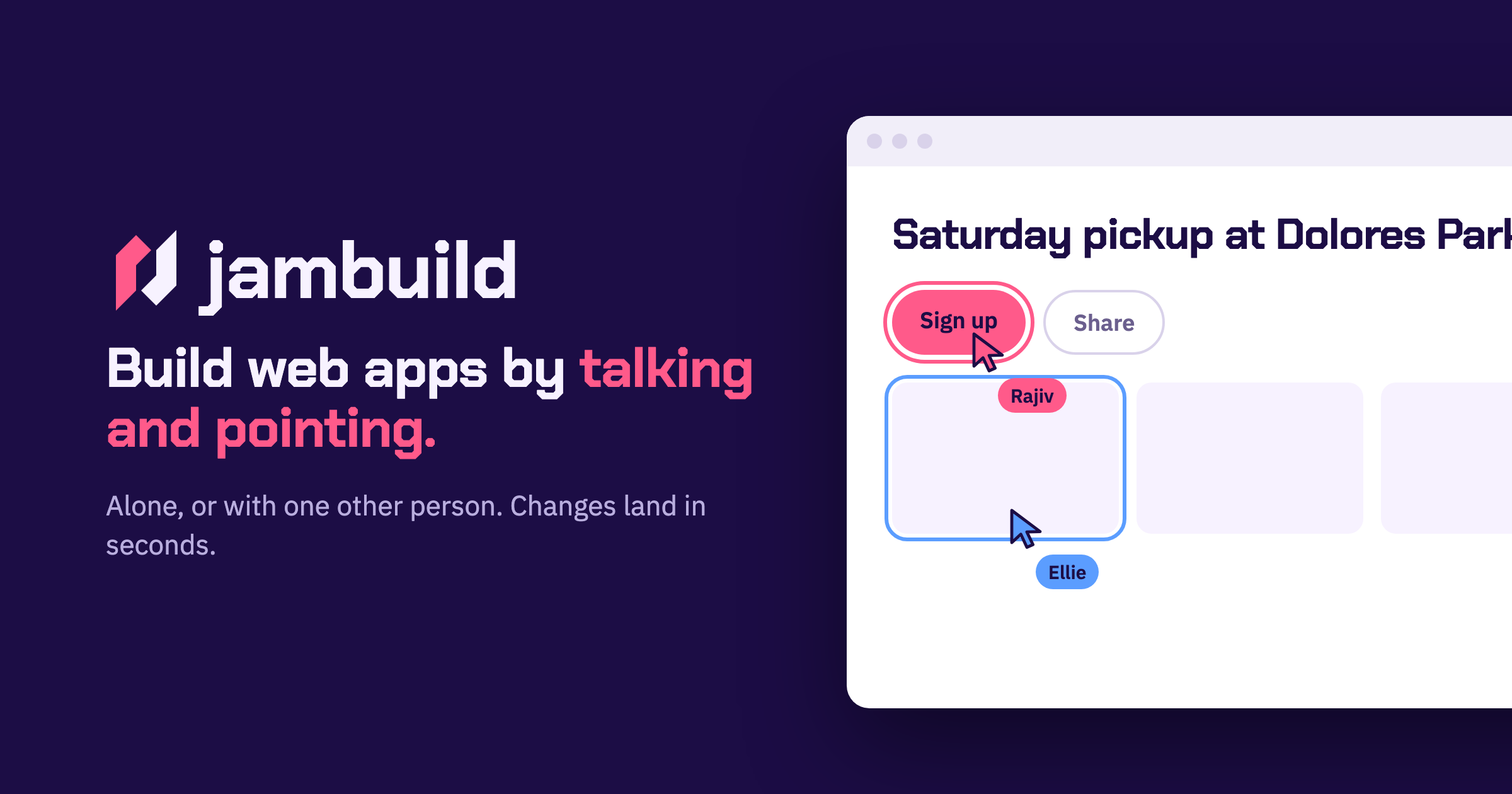
jambuild is a tool for building web apps in real time by talking and pointing. Rather than typing code or writing out long specifications, you describe what you want out loud and point at the part of the page you are talking about. The website promises that changes land in less than ten seconds and that you keep talking while they land, so the conversation with the page never really stops. You can build alone, or you can send a link and build with one other person, with both of you talking, pointing and clicking on the same page. The Product Hunt listing describes jambuild as a "multiplayer vibecoding tool where you talk and point with your mouse, and every change lands in seconds," and adds that it has limited credits to try it out, with the option to bring your own API keys to unlock more usage. The traditional path from an idea to a working web app usually runs through a keyboard. You open an editor, set up a project, and translate what you can see in your head into syntax a machine will accept. jambuild removes that translation step by making the microphone the keyboard. The stated promise is simple: describe a page and a first version appears in seconds. That speed matters because it keeps you in the idea rather than in the implementation. Because changes land in less than ten seconds, you can correct course immediately instead of waiting for a build, a refresh or a manual edit. The second problem jambuild addresses is collaboration. Building is rarely a solo activity, but screen sharing, passing a laptop back and forth, or describing a change over a call are all clumsy. jambuild instead puts two people and two cursors on one page. The first way to work in jambuild is by talking. The site frames it directly: your microphone is the keyboard. You describe a page out loud and a first version appears in seconds. In the example shown on the website, Maya describes a sign-up page out loud; her words appear in the prompt box and the window is outlined in pink while she is being heard. That pink outline is the interface telling you it is listening, so you know when your speech is being captured and turned into instructions. Because the description is spoken rather than typed, you can talk in the same loose, conversational way you would when explaining an idea to a colleague, which is exactly the kind of description jambuild is designed to turn into a working page. Talking alone is not always precise enough, so jambuild adds pointing. As you move your mouse over the page, whatever you are hovering over lights up, and it lights up for both people in the room, not just for you. That shared highlight means the other person can see exactly which element you mean before you say a word about it. Once the element is highlighted, you say what it should become. In the website's example, Sam moves over the roster, the roster lights up in his colour, and he asks for it to be split into three teams. Pointing solves the ambiguity problem in spoken instructions: instead of describing where something is on the page, you simply put your cursor on it. The third interaction is clicking. You click anything on the page and say what should happen to it, and the change lands in seconds. Clicking differs from pointing in that it selects a specific element for a specific instruction rather than simply indicating an area. The site's illustration is Maya clicking the Sign up button and asking for it to be bigger and orange. Because the click carries the target and the speech carries the intent, you can make that kind of adjustment without opening a design tool, finding the component in a codebase, or editing a style rule. The result appears and lands within seconds, which keeps the session moving. The fourth piece is the multiplayer part, and the site names it simply "Together." You send a link, and the person you invite joins you on the same page. You both talk, you both point, and it remains one page rather than two copies that need merging. The website shows Maya and Sam both talking at once, with both requests building and both changes landing. Because each participant's highlighting appears in their own colour, you can tell at a glance who is indicating what. Changes land in seconds for both of you, so neither person is working from a stale view of the page. The site's social image also describes two cursors, Rajiv and Ellie, on the same page, illustrating two people active on one page at the same time. Getting started is deliberately lightweight. You sign in with Google to start a room, and the person you invite does not need an account. That asymmetry matters for collaborative sessions: one person can create the room, share the link, and the other participant can join and contribute without going through a sign-up flow first. Once you are in, the loop is consistent — talk, point, click, watch the change land in less than ten seconds, and keep talking. jambuild holds a session to two people at a time, so it is explicitly designed for a pair rather than a crowd. Usage runs on credits: there are limited credits available to try the tool out, and you can bring your own API keys to unlock more usage beyond that. The obvious benefit is speed of iteration. Changes landing in less than ten seconds means the distance between saying something and seeing it is short enough that you never leave the flow of the conversation. The second benefit is accessibility of the building process. If your microphone is the keyboard, you do not need to recall syntax, hunt for the right file, or know where a particular style is defined — you describe what you want and the page responds. The third benefit is tighter collaboration. Two cursors on one page, both lighting up elements in their own colours, both able to speak and be heard at the same time, removes the usual back-and-forth of explaining changes to someone who cannot see your screen. The examples shown on the website suggest concrete ways to use it. A designer or product person can describe a sign-up page out loud and get a first version in seconds, which is useful when you want to react to something visible rather than a written spec. Someone working with structured layouts, like a roster, can point at the roster and ask for it to be split into three teams, reshaping structure by indicating the element rather than editing markup. For visual tweaks, clicking the Sign up button and asking for it to be bigger and orange shows how small styling requests are handled in conversation. And for pair work, two people can open the same room, both talk and point at once, and watch both sets of changes land. jambuild is aimed at people who want to build web apps without working through a code editor: it is described on Product Hunt under the topics Prototyping, Artificial Intelligence and Vibe coding, which places it with tools used for rapid prototyping and AI-assisted building. The entry point is a Google sign-in to start a room, and collaborators join through a link without needing an account of their own. Rooms hold two people, so the intended unit is a pair — a builder and a collaborator, or two people shaping a page together. On pricing, the Product Hunt listing notes limited credits to try it out, with the option to bring your own API keys to unlock more usage. No specific plan tiers or prices are stated on the website. jambuild's value proposition is easy to state because the product states it so plainly: build web apps in real time by talking and pointing. Your microphone replaces the keyboard, your cursor identifies what you mean, a click targets it, and changes land in less than ten seconds. Add one other person through a link and the same speed applies to both of you on a single shared page. For anyone whose bottleneck is the gap between an idea and a first working version, jambuild closes that gap in conversation.