Category Focus/categories/code-assistant
Code Assistant AI Tools
Discover and compare the best code assistant AI tools and software. Browse 88+ curated tools with reviews and rankings.
Projects tracked
88
Sort mode
RECENT
Page
1
Discover and compare the best code assistant AI tools and software. Browse 88+ curated tools with reviews and rankings.
Projects tracked
88
Sort mode
RECENT
Page
1
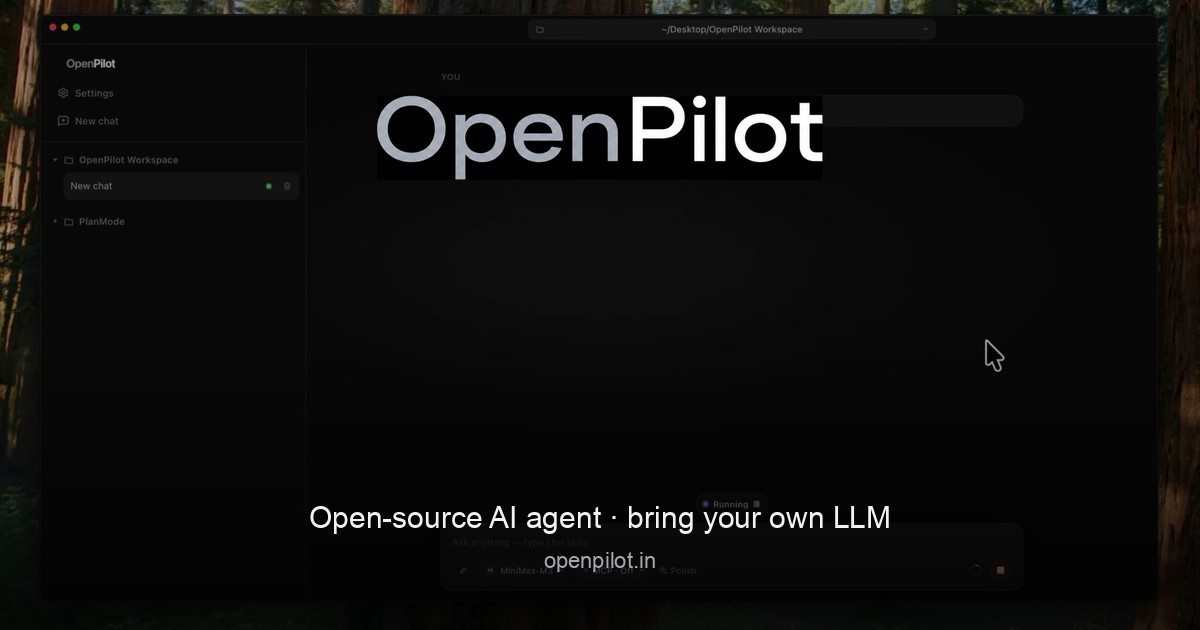
OpenPilot is an open-source desktop AI agent that runs locally and works with any large language model you choose. Instead of shipping a fixed, hosted model or forcing you through a vendor login, OpenPilot acts as a harness: you point it at any OpenAI-compatible API endpoint, add an API key, and the agent can then create files, scaffold projects, run real terminal commands, search the live web, and ship complete projects. It is built for people who want the agent itself—not the platform tax that usually comes with it—and who refuse to be locked into a single model provider. It is designed to be an agent that actually does the work, wiring filesystem tools, a live shell, web research, MCP, skills, and memory to the model you chose. The problem OpenPilot addresses is vendor lock-in. Most AI agents today tie you to one provider's account, one set of models, and one billing relationship, which means swapping models or moving to a local server requires rewriting your workflow. OpenPilot's answer is a harness, not a hosted model marketplace. There is no OpenPilot account and no vendor login required. You bring an OpenAI-compatible endpoint and API key—whether that is OpenAI, OpenRouter, a local server such as Ollama or LM Studio, or your own custom gateway—and your usage stays local to your keys. That makes the tool portable across the models you already pay for and keeps you in control of where your data and your spend go. The agent's filesystem tools are the foundation of its work. OpenPilot reads, writes, edits, greps, and globs across your workspace, so the agent can inspect a repository, understand its structure, and modify files in place. You can ask for a full project and watch the file tree fill in—for example package.json, src/index.ts, and src/routes/users.ts—and then refine the result with follow-up edits rather than starting over. Alongside file tools, the shell is a first-class capability. OpenPilot runs real terminal commands such as installing dependencies, starting servers, and running tests, streaming stdout back into the chat so you can see exactly what happened. This is not a pretend snippet; it is an actual shell connected to your machine, and you approve sensitive actions before they run. Because you explicitly open a workspace by pointing at a folder, the filesystem and shell access the agent receives is scoped to that workspace. When the answers you need live outside the repository, OpenPilot performs live web research. Using TinyFish, the agent searches and fetches pages in real time—for example looking up documentation, an API reference, or a specific error message—and then grounds its answer in what it actually read, returning a cited answer alongside the fix. The agent also supports skills and long-term memory. You can drop reusable playbooks into the workspace as skills, and persist preferences in a file such as AGENTS.md, including instructions like preferring TypeScript strict mode, using pnpm in a particular repository, or never committing .env files. OpenPilot loads these into context automatically and can update its memory when you ask, so preferences carry across sessions instead of being retyped every time you start working. For teams that need more than the built-in tools, OpenPilot connects to Model Context Protocol (MCP) servers, which can be flipped on per chat. MCP lets you extend the agent with the systems you already run—databases, browsers, or internal APIs—configured through an mcp.json file and enabled only when a conversation needs them. On the model side, configuration is deliberately simple: paste a base URL, an API key, and a model id, and you are connected. Each model can have its own custom base URL and key, so you can swap providers without rewriting your workflow. OpenPilot also shows session and lifetime token usage in-app, giving you visibility into consumption across the endpoints you use, both cloud APIs and local OpenAI-compatible servers. OpenPilot's overall approach is a three-step workflow. First, add a model by pasting your base URL, API key, and model id—no account with OpenPilot is required. Second, open a workspace by pointing the app at a folder; the agent then receives filesystem and shell access there. Third, describe the outcome you want: ask it to build, fix, research, or automate something, and then review the tool trail as it works. That tool trail is central to how OpenPilot operates. Rather than presenting an answer as a black box, the agent surfaces the sequence of tool calls it makes—file writes, edits, commands, searches—so you can follow along and intervene where needed. The benefits follow directly from that design. Because the agent runs locally as a desktop application and uses your own keys, there is no vendor login and no locked-in models; you keep usage local to your keys and stay portable across providers. Swapping models does not require rewriting your workflow, so the same working habits carry across a cloud API, a local server, or a custom gateway. Token tracking in-app makes spend visible at both the session and lifetime level. Skills and memory reduce repetition by carrying your preferences and playbooks into context automatically, and MCP support means the agent can reach the systems you already rely on. For developers who want an AI agent that works on real files and real terminals, OpenPilot delivers that capability without the platform tax. Concrete scenarios described in the content include scaffolding an entire project from a prompt and then iterating in place with follow-ups; installing dependencies, starting servers, and running a test suite such as npm test with the results streamed back into the chat; researching documentation, APIs, or errors that live outside the repo and receiving a cited answer plus a fix; and automating build, fix, or research tasks by simply describing the desired outcome. Users running local models through Ollama or LM Studio can keep everything on their own machine, while those using OpenAI, OpenRouter, or a custom gateway can move between cloud providers as needed. MCP connections extend these same workflows to databases, browsers, and internal APIs when extra tools are required. OpenPilot is aimed at developers and builders—people who want the agent rather than the platform tax and who refuse vendor lock-in. It ships as a local Electron desktop application under the MIT license, and pricing is free. Windows is available now with a 64-bit installer and a portable executable, requiring Windows 10 or later (x64); macOS builds for Apple silicon and Intel are releasing soon. The model layer is bring-your-own, using any OpenAI-compatible endpoint, including OpenAI, OpenRouter, local Ollama or LM Studio servers, or a custom base URL gateway. In short, OpenPilot is an open-source desktop AI agent that puts you in control of the model, the keys, and the machine. Own the harness, bring the model, and let the agent do the work—without vendor lock-in.
Clippo is a visual orchestration canvas for Windows that turns software development into a command room where you act as the tech lead and your AI coding agents work together in parallel. Instead of wrestling with dozens of lost terminal tabs or repeatedly copy-pasting the same briefings, Clippo gives you an infinite canvas where you assemble your AI dev team, delegate tasks, and monitor code progress in real time, arranging your workspace however you like. It is built for developers who already use AI coding agents day to day and want a single screen to coordinate them, watch what they are doing, and keep every piece of project context in one place. The problem Clippo addresses is fragmentation. When you run several AI coding agents at once, each one typically lives in its own terminal tab, and the moment you switch between them you lose sight of which agent is still coding and which one has finished. Briefings get copied and pasted again and again, and context that was explained to one agent is not available to the next. Clippo replaces that scattered, tab-driven workflow with a spatial one: agents, notes, browsers, and editors are all placed on one canvas and connected to each other, so the state of your project is visible at a glance rather than buried in a list of windows. Clippo's core capability is running your AI dev team in parallel. You can assign agents to different fronts at the same time — one building the backend API, another writing test suites, and another refactoring the frontend — and see everyone working side by side on a single screen. Because the agents are laid out visually, you know instantly who is coding and who is done without switching windows. This parallel approach matters because development work naturally splits into independent tracks, and keeping those tracks visible next to each other makes it far easier to spot a stalled agent or an overlapping change before it becomes a problem. The Project binder keeps your agents aligned through a structured set of notes placed directly on the canvas. It has three parts. Project captures the overall architecture, stack guidelines, and team conventions. Plan holds a step-by-step implementation roadmap for you to review before execution begins. Walkthrough produces an executive delivery report with diff summaries and verification checklists. The binder is not just documentation — you connect a cable from any note to a terminal, and the agent absorbs that context immediately, with no re-prompting needed. That single mechanism means architecture decisions, conventions, and roadmaps are shared with every agent you link, keeping a multi-agent effort pointed in the same direction. ClipSurf is an embedded browser that lives on the canvas and serves as web browsing and eyes for any agent. It is available to both you and your agents, and it is particularly valuable for terminal agents and CLI models that do not have built-in web access. With ClipSurf those agents can browse documentation, research solutions online, and test the local web app they just built, live in front of you. Getting external information into an agent normally means copying links and pasted text; ClipSurf removes that step and lets the agent look things up directly, while you watch the same view it is working from. Persistent memory with local AI addresses one of the most costly parts of working with coding agents: losing context between sessions. Clippo keeps a local memory that learns your project over time, storing architectural decisions, solved pitfalls, and coding standards. A lightweight local model retrieves relevant memories on demand, which cuts token usage and keeps context across sessions. The practical effect is that an agent starting a new session does not begin from zero — the decisions you already made and the problems you already solved are available to it, and because retrieval is local, that recall does not come with a token cost for re-explaining the project each time. Clippo IDE is a visual code editor built into the canvas, designed for inspecting and polishing code before Git. You can browse project files, review agent-generated code with syntax highlighting, inspect Git diffs, and make quick edits before committing with a single keystroke. Because the IDE sits on the same canvas as the agents, reviewing their output does not mean leaving the orchestration view. The point is control: agent-generated code is checked, adjusted, and only then committed, so you stay in full control of your repository rather than trusting output blindly. Clippo is built to be lightweight, fast, and 100% private. There are no bloated web wrappers that eat up your RAM; Clippo opens fast, stays light, and leaves your CPU and memory free for compiling and development. Your files, notes, and prompts never leave your PC, with zero account creation, zero login, and zero tracking. For developers working on proprietary code, that on-device design removes the friction and risk of sending project material to a third-party service just to coordinate the tools building it. Overall, Clippo works as a visual orchestration layer that sits alongside the AI tools you already use rather than replacing them. It is compatible with Claude Code, OpenAI Codex, Gemini CLI, OpenCode, Aider, Copilot CLI, and local engines like Ollama and LM Studio, and WSL and Docker are supported out of the box. The methodology is node-based: you place terminals, notes, browsers, and editors on an infinite canvas and link them with cables, so context flows from a note into an agent, and agents run in parallel on separate fronts of the same project. Everything — unlimited terminals, notes, Clippo IDEs, ClipSurfs, and Spaces — lives inside the workspace you arrange yourself. The benefits Clippo claims follow from that structure. You stop drowning in terminal tabs and stop copy-pasting briefings, because one canvas shows every agent's progress at once. You save tokens, because on-device memory recalls project context instead of forcing you to restate it. You keep your CPU and memory for compiling and development, because the app stays light. And you retain full control of your repository, because nothing is committed before you review it in the built-in IDE. The outcome is a workflow where you step up as tech lead of your own AI engineering team rather than acting as a dispatcher between disconnected windows. Concrete scenarios include splitting a feature across agents — one on the backend API, one writing test suites, one refactoring the frontend — while you watch all three on one screen. Another is giving a CLI model without web access the ability to browse docs and research a solution through ClipSurf, then test the local web app it just built in the same embedded browser. A third is reviewing agent-generated code, inspecting Git diffs, and making a quick edit before committing. Persistent memory supports ongoing projects where sessions restart regularly, and the Clippo Pro add-on covers developers working across multiple projects at once using unlimited workspaces. Clippo is aimed at developers who use AI coding agents such as Claude Code, OpenAI Codex, Gemini CLI, OpenCode, Aider, or Copilot CLI, and at anyone running local engines like Ollama or LM Studio. It runs on Windows 11, version 22H2 or higher, on x64. The free plan includes a complete workspace with unlimited terminals, notes, Clippo IDEs, ClipSurfs, and Spaces inside it. To work across multiple projects at once, the Clippo Pro add-on unlocks unlimited workspaces through a one-time purchase from the Microsoft Store. The app offers in-app purchases and is developed by Thiago Grião. Clippo's primary value proposition is simple: it gives Windows developers a visual command room for AI agents, turning a scattered collection of terminal tabs into one infinite canvas where agents run in parallel, project context is shared through linked notes, memory persists locally to cut token usage, and code is inspected before it ever reaches Git.
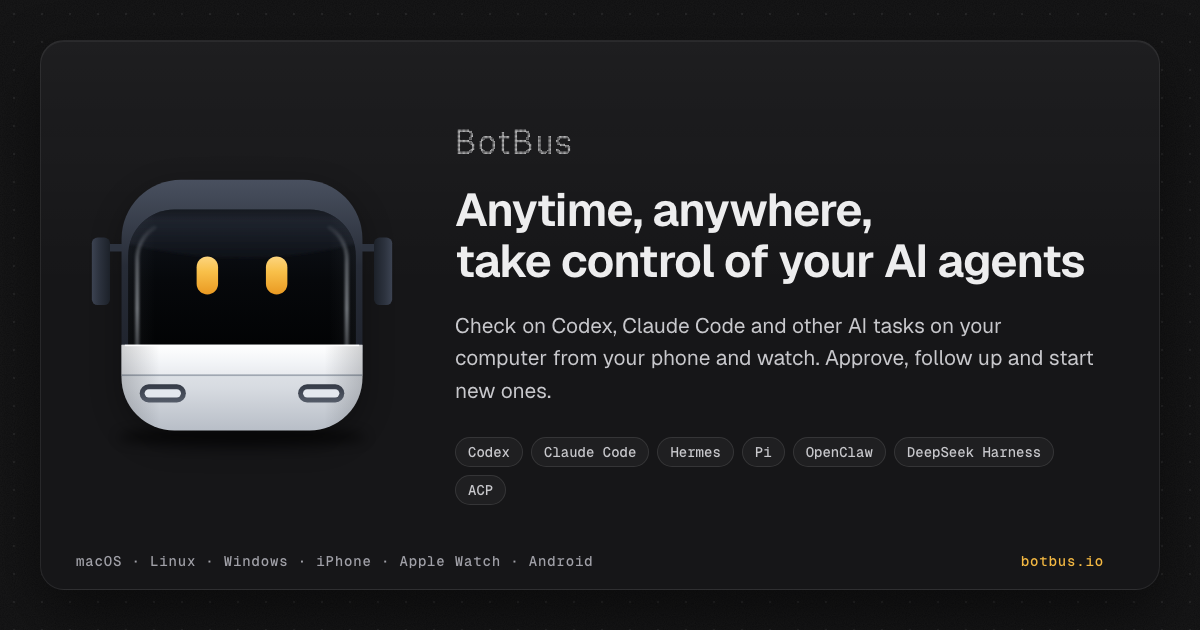
BotBus is an app for keeping tabs on the AI coding agents running on your computer from your phone and Apple Watch. On the computer it lives in the menu bar and automatically discovers local agents such as Codex and Claude Code; on your phone and watch you can follow task progress, approve, follow up, interrupt, and start new tasks. Tasks from all of your computers are gathered in one place, sorted by agent and project, so developers who run agents locally can stay in control without sitting at their desk. What you can do depends on the connector, the task's state and whether the computer is online. Coding agents do not only write code; they pause. An agent may want to run a command such as a test suite, edit files, or ask a question before continuing, and it waits until someone answers. When that someone is away from the keyboard, the work stops, and a task that could have been finished in an hour sits idle until the developer returns. BotBus is built around that gap. Its promise is that you can step away from your computer and the work keeps moving: approvals, follow-ups and new instructions arrive on the device that is already in your pocket or on your wrist. The desktop app quietly discovers the agents already installed on the machine rather than asking you to configure them, and the phone app turns those agents into something you can supervise from anywhere. Every computer at a glance. BotBus collects tasks from all of your paired computers and sorts them by agent and project, including the tasks you started at your desk. A device list shows online status and pending counts for each machine, and opening a single computer reveals its pending and running tasks alongside recent projects, so you can tell at a glance where attention is needed. New tasks, on the go. From your phone you pick a computer, a project and an agent, say one sentence, and the task starts. You can choose the model, or run the task in its own git worktree so parallel work stays isolated from your main checkout. Approvals and questions in one tap. When an agent wants to run a command, edit files or ask you something, BotBus nudges you, and you answer with a tap on your phone or your watch. Auto-approve can be turned on for a project when you would rather not be asked. Beyond approvals, BotBus also supports following up and interrupting a running task, voice input for instructions or replies, sending photos from your phone, reviewing uncommitted changes, and switching the model and reasoning effort for a task. Watch sync means that once your watch has synced pairing from your phone it connects on its own, so common actions do not require pulling out your phone at all; the watch can show all devices, recent projects, approval requests and a task awaiting your reply with voice reply. Control your computer's screen. On supported setups you can see your computer's screen live on your phone and tap, swipe or type on it. Input starts locked, and both the picture and your input are end-to-end encrypted. Screen control currently supports Mac. Results, straight to your phone. Screenshots, files and videos come back together with the task, and images and PDFs mentioned in the chat open with a tap, so you can inspect what an agent produced without transferring anything by hand. Preview web pages on your phone. When an agent starts a dev server, BotBus lets you preview the page it built on your phone, without going back to your computer. BotBus works through a small desktop app plus a pairing flow. You install BotBus on your computer, where it lives in the menu bar, runs in the background and automatically discovers local agents. Choosing 'Pair a Phone' shows a QR code; scanning it pairs the phone, and the key never goes through the server, staying in each device's keychain instead. Content is encrypted with AES-256 on your device before it is sent, so the server only relays and briefly holds ciphertext and cannot decrypt your chats, commands or images. Pairings that idle for 30 days are cleared, and removing any single computer or phone disconnects it at once. The server still sees the little it needs to relay data: device IDs, online status, update times and data sizes. Developer previews, which share a web page from your computer to your phone, are proxied through the server and are not end-to-end encrypted. Viewing already-synced tasks does not require the computer to be online, but approving, following up, starting new tasks and interrupting do require the target computer to be online and supported by the connector. The benefit is continuity. Instead of returning to the desk to unblock an agent, you answer the approval from your phone in a tap, or reply by voice from your watch. Instead of wondering whether a long job finished, you glance at a device list that shows pending counts across all your machines. Instead of waiting to see what an agent produced, the screenshots, files, videos, PDFs and dev-server previews arrive with the task. BotBus does not change how your agents work; it changes where you have to be while they work, so a commute, a meeting or an evening away does not mean downtime for your machine. Typical scenarios follow the way developers actually work. A test suite fails and the agent asks to run a command; you are away from your desk, so you approve it from your phone and the run continues. You think of a small fix while commuting, so you pick the project and agent, say one sentence, and the task starts on the computer at home. You run several machines and want a single view of pending and running work, sorted by agent and project. You want to see the landing page an agent built before you get back, so you preview the dev server on your phone. You are traveling and need to take control of your Mac's screen directly. Or you are in a meeting, an approval arrives, and one tap on your watch, or a spoken reply, keeps the agent moving. BotBus runs a desktop app on macOS, Linux and Windows and a mobile app for iOS and Android. The Mac app requires macOS 26 or later and is universal for Apple Silicon (arm64) and Intel (x86_64); the current download is BotBus for Mac 1.0.6 (build 33), 24.3 MB, released 2026-10-08, with a published SHA-256 for verification. Linux is a command-line version for servers and dev machines, covering mainstream x86_64 and aarch64 distros with or without systemd and installing without sudo; you scan a QR code in the terminal to pair. Windows 10 and 11 is ready to install, runs in the background after you sign in with a tray icon, needs no administrator rights, and requires Windows 11 on ARM PCs. On mobile, the iPhone and Apple Watch app requires iOS 26 / watchOS 26 or later and comes bundled with the watch app; Android 8.0 or later is available on Google Play or as a direct APK download. Built-in agent support covers Codex, Claude Code, Hermes, Pi, OpenClaw and DeepSeek Harness, and other agents that implement ACP (Agent Client Protocol), such as OpenCode, can connect as well. BotBus turns the computer that runs your coding agents into something you can supervise from your pocket. By discovering local agents automatically, delivering approvals and questions to your phone or watch, and encrypting content end to end, it keeps the work moving while you are away from your desk.
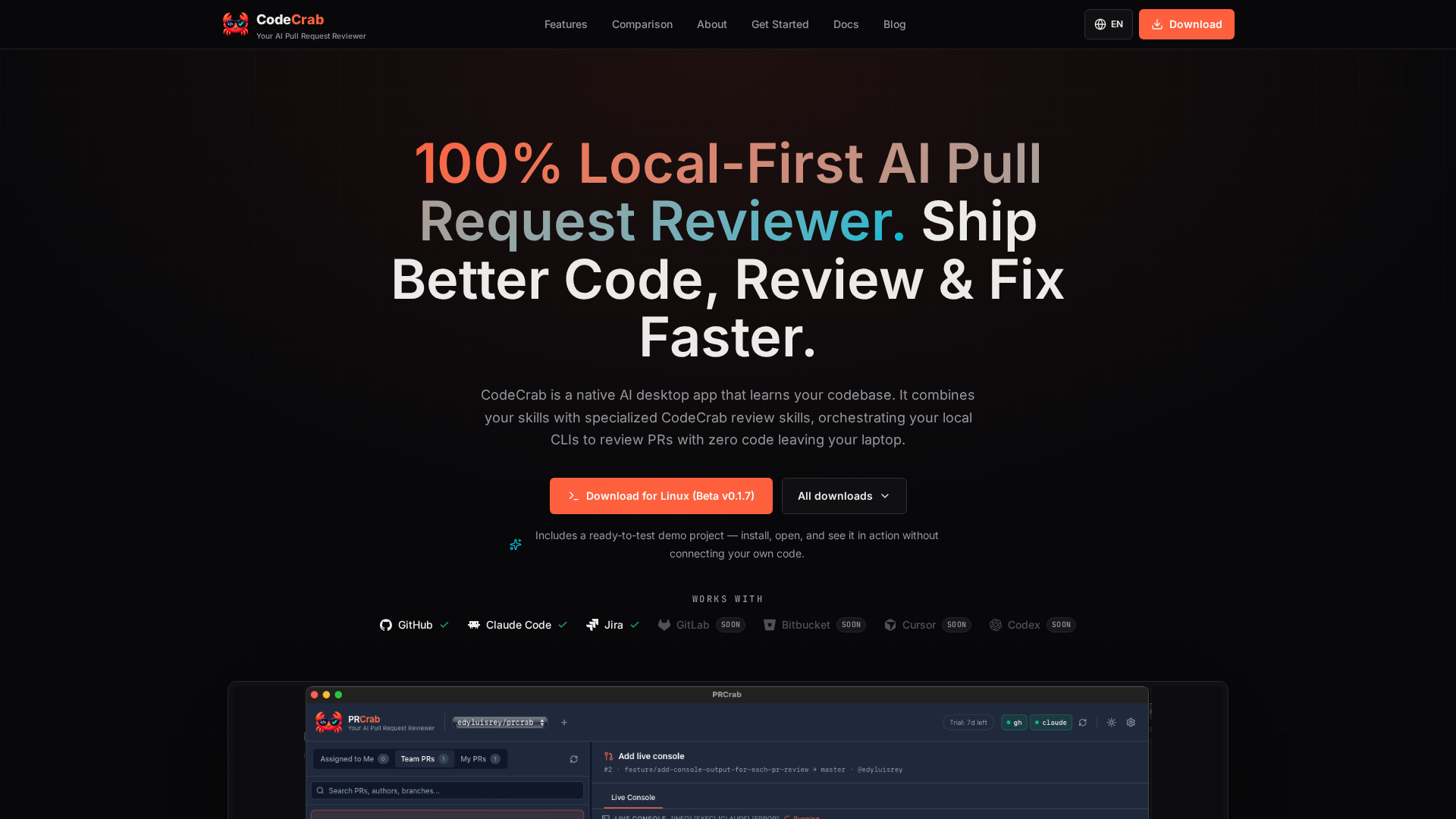
CodeCrab is a native desktop application that reviews pull requests in seconds by orchestrating the local command-line AI tools already installed on your machine. It is built for software engineers who want fast, deep reviews of both their teammates' pull requests and their own work, and it is designed around a simple promise: your code never leaves your laptop. CodeCrab learns your codebase, combines your existing skills with its own specialized CodeCrab review skills, and maps AI observations directly onto the changed lines so reviewers can catch bugs, risky patterns, and regressions before they approve. The product is currently available as a free public beta that runs 100% on your machine. Modern engineering teams are writing code faster than they can review it. As AI tooling generates code at unprecedented speeds, the primary bottleneck has shifted from writing code to reviewing pull requests efficiently. In practice, that means senior engineers spend hours walking through diffs, and reviewers often lack the full context of the repository behind a change. At the same time, many teams work on sensitive or regulated codebases where uploading source code to a third-party cloud review service is simply not an option. CodeCrab was built by Edy, a software engineer with more than 14 years of experience, including years building systems at Google and Pinterest, initially as a personal tool to perform deep, Staff-level code reviews quickly without uploading sensitive private code to third-party servers. The first core workflow is pull request code review. You open any pull request from your colleagues, and CodeCrab walks through the diff with you. It maps AI observations directly onto the changed lines, so you can spot bugs, risky patterns, and regressions fast, before you hit "Approve". Crucially, CodeCrab reviews against your entire local repository rather than only the diff: it uses full codebase context, including your types and your test suite. That means observations are grounded in how the change actually fits into the project, not just in the isolated lines that changed. The whole process is 100% local-first, so CodeCrab can catch logic bugs and regressions without uploading a single line to the cloud. The live review interface combines a file tree, a diff viewer, and inline AI observations in one native desktop window. The second workflow covers your own pull requests. When a teammate leaves an observation on your PR, CodeCrab runs a deep investigation for you. It digs through the code around every comment, connects that code with your project's context, and helps you understand as precisely as possible what the observation really means and what the correct solution looks like. The investigation of every reviewer observation on the diff is deep and read-only, so nothing is modified while CodeCrab is reasoning about the feedback. Once you understand the finding, CodeCrab supports an assisted fix on your local branch, verified against your own test suite. A third, closely related workflow happens before the pull request even exists: pre-push code review of local changes. While you are still working locally, CodeCrab reviews your in-progress changes in read-only mode before anyone sees the diff, detects errors early, investigates each finding as deeply as needed, and helps you apply the right fix while the context is still fresh. CodeCrab is built to plug into the workflow you already have rather than replace it. You connect any repository, and CodeCrab learns its rules and patterns, building a per-repository review profile that powers specialized review agents and custom skills. Those profiles make reviews tuned to your codebase instead of generic best practices. Your own skills and CodeCrab's agents work together: you can reuse your existing local skills, combine them with CodeCrab's, and extend as far as you need. The app integrates with your local skills, Claude Code, and Jira, and it works with GitHub and GitLab today, with Bitbucket, Cursor, and Codex listed as coming soon. Repositories, skills, models, and language are all configurable, so experienced engineers can enforce their own standards without abandoning their existing setup. Privacy is the foundation of the product. CodeCrab uses a 100% on-device architecture with zero code uploads: your source code never leaves your laptop or passes through external cloud databases, which makes it suitable for strict corporate environments where no code may be sent to third-party AI clouds. Control is equally deliberate. CodeCrab is read-only by default and never commits, pushes, or posts public GitHub comments without your explicit permission. When you do want to apply a change, CodeCrab generates verified code patches as 1-click local fixes, and it runs your native test suite (cargo test, pytest, npm test) before applying them, so the patch is checked against the project's own tests rather than trusted blindly. Instead of requiring org-wide OAuth admin permissions, CodeCrab uses your own CLI login (gh). The distinctive approach is tool orchestration on the client side. Rather than locking you into a vendor's fixed model wrapper, CodeCrab orchestrates your local command-line tools, so it can use your local Claude Code and Cursor setups. It connects directly to the AI subscriptions you already pay for, giving you full model and cost control: you choose which AI models to run and control exactly how much you spend on code reviews, with zero server markups or hidden fees. Execution is transparent through a live execution console that shows real-time stdout and stderr, in contrast to an opaque cloud pipeline. The difference from cloud review bots is not the model, it is where your source code ends up: with CodeCrab everything stays client-side and runs as an instant local native application, while cloud SaaS bots upload and process code on vendor servers and run queued background jobs. The headline benefit is speed without loss of depth. CodeCrab is described as instant and lightweight, with blazing-fast native desktop performance, minimal RAM consumption, and instant startup, so reviews happen in seconds instead of waiting on a queue. Engineers get early bug detection for logic flaws, security risks, and regressions directly on the diff, plus 1-click local fixes that produce verified code patches ready to apply to a local branch. Precision diff navigation with clear changed-file tracking, inline observation badges, and clean multi-file diff inspection keeps large changes manageable. Together these outcomes shorten the loop between noticing a problem and having a reviewed, verified fix, and they let teams ship cleaner, higher-quality code while keeping full control over cost and data. Concrete workflows include reviewing a teammate's pull request before approving it, where CodeCrab walks the diff and places observations on the changed lines so you can catch risky patterns and regressions with full repository context. Another is turning feedback on your own PR into a solution: CodeCrab investigates each reviewer observation deeply, explains what it means, and assists with a local fix verified against your test suite. A third is pre-push review, where you analyze in-progress local changes and apply fixes before the pull request is ever created, so the PR you open ships cleaner code. Teams working in regulated or security-sensitive environments use CodeCrab because reviews happen entirely on-device with no code uploads. Engineers who already pay for tools such as Claude Code or Cursor can reuse those subscriptions for reviews rather than paying for an additional cloud service. The bundled ready-to-test demo project lets anyone install, open, and see CodeCrab in action without connecting their own code. CodeCrab is aimed at software engineers and engineering teams who review code daily, particularly those who want deep, Staff-level reviews quickly and cannot or will not upload sensitive private code to third-party servers. It complements existing setups instead of replacing them: it integrates with GitHub, Claude Code, Jira, and GitLab, with Bitbucket, Cursor, and Codex listed as coming soon, and it plugs into local custom skills. Reviews run against your local repository and your own test suites, with example commands including cargo test, pytest, and npm test. GitHub access uses your own gh CLI login rather than org-wide OAuth permissions. The app ships as a native desktop application, currently downloadable for Linux as Beta v0.1.7, and CodeCrab is in free public beta with no code leaving your laptop. CodeCrab's promise is straightforward: faster, deeper pull request reviews with total privacy. By learning your codebase, orchestrating the local AI tools and subscriptions you already own, and keeping every line of code on your machine, it turns review from a bottleneck into a fast, controlled, read-only step in your engineering workflow.
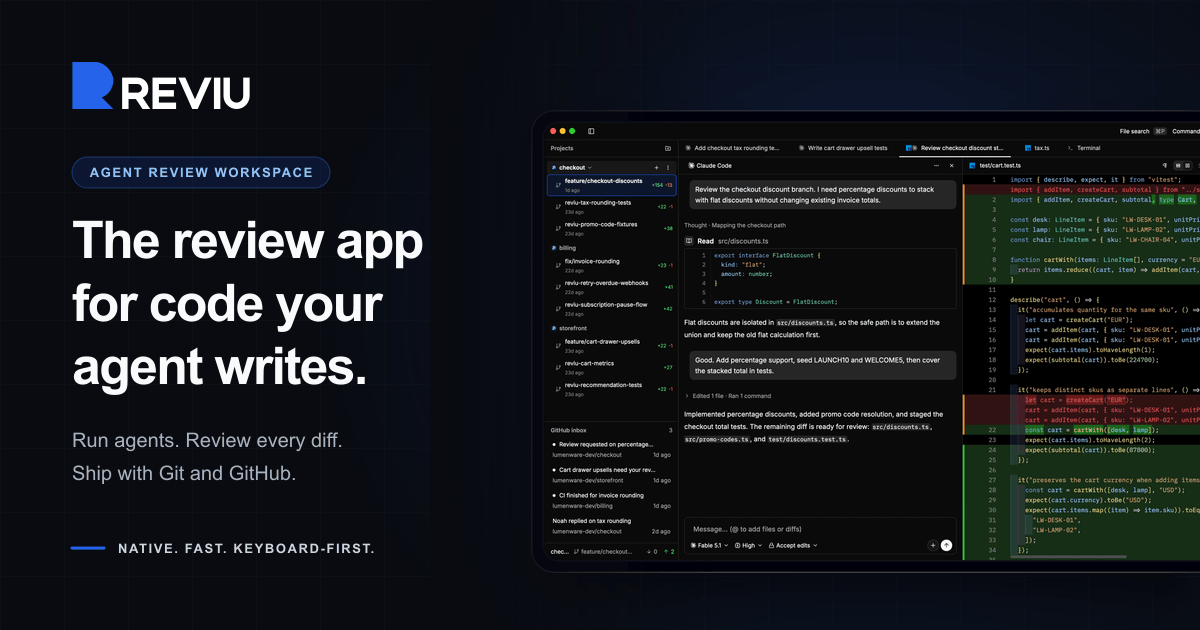
Reviu is a native desktop application built for reviewing the code that coding agents write. Instead of treating an agent's output as a disposable chat log, Reviu turns each task into a durable session with its own conversation, branch, terminal, checkpoints, file edits, and review queue. Developers start an agent such as Claude Code or Codex, watch the session, inspect every diff, send line comments back to the agent, and then stage, rebase, commit, and push with real Git underneath. The app is aimed at developers who already drive agent CLIs on their own machines and want a structured review layer between the agent's work and the branch that eventually lands in their repository. Agentic coding changes where the bottleneck sits. The agent can produce a large diff quickly, but someone still has to read it, question it, and decide what belongs in the branch. That review step is usually spread across terminal windows, a chat transcript, a separate Git client, and a browser tab full of pull request threads. Reviu was rebuilt from a Git client with an agent panel into a review workspace for coding agents, so the review of agent output happens in one place before the work becomes history. The core local agent review loop stays free, while GitHub pull requests, reviews, checks, merge, and notifications are the Pro layer. Each task in Reviu becomes a durable session rather than a disposable chat. A session keeps its own conversation, branch, terminal, checkpoints, file edits, and review queue, and you can switch between sessions without stopping running agents. Parallel worktrees keep multiple agent tasks out of your main checkout, so one task cannot dirty another. Attention states show at a glance which sessions are running, waiting, failed, or ready for review, and readable agent activity groups commands, reads, edits, permissions, and failures as reviewable events. Running several agents at once therefore stays organised instead of turning into a pile of interchangeable terminal tabs. Diff review is the centre of the app. You inspect the diff produced by the agent, with file, line, and side context, and leave line comments that are sent back to the agent. Comments can be batched rather than sent one by one, so a review queue such as three selected comments on a file becomes a single message to the agent. The agent can then address them, for example fixing a discount order, adding a rounding test, or renaming an unclear helper. Because the comments carry the exact file, line, and side context, the fixes are anchored to the code being discussed instead of being described in prose. Reviu keeps real Git nearby so that review decisions become commits. You can stage the hunks you trust, unstage another pass, and restore the rest. Branches can be cleaned before a pull request exists by squashing, fixup, dropping, and reordering commits. Messy states are recoverable: resolve conflicts, continue rebases, stash work, cherry-pick, and undo mistakes. Every surface follows the checkout, so changes, history, terminal, and review all reflect the same branch, and Git actions such as commit, amend, push, force push with lease, interactive rebase, and pop stash are available from the same keyboard-first command palette as the rest of the app. Reviu Pro adds GitHub without losing local context. A pull request dock shows your branch's pull request alongside the agent session, working tree, and review threads, and Reviu finds the pull request for a checked-out branch or helps create one from the header. GitHub diffs can be opened in the editor, commented on inline, replied to in threads, and submitted as a full review. Merging follows GitHub conventions with squash, merge, or rebase using GitHub's generated title, message, bullets, and trailers, and checks and review status are visible before you act. An inbox surfaces notifications such as requested changes, finished CI, and replies, and a browser extension adds Open in Reviu to GitHub pull requests in Firefox and Chrome so a pull request can be opened as a local checkout ready for diff review, files, and terminal. Underneath, Reviu is a fully native desktop app built with Rust and GPUI, a Rust-based GPU-accelerated UI framework, with no Electron and no webview. It does not run agents in the cloud: Reviu launches the agent CLI you already installed and signed into, so the agent runs as a local process on your machine and your code stays local. Agents come from the official Agent Client Protocol registry, which includes Claude Code, Codex, Gemini, Copilot, Cline, and about twenty others. Because Reviu drives the CLI you already have, agents run with your existing subscription, there is no API key to paste, and there is no agent meter. The practical benefit is that agent work stops being a raw dump of changes and becomes a branch you own. Review happens before the work lands, comments travel back to the agent with precise context, and the final steps of staging, rebasing, committing, and pushing happen in the same window instead of a chain of separate tools. Cleaner history means the commit that reaches a pull request reflects decisions you actually made. If you already have Git tooling you like, Reviu is designed to sit alongside it as the missing agent review layer rather than replace it. A typical workflow starts with an agent session for a feature such as checkout discounts: the agent works in its own worktree, and you review the resulting diff line by line. Selected comments are batched and sent back to the agent, which makes the fixes, after which you stage the hunks you trust and clean the branch with an interactive rebase before pushing. Running several sessions in parallel covers tasks like adding percentage discounts, fixing tax rounding, and writing cart property tests at the same time without one task dirtying another checkout. For developers working through GitHub, you can open a pull request from the inbox, review its diffs locally, submit the review, and merge with a squash, merge, or rebase commit. The browser extension covers the reverse entry point: spotting a pull request on GitHub that needs local review and opening the branch in Reviu. Reviu is for developers who already use coding agent CLIs and want to review their output before it becomes a commit. Local agent review is free and includes agent sessions with ACP registry agents, parallel worktrees and durable session state, diff review with comments sent back to the agent, and local Git covering stage, rebase, conflicts, and terminal. Pro costs $9 per month or $79 per year, saving 27%, with a 14-day free trial and cancel anytime, and adds the pull request dock with checks and merge, GitHub review comments and submit review, inbox notifications, and the browser extension. Reviu runs on macOS for Apple Silicon and Intel, Windows for ARM64 and x64, and Linux through a terminal install command. No account is needed for local sessions; signing in is only required for the GitHub integration in Pro. Mobile access and remote over SSH to servers and VPS are listed as planned. In short, Reviu gives developers a review workspace for the code their agents write: run the CLI you already use, inspect and comment on every diff, send fixes back to the agent, and finish the branch with real Git, while Pro connects that local flow to GitHub pull requests, checks, merge, and notifications.
devpit is a native desktop application for controlling the coding agents you run. Everything a session needs sits in one window: a chat pane, a terminal for each project, a board that holds the work, a running record of what every agent call cost, and an orchestrator that can see across every project you have linked. Today it drives Claude Code through the claude CLI you already have installed, while support for Codex, Cursor, Gemini CLI and opencode is described as coming. devpit runs on Linux, macOS and Windows, is free and open source, and is aimed at developers who run more than one agent at a time and want a single place to watch them all. Coding agents are powerful, but they are also noisy. Each one lives in its own terminal, and the moment you run more than one at once — a task in one repository, a review in another — you are switching between windows, losing track of which process is still alive, and guessing at what any given run has cost you. There is no shared place where the work being done is visible, and no natural place for an agent to stop and ask you a question. devpit exists to put all of that in one window, with panes side by side rather than tabs spread across six applications. Its guiding rule is that nothing advances on its own: an agent writes down what it did, and moving the work forward remains your call. The most basic pane is the terminal. It is a real pty behind tmux, which means you can split it, close the window, and find the same process still running when you come back. Beside it sits a chat that proceeds one turn at a time and shows what each turn cost, so a conversation with an agent is also a running account of what it is spending. Per project, devpit also offers capabilities — extra tools that open as panes next to the work; Notes and Excalidraw are the ones available today. Files, diffs and a browser are available in the same window, so you can review what an agent changed and look at the page it serves without leaving devpit. Because each terminal is held by tmux rather than by the visible window, and because each project has one target terminal, switching between pieces of work simply re-attaches the view to whatever you are looking at, while the previous session keeps running in the background. The board is where work is organised. It uses your columns in your order, and moving a card is what starts the work: the card is not a passive note, it is the trigger for a step. A step does not advance on its own. It writes down its output, its exit code and its real cost, and then it stops. Deciding to move on is yours, unless you have deliberately set a lane to move by itself, in which case the board shows that. Cost is tied directly to the board too: a spending cap on every call is set by the column the work sits in, and the card records the real cost of what ran. In other words, the column defines the ceiling for that stage of work, and the card reports what was actually spent. Above the individual project sits the orchestrator: a chat that reads every board you have linked, across projects. You can hand it a card and it starts a session for that card, then reports back to you. Alongside it, the Sessions panel lists every session on your account, with the ones waiting on you first, and you can answer them in place, as yourself. The island — a capsule that floats above your windows — shows what each agent is doing and lets you allow or deny from there. Agent state is expressed in words as well as visuals: thinking (started, before its first step), working, asking, waiting, done, failed and sleeping. There are also reminders that only remind: telling devpit to remind you at three to review a pull request means it will tell you then, and start nothing. The orchestrator has explicit limits: it never moves a card into a lane that runs a step, it never acts on a timer, and it never approves anything in another session. Any reply it drafts goes out only when you send it. Underneath, devpit is local-first. Everything it creates — the board, the panes, the terminal and the costs — lives in a workspace per project under ~/.devpit, so nothing lands in your repository: there is nothing to gitignore and nothing appears in the diff. A teammate can work alongside you without ever hearing of devpit. When a step needs a checkout, devpit makes a worktree for that line of work, and it never removes a worktree while it still holds uncommitted work. Sessions are designed to outlive the window: close devpit, reopen it, and what was running still is, because tmux holds the processes. Windows is supported through a per-user installer that brings psmux, the tmux of Windows, and the Linux build also runs in WSL 2. devpit is written in Rust and Tauri rather than being another Electron app, and each terminal is a real pty behind tmux, or psmux on Windows. The outcome for a developer is a single place to watch several agents at once, without losing any of them. Costs are visible per call and capped per column, so agent work does not become an unbounded bill. Sessions that wait on you are surfaced first, so time is not wasted hunting for the agent that has stopped and needs an answer. Because the workspace is separate from the repository, using devpit does not change your code base or your team's workflow. And because state is preserved — tmux holds the processes and the workspace persists per project — you can come back days later and find the board, panes, terminal and costs where you left them. Concretely, this plays out in several ways. When you are running agents on more than one project, each board gets its own workspace and you watch them all through one window. When an agent finishes a change, you review its files, its diffs, and the page it serves without leaving the app. When you want work kicked off, you hand the orchestrator a card and it starts a session and reports back. When an agent stops and asks a question, you answer it in place as yourself, with the sessions waiting on you listed first. When you are away from the machine, you can check on running work from your phone over Tailscale. And when you want a nudge rather than action, you set a reminder that tells you at the time and starts nothing. devpit is aimed at developers who use coding agents, and specifically at those who run Claude Code and find themselves managing several sessions or several projects. The agent it drives today is Claude Code, through the claude CLI you already have; other agents can report their status with the devpit-agent hook, and Gemini CLI does so with nothing to set up. Codex, Cursor, Gemini CLI and opencode are all listed as coming behind the same interface, and your own agents are markdown files. The tech stack is Rust and Tauri, with tmux as the process holder and psmux on Windows; optional remote checking is done over Tailscale by pairing a device with a one-time code and choosing what it may do, with nothing listening beyond your tailnet. devpit is free and open source under Apache 2.0, uses your existing Claude Code plan with no new API keys, and requires no account — an account today only signs you in, and sync, when it comes, will keep the workspace around your work rather than the work itself. devpit's value proposition is control: one native window for the coding agents you already run, a board that makes the state of the work visible, a cost on every call and a cap on every column, and an orchestrator that sees every project while never acting on its own. Free, open source, local-first, and out of the way of your repository.
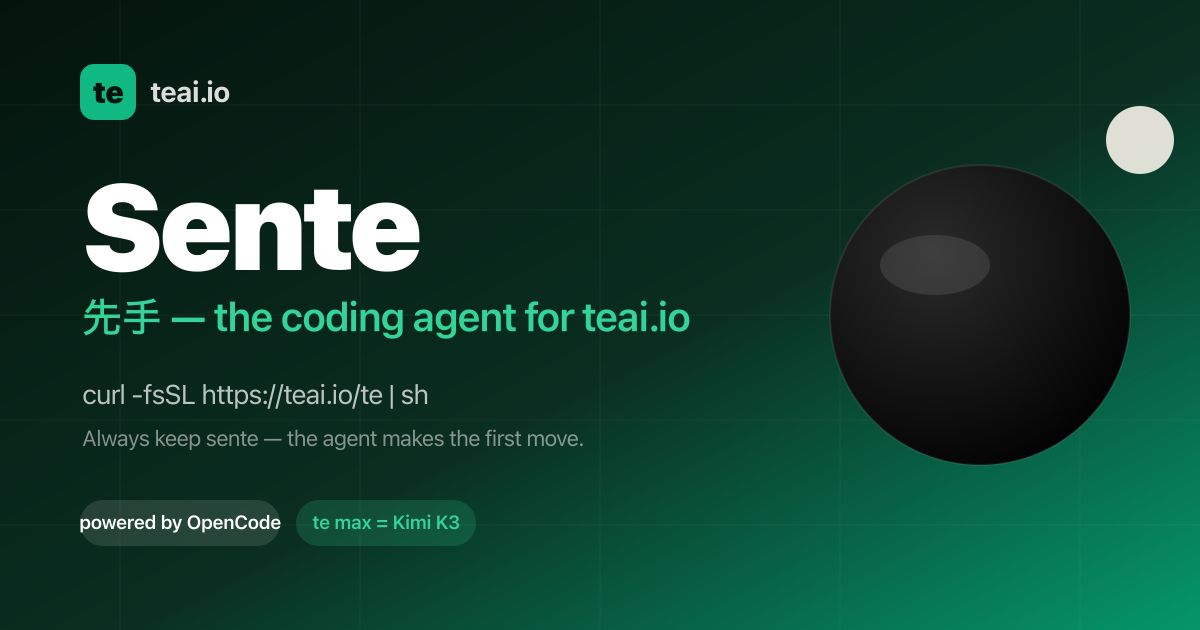
Sente is teai.io's official coding agent CLI. It is a thin launcher over OpenCode (MIT, 203k GitHub stars), and one curl installs it so that every teai.io model becomes an agent in your terminal. The command is short — te, with a sente alias installed alongside it — and it starts an agent in the current directory so you can type a task and let it work. Sente is built for developers who live in the terminal and want an agent that reads and edits the files in their repository, runs commands, and reports back, instead of a chat app that can only discuss code. It is also available as a voice conversation on macOS, Linux and WSL, and as Sente Cloud in the browser. The aim is to remove friction between a model and a working repository. teai.io is natively OpenAI-compatible, and Sente (OpenCode-based) speaks OpenAI-compatible natively, so tool calls go through teai without a conversion layer — zero conversion, stable by design, and nothing to break when routing through teai. Sente is deliberately not a fork: on each launch it syncs the teai.io model catalog (380+) via /te/config, so you inherit every upstream OpenCode improvement. Coding discipline is injected mechanically as well: sente-rules.md is written automatically and loaded into every session, enforcing "read before you write" and "always ship a deliverable". Setup is designed to take about three minutes. Paste one line — curl -fsSL https://teai.io/te | sh — and the installer installs OpenCode if it is missing and points OPENCODE_CONFIG at the teai.io-generated config. Then te login with an API key (a free one comes with 100 credits on signup), and run te for interactive mode or te run "refactor this function" for one-shot work. Sente works on macOS, Linux and WSL; on Windows you use WSL. Optional GUI apps are installed only when you explicitly ask: te app install sente for a menu-bar Sente.app, te app install koe for an always-listening Koe.app, or te app install both. Those macOS apps are Developer ID signed and Apple notarized, and they are placed in /Applications only when you run the command — transparency first. Sente gives you 380+ models with one line to switch. glm-5.2 is the suggested daily driver at roughly ¥0.34 per task; te lux selects the Claude/OpenAI flagship (Fable 5) for quality-critical work; te max selects Kimi K3 (2.8T, 1M) for hard tasks; and DeepSeek V4 Pro runs at about ¥0.03 per task. One base_url decides routing, so you can keep costs low without breaking quality. For measurement, teai.io defines one task as approximately 1K input tokens plus 500 output tokens, and it publishes a bake-off with measured numbers. Product Hunt describes the same idea as models on one account — Claude, GPT, Gemini, DeepSeek and more — with OpenAI- and Anthropic-compatible endpoints. Three things stand out in daily use. First, you can ask by voice: te talk starts a voice conversation where you say what you want done and Sente reads its reply back to you, available on macOS, Linux and WSL. Product Hunt describes a consent-first voice enrollment where you read one sentence (about ten seconds) to enroll your voice, with the delete key yours and a stated commitment never to clone a voice that isn't yours. Second, work keeps going while your Mac sleeps: Sente Cloud at sente.teai.io runs in your browser on a cloud workspace, and you sign in with an emailed one-time code, so closing your laptop doesn't stop the work. Third, there is a three-tier safety model for sente: read operations are automatic, write operations are treated as reversible and proceed, while delete, send, publish and pay actions ask first. The te CLIs come in three stages — te (you type, it runs on request), sente (you speak, it moves first) and fuseki (nothing is triggered, because it is already watching). fuseki has an Alpha implementation available as fuseki or te watch: it keeps an eye on your board, human-gates and recent repos without being called, thinks and logs plus speaks a suggestion only when something actually changes, never executes on its own, and is stopped with te stop. It inherits the same safety tiers and defaults to proposing only. Privacy and enterprise readiness are explicit parts of the product. API-compatible endpoints never store request bodies — only metadata, kept for 90 days. Invoice billing and a DPA are available, and BYOK (bring your own key) is in preparation. The service runs in the Tokyo region with JPY billing and Japanese support. On top of that, local PII scrubbing is available as an opt-in: te privacy scrub on masks emails, phone numbers, addresses, API keys, private keys and high-entropy tokens, plus names via your Contacts dictionary (te privacy scrub harvest), Japanese honorific heuristics and Apple's on-device name recognition, on your Mac before the request reaches teai.io. It costs about 0.1 ms per request and needs no local LLM, and the reply is restored before it is shown. teai.io is candid that this is not a guarantee of complete detection — Japanese given names without an honorific or a dictionary entry are not caught — and notes that an optional Ollama layer (--llm) exists but is slow. Five beta skills, new in August 2026, add reference-corpus RAG to the CLI. 748 Q&A entries across law, security, freelance ops, cloud infra and OSS licensing are searched with lightweight retrieval — semantic embedding plus a relevance cutoff — before the agent answers, and full benchmark numbers, including where it failed, are published. te legal covers Japanese law with 259 entries across 21 topics: civil code, labor law, company law, inheritance, consumer contracts and commercial transactions, cross-checked against actual e-Gov statute text, with semantic search returning "no match" for unrelated questions instead of fabricating an answer. te security covers secure coding with 131 entries across 13 topics including SQLi/XSS/CSRF mitigation, auth/authz, secrets management, dependency vulnerabilities, crypto basics and API security — useful for sanity-checking "is this dangerous?" mid-implementation. te freelance covers freelance ops with 125 entries across 14 topics such as contract checkpoints, Japan's invoice system, tax filing and social insurance switching. te infra covers cloud ops with 117 entries across 14 topics including Fly.io, Docker, CI/CD, SQLite/libsql, DNS and TLS, with real gotchas teai.io itself hit running this exact stack. te license covers OSS licensing with 116 entries across 14 topics: MIT/Apache/GPL-family, AGPL's SaaS network clause and license compatibility, written after checking each license's official text. Beyond the CLI, the same RAG context can be requested directly from the API by passing a model identifier such as shitate/legal to /v1/chat/completions, using the same alias-resolution pattern as teai/auto, with billing reflecting whichever model actually served the response. All five are marked as beta: general reference information, not a substitute for professional advice. The terminal interface is bilingual. You choose Japanese or English for language settings and the skill list, and the choice is saved for the next launch, with the initial language following your terminal locale. You update with te update in your shell and restart Sente, then enter /language (or /lang) to pick a language. To find a skill by purpose, open /skills and search by display name, description or skill ID; you can read the selected skill's description below the list and press Ctrl+L or click the language label to switch languages in place. This setting covers the language dialog and skill list; available skills depend on your setup, missing translations are labeled, and skill IDs and execution instructions stay the same. The stated benefits are practical. Failed responses cost nothing: empty responses are not billed, and failed paid media jobs and failed MCP tool calls are refunded in full, so you pay for results rather than errors. Because Sente Cloud runs on a cloud workspace, long-running work continues while your laptop is closed. Because the tool works in the repository itself, tasks that used to be copy-pasted between a chat window and an editor — explaining a repo, refactoring a function — happen where the code lives. And because the launcher is thin, you keep inheriting upstream OpenCode improvements instead of waiting on a fork. Concrete workflows shown in the content include running te run "explain this repo" to have the agent walk a repository, or te run "refactor this function" for one-shot edits, and switching to te max run "..." when a task is hard enough to justify Kimi K3. Voice users hand a task over with te talk and hear the answer read back. Developers use the skills mid-task: asking te legal about a statutory reserve share (iryuubun), asking te security how to prevent SQL injection, asking te freelance how to register for the invoice system, asking te infra how to set a secret on Fly.io, or asking te license what to watch for when using AGPL in a SaaS. Teams that need the same retrieval from their own stack call shitate/legal through the API. Sente is aimed at developers and small teams working from the terminal, including Japanese-speaking users given the Tokyo region, JPY billing and Japanese support. It is free as a tool; teai.io runs on credits. The Free plan gives 100 credits on signup with no credit card required — enough for roughly 300,000 short chats on Qwen3.7 Flash or about 2,000 on glm-5.2, at 1K in plus 500 out each. Pro is ¥4,350/month (about $29 USD) with 30,000 credits, and Business is ¥14,800/month (about $99 USD) with 100,000 credits. Product Hunt describes the model as metered rather than unlimited, with monthly credits and the option to top up if you go over. Sente runs in the terminal on macOS, Linux and WSL, in the browser through Sente Cloud, and its skill models are callable from the API. Summary: Sente takes a one-line install and turns teai.io's model catalog into terminal agents you can type at, talk to, or leave running in the cloud — with mechanical coding discipline, opt-in local PII scrubbing, five RAG-backed reference skills, and a promise that failed responses cost nothing.
CamCue is a desktop AI interview and meeting assistant for Mac and Windows. It drafts answers to spoken questions and tasks on your screen using your CV, job description, and documents. Use it for interview practice, coding questions, client conversations, and team calls.Listen recognizes complete questions from your computer's audio and drafts answers as the conversation unfolds. Capture analyzes your entire screen, while Select focuses on the area you choose. You can ask about a question, a paragraph, a coding problem, or another task without copying it into a separate app.Add your CV, the role you're applying for, or project documents to give the assistant useful background. Choose Interview, Coding Interview, Quiz/Test, or Call mode, then set the response language and length. Save context presets for different conversations.Focus Mode puts answers in a compact, movable window with adjustable transparency. Global shortcuts control Listen, Capture, Select, and the window. Try the built-in Listen demo before a call and revisit questions and answers in local session history.Speech recognition runs on your computer. Raw Listen audio is not saved or uploaded; recognized text and relevant screen or document context are sent for AI processing. CamCue requires an internet connection and an account. Stealth requests screen-capture exclusion where supported; compatibility depends on your operating system and capture app.Start with the Free plan's limited AI credits. PRO includes unlimited AI credits for Listen, Capture, and Select at US$9 every 3 days, US$19 per week, or US$69 per month. Subscriptions renew until canceled; technical rate and session limits apply. Mac requires Apple Silicon and macOS 14.2 or later. Windows requires x64 and Windows 10 version 2004 or later, or Windows 11.Website: https://camcue.app/Contact: support@camcue.app
Firetower is an open-source, self-hosted control plane for coding agents. Give it a machine you can SSH into and a repository, and it picks a host, cuts a branch, makes a worktree, starts tmux, launches the agent and keeps it running. Then it does the part that actually costs you time: it tells you the moment the agent stops being useful without you. It is built for developers and engineering teams who want to run agents such as Claude Code and Codex on infrastructure they control, and it is described as self-hosted with no account. Firetower installs in about five minutes with a single curl command and offers clients for macOS, Windows, iOS and Android, so the same work can be attached to from a browser or a phone. The problem Firetower targets is where the agent runs. In a typical setup the agent lives in a terminal on the laptop you started it from, so closing the lid, crashing the app or losing a connection either kills the run or leaves it orphaned with no clear picture of what changed. Firetower argues that the agent should not run on the device you happen to be holding. Because the agent runs on your own server rather than on the device that started it, every device can pick up exactly where another left off. The work survives the failure of any single part, and the repository, the diffs and the agent sessions stay on infrastructure you control rather than inside a vendor's cloud. Firetower folds the entire workflow into one place: you start from your issues and Linear tickets, the agent runs your worktrees, you preview and annotate, then you commit and open a PR. Firetower reads from your trackers as you look, and starting a ticket opens a workspace. The ticket list shows an ID, a title, the project, the assignee, how long ago it was updated and a status column that can already show that an agent is starting — for example adding a dark mode toggle, fixing an invite link on mobile, or rate-limiting a webhook receiver. Workspaces are scoped per repository and per user, a command palette (⌘K) sits over the interface, and the product offers twelve ticket sources to pick from. Firetower runs remotely and keeps going when you close your laptop, and a pause control is available. The site walks through three failure cases. If your laptop closes or the app crashes, nothing happens to the agent, because it never ran on the laptop — open Firetower on any other device and the conversation is exactly where you left it. If the Firetower server goes down, the workers keep running: each agent is on its own machine in its own worktree, and when the server comes back it catches up on everything that happened while it was away. If a worker dies, the worktree is still there, your branch and every file the agent changed are on that machine, and Firetower still knows about them — restart the worker and carry on. How it fits together: Firetower reaches each machine over SSH and starts a worker there. The agents run on that machine — in tmux, on their own worktree — which is why closing your laptop costs nothing and why the app itself never has to be the thing that is busy. The apps (desktop on macOS and Windows, mobile on iOS and Android) talk to a Firetower control plane over HTTPS. The control plane is one compose file on a server you already own, and it dials out to workers over SSH. Workers are authoritative: they write what happened to their own log before reporting it, and when the control plane comes back it asks for everything since the last thing it saw, so a reconnect is a replay rather than a guess. The worker never opens a port — it reads frames from stdin and writes them to stdout — so who dials is a transport detail: a child process, a container exec, or SSH. Firetower is written in Rust and presented as small by design: a small core, no accumulating terminal daemons, and workspace memory ceilings where the host supports them, built for work that keeps running. The site compares its resource profile against an alternative. On desktop it reports roughly 50 MB for the Firetower app, against a reported ~1.5 GB idle for the Orca app plus daemon, which it describes as 30× more efficient. For an agent worker it reports 5 MB with the agent CLI separate, against a reported ~500 MB per agent, described as 100× more efficient. For the server it reports a 200 MB control plane, against a reported ~1 GB after restart, described as 5× more efficient. The benefit is straightforward: agent work continues whether or not you are watching, and your attention is requested only when an agent has stopped and needs you. Because each agent runs in its own worktree on its own machine, one broken run does not take the rest with it, and a dead worker does not lose the branch or the files it changed. Because sessions live on the server, you can start something at a desk and check on it later from a phone without losing state. And because the control plane self-hosts from a single compose file with no account, teams can keep the code, the credentials and the diffs on servers they already own, behind whatever firewall rules they already have. Concrete workflows follow directly from the way Firetower is described. You can open your GitHub issues or Linear tickets in Firetower, start a ticket and have a workspace open with an agent already running against the right repository. You can start a long agent run on a Mac Studio or a Hetzner VM and close your laptop, checking the diff later from an iPhone or Android device. You can run several agents at once across different machines and repositories — for example Claude Code on one repository and Codex on another — and watch the inbox for the sessions that are waiting on you. You can annotate an agent's output, then commit and open a pull request. And if a server restarts or a worker dies, you can restart the worker on its existing worktree and carry on rather than starting over. Firetower is aimed at developers, engineering teams and anyone already running coding agents who wants them off their laptop. The integrations named in the content are GitHub and Linear for tickets; the trackers are read as you look, and the product is listed under Product Hunt topics including Open Source, Software Engineering, Developer Tools and GitHub. Clients are available for macOS, Windows, iOS and Android, and the site also describes attaching from a browser or a phone. The stack described on the site includes Rust, SSH, tmux, git worktrees and a compose file, in a self-hosted deployment with no account and an install command of curl -fsSL https://usefiretower.com/install.sh | sh. The takeaway: Firetower turns scattered, laptop-bound agent sessions into something that behaves like infrastructure. Give it a server you can SSH into and a repository, and it handles the branch, the worktree, the tmux session and the launch — then stays quiet until an agent actually needs you, across every device you use.
Macaly Cloud is an infrastructure and skills layer for your own AI agent. Add it to Claude, ChatGPT or Grok Bot — the product also works in Claude Code, Codex and Grok Bot — and you can build apps and websites with a database, hosting, a domain and 70+ other skills without leaving the chat or terminal you already use. It is made for people who already pay for an AI subscription and want the code their agent writes to become something real and live on the internet, instead of managing a stack of separate services themselves. Anyone who has tried vibe coding outside a single tool runs into the same wall. Tools such as Lovable and Base44 charge AI credits for every message, so when you already have Claude, ChatGPT or Grok Bot, paying for a second AI subscription makes no sense. The do-it-yourself route is no cheaper: hosting at around $20 a month, a database at around $25 a month, a domain at $15 a year, plus a Saturday spent on CI/CD and a Sunday on environment variables. That adds up to two bills, two AI agents, two subscriptions, charged twice — and the project still needs a database, user accounts, SEO metadata and API keys before it can go live. Macaly Cloud exists to remove that collection of separate purchases and configuration work, packaging the parts a project needs into the agent workflow you are already using. The database is one of the clearest examples. Normally it is a separate service with its own subscription; with Macaly Cloud it is created the moment the code needs it, and it is tested by your agent first. The result is a managed Postgres database sitting behind the app, without the database bill that usually comes with it. Hosting, previews and a live address work the same way. Elsewhere you would buy a hosting plan and spend a weekend configuring it; here every change produces a preview link, and one message puts it live on your own macaly.app address at no cost. A custom domain is described as the one thing nobody can hand out for free: you can buy one through Macaly or connect one you already own, and Macaly handles the records and the certificate. User accounts are provided out of the box, without you having to build authentication — described on the site as the thing every platform charges for and every DIY builder gets wrong. Google sign-in, email or one-time codes are available without extra development work, which means a project that needs real users does not stall on login screens and password resets. SEO is included in every build as well: metadata, server-side rendering and favicons, indexable from day one, with no plugin sold as an upsell. That matters because sites built inside chat tools or vibe coding platforms often ship without the technical foundations search engines need, and fixing that afterwards is tedious. AI features can also become features of your own app without API keys. Chatbots, summaries, image and video generation, even voice, all of them are part of your project with nothing to sign up for and no separate bill. On top of that, Macaly Cloud ships 70+ skills your agent can pick up mid-conversation, including email, analytics, payments, voice, plus connections to the tools you already use. Because the agent picks skills up as the conversation continues, the project can grow in scope — from a page to a signup flow to a paid product — without you leaving the chat to wire up another vendor. The workflow itself is deliberately short and is described in three steps. First you connect: one click and a sign-in is the whole setup. Then you ask: you say what you want and your agent builds it. Then you publish: you say publish and it is on the internet. Macaly Cloud is not a replacement for the model writing the code — Claude, ChatGPT or Grok Bot writes the code, while Macaly Cloud provides everything needed to make the project real. You keep working in the chat or the terminal you already use, describing what you want to build, and the agent builds the app, wires up the database and puts it online. Because the infrastructure and the skills arrive as one service, users keep the AI subscription they already pay for instead of adding a second one. On the comparison the site draws, message credits, coding, database, hosting, domain, previews, publishing, debugging and agent skills are all listed at $0.00 within Macaly Cloud, leaving only the bill you already pay. The source code and all of the data remain yours, and you can export them at any time. Everything is hosted on European infrastructure, in Frankfurt and Ireland, and Macaly states that it is GDPR compliant and never uses your content to train AI models. Concrete scenarios follow directly from those capabilities. A landing page can be described in the chat and published to a macaly.app address in the same conversation. A signup form can be built together with user accounts, using Google sign-in, email or one-time codes, without building authentication from scratch. An app that needs to store data gets a managed Postgres database created when the code needs it. A tool that summarises or generates content can include chatbots, summaries, image and video generation or voice as features of the app itself, without API keys. A site that needs to be found can ship with metadata, server-side rendering and favicons from the first build. And when something needs to change — put it back how it was, or rebuild a page — that happens through another message in the same chat. Macaly Cloud is aimed at anyone who already has a Claude, ChatGPT or Grok Bot subscription and wants to turn what the agent writes into a live project. That includes individual builders, teams and agencies; the site notes that teams, agencies and anything bigger than the standard plan are handled by a person rather than a form, reachable at hi@macaly.com for a custom plan. The tech stack is handled for you: your agent builds on a modern web stack with React and Next.js on the front end and a managed Postgres database behind it, and you never have to pick, install or configure any of it. Pricing is free until October 1st, including a database with a free base allowance, hosting, previews, a macaly.app address, SEO, analytics and 70+ other skills, with some skills possibly still using Macaly AI credits. From October 1st, Macaly Cloud becomes a standalone plan at $10 a month, which covers the infrastructure. In short, Macaly Cloud turns the AI subscription you already pay for into a build-and-publish platform. Claude, ChatGPT or Grok Bot writes the code; Macaly Cloud supplies the database, hosting, previews, domain, user accounts, SEO, AI features and 70+ skills that make the project real, and it does so inside the chat you are already using — for free until October 1st, then $10 a month.