Category Focus/categories/productivity
Productivity AI Tools
Discover and compare the best productivity AI tools and software. Browse 874+ curated tools with reviews and rankings.
Projects tracked
874
Sort mode
RECENT
Page
13
Discover and compare the best productivity AI tools and software. Browse 874+ curated tools with reviews and rankings.
Projects tracked
874
Sort mode
RECENT
Page
13
Hola AI is an AI voicemail app and AI call assistant that answers your missed calls, talks to callers naturally, filters spam, and sends you a clear summary in seconds. It is designed for busy professionals and anyone who cannot pick up every call but still wants to stay reachable. The product records and transcribes conversations, helps you understand why someone called, and gives you the context you need before calling back. Hola AI works with your existing number, so you do not need a new number; your unanswered calls are simply forwarded to Hola AI, which takes over when you cannot pick up. It is available as a mobile app on the App Store and Google Play, and it can send summaries via app, SMS, or email. Traditional voicemail is passive and robotic. It records every cold pitch, robocall, and telemarketer, leaving you to guess who called until you listen through minutes of static audio. As the website puts it, old voicemail “records everything and filters nothing.” That means important calls can be buried under junk, and you waste time replaying unclear audio just to find out whether a message matters. Hola AI was built to change that experience by being proactive and human: it listens and talks like a human, filters the noise, understands intent, and sends you only what is worth your attention. Instead of treating every call the same, it separates real opportunities from spam and gives you an actionable summary you can skim instantly. One core feature group is human-like call answering and automatic spam filtering. Hola AI answers calls like a human, even when your phone is off or in flight mode. It talks to your callers, understands why they called, and makes them feel heard instead of ignored. At the same time, it filters spam automatically, so you no longer waste time on robocalls or cold pitches. Hola AI filters out junk before it reaches you. This combination means you can stay reachable without picking up every call, and you only receive messages that are worth your attention. The comparison table on the website highlights that Hola AI talks like a human while traditional voicemail just records sound, and Hola AI filters junk automatically while traditional voicemail records spam too. Another feature group is instant summaries and call context. You get a concise summary of who called, why, and how important it is. This is actionable text rather than long audio, so you can understand the purpose of a call in seconds. Hola AI can send the summary via app, SMS, or email. It also captures intent and next steps, and it records and transcribes conversations. That means you can read why someone called and what they need before you decide whether to call back. Instead of replaying and guessing, you can skim and act instantly. For professionals who are in meetings, with clients, or otherwise unavailable, this makes it possible to triage calls quickly and respond to the most important ones first. Hola AI also offers multiple personalities and strong privacy controls. You can personalise how it responds and choose how it sounds: sharp for work, warm for friends, or witty with spam. This lets you match the tone to the caller and the context, so callers get an appropriate experience. On the privacy side, all recordings and transcripts are encrypted and stored safely. The website states that recordings and transcripts stay encrypted end-to-end, and you have full control: you can delete any call or wipe everything anytime from the app. Hola AI also works with your existing number. You do not need a new number; your unanswered calls are simply forwarded to Hola AI, which takes over when you cannot pick up. The overall approach is to upgrade voicemail from a passive recording system into an active AI call assistant. When you cannot answer, Hola AI answers like a human, even when your phone is off or in flight mode. It talks to your callers, understands why they called, filters spam, and sends you a short summary via app, SMS, or email. The website’s comparison table contrasts this with traditional voicemail across several dimensions: how it responds, spam filtering, what you receive, tone and personality, your effort, availability, and call context. Hola AI responds by talking like a human; it filters junk automatically; it sends a short text summary; it offers customisable tone based on caller; it lets you skim and act instantly; it works in flight mode or when the phone is off; and it captures intent and next steps. This methodology is what allows Hola AI to be proactive instead of passive. The benefits for users are directly tied to staying reachable without picking up every call. You can skip spam and still catch every opportunity. You never miss an important call again, because Hola AI handles the greeting and sends you a summary instantly. You avoid replaying long, unclear audio and instead get a short summary you can read in seconds. You can filter out robocalls and cold pitches automatically, so your time is spent on real conversations. You can personalise the tone so work calls, friends, and spam are handled differently. You get privacy and security through end-to-end encryption and the ability to delete recordings or transcripts at any time. And because Hola AI works even when your phone is off or in flight mode, your availability is no longer limited by whether your phone is on. Real-world use cases appear throughout the website. A legal partner used to miss urgent calls when in court; now Hola AI handles the greeting and sends a text summary instantly, which the user calls a life-saver. A freelance creative uses the “Witty” personality for spam; it wastes telemarketers’ time while the user focuses on work. A real estate agent showing houses cannot talk, so Hola AI asks the right questions, and the agent can see exactly who is a serious lead by reading the summary. More broadly, Hola AI is for anyone who wants to skip spam and catch opportunities, for people whose phone is off or in flight mode, and for users who want to keep their existing number and simply forward unanswered calls. It also works as an AI call assistant that handles calls for you when you want more than voicemail. Hola AI is trusted by busy professionals, including legal partners, freelance creatives, and real estate agents, according to the testimonials on the website. It is available as an app on the App Store and Google Play, and summaries can arrive via app, SMS, or email. The product works with your existing number, so no new number is required. The website footer notes that it is powered by ElevenLabs Grants. Pricing is subscription-based: new customers get a limited-time 50% off offer at $4.99 per month for the first 6 months, then $9.99 per month. The site also mentions saving 17% more annually, and you can cancel anytime. The offer is described as limited-time, and the website encourages users to install the app, connect their number, and watch it in action. In summary, Hola AI replaces old, passive voicemail with a proactive AI voicemail assistant that answers calls, filters spam, and sends instant summaries. Its primary value proposition is that you never miss an important call again while avoiding the time waste of robocalls, cold pitches, and long audio messages. By talking to callers naturally, capturing context, and delivering actionable text summaries, Hola AI helps busy professionals stay reachable on their own terms, with privacy controls and an existing-number setup that make it easy to adopt.
Grok 4.7 is SpaceXAI's most powerful model for coding and knowledge work. It is built to work longer on difficult tasks, to check its own work more carefully, and it comes with the company's best-calibrated safeguards to date. SpaceXAI states that it is served at the same price and speed as Grok 4.6 and that it is highly competitive in its class. The model is available today in Cursor and in Grok Build, and it can also be reached through the Grok API, third-party coding harnesses, and model routers and cloud platforms, so teams can adopt it inside the tools they already use. The context for the release is the growing demand for models that can stay productive across long, multi-step jobs rather than only short prompts. SpaceXAI highlights CursorBench 4.0, a benchmark that stresses longer-running coding tasks, and notes that Grok 4.7 sits at the frontier in price-performance there. A second theme is professional knowledge work: in GDPval and AA Briefcase, the model is asked to work on tasks done by professionals such as lawyers, nurses, and financial analysts. Grok 4.7 improves on Grok 4.6 on both benchmarks and performs comparably to other frontier models, addressing the gap between short-answer demos and the extended work real jobs require. Grok 4.7 uses a new, larger base model compared with Grok 4.6. It was trained with a longer reinforcement learning run on a harder mix of tasks, weighted toward problems that take many hours to complete. As a result, the model is better at verifying its own work and at managing longer context, two capabilities that matter when a single task spans many steps. SpaceXAI also trained Grok 4.7 to natively understand the Grok Bot harness, which makes it better at conversational tasks and general knowledge work alongside its coding strengths. Together these changes describe a model tuned for endurance rather than one-shot answers. Across benchmarks, SpaceXAI positions Grok 4.7 as strong in several distinct domains. On software engineering it scores 46.3% on CursorBench 4.0, 71.0% on DeepSWE v1.1, with an asterisk marking a high-effort score, and 37.6% on Terminal-Bench 4.0. On electrical engineering it reaches 64.0% on EEBench. For professional knowledge work, it scores 1,657 on AA Briefcase v1.1 and an Elo score of 1,735 on GDPval. It also records 19.6% on the Harvey Legal Agent Benchmark and 56.7% on HealthBench Professional. The announcement compares these figures with Grok 4.6, GPT-5.6 Sol, and Fable 5.1, and notes that Grok 4.7 is better at creating documents and presentations. Safety and cybersecurity receive a dedicated section in the announcement. Grok 4.7 was built with an entirely new safeguard stack, and SpaceXAI describes it as the strongest model it has tested on refusals and jailbreak resistance. In dual-use domains such as cybersecurity and biological work, the company says it leads on both utility for benign tasks and safe refusal on dangerous ones, topping LatchBio's biosafety benchmark at 62.4%. On HackerBench v0.3, SpaceXAI's benchmark for risky and malicious cyber tasks, the model allows only 3.3% of risky dual-use prompts through while rarely blocking legitimate security work, giving it the highest safety score on that benchmark. The company frames this balance as important for defenders, who need the model to be useful on legitimate security work. SpaceXAI has also started giving select cybersecurity partners invite-only access to Grok 4.7's red-team capabilities for defense research. This detail shows that the safeguard work is not only a matter of refusal behavior but also of controlled enablement, where trusted partners can use the model for defensive security research while risky dual-use prompts are largely rejected for everyone else. Combined with the stated jailbreak resistance and calibrated refusals, the release frames safety as a core part of the model's design rather than an afterthought layered on top. The overall approach behind Grok 4.7 can be summarized from the announcement's own description: a larger base model, a longer reinforcement learning run on a harder task mix, and explicit training to verify its own work and handle longer context. Native understanding of the Grok Bot harness is another part of that methodology, aimed at conversational and general knowledge work. The commercial angle is equally deliberate, with the model served at the same price and speed as Grok 4.6 while the company reports frontier-level price-performance on longer-running coding tasks. For teams needing more throughput, SpaceXAI also serves a fast variant with twice the output speed at twice the price. The stated benefits follow from those design choices. Because the model works longer on difficult tasks and checks its own work more carefully, users can delegate multi-step jobs with more confidence that intermediate steps will be verified. Because it manages longer context and understands the Grok Bot harness, it can carry conversational and knowledge-work tasks that span more material. SpaceXAI also reports improvements in creating documents and presentations, and in benchmarks modeled on the work of lawyers, nurses, and financial analysts. Finally, the price and speed parity with Grok 4.6 means the capability gains arrive without a corresponding increase in cost per token for standard usage. Concrete scenarios appear throughout the announcement. Coding is first, both in Cursor and in Grok Build, where the model can be tried for free, and through third-party coding harnesses. Longer-running coding tasks are the specific focus of CursorBench 4.0, where the model is positioned at the frontier in price-performance. Multi-hour terminal work is represented by Terminal-Bench 4.0. Professional knowledge work includes the tasks measured by GDPval and AA Briefcase, described as work done by lawyers, nurses, and financial analysts, as well as the Harvey Legal Agent Benchmark and HealthBench Professional. Cybersecurity defense is another scenario, including invite-only red-team access for select partners. Electrical engineering is covered by EEBench. Grok 4.7 targets developers and teams doing coding and knowledge work. It ships in Cursor and Grok Build on day one, and is also available through the Grok API, third-party coding harnesses, and model routers and cloud platforms. Pricing starts at $2 per million input tokens and $6 per million output tokens, with a fast variant at twice the output speed for twice the price. A free trial is offered through Grok Build at x.ai/build, and the announcement also includes a CLI install command. SpaceXAI points users to its Console for creating an API key and to docs.x.ai for documentation. In short, Grok 4.7 is presented as SpaceXAI's most capable model for coding and knowledge work, combining a larger base model and longer reinforcement learning with a new safeguard stack. It works longer on difficult tasks, verifies its own work more carefully, and is served at the same price and speed as Grok 4.6 while claiming a frontier position on price-performance for longer-running coding tasks. For developers and professionals who need a model that can stay on task, balance capability with safety, and fit into existing tools, that combination is the core value proposition.
Googlebook is the first laptop designed for Gemini Intelligence, built to bring Google's AI services and Android phone integration together in one portable computer. It is crafted with premium materials for powerful performance and syncs effortlessly with your phone. Googlebook is aimed at people who want their laptop and their Android phone to behave like a single connected system, and it is ready from day one with a full suite of premium Gemini services and 5 TB of cloud storage. Pricing starts from $899, and the device can be pre-ordered now through the website. The lineup covers laptops and accessories. Most people move constantly between a phone and a laptop, and that switch carries a cost. Files and screenshots have to be transferred, tasks get interrupted, and documents are hunted down by cryptic filenames rather than by what they actually contain. Typing out thoughts often produces messy text littered with filler words, and searching usually means leaving whatever you were doing. Googlebook is positioned against exactly that friction: less time transferring, more time creating. Instead of treating the phone and the computer as two separate islands, it treats them as one workspace, and instead of treating AI as a separate app you go and visit, it places Gemini directly into the pointer, the keyboard and the screen in front of you. On the hardware side, Googlebook is supercharged with powerful processors like Intel Core Ultra and Snapdragon X Elite. Configurations start from 16 GB RAM and from 256 GB of storage, and the laptop is rated for up to 14 hours of battery life while weighing under 2.85 LBS. It is built with premium materials including aluminium, magnesium and carbon fiber, and OEM brand marks shown include HP, Dell Technologies, Lenovo, Acer and ASUS. Two distinctive hardware details stand out. The Glowbar is described as functional, beautiful and uniquely Google, acting as an at-a-glance indicator of your battery life and charging status. The G Key provides one-touch searches with a dedicated key, so answers are always right at hand. Intelligence is the defining layer of the machine: the best of Gemini meets a whole new kind of laptop. The pointer becomes more than a pointer, acting as a magic wand, and wiggling it activates Gemini so you can select anything to ask, create and compare effortlessly. Rambler turns messy thoughts into tidy text by removing filler words like "um" and adding formatting to clean up your stream of consciousness, so you can just talk naturally, review and send. Googlebook also meets you in the moment, with proactive suggestions that appear with your next move based on what is on your screen, surfacing exactly what you need when you need it. Smart file search lets you search files and photos by their actual content, so you can stop hunting for cryptic filenames. Gemini Live turns "Hey Google" into a live conversation where you can talk, share your screen or brainstorm with zero typing required, and you can close your to-dos even when your laptop is closed with the agent in the Gemini app. Because it is designed around Android, Googlebook focuses on syncing effortlessly with your Android phone, so you can jump between phone and laptop without skipping a beat. Cast My Apps makes it easier to stay in the zone by letting you open your phone's apps directly on Googlebook, so you can handle quick tasks without ever leaving your screen. Continue On lets you start a task on your Android phone and finish it on Googlebook, keeping your momentum and picking up exactly where you left off. Quick Access lets you find your phone's files directly from your laptop, so if you need that mobile screenshot for an email you can get it instantly with no transfers needed. The laptop also opens the wider app ecosystem: through the Google Play Store you get access to millions of your favorite apps and tools. The site groups these as Best of Google, including Gemini, Gemini Notebook, Antigravity, Google Drive, Gmail and Google Docs; Creativity, including Adobe Photoshop, Adobe Lightroom, BandLab, Canva, CapCut and Luminar; Productivity, including Notion, Notability, Microsoft Copilot, Adobe Acrobat, Dropbox and Fantastical; and Streaming, including YouTube, YouTube Music, Spotify, Netflix, HBO Max and Disney+. There are also thousands of games: you can play mobile hits like Clash Royale on Google Play, or stream PC heavyweights like ARC Raiders via GeForce NOW. Security is built in rather than added on. Googlebook is designed with built-in protection that helps keep viruses, malware and hackers out. The Titan C chip keeps your device, passwords and personal data safe with dedicated security built into every laptop, and secure authentication lets you unlock your Googlebook with your face or your fingerprint, with the laptop instantly recognizing you. Buyers also get extra perks included: Googlebook offers up to $300+ in apps you love, unlocking a curated collection of apps right at your fingertips, available for a limited time. The outcome for users is a machine that removes the small frictions that add up across a working day. Quick tasks no longer force you to pick up your phone, because phone apps can be opened on the laptop screen. Screenshots, files and photos are reachable from the laptop without transfers. Work that begins on the phone can be completed on the laptop without restarting it. Filler-heavy speech becomes formatted text ready to send. Files are found by what is inside them rather than by their names. Suggestions arrive based on what is already on screen. Conversations, screen sharing and brainstorming happen by voice. Errands get closed even when the lid is shut. Concrete scenarios follow from those capabilities. Someone drafting a message can wiggle the pointer to activate Gemini, dictate naturally, let Rambler clean up the filler words and send the tidied text. Someone who needs a mobile screenshot for an email can pull it from the phone with Quick Access instead of transferring it. Someone who starts an edit on their Android phone can continue on Googlebook and finish the job using Continue On. A user looking for a photo or document they only remember by content can search using smart file search rather than by filename. A person in a call can use Gemini Live to talk, share their screen or brainstorm without typing. In the evening, the same laptop can run streaming apps or games, from Google Play mobile titles to PC games streamed via GeForce NOW. Googlebook is aimed at Android phone owners who want a laptop that behaves like a companion rather than a separate device: people who value premium build materials, long battery life and a light chassis under 2.85 LBS, and who want Gemini Intelligence available at a wiggle of the pointer. It draws on processors such as Intel Core Ultra and Snapdragon X Elite, runs apps through the Google Play Store, and includes 5 TB of cloud storage along with premium Gemini services. Pricing starts from $899, and the device is available for pre-order; the full lineup covers laptops and accessories, and visitors can sign up for updates by entering a name and email address. Googlebook's primary value proposition is the combination of a premium laptop and Gemini Intelligence that reaches into the pointer, the keyboard and the screen, joined to an Android phone that stays in sync. With the Glowbar, a dedicated G Key, face or fingerprint unlock and the Titan C chip, it is a machine designed for performance and protection, while Cast My Apps, Continue On and Quick Access erase the distance between phone and laptop. Readiness from day one with premium Gemini services and 5 TB of storage rounds out the pitch.
Plane Agents are AI teammates that join your Plane workspace as members. Instead of prompting a chatbot for a one-off answer, teams give an Agent a job: they assign it work items, mention it in conversations, trigger it when work changes, or run it on a schedule. Plane Agents take on repetitive, context-heavy workflows 24/7, responding to changes, coordinating next steps, and acting across Plane and the connected tools a team already uses. They triage requests, draft specs, run standups, flag delivery risks, and handle a lot more of the recurring work that keeps coming back across planning, delivery, reporting, and operations. Plane Agents are designed for the work that keeps coming back. Across planning, delivery, reporting, and operations, teams repeatedly collect progress, chase blockers, write specs, sort incoming requests, and watch for slipping timelines. That work is context-heavy: it depends on what changed, who is involved, and what the current state of a project is. Because it repeats, it is easy to let slide, and because it is context-heavy, it is expensive to do well by hand. Plane Agents take on that recurring load so the same coordination work does not have to be redone manually week after week. As Plane frames it, the work keeps coming, so put an Agent on it. Agents are built around four decisions. First, define what it owns: teams start from a template or create an Agent from scratch, giving it a name, a clear responsibility, and the outcome it should work toward. Second, give it a playbook: describe how the work should be done, what a good result looks like, and which boundaries it should follow, then add the right skills and choose the model behind it. Third, choose when it starts: an Agent can be brought into work through an assignment or a mention, or it can start automatically when work-item changes occur or on a schedule, with filters that decide exactly when it should run. Fourth, connect its working context: choose the Plane projects, trusted web sources, and connected tools the Agent can use, and decide which connected account it should work through. Plane also ships ready-made Agents for the work that keeps coming back across planning, delivery, reporting, and operations, which teams can then adapt to their own triggers and context. The Standup Agent collects progress, blockers, and next steps from the team and turns them into a concise update that highlights what matters most; it works on Slack, Gmail, and Projects, with skills in progress tracking and team summarization. The Delivery Risk Agent monitors work for stalls, blockers, dependencies, and slipping timelines so teams can identify and address delivery risks early; it works on Github, Slack, and Projects, with skills in risk detection and dependency tracking. The Spec Agent turns rough ideas and requests into structured requirements, identifies gaps, and asks the right questions to make the scope clear; it works on Figma, Wiki, and Pages, with skills in PRD writing and product clarity. The Request Triage Agent reviews incoming work, identifies duplicates, adds relevant context, and routes each request to the right team or workflow; it works on Slack, Projects, and Intake, with skills in request analysis and duplicate detection. The Customer Feedback Agent groups customer feedback into meaningful themes, surfaces recurring insights, and connects them to relevant issues, projects, or ongoing work; it works on Slack, Projects, and Wiki, with skills in feedback analysis and theme clustering. Agents show up when the work does. A team member can assign an Agent to a work item, and it receives the relevant context and starts working on the job. An Agent can be mentioned inside a work item conversation to ask for information, prepare, or take the next step. It can also be triggered from change: an Agent starts when work is created, updated, changes state, gets reassigned, or removed. Agents can connect work across tools, using selected connected tools and trusted work sources to get context. And recurring work can be put on a schedule, so reviews, reports, checks, and follow-ups run automatically on a fixed or custom schedule. In every case the Agent acts with context and returns the result in Plane. Control and visibility are part of the model rather than an afterthought. Teams set the boundaries: they choose each Agent's reach by selecting the Plane projects, trusted work sources, and connected tools available to it. They choose whose access it uses, giving connected tools access through a person's account or through a service account managed by the team. They can also see where credits go, tracking adoption, response and completion rate, average time to complete, and consumption by Agent. That means a team can see when an Agent starts, what it returns, and when it needs human input, which keeps automated work accountable and observable instead of opaque. The payoff is that recurring, context-heavy coordination stops consuming human attention. Standups become concise updates instead of a manual chase for status. Delivery risks surface early because stalls, blockers, dependencies, and slipping timelines are monitored continuously. Rough ideas turn into structured requirements with gaps identified before work begins. Incoming requests are deduplicated, enriched with context, and routed to the right team or workflow. Customer feedback is clustered into themes and connected to the issues and projects it relates to. Because Agents respond to changes and can run on schedules around the clock, they keep pace with work as it evolves rather than waiting for the next meeting to catch up. Concrete scenarios follow directly from the available Agents. A team can schedule a Standup Agent to collect progress, blockers, and next steps and publish a concise update highlighting what matters most. A Delivery Risk Agent can watch work for stalls, blockers, dependencies, and slipping timelines so a delivery lead sees risk early. A Spec Agent can take a rough request in Figma, a Wiki, or Pages and turn it into a structured spec, asking the right questions where scope is unclear. A Request Triage Agent can sit on intake and Slack, deduplicate incoming requests, add relevant context, and route each one. A Customer Feedback Agent can cluster feedback from Slack, Projects, and Wiki and connect recurring themes to existing issues and projects. More broadly, any review, report, check, or follow-up that repeats can be placed on a fixed or custom schedule. Plane Agents are aimed at teams that already run their work in Plane and want recurring coordination handled automatically. Plane states that more than 50,000 teams use the product, and the site names customers including Sony, Accenture, SSI, Texelis, Stark Bank, Aramco, Dolby, Mirador Therapeutics, Amazon, République Française, Government of Lithuania, and Power Integrations. Agents work with connected tools such as Slack, Gmail, Github, and Figma, alongside Plane Projects, Wiki, Pages, and Intake. Plane is available on the web, with downloads for Mac, Windows, iOS, and Android, and the site lists compliance with GDPR, HIPAA, ISO 27001, and SOC 2. Agents run on the AI credits included in every paid plan, and teams can get started free or book a demo. Plane Agents turn repetitive, context-heavy coordination into always-on teammate work. Rather than prompting for a one-off answer, you give an Agent a job: assign it work, mention it, trigger it when work changes, or put it on a schedule. It then acts with context across Plane and your connected tools, within boundaries and with visibility that the team controls.
WZRD is an AI workspace built for teams and creators who work with documents, slides, forms and sheets. Its central promise is that these everyday business artifacts should not be static files that people simply read, scroll through or fill in; instead, WZRD turns them into interactive, conversational experiences that talk back. The platform lets a user upload existing work or generate new material from a prompt, and then reshapes that material into an AI experience that end users can engage with directly. WZRD is described as an AI-native workspace that produces AI presentations in minutes, smart form flows, smart sheets with structured generation, and AI-crafted smart documents. In short, it is a single AI workspace where the documents a business already relies on become responsive, voice-enabled assets. Most business communication still runs on static formats. A slide deck is presented once and then sits inert as a file. A form is a passive set of fields that a respondent has to interpret and manually complete. A spreadsheet holds numbers that rarely explain themselves. A document is read, not conversed with. WZRD addresses this gap by making the output conversational and responsive rather than fixed. The problem it targets is the distance between the information a team has produced and the ability of an audience to engage with that information. By converting documents, slides, forms and sheets into AI experiences, WZRD aims to keep the audience involved instead of leaving them as passive readers or viewers. That shift matters for teams and creators who need their work — pitches, reports, intake forms, analyses — to be understood and used, not just delivered. On the presentation side, WZRD generates AI presentations in minutes and brands them as slides that talk back. The idea is to give slides a voice that walks people through the story, so instead of a silent deck the audience is guided through the narrative. Users can drop a file to start or browse their documents, and WZRD will work from existing material rather than requiring everything to be built from scratch. For documents, WZRD produces AI-crafted smart documents — written artifacts that, like the rest of the output, remain conversational and engage every user rather than being one-directional text. Both formats are generated with AI and can originate either from an uploaded file or from a prompt, which means the same workspace can be used to refresh existing content or to create something entirely new. WZRD also covers the data-collection and data-explanation sides of business work. Its forms are described as smart form flows that collect answers by speaking or typing, so a respondent is not limited to typing into fields — they can answer out loud, and the output stays conversational and responsive. Sheets, meanwhile, are smart sheets with structured generation, and they explain numbers out loud. Rather than leaving a reader to interpret a grid of figures, a WZRD sheet can narrate what the numbers mean. These two capabilities extend the same underlying principle — that business artifacts should be able to communicate — into the workflows of gathering information and understanding quantitative results. Voice is a first-class part of the product. The site invites users to tap to talk, and the product is positioned around talking to your business with AI voice agents. That means the experiences WZRD produces are not limited to text on a page: a person can speak to the material and receive a spoken or conversational response. Combined with the description that the output stays conversational and responsive, this points to an approach where the finished artifact behaves more like an interface than a file. Whether the artifact is a form gathering spoken answers, a sheet explaining figures out loud, or slides walking someone through a story, the common thread is a two-way interaction rather than a one-way read. WZRD's overall method is deliberately simple to start. A user begins by answering the question of what they are building today, then either drops a file or clicks to browse their documents. The supported starting formats listed on the site are XLS, CSV, PPT, PDF and DOCS, which means spreadsheets, presentations, PDFs and word-processor documents can all serve as the raw material. From there, the user can generate with AI, producing slides, forms, sheets or docs as needed. Alternatively, material can be created from a prompt without an existing file. The result is then turned into an AI experience that users can engage with — an experience that stays conversational and responsive. This workflow keeps the entry point familiar (upload what you already have) while changing the destination (an interactive AI artifact instead of a static file). The benefit WZRD claims for its users is a more engaged audience and less friction in producing polished business material. AI presentations arrive in minutes rather than requiring hours of manual formatting. Forms gather answers by voice or by typing, which can make responding easier. Sheets articulate their own numbers. Documents engage every user instead of sitting unread. For teams and creators, that combination means the work they publish continues to communicate after it is sent, and the people on the other end have a way to interact with it. The output remaining conversational and responsive is the through-line: the same material that used to be inert now responds. Concrete scenarios follow directly from the four formats. A team preparing a pitch or internal briefing can turn an existing PPT or PDF into slides that talk back, walking the audience through the story rather than leaving them to read the deck alone. A business collecting information can build smart form flows that accept spoken or typed answers, which suits intake, feedback or discovery processes. An analyst or operator can use smart sheets with structured generation so that a spreadsheet explains its numbers out loud instead of requiring the reader to decode them. A writer or team lead can produce AI-crafted smart documents that engage readers conversationally. And because users can upload existing work, all of these scenarios can start from material a team has already created and then be reshaped into an AI experience. WZRD states its audience plainly: it is for teams and creators working with documents, slides, forms and sheets. The site does not detail specific integrations, a public technology stack, or pricing plans, so those remain unspecified here. What is stated about getting started is the supported input formats — XLS, CSV, PPT, PDF and DOCS — along with two creation paths, uploading a file or generating from a prompt. The product was also launched on Product Hunt, which is referenced on the site as a live launch page. WZRD's core value proposition is straightforward: an AI workspace where the documents, slides, forms and sheets a team already works with are regenerated as AI experiences that talk back. By combining generation from a prompt or an uploaded file with voice-enabled, conversational output across four common business formats, WZRD aims to move everyday material from static delivery to responsive engagement.
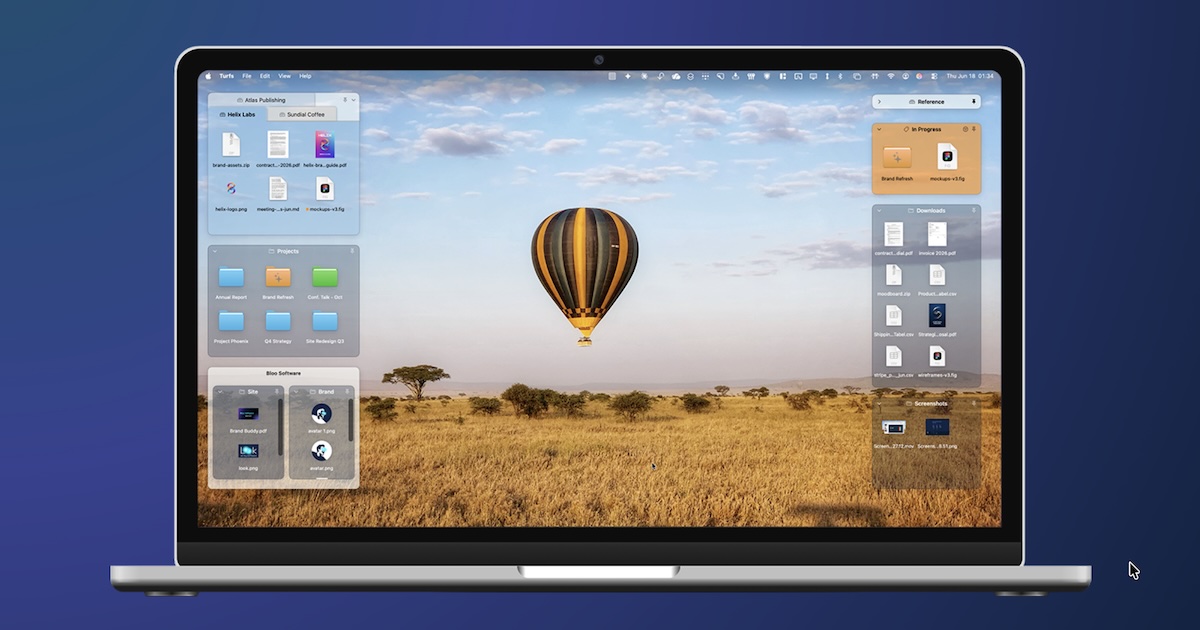
Turfs is a native desktop organizer for macOS that turns the Mac desktop into a set of defined, labeled areas. Each area, called a turf, holds content pulled from across your Mac so that frequently used files, folders, and references stay visible, accessible, and arranged with intent. Turfs is built for people who use the desktop as a working surface rather than as a dumping ground, and for anyone who wants a clutter-free wallpaper without giving up quick access to their material. A turf can be backed by a real folder on disk, by a Finder tag, or it can be a purely virtual grouping of hand-picked items. Turfs replaces Finder's own desktop icon layer with its own, so the desktop behaves the way you define it while still obeying standard macOS conventions. For years, Windows users have organized their desktops with Stardock Fences, a tool that has been available since 2009 and has accumulated roughly twenty million downloads. Fences taught a generation of PC users that the desktop could be more than a pile of shortcuts: it could be defined areas, labeled groups, and files arranged with intent. Many of those users later moved to the Mac and expected to find an equivalent. They waited. Apple shipped Stacks, which groups desktop files by file type, an arrangement that rarely matches how people actually think about their work. Apple shipped Tags, but tags are effectively invisible until a sidebar is opened. As a result, the Mac desktop in 2026 works almost exactly the way it did in 2007. Third-party attempts such as iCollections arrived, stalled, and faded, and Stardock itself looked at porting Fences to the Mac and walked away. Turfs exists to close that gap. Turfs offers three kinds of areas, each with its own behavior. A folder turf is backed by a real folder on disk: when you drag a file into it, the file physically moves into that folder. The filesystem stays clean, and the file has a real home that is visible right on the desktop. A tag turf is backed by a Finder tag instead: when you drag a file into it, the file receives that tag, and the turf displays every file carrying that tag from anywhere on your Mac. The file itself does not move, so a tag turf acts as a live, system-wide view. A collection turf is a virtual grouping: files dragged into it appear inside the turf but remain exactly where they are on disk. Because collection turfs never relocate anything, they are the safest option when you want to gather items without touching the underlying filesystem. Every turf type can be combined on the same desktop, so you can mix permanent folders, tag-driven views, and temporary collections depending on what each area is for. Turfs is designed to feel native rather than like a Windows port. Quick Look opens with the spacebar, Get Info with Cmd-I, and Trash with Cmd-Delete. You can drag files from a turf to any app, use alias arrows, use folder paper-peek, and access the full context menu. The desktop's standard interactions keep working because Turfs leans on macOS conventions throughout. Files that you do not place inside a turf stay exactly where you left them as loose icons, and when you move a turf over them, those loose icons dodge out of the way rather than being swallowed by the area. Turfs also stays put through Show Desktop, and you decide what Mission Control does with your turfs. Because Turfs replaces Finder's own desktop icon layer rather than sitting on top of it, it can never be sandboxed or sold through the Mac App Store — the desktop really is the surface it owns. Every detail of a turf can be customized. You can set the background color, opacity, border, and corner radius, and choose whether labels are visible. A hover-only mode keeps the desktop visually clean while the areas remain in reach, and snapping options let turfs snap to a grid or to other turfs. Behavior can differ per Space, so a turf can appear on all Spaces or be pinned to one. Tabbed turfs let several groups share a single area. The settings are grouped into four panels: General covers launch, Dock, roll-up, and tabbed turfs; Appearance covers color, opacity, border, and hover mode; Desktop covers icon size, snap grid, and snap sensitivity; and Spaces controls whether turfs show on all Spaces or follow individual Spaces. When you want an area available but out of the way, you can roll any turf up into a thin strip that shows just its name and item count, and one click or a hover brings it back to full size — useful for references, archives, or anything you want close without giving up screen space. Turfs works by taking over the desktop icon layer from Finder and drawing its own areas in its place. Your wallpaper still shows through, and Mission Control still works, so the change is to how the desktop is organized rather than to how macOS behaves. Turfs stay in place through Show Desktop, and Mission Control's treatment of them is up to you. Turfs is local-first: it has no accounts, collects nothing about you or your files, and runs no servers. Its only network activity is an update check and a one-time first-run count that fetches a small file from GitHub, carrying no information about you. Your turfs are stored in a single JSON file in ~/Library/Application Support/. Quitting Turfs returns your desktop to exactly the way macOS shipped it. The practical benefit is a desktop that reflects how you work. Material scattered across your Mac becomes reachable from the surface you already look at, organized into named areas instead of one undifferentiated field of icons. Because folder turfs keep real files in real folders, your filesystem stays tidy while your desktop stays useful. Because tag turfs follow Finder tags, a single area can surface matching files from anywhere on the machine without copying or moving anything. Because collection turfs are virtual, you can organize aggressively without risk, since nothing is relocated on disk. Customization, roll-up, and hover mode mean the organization never has to cost you visible screen space, and the local-first design means organizing your desktop does not require an account, a subscription, or a connection. Several workflows fit Turfs naturally. A project turf can be folder-backed so that dragging in drafts and assets files them into the actual project directory. Reference material — PDFs, screenshots, spec sheets — can live in a tag turf that keeps every tagged file one glance away no matter where it sits on disk. A collection turf works well as a temporary staging area for files gathered during a task, since nothing moves until you decide it should. Rolled-up turfs suit archives and reference sets that should remain at hand without occupying the desktop. Per-Space behavior lets one arrangement serve a work Space and a different one serve another. And for anyone who simply wants an uncluttered wallpaper, hover-only turfs keep the desktop clean until the moment you need something. Turfs is aimed at Mac users who treat the desktop as a working surface, particularly people who came from Windows and miss Fences-style organization, along with anyone who has looked for a Mac equivalent and found the alternatives lacking. It requires macOS 14 Sonoma or later, with Apple Silicon recommended. Turfs is distributed as a direct download, signed with a Developer ID certificate and notarized by Apple; the site lists nine releases since 15 June 2026, with version 1.2.1 on 7 September as the most recent at the time of writing. Pricing is $29 as a one-time purchase with a 10-day free trial that requires no card. The license includes unlimited turfs from day one, all three turf types, full appearance customization, and free updates forever, delivered as a license key that works offline without an account. There is no subscription and no renewal. Turfs gives the Mac the desktop organizer Windows users have had for years: defined, labeled areas that keep material from across the machine accessible and arranged on purpose. Folder, tag, and collection turfs cover permanent filing, system-wide tag views, and risk-free virtual grouping; native macOS interactions, deep customization, roll-up, and per-Space behavior make the areas fit real work; and a local-first design with a single JSON file keeps it private and reversible. At $29 once with a 10-day trial and no account required, it is a straightforward way to make the desktop a feature rather than a mess.
Sai is an AI robosecretary from Simular AI, described as the world's first robosecretary that works with a fleet of autonomous computers. Its purpose is to do your endless screen work, taking routine tasks off your plate so you can focus on other things. Each computer in the fleet navigates software the way you do: it reads the screen, clicks the button, and types in the form. Sai is built to get real work done across apps, websites, and desktop tools, and it is aimed at anyone who spends their day repeating the same clicks and keystrokes across the software they already use. Much of the software people depend on every day was never designed to be automated. Legacy desktop applications, internal portals, and tools that sit behind a login often have no API at all, which means conventional integration and automation platforms simply cannot reach them. The result is endless manual screen work: opening the same screens, copying the same values, filling in the same forms, and clicking through the same flows, hour after hour. That work is repetitive, it consumes attention, and it rarely stops. Sai's answer is to automate the computer interface itself, so the work gets done in the software as it already exists, without waiting for an API, a plugin, or a rebuild. The core of Sai is a fleet of autonomous computers that interact with software the way a human operator does. Each computer reads the screen to understand what is in front of it, clicks the button it needs, and types into the form it needs to fill. Sai has been trained to interact with the computer interface itself rather than with a fixed set of named integrations, which is why it can be put to work in software it has never seen before. This screen-level approach is what lets the system handle interfaces that were only ever meant for a person, turning ordinary clicking and typing into an automated, delegable workflow. Because Sai operates at the interface level, it automates software even when that software lacks an API. The examples given are legacy desktop apps, internal portals, and anything sitting behind a login — precisely the categories that are hardest to reach with traditional automation. Instead of asking for a connector or a developer-written script, Sai works with what is already on screen. For teams that have long been told their tools are not automatable, this removes the biggest blocker: if a person can log in and use the software, Sai can work in that software too. Sai supports Windows, macOS, and Linux, so the same robosecretary approach can be applied across the operating systems an organization already runs rather than forcing everything onto a single platform. It also reports a score of 73% on OSWorld, a benchmark for computer-use agents, giving a concrete, measurable signal of how well it performs on real desktop tasks. Combined with the fleet model, in which one commander can direct multiple autonomous computers, Sai is designed to scale routine screen work rather than handle only a single task at a time. The workflow Sai describes is deliberately simple: you sign in, and you start delegating. Sign-in is offered through Google, and from there you hand tasks to the fleet rather than performing them yourself. Sai commands the autonomous computers, each of which works inside real applications, websites, and desktop tools by reading the screen, clicking, and typing as needed. Because the fleet is made up of multiple computers, routine work can be taken off your plate in parallel rather than one task at a time. The result is an assistant whose unit of work is a computer session, not just a chat message. The benefit Sai promises is straightforward: routine work is taken off your plate. Instead of you reading the screen, clicking the button, and typing into the form, the fleet does it. That matters because the work being automated is the work that never appears on a priority list yet consumes the most hours. By operating software exactly as it is, Sai also avoids the long setup cycles that come with building bespoke integrations, and by supporting Windows, macOS, and Linux, it can fit into the environments people already use. The outcome is time returned, fewer repetitive screen tasks, and less dependence on whether a given tool happens to expose an API. Concrete scenarios follow directly from the capabilities described. Teams can use Sai to drive legacy desktop applications that have no modern interface or API. It can work inside internal portals, the behind-the-login systems that employees use daily but that no outside automation tool can reach. It can complete tasks in anything that sits behind a login where a human would normally sign in and click through screens. More broadly, it can handle work across apps, websites, and desktop tools, which means a single delegated task can span the mix of software a person actually uses during a working day. Sai is presented as a robosecretary for anyone with routine screen work to delegate, and its supported platforms are explicitly Windows, macOS, and Linux. Its maker is Simular AI, and the product is accessed by signing in, with Google sign-in supported, and by continuing through the product's Terms of Service and Privacy Policy. No pricing or plan details are stated in the available content, and aside from Google sign-in, no third-party integrations or technology stack details are disclosed. Sai's primary value proposition is simple to state: it is a robosecretary that runs an autonomous computer fleet so that routine screen work gets done without you doing it. By reading the screen, clicking, and typing the way a person would, Sai reaches legacy desktop apps, internal portals, and anything behind a login that APIs cannot touch, across Windows, macOS, and Linux. Sign in, start delegating, and let the fleet take the repetitive work off your plate.
Soar90™ is a personal, self-guided onboarding platform designed for new hires and newly promoted professionals who want to start strong in a new role. Its core purpose is to give every user their own plan for success: a structured 30-60-90 day roadmap that delivers one clear task a day, a simple Win Log for capturing accomplishments as they happen, and a Review-Ready Report built from real progress. Users can select a career track tailored to their specific role or customize the plan themselves, and the product can be used standalone or alongside whatever company onboarding already exists. Soar90 was created by a recruiter together with practicing HR and talent-acquisition managers. New hires and newly promoted professionals typically receive systems training, a laptop, and a first-week schedule. What they rarely receive is a plan for their own success: what to focus on this week, and a record of the impact they build along the way. Soar90 began with a pattern its founder kept seeing as a recruiter and HR professional: talented people start strong, work hard, and then show up to their first review with nothing to show for it, not because they lacked impact but because nobody ever taught them to keep the receipts. The site cites Gallup's finding that only 12% of employees strongly agree their company does a great job of onboarding them, alongside Brandon Hall Group data that strong onboarding improves new-hire retention by 82% and productivity by over 70%. Soar90 turns that lesson into a simple daily habit: a task a day, a win logged in seconds, a report ready when you need it. The heart of Soar90 is the Structured 30-60-90 Day Roadmap. Each day the app surfaces one clear task, moving the user from learning the ropes in days 1-30, to contributing by day 60, to leading by day 90. The roadmap is organised around four phases. Pre-Start - Prepare Before Day One gives a head start with pre-onboarding tasks that set the user up to show up confident and prepared. Days 1-30 - Learn, Listen & Orient focuses on mapping the culture, building relationships, and understanding expectations, with the mantra to listen more than you talk. Days 31-60 - Contribute & Connect asks users to own their first project, set boundaries, and deepen relationships with their core collaborators. Days 61-90 - Lead & Grow is about delivering a quick win, building a roadmap, and proactively requesting the 90-day review. Phase-specific tasks, mantras, and reflection prompts guide each stage. The Win Log lets users capture accomplishments, praise, and shout-outs in seconds while they are fresh, so the record builds itself. A related Shout-Outs area is designed to capture the praise and recognition received along the way; when the next review arrives, the user has a complete record of the impact others see in them. In the app, the dashboard tracks how many tasks are done in each phase and shows progress percentages, while the Win Log screen displays a running count of total shout-outs, standouts, and the specific written feedback received, from a manager's note about saving a full sprint to a colleague's praise for an onboarding doc. The Review-Ready Report turns completed tasks and logged wins into a first-person summary ready for a manager, designed to be readable in five minutes. Its stated contents include an executive summary of the onboarding journey, key accomplishments organized by phase, standout highlights and wins, documented wins from the Win Log, personal reflections and learnings, and forward-looking goals for the next quarter. The report is generated from the user's real progress and can be printed or saved as a PDF. Crucially, AI is optional: users can write the report themselves if they prefer, and the app also supports creating your own report rather than generating one. Beyond the roadmap and report, Soar90 includes Weekly Check-Ins & Guidance, a 60-second pulse check with tailored scripts and boundary templates for when support is needed. Daily Email Reminders deliver personalized nudges with phase tips and motivational quotes to keep users on track. Milestone Tracking & Celebrations let users check off tasks, hit milestones, and receive visual celebrations that keep momentum alive. And Beyond Day 90, users can keep logging wins, generating reports, and using the roadmap for promotions, role changes, and annual reviews; the Win Log and Review-Ready Report remain available forever. Setting up a plan takes under two minutes. Users enter their real start date and Soar90 places them in the correct phase, so someone who already started a new job can jump straight in, and can also go back and complete tasks from earlier phases. A dashboard then shows the current day (for example, Day 45), the active phase, tasks remaining, and Today's Focus. The product is intentionally standalone: employer onboarding explains company systems and processes, while Soar90 helps users organize their personal progress and preserve proof of their impact. Plans, wins, and reflections are private to the user, since managers and employers cannot see those notes. A free, no-signup demo lets people preview the dashboard, browse sample tasks across all three phases, and experience a milestone celebration before buying. The stated outcomes are clarity, confidence, and evidence. After 90 days with Soar90, users know exactly what they did, can name the difference it made, and have a Review-Ready Report that says it in their own words. The app is designed so users never have to wonder whether they are on track, and they never scramble before a review again. Testimonials from new hires describe feeling focused and confident from day one, building strong relationships with a new team, and gaining real momentum in the first few months. A hiring manager quoted on the site says they will gift the app to new hires from now on. Concrete scenarios where Soar90 is used include starting a new job at a new company, where entering a real start date places the user in the right phase; an internal promotion or role change, where the plan adapts with tailored tasks for that situation; a return from a career break; and preparing for a performance or annual review by turning logged wins into a first-person summary. The product is also positioned as a gift from a recruiter or employer to new hires, and as something to run alongside whatever onboarding an employer already provides. Soar90 is for anyone starting fresh: a new job, an internal promotion, a role change, or a return from a career break. Pricing is a one-time $9 purchase with lifetime access and a 7-day money-back guarantee on the web, where checkout happens on the site. On iPhone, iPad, and Android, users purchase in the App Store or Google Play with their Apple or Google account, and in-app pricing is set by Apple and Google and may differ from the web price. There is no subscription, no recurring charges, and no cancellation needed. The site notes it was featured in USA News, and Soar90 is a trademark of LBurry LLC, Milwaukee, WI. Soar90's primary value proposition is simple: start with a 90-day plan, always know what to do next, and finish your first quarter with a documented, review-ready record of your impact. It replaces the guesswork of a new role with one task a day, a Win Log that builds itself, and a report ready when you need it.
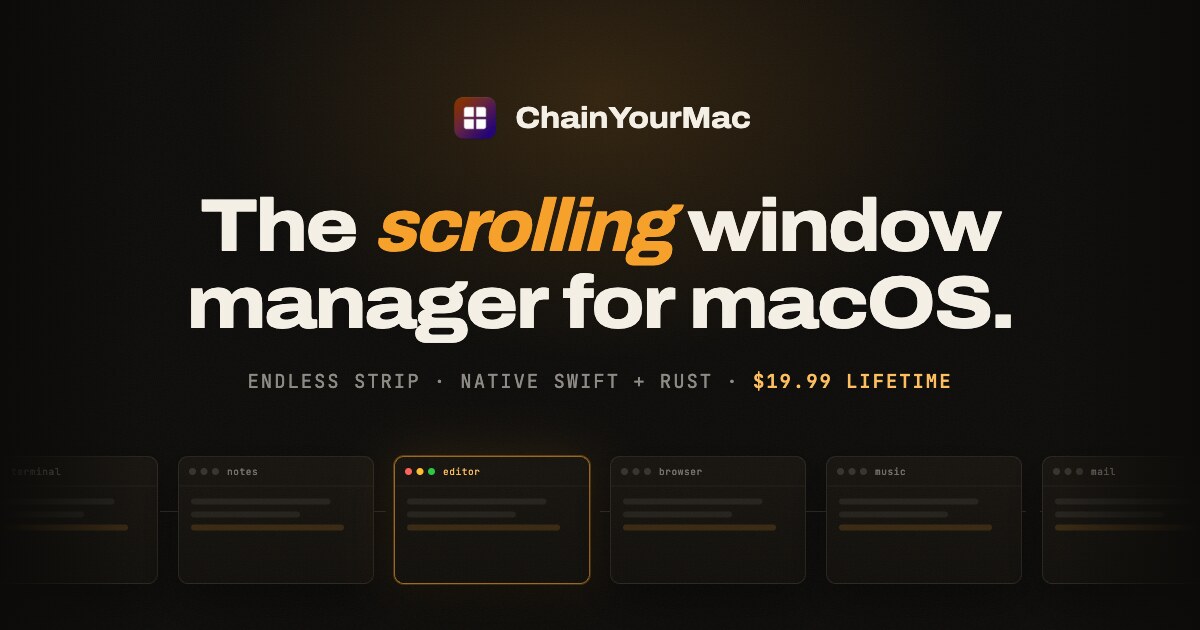
ChainYourMac is a native scrolling window manager for macOS that places every window as a column on a horizontal strip running past the edges of your display, instead of forcing windows into a fixed grid. It is built for Mac users who want the automation of a tiling window manager without the constant shrinking and reflowing of their workspace. New windows open right next to the one you are using, and every existing window keeps the width you gave it. The problem it addresses is familiar to anyone who has used a grid tiler such as yabai, Amethyst or AeroSpace. Those tools split the screen again every time an app opens, so everything keeps getting smaller. With three windows open, a grid gives each one roughly a third of the screen; ChainYourMac instead makes the strip longer, so each window is still half. Window snappers such as Rectangle and Magnet do not maintain a layout at all, because you invoke them window by window. ChainYourMac maintains a layout without the grid, giving you the automation of a tiling manager with the calm of never having your workspace reflow underneath you. The scrolling model was made beloved on Linux by PaperWM (GNOME) and Niri (Wayland), and ChainYourMac brings the same idea to macOS as a polished native app: a settings window instead of a config file, a trackpad swipe that follows your fingers, and no SIP changes. The core of the product is the strip itself. When you launch an app, its window slots in right next to the focused one, so nothing overlaps and nothing gets lost behind another window, because every window has its own place on the strip. The strip follows your focus: move focus from the keyboard or swipe the trackpad, and the strip scrolls just far enough to bring the window into view, on a spring animation that starts the moment you press the key. A trackpad swipe with three or four fingers moves the strip one-to-one with your fingers, then settles on the nearest column. Windows keep a width you choose: you can cycle a window through preset widths such as 25, 33, 50, 66 and 75 percent, nudge it wider or narrower, or set full width or centred with a single key each. Gaps between windows and at the screen edges are configurable down to zero, and windows size themselves around the Dock so nothing ends up underneath it. Stacks and tabbed columns let several windows share one column on the strip. You can stack a window into the column on its left or right, pop it back out, reorder inside the stack, and make any window taller or shorter. When each window in a stack deserves the full height, one shortcut flips the column between stacked and tabbed, turning the stack into tabs. Around the strip, several visual and layout controls are available: an optional focus border around the focused window and optional dimming for everything else, both of which stay off until you want them; centre modes that keep the focused column centred never, only when the strip overflows, or always; a strip minimap that appears while you navigate, shows where you are, then fades out; and drag-to-reorder, where dragging a window onto another column makes the strip rearrange around it. Multi-monitor and Spaces are handled per display. Every display has its own strip with its own focus and scroll position, windows never spill onto the screen next door, and one shortcut sends the focused window to the next display. Each macOS Space keeps a separate strip layout, so work and chat never get shuffled together. Per-app window rules let you float the apps that should not tile, or give an app a fixed slot on the strip. Session restore brings column order, widths and stacks back after a restart, and the app can launch at login so it begins tiling automatically. Native fullscreen is left alone: put a window into macOS fullscreen and ChainYourMac stays out of its way. Keyboard shortcuts cover every move, and new installs start with Option-based defaults on Vim keys or the arrows. You can move focus, move the focused window, send it to the next display, cycle width, set full width, centre the column, make a window taller or shorter, equalize heights, stack into the left or right column, pop out to either side, toggle a tabbed column, and float or unfloat. Every shortcut is rebindable, one action can have more than one binding, and the recorder works on AZERTY, QWERTZ and Dvorak layouts. Upgrading from an earlier version keeps your shortcuts exactly as they were, and actions that are new in version 2.0 stay unbound until you assign them. Automation is available through a chainyourmac:// URL scheme, Raycast script commands and a command-line tool, while new versions arrive through Sparkle, the standard Mac updater. Under the hood, ChainYourMac is a real Mac app: SwiftUI on top, Rust underneath. The window engine is written in Rust and runs as a small background process that sits idle until a window changes or you press a shortcut. Animation is a vsync-locked spring that starts the instant you press the key, and shortcuts are handled by the engine directly, so moving around the strip feels immediate. The app you see is native SwiftUI — a menu bar item and a settings window where every option has a control. There is no Electron, no web view and no config file to learn. It needs one permission, Accessibility, because that is how macOS lets any window manager move windows. Everything happens locally on your Mac; the app does not read your screen contents or send data anywhere. There is no account and no telemetry in the app. If the engine ever stops, the app restarts it, and the engine log shows what happened. The benefit is a workspace that stays predictable. Instead of your layout reflowing every time an app opens, the strip simply gets longer and each window keeps the size you gave it. Focus changes scroll the strip just far enough to bring the right window into view, and the spring animation starts the moment you press a key, so navigation feels immediate rather than abrupt. Settings apply instantly — change a gap, a width or a key and see it on screen straight away, with no Save button and no restart. Because column order, widths and stacks come back after a restart, and every display and every Space keeps a strip of its own, your work is still where you left it tomorrow. Concrete workflows show up throughout the app. In a development session you might keep Terminal, Code, a browser and logs side by side as columns; when another tool launches, it opens next to the focused window rather than resizing your editor. When you need to compare documents, you can stack several windows into one column or flip that column into tabs so each window gets the full height, and drag a window onto another column to rearrange the strip around it. At a desk with a MacBook and an external display, each screen keeps an independent strip, and a keystroke sends the focused window to the next display. Keyboard-first users can run the whole day on the Option-based defaults, on Vim keys or the arrows, and rebind anything that does not fit their layout. ChainYourMac requires macOS 13 Ventura or later and runs on Apple silicon (M1 or newer); Intel Macs are not supported. It is notarized by Apple and signed with a Developer ID, with no kernel extensions, no system modifications and no need to disable SIP, and it asks for the Accessibility permission only. Licensing is a one-time purchase with no subscription and no account: a lifetime license for 1 Mac at a launch price of $9.99, half off the regular $19.99, with free updates forever, plus 3-Mac ($24.99 launch), 5-Mac ($39.99 launch) and 20-Mac ($149.99 launch) lifetime licenses for teams. Checkout is on Gumroad, and you immediately receive a .dmg download and a license key by email. You can move your license to a new Mac whenever you like by deactivating it in the app first, and email support comes from the developer who built it. ChainYourMac takes the scrolling window model proven by PaperWM and Niri and delivers it as a native Mac app — windows on an endless strip, a trackpad swipe that follows your fingers, stacks and tabbed columns, per-display and per-Space layouts, and no SIP changes. It is, in its own words, about one simple shift: stop rearranging windows, start scrolling.
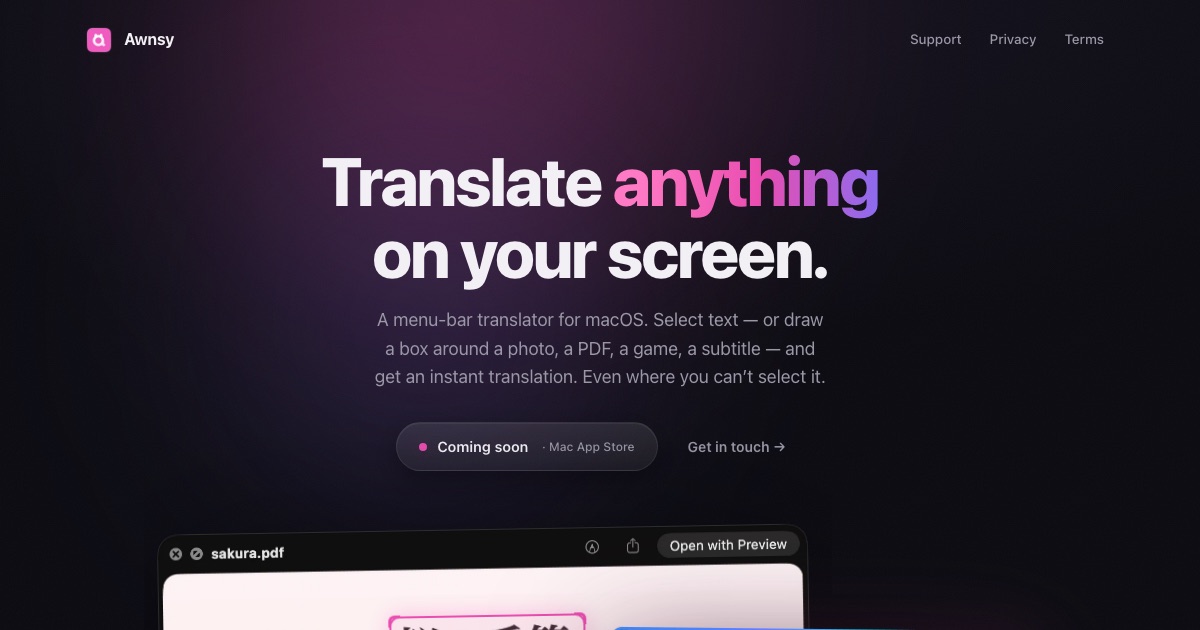
Awnsy is a menu-bar translator for macOS. Its purpose is simple: select text in any app, press ⌘C twice, and the translation appears right over the window you are working in. It is built for Mac users who need to read and understand text in another language without leaving the app they are already using. Beyond selectable text, Awnsy also handles text you cannot select at all — words inside images, scanned PDFs or video — by letting you drag a box around that area on screen, after which Awnsy reads it and translates it. The product describes itself as a small app for the Mac, positioned as doing everything a translator should do on a Mac, plus a few things only Awnsy does. The problem Awnsy addresses is that translation is usually a context switch. When someone is reading a page, a document, a screenshot or a video in a language they do not speak, the usual workflow means copying text out, opening a browser or another app, pasting it in, and then reading the result somewhere other than where the source text lives. That routine breaks reading flow, and it is impossible when the text is baked into an image or a scanned page, or when an app simply refuses to let you select it. Awnsy's approach is to remove the context switch. Translation is triggered from a keystroke the user is already making — copying — and the result appears over the window rather than in a separate destination. The second problem the product targets is privacy: how to translate personal material without sending it to an account-based service. Awnsy answers that with a model that lives inside the app and runs on the Mac itself. The core interaction is deliberately minimal: one keystroke is the whole interface. To translate something, you select the text in any app and double-press ⌘C, or you set up your own custom hotkey. The translation streams in live, so the result appears progressively rather than after a long wait, and both the language and the model can be switched right in the translation window — no trip to a preferences pane to change what you are reading in or how it is being translated. Because the trigger is the copy gesture itself, there is no new shortcut to memorise; the same action a Mac user already performs to copy is the action that translates. Awnsy frames this as one keystroke, any language, and the interface stays out of the way: a small window over the current context rather than a separate workspace you have to manage. A large share of the text a person encounters on a Mac is not selectable. It sits inside an image, inside a scanned PDF, inside a video frame, or inside an application that blocks text selection entirely. For these situations Awnsy uses on-device text recognition to pull the words out of the screen itself. Instead of selecting text, the user drags a box around the region of interest, and Awnsy reads what is inside that box and translates it. Because the recognition happens on the device, this trick works on the same private, offline footing as the rest of the app — there is no upload step described before the text becomes readable. This capability turns screenshots, scans and paused video frames into translatable material without requiring any additional tool, which is precisely the material that ordinary copy-and-paste translators cannot touch. Privacy by default, with a choice of models, is the third pillar of the product. The built-in translation model runs entirely on the Mac. It works offline, it needs no account and no API key, and the product states that there is no telemetry. Whatever you translate stays on your machine. At the same time, Awnsy does not lock you into the local model. If you prefer cloud quality, you can bring your own OpenAI or Anthropic key, which the product describes as the route to top-quality translation. That key is kept in the macOS Keychain rather than being left in ordinary settings. The practical result is a translator with two modes: a fully local, private mode that works without any connection, and a bring-your-own-key cloud mode for users who want a different quality profile. Awnsy lives in the macOS menu bar. It does not appear in the Dock and does not clutter it, so it behaves like a small system utility rather than a full desktop application you launch and manage. It is written in pure Swift rather than being wrapped in Electron, which is why it is described as native and featherlight. The overall approach is a system-wide, screen-aware utility: it hooks into the copy gesture as a universal trigger so it works across apps rather than inside one specific tool; it reads the screen directly for text that cannot be copied; and it keeps the translation model either on the device or behind the user's own key. Everything plays out in a small window over the current context, keeping the translation where the source text is instead of asking the user to move elsewhere. For users, the practical outcome is that translation stops being a separate task. It happens in place, from the gesture you already use to copy, and it returns a result over the current window, so reading flow is preserved and attention is not scattered across apps. Because the built-in model runs on the Mac and the app works offline, translation remains available when a connection is unreliable, unavailable, or deliberately restricted. Because there is no account, no API key and no telemetry, nothing has to be handed over simply to use the app, and what you translate stays on your machine. And because it reads the screen through on-device text recognition, material that used to be out of reach — image text, scanned pages, video text, and text in apps that block selection — becomes readable. Users who want maximum quality can opt into their own OpenAI or Anthropic key without changing any other part of the workflow. Concrete scenarios follow directly from the capabilities described. A reader working through foreign-language documentation, articles or messages in a browser selects the passage and double-presses ⌘C to get the translation over the page. Someone handling a scanned PDF or an image-based document, where there is no selectable text at all, drags a box around the paragraph and lets Awnsy read and translate it. A viewer watching a video with burned-in subtitles, captions or on-screen slides boxes the area of the frame. Anyone using an app that will not let you select text — the case Awnsy explicitly calls out — uses the same box gesture instead of fighting the app. And a user working with private or sensitive material, or working offline on a flight or on a locked-down network, keeps the whole translation on the Mac with the built-in model. Target users, platform, pricing and technology are all stated plainly. Awnsy is a macOS product, distributed free on the Mac App Store, with Awnsy Pro unlocking unlimited screen translation. The platform is Mac desktop, and it is described as a menu-bar translator for macOS. It is built in pure Swift rather than Electron. It is aimed at Mac users who read across languages and want a lightweight, private utility rather than a full translation suite; the Product Hunt topics list Mac, Productivity and Artificial Intelligence. Optional cloud quality comes from the user's own OpenAI or Anthropic key stored in the Keychain, while the local model requires no key at all. The takeaway is that Awnsy makes translation a reflex rather than a detour. One keystroke — a double ⌘C, or your own hotkey — brings the translation over whatever window you are reading, and a drag of a box reaches the text that cannot be selected at all. The built-in model runs on your Mac, offline, with no account, no key and no telemetry, while your own OpenAI or Anthropic key remains an option for cloud quality. It is free on the Mac App Store, with Pro unlocking unlimited screen translation, and it stays in the menu bar as a small, native Swift app that never clutters the Dock.