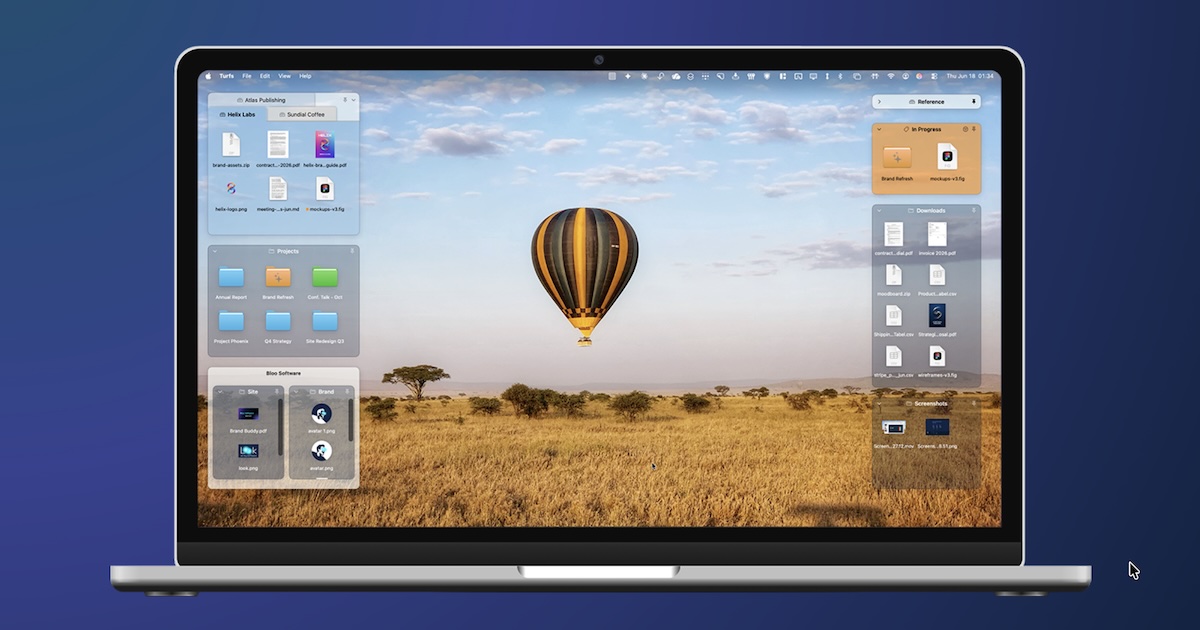
Turfs is a native desktop organizer for macOS that turns the Mac desktop into a set of defined, labeled areas. Each area, called a turf, holds content pulled from across your Mac so that frequently used files, folders, and references stay visible, accessible, and arranged with intent. Turfs is built for people who use the desktop as a working surface rather than as a dumping ground, and for anyone who wants a clutter-free wallpaper without giving up quick access to their material. A turf can be backed by a real folder on disk, by a Finder tag, or it can be a purely virtual grouping of hand-picked items. Turfs replaces Finder's own desktop icon layer with its own, so the desktop behaves the way you define it while still obeying standard macOS conventions.
For years, Windows users have organized their desktops with Stardock Fences, a tool that has been available since 2009 and has accumulated roughly twenty million downloads. Fences taught a generation of PC users that the desktop could be more than a pile of shortcuts: it could be defined areas, labeled groups, and files arranged with intent. Many of those users later moved to the Mac and expected to find an equivalent. They waited. Apple shipped Stacks, which groups desktop files by file type, an arrangement that rarely matches how people actually think about their work. Apple shipped Tags, but tags are effectively invisible until a sidebar is opened. As a result, the Mac desktop in 2026 works almost exactly the way it did in 2007. Third-party attempts such as iCollections arrived, stalled, and faded, and Stardock itself looked at porting Fences to the Mac and walked away. Turfs exists to close that gap.
Turfs offers three kinds of areas, each with its own behavior. A folder turf is backed by a real folder on disk: when you drag a file into it, the file physically moves into that folder. The filesystem stays clean, and the file has a real home that is visible right on the desktop. A tag turf is backed by a Finder tag instead: when you drag a file into it, the file receives that tag, and the turf displays every file carrying that tag from anywhere on your Mac. The file itself does not move, so a tag turf acts as a live, system-wide view. A collection turf is a virtual grouping: files dragged into it appear inside the turf but remain exactly where they are on disk. Because collection turfs never relocate anything, they are the safest option when you want to gather items without touching the underlying filesystem. Every turf type can be combined on the same desktop, so you can mix permanent folders, tag-driven views, and temporary collections depending on what each area is for.
Turfs is designed to feel native rather than like a Windows port. Quick Look opens with the spacebar, Get Info with Cmd-I, and Trash with Cmd-Delete. You can drag files from a turf to any app, use alias arrows, use folder paper-peek, and access the full context menu. The desktop's standard interactions keep working because Turfs leans on macOS conventions throughout. Files that you do not place inside a turf stay exactly where you left them as loose icons, and when you move a turf over them, those loose icons dodge out of the way rather than being swallowed by the area. Turfs also stays put through Show Desktop, and you decide what Mission Control does with your turfs. Because Turfs replaces Finder's own desktop icon layer rather than sitting on top of it, it can never be sandboxed or sold through the Mac App Store — the desktop really is the surface it owns.
Every detail of a turf can be customized. You can set the background color, opacity, border, and corner radius, and choose whether labels are visible. A hover-only mode keeps the desktop visually clean while the areas remain in reach, and snapping options let turfs snap to a grid or to other turfs. Behavior can differ per Space, so a turf can appear on all Spaces or be pinned to one. Tabbed turfs let several groups share a single area. The settings are grouped into four panels: General covers launch, Dock, roll-up, and tabbed turfs; Appearance covers color, opacity, border, and hover mode; Desktop covers icon size, snap grid, and snap sensitivity; and Spaces controls whether turfs show on all Spaces or follow individual Spaces. When you want an area available but out of the way, you can roll any turf up into a thin strip that shows just its name and item count, and one click or a hover brings it back to full size — useful for references, archives, or anything you want close without giving up screen space.
Turfs works by taking over the desktop icon layer from Finder and drawing its own areas in its place. Your wallpaper still shows through, and Mission Control still works, so the change is to how the desktop is organized rather than to how macOS behaves. Turfs stay in place through Show Desktop, and Mission Control's treatment of them is up to you. Turfs is local-first: it has no accounts, collects nothing about you or your files, and runs no servers. Its only network activity is an update check and a one-time first-run count that fetches a small file from GitHub, carrying no information about you. Your turfs are stored in a single JSON file in ~/Library/Application Support/. Quitting Turfs returns your desktop to exactly the way macOS shipped it.
The practical benefit is a desktop that reflects how you work. Material scattered across your Mac becomes reachable from the surface you already look at, organized into named areas instead of one undifferentiated field of icons. Because folder turfs keep real files in real folders, your filesystem stays tidy while your desktop stays useful. Because tag turfs follow Finder tags, a single area can surface matching files from anywhere on the machine without copying or moving anything. Because collection turfs are virtual, you can organize aggressively without risk, since nothing is relocated on disk. Customization, roll-up, and hover mode mean the organization never has to cost you visible screen space, and the local-first design means organizing your desktop does not require an account, a subscription, or a connection.
Several workflows fit Turfs naturally. A project turf can be folder-backed so that dragging in drafts and assets files them into the actual project directory. Reference material — PDFs, screenshots, spec sheets — can live in a tag turf that keeps every tagged file one glance away no matter where it sits on disk. A collection turf works well as a temporary staging area for files gathered during a task, since nothing moves until you decide it should. Rolled-up turfs suit archives and reference sets that should remain at hand without occupying the desktop. Per-Space behavior lets one arrangement serve a work Space and a different one serve another. And for anyone who simply wants an uncluttered wallpaper, hover-only turfs keep the desktop clean until the moment you need something.
Turfs is aimed at Mac users who treat the desktop as a working surface, particularly people who came from Windows and miss Fences-style organization, along with anyone who has looked for a Mac equivalent and found the alternatives lacking. It requires macOS 14 Sonoma or later, with Apple Silicon recommended. Turfs is distributed as a direct download, signed with a Developer ID certificate and notarized by Apple; the site lists nine releases since 15 June 2026, with version 1.2.1 on 7 September as the most recent at the time of writing. Pricing is $29 as a one-time purchase with a 10-day free trial that requires no card. The license includes unlimited turfs from day one, all three turf types, full appearance customization, and free updates forever, delivered as a license key that works offline without an account. There is no subscription and no renewal.
Turfs gives the Mac the desktop organizer Windows users have had for years: defined, labeled areas that keep material from across the machine accessible and arranged on purpose. Folder, tag, and collection turfs cover permanent filing, system-wide tag views, and risk-free virtual grouping; native macOS interactions, deep customization, roll-up, and per-Space behavior make the areas fit real work; and a local-first design with a single JSON file keeps it private and reversible. At $29 once with a 10-day trial and no account required, it is a straightforward way to make the desktop a feature rather than a mess.
Publisher
A
admin
Launch Date2026-09-22
Platformdesktop
Pricingpaid
Tech Stack
#macOS#JSON