Category Focus/categories/translation
Translation AI Tools
Discover and compare the best translation AI tools and software. Browse 32+ curated tools with reviews and rankings.
Projects tracked
32
Sort mode
RECENT
Page
1
Discover and compare the best translation AI tools and software. Browse 32+ curated tools with reviews and rankings.
Projects tracked
32
Sort mode
RECENT
Page
1
Jarq is a Mac app that acts on text right where your cursor already is, inside whatever application you happen to be using. Instead of copying text into a separate translator tab or assistant window, you select a passage, point at the dot that appears beside it, and choose an action: translate, shorten, fix, or rewrite. The result lands where you wrote it, replacing the selection in place. Jarq also dictates: you press a hotkey, speak, and finished text with punctuation and capitals appears at the cursor. It is built for people who write, read and answer messages all day on a Mac — in email, chat, documents or code — and who lose momentum every time they have to leave the app they are working in. Jarq exists because of a specific, repeated annoyance: every trip to a translator tab drops your train of thought. The website lays out the old way in seven steps — select the text and copy it, switch to a translator tab, paste and wait for the answer, copy the result, switch back, paste again, and then ask yourself where you were. That is seven steps and two app switches. Jarq reduces the same job to two steps and zero app switches: select the text, click a language button. There is a second, unplanned benefit the team highlights: because translations appear next to the original text in its real context, rather than in an isolated tab, words tend to stick, and phrases you translate today eventually stop needing a translator at all. The core interaction is minimal. Select text anywhere on your Mac and a small set of buttons appears right beside the selection — the product calls this the dot. From there you can translate, shorten or fix any text in the app you are in, and the answer lands where you wrote it. Where an application blocks text selection, Jarq has a fallback: the ⌥T hotkey grabs the text anyway, which the site says makes it work in places others cannot, naming Figma and terminals. Actions can be applied as a replacement in place, or copied for pasting elsewhere. Jarq runs from the menu bar and answers its keys wherever you are already typing. Translation is available for any selection across thirteen languages, including English, Russian, Spanish, Portuguese, French and German. You can translate between any two of them, or speak one language and get clean text in another — say it in Russian and English lands in the input. The site draws an explicit contrast between word-for-word translation and the way you would actually say it: Jarq aims for natural wording while keeping your tone intact rather than producing a literal rendering. Language buttons such as EN and RU sit beside the selection, and the site lists English, Russian, Spanish, French, German, Portuguese, Italian, Turkish, Kazakh, Arabic, Chinese and Japanese among its language options. Dictation follows the same in-place philosophy. You press ⌥ ` (Option plus backtick), talk, and press it again; polished text — punctuation and capitals included — appears right at the cursor of any app, whether that is Slack, Mail or your IDE. Dictation can also translate as you speak, so a spoken sentence in one language can land as written text in another. The site positions this against Apple's built-in dictation by noting that Jarq drops finished text into any app, can translate while you speak, and keeps working in the apps macOS dictation trips over. The microphone opens with the hotkey and closes when you stop, and the recording is not kept once it has become text. Beyond the built-in actions, Jarq lets you build your own buttons. You write an instruction in your own words — shorten this, fix the grammar, make it formal — and it becomes a button beside the language buttons, one tap away, listed alongside EN, RU, Shorten and a plus control for adding more. A notable design detail: selected text is never read as a command, only as material, so an instruction you have written is treated as the instruction and your selection is treated as the thing to be acted on. This keeps behaviour predictable when you are rewriting someone else's words, or text that itself looks like an instruction. Jarq is designed to stay out of the way and stay under your control. Every hotkey can be remapped, and your history stays on your Mac. The app installs as one file dragged into Applications, sits in the menu bar, and answers a key wherever you are already typing. The download page lists version 1.0 (84) at 15.1 MB, and the product is described as needing macOS 13 or later on Apple Silicon. Privacy is addressed directly on the site because, as the page puts it, an app that hears you and types for you owes you a straight answer about both. Two paths are described. On your Mac, history is a file on your own disk, and with on-device recognition your voice never leaves the Mac. In the cloud, a recording or a selection becomes text in memory and comes straight back — stored nowhere, trained on never. Jarq itself does not keep your text on its servers, and the microphone only opens with the hotkey and closes when you stop. A full privacy policy is linked from the site. Dictation through the optional on-device model is free and unlimited on every plan precisely because it never reaches Jarq's servers, so there is nothing to charge for. The outcome Jarq promises is continuity. Your flow stays intact: instead of a long chain of small context switches a day, there is one selection and one click. Writing speeds up too — you write the draft fast, then tap a sentence to make it shorter, cleaner or more formal, so a rushed first pass can leave the app already polished. Because translations appear in context, the site argues that words stick and repeated phrases gradually stop needing translation. And because actions are applied where the text already lives, there is no round trip through a browser tab or a separate assistant window: the same edits happen in place, in whatever app you are already working in. Four scenarios anchor the product on its website. The first is bilingual work: reading a message in one language and replying in another — the example is a Telegram conversation where a Russian message is read in your language and a reply goes out in theirs. The second is email: long drafts, typos and the wrong tone, handled by tapping a sentence in a Mail draft to shorten, clean or formalise it. The third is talking instead of typing — pressing the hotkey and speaking into Slack, Mail or an IDE and having clean text land in the field. The fourth is custom buttons: writing an instruction once and running it with a tap on whatever sentence is in front of you. A fifth case is any app that resists selection, where ⌥T reaches the text anyway, from Figma to a terminal to a PDF. Jarq is aimed at Mac users who work across languages and live in text: people who read in one language and answer in another, people whose email eats their day, and people who would rather talk than type. It is a native macOS app — the download requires macOS 13 Ventura or later on Apple Silicon (M1 or later). Pricing has three tiers. Free keeps working after the trial with 5 dictations or translations a day, unlimited on-device dictation, no account and no expiry. Pro is $4.99 a month or $39 a year for unlimited dictation and translation on up to 2 Macs, cancellable any time. A lifetime option at a $179 launch price (from $200) includes everything in Pro plus every future version, up to 2 Macs. Every install begins with 14 days of Pro at no cost, without a card or an account, prices are in USD with tax included, payment can be by card, PayPal or Apple Pay, and there are 30 days to change your mind. Jarq's value proposition fits in a sentence: translate, shorten, fix or rewrite any text right where your cursor is, in any app on your Mac — and dictate there too, without tabs and without copy-paste. Select, hit a hotkey, and the answer replaces the selection in place. Fourteen days of Pro are free, the free plan keeps working afterwards, and dictation can stay entirely on your machine.
Lattice is a text rewriting tool that reshapes your writing through multiple language paths, creating a fresh expression while preserving the original idea. Its promise is simple: make any text sound like you wrote it. You type or paste a draft into the input box, select an input language and an output language, and press Transform. The rewritten version appears in the output panel, ready to be copied. Lattice is aimed at anyone who writes regularly — people polishing academic writing, drafting emails and communication, creating content, producing reports and documentation, expressing themselves across languages, or simply handling everyday writing — and who wants the result to read naturally rather than generated. Most drafts lean on the same handful of phrases. Lattice's own framing is that it finds those phrases and rewrites them in plain language, so your message lands the way you meant it. The before-and-after example on the site is a short request that opens with "I hope this message finds you well," asks to circle back on a project timeline, and calls a quick sync "a crucial step to ensure we're all aligned." The rewritten version reads: "Hi Sarah, quick follow-up on the project timeline so we stay on the same page. Free for 15 minutes this week?" The site labels the original as carrying four em dashes and stock phrases that read as AI-written, and the result as half the length with the same request. That gap between what a writer means and how a draft sounds is the problem Lattice addresses: writing bloated with filler and an overly even rhythm can bury the actual point. Lattice's core interface is built around a straightforward transformation workflow. An input language selector defaults to English, and an output language selector also defaults to English, so you can reshape text within a single language or move between languages. There is a 1000-character limit on the input, indicated by a counter such as 0 / 1000, which keeps requests focused and quick to process. A Transform button runs the rewrite, and the output panel displays your transformed text alongside a Copy button for lifting it straight into an email, document or draft. An advanced options section and a hop control — shown as "4 hops" by default — give you a way to adjust how the transformation runs before you commit to the result. Clear controls let you reset the input and the output panel. Lattice describes its rewriting in three principles. Drops the tells: stock openers, filler transitions and a too-even rhythm get replaced with wording people actually use. Keeps what matters: names, numbers, technical terms and the point you were making all come through untouched. Reads like you: sentences vary in length and flow naturally, so the result sounds written, not generated. Together these principles explain the site's headline example, where a wordy opener is replaced by a direct request. The emphasis on keeping names, numbers and terminology means Lattice is positioned not as a blanket paraphrase that quietly changes facts, but as a way to re-express a message while holding its substance in place — an important distinction for anyone whose text contains details that must survive a rewrite. The distinctive mechanism is Lattice's use of language paths. The site's explanation is that every language says things its own way, and Lattice passes your text through a few of them, so what comes back keeps your meaning but loses the stiff, predictable phrasing. A visual on the page traces the journey as English (your draft) to Spanish (hop 1) to German (hop 2) to Japanese (hop 3) and back to English, presented as a different path to the same idea. Lattice also offers writing modes: academic writing, emails and communication, content creation, reports and documentation, multilingual expression, and everyday writing, presented across six options. The academic writing mode is described in detail — good research writing is precise, not padded, so Lattice smooths out clunky sentences and repetitive transitions while leaving your terminology, citations and argument exactly where you put them. Put together, Lattice's approach is to treat rewriting as a journey rather than a single pass. You supply a draft of up to 1000 characters, choose the language you are writing in and the language you want back, optionally adjust how many hops the text makes, and then transform. The text travels along the language path — for example through Spanish, German and Japanese — and returns in your target language carrying the same idea in different words. Because the transformation is driven by the ways other languages phrase the same thought, the output tends to avoid the stock constructions that a straight rewrite would reproduce. The hop setting and advanced options let you steer that journey before running it, so you can experiment with how far the text should travel before landing back in your original language. The stated benefits follow directly from those mechanics. Your message lands the way you meant it because filler and predictable phrasing are replaced with plain language. The result reads naturally rather than generated, since sentence lengths vary and the flow is less even than a templated draft. At the same time, the substance of your writing survives: names, numbers, technical terms and your central point come through untouched. For people writing in a second language, or writing for audiences who read in another language, the language path offers a way to produce a fresh expression of the same idea, and multilingual expression is called out as one of the modes the tool supports. Shorter, clearer text is the typical outcome — the site's flagship example roughly halves the length while keeping the request intact. Lattice presents six ways it is used, listed as academic writing, emails and communication, content creation, reports and documentation, multilingual expression, and everyday writing. Academic writing is the mode described in most detail: Lattice smooths clunky sentences and repetitive transitions while leaving terminology, citations and argument in place, which suits research writing where precision matters more than flourish. In emails and communication, the site's own sample turns a padded follow-up message into a two-sentence request for a 15-minute call. Content creators can reshape drafts that lean on the same handful of phrases. Reports and documentation benefit from plainer language that keeps the point and the numbers, multilingual expression is for moving a text through other languages and back, and everyday writing covers routine messages that still deserve to sound like they came from a person. The tool is aimed at people who write every day and want their text to read like a person wrote it: academic and research writers, professionals handling email and communication, content creators, those producing reports and documentation, multilingual writers, and anyone writing everyday messages. The interface labels input and output languages and defaults both to English, and it enforces a 1000-character input limit. Beyond the language selectors, the hop setting and the advanced options panel, the site reviewed here does not detail integrations, underlying models, or a technology stack, and no pricing or plan information is published on the page. Lattice's value proposition is easy to state: same meaning, a more natural expression. By passing your text through multiple language paths, it strips out the stock openers, filler transitions and too-even rhythm that make writing read as generated, while leaving your names, numbers, technical terms and core point untouched. Whether you are smoothing an academic paragraph, tightening a follow-up email, or shaping content for readers in another language, Lattice offers a fast, adjustable way to make any text sound like you wrote it.
ShroomPen is a browser writing assistant that opens right where you are writing, inside the page you are already working in. It can use the page you are on, or other pages you pick, so you never have to explain everything again in a separate AI chat. It performs four actions on the text in front of you — Reply, Rewrite, Fix Grammar, and Translate — and it is aimed at day-job writing rather than personal prose: a support reply, a billing answer, a quote, or a form's long answer, where the facts matter more than the prose. ShroomPen ships as a Chrome extension that you open with Ctrl+Q, and it works on any normal website, such as your inbox, a CMS, a support tool, or a doc in the browser. The problem ShroomPen targets is that everyday writing help usually lives somewhere else. You leave the page, open a separate AI chat, and paste in context that is already open in other tabs, or you re-explain everything from scratch. ShroomPen stays on the page instead, and lets you point it at the exact pages and tabs that hold the details. The second half of the problem is privacy. Work writing often carries customer names, order numbers, delivery dates, billing details, and proposal facts, and sending that material to a cloud service is not always acceptable. ShroomPen is described as a privacy-first browser writing assistant that lets you instantly reply, rewrite, fix grammar, or translate text across any website without sending sensitive data to the cloud. It is designed to balance AI convenience with data privacy by keeping all your page, field, tab, and session context securely on your device, giving you complete control over your everyday web workflow. Whatever is in the field is what ShroomPen works on. You pick an action and can see the before and the after. Reply answers the message in front of you, and your rough note is the brief. Rewrite produces clearer and more natural text with the same meaning. Fix Grammar corrects spelling and punctuation in the language you wrote. Translate lets you pick the language, and only the text you chose is replaced. The site demonstrates this with a live chat example: an agent types a rough note that says the order looks delayed and might arrive tomorrow, and after pressing Reply the field holds a finished answer that opens with a greeting, cites order #4821, states that UPS has it in transit, and gives the updated delivery date. The customer's name, order number, and delivery date are already filled in, so the agent never has to go looking through tabs for them. ShroomPen builds its draft from the sources you tick. It can use the current page, selected tabs, the field itself, selected text, and session recents. As the site puts it, invoices, docs, notes, and a CRM page can be ticked when they hold the details, and the text is built from them; untick one and it loses what only that tab knew. A proposal example shows this in practice: while drafting in a document at docs.example.com, the assistant can draw on a customer notes page from a CRM and a feature page from a product site, and the resulting paragraph talks about a shared inbox, saved replies, and ticket history, and notes that this matches the customer notes. Because the context is chosen rather than scraped wholesale, you decide exactly which pages contribute facts to the draft, and which stay out of it. That is what makes the output specific instead of vague. Privacy and control are treated as first-class features. Provider settings stay in Chrome extension local storage, and generation requests go directly from the extension to the endpoint you configure. In v0 there is no ShroomPen backend: no required ShroomPen account, no hosted model, no extension telemetry, no ads, and no ShroomPen server path. Source control is explicit, meaning current page and tab text are read only when those sources are enabled. ShroomPen also stays out of password fields and other sensitive inputs, with disabled domains and sensitive-field exclusions keeping risky surfaces out of the flow. The first time you open it, ShroomPen tells you what it can read and waits for you to agree; after that it only opens when you ask, and you choose which page or tab it uses each time. You can open the request before it goes out and read exactly what your provider will receive, with your key hidden, and edits made there apply to that one request. If you want ShroomPen to leave a site alone entirely, you add that site to the off list in settings and it will not open there at all. The overall workflow is deliberately short. First you install the Chrome extension. Then you connect a provider: sign in with OpenRouter, or add an OpenAI, Anthropic, Gemini, or OpenAI-compatible key. No ShroomPen account or hosted model is required. Finally you write — open ShroomPen with Ctrl+Q and attach only the context you want. If you prefer to run a model on your own machine, you can, as long as it speaks the OpenAI API: point ShroomPen at your local server the way you would any other provider, and no key is needed. The result always comes back in ShroomPen first, so nothing is changed automatically. You decide whether to copy the text, drop it in where your cursor is, or replace the text you had selected. The benefits follow from that design. Because the draft is assembled from the pages you attach, the facts travel with the text: names, order numbers, dates, and product details arrive in the right place without a search through open tabs. That means fewer vague statements and less time spent hunting for past replies and context, and it produces faster, more consistent answers for the people receiving them. Your rough note is enough of a brief to produce a finished, on-message reply. Just as importantly, you stay in the page you were working in, so there is no tab-switching to a separate chat and no re-explaining of background. Since context is limited to what you enable, and the request goes straight from the extension to your chosen provider, you keep a clear view of what leaves your browser and what does not. The use cases described are practical ones. A support agent handling a live chat can press Reply and get an answer that already contains the customer's name, the order number, and the delivery date pulled from the tabs holding that information. Someone drafting a proposal in a browser document can attach a CRM notes tab and a product feature page and get a paragraph that matches the customer's stated pain points rather than generic claims. A billing answer, a quote, or the long answer in a form can be produced the same way, with the underlying facts fixed in place. Fix Grammar is for polishing text you already wrote in your own language, and Translate replaces only the text you selected, in the language you pick. The site frames all of this as writing where the facts have to be right, as opposed to birthday notes, toasts, or a cover letter's opening, which it says you should write yourself. ShroomPen is therefore for people whose work writing has to sound like them and also has to be correct, on sites they already use. Integration is through the browser: it opens on any normal website, including inboxes, CMS tools, support tools, and browser documents, and stays off pages the browser keeps to itself, such as settings and the extension store. On the provider side it connects to OpenRouter, OpenAI, Anthropic, Gemini, or any OpenAI-compatible endpoint, including a local server that speaks the OpenAI API. Pricing as listed is a Live Free plan at $0, covering page, field, selected text, selected tabs, and session recents context, the Provider Request Preview before or after generation, and no required ShroomPen account, extension telemetry, ads, application backend, or hosted model. The takeaway is that ShroomPen brings AI writing to the place the writing actually happens, with the facts you select attached and nothing else. It replies, rewrites, fixes grammar, and translates on the page, keeps the context on your device, and routes requests only to the provider you configure. For anyone who writes support replies, billing answers, quotes, or proposals where accuracy matters, it is a way to get a finished draft without leaving the page and without handing over more information than you chose.
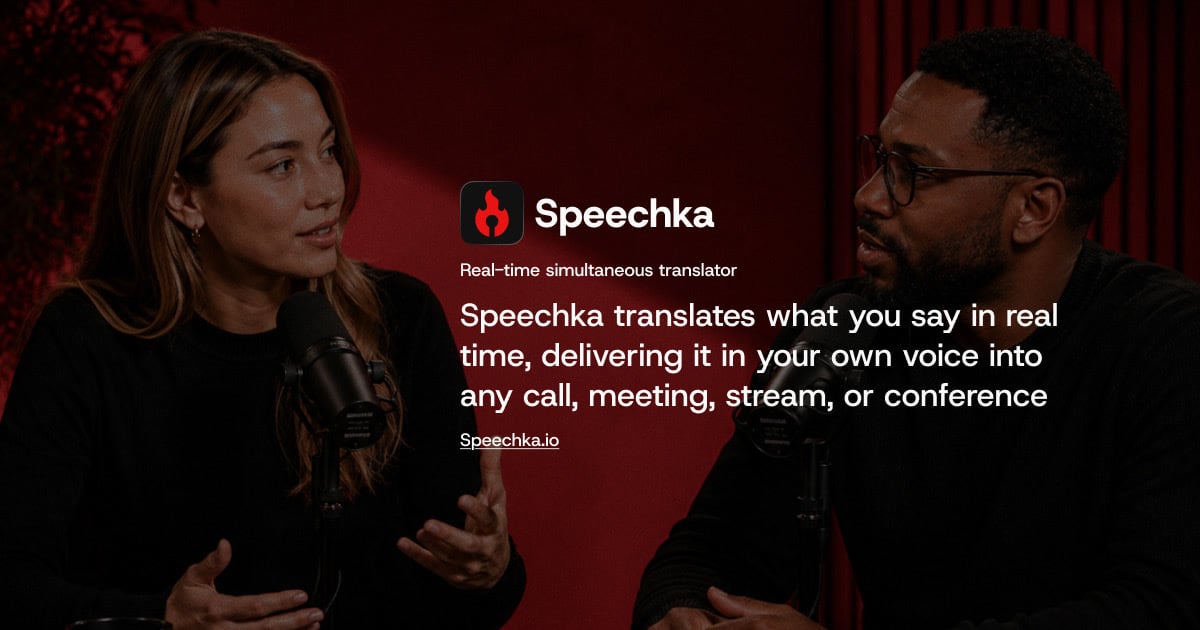
Speechka is a real-time voice translation app that lets you speak naturally in one language while other people hear you in theirs. Instead of captions or transcripts, Speechka listens to what you say, translates it, and delivers the result as spoken words in your own voice, so your identity and speaking style carry across every language. The product is built for live conversations of all kinds — online meetings, calls, livestreams, conferences, keynotes, workshops, and classrooms — and it is available as a desktop app for macOS and Windows, as well as directly in the browser. Speechka supports translation both ways between 44 languages, and its stated purpose is to remove language as an obstacle in the middle of a conversation. Most multilingual communication today relies on subtitles, captions, or transcripts. Those tools force listeners to read instead of listen, shift attention away from the speaker, and break the natural rhythm of a conversation. Speechka was built specifically as an alternative to that approach: as the site puts it, it is built for conversations, not subtitles. By turning translated text back into natural speech that plays in real time, Speechka aims to keep multilingual conversations fluid rather than turning them into delayed, disjointed voice messages. The outcome the product is designed to deliver is simple: no subtitles to follow and no repeating yourself, just conversations that keep moving even when the people involved do not share a language. Speechka's core capability is real-time voice translation. You speak in your own language, and the people you are talking to hear you in theirs. The translation is described as low-latency and is designed for meetings, calls, conferences, and live conversations. Alongside raw speed, Speechka emphasizes flow: it listens, translates, and delivers every sentence in sequence, which is meant to keep conversations smooth, natural, and easy to follow. The second core capability is the Personal voice. Rather than substituting a generic AI narrator, Speechka preserves your own voice across languages, including your speaking style and your natural accent. To set this up, you record a short sample of your voice — the app records up to 10 seconds of your voice — and that sample is then used for your translations. You can listen to the recording, re-record it if needed, and replace or remove your recorded voice at any time. Speechka's translation engine is described as context-aware. Instead of processing isolated words, it works with complete ideas, recognizing context, sentence structure, tone, and intent so that translated speech sounds natural rather than robotic or fragmented. This matters most in live settings, where literal word-for-word output quickly becomes hard to follow. Speechka also handles something subtler: timing. It automatically manages pauses, sentence boundaries, and playback timing so that translated speech follows the rhythm of a real conversation instead of arriving in awkward chunks. Related to this is ordered playback, where every translated sentence is delivered in the correct order. That ordering keeps multilingual conversations clear even when more than one person is speaking, so listeners always hear statements in the sequence in which they were actually made. Speechka offers two distinct ways to use its translation, described in its FAQ. Listen Mode plays the translated speech only for you, through your headphones or speakers. Broadcast Mode sends the translated speech directly to the other participants through your microphone, so they hear the translation while you continue speaking naturally. There are also two quality modes to choose from. Faster is optimized for the lowest possible latency and is positioned as ideal for fast-paced conversations. High quality prioritizes the most natural voice generation and translation quality, and is recommended for presentations, meetings, podcasts, and professional communication. Language coverage spans 44 languages, including English, Spanish, French, German, Italian, Portuguese, Chinese, Japanese, Korean, Arabic, Hindi, Russian, Ukrainian, Bengali, Bulgarian, Croatian, Czech, Danish, Dutch, Finnish, Georgian, Greek, Gujarati, Hebrew, Hungarian, Indonesian, Kannada, Malay, Malayalam, Marathi, Norwegian, Punjabi, Polish, Romanian, Slovak, Swedish, Tagalog, Tamil, Telugu, Thai, and Turkish. The overall workflow is deliberately short. You choose the languages you want to translate between — the site notes that you can translate both ways between 44 languages — then create your personal voice by recording a short sample, and then start translating. From there, Speechka listens to your speech, translates it in real time, and plays the result back in your voice, either privately to you in Listen Mode or out to the call in Broadcast Mode. Speechka is designed to integrate with the communication tools people already use rather than asking them to switch platforms. Because it works with virtually any application that accepts microphone input, the same workflow carries across video conferencing software, chat and voice platforms, browser-based meetings, livestreaming software, and many other communication platforms. It ships as a desktop app for macOS and Windows, and the same core experience can be tried directly in the browser, where the demo provides your first 5 free minutes before prompting you to download the app and complete your account. The benefits Speechka describes all come back to removing friction from live multilingual conversation. People who speak different languages can participate in the same meeting or call without one side reading captions or waiting for a delayed voice message. Because translations arrive in your own voice, listeners hear the person they are talking to rather than a generic synthetic narrator, which preserves your identity and speaking style across languages. In online meetings, the promise is that daily stand-ups, client calls, and remote workshops keep moving without anyone slowing down to repeat themselves. For conferences, keynotes, and workshops, a single presentation can reach a multilingual audience without interrupting the flow of the presentation. For livestreamers, it means going live for a global audience in your own language without creating separate streams, subtitles, or dubbed recordings. The choice between Faster and High quality modes lets users trade a little latency for more natural voice output when a presentation or a professional conversation calls for it. Speechka's own materials name a set of concrete scenarios. Online meetings are the first and most obvious: daily stand-ups, client calls, and remote workshops where participants speak different languages. Conferences, keynotes, workshops, classrooms, and international events are called out for presenting in your own language while the translated voice is delivered to a multilingual audience in real time. Livestreaming is another: streaming on Twitch, YouTube, Kick, TikTok, or your own platform while Speechka translates your voice live for viewers, so every viewer hears the same content naturally translated into their language and spoken in your own voice. The product is also positioned for professional communication such as sales calls, podcasts, and customer calls — the contact form even invites people to describe how Speechka should fit into their meetings, streams, conferences, or customer calls. Finally, the browser experience is a way to test the entire flow — choosing languages, creating a voice, and starting translation — before committing to the desktop app. Speechka is aimed at anyone who communicates across languages regularly: people running meetings, presenting at conferences, hosting livestreams, working in sales, or taking customer calls with international participants. On the integration side, it is shown working alongside Zoom, Google Meet, Microsoft Teams, Slack, Discord, Webex, and OBS, and it is described as compatible with virtually any application that accepts microphone input, including browser-based meetings and livestreaming software. Platform support covers a desktop app for macOS and Windows, plus a browser experience for free trial translation. Pricing starts with a free trial: 7 days free with 10 credits, with no feature limitations, enough to explore Speechka with real meetings, calls, presentations, or livestreams. Beyond the trial, a Pro subscription costs $19.99 per month and includes 180 credits every month. Additional credits can be purchased at any time without changing the subscription: 60 credits for $9.99, 180 credits for $24.99, or 360 credits for $39.99. Speechka's value proposition is straightforward: speak naturally in your own language and be heard in someone else's — in your own voice, in real time, in the tools you already use. By replacing subtitles and delayed transcripts with natural translated speech, keeping your Personal voice, handling context and timing, and working across 44 languages and virtually any app that accepts a microphone, Speechka is designed to make language a detail of the conversation rather than a barrier to it.
Edyt is a lightweight desktop app for Mac and Windows that adds AI actions to any text field. You select text, press a shortcut, and the result appears in place, right where your cursor is. It is aimed at anyone who writes across many different programs each day, such as email clients, browsers, notes apps, and chat apps. The available actions are Rewrite, Proofread, Alternatives, Explain, Translate, and Use Prompt, and the product positions itself as AI that lives right where you write. A free plan is described as enough for most people, while Pro removes the usage limits. Writing rarely stays inside one application. A reply is drafted in email, a paragraph is tightened in a document, a question is answered in a chat window, and a contract arrives as a PDF. Conventional AI tools and grammar checkers require copying text out, switching windows, and pasting results back. Edyt is built around avoiding all of that: the site describes selecting text in any app with no copying and no switching windows. The developers also argue their approach beats a traditional proofreader in specific ways, saying Edyt does better at explaining text, sounding like you, offering a genuinely free tier, working in every app on a Mac, and staying out of your way. There is a further gap the product targets: text you cannot even select, such as a PDF, a screenshot, or a shared screen. Rewrite polishes tone, grammar, and clarity in place, and the listing adds that Rewrite keeps your tone and follows your instructions. Proofread is built for catching mistakes thoroughly. Select the text, press Control+Shift+H, and every issue is flagged in place and grouped by kind on the left. The down arrow moves between issues and Enter fixes one; you can also fix them all at once. The text stays editable, so you can type and then re-check to catch anything new, and Insert pastes the result back in, formatted, right where it came from. The demo shows a correctness control, an ignore option, and an easy-to-read word count as the changes are reviewed. Alternatives answers the question of how else to phrase something. Select the text, press Control+Shift+L, and Edyt suggests options, listing several ways to say the same thing. If none of them fit, Show another produces a genuinely new one, never a repeat. You move between options with the down arrow and press Enter to open Insert or Copy, so a suggestion can go straight into the app or onto the clipboard. Explain takes the opposite direction and focuses on understanding. Press Control+Shift+X and definitions appear on the left with the explanation on the right. You can ask a follow-up question, which keeps the conversation going, so an explanation can deepen as far as you need. The site sums both up with the lines See it several ways and Understand instantly. Translate handles messages written in other languages. Select the message, press Control+Shift+T, and the meaning is rendered in your own language; select it again with the same shortcut and choose their language to reply. Insert drops the translation into the reply box and you send it. Recent languages are shown for quick switching, and you can ask how to adjust a translation if the wording is not quite right, which is useful for client conversations where precision matters. Use Prompt runs your own saved prompts on anything you select. Press Control+Shift+J and Edyt runs your last prompt right away, or you pick another prompt from the list on the left. Personalized prompts remember how you like things phrased, you can ask follow-up questions to refine the result, and Insert drops it straight into the document with no retyping. The listing adds that saved prompts follow your account to every machine. Not all text can be selected. Edyt's screen reading mode covers that case: hold Option on Mac or Alt on Windows and drag over a PDF, a screenshot, or a shared screen. Edyt reads the text on your device, using Apple's built-in recognition on Mac and the built-in Windows OCR on Windows, so the image never leaves your device. On Mac this uses the Screen Recording permission, only to capture the area you drag; Windows asks for no extra permission. Once the text is read, the same actions apply, so you can explain, proofread, translate, or run a prompt. In one demo a lease agreement PDF is dragged over and an automatic renewal clause is explained in plain language, including the 60 days' written notice requirement, followed by a direct question about the deadline. Edyt's workflow is described in three steps. First you select your text by highlighting anything in any app, such as email, docs, or chats, without copying or switching windows. Second, you press Control+Shift+Space to bring up the toolbar and pick the action you want. Third, Edyt calls the AI and drops the result right where your cursor is, described as instant and in place. Each action also has its own shortcut for speed: Control+Shift+C for Rewrite, Control+Shift+H for Proofread, Control+Shift+L for Alternatives, Control+Shift+X for Explain, Control+Shift+T for Translate, and Control+Shift+J for Use Prompt. Every action's shortcut can be remapped, and you can write your own prompts and organize them in your library from your dashboard. The stated benefits follow from that design. Results land where the cursor is, so there is nothing to copy and no window to switch to. Rewrite keeps your tone while it cleans up grammar and clarity, which matters when the writing has to still sound like you. Alternatives produces phrasing better than what you typed without you having to hunt for it yourself. Explain and Translate go as deep as you ask, because each result can be followed up with another question. Proofread can fix every issue at once or one at a time, in text that remains editable. Use Prompt turns your own preferences into reusable instructions, and saved prompts follow your account to every machine you use. The demos on the site map onto everyday tasks. In a chat, someone asks a colleague to look over an email to a client because the grammar is a mess; Edyt fixes it in seconds. Another demo proofreads an essay saved as Reflections.docx, flagging repeated words and awkward phrasing in place while the writer keeps editing. A third shows a client email being reworded several ways before it is sent. In a messaging app, a Spanish message about billing terms and an auto-renewal clause is translated so it can be answered in English. A lease agreement PDF is dragged over to explain an automatic renewal clause and its notice deadline. And in a document editor, a saved prompt rewrites a weekly sync announcement into tighter, more focused wording. Edyt is for people who write in many apps rather than one: email, documents, chats, and browsers, on Mac and Windows. On Mac it runs on macOS 12.3 (Monterey) or later, on both Apple Silicon and Intel. On Windows it runs on Windows 10 or later, 64-bit, currently as a beta, and the Product Hunt listing notes Ubuntu is next. It works inside any app with an editable text field. The free plan includes generous daily, weekly, and monthly usage with no credit card required, and Pro removes the limits for unlimited use. Edyt is not on the Mac App Store because reading and typing text in other apps needs macOS's Accessibility API, which does not work inside the App Store sandbox, so it is distributed directly from the site, signed and notarized by Apple. Privacy is stated plainly. Your text is sent over an encrypted connection for processing and then discarded; Edyt says it never stores it, logs it, or uses it to train AI models, with details on a Security page. The screen reading feature is handled on the device itself, so images never leave it. The footer repeats the same commitments: signed on Mac and Windows, your text is never stored, and never used to train AI models. Edyt's proposition is narrow and clear: AI for text, wherever it happens to live. By putting Rewrite, Proofread, Alternatives, Explain, Translate, and your own saved prompts behind a single shortcut inside any app, and by adding on-device reading for text that cannot be selected at all, it removes the copying, window switching, and friction that usually sit between you and a finished sentence.
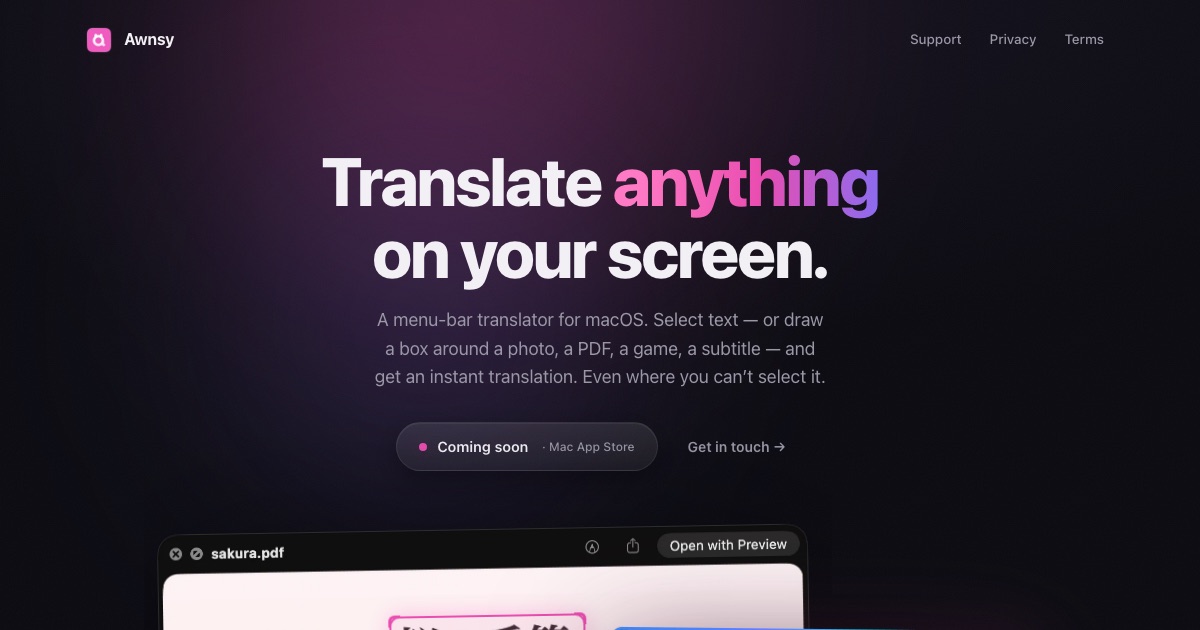
Awnsy is a menu-bar translator for macOS. Its purpose is simple: select text in any app, press ⌘C twice, and the translation appears right over the window you are working in. It is built for Mac users who need to read and understand text in another language without leaving the app they are already using. Beyond selectable text, Awnsy also handles text you cannot select at all — words inside images, scanned PDFs or video — by letting you drag a box around that area on screen, after which Awnsy reads it and translates it. The product describes itself as a small app for the Mac, positioned as doing everything a translator should do on a Mac, plus a few things only Awnsy does. The problem Awnsy addresses is that translation is usually a context switch. When someone is reading a page, a document, a screenshot or a video in a language they do not speak, the usual workflow means copying text out, opening a browser or another app, pasting it in, and then reading the result somewhere other than where the source text lives. That routine breaks reading flow, and it is impossible when the text is baked into an image or a scanned page, or when an app simply refuses to let you select it. Awnsy's approach is to remove the context switch. Translation is triggered from a keystroke the user is already making — copying — and the result appears over the window rather than in a separate destination. The second problem the product targets is privacy: how to translate personal material without sending it to an account-based service. Awnsy answers that with a model that lives inside the app and runs on the Mac itself. The core interaction is deliberately minimal: one keystroke is the whole interface. To translate something, you select the text in any app and double-press ⌘C, or you set up your own custom hotkey. The translation streams in live, so the result appears progressively rather than after a long wait, and both the language and the model can be switched right in the translation window — no trip to a preferences pane to change what you are reading in or how it is being translated. Because the trigger is the copy gesture itself, there is no new shortcut to memorise; the same action a Mac user already performs to copy is the action that translates. Awnsy frames this as one keystroke, any language, and the interface stays out of the way: a small window over the current context rather than a separate workspace you have to manage. A large share of the text a person encounters on a Mac is not selectable. It sits inside an image, inside a scanned PDF, inside a video frame, or inside an application that blocks text selection entirely. For these situations Awnsy uses on-device text recognition to pull the words out of the screen itself. Instead of selecting text, the user drags a box around the region of interest, and Awnsy reads what is inside that box and translates it. Because the recognition happens on the device, this trick works on the same private, offline footing as the rest of the app — there is no upload step described before the text becomes readable. This capability turns screenshots, scans and paused video frames into translatable material without requiring any additional tool, which is precisely the material that ordinary copy-and-paste translators cannot touch. Privacy by default, with a choice of models, is the third pillar of the product. The built-in translation model runs entirely on the Mac. It works offline, it needs no account and no API key, and the product states that there is no telemetry. Whatever you translate stays on your machine. At the same time, Awnsy does not lock you into the local model. If you prefer cloud quality, you can bring your own OpenAI or Anthropic key, which the product describes as the route to top-quality translation. That key is kept in the macOS Keychain rather than being left in ordinary settings. The practical result is a translator with two modes: a fully local, private mode that works without any connection, and a bring-your-own-key cloud mode for users who want a different quality profile. Awnsy lives in the macOS menu bar. It does not appear in the Dock and does not clutter it, so it behaves like a small system utility rather than a full desktop application you launch and manage. It is written in pure Swift rather than being wrapped in Electron, which is why it is described as native and featherlight. The overall approach is a system-wide, screen-aware utility: it hooks into the copy gesture as a universal trigger so it works across apps rather than inside one specific tool; it reads the screen directly for text that cannot be copied; and it keeps the translation model either on the device or behind the user's own key. Everything plays out in a small window over the current context, keeping the translation where the source text is instead of asking the user to move elsewhere. For users, the practical outcome is that translation stops being a separate task. It happens in place, from the gesture you already use to copy, and it returns a result over the current window, so reading flow is preserved and attention is not scattered across apps. Because the built-in model runs on the Mac and the app works offline, translation remains available when a connection is unreliable, unavailable, or deliberately restricted. Because there is no account, no API key and no telemetry, nothing has to be handed over simply to use the app, and what you translate stays on your machine. And because it reads the screen through on-device text recognition, material that used to be out of reach — image text, scanned pages, video text, and text in apps that block selection — becomes readable. Users who want maximum quality can opt into their own OpenAI or Anthropic key without changing any other part of the workflow. Concrete scenarios follow directly from the capabilities described. A reader working through foreign-language documentation, articles or messages in a browser selects the passage and double-presses ⌘C to get the translation over the page. Someone handling a scanned PDF or an image-based document, where there is no selectable text at all, drags a box around the paragraph and lets Awnsy read and translate it. A viewer watching a video with burned-in subtitles, captions or on-screen slides boxes the area of the frame. Anyone using an app that will not let you select text — the case Awnsy explicitly calls out — uses the same box gesture instead of fighting the app. And a user working with private or sensitive material, or working offline on a flight or on a locked-down network, keeps the whole translation on the Mac with the built-in model. Target users, platform, pricing and technology are all stated plainly. Awnsy is a macOS product, distributed free on the Mac App Store, with Awnsy Pro unlocking unlimited screen translation. The platform is Mac desktop, and it is described as a menu-bar translator for macOS. It is built in pure Swift rather than Electron. It is aimed at Mac users who read across languages and want a lightweight, private utility rather than a full translation suite; the Product Hunt topics list Mac, Productivity and Artificial Intelligence. Optional cloud quality comes from the user's own OpenAI or Anthropic key stored in the Keychain, while the local model requires no key at all. The takeaway is that Awnsy makes translation a reflex rather than a detour. One keystroke — a double ⌘C, or your own hotkey — brings the translation over whatever window you are reading, and a drag of a box reaches the text that cannot be selected at all. The built-in model runs on your Mac, offline, with no account, no key and no telemetry, while your own OpenAI or Anthropic key remains an option for cloud quality. It is free on the Mac App Store, with Pro unlocking unlimited screen translation, and it stays in the menu bar as a small, native Swift app that never clutters the Dock.
BiBimba is a Mac clipboard manager that keeps clipboard history and screenshots searchable together, in one place you can reach from the keyboard. It is built for people who copy and paste constantly — writers, developers, support teams, researchers, and anyone who has ever lost a snippet, a link, or a receipt total the moment they copied something else. Its stated purpose is simple: you do not need to remember where something was saved. Instead, you search for it, choose the item, and paste it back into the app you were using. The problem BiBimba addresses is the ephemeral nature of the clipboard and the opacity of screenshots. A normal Mac clipboard holds one item at a time; copy something new and the previous content is gone. Screenshots are harder still — they are images, so the text inside them cannot be searched, quoted, or reused without retyping it. The site describes a workflow where text lives in copied links, copied images, screenshots, receipts, and error messages, and where finding any of it later means remembering where it was stored. BiBimba instead indexes what you copy and reads the text inside what you capture, so a receipt total or an error message can be found again later and pasted as just the part you need. The first capability group is search. BiBimba searches Mac clipboard history, screenshots, text inside images, and snippets together. You open history, type a few words, and BiBimba returns matching items drawn from copied text, copied images, OCR-extracted text, and saved snippets. The site shows the search surface ranking a copied Safari URL, an OCR result labelled with the receipt total ¥12,400, and a saved snippet side by side, along with a filter such as @ocr showing a count of matching items, for example six. Navigation is keyboard-first, with ⌃N and ⌃P to move through results. Because OCR text is indexed alongside copied text, the words printed inside an image become searchable in the same way a typed sentence would be. The second group is OCR. BiBimba automatically reads text in screenshots and copied images with OCR, so the content of a picture stops being inert. Copying the text you need out of an image is one option; another is converting a detected table into Markdown, JSON, or HTML, which turns a screenshot of a table into structured data you can paste into a document, a data file, or markup. Screenshots are captured with ⌃⇧S and screen OCR runs with ⌃⇧O, so the capture-to-text path stays on the keyboard. The site's example is a receipt: BiBimba reads 'Receipt total ¥12,400' from the image, lets you search text inside screenshots, and lets you copy only the part you need rather than the whole picture. The third group is text actions. BiBimba can translate, summarize, or rewrite selected text, and it runs these actions from the keyboard rather than from a menu. The site lists translation on ⌃T, summarization on ⌃S, a business-email rewrite on ⌃M, a bullet list on ⌃L, and table formatting on ⌃R, plus saved actions on ⌃K for instructions you have stored yourself. These are described as running on-device AI on compatible Macs, so the text you are processing does not have to leave the machine. The workflow is deliberately short: recall or select the text, press the shortcut for the action, and get a result you can paste into the app you were using — for example turning a draft into a business email or condensing a long copied passage into a summary. BiBimba's overall approach is keyboard-first and local-first. The site opens with the claim that everything happens 'all from your keyboard' and lists the shortcut set that drives the app: ⌃⇧C to open history, ⌃⇧V to pick and paste, ⌃⇧B for snippets, ⌃⇧S for a screenshot, ⌃⇧O for screen OCR, and ⌃K for text actions. When an item is selected, Return (↩) pastes it and Shift+Return pastes it as plain text, with text actions available on ⌃K. Instead of switching to a separate app, the sequence is open, search, pick, paste. Storage is handled locally too: clipboard and screenshot history is stored on your Mac, you choose how many items to keep and for how long, older items are removed automatically, and you can delete anything you no longer need at any time. The site states there are no ads and no clipboard or feature-usage analytics, and that AI features run on-device on compatible Macs. The stated outcomes follow from that design. Search means you no longer need to remember where something was saved — if you copied it, or it was in a screenshot, BiBimba can surface it by typing a few words. OCR means text trapped in images becomes reusable, and because a detected table can be exported as Markdown, JSON, or HTML, it can become structured data rather than an image you have to read across the screen. Text actions mean routine rewriting work — translation, summarizing, turning notes into a business email or a bullet list, formatting a table — can be done in place with a shortcut instead of in another tool. Privacy and retention controls mean the history you accumulate stays on the Mac, with limits you set and automatic removal of older items, and the app's description notes that no ads or clipboard and feature-usage analytics are used. The one-time price model is also presented as an outcome: a single purchase covers three active Macs, with all 1.x updates included. Concrete scenarios on the site are drawn from everyday clipboard use. A receipt you screenshotted earlier can be found by searching for the total and pasted as the number alone. An error message visible in a screenshot can be OCR'd and searched later instead of being retyped into a search engine or a bug report. A copied link can be retrieved from history after you have copied over it. A snippet such as 'Thanks for reaching out.' can be stored once and pasted repeatedly. A table detected in an image can be converted to Markdown, JSON, or HTML for a document or a data file. Selected text can be translated, summarized, rewritten as a business email, turned into a bullet list, or formatted as a table. In every case, the site frames the workflow as find it, pick it, use it: search, choose an item, and paste it back into the app you were using. BiBimba requires a Mac with Apple silicon and macOS 26 or later, and it is distributed as a DMG that you move to your Applications folder and open, signed with Apple notarization. Summaries, rewrites, and some other features require a supported setup with Apple Intelligence enabled, and AI features are described as on-device on compatible Macs. The interface is available in ten languages: Japanese, English, Simplified and Traditional Chinese, Korean, Spanish, French, German, Portuguese, and Arabic. Pricing is a one-time US$9 purchase covering three active Macs and including all 1.x updates; buying again with the same email adds three more Macs. A 7-day free trial is available in the app via 'Start 7-day free trial' (⌃T), with no email, card, or automatic billing required. Refunds can be requested through Link Support from the purchase receipt, and requests made within 60 days of purchase are answered based on the circumstances. BiBimba's value proposition is a single, keyboard-driven place where everything you copy and everything you screenshot stays findable: search clipboard history and screenshots together, read text out of images with OCR, and translate, summarize, or rewrite what you find with on-device AI on compatible Macs, then paste the result straight back into the app you were using. History stays on your Mac with retention limits you choose, and the product is sold as a one-time US$9 purchase for three active Macs.
Voiskey is an AI voice typing tool that turns natural speech into polished, ready-to-send text. Rather than transcribing your words literally, Voiskey starts from what you meant, shaping a rough spoken thought into text that fits where it is going and who is reading it. The product is described simply as "AI voice typing that understands your meaning, not just your words" — you speak naturally and Voiskey returns polished, ready-to-send text for messages, emails, notes, documents, AI prompts and more. It is built for anyone who thinks faster than they type and wants their spoken thoughts to arrive already cleaned up and ready to use, while still sounding like them. Voiskey is available on macOS, Windows, iOS and Android. The problem Voiskey targets is the gap between thinking and typing. Speaking is fast, but the keyboard slows thoughts down: the site compares a keyboard at 45 wpm with Voiskey voice at 220+ wpm and describes the result as 5x faster than typing. Typing also forces you to compose while you capture, which is why so many everyday writing tasks stall at the start — the first draft is the hardest part, the first sentence is the hardest, ideas hit fast while drafting is slow, tickets pile up faster than you can type, meeting details are easy to forget, and prompting an AI can take longer than coding. Voiskey attacks that gap by letting you think out loud and handing back something finished, so the friction of getting words out of your head and into a usable form is removed from the process. The first capability Voiskey is built around is understanding rather than merely listening. You speak the way you naturally would, and Voiskey catches the fillers, stumbles, changes of mind and grammar slips that ordinary dictation tends to leave in. This matters because unedited speech is messy: people restart sentences, circle back, correct themselves mid-thought and rely on verbal filler while they think. A tool that only transcribes leaves you cleaning up the mess by hand. Voiskey handles that cleanup as part of the transcription, so the text you get back reflects what you were trying to say rather than a verbatim record of how you said it. The second capability is adaptation. Voiskey is described as knowing what you are going for and automatically tailoring the formatting, tone and word choice so every output fits your intent and is ready to send. In practice that means the same spoken thought can arrive shaped differently depending on its destination: casual with a friend, composed with a colleague, or technical with an AI. Instead of speaking stiffly in order to produce formal text, or writing longhand to hit the right register, you speak naturally and Voiskey adjusts the output so it lands correctly for the context. Because the output is already formatted and ready to send, the step between speaking and hitting send is where the time is saved. Voiskey also learns your style and works across languages and AI tools. It learns your names, jargon and spelling preferences so your words always land in your style — useful for people with specialist vocabulary, recurring names or particular spellings they do not want corrected. It converts voice to native-sounding text in 100+ languages: you can speak in your own language when you need to translate, and Voiskey turns your voice into fluent, native text across those languages. Voiskey also lets you tell your AI what to build just by speaking: you talk through what you want to build or change, and Voiskey turns it into a clean AI-ready prompt with files, paths, commands and key details captured. That last capability is aimed at workflows where the prompt itself has become the slow part. Overall, Voiskey's approach is to meet you wherever you already type. The site states that Voiskey works anywhere on your computer and in any language: wherever you type, however you speak, Voiskey is ready when you are. There is one voice experience across every device, so the same way of working carries across macOS, Windows, iOS and Android rather than being tied to a single machine or a single app. You speak naturally, Voiskey interprets the meaning and the intended destination, and it delivers text in the form that destination requires — the core methodology being that it works from intent rather than from literal audio. The benefits Voiskey claims are speed and readiness. It is 5x faster than typing by the site's own comparison, letting you get your thoughts out before the keyboard slows them down. Output arrives cleaned up and ready to send, so there is no separate editing pass to remove fillers or restructure sentences. And because Voiskey learns your names, jargon and spelling preferences, the result still sounds like you rather than like generic machine output. For people whose work is largely written — replies, updates, notes, drafts, prompts — the combination of speaking at speed and receiving finished text changes how much writing can be done in the same amount of time. Voiskey lists concrete scenarios for its use. Engineers can prompt their AI tools by speaking, turning talk into prompts, commits and design docs, addressing the observation that prompting now takes longer than coding. Sales teams use it for call notes, CRM updates and replies, since the faster the follow-up, the warmer the deal. Customer support uses it to keep language clear across tickets, live chats and help articles. Writers and creators turn spoken ideas into posts, scripts and book chapters. Students capture lecture notes, essays and emails, getting past the difficulty of the first draft. Founders produce updates, replies and job posts at startup speed. Legal and consulting professionals turn their insights into memos, client letters and contracts. By task type, Voiskey is used for messages such as texts, DMs and quick replies; emails, where you speak a rough draft and Voiskey shapes it into clear, structured writing; notes, capturing reminders, quick lists and random ideas the moment they show up; meetings, capturing decisions, action items and follow-ups; and team updates, handoffs and action items. Voiskey's primary audience, as described on the site, includes engineers, sales teams, customer support teams, writers and creators, students, founders, and legal and consulting professionals — essentially anyone whose day involves producing written text. It runs on macOS, Windows, iOS and Android, supports over 100 languages, and is free to start. During its launch, joining gives a free month of Pro. The site positions it as a general-purpose voice layer rather than a single-app feature: it works anywhere on your computer, in any language, and the same experience follows you across every device. Voiskey's core value proposition is straightforward: speak it rough, send it right. By understanding meaning rather than only words, adapting formatting, tone and word choice to the destination, learning each user's names, jargon and spelling, and operating across four platforms and 100+ languages, Voiskey removes the friction between thinking and finished writing — at a claimed 5x the speed of typing, with output that arrives ready to send and still sounds like the person who said it.
SubtitleGenerator helps creators generate, fix, translate, style and export subtitles in one browser. It flags uncertain words for review and correction, with all 33 caption styles included free. Pro and Max add full-track translation, HD exports without a watermark, additional subtitle formats, custom fonts and saved brand styles. Your original video stays in your browser.
TimedSubs turns scripts and voiceover into delivery-ready subtitles. Sync an approved script to audio with a QA pass before export, or translate SRT/VTT files into 100+ languages without breaking timing. Includes free subtitle checker and converter tools. Pricing: 15 free timing minutes, then one-time packs or subscription.