Category Focus/categories/image
Image AI Tools
Discover and compare the best image AI tools and software. Browse 69+ curated tools with reviews and rankings.
Projects tracked
69
Sort mode
RECENT
Page
1
Discover and compare the best image AI tools and software. Browse 69+ curated tools with reviews and rankings.
Projects tracked
69
Sort mode
RECENT
Page
1
Mega Jell-EEZ Peelable Mango is a fun and flavorful jelly candy made for mango lovers. Its peelable design adds an enjoyable way to eat the soft, chewy candy while delivering a sweet and fruity mango flavor in every bite. The playful texture and easy-to-peel format make it a fun choice for candy lovers, parties, sharing, and everyday snacking. Perfect for retailers and wholesale buyers looking to add an eye-catching mango treat to their candy selection. Visit us for more information!
Redlamp is a native, open-source RAW photo editor for the Mac, built from scratch in Swift and Metal for Apple Silicon. It is currently at pre-alpha version 0.2.6 and requires macOS 26. Redlamp keeps the panels, sliders and keyboard shortcuts that photographers already know from Lightroom — including panel order, slider names, ranges, defaults and single-key shortcuts — and rebuilds everything underneath as a native, GPU-first application. It is an editor rather than a catalog: it opens folders of photos and keeps edits in small sidecar files right next to the originals. It is aimed at photographers who edit on a Mac and want Lightroom's familiar workflow without a subscription and without a cloud. The application is licensed under MPL-2.0, is free with no subscription, and runs its AI features on device. Lightroom defined how millions of photographers edit, but it is a cross-platform application that does not feel at home on a Mac, and it is tied to a subscription and a cloud. Redlamp was created to keep the workflow photographers already know and rebuild everything underneath as a native, open-source application. The name comes from the darkroom safelight: a red lamp is the one light you can work by without fogging the paper. The stated idea behind the product is that you can see and shape your photo freely, and the original is never harmed. Redlamp is Mac-first: one platform-neutral engine powers the application, with the Mac editor coming first and iPad and iPhone stated to follow from the same engine. Redlamp's Develop module covers the core of a RAW editing workflow: Basic, Tone Curve, Color Mixer, Color Grading, Detail and Effects. It carries over Lightroom Classic's shortcuts as 83 actions on 87 key bindings, and adjustments can be found by name or by the words people use. The command palette, opened with ⌘K, searches every action, every Develop slider and every picker — including white balance, treatment, Base Looks, recipes, Before/After, snapshots and history — with each action's shortcut shown beside it. Choosing a slider or picker does not close the palette; it turns into that control over the photo. Pressing Return shrinks the palette to a slider bar, where the arrow keys step the value, Shift moves ten times as far, Option adjusts more finely, and typing a name and value such as 'exposure 0.7' or 'temp 5600k' sets the slider directly. Moving through a picker previews each choice on the photo before it is applied. Masking is part of the architecture rather than an afterthought. Every edit is a layer: its own adjustments plus a mask built from components that add, subtract and intersect, as in Lightroom. Linear and radial gradients are drawn and adjusted directly on the photo, with 15 local adjustments including Texture, Clarity and Dehaze, a red mask overlay and a full mask list. Masks are evaluated per pixel inside the same GPU kernel, so 16 of them cost well under a millisecond. On the colour side, the pipeline is linear and scene-referred with a proper camera white-balance model. Temperature and Tint use Robertson's method with the camera's matrix. The Color Mixer works in OKLCh so hues move the way the eye expects, colour grading offers 3-way and individual wheels with Blending and Balance, and the tone curve is available in parametric and point modes. Some looks are measured against cameras' own renderings — Standard v3 sits within ΔE 3.26 of the camera's Provia. The Detail panel handles noise and sharpening with awareness of each photo's own noise, read from the DNG or measured from the raw data when the file opens. Luminance and Color noise reduction use Lightroom's controls, sharpening is noise-aware so the photo's grain passes through untouched, and Texture, Clarity and Dehaze are available globally and inside masks. Highlight reconstruction rebuilds clipped photosites. Recipes bring presets, profiles and LUTs into one open format: 39 bundled recipes in eight groups, the ability to type in a Fujifilm-style camera recipe card exactly as it is written, camera controls such as Dynamic Range, Color Chrome and white-balance shift, and import and export of .redrecipe, .cube and HaldCLUT files. A separate Stack workspace offers one-click focus stacking: Redlamp spots a focus bracket in a folder and offers to merge it, and frames are stacked as demosaiced camera RGB before any edit, so every Develop slider still works on the result. Auto, Smooth and Detail strategies are available, along with a depth map and retouching from any frame. Redlamp's own RAW pipeline treats LibRaw purely as an unpacker. Black levels, white balance, demosaicing and colour all happen inside Redlamp, on the GPU. Bayer sensors use the Menon demosaic by directional filtering with a posteriori decision, X-Trans is supported, hot pixels are repaired before demosaicing, and row and column banding is measured in the sensor's masked optical-black margins and subtracted with the black level. DNG gain maps are applied before demosaicing, and photosites that clipped are rebuilt from their bright unclipped neighbours. The demosaiced image is cached as a full mip pyramid so every zoom level samples the right resolution. A single fused Metal kernel applies every per-pixel adjustment, frames are delivered as IOSurfaces without a copy, and rendering never waits on the main thread. Latest-wins scheduling collapses a burst of slider events to the newest one. Responsiveness is a central design goal. Interactive renders at Fit take 0.6 to 3 milliseconds on Apple Silicon, a full 26 MP frame at 1:1 renders in about 13 milliseconds, a full-resolution export render takes 45 milliseconds, and opening a raw file takes 70 to 250 milliseconds; these figures were measured on an Apple M1 Ultra with a Release build. Because rendering and the UI are strictly separated, the interface never waits on the engine, the disk or the GPU. Exports rest between tiles when the Mac runs hot, and previews take priority over exports. AI features run on device, so photos are never uploaded. Edits are saved to small sidecar files next to each photo and the original stays exactly as it was shot, which protects a photographer's archive. Photos are supported in Sony ARW, Canon CR3, Nikon NEF, Fujifilm RAF, Apple ProRAW and Pixel DNG, plus JPEG, HEIC, TIFF and PNG. Concrete workflows follow Lightroom's habits. A photographer can add folders with the plus button, ⌘O or by dropping them on the window; folders are remembered by bookmark, so a folder that is renamed or moved is followed. The filmstrip follows the disk by itself, so photos copied in, deleted, renamed or rewritten appear, leave or update in place. Focus stacks are looked for one folder at a time in the background and remembered. Before and after comparison is available in three layouts and is cached so edits never re-render it, and the histogram can be dragged across to adjust Blacks, Shadows, Exposure, Highlights or Whites. Photographers can apply a recipe, hover to preview it, then adjust its Amount, save the current edit as a recipe with a settings checklist, and import Lightroom develop presets with a report of what came across exactly, approximately or not at all. On-device AI masks include Subject, Background, People and Sky, using Apple Vision's built-in models with nothing to download, plus Objects, Depth Range, and Landscape categories such as water, vegetation, mountains, architecture, ground and snow. Models are listed in Settings with their size and licence, are removed from there too, and photos are never uploaded. Redlamp is free with no subscription, supports development through Ko-fi, and is licensed MPL-2.0, compatible with the App Store, with algorithms implemented clean-room from papers. It is built with Swift and Metal, runs on macOS 26 on Apple Silicon, and is currently a pre-alpha release, with iPad and iPhone to follow from the same engine. It is a single macOS desktop application, not a web service. Redlamp's promise is simple: Lightroom's workflow, native to your Mac, open source. It gives photographers the panels, sliders and shortcuts they already know, renders every change within a frame, keeps edits in sidecar files beside the originals and never touches the raw files themselves, and does all of it without a subscription or a cloud. For Mac photographers who want a fast, native RAW editor built in Swift and Metal, with serious colour science, GPU-first masking, one-click focus stacking and on-device AI masks, Redlamp offers an open, free alternative at the pre-alpha stage of its development.
Scumble is a free, open-source desktop editor built specifically for AI inpainting. Rather than assembling a mask in one tool, running a generation workflow in another and then pulling the result back into an image editor, Scumble keeps the whole loop in a single application: you select part of a picture, say what belongs there, and the result lands as its own colour-matched layer. The original image is never touched, so the edit stays non-destructive. Scumble is aimed at people who inpaint regularly — swapping an object out, removing something unwanted, or adding something new to an existing picture — and who prefer to run the generation step themselves, either through their own ComfyUI installation or through their own provider API keys. It is an editor, not a service. The product began as a weekend project, and the maker's own reason for building it is the problem it solves. Doing a lot of inpainting meant repeating the same routine over and over: build a mask here, run a workflow there, pull everything back into an image editor, fix the edges, and repeat. Each hop between tools costs time and breaks concentration, and the final edge-fixing step is the part that decides whether an edit looks believable. Scumble was built to remove those hops by putting selection, generation and layer-based compositing in one place, so the edit you describe is the edit you get, already sitting on its own layer next to the original picture. Scumble gives you three ways to define what should change: you can select by painting a mask, by pointing at an object, or by typing what it is. Whichever route you take, every result comes back as its own layer that is colour-matched to its surroundings. That colour matching is deliberate: it means a new object, a removed sign or a replaced detail blends into the existing image instead of sitting on top of it with a visible seam. Because the result is a layer, the original stays untouched underneath and you can adjust or discard the edit without redoing the whole image. Community reaction to this approach noted that the layer-based style makes AI edits feel more like normal photo editing rather than a full regeneration of the picture. Scumble does not ship its own image model. Instead it runs on your own ComfyUI — local, remote or Comfy Cloud — or on your own API keys for services including FLUX 3, FLUX.2, GPT Image, Nano Banana, Seedream, Qwen and Ideogram, with the promise of more. That means the choice of model and the cost of generation stay with you: you pay the providers directly and Scumble takes no cut. The project is honest about its maturity on this front — it is at version 0.1.x and moving fast, and not every API provider has been tested live yet, so support for a given provider may still be rough. The API path is built with privacy in mind. Through an API, only the area around your selection leaves your machine, and the answer comes back at full resolution. Your original image is not uploaded wholesale, and what comes back is not a downscaled preview that you then have to upscale yourself. Scumble also keeps no account, sends no telemetry, and stores your API keys in the system's credential store rather than inside the app. Combined with the fact that you supply your own keys and pay providers directly, the result is an editing tool that does not sit in the middle of your data or your billing. Two prompt-level features give you more control over what the model produces. With boxes in the prompt you can draw where things go and describe each box — for example placing an object in a specific part of the frame and describing it there — a capability listed as working with FLUX 3 Image and Ideogram 4. Reference images can also be named inside a prompt, so a request such as "put their cup from @img1 on the sill" pulls a specific existing image into the edit. Together these let you direct an edit spatially and keep particular objects consistent between generations instead of describing everything from scratch in words. Scumble also exposes an MCP server with 105 tools, which means Claude Code or any other MCP client can drive the editor directly. For people who work with AI agents, that turns Scumble into something that can be operated programmatically: an assistant can select an area, request an inpaint and receive the result as a layer without a human dragging a mask each time. It is the same inpainting engine, exposed to the tooling that agents already speak, rather than a separate product bolted on the side. For finishing work, Scumble includes 46 film looks that apply as layers, a set of retouch tools, and export to PSD, ORA and TIFF. It handles pictures of 15,000 pixels and more. The export formats matter because they let an AI edit be finished elsewhere: as one commenter put it, if an AI edit is almost right it is useful to be able to complete it in another editor instead of generating again. Film looks as layers and retouch tools mean the generated result can be graded and cleaned up inside Scumble, keeping the last step of the workflow in the same place as the first. Scumble is free and open source under GPL-3.0. Windows comes first: it is available in the Microsoft Store, signed by Microsoft, and there is also a GitHub installer and a portable zip. Linux builds come out of CI, though the maker notes he has not run them himself yet, and a Mac version is planned. The project is at version 0.1.x and changing quickly, so features and provider support are still moving. Tutorials are published under the title "two sceptics, one editor" at denrakeiw.com/scumble/videos. One workflow question that comes up is how Scumble copes with larger selections or edits where the surrounding lighting and shadows need to change along with the new object. The maker's answer is candid: the AI only sees the area being edited and does not really understand what the surrounding area looks like. The new FLUX 3 model can edit areas up to 4K, which already makes the selection pretty large, and the suggested workflow is to first inpaint a larger area with FLUX 3 and then refine the details. That ordering — broad pass first, detail pass second — is a practical way to work within how inpainting models actually see an image. In short, Scumble takes the repetitive, multi-tool inpainting routine and collapses it into one free desktop editor: select by painting, pointing or typing, describe what belongs there, and receive a colour-matched layer while your original stays untouched. It runs on your own ComfyUI or your own API keys, keeps only the area around your selection away from your machine when using an API, stores keys in the system credential store and charges nothing on top of what providers charge you. With an MCP server, box prompts, named reference images, film looks and PSD/ORA/TIFF export, it is an open-source option for people who want control of the model and the data.
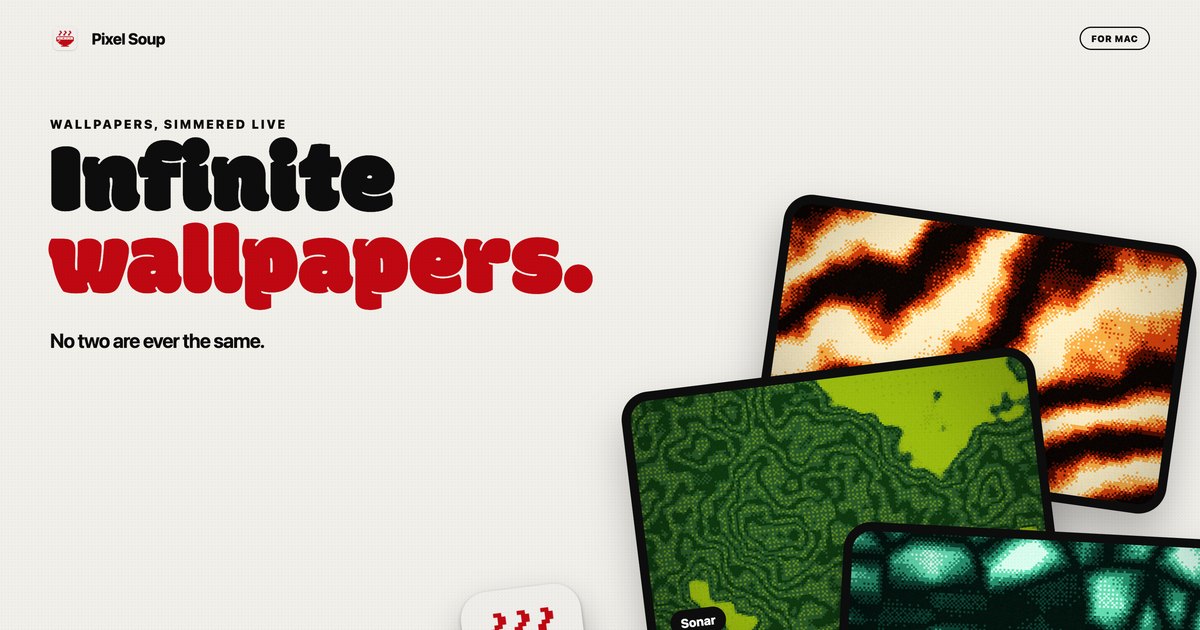
Pixel Soup is a Mac app that makes your desktop wallpaper for you. Instead of downloading a static image, you pick a shape, a palette and a dither style, and the app draws the wallpaper live on your own GPU. The result is a dithered, gently moving backdrop that sits behind your icons, or a single frozen frame that becomes your desktop picture. You can also drop in a photo and Pixel Soup dithers that instead, and it can pull a palette out of a photo for you. The editor opens from a small handle that sits on the edge of your screen, so there is no Dock icon and no window in the way. It is built for Mac users who want a wallpaper that no two people will ever have the same of. Most wallpapers are files you download, resize and then live with. Pixel Soup starts from a different premise: the wallpaper is generated rather than supplied. Because each wallpaper is a combination of a shape, a palette, a dither and a seed, the source material is effectively endless, and every one of those permutations keeps moving. The problem it addresses is the flatness of a fixed image: a still photograph looks the same at every glance, and animated wallpapers often come with a cost in battery life. Pixel Soup keeps generation local and low-cost, drawing frames at a low frame rate on the GPU, pausing when windows cover the desktop, and slowing further in Low Power Mode, so an animated desktop does not have to mean a drained battery. The first ingredient is the shape. Pixel Soup ships with a set of generative shapes named Flow, Mesh, Plasma, Ripple, Aurora, Cells, Topo, Whorl, Sonar, Mosh and Weave, and you can browse them all to see how each one looks. Alternatively, you can point the app at your own photo and use that as the source instead. The editor shows twelve shape tiles alongside a live preview and sliders, so you can see what a change does before you press Apply. Because the shapes are generative, the same shape with a different seed produces a different result, which is what allows the app to claim more than a hundred thousand combinations before you touch a single dial. The second ingredient is the dither. Pixel Soup offers Smooth, Poster, Bayer 4 and 8, Noise, Halftone, Lines, Diamond, ASCII and Benday dots, each with its own visual character, and there is a page explaining what each one looks like. Beyond choosing a style, you set the pixel size and how many colours the wallpaper is allowed to use. Dithering is what gives these wallpapers their texture: the shapes are generated, then reduced to a limited palette through a pattern, which is why the results read as retro, printed or screen-like rather than photographic. Controlling pixel size and colour count means you can move from fine-grained subtlety to large, chunky dots and blocks, depending on the mood you want on your desktop. Colour comes next. There are twelve palettes built in, or you can build your own from up to five colours; if you would rather not choose, pointing the app at a photo makes it pull a palette out for you. Pixel Soup can also keep the desktop surprising on its own: it can serve a fresh wallpaper every hour or every day, and if you preferred the last one, a Previous control brings it back. When you land on something you want to keep, Export saves it as a PNG at the resolution of this display, at 6K, as an iPhone size, or as a 2048 square, and exported wallpapers are yours to use anywhere, including commercially. Pixel Soup's approach is to make the wallpaper on the machine that displays it. Everything is drawn by the GPU, sandboxed on your Mac, with no account, no analytics and nothing about you leaving the computer. The app lives behind a small handle on the edge of the screen rather than in the Dock, so opening the editor is a click and closing it leaves no window behind. Because generation is local and procedural, the same shape, palette, dither and seed can be frozen as a still frame, kept moving, or allowed to drift at a speed you choose. It is one app doing the drawing, the dithering, the palette work and the export, rather than a gallery of pre-made images to scroll through. The practical benefits follow from that. You get wallpapers that are not shared with anyone else, because they are generated rather than downloaded. You can freeze any frame if you want a still, so an animated setup is optional rather than forced. Multiple displays are handled: every display gets the wallpaper at its own resolution, and plugging a display in or out sorts itself out. And an animated background does not have to be a battery decision, since Pixel Soup draws at a low frame rate, pauses when windows cover the desktop, slows in Low Power Mode, and costs nothing once a still wallpaper is set. A licence also covers up to three of your Macs. In day-to-day use, Pixel Soup fits a few clear scenarios. Someone who wants a moving desktop can shuffle through combinations until something stops them and keep that one. Someone who works with photos can drop one in and get a dithered version of it, with a palette pulled from the image itself. Someone who likes variety can let the app serve a new wallpaper every hour or every day and step back with Previous if they liked the last one better. Designers and anyone who needs an asset can export a PNG at 6K, at an iPhone size or as a 2048 square, and use it anywhere, including commercially. And on a Mac with more than one display, each screen gets the wallpaper at its own resolution. Pixel Soup runs on macOS 14 Sonoma or later, on both Apple silicon and Intel, and the build is universal and notarized. There is no account and no tracking. The download from the site is the full app, free for three days with no account and no card required. After that, a licence is a single payment of $9.99, currently discounted to $4.99 for launch week, and it is good for up to three of your Macs; updates are included. Licences are sold through Dodo Payments, which handles your receipt and any tax. The same app is coming to the Mac App Store at the same price, but without the trial, and the App Store version updates through the App Store. Refunds are available within 14 days, no questions asked. Pixel Soup's core proposition is simple: a Mac that makes its own dithered wallpapers, still or moving, with no account, no tracking and no subscription. Pick a shape, a palette and a dither, press Apply, and the desktop is yours — and unlike a downloaded image, no two are ever the same.
Pexo is an AI video agent that turns your ideas into videos through natural conversation. It is built so that anyone can simply talk to Pexo and create publish-ready videos instantly, without needing advanced AI video generator skills. You start by telling Pexo what video you want to create, and you can begin from a URL, PDF, image, video, audio, or just your own idea. Pexo describes itself as one agent for every kind of video, built for product teams and marketers who need clear, polished visual storytelling and feature explanation, as well as for anyone producing content for social platforms. Rather than operating a tool, you direct a single agent from the first idea all the way through to a finished, on-brand video. Pexo's core premise addresses a specific gap described on its own website: most AI video generators are tools you operate. With them, you write prompts, pick a model, and edit the output yourself, then assemble the pieces into something usable. That workflow assumes you already know which model fits which shot, how to prompt it, and how to stitch the results together. Pexo flips that model by acting as an agent rather than a tool. You just describe what you want in plain language. It figures out the approach, chooses the right model for you, and delivers a finished video, not a short clip. You can still review the plan and adjust as it goes, so creative control is preserved without requiring technical skill, and the result is a complete video rather than a collection of raw generated fragments. You can begin a project from almost any starting material. Pexo's text to video feature lets you describe your idea in plain language and have it turned into a finished video. Image to video takes an uploaded image and animates it into a moving video. URL to video lets you paste a product or page link and receive a finished video. Audio to video turns a song, podcast, or voice note into a visual video. Script to video accepts a written script and Pexo produces the full video from it. The homepage lists URL, PDF, image, video, audio, or your idea as valid starting points, and it offers example requests such as creating a mascot launch video, a collage-style explainer, an AI avatar video, a SaaS launch video, a kinetic typography explainer, a brand launch video, an educational explainer, an infographic product animation, an app demo, an explanation of a service, social ads, a cinematic short film, a live-action instructional video, or an animation. This range means the same agent can handle a one-minute launch video for a website with dynamic motion graphics just as easily as a short social ad. Beyond assembling clips, Pexo handles the full production layer. It delivers polished videos complete with voiceover, music, motion graphics, captions, subtitles, narration, and transitions. Its image generation feature lets you describe any scene and receive a high-quality image in seconds. Its music generation feature lets you describe a mood or genre and Pexo composes original music instantly. Its AI avatar feature provides a lifelike AI avatar that speaks your script in any language. Pexo also supports a wide catalogue of video styles and formats, including kinetic typography, 2.5D animation, whiteboard animation, paper animation, line art, animated explainer videos, motion graphics, app launch videos, talking head videos, music videos, anime, UGC ads, product ads, product videos, YouTube Shorts, AI dancing videos, AI kissing videos, and ASMR videos. The output is platform-ready, made for TikTok, YouTube, Instagram, X, and more, so you can post anywhere without extra editing. A central part of how Pexo works is its model routing. Pexo works with what the site calls the world's leading AI models. Pexo understands your request, selects the right model, and routes each step for the best result. The models named on the site include Seedance 2.0, Happy Horse 1.0, GPT-Image 2, Nano Banana, and Kling AI 3.0, alongside logos for Hailuo AI, Pika, Midjourney, Kling AI, GPT Image, Veo, Seedance, Luma AI, MiniMax, and Runway. Because Pexo chooses the model per task rather than asking you to choose, you are not required to understand the differences between generation engines or to re-prompt when one model performs better than another on a particular shot. This is what allows a single conversational request to become a finished video assembled from multiple model outputs. The end-to-end workflow follows four stages. First, start with an idea: share a link, image, audio clip, or reference, and tell Pexo what you want to create. Second, Pexo plans it all: it works with you to develop the script, scenes, shots, and creative direction. Third, chat to refine the video: you mark what you want to fix and make changes through conversation, just like commenting in a Google Doc. Fourth, get a ready-to-post video: Pexo delivers a polished video complete with voiceover, music, motion graphics, and more. Underpinning these stages are four capabilities the site uses to differentiate Pexo from other AI video generators. Pexo understands your intent, reading context, references, and creative direction beyond prompts. It plans the creative work, building storyboards, selecting references, and structuring the video. It delivers finished content, creating complete videos with narration, music, subtitles, and transitions. And it improves through feedback, applying revisions naturally without restarting from scratch. For users, those capabilities translate into concrete outcomes described on the site. Pexo turns product photos into scroll-stopping video ads in minutes, replacing hours of editing with an upload-and-go flow. It lets people who are not technical describe what they want, pick a style, and get a polished video ad ready for Instagram and TikTok. Testimonials state that the videos look professional, match the user's brand perfectly, and avoid awkward AI artifacts. One reviewer reports generating five to ten product videos a week, where the same work previously cost around $500 per video from freelancers and is now handled in minutes. Another describes Pexo as the first true AI video agent, one that suggests directions and ships a full ad ready to post. Use cases are broad and explicitly listed. Pexo can be used for product ads, social posts, explainers, launch videos, and personal memories. It can create short-form social videos, product demos, brand ads, story videos, and publish-ready clips. A typical request might be a one-minute launch video for a website with dynamic motion graphics, a SaaS or brand launch video, an educational or collage-style explainer, an app demo, an infographic product animation, or social ads. Because Pexo produces platform-ready output, the finished videos are intended for publishing directly to TikTok, YouTube, Instagram, X, and similar channels without additional editing. The primary audience described on the site is product teams and marketers who need clear, polished visual storytelling and feature explanation. The site also addresses non-technical creators who are not techy at all but still want a polished video ad, and sellers who produce product videos at volume. Pexo runs as a web product at pexo.ai, and the site invites visitors to start for free. Its approach of understanding natural-language requests plus added links, images, music, notes, or references means anyone who can describe a video idea can use it, regardless of editing or prompting experience. Pexo's takeaway value proposition is simple: it is an AI video agent, not just another generator. You describe in plain language what you want, Pexo plans the story, chooses the right model for each task, and delivers a finished, on-brand video you can post.
RemoveMate offers an AI-powered tool to automatically remove backgrounds from images, allowing users to easily isolate subjects. The process is straightforward: upload your photo, and the AI handles the background removal without requiring any prompts. Users can then preview the cutout to ensure accuracy, especially around intricate details like hair or fur, before downloading the final image. This tool supports common image formats such as JPG, PNG, and WebP, making it versatile for various needs.The service is designed for efficiency and ease of use, catering to individuals and businesses looking to quickly enhance their visuals. Whether you're working with product photos for an e-commerce store, portraits for professional profiles, or creative projects involving pets and everyday objects, RemoveMate streamlines the background removal process. The automated nature of the tool means no complex editing skills are necessary, making professional-looking results accessible to everyone.Key use cases include preparing product images to stand out in online listings or catalogs by removing distracting backgrounds. For portraits, the tool helps maintain focus on the individual, ideal for profile pictures or team pages. Pet owners can easily create cutouts of their animals for use in cards, collages, or other creative designs. Additionally, artisans and creators can use RemoveMate to showcase the shape and detail of objects, such as handmade crafts or decorative items, for portfolios or sales platforms.RemoveMate simplifies image editing by automating the background removal task. The platform provides a clear workflow: upload, process, preview, and download. This approach ensures that users can achieve clean, professional cutouts quickly and efficiently. The ability to preview the results allows for a final check on the quality of the separation, ensuring that fine details are preserved.
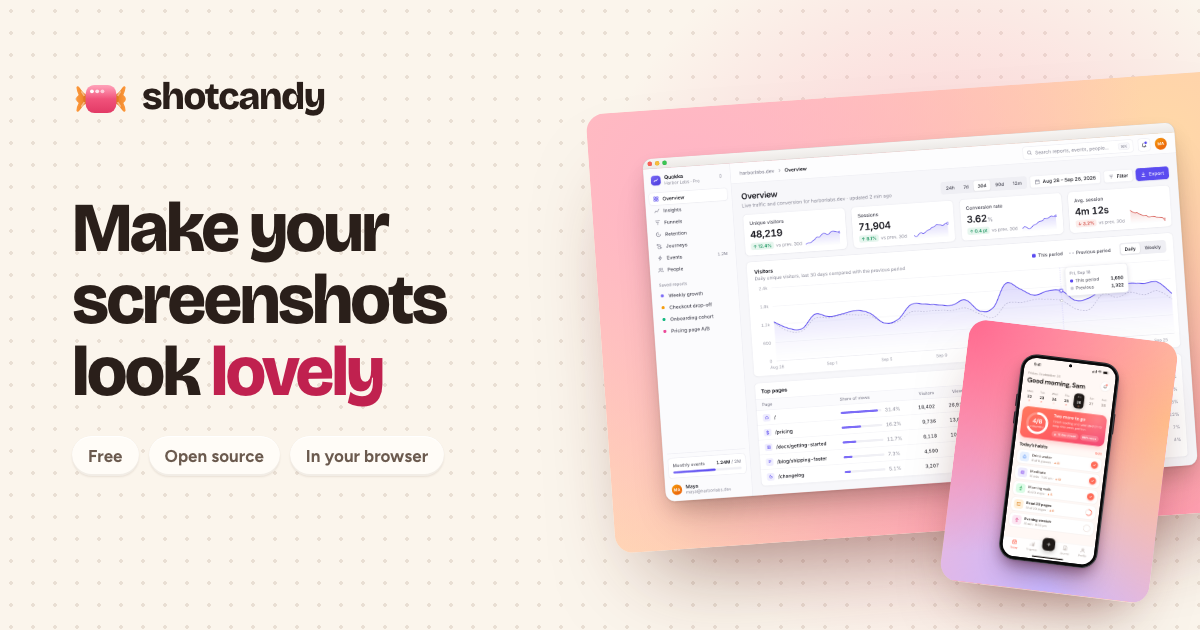
Shotcandy is a free, open-source screenshot beautifier that transforms plain screenshots into beautiful, share-ready images and videos in seconds, right in your browser. It is designed for anyone who needs to make screenshots look lovely and professional before sharing them, whether for social media, marketing materials, design portfolios, or developer documentation. The core promise is simple: paste a screenshot, and Shotcandy will make it look lovely in one step. Users can paste an image directly using Ctrl+V, drop an image anywhere on the interface, or choose a file from their device. There is also a sample image available to try. The product runs entirely in the browser, meaning there is no account required and no upload to a server. This makes it accessible and private for quick, everyday use. The problem Shotcandy addresses is that raw screenshots often look unpolished and out of place when shared online or included in presentations, documentation, or marketing assets. A plain screenshot may capture the necessary information but lacks visual appeal, which can reduce engagement and perceived professionalism. Beautifying screenshots usually requires design skills, specialized software, or multiple steps. Shotcandy simplifies this by providing a one-step, browser-based solution that requires no installation, no account, and no upload. This matters for users who frequently share screenshots—such as social media managers, marketers, designers, and developers—because it saves time and effort while producing a polished result. The fact that images never leave the browser also addresses privacy concerns, making it suitable for sensitive content. Shotcandy offers multiple ways to bring a screenshot into the tool. Users can press Ctrl+V to paste an image directly from the clipboard, drag and drop an image anywhere on the page, or use the Choose file button to select an image from their device. There is also a Try a sample option for users who want to see how the tool works without providing their own image. This flexibility ensures that users can start beautifying a screenshot with minimal friction, regardless of their workflow. The interface is designed to be simple and intuitive, with the primary action being to get an image into the tool so it can be transformed. The central feature of Shotcandy is its ability to make a screenshot look lovely in one step. After a screenshot is pasted, dropped, or selected, the tool automatically applies beautification to produce a share-ready image or video. The description emphasizes that the process is fast—in seconds—and that the result is something lovely. This one-step approach means users do not need to manually adjust settings or apply multiple filters; the tool handles the beautification automatically. The output is designed to be share-ready, meaning it can be posted directly to social media, included in marketing materials, or added to documentation without further editing. The product also supports creating videos, not just static images, from screenshots. Shotcandy operates entirely in the browser, and the website explicitly states, Your image never leaves this browser. No account, no upload. This means users can beautify sensitive screenshots without worrying about them being transmitted to a server. No account is required, so there is no sign-up barrier. The product is free to use and open source, which appeals to users who value transparency, community contributions, and cost-free tools. Being open source also means the code can be inspected, modified, and improved by the community. These characteristics make Shotcandy accessible to a wide audience, from individual users to teams, without any financial or privacy trade-offs. Shotcandy offers beautification styles such as macOS window frames, browser mockups, device mockups, and Open Graph images. These styles help screenshots look more polished and contextually appropriate. For example, a macOS window frame gives a screenshot the appearance of an application window on a Mac, while a browser mockup places it within a browser interface. Device mockups show the screenshot on a phone, tablet, or laptop screen. Open Graph images are designed for link previews on social media and messaging platforms, ensuring that shared links look attractive. These styles are part of what makes the screenshots share-ready and visually appealing. Shotcandy's unique approach is its combination of simplicity, speed, and privacy. Unlike traditional image editors that require installation, accounts, or uploads, Shotcandy runs entirely in the browser and processes images locally. The workflow is straightforward: bring an image in via paste, drag-and-drop, or file selection, and the tool beautifies it in one step. There is no need to configure complex settings or learn a new interface. The browser-based nature means it works across operating systems without installation. The emphasis on no upload and no account differentiates it from cloud-based screenshot beautifiers that may collect data or require registration. The open-source model further builds trust and allows for community-driven improvements. Users of Shotcandy benefit from time savings, as they can transform a plain screenshot into a polished image or video in seconds. The one-step process reduces the effort typically associated with beautifying screenshots, making it accessible even to those without design skills. The output is share-ready, which means users can immediately use the beautified image in social media posts, marketing campaigns, presentations, or documentation. Privacy is a key benefit: because images never leave the browser, users can safely beautify screenshots containing sensitive information. The tool is free and open source, so there are no costs or licensing concerns. No account is needed, lowering the barrier to entry. Overall, Shotcandy helps users present themselves and their work more professionally with minimal effort. Based on the product's topics and description, Shotcandy is useful for a variety of scenarios. Social media managers can beautify screenshots for posts and stories, making them more engaging. Marketers can create polished images for campaigns, landing pages, and Open Graph previews. Designers can present UI screenshots in beautiful mockups for portfolios or client presentations. Developers can enhance screenshots for GitHub READMEs, documentation, and issue reports. Content creators can turn screenshots into share-ready videos for tutorials or product demos. Anyone who frequently shares screenshots can use Shotcandy to avoid sharing raw, unappealing images. The Try a sample feature also makes it easy for new users to explore these use cases without committing their own image. Shotcandy targets designers, social media managers, marketers, and developers, as indicated by its Product Hunt topics: Design Tools, Social Media, Marketing, and GitHub. It is suitable for individuals and teams who need to beautify screenshots quickly and privately. No integrations are mentioned in the provided content. The tech stack is not specified, but the product runs entirely in the browser, implying web technologies. Pricing is free, and the product is open source. There are no paid plans mentioned. The tool is available on the web at shotcandy.app. In summary, Shotcandy is a free, open-source, browser-based screenshot beautifier that turns plain screenshots into beautiful, share-ready images and videos in seconds. Its one-step process, privacy-first design with no upload and no account, and support for beautification styles like macOS window frames, browser mockups, device mockups, and Open Graph images make it a practical tool for designers, marketers, social media managers, and developers. By eliminating the need for installations, accounts, and uploads, Shotcandy delivers a fast and secure way to make screenshots look lovely.
PixVerse R2 is a real-time world model that generates continuously evolving audiovisual worlds instead of fixed video clips. Powered by PixVerse, it invites people to step into worlds they can shape, exploring live experiences where characters, scenes, and stories respond in real time. The product brings multimodal understanding, long-horizon context modeling, and responsive audiovisual generation into a unified world model. Its central purpose is to advance interactive world models, so that users are not merely watching a rendered result but interacting with a world that keeps generating what happens next — powering everything from interactive stories and characters to playable generative worlds. Most generative video produces clips: a prompt goes in, a fixed piece of footage comes out, and the sequence is over. That format works for passive viewing, but it does not support the feeling of being inside a world that keeps responding. PixVerse R2 is positioned as a different approach. Instead of delivering a fixed clip, it produces continuous visual streams that respond instantly to user input. The company describes the step forward as scaling to longer, more coherent, and more controllable experiences. The underlying problem is one of continuity and control: interactions should matter, earlier moments should still count later in the session, and the world should keep unfolding coherently rather than resetting with every new request. One of the core capabilities is multimodal input during generation. PixVerse R2 accepts text, images, audio, and actions while it is generating, which means the user is not limited to writing a single prompt before the experience begins. These different input types can shape what the world does as the session proceeds: text can describe what should happen or how the world should change, images can contribute visual reference, audio is part of the audiovisual stream being produced, and actions let the user interact with the world directly. This multimodal understanding is one of the three pillars the company names — alongside long-horizon context modeling and responsive audiovisual generation — combined into a single world model. The practical benefit is that control is continuous rather than front-loaded: the world can be steered while it is running, not only before it starts. A second pillar is long-horizon context modeling. PixVerse R2 remembers what happened earlier in the session and carries those changes forward in real time. That memory is what allows an experience to accumulate rather than restart: a change made earlier remains part of the world state as the session continues. The model interprets each interaction and maintains a coherent world state, so the world does not lose track of what came before as it generates what happens next. This is described as scaling to longer, more coherent, and more controllable experiences, which matters especially for anything story-driven, where continuity is the difference between a string of disconnected moments and an experience that holds together over time. The third pillar is responsive audiovisual generation. PixVerse R2 produces continuous visual streams, and the product is described as an audiovisual world model, meaning the output is generated in response to input rather than rendered once and fixed. Two feature groups are highlighted on the site. Evolving Worlds lets users shape worlds through real-time interaction, with coherent characters, scenes, and stories. Lifelike Characters focuses on creating memorable characters with expressive personalities and lifelike presence for story-driven experiences. Together, these describe the surface the user actually meets: a world that evolves as it is interacted with, populated by characters whose presence is intended to feel lifelike and to support narrative. The product's overall approach is described as a unified world model. PixVerse brings multimodal understanding, long-horizon context modeling, and responsive audiovisual generation into one system. In operation it interprets each interaction, maintains a coherent world state, and continuously generates what happens next. That three-step cycle — interpret, maintain, generate — is the methodology that distinguishes R2 from clip-based generation. Rather than treating each request as an isolated render, the system treats the session as a continuous stream of interactions against an evolving state, which is what allows earlier events to be carried forward and new input to be absorbed while generation is already underway. The stated benefits follow from that design. Experiences can be longer and more coherent, and users have more control over what happens as a session unfolds. Because the world remembers and responds in real time, it can support interactive stories in which the experience responds to the user, characters with expressive personalities and lifelike presence, and playable generative worlds. The company frames the result as powering everything from interactive stories and characters to playable generative worlds — a spectrum that ranges from story-driven experiences to worlds the user can actively play in. Concrete experiences are surfaced through a gallery of live worlds, and a number of them are named on the homepage. Chef of the Midnight Hearth, Your Mafia Husband, and NYC Bilingual Japanese Teacher illustrate character-driven scenarios: a midnight-hearth cooking setting, a story scenario built around a character, and a bilingual teaching character. ECHOES OF ABERRATION and ZERO MARK appear alongside them. Other gallery entries include Dragon Riding, Ocarina of Time, Winter Palace, Escape the Warzone, Prairie Overdrive, Wukong's Pilgrimage, The Airstrip, and Future Nexus, each presented with an Explore action. A visitor can press Play Now to open a preset experience directly, use autoExplore, or go to the gallery to browse more live experiences, characters, and story worlds, which the site frames as a way to find your next experience. PixVerse R2 is delivered as a web experience. Users reach it through the PixVerse R2 site, where they can play now, explore individual presets, and browse the gallery of live experiences. A blog post linked from the page covers the technical framing — scaling real-time omni world models — for readers who want the deeper perspective behind the product. The Product Hunt listing places it under Developer Tools and Artificial Intelligence alongside Games, and the site's own keywords reference AI, video generation, realtime, WebRTC, and streaming, indicating that real-time delivery is central to how the experience reaches users. No pricing or plan details are stated in the material reviewed here. In short, PixVerse R2 is a real-time world model rather than a clip generator. It accepts text, images, audio, and actions while generating, remembers what happened earlier in a session, and carries those changes forward, so that characters, scenes, and stories respond in real time. By unifying multimodal understanding, long-horizon context modeling, and responsive audiovisual generation, it aims at longer, more coherent, more controllable experiences — from interactive stories and lifelike characters to playable generative worlds you can step into and shape.
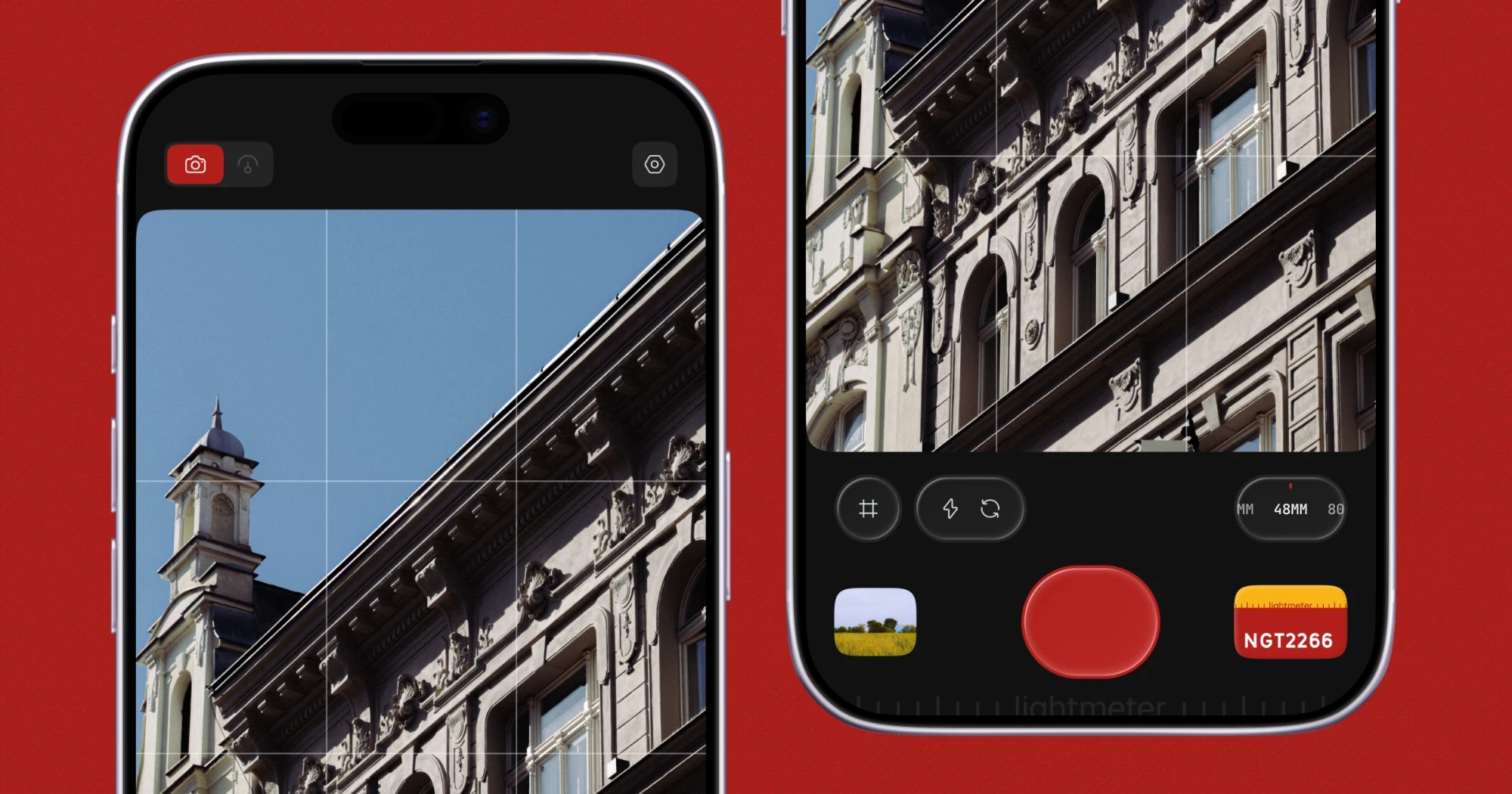
Lightmeter is a pocket film camera app for iPhone that captures natural, raw photos with authentic film looks. The site describes it in a single line: a real light meter when you carry film, and a film camera when you don't. That dual purpose sits at the centre of the product. It is made for everyday moments rather than specialist shoots, and it deliberately avoids the heavy processing that most modern phone cameras apply. The stated approach is zero-AI processing with no HDR, producing natural colors and authentic grains. Film looks are built on true RAW capture, so grain, halation and color behave like film rather than like a filter laid over a flat photo. The problem Lightmeter addresses is visible in almost every photo taken on a modern phone. Before a file ever reaches the gallery it has typically passed through HDR merging, AI scene detection and multi-frame stacking, all of which smooth texture, lift shadows and flatten the contrast that analog photography depends on. In response, a large number of apps offer a film look as a colour grade applied on top of that already-processed image — a filter over a flat photo, in Lightmeter's own phrasing. That is an aesthetic layer rather than a photographic process, and it tends to look uniform across very different lighting conditions. Lightmeter's site makes the distinction concrete with a side-by-side comparison of the same scene: one frame labelled Shot on lightmeter, and the second showing the same scene straight off the sensor, ungraded. The implication being made is that the film character comes from the capture and the look working together, not from a preset applied at the end. The film looks are the most visible part of the app, and the site lists twelve of them by name: NGT2266, Ink E6, Classic 64, Cine 50, Dusk, Daybreak, Bloom, Ember, Retro 400, Mono X400, Mono 3200 and Mono P400. They are presented as film looks inspired by real film stocks and artists, which places them in the tradition of emulating specific emulsions rather than inventing arbitrary colour treatments. The naming spans both colour and monochrome — the Mono looks sit clearly alongside the colour ones — so the library covers black-and-white and colour shooting alike. Crucially, the Product Hunt description states that these looks are built on true RAW capture, and that grain, halation and color behave like film rather than like a filter on a flat photo. Halation, the reddish bleed that appears around bright highlights on film, and grain that responds as film does, are the details that separate an emulation from a simple grade. The hero imagery on the site shows a film look already loaded in the shutter row, indicating that a look is chosen in the app before you shoot. The dual role of the app is what its tagline turns on. When you are carrying film, Lightmeter works as a real light meter — a tool for reading light so you can set exposure on a film camera. When you are not carrying film, it becomes the camera itself, shooting with the film looks described above. The site's hero image shows this split directly: two iPhones side by side, one showing a building against a blue sky in the viewfinder, the other showing the shutter row with a film look loaded. The page's own metadata lists the related capabilities as a light meter app, an iPhone light meter, an exposure calculator, a reflected light meter and the sunny 16 rule — the vocabulary of traditional photographic metering. In other words, the app meets analog photographers in the workflow they already use rather than asking them to abandon it. Privacy is stated as a design principle rather than an add-on. The site's copy reads: private by design, no signup — the app has no tracking, no ads, and collects no data. The Product Hunt description repeats the point and adds that nothing leaves your phone. There is no account to create, no analytics profile being built and no advertising identifier to manage. For a camera app this matters more than it might in other categories, because photographs are among the most personal files on a phone. The absence of a signup step also removes friction at the point of use: the app can be opened and used without an onboarding flow, an email address or a login. The promise is a closed loop — open, capture, save — that stays on the device. The methodology Lightmeter describes is a chain rather than a single trick. Capture comes first and stays deliberately unprocessed: zero-AI processing and no HDR mean the app is not merging frames or making scene-based decisions for you. That leaves a true RAW capture as the foundation. The film look is then applied against that RAW data rather than against a finished image, which is why the site can claim that grain, halation and color behave like film. Because the grain and halation are properties of the look applied to raw capture, they respond to the image rather than sitting on top of it uniformly. The site reinforces the point with its comparison pair: one frame shot on Lightmeter and one raw frame with no Lightmeter. Nothing in the described workflow depends on the cloud, an AI model or a server, which is consistent with the no-signup, no-tracking position. The practical benefit is a photograph that keeps the texture, contrast and colour behaviour associated with film rather than the smoothed, evenly lit look of computational photography. Colors stay natural because HDR and AI processing are not lifting and flattening them. Grain and halation appear where film would show them. The film look library gives a consistent result to choose from rather than a slider to tune, which suits people who want the character of a particular stock without a colour-grading session afterwards. The privacy posture is a benefit in its own right: no account, no ads, no tracking, no data collected, and nothing leaving the phone. And the dual light-meter and camera role means a single app covers both the film-shooting day and the digital one. Concrete scenarios follow from what the site shows. The first is metering: a photographer loading a roll of film and using Lightmeter to read the light and calculate exposure before setting the camera. The second is the everyday moment — the pocket film camera half of the tagline — where a phone is what is at hand and the goal is a film-looking photograph rather than a processed one: a hill path at dawn, a barista working under warm pendant lights, a cyclist passing flowering trees, an iced coffee on a cafe table. The collage also includes black-and-white frames, such as a concrete facade with balconies cutting diagonally across the frame and glaciers winding between Himalayan ridges seen from the air, which map to the Mono looks. And for anyone comparing results, the graded-versus-raw pairing is itself a use case: seeing exactly what the film look contributes to an otherwise ungraded capture. Lightmeter is aimed at photographers and photography-inclined casual shooters on iPhone. The Product Hunt topics list iOS, Photography and Photo & Video, and the only download route offered on the site is the App Store, with an Apple badge and a QR code linking to the listing for Lightmeter - Pocket Film Camera. The site is presented in English, and the publisher listing credits Aakash Goel. No pricing, subscription tiers or free-plan details are stated on the page, so nothing can be claimed about cost. No third-party integrations are mentioned either. The audience described by the copy is twofold: people who carry film and need a meter, and people who do not carry film but want film-looking photographs from the phone they already have. Taken together, Lightmeter's proposition is narrow and clearly stated: a single iPhone app that meters light for film shooters and shoots film-look photographs for everyone else, using zero-AI processing, no HDR and true RAW capture as the foundation, with grain, halation and color that behave like film rather than a filter on a flat photo. Twelve named looks inspired by real film stocks and artists provide the visual range, while the no-signup, no-tracking, no-ads, no-data-collection design keeps the workflow entirely on the device. The primary value is film character for everyday moments, without AI and without an account.
Naise AI is an AI teammate for marketing. From one brief, it runs social media management, image generation, influencer campaigns, PR media outreach, and market research across every channel, in any language and any market. The website states that the strategy stays with your team while Naise handles the repetitive execution work, so founders and lean teams get the output of a full marketing department without the overhead of building one. Naise AI is headquartered in Singapore and positions itself as going from a cold start to live campaigns quickly, with no waiting on asset approvals or agency onboarding. Much of the site is framed around the cost of doing marketing manually. Naise states that marketing managers spend 80% of their week on execution — drafting, scheduling, outreach, and reporting — leaving little time to drive strategy. Startup founders are described as needing the team they cannot afford to hire, doing the work they do not have time to do. The comparison table sets out the alternatives: human contractors cost $4K–$8K per role, are available business hours only, and take one to two weeks to hire; traditional agencies charge $10K+ monthly retainers and need two to four weeks of onboarding. Naise is listed as available 24/7, immediate to start, at fractional cost, executing in minutes and requiring no management. The site also distinguishes Naise from AI writing tools such as Jasper or Copy.ai, noting that writing tools produce text and hand it back to you, whereas Naise does the whole job: research, copy, visuals, creator outreach, scheduling, press pitching, and reporting. The Social Media Management agent builds data-driven content calendars on top of live market research. Before writing a single caption, Naise researches which formats drive the most engagement in your niche, finds your audience's optimal posting windows, and surfaces trending topics in real time. It then writes the copy, generates visuals, and schedules posts across Instagram, TikTok, Facebook, and LinkedIn, with captions localized per platform and auto-scheduled everywhere. Supporting tools are exposed individually too: trending topics and hooks, image generation, the content calendar and post scheduling, and live performance analytics that track engagement and growth across all channels at once, so a single brief produces both a plan and the assets to execute it. The Image Generation agent produces on-brand visuals at the speed of a prompt, with no designer and no brief-to-agency back-and-forth. It creates campaign key visuals, product shots, and story graphics locked to your brand guidelines — brand colors, fonts, and rules are applied automatically — and generates them at the correct spec for every platform, with multiple style variations per campaign for A/B testing. The Influencer Campaign agent covers the full lifecycle: discovery from a pool of 10M+ verified global creators matched by niche and reach, then automated outreach, negotiation, and contracting, then content approval and scheduled posting, finishing with live ROI tracking on reach, views, and conversions per creator and per campaign. Naise says this removes the agency middleman and the manual spreadsheets, and one testimonial describes checking campaign delivery in about ten minutes instead of going through every creator manually. The PR Media agent handles press coverage in any language and any market. It drafts localized press releases, distributes them to the right outlets without manual pitching, and monitors coverage and sentiment across every region in real time; one brief is said to cover the globe with no agency retainer. Supporting tools include targeted media lists that match outlets and journalists to your story, brand news and media monitoring that tracks every mention of your brand across the web, and hashtag campaign analysis that measures the reach and sentiment of campaign hashtags. The Market Research agent runs company-specific intelligence rather than generic reports: a brand audit that positions you against category leaders and surfaces clear gaps, competitor analysis that maps messaging and content playbooks in real time, and trend signals that feed directly into briefs and content calendars. A free audit reads your last 30 posts, analyses social media presence across channels, identifies competitors, and builds a brand profile, viewable after signing up with a verified email. Naise describes its approach as one brief flowing through different "flavors" of the same agent. The Product Hunt listing describes the setup as locking in brand guidelines with Persistent Memory, selecting a Prompt Playbook, and letting the platform handle the execution. Persistent Memory is highlighted by a customer testimonial as what sets Naise apart from generic AI tools: once guidelines are uploaded, brand voice and aesthetic stay locked in permanently, so large campaigns deploy with consistently on-brand messaging across every platform. Agencies can hold a separate brand voice and memory per client, batch-launch campaigns across all accounts in one session, and send white-label reports directly to clients. A 60-second walkthrough shows Naise taking a single brief and turning it into a live multi-channel campaign in under five minutes. The stated outcomes centre on time and cost. The site reports an average of 97 minutes from first prompt to live campaign, and the Product Hunt listing describes going from a cold start to live campaigns in under 24 hours while saving 40+ hours a week and cutting marketing costs. The comparison table claims total annual savings of up to $150K versus hiring a full in-house team, alongside 24/7 availability, immediate start, minutes-long execution, expert-level cross-channel coverage, and always-consistent output. Marketing managers are promised a full content calendar from a single brief and a live ROI dashboard for every running campaign, while agency clients receive white-label reports. Naise also lists SEO, AEO, GEO (answer engine and generative engine optimization), performance marketing, and predictive modelling as flavors shipping in upcoming releases. Naise publishes four role-based use cases. For marketing agencies, Naise acts as a silent operator for every client account so one team's output is multiplied across ten, with separate brand voice and memory per client, batch-launched campaigns, and white-label reports sent to clients. For marketing managers, it handles drafting, scheduling, outreach, and reporting so time goes to strategy, with a full content calendar from a single brief, captions localized per platform and auto-scheduled everywhere, and a live ROI dashboard. For startup founders, it is positioned as the team they cannot afford to hire: first campaign live in a matter of minutes, no marketing experience needed to start, and scaling as the team and budget grow. For e-commerce brands, every product launch becomes a full go-to-market campaign automatically, from launch-day key visuals to influencer seeding and press outreach, with AI-generated product visuals for every platform size, influencer seeding at scale, and localized product copy for global storefronts. Naise AI runs on the web. Content is written, localized, and scheduled for Instagram, TikTok, Facebook, and LinkedIn, with each caption adapted to the platform it goes out on; influencer discovery covers Instagram and TikTok creators, and PR coverage is tracked across news outlets in every market you target. The site says 1,000+ founders and marketers have joined and lists marketing leaders at 5-hour Energy, BenQ, Elixir Esports, Moonton, SKIN1004, T-Tracing, and ZOWIE. Pricing has three tiers, each running the full agent suite and starting with a 3-day free trial: Entry at $59.90 per month (currently shown at an early-access price of $39.90 for one month) with 2 campaigns; Middle at $119 per month, discounted to $88.80, with 6 campaigns and 3× AI usage capacity; and Advanced at $199 per month, discounted to $150, with 16 campaigns and 8× AI usage capacity. Every plan includes unlimited creator reach, unlimited outreach, AI trained on your brand voice, and PDF reports and exports, with yearly billing offering two months free and enterprise custom pricing on request. Naise AI's core proposition is simple: one AI teammate runs the marketing busywork across social, influencer, and PR in any language and any market, while your team keeps the strategy. For lean teams and founders, that means campaigns live in minutes rather than weeks, brand consistency enforced by persistent memory, and marketing output that scales without scaling headcount.