Category Focus/categories/video
Video AI Tools
Discover and compare the best video AI tools and software. Browse 125+ curated tools with reviews and rankings.
Projects tracked
125
Sort mode
RECENT
Page
1
AdChef® is an AI advertising studio that turns a website, brief, or idea into professional, brand-ready ads in minutes. From a single platform, users create AI video ads, UGC videos, product ads, static creatives, carousels, and animated HTML5 rich media. Logos, colors, and creative assets are kept together in one workspace so that every output stays on brand. The product is built for marketers, agencies, creators, and businesses that want to produce more ad creatives with less effort, and it positions itself simply as every AI tool for ads, in one studio. The site frames AdChef around removing the usual blockers to getting an ad made. In its own FAQ it answers three practical objections: you do not need a polished brief or marketing jargon to start, you can use the product without a designer, and you do not have to build a full campaign to make a single ad — you can choose the format that suits your next promotion. AdChef also emphasises keeping momentum while an idea is fresh: try a new angle, change the look, and make another version. Instead of a long production cycle, the studio is designed for rapid iteration on creative direction, with each version waiting for the user's approval before it goes further. The core of the studio is four ways to create: image ads, video ads, carousels, and HTML5 rich media. All four sit in one place, which means a single idea can be expressed as a still, a clip, a swipeable carousel, or an interactive rich media unit without leaving the workspace. Formats are made for the channels ads actually run on — social, display, and more — from the same studio. AdChef also separates the kinds of work it can produce: brand films, described as cinematic spots planned and cut shot by shot by agents; product films, built from packshots, textures, and close-ups that sell the product; and creator videos, creator-style testimonials and hauls made for paid social at 9:16. Personalization is handled at the set level rather than one ad at a time. A user connects a sheet of products, locations, or audiences, and AdChef turns one concept into a matched set of ads — a version for every row and every placement, still on brand. Copy, product, and offer can be personalized per row; every size is generated together; and the whole set can be reviewed before it ships. The site's example shows a fictional brand, Driftwell, with rows for runners, parents, and students, each carrying a different product and offer, rendered across 9:16, 1:1, and 300×250 placements from the same underlying idea. Behind the creative is a model garden that brings image, video, voice, and music models into one kitchen. On the video side the studio lists Veo 3.1 from Google, Seedance 2.5 from ByteDance, Kling 3.0 from Kuaishou, Runway Gen-4.5, Hailuo 2.3 from MiniMax, Wan 3.0 from Alibaba, LTX 2.3 from Lightricks, and Imagine Video 1.5 from xAI. Image models include Nano Banana 2 and Imagen 4 from Google, GPT Image 2.5 from OpenAI, Seedream 5 from ByteDance, FLUX 3 from Black Forest Labs, Ideogram 3.0, and Recraft V4.1. For voice and music, Eleven Voice and Eleven Music from ElevenLabs are available. Several models carry an agents' pick label, and users can either choose a model directly for control or let AdChef's agents select the right one for each placement. Creatives come out as layered, editable ads rather than flat exports. Users can tweak copy or swap a product without regenerating the whole piece, working directly on elements such as headline text, a shop-now button, the product image, and the background fill. Brand consistency is handled through brand knowledge that sticks: users bring logos, colors, and approved claims, and every agent reads the guidelines before it writes a word. The site illustrates this with retrieved brand guidelines for 2026, an approved claim such as zero sugar, and flavor datasheets, all available to the agents as they generate copy. Beyond single ads, AdChef supports campaigns planned end to end — strategy, audiences, hooks, and a slot for every placement across a flight, illustrated on the site as a two-week schedule carrying both image ads and video ads. The working method is deliberately simple: bring an idea, a product, an offer, or even a hunch, and your logos, colors, and approved claims come along automatically; then either pick a model from the garden or let the agents pick the one that suits each placement; then review every version, download, or request another version while the idea is still fresh. A brand kit is applied throughout, carrying your logo, brand colors, and headline type. The agents' choices are visible in the workflow — for example, selecting Veo 3 plus Seedance 2.5 with Eleven Voice for a given job. The stated outcome is straightforward: produce more ad creatives with less effort. Users do not have to write a polished brief, and they do not need a designer — they can review the result and adjust it before downloading, or bring their own photos and creative direction. Because every size is generated together and every version waits for approval, teams see the whole set before anything ships. Iteration is treated as the normal mode of working rather than an exception, so a new angle or a changed look is a small step rather than a new production cycle. Brand compliance is supported by brand kits and by agents that read guidelines and approved claims before generating copy. Concrete workflows described on the site include creator-style UGC for paid social, shown as 9:16 testimonials and hauls produced through a UGC pipeline; brand films at 16:9 planned and cut shot by shot; product films built from packshots, textures, and close-ups; and display or rich media placements such as 300×250 units generated alongside vertical and square versions. Personalization sets cover scenarios where one campaign needs a different product, offer, or audience per row — for example a discount for one segment and free shipping for another. Teams can also build ads through MCP-compatible assistants or the REST API from their own applications. AdChef is aimed at marketers, agencies, creators, and businesses, with a separate enterprise track for organisations that need creative production across brands and channels. Team workspaces include roles and permissions, credit controls that check requests against the workspace balance, usage visibility for credit transactions and generation usage, multi-factor authentication, and shared brand assets, and each workspace's brands stay with its members. Developers can connect AdChef to Claude, ChatGPT, Cursor, VS Code, or their own platform through MCP or a REST API, with tools for creating static, video, carousel, and rich media ads, listing brands, and checking generation status. Pricing is per seat per month: Starter at $30 with 15,000 credits, display, image and video ads, UGC with library avatars, one brand, and MCP access; Pro at $100 with 50,000 credits, campaigns, brand personas, 4K export, five brands, and five parallel runs; Business at $300 with 150,000 credits, unlimited brands, ten parallel runs, and Slack support; and custom Enterprise plans with 200K credits per seat, contracted seats and invoicing, REST API and white-label, and a dedicated success team. Taken together, AdChef's proposition is one studio for the whole ad-making job: a starting idea, a brand kit, a garden of best-in-class models, and a studio for editing, personalizing, and planning, all in one place. For marketers, agencies, creators, and businesses, the value is speed and volume without losing brand consistency — more creative variations, in more formats and more placements, produced with less effort and reviewed before they ship.
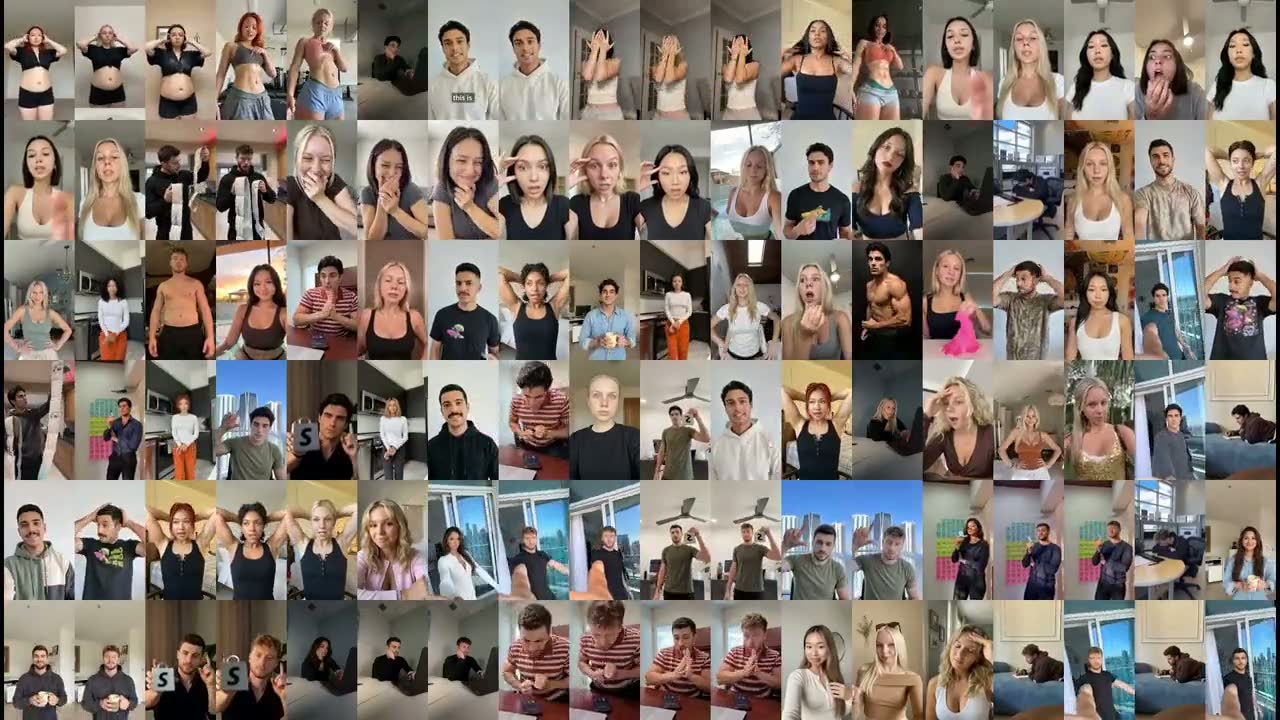
Monclers describes itself as the operating system for AI UGC at scale: a single workspace where teams clone viral reactions onto AI avatars, spin up TikTok slideshows, edit the results and schedule hundreds of posts. The stated promise is content creation with no filming, no editing and no prompt engineering — one video concept can become hundreds of posts. It is aimed at people and teams who run short-form social accounts, particularly on TikTok, and who need a repeatable way to produce original-looking creator-style video and carousel content without a camera, an editor or a retainer for paid creators. Everything described on the site lives in one pipeline, from discovering a proven hook through to publishing on connected accounts. The problem Monclers addresses is stated plainly on the site: reposting the same clip gets flagged as duplicate content, yet running many accounts by hand means the same hooks and different faces every single day. The founders write that they were running dozens of TikTok accounts manually and automated the whole pipeline, then turned it into the tool they wished they had. The site also argues that most stacks staple together a dozen half-built tools — a content library, a slideshow cloner, a face-swap video tool, a timeline editor, several model subscriptions, paid UGC creators and a separate scheduler — costing $250+ per month plus a lot of glue. Replacing that patchwork of apps, freelancers and spreadsheets with one workspace where every step hands off to the next is the core proposition. The remix engine is the centrepiece. Rather than re-uploading a clip, Monclers re-performs one viral reaction on different avatars, rooms and outfits so that every account can post something original and hooks can be A/B tested at scale. UGC Reactions uses motion-control video models to clone any viral reaction onto your avatars; the site shows Kling 3 Motion Control rendering at 720p or 1080p with reference images, batch generation ×4 so you can pick the best take, and free retries on failures. A single generation is listed at 48 credits, and renders are described as taking minutes. A prompt box and a 'clone this viral react' entry point let users describe the content they want, with sample formats such as talking head, slideshow, reaction, product demo and hook test. AI Avatars let you upload a selfie or design a character with AI, keeping faces consistent across endless scenes — the site explicitly supports making videos with your own face. Slideshows target what the site calls TikTok's easiest format to scale: paste any viral carousel or simply type a topic, and the AI director writes the slides, picks on-aesthetic images with matching hooks and fonts, then hands you an editor for the final 5%. A shown workflow reads a TikTok carousel with vision OCR, rewrites hooks for your brand, finds on-aesthetic backgrounds and produces a ready set of seven slides to export or post. The timeline editor covers trim, split, added text, music and voice changes, plus a one-click 'make more' that renders variations in a batch — the site's answer to repetitive editing work. Scheduling connects multiple TikTok accounts and is pitched as filling a week of posts in under an hour. The brand reader learns your product, audience and voice from a dropped URL. MCP for Claude lets you ask in chat and have Claude drive your real workspace, with the same agent available inside Claude through MCP. Teams and credits adds shared workspaces, invite links and one credit pool, with the ability to separate niches across workspaces. Muse is the in-product AI producer: tell it what you want and it searches the library, reads your brand, creates avatars, writes slideshows and queues renders, asking before it spends a credit or running on autopilot within a set limit. It spans 20+ tools across every engine, uses approval cards or an auto mode with a spend cap, and is the same agent reachable through Claude via MCP. Overall the workflow is three steps. Pick a proven hook by browsing 10,000+ viral reactions, each analyzed by AI for niche, emotion and hook, or paste any TikTok link to import it as a template. Cast your AI avatar so it re-performs the reaction with the same timing and energy, new face and new room. Then generate, polish in the timeline editor and schedule straight to every TikTok account. The site stresses that two engines and eight tools form one pipeline built in-house and wired together, so a hook you find becomes a posted video without a single export. Stated outcomes include 20+ posts per month per workspace, a library of 10,000+ analyzed viral reactions to start from, and millions of lifetime views generated. On detection, the site says outputs are tuned for short-form with real-room lighting, natural motion and native-feeling captions so they read as creator content rather than 'AI slop' — which the site says is exactly why they perform. The inspiration library tags every clip by AI for niche, emotion, hook and on-screen text, and lets you favourite, filter and turn any clip into a template in one click, or import your own from TikTok, Instagram and YouTube; niches shown include Fitness, Beauty, SaaS, Finance, Education, Food, Gaming, Wellness, Fashion, Productivity, Pets and Travel, with emotions such as Shocked, Mind blown, Laughing, Disbelief, Excited, Cringe, Proud and Relieved. Concrete scenarios in the content include running many TikTok accounts for one niche and needing each to post something original rather than a duplicate; A/B testing hooks at scale by re-performing the same reaction on different avatars, rooms and outfits; producing TikTok slideshows from a viral carousel or a typed topic; remaking trending reactions for your brand, with the example of asking Muse to find three trending fitness reactions and remake them with an avatar named Luke; filling a week of scheduled posts in under an hour; keeping a consistent AI character across scenes; and creating from inside Claude via MCP. Batch ×4 generation with free retries on failures supports picking the best take per hook. Monclers targets small teams, high-volume teams and agencies — the three plan tiers are named accordingly — along with anyone running multiple TikTok accounts or dozens of short-form accounts by hand. Integrations named include TikTok posting and scheduling, imports from TikTok, Instagram and YouTube, a brand reader that takes a URL, and Claude via MCP. Model access spans Veo 3.1, Kling 3 Motion Control, Seedance 2.0, Nano Banana, GPT Image, MiniMax Hailuo, Wan Animate, PixVerse, Grok Imagine, Whisper and Kling 2.6. Pricing is stated as: Starter at $49/month with 300 credits, 1 workspace, unlimited slideshows and variants, reaction library access, posting and scheduling, the Muse agent and extra credits at $0.16; Pro at $79/month for the first month after a 20% discount, then $99/month, with 700 credits, 5 workspaces and extra credits at $0.14; Agency at $159/month for the first month, then $199/month, with 1,700 credits, 10 workspaces and extra credits at $0.12. Credit use varies by model and settings, purchased credits never expire, prices are in USD excluding taxes, and cancellation is anytime with no contracts or fees. In short, Monclers positions itself as the operating system for AI UGC: a cheaper-than-one-editor, faster-than-a-full-team workspace where viral reactions become original avatar-led videos, topics become slideshows, and editing and scheduling sit next to an agent that can run the whole pipeline. The primary value proposition is scale without filming — one video and hundreds of posts, produced in one workspace.
Searchunk is an AI-powered search layer for image and video archives. It reads your archive with AI wherever it lives — in cloud storage such as Amazon S3, Google Cloud Storage or Azure Blob Storage, or in folders on your own computer — and lets you find any frame by describing it in your own words. Instead of relying on file names, folder structures or hand-typed tags, you type a phrase such as "dog running on the beach" and Searchunk returns the best matching images and video frames in seconds. The product is aimed at companies and teams that keep large photo and video collections and need to retrieve a specific shot quickly. Searches work in both English and Turkish, and the original files never leave the storage the customer already uses. Most media archives are not organized around the way people actually remember images. A photo might be called IMG_4471.HEIC, DSC08812.JPG, P1030127.jpg or export-final.webp, and the moment someone needs it — a sign outside a veterinary clinic, a dog on a beach, a particular scene in a video — the file name offers no help. Folder structures capture only the broadest categories, and hand-typed tags require someone to sit down and label thousands of files in advance, which rarely happens consistently and almost never keeps pace as new material arrives. Video makes the problem sharper, because a single clip can hold dozens of distinct scenes and the relevant one may last only a few seconds. Searchunk addresses this by indexing what is actually visible in each image and each scene of each video, so retrieval depends on content rather than on how someone once named a file. A large part of an archive's meaning is written rather than photographed. Searchunk reads the text in images, so signs, labels, posters and screens become searchable. The website illustrates this with a frame showing a green veterinary clinic sign reading "SAHİL VETERİNER": typing that phrase brings the frame up, even though the file itself gives no hint of the sign. Alongside the text, the AI records what it sees in a frame — the example lists a vet clinic, a shop front, a green sign and a paw print. Searchunk also understands Turkish, including endings: a search for "kuşlar" also finds files described as "muhabbet kuşu", and typing Turkish words without Turkish letters still works. Videos are split into scenes and each scene is searched on its own. Results show timestamps such as 00:42 next to a matching clip, and clicking a result starts the video playing right at that moment rather than at the beginning. Combined with the ranking behaviour — the best frames come first, with visible match scores such as 94% or 41% — this turns a long recording into something closer to a set of individually findable shots. Because each scene is treated separately, a specific few seconds inside a longer MP4, MOV, WEBM, MKV, AVI or M4V file can be located directly by describing it, and the results page can be filtered between all results, images and videos. Searchunk connects to wherever the archive already lives instead of requiring it to be uploaded somewhere new. Supported sources include Amazon S3, Google Cloud Storage, Azure Blob Storage, OVHcloud, Wasabi, Backblaze B2, Cloudflare R2, DigitalOcean Spaces, Scaleway, Hetzner, Akamai (Linode), Exoscale SOS, IONOS, Contabo, Oracle Cloud, IBM Cloud, IDrive e2 and any S3-compatible storage, plus folders on your computer via a small agent for Windows, macOS or Linux. Setup takes a few minutes. After that, sources are checked regularly: new, changed and deleted files are handled automatically, so new files join the indexing queue on their own and the archive does not need to be re-submitted each time it grows. The workflow the website describes has three steps. First you connect your archive by selecting a storage service or installing the agent for a local folder; your files stay where they are. Second, Searchunk's AI looks at every image and every scene of your videos, capturing objects, the setting, the colours and the text on signs. Third, you search by describing what you have in mind, in English or Turkish, and the best frames come first. Every search runs in both languages. Behind this sits a semantic search model: content is indexed up front and queries are matched against what was seen, not against metadata. Because the product is an index rather than a hosting service, it does not take over the archive. Originals are not copied; only search data and small previews are kept, and the agent on a computer sends only downscaled frames. Every AI model runs on Searchunk's own servers, so images are never sent to outside AI services. Storage credentials are stored encrypted, and each company's data is kept apart and never mixes with another company's searches. A privacy notice explains which data is processed and why. Practically, this means a team gets fast, description-based retrieval without moving large amounts of media, without changing its storage provider, and without exposing its archive to third-party AI vendors. Searchunk is built for teams as well as individuals. Colleagues at a company's domain can be invited, and everyone searches the same archive. For integration into other tools, an API key unlocks the same search from an application or workflow; the documentation shows a call to the searchunk.com API endpoint with a bearer token and a JSON body containing a query such as "dog running on the beach". Accounts are opened with a company e-mail address — addresses from free services such as Gmail, Hotmail or Outlook are not accepted. Typical use is retrieval inside an existing collection: a team member remembers a sign reading "Sahil Veteriner" and finds the frame without knowing the file name; an editor needs the moment at 00:42 of a long video and jumps straight to it; a photographer searches a personal folder on their computer for a dog running on a beach. Because the same search is available through the API, the capability can be embedded in internal tools or other workflows, and because new, changed and deleted files are handled automatically, the archive stays searchable as it evolves without manual re-tagging. Searchunk indexes images in JPG, PNG, WEBP, AVIF, HEIC, GIF, BMP and TIFF, and videos in MP4, MOV, WEBM, MKV, AVI and M4V; documents such as PDFs are not indexed. Every new company account indexes its first 250 images and videos free, with no setup fee and no credit card required, and every feature is included, including inviting teammates. Files beyond the limit are not indexed while the quota stands, but searches keep working; a higher quota can be requested from the dashboard, and indexing picks up where it stopped once it is raised. The service is currently in public beta, so occasional outages and changes are expected. Searchunk's value proposition is narrow and practical: that frame in your archive is one sentence away. By indexing images and video scenes with AI, keeping originals in the customer's own storage, running every model on its own infrastructure and accepting natural language in English and Turkish, it removes the dependency on file names, folder hierarchies and manual tags. Teams connect a source, describe what they need, and get the best frames first — without moving their archive or changing where it lives.
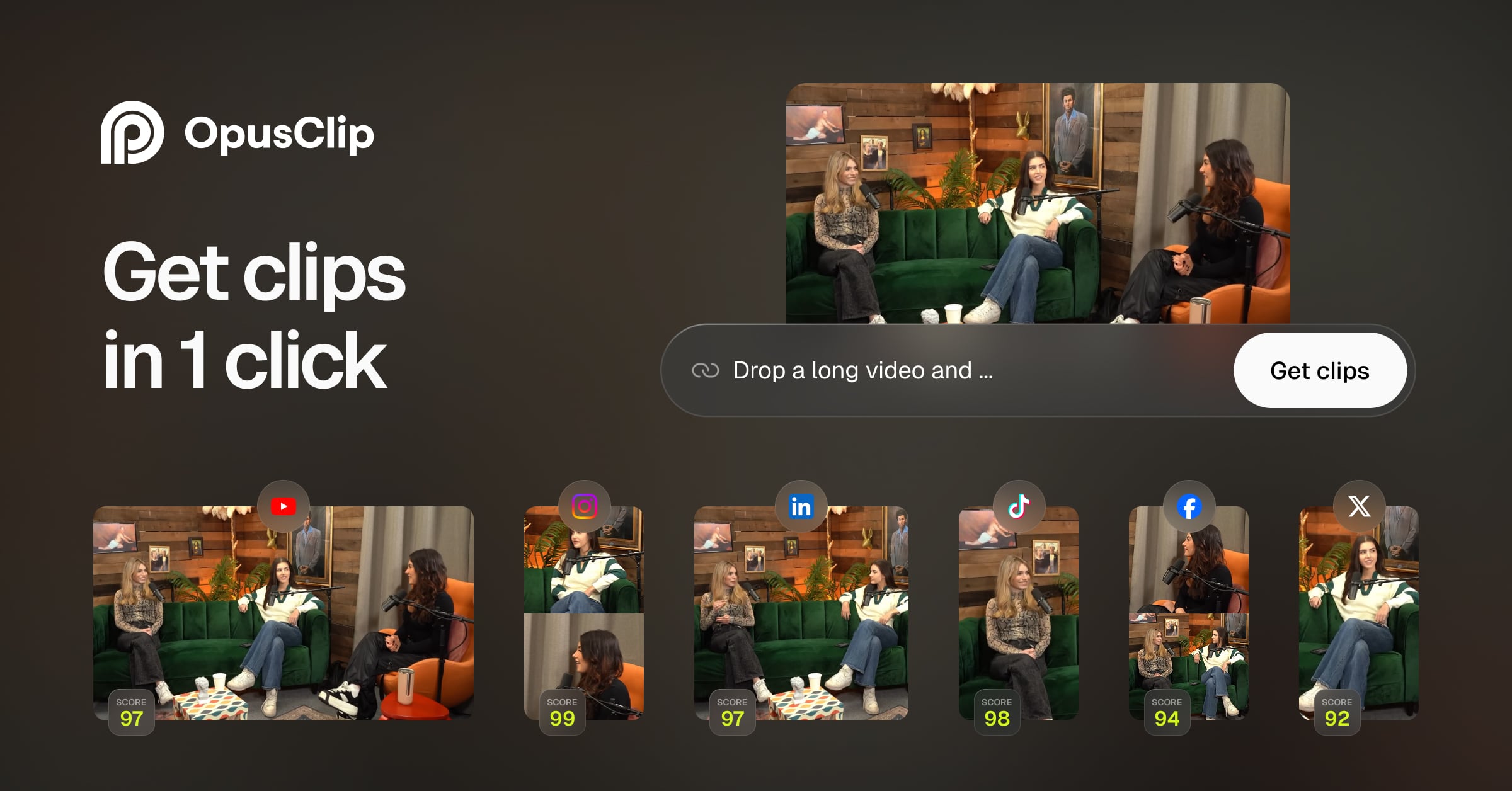
OpusClip 4.0 is an AI video editing tool that takes a raw take and turns it into finished, ready-to-publish video content. In the company's own words, it "edits your whole video, from raw take to every format you post." You drop in raw footage or paste a link, switch on what you want applied — speech cleanup, captions, B-roll and more — and a finished video comes back. The product is built for people who now have to make video content, from founders and operators to a dentist answering patient FAQs on camera every week or someone teaching their 3,000 followers how to make high-protein meals. Its stated purpose is to give a "team of one" some of the range that media companies get from a room full of editors. The background explains why the product changed shape. OpusClip was originally built to "slice a clean fish": people brought finished videos, such as a podcast episode that was already edited or a keynote someone had cleaned up, and OpusClip found the best moments and turned them into clips. That worked — scroll your feed for a few minutes and there's a good chance you'll see a clip that came through OpusClip. But what people bring has changed. More and more, it is a raw take that nobody has had time to edit. As the company puts it, "the edit is where things stall." Founders film in one take because they know they'll never get around to cutting it, and post it as is; many already have their next good video on their phone, filmed weeks ago and never edited. For a while, OpusClip kept making clipping better and left the hardest part — the edit itself — to the user. OpusClip 4.0 takes that on. Auto-edit is the headline capability. Built for talking videos, it lets you drop in raw footage or paste a link and then switch on speech cleanup, captions, B-roll and more. What comes back is a finished video rather than a rough cut. For the audience the product describes — founders and operators who say they almost never enjoy editing — this removes the step that previously stalled their content. Instead of posting a single unedited take because cutting it would never happen, a creator can hand over the raw recording and receive something publishable, with clean speech, on-screen captions and B-roll already applied. Every format addresses the reality that one video is rarely enough. A single edit can become whatever you need that week: 60 to 90 second highlight clips, a 3 to 5 minute extended cut, or a quick lo-fi update. Recipes make that repeatable. Most people make the same kind of video over and over, so you can save your own setup as a Recipe — or start from one of OpusClip's — and your next video gets edited the same way. This matters for consistency: once you have found a look and structure that works for your audience, you don't have to rebuild it from scratch each time you record. Viral Hook and Motion Graphics cover two tasks that, according to the company, editors spend hours on. Viral Hook gives your first few seconds a hook style drawn from a template library, targeting the opening moment that decides whether a viewer keeps watching. Motion Graphics turns what you say into animated icons, numbers and charts on screen, so spoken points become visual elements automatically. AI Producer extends editing into tools people already use: if you work in ChatGPT or Claude, you can edit from there with the OpusClip plugin — show it a style you like and it edits your footage to match. Taken together, the product's approach is to own the entire path from raw recording to finished, formatted output. Clipping isn't going anywhere — it's still what OpusClip is best known for and is still getting better — but it is now one part of the platform. The method is style-driven and repeatable: you supply the footage (or a link), you choose the treatments to apply, you can preserve a setup as a Recipe, and you can demonstrate a preferred style to the AI Producer plugin rather than describing it in detail. One edit then fans out into multiple formats, so the same source material serves the different places you post. The intended benefits follow directly from that. A solo creator gets a wider range of output without hiring editors, matching the observation that people who stay top of mind post often in a lot of formats — something media companies achieve with a room full of editors and a founder with a phone and a packed calendar usually cannot. Time previously spent on cutting, captioning, hook writing and motion graphics is redirected into recording. Content that would otherwise sit unedited on a phone can be shipped. Concrete scenarios appear throughout the announcement. A founder recording a two-minute product update on their phone between meetings is the person the team kept picturing. A dentist answering patient FAQs on camera every week is another fit, as is someone teaching their 3,000 followers how to make high-protein meals. The original workflow still applies: an already-edited podcast episode or a cleaned-up keynote can be mined for the best moments and turned into clips. On top of that, a single recording can be delivered as a 60 to 90 second highlight clip, a 3 to 5 minute extended cut, or a quick lo-fi update, and the same Recipe can be reused the next time that format is needed. OpusClip 4.0 runs through a web dashboard at clip.opus.pro, where you can sign in, sign up for free, or paste a link or upload footage. Pricing information in the announcement includes a Free Forever Plan described as letting you create and post one short video every day for free, plus a Pro monthly plan for which new users are offered 40% off the first month. The wider Opus platform also includes OpusSearch, which uses AI to surface the exact clip you need from hours of footage in seconds, and Agent Opus, which the site describes as running the entire video pipeline — research, scriptwriting, storyboarding, motion, voice and edit. The company says OpusClip is used by more than 20 million creators and brands. In short, OpusClip 4.0's value proposition is that the edit no longer has to be the bottleneck. One raw take goes in, and finished videos in the formats you actually post come out — cleaned up, captioned, styled with hooks and motion graphics, and repeatable through Recipes, so a team of one can publish like a much larger operation.
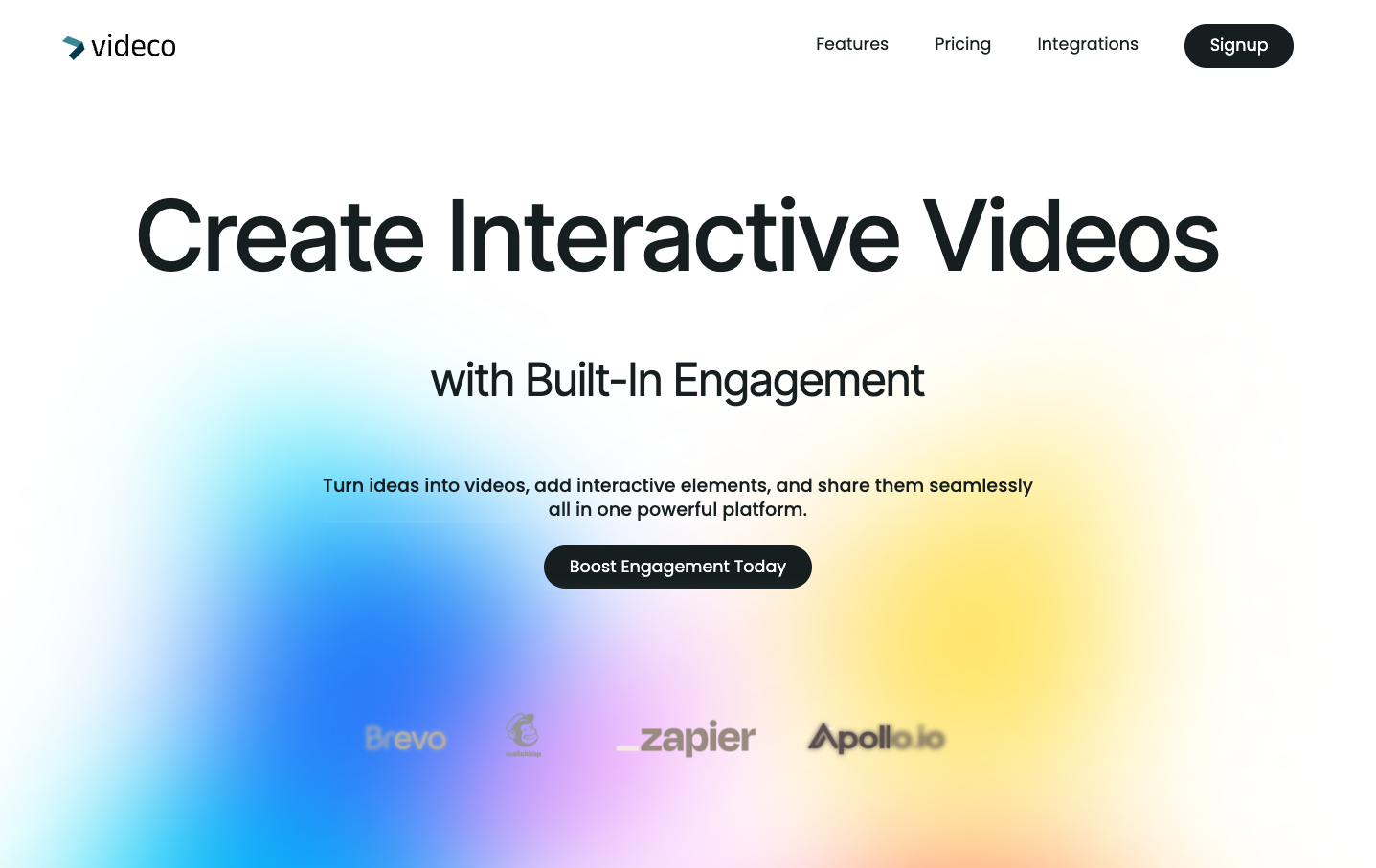
Videco is an AI content studio and video hosting workspace built for marketing teams. Its purpose is to turn every video into a content campaign: teams upload product demos, webinars, interviews, and other recordings, and Videco helps them find the best moments inside those files, turn them into branded short-form videos, share personalized landing pages, capture leads, and host everything in one workspace. The product combines two ways of working in a single place — an AI-assisted creation side that repurposes long-form recordings into clips and copy, and a hosting side that delivers video through a customizable player, watch pages, and embeds. As the site describes it, teams can create more from the videos they already have, or simply keep video hosting simple: upload once, create more, share anywhere. The problem Videco addresses is stated directly on its site: most teams already have the footage, but the hard part is finding what is worth posting. Valuable videos sit unused after they are published, and repurposing one recording traditionally means pulling together an editor, a transcription tool, and several separate apps. Videco's positioning is that a team should not need an editor, a transcription tool, and several separate apps just to repurpose one recording, and that clips should ship without a full edit stack. By keeping moment discovery, clip creation, branding, hosting, sharing, and measurement in one workspace, Videco keeps the source video and the assets created from it connected instead of scattered across tools. Content Studio is the creation side of Videco. A team uploads a demo, webinar, interview, or other recording, and the AI finds standout moments — useful insights, product benefits, and segments that can stand on their own. From that one source, Content Studio generates short clips, blog drafts, and social posts automatically. The short clips are vertical, with captions and framing suggested from the recording, ready to polish and post. Blog and long-form copy become article outlines and posts that match what was actually said on camera, and social posts and hooks, including LinkedIn threads, are generated alongside the clips in the same project. Editing is designed so teams do not have to start over. Users trim clips, refine captions, adjust framing, and preview the result in one focused editing experience, then review, make final adjustments, and export for their preferred channels. A brand kit keeps every clip on-brand: the team's colors, logo, caption styling, and motion templates create a consistent look, and motion design options give videos a polished presentation. For client-facing work, client review links let a team send content packs for approval on a magic link, so clients can approve or request changes without logging in. The hosting side gives videos somewhere to live and be delivered. Teams upload, organize, and manage videos without building their own media infrastructure. A player that fits the brand can be embedded anywhere, and public watch pages ship schema.org VideoObject JSON-LD automatically so search engines can understand hosted demos, webinars, and product videos without bolting on a separate SEO stack. Search-friendly metadata — title, description, thumbnail, and duration — flows from the video already managed in Videco, and structured data lives on watch pages so embeds stay lightweight for the site layout. Analytics help teams monitor video engagement and understand how people interact with their hosted content. Landing pages and leads extend a share link beyond simple playback. Instead of a bare watch page, teams can build a personalized landing page on their /v/ link with merge tags such as {{name}}, CTAs, Calendly or Cal.com embeds, and a lead form. Personalized URLs pass name, company, or rep in the query string and reflect it in headlines and copy automatically; a scheduling embed can be revealed after a watch threshold and closed with an end card. Every submission lands in a Leads inbox, where users filter by video, see URL context on each row, and export CSV for a CRM or outreach stack. The link itself stays the same Videco share slug, so the enhanced page can be toggled on when it is ready to publish. Videco describes its approach as Repurpose, Refine, Brand, Host, Share, Measure. A recording is uploaded once and stays in the library as the source; moments are pulled out of it; clips are refined and branded; exports are produced; the source and the resulting assets are organized together; and hosting, watch pages, and analytics deliver and measure the result. The site frames this as one recording producing multiple posts: long-form video stays in the Videco library while vertical short-form exports are created from it, without rebuilding a separate stack. The stated benefits are practical. Teams stop letting valuable videos sit unused after publication, and long-form recordings become short, focused content an audience can actually watch and engage with. Teams avoid needing an editor, a transcription tool, and several separate apps, and clips ship without a full edit stack. Content stays consistent because brand colors, logo, caption styling, and motion templates are applied in the same place the video is edited. Hosting and delivery come with search-friendly structured data built in, and lead capture is attached to the same link people watch on, so a viewer can move from watching to booking or submitting a form. Because everything lives in one workspace, the source and its derivative assets stay connected. Concrete workflows follow that structure. A marketing team takes an existing webinar, finds the moments worth sharing, exports vertical clips with captions, and pairs them with social posts and a blog draft from the same source. A product team turns a demo recording into short clips for launch content while the full demo stays hosted and embeddable. A sales or outreach motion uses a personalized /v/ landing page that reflects the prospect's name or company, reveals a Calendly embed after a watch threshold, and captures a form submission into the Leads inbox for CSV export. Developers and product teams host, embed, share, and deliver video through a player and API, and public watch pages carry VideoObject markup for search. Videco serves two audiences in one workspace: marketing teams that want to turn existing recordings into short-form content, keep it on-brand, and prepare their next campaign, and developers and product teams that need to host, embed, share, and deliver video through a player and API designed for their workflow. It still works as straightforward video hosting on its own for teams that only need a library and player. The site lists video API and developer tools alongside hosting, player, motion and captions, analytics, and Content Studio, and promotionally mentions 30% off paid plans with a code. In short, Videco's primary value proposition is that existing recordings can do more. Upload once, create clips, blog drafts, and social posts, apply consistent branding, host and embed the result, personalize the share link with lead capture, and measure viewing — all inside one workspace rather than a stack of separate tools.
Riverside Agents is a team of AI specialists built only for video, designed to take on the production work around a recording so the person in charge can stay in the director's chair. The team is made up of four named agents — Producer, Editor, Clipper and Marketer — that cover prep, editing, clipping and publishing. Riverside frames the product around a simple shift: where a creator or business team used to be the whole team, they now act as the director while the agents handle the prep, editing, clipping and publishing. Users choose how much to hand off or do by hand, and nothing is published until they approve it. The agents work natively inside Riverside's own tools, which are built for conversations and talking head videos. The problem the product addresses is the sheer number of separate jobs involved in publishing video consistently. Preparing a session, running the recording, editing the episode, finding the moments worth sharing, writing captions and scheduling posts all traditionally fall on the same person. Riverside describes the old reality bluntly: "You used to be the whole team." General-purpose AI assistants, the site argues, do a bit of everything, which means they are not specialized for video and do not have direct access to your recordings or to video production tools. Riverside Agents are presented as the alternative — specialists that only do video, each running on proprietary AI built for its one job, working natively inside Riverside so they can reach your recordings and the platform's production tools directly. That focus is also positioned as a speed advantage: the site states you can edit, clip and publish full episodes without hitting your AI usage limit halfway through. The Producer preps the session and helps you run it. In the site's example, a user asks the Producer to prepare them for an interview with a guest about growing a design studio past 20 people. The Producer returns a plan with eight questions spanning from first client to first hire, plus three talking points to come back to if the conversation drifts. It also preps the studio itself — loading a saved two-person layout, loading the brand kit and pinning the script — and reports back that the studio is set and ready to check. The Producer is described as the agent that "runs your show," with the stated outcome that you walk in ready and confident because your questions, script and studio are already prepared. The Editor turns a raw recording into a standout episode. According to the FAQ, it tightens the pacing, cleans up the audio, switches layouts, and adds your branding and captions, then suggests what would take the episode further, such as B-roll or motion graphics. It also handles pause and filler-word cleanup and builds rough cuts. In the on-page examples the Editor reports that it tightened the intro so you get to the guest faster, and when a user types "Tighten the open," it replies that it cut 21 seconds of preamble in about a minute. Users retain the final say on every change, and the site notes that if you do know your way around an edit, you can direct every detail. The Clipper finds your best moments and cuts them for social. It produces vertical clips from a finished recording — the site shows two finished vertical video clips made from a recording and a Clipper message reporting that it made two clips from Episode 42, or found two clips that will land with the audience. A phone lock-screen example shows a Clipper notification reading "I cut 4 clips. Jump in to review them." The stated outcome for creators is that the agents cut clips, write captions and fill your calendar, so you stay consistent without the grind, and that the agents can also find the best moments in old recordings and turn them into new posts so you can repurpose your back catalog. The Marketer writes your captions and schedules every post. It drafts your posts, captions and newsletter, and fills your calendar with scheduled posts — the site's example shows the Marketer reporting that two posts are scheduled. Critically, nothing gets published until you approve it; the agents draft the content, but publishing waits on your sign-off. You can step in at any point, change anything, or keep any step manual. For businesses, the agents can also support webinar prep: sharing a brief lets the agents build the registration page, invites, run of show and Q&A. The overall approach is that the agents do not wait to be asked. The moment you stop recording, they come back with how to edit it and which clips to cut, so the work keeps moving without you having to initiate each step. Interaction is conversational — you tell the team what you want in plain words and it suggests the edits, clips and posts that get you there. Everything the agents do on web they also do on mobile, so you can review clips, approve posts or tweak an edit on the go. The site also emphasizes that edits come back at the speed you work, so you are not waiting between rounds, and that each agent runs on proprietary AI built for its specific job rather than a general-purpose model. The benefits stated on the page follow from that structure. Creators walk in ready to record rather than scrambling to prep; they get studio-level edits with suggested cuts, B-roll and motion graphics that make the show look polished; they post consistently because clips, captions and the calendar are handled; and they can repurpose old recordings into new posts. For businesses, the agents enable producing videos at scale without a video team — record once and turn it into on-brand videos for every channel — capturing customer testimonials from customer interviews as polished testimonials and quotes, keeping every recording on brand through the brand kit, and keeping every channel active. The FAQ adds that no editing experience is required, since you can simply describe what you want in plain words. Concrete use cases named on the site include podcast and interview prep, where the Producer generates questions, talking points and a pre-configured studio; episode editing, where the Editor tightens pacing, cleans audio, switches layouts and adds branding and captions; social clipping, where the Clipper produces vertical clips from the best moments; and publishing, where the Marketer writes captions and schedules posts. For creators the page also lists repurposing a back catalog of old recordings into new posts. For businesses it lists webinar preparation with a registration page, invites, run of show and Q&A; producing videos at scale for every channel; capturing customer testimonials from interviews; keeping every recording on brand; and showing up on every channel with clips and posts from each recording. Riverside Agents are included in every Riverside plan, and Riverside can be tried free for 14 days. What the agents can do depends on your plan, the same as the rest of Riverside, and features that run on AI credits — such as video enhancement — still use credits when an agent applies them. The product is presented for creators and businesses alike: podcasters, video creators, marketers and teams without a dedicated video team who record conversations and talking-head videos. It sits natively alongside Riverside's recording, editing, clipping and publishing tools rather than acting as a separate add-on. In summary, Riverside Agents positions itself as the first team of AI agents built only for video, covering prep, editing, clipping and publishing while keeping the user in the director's chair. The value proposition is specialization plus control: proprietary agents focused on one job each, working inside the tools built for conversations and talking head videos, returning results fast and publishing nothing without approval.
Screen Studio is a screen recorder built for macOS that handles the hard parts of screen recording for you: zooms, motion, sound, and framing. Instead of handing you a raw capture and leaving the polish to you, it produces recordings where every demo and tutorial comes out looking finished, with the promise of beautiful screen recordings in minutes. The app is downloaded directly for Mac, and the site recommends macOS 13.1 or later. Before you even have the app on the machine you are recording on, you can ask Screen Studio to email you a link that you open once you are back on your Mac, so getting started does not depend on remembering a URL. Raw screen recordings are rarely good enough to publish as they are. The moment you capture a workflow, the interesting detail is usually too small to read, the pointer jumps around, the frame is awkward, and the audio and framing need work before anyone would want to watch it. Those are the tasks most recorders leave to a separate video editor. Screen Studio is positioned around the idea that the recorder itself should handle zooms, motion, sound, and framing, so the output is polished without a second tool or a second pass. Focus and zoom is framed on the site as the answer to detail that stays too small to read: you pick the parts worth a closer look, and Screen Studio animates every zoom and lays out the frame for you. Zoom is the core of the product. The Focus and Zoom section leads with the promise that nothing stays too small to read, and the workflow is to pick the parts of the recording worth a closer look while Screen Studio animates every zoom and lays out the frame automatically. There are two zoom styles to choose from, Classic zoom and Loupe zoom, and every animation is created automatically rather than keyframed by hand, so each zoom is balanced for you. Screen Studio 4.0 introduces Glass Loupe, described as a zoom that magnifies one detail, so a specific field, a line of code, or a small control can fill the frame. The 4.0 release also delivers sharper zooms, which matters because a zoom that magnifies a small region depends entirely on how clean the source pixels are. Screen Studio 4.0 adds a set of editing and privacy capabilities. Edit by transcript lets you edit your video the way you edit text, turning the transcript into the editing surface instead of a timeline. Split screen is available, including for vertical video, so two views can share the frame rather than a single full-screen capture. Camera cutout places you in the video without your background, so a presenter can appear over the recording. Privacy is handled by hiding sensitive data and faces automatically, which removes the manual step of blurring or covering information before a recording is shared. These features sit alongside the existing animation and framing work rather than replacing it. Capture and output are covered by the capabilities the site lists around the recorder: recording iOS devices such as iPhone and iPad on a Mac over USB, recording the webcam on Mac, and recording system audio on Mac. Presentation details are also part of the toolset. You can show keyboard shortcuts, increase cursor size, apply cursor motion blur, hide the static mouse cursor, loop the cursor position, and create loopable screen recordings. Framing and background details include hiding desktop icons, changing the screen recording wallpaper, and adding iPhone or iPad frames. On the output side, the site mentions vertical video and social media video formats, exporting video to GIF, transcript generation, ProRes, and exports that are up to 4x faster in version 4.0. Overall the product works as a single path from capture to finished video. You record the screen on a Mac, the recorder captures the motion and the sound, and the editor turns the raw take into something watchable: zooms are added where detail needs to be legible and animated automatically, the frame is laid out for you, the cursor is smoothed and styled, and the video is edited through the transcript or through split screen and camera arrangements. Export options then determine how the finished piece is delivered, from ProRes for quality to GIF for quick sharing. The through-line is that the decisions people usually make manually, frame by frame, are made for them. The stated benefit is time and consistency. Recordings come out polished, and they come out in minutes rather than after a long editing session. Sharper zooms and faster exports in 4.0 shorten the loop between recording and publishing, while automatic hiding of sensitive data and faces reduces the risk of publishing something that should not be public. Because zoom, motion, sound, and framing are handled, the person recording does not need video editing skills to produce a demo or a tutorial that looks deliberate. Automatic animation of every zoom also means the result stays consistent from one recording to the next. Screen Studio lists product demos, courses, tutorials, and social posts as the things people make with it. For product demos, it means walking through a feature and zooming into the interface detail viewers need to see. For courses and tutorials, it means recording lessons, showing keyboard shortcuts, and framing the capture so the material is readable. For social posts, it means vertical video and social media video for platforms such as TikTok, YouTube, and Instagram, which the site references as tutorial destinations. The showcase collects published posts from companies including Stripe, Notion, GitHub, Shopify, Framer, Supabase, Sentry, and Webflow, showing recordings being used in public product and developer communication. Screen Studio is made for macOS users who publish screen recordings: product marketers, developer advocates, educators, designers, and founders creating demos and tutorials. The site says thousands of people use it for product demos, courses, tutorials, and social posts, and it displays the logos of companies where it is used, including Salesforce, Amazon, Adobe, Vercel, Google, Figma, Microsoft, Shopify, Stripe, GitHub, Notion, and many others. The product is distributed as a Mac download with macOS 13.1 or later recommended, and the site positions it as an alternative to other recording tools such as Loom and Tella. In short, Screen Studio is a macOS screen recorder whose value proposition is that the hard parts of screen recording, namely zooms, motion, sound, and framing, are handled for you. Version 4.0 builds on that with Glass Loupe, split screen for vertical video, edit by transcript, camera cutout, automatic hiding of sensitive data and faces, sharper zooms, ProRes, and up to 4x faster exports, so a single recording pass can become a finished demo, lesson, or social video.
Raindance Maker is an AI video generator that turns two separate photos into a Raindance AI video set on a seaside pier. You upload one photo for each of the template's two roles, and the tool recasts the viral pier performance with those people. Photo 1 replaces the person seated at the start, while Photo 2 replaces the person who walks in and takes the close-ups. The template supplies the scene, camera moves and performance, so no filming or prompt writing is needed. You choose the duration, the model and the resolution, check the exact credit cost, and then download a finished 4:3 MP4 that includes the reference soundtrack. The product addresses a specific problem: the Raindance AI trend places two people into a sunny seaside pier performance set to "Raindance" by Dave featuring Tems, but recreating that scene normally requires filming yourself or writing prompts for a general video model. According to the site, the pier clips are fan-made AI videos, not footage from the official music video, and "Raindance" itself is not an AI song. Raindance Maker uses a prepared two-person reference, so you can make your version from separate photos without filming the scene. The site also notes it is an independent video tool with no affiliation to the artists or the creators of the reference clip. The core workflow is built around two clearly defined roles. Photo 1 replaces the person seated at the beginning of the clip, and Photo 2 replaces the person who walks in and appears in most of the close-ups. Those roles stay tied to the photos when the camera cuts or the performers change position. The generator labels each role beside the preview and offers a swap control if you want to exchange the photos. You upload one clear person per image in JPG, PNG or WebP format, up to 20 MB each, with a shorter edge of at least 300 px and an image ratio between 0.4 and 2.5. The site recommends a photo with visible eyes, hair and facial detail for the close-up role, and a waist-up or full-body photo to give more information about clothing and proportions, while avoiding faces hidden by hands, dark sunglasses or heavy filters. Settings give you control over length, model and resolution. Available durations are 5, 10, 15 or 30 seconds, with 30 seconds limited to Seedance 2.5. Two models are offered: Seedance 2.5, described as best quality, which supports 480p (640 × 480), 720p (960 × 720) and 1080p (1440 × 1080) and up to 30 seconds; and MiniMax H3, which renders 720p and up to 15 seconds for fewer credits. The default is Seedance 2.5 at 10 seconds and 720p. The generator updates the credit total before you submit, and uploading a photo or changing a setting does not start a paid generation. The 30-second template holds the reference's final frame for about two seconds, and every video is one generation with nothing stitched together. Sound is handled automatically. The finished video includes the soundtrack from the selected reference clip, so you do not need to find an audio file or line it up in an editor. The site is explicit that the download includes the soundtrack from the selected template reference and does not generate a new song or clone your voice. Mouth movement can still differ from the reference, and faces, hair, hands, clothing and lip sync can vary, especially across cuts, so the site advises listening to the result and reviewing both people through the whole clip before sharing. Beyond the pier template, the site mentions more trend templates on the same site, including Hotel Lobby, Alors on Danse, Smalltown Boy and APT. Raindance Maker also publishes supporting guides covering the Raindance AI trend, a step-by-step how-to with photo tips, models, posting to TikTok and troubleshooting, a page on whether Raindance AI is free, and an explainer on the Raindance song by Dave and Tems. Example remakes shown on the page include Shrek & Lord Farquaad, Gru & Vector, and Ronald McDonald & Colonel Sanders, each running 29 seconds with the original soundtrack, while the generator itself offers 5, 10, 15 or 30 seconds. In terms of approach, Raindance Maker relies on a prepared reference rather than free-form prompting. The site states that the template already contains the role instructions and reference performance, so users choose two photos, review the settings and generate. A reference clip supplies the scene, camera moves and soundtrack for the template; the page preview shows the first 10 seconds, and the generator can preview your selected duration. Your two photos replace its performers, and the site notes the preview is not a result made from your photos. Exact likeness is not guaranteed, and the generator updates the credit total before submission so costs are visible ahead of time. Benefits described on the site center on speed and simplicity: the template supplies the scene and performance, so no filming or prompt writing is needed, and the soundtrack is included so there is no separate audio step. The site emphasizes seeing credits before generating, with the total depending on duration, model and resolution. If a generation task fails, its charged credits are returned. Free accounts receive a moving raindancemaker.com watermark, and any purchase unlocks the saved clean original, including videos you have already made. Uploaded photos are used to make your video and are not added to the public examples on the page, and generation history and downloads require an account. Use cases described include a duet with your partner: using separate photos to put both of you into the same seaside scene, even if the photos were taken in different places. Another is a clip for your best friend, where you choose who gets the seated role and who gets the close-ups and then make a video to send to each other. The site also describes a new take on the same template by trying a different pair of authorized photos while keeping the reference performance, with the advice to review each take rather than assuming the same model will reproduce every detail. It further suggests shooting settings and framing similar to a vertical post and warns to avoid cropping out a performer when preparing a vertical post. Pricing uses site credits shared with the other tools on the site, and the total is shown before generation. A 5-second video starts at 49 credits. For a 10-second video, Seedance 2.5 costs 97 credits at 480p, 219 credits at 720p and 388 credits at 1080p; MiniMax H3 costs 97 credits at 720p. Three plans are listed: Starter at $9/mo with 240 credits per month (about 2 ten-second MiniMax H3 720p videos) for trying the trend; Pro at $29/mo with 780 credits per month (about 8 such videos) for regular creators, adding all lengths up to 15 seconds and priority support; and Enterprise at $99/mo with 2,650 credits per month (about 27 such videos) for agencies and pages, including dedicated support and custom integrations. All plans include watermark-free videos, including ones already made, and refunded failed videos. Eligible new accounts currently receive 5 credits, which may not cover a video in every model, and signup credits expire after 7 days. The tool runs in the browser, including on a phone, with no separate editing app required. In summary, Raindance Maker packages the viral Raindance AI pier trend into a guided two-photo workflow: assign the seated and close-up roles, pick duration, model and resolution, review the credit cost, and download a 4:3 MP4 with the reference soundtrack. Its primary value is letting people join the trend from photos they already have, without filming the scene or writing prompts.
Genie 4 is Google DeepMind's most realistic and interactive world model yet, described by the team as a new generation of world simulation. Rather than producing a finished video clip, it builds a world that you can walk through with your keyboard and steer with text while it runs. Text and image prompts generate photorealistic environments, and natural language lets you change those environments live: describe landscapes and events, move the camera, add new characters, or change the weather, then see what happens next. It is positioned for creators, game developers, and AI researchers who want to explore what interactive generated worlds can do, and it is currently offered as a research preview with an open waitlist. Genie 4 addresses a gap that becomes obvious once you compare it with ordinary video generation. A video generator hands you a finished clip: you write a prompt, you wait, and you receive a fixed piece of footage that plays the same way every time. Genie 4 instead builds a world you walk through and steer as it runs, which turns generation into something you can explore and revise rather than something you simply watch. Keeping such a world believable while it is being changed is the hard part. Appearance and behavior have to stay anchored in reality, and the simulation has to hold together from one moment to the next as prompts arrive. Genie 4 is presented as a response to both of those challenges, combining realism with the coherence and continuity a live, interactive world demands. The headline capability is shaping worlds in real time with natural language. You create and change worlds live by describing them: landscapes and events, camera moves, new characters, or a change in the weather. Each instruction is applied while the world is running, so the result is visible immediately as the scene continues to unfold around you. Because the interaction is conversational rather than a one-shot prompt field, you can iterate in the moment: set something in motion, watch how it plays out, then adjust it again. The page pairs this live control with keyboard-driven navigation, so you can move through the generated world yourself instead of only watching a rendered clip. For anyone used to waiting on a batch render, the shift is significant: direction happens continuously, while the simulation is alive and responding. Genie 4 also generates realistic interactive environments rather than static backdrops. In the worlds it produces, objects collide, water flows, and trees sway in the wind. Generated characters do not merely appear; they move and behave naturally within the scene. Those behaviors are what make a world feel inhabitable rather than painted. When you add a character or set an event in motion, the environment responds in ways that read as physical: things bump into each other, liquid moves as liquid, foliage reacts to air. This is the difference between a world you can look at and a world you can test, poke, and move through. It is also what makes the output useful for anyone trying to understand how a scene will behave, not just how it will look in a single frame. Beyond the visuals, Genie 4 generates native audio and live dialogue, so the worlds it builds carry sound as well as imagery, and characters can speak within the simulation as it runs. The model incorporates and builds on capabilities from the Gemini family. Gemini Omni anchors simulations in real-world appearance and behavior, which is how the worlds stay grounded in believable materials and motion. Other Gemini models provide the complex reasoning needed to help maintain a simulation's coherence and continuity over time. That division of labor matters for an interactive world: realism and consistency are separate problems, and both have to be solved simultaneously while a user is actively changing the scene. Bringing native audio and live dialogue into the same system extends that coherence past the visual layer and into how a world sounds and how its characters communicate. Taken together, the workflow Genie 4 describes is simple on the surface and technically demanding underneath. You start from a text prompt or an image prompt, and the model generates a photorealistic world. You then walk through that world with your keyboard while issuing natural-language instructions that reshape it live. Behind the scenes, Gemini models work to keep the simulation grounded and continuous. The page shows this loop in action across a wide range of prompts, and it also links to supporting material through sections on capabilities, future applications, limitations, and responsibility, along with a blog post announcing the model. The emphasis throughout is on interaction as the core of the experience: the world is not delivered to you, it runs with you. The benefits follow directly from that design. Creators get a way to explore an idea spatially, walking through a concept instead of describing it and waiting for a clip. Game developers can see environments in motion, with collisions, flowing water, swaying foliage, and characters behaving naturally, which is closer to how a playable space actually feels. AI researchers get a research preview of a world model they can interrogate interactively, changing conditions on the fly and observing what the simulation does next. Because the model handles realism through Gemini Omni and continuity through other Gemini models, users can focus on direction and observation rather than on manually reconciling a scene that keeps drifting. The result is a faster loop between an idea and a world you can stand inside. The prompts shown on the page illustrate the range of scenarios the model is demonstrated with. A crowned crane walks across snow beneath a clear dusk gradient sky in a natural, documentary style. A fully three-dimensional stained-glass landscape is generated as an explorable crystal world with translucent colored glass, dark lead outlines, and volumetric depth. A first-person, documentary-style skier speeds down an alpine course with motion blur, snow spray, and a subtle game-inspired interface layer. A top-down aerial view frames a still wooden rowboat on a dark pond ringed with lily pads and pink water lilies. Live-action-style footage follows an extravagantly dressed man backstage at an eccentric musical theatre. Other examples include a sunlit meadow with a stream of pink satin fabric winding through it, a watermelon on a stone plinth in slow motion, a first-person hot air balloon view over Antarctica, and underwater wildlife photography of pink axolotls in a clear freshwater river. Across these examples, the same pattern holds: rich environments, natural motion, and the ability to keep exploring. Genie 4 is built for creators, game developers, and AI researchers. Its technical foundation is the Gemini family, including Gemini Omni for grounding simulations in real-world appearance and behavior and other Gemini models for the reasoning that maintains coherence and continuity. Access is currently framed as a research preview, and the page invites visitors to join a waitlist. The site's navigation also flags dedicated sections on future applications, limitations, and responsibility, signaling that the model is being introduced with an explicit account of what it can and cannot yet do. No pricing or plan details are stated in the provided content, and the model is presented primarily as an interactive research release rather than a packaged commercial product. The takeaway is that Genie 4 reframes what a generative world model is for. Instead of handing you a finished clip, it hands you a living world you can walk through, steer with text, and change as it runs, complete with physics, natural character behavior, native audio, and live dialogue, all held together by Gemini. For creators, game developers, and researchers, that means exploration replaces waiting, and a prompt becomes something you can step into and reshape in real time.
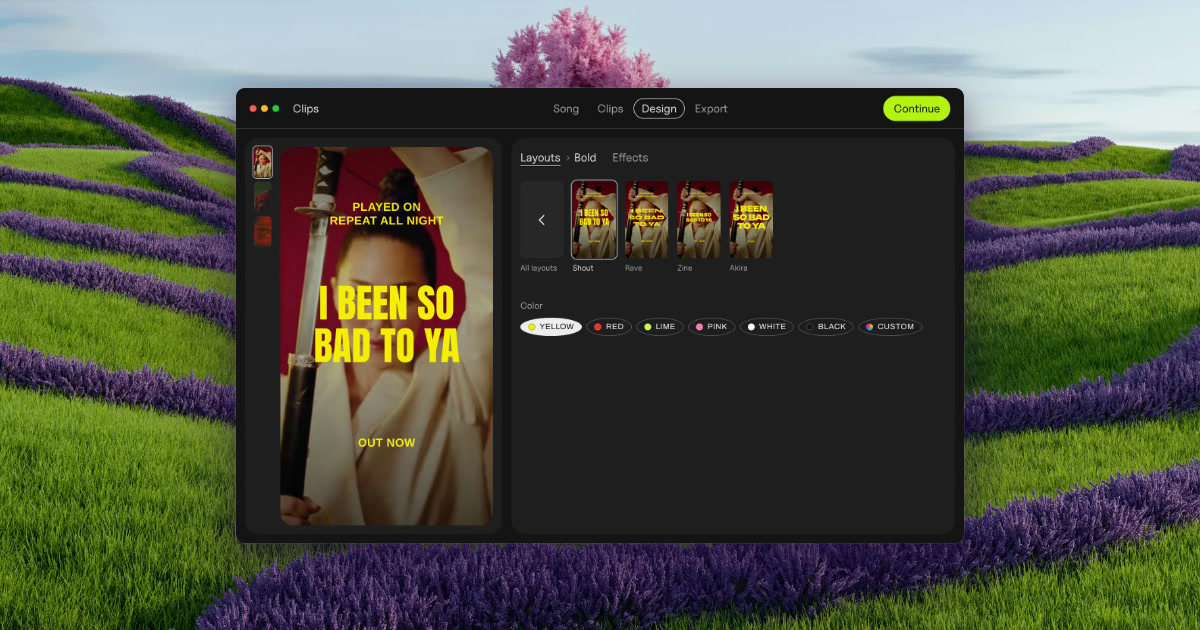
Clips by Plastic is a lyric and lip-sync video maker for Mac, built for music artists who want to promote a finished song with vertical video ads. You drop in a song and Clips finds its tempo and every part — verses, pre-chorus, chorus and bridge — then cuts each part and its catchiest snippets into its own vertical video, on the beat, with the lyrics synced word by word. From there you choose a layout, add a hook line on top, pick one of 54 effects, and export every part on every backdrop at once. The files come out named by song, part and backdrop, ready to upload to Ads Manager. Clips is aimed at artists promoting their own releases, and at labels and studios making videos for a roster or for clients. The problem Clips was built around is stated plainly on its own site: making fifteen videos takes all evening, so you cut two and pray. Rather than guessing which section of a track is the part that actually sells it, Clips lets an artist produce a video for every part of the song and then test them. The site describes the workflow as test first, then spend: run every part for a week with a few dollars a day each, let strangers pick the winner, and put your budget behind the part that wins. In the site's own worked example, the intro beat the chorus on cost per result, which is exactly the kind of finding a guess would have missed. The app was built by Kai Williams, a music artist with 30K monthly listeners on Spotify, who says he built Clips while promoting his album because cutting the same song fifteen ways was eating the time he wanted for music. The first step is dropping in a finished song. Clips finds the tempo — shown in the interface as BPM, for example 124 BPM on a three-minute-fifty-two-second track — and detects every part of the arrangement, listed as Verse 1, Pre, Chorus, Verse 2, Chorus and Bridge in the site's example. Each detected part then becomes one clip, cut on the beat; the product's own illustration shows a Chorus of 16 beats, cut on the beat. You then pick the parts you want to turn into videos, so a single song can yield a whole set of separate vertical clips instead of one long edit. There is no timeline to work on, which is the point of the design: the arrangement and cutting work that would normally consume an evening is done for you once the song is imported. The next step is the lyrics. Clips syncs the words to the music and can present them either word by word or line by line, both on the beat, and the interface exposes a simple Word / Line switch for that choice. You can also add a hook line on top — a short phrase that sits above the lyric treatment throughout the clip, shown in the site's mockups as a repeating line over the synced lyrics. Combined with a layout choice, this is what gives each clip its shape: a vertical frame, a lyric treatment that moves with the music rather than against it, and a hook that carries the catchiest fragment of the song. Because the sync is handled automatically, the artist does not have to hand-time individual words against a waveform. Clips ships 54 effects to give each batch a look that matches the release rather than a template. The site names a set of them — Paper, Glow, Vertigo, Riso, Xerox, Tape, Bitmap, Lines, Heatwave, Drift and Negative — and describes the concept as the same chorus rendered 54 different ways. A Strength control, set by dragging, determines how strong the effect is applied, with values like 3 shown in the interface. Effects are applied on the beat, tied to the detected BPM, so visual changes land with the music. On top of that, backdrops can come from your own footage or photos: Clips animates stills, and the site notes that one phone clip is enough for a batch, or you can download free high-quality vertical videos from Pexels that match the mood of the song. The fourth step is export, and it is where the batch approach shows. Clips exports every part of the song on every backdrop at once — the site's headline claim is 15 ads at once — with a progress indicator counting up from 0 of 15 videos cut. Output is vertical video at 1080 × 1920, or square at 1080 × 1080. Each file is named by song, part and backdrop so that the batch is identifiable and ready for Ads Manager without renaming by hand. The site frames the whole journey as ads in minutes, from a finished song to a full batch, with no timeline involved at any stage. The overall approach is a fixed four-step pipeline rather than a general-purpose editor: drop your song, pick the parts, add your hook, export. Everything runs locally — Clips works offline and your unreleased song never leaves your Mac, which the site answers directly when asked whether an unreleased song is uploaded anywhere. There is no cloud round-trip and no subscription machinery: the site promises no subscription, no credits and no caps. That combination of an offline Mac app and a batch pipeline is what separates Clips from a video editor, where the same job is done by hand, and from cloud-based ad makers, as set out in the product's comparison table. The stated outcome for users is speed and evidence. Instead of spending an evening cutting a couple of videos and hoping, an artist gets a full set of on-beat, lyric-synced vertical ads in one export and can then let performance data decide where the money goes. The site's example week shows cost per result for each part — intro, verse 1, pre, chorus, verse 2, bridge — with the intro winning at $0.21 and the chorus landing at $0.63, and the conclusion that you should put your budget behind the winner. Because every part and every backdrop is exported in one pass, testing more variants costs almost nothing in extra time, which is the core benefit the product is selling. Concrete use cases named on the site include launching a release by uploading the whole batch to Ads Manager on day one and letting it run through day six, then keeping the winner on day seven. Artists without footage are covered: photos work, Clips animates stills, and a single phone clip is enough for a batch. Artists between releases can use the free version, which does not expire, to try the app on an old song. Labels and studios can produce videos for the artists they manage, sign or work for under the Label / Studio license, which covers client and commercial work. Pricing is straightforward. The free version costs $0, includes every feature and unlimited exports, adds a small Clips tag on exports, and has no time limit. The Artist license is $99 paid once, removes the Clips tag, covers up to 3 of your own Macs and includes free updates. The Label / Studio license is $299 once, covers up to 10 Macs for your team, allows client and commercial work, and adds priority email support. A bundle with the DOT app is $125 once and unlocks both apps for up to 3 of your own Macs with free updates. A 30-day refund is offered with no questions, and the license key comes with the receipt. Requirements are macOS 13 or later on Apple silicon or Intel, with lyric sync best on macOS 26; Clips is Mac only today. In short, Clips turns one finished song into a batch of on-beat, lyric-synced vertical videos in minutes, so an artist can test every part of the release and spend behind the one that actually sells it — offline, paid once, with no subscription.