Category Focus/categories/productivity
Productivity AI Tools
Discover and compare the best productivity AI tools and software. Browse 874+ curated tools with reviews and rankings.
Projects tracked
874
Sort mode
RECENT
Page
2
Discover and compare the best productivity AI tools and software. Browse 874+ curated tools with reviews and rankings.
Projects tracked
874
Sort mode
RECENT
Page
2
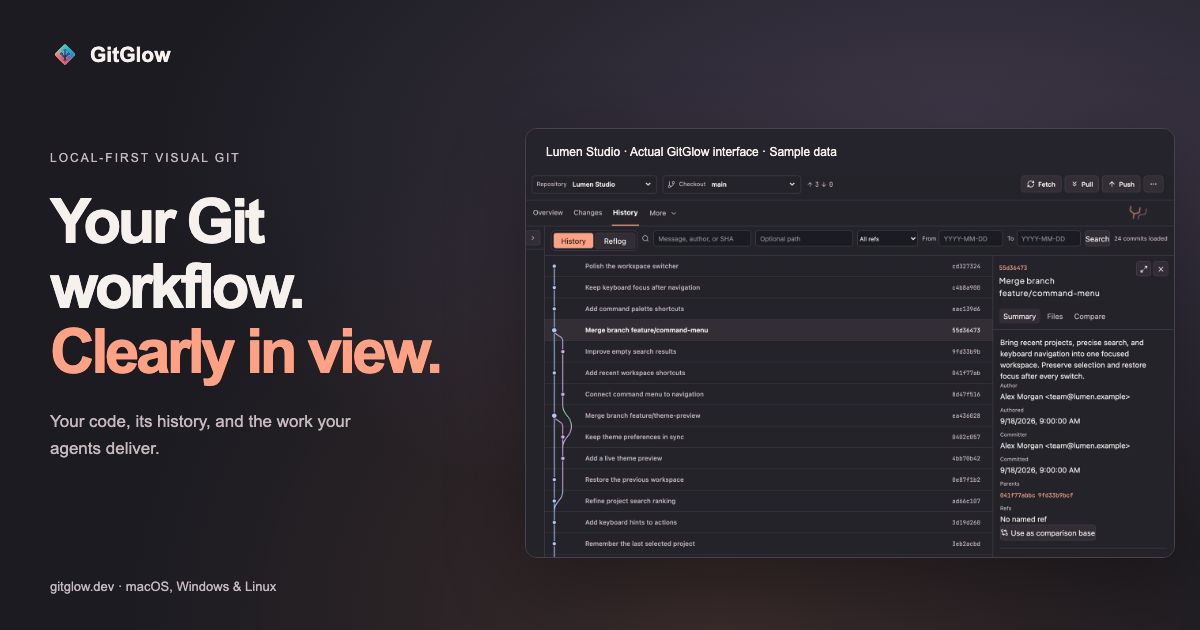
GitGlow is a local-first visual Git workbench for independent developers who want to understand exactly what will ship. It combines precise staging, clear commit history, conflict resolution, a checkout-aware terminal, coding-agent review, and release preparation into a single desktop application for macOS, Windows, and Linux. Instead of juggling a command line, a hosted Git client, and separate tools for watching AI coding agents, developers can open a clone and work through one calm workspace where their own changes and their agents' work sit side by side. The product's stated purpose is simple: review the diff, stage precisely, and ship with confidence. Its tagline, "Review your code and your agents' changes before you ship," captures that intent. Modern development workflows have two sources of change that are hard to reconcile: your own edits and the edits produced by coding agents. Agents can touch many files quickly, which makes it difficult to know what was actually changed, which files were reviewed, and whether earlier verification still applies after a later edit. At the same time, Git tooling often splits the work across several applications — one for staging and history, another for resolving conflicts, another terminal, and yet another for observing agent runs. GitGlow addresses that fragmentation by tying every piece of work back to the checkout it belongs to. Review marks, check results, and agent activity are anchored to real Git state, so a developer can tell the difference between what was inspected, what was tested, and what is still current. Staging is the heart of GitGlow's daily loop. The product lets you review files, hunks, or selected lines before composing a commit, so you can stage only what belongs in that change. This is described as a free capability for a local repository, meaning the precise staging workflow is available without a GitGlow account in a private local clone. From there, GitGlow shows how the work connects: you can explore real repository topology, compare revisions, and trace the history of a file or a line. Core history is free and history editing is a Pro capability. The same workspace covers blame and reflog, and it keeps branches and refs legible by supporting branches, remotes, stashes, tags, and trusted worktrees. Daily branch actions are free, while managed worktrees are part of Pro. GitGlow also keeps your shell beside the diff. A checkout-aware terminal lets you run Git, tests, and installed agent CLIs in terminal tabs that understand which checkout is active, with terminal tabs in the active checkout included on the Free plan. Conflict handling is framed around resolving the real operation: GitGlow explains the roles involved in merge, rebase, cherry-pick, and revert conflicts, and continuation and recovery are free. Moving between repositories is designed to be safe — GitGlow keeps registrations, context, and workspaces without flattening local data. One active repository or checkout is free, while concurrency across checkouts and workspaces is a Pro feature. Pro also adds multi-repository fetch, which fetches selected repositories together and reports clear per-repository results. Pro adds a layer that answers a question Git alone does not: did I actually review and verify this? Review confidence lets you mark files reviewed and run an explicit check with a timeout and cancellation. Results stay tied to the checkout that was tested, and later edits bring files back to your attention and make earlier results stale — so a passing check never silently applies to code that has since changed. The GitHub connection, also Pro, lets you review authorized GitHub repositories, pull requests, issues, workflows, and checks. Release Workspace brings checks, merged work, notes, and tags into one guarded sequence. Release publication is available only through Release Workspace, after a fresh guarded preview and explicit final confirmation. Agent work becomes reviewable in Agent Observatory, which follows authentic provider and Git signals across live, observed, and managed runs. Basic observation is free; managed controls are Pro. Observed and managed runs can carry repository, checkout, event, and attributed-file context into the same Changes workflow, so you can open the exact files an agent changed. The Activity Tape lets you search or replay sanitized operational detail in context, with the latest Replay free and advanced retention on Pro. GitGlow never exposes or stores hidden reasoning; an encrypted local flight recorder can retain sanitized provider-visible plans and commentary, commands, bounded output and tests, approvals, collaboration, relative paths, statistics, and safe text diff hunks, while excluding raw prompts, full transcripts, final replies, credentials, absolute paths, binary or oversized bodies, and contents or hunks from secret-prone files. MCP support gives agents bounded Git context through a packaged MCP sidecar: reads are free, and Pro can preview an allow-listed Git or GitHub action, but every MCP-originated write waits for native approval in Agent Observatory while the desktop app is open. GitGlow excludes arbitrary shell or Git commands, destructive cleanup, history editing, force pushes, and PR merges. Insights round out the picture with activity, commits, graphs, trends, complexity, work types, rhythm, sessions, and exports, and Indie Log turns evidence into a work log — written manually, or as a managed analysis-only report pack built from selected sources. The unifying idea behind GitGlow is that agent context is connected to the checkout. Rather than treating agent activity as a separate stream of logs, GitGlow attributes runs to the repository, checkout, events, and files they touched, then surfaces them inside the same review workflow used for human changes. Everything is local-first: local status, diffs, history, repository paths, previews, and audit records stay on your device. Optional GitHub, agent-provider, billing, and consented analytics connections have separate, explicit data boundaries — if you connect GitHub, GitGlow sends only the GitHub requests needed for installed repositories through the GitGlow API, and tokens never enter the desktop webview or MCP responses. Observed sessions started elsewhere remain owned by their originating desktop or CLI client; GitGlow monitors supported hook events and independent Git changes but hides message, approval, and interrupt controls unless the provider exposes a supported channel. Runs launched by GitGlow are Managed and can expose those controls. For users, the outcome is a workflow where confidence is earned rather than assumed. Precise staging produces cleaner commits; checkout-aware checks mean verification results have a clear scope; review freshness prevents shipping on the strength of a stale test run; and agent observability means AI-generated changes arrive as reviewable diffs with attributed files rather than opaque output. The Activity Tape and Replay provide a way to return to the moment that matters when something needs to be explained or investigated. Because everyday local work — staging, commits, branches, conflicts, history, blame, and reflog — is free and requires no account, developers can adopt GitGlow without a subscription and add Pro capabilities only when they need concurrent workspaces, managed agents, GitHub integration, or release tooling. Concrete scenarios include preparing a first reviewed commit after installing GitGlow and opening a clone; running the daily Git loop of reviewing changes, working with refs, resolving conflicts, and inspecting history; connecting supported agent clients, reviewing events, and opening the exact changed files an agent touched; and catching up across a workspace by fetching several selected repositories together and reading per-repository results. Developers working with coding agents can use Review confidence to mark files reviewed, run tests in a checkout-aware terminal, and let later edits pull those files back into view. When a release is due, Release Workspace gathers checks, merged work, notes, and tags into one guarded sequence that must be previewed and confirmed. GitGlow's own documentation suggests a four-step path: start with one repository, run the daily Git loop, understand agent work, and find every control through searchable reference documentation. GitGlow is aimed at independent developers who work locally and want a calmer, more accountable Git workflow, including those who use coding agents such as Codex or Claude and need to review what those agents changed. Pricing is simple: the Free tier works with a private local clone with no account and includes one active repository or checkout, precise staging, commits, branches, sync, merge, conflict resolution, stashes, tags, topology history, compare, blame, reflog, basic observation, the latest Replay, manual Indie Log, analytics, export, read-only MCP, and terminal tabs in the active checkout. Pro is €2.99/month or €29/year and adds concurrent terminal sessions, review freshness, verification tied to checkout state, multi-repository fetch, guarded history editing, concurrent workspaces, managed agents, advanced Observatory review and Replays, GitHub integration, Release Workspace, managed Indie Log, and MCP writes. AI provider subscriptions and API usage are separate, and existing subscriptions retain their current terms. Desktop builds are published for macOS, Windows x64, and Linux x86_64/aarch64; version 2.0.5 has been manually checked on macOS while the Windows and Linux packages are build-validated for architecture, version, payloads, sidecars, and checksums without runtime claims. Agent tooling is exposed through a packaged MCP sidecar, and the product's own comparison notes that GitKraken covers a broader provider ecosystem and shared cloud workspaces while both products include an embedded terminal. GitGlow's value proposition is straightforward: it turns Git and coding-agent activity into one reviewable, checkout-anchored workspace. By combining precise staging, legible history, conflict resolution, a checkout-aware terminal, review marks with freshness, GitHub checks, release preparation, and bounded agent observability in a local-first desktop app, it lets developers answer the question that matters before shipping — what exactly am I about to release, and have I actually verified it?
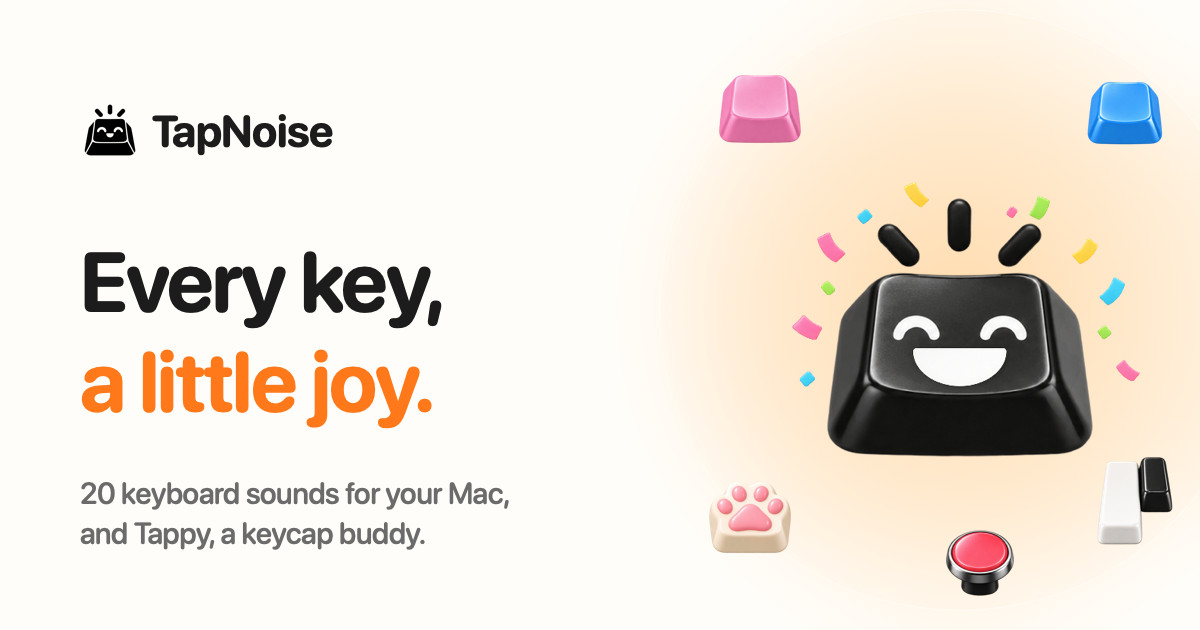
TapNoise is a Mac app that gives your keyboard the sound of a dream keyboard. It ships with 20 keyboard sounds, from a deep thock to tiny paws, and it adds Tappy, a little keycap character that lives on your desktop and reacts to everything you do. TapNoise plays its sounds under every key and in every app on your Mac, and it also tells you when your AI coding agent is done or needs you. It is built for Mac users who want typing to sound and feel better, and for developers who look away from the terminal while an agent works. You can try everything free for three days with no card, and then pay once for one Mac or two. Most keyboards on modern MacBooks are quiet, flat and identical, which is why so much of the appeal of a custom mechanical board comes down to how it sounds and feels under your fingers. TapNoise exists to bring that tactile pleasure back to the Mac you already own, without buying new hardware. It also addresses a very specific modern annoyance: while an AI coding agent runs, you either stare at the terminal waiting for it or you look away and lose time checking back. Rather than being only a novelty sound toy, TapNoise uses the same sensors that make the sounds to do practical work, so the app is fun first and surprisingly handy second. The heart of the app is its library of 20 keyboard sounds. Ten are grouped as Keyboards: Thock, Creamy, Clicky, Silky, Hushed, Bumpy, Pillowy, Clunky, Chunky and Retro. Ten more are grouped as Fun: Typewriter, 8-bit, Bubble, Piano, Rain, Paws, Kalimba, Woody, Marbles and Laser. Thock is described as deep and heavy, like a custom board, while Paws is a tiny-paw sound and Rain brings a soft patter. These are the app's own sounds and they play under every key, in every app. From the menu bar you can turn TapNoise on or off, set the volume and switch sounds with one click, and Tappy, Clean Mode and Guard Mode live there too, so you never have to dig through a settings window just to change what you hear. TapNoise takes keyboard realism further than playing one sample for every press. Most keyboard sound apps play every key the same; TapNoise feels how hard you press through the MacBook's motion sensor, so every key plays as loud as you hit it. Type softly and it whispers, hit hard and it clacks. Every key also gets a take of its own, so fast typing never sounds like a machine gun, and Space, Return and Delete sound like the bigger keys they are. The stereo image follows the key from left to right, which means the sound tracks your hands across the board. On top of raw typing, the app adds sound for the rest of the MacBook: slap it and it says ouch, the lid creaks like an old door and creaks faster the faster you move it, and the charger and USB plugs each get their own little sounds. Tappy is the companion that turns typing into something you can watch. Tappy sits in a corner of your screen, can be dragged anywhere, presses along with every key, and shows your words per minute underneath. Tappy has moods: Happy while typing along with you, Sweating when you are typing fast, On fire when you are really fast, Dizzy when someone slaps the Mac, Snacking when the charger goes in, Ears covered when Caps Lock is on, Sleepy when it is late, Asleep when you have been away, Party when you level up, and Bye when the lid is closing. Every tap is XP, so you type, level up, unlock hats for Tappy, keep a daily streak going, watch your typing speed, and get a card of your week to share. Hats unlock at levels: the party hat at level 2, sunglasses at level 4, headphones at level 6, a beanie at level 8, a chef's hat at level 10 and a crown at level 15. The tools section is where the app earns its keep beyond sound. Knock commands let you knock twice on your MacBook to pause the music, mute your mic in a call, or answer a waiting AI agent, while three knocks lock the screen. Guard Mode is designed for leaving your MacBook at a café table: if someone lifts it or pulls the charger, it sounds a loud alarm, and turning it off takes your Touch ID or password. Clean Mode holds the keyboard and trackpad still so you can wipe them without typing nonsense or clicking anything, shows a countdown so you know when it is done, and lets you hold Esc to stop early. A shortcut cheat sheet appears when you hold Command for a second, showing every shortcut in the app you are using, and disappears when you let go. Break buddy reminds you to stretch after a long stretch of work and nudges you when you start hammering the keys. Song Mode lets Piano, Kalimba or 8-bit play the next note of a song on every key, so you can type an email and hear Für Elise. Typing speed appears live under Tappy with your best today and your best ever, and Quiet in calls makes TapNoise go silent while any app is using your microphone, so nobody in the meeting hears your thock. For developers, TapNoise acts as an audio notification layer for AI coding agents. If you are coding with Claude Code, Codex or Cursor, you can look away while the agent works and TapNoise will chime when your agent is done or needs you, so you stop checking the terminal. A rising little chime plays and Tappy throws a party when the agent is done; two quick taps play and Tappy sweats until you answer when it needs you; a falling note plays and Tappy covers its ears on an error. When an agent is waiting, you can knock twice on your MacBook and its window jumps to the front, or you can simply click Tappy. Connection is done in one click from Settings, Agents, Connect: TapNoise backs up your settings first, adds one small hook, and Remove takes it out again. It works with Claude Code for done, needs you and errors, Cursor for done and errors, and the Codex CLI for done. The cues are made from the keyboard sound you picked, so they sound like part of your Mac rather than another alert, and they stay quiet in calls and follow your volume. TapNoise is private by design, and the app states this plainly: it hears keys, never words. Instead of reading characters, TapNoise learns which key position went down, like the third key on the second row, so it can play the right sound. It never sees what you type, keeps only counts such as taps today, and has no analytics. There is no account to sign up for and no tracking in the app, and your stats, levels and hats stay on your Mac. Network calls are kept to a minimum: TapNoise goes online to activate and check your license key with Dodo Payments, and once a day to look for an update. Nothing about your typing is sent. From AI agents it hears only done, needs you or error, never your code or prompts, and the hook it adds to each agent's settings file is backed up first so it can be removed cleanly. The app is also built to be light: on a MacBook Air, typing at full speed uses about 4% of one CPU core and around 30 MB of memory, and the motion sensor slows down when you are not typing and turns off with the features that use it. The outcomes TapNoise aims for are straightforward. Typing becomes more satisfying because every keypress has weight, texture and direction instead of a single flat click. Fast typing stays clean and natural rather than turning into a machine-gun rattle. Your MacBook itself becomes expressive, reacting to slaps, lid movement and plugs. Tappy turns ordinary typing into light progression with levels, hats, streaks and a weekly card. Developers regain attention: instead of watching a terminal, they get a chime and a knock-to-answer shortcut that brings the agent's window back to the front. And the practical tools quietly cover small daily problems such as wiping a keyboard, protecting a laptop at a café table, muting your keyboard during calls, and remembering shortcuts or taking a stretch break. Concrete scenarios show how this plays out. A developer runs Claude Code or Cursor in the background, looks away to read documentation, hears the chime when the agent finishes, and knocks twice on the MacBook to jump back to the terminal. A writer at a café enables Guard Mode so that anyone lifting the laptop or unplugging the charger triggers a loud alarm, and later uses Clean Mode to wipe the keys without triggering a flood of accidental typing. Someone on a Zoom or FaceTime call keeps the satisfying thock on their desk while TapNoise automatically goes quiet because the microphone is in use. A typist picks Song Mode with Piano, Kalimba or 8-bit and types an email note by note, then checks the live words-per-minute figure under Tappy and keeps a daily streak going. Someone learning an unfamiliar app holds Command for a second to see every shortcut, and Break buddy nudges them to stretch after a long session. TapNoise is aimed at Mac users generally, and most specifically at MacBook owners who care about how their keyboard feels and sounds, plus developers using AI coding agents. It requires macOS 14 or later. Any Mac with macOS 14 or later plays the key, click, charger and USB sounds, with the built-in keyboard or any keyboard you plug in, and Guard Mode sounds its charger alarm. The motion-based features, which include harder press meaning louder sound, slaps, knocks and Guard Mode's lift alarm, need a MacBook with a motion sensor: MacBook Pro with M1 Pro or M1 Max and later, and MacBook Air with M2 and later. Lid sounds need a lid angle sensor, which covers the same models plus the 2019 16-inch MacBook Pro. Sounds start within a few milliseconds of the key; with AirPods or other Bluetooth headphones, Bluetooth itself adds delay, so TapNoise can play its sounds through the MacBook speakers instead. Pricing is a one-time purchase: a three-day free trial with no key and no card, then Solo at US$9.99 for one Mac or Duo at US$14.99 for two Macs, plus tax, with launch prices of US$4.99 and US$7.99 while launch licenses last. Checkout is by Dodo Payments, every update is included, there is no subscription, and there is a 14-day money-back guarantee. TapNoise is made independently by Rudra Satani, who also makes NotchMind. In short, TapNoise gives your keys a voice: 20 keyboard sounds, a pressure-sensitive feel, a small desktop companion called Tappy, and a set of genuinely useful tools built on the same sensors. It turns an ordinary Mac keyboard into something satisfying to type on, and it keeps developers in the loop with their AI agents without staring at a terminal.
Skymir is a native Google Drive sync client built specifically for Linux. It mirrors your Google Drive folders to local disk, keeps them in perfect two-way sync, lets you open Google Docs, Sheets, and Slides with a double-click, and shows sync status in a native GTK system tray. It is designed for Linux users who need reliable access to their Google Drive files without relying on Google's own desktop client, which is available only for Windows and macOS. The product's main purpose is to provide a safe, fast, and fully integrated Google Drive experience on Debian-based Linux distributions. Google has never released a Google Drive desktop application for Linux. Google Drive for desktop runs on Windows and macOS only. This leaves Linux users without an official, native way to sync their Drive files to local disk. Many have turned to tools like rclone, which is excellent for bulk transfers but not optimized for keeping a working folder in sync with Drive's native documents. The creators of Skymir experienced this firsthand: a sync run using rclone's bisync deleted 1,437 of their Google Docs because the native Docs, Sheets, and Slides were treated as missing files. That event led to building Skymir from scratch with a safety-first approach, ensuring that Google Docs become shortcuts rather than "missing files," and that every deletion goes to a trash you can restore from on both sides. True mirror mode is the core of Skymir. It mirrors your entire Google Drive — or just the folders you choose — in perfect sync with local disk. You can edit on either side, and changes flow both ways. Full offline access is available, so you can work on your files even without an internet connection. Deletions propagate safely to the trash on both sides, with a 30-day recovery period and never permanent. A sync that would delete more than half your files is refused, preventing catastrophic data loss. Because Skymir is built from scratch on the Google Drive API, your files are real files on disk, not a virtual filesystem. Skymir generates .gdoc, .gsheet, and .gslides shortcut files for every native Google Docs, Sheets, and Slides file in your Drive. These shortcuts let you open the live document directly from your file manager. Double-click a .gdoc file in Nemo, Nautilus, or Dolphin and the document opens in your browser. This bridges the gap between local file management and Google's cloud-native documents without requiring you to manually navigate the web interface. It also means your Google Docs are never treated as "missing files" during sync, which was the root cause of the data loss that inspired Skymir. Quick, incremental sync keeps your files up to date without unnecessary work. When you save a file locally, it is on Drive within seconds. Changes made in Drive — whether on the web, your phone, or another computer — come down within about a minute. Skymir asks Drive only for what changed since the last check using the changes.list API endpoint, so it never rescans your whole Drive. This makes syncing fast and efficient, even for large Drives. The background daemon runs continuously, keeping everything in sync while the tray icon shows current status. Skymir also includes a Recent Activity window that lists downloads, uploads, deletions, and shortcut creations with timestamps, giving you a clear audit trail of sync actions. The native GTK tray is a real AppIndicator3 icon that matches your Mint, GNOME, Cinnamon, KDE, or XFCE theme. It shows sync status at a glance, so you can see whether everything is up to date. Quick actions are available directly from the tray menu: sync now, pause, open folder, and open settings. This provides a native Linux experience, unlike tools that rely on command-line interfaces or non-native toolkits. The tray also displays trial status and last sync time, keeping you informed without needing to open the main application window. Skymir offers two sync modes to fit different needs. Full Drive Sync mirrors every top-level folder in your My Drive and automatically picks up new folders you create later — the same model as Google Drive Desktop on Windows and Mac. Selective mode lets you choose exactly which folders to mirror, so you can leave large or noisy folders behind. You pick at first-run setup, and you can switch between the two any time in Settings → Folders. Either way, only your My Drive is mirrored; shared drives are not supported yet. Installation is straightforward: add the skymir.app apt repository or download the .deb directly. The app works on Ubuntu, Linux Mint, Debian, Pop!_OS, and other Debian-based distributions. Skymir's approach is built on safety, transparency, and independence. It is an independent third-party application built on top of Google's public Drive API, not affiliated with or endorsed by Google. Your Google Drive data moves only between your computer and Google — Skymir never sees or stores it. The app sends only a small amount of data to its own server: email address and OS version at setup, license key and a random machine identifier at activation, and a weekly "still alive" ping. No usage telemetry, crash reports, or file information is collected. There is no vendor lock-in: if you uninstall Skymir, your local files stay on your disk and your Drive content stays in Google Drive. Pricing is simple and transparent. Skymir costs $19 as a one-time purchase with lifetime updates and no subscription ever. A 14-day free trial offers full functionality with no credit card required. After the trial, you need to purchase a license to continue using the graphical app and background sync. Each license activates one machine at a time, and you can move between computers anytime via deactivation. A 30-day no-questions-asked refund policy is available. Email support is provided at support@skymir.app. Use cases for Skymir are varied. You can mirror your entire Google Drive for full offline access on a Linux laptop. Selective sync lets you keep only the folders you need, leaving large or noisy folders in the cloud. Writers, developers, and researchers can open Google Docs from their file manager with a double-click. Teams and individuals working across multiple devices can rely on quick incremental sync to keep files current. Anyone who has experienced data loss with other sync tools will appreciate Skymir's safety features, including trash recovery and the refusal to delete more than half your files. The app is tested on Linux Mint 22.3, Ubuntu 24.04.4 LTS, Ubuntu 22.04.5 LTS, and Debian 13 "Trixie" across Cinnamon, GNOME, and KDE Plasma. In summary, Skymir is the native Google Drive client that Google never built for Linux. It combines true mirror mode, double-click Google Docs shortcuts, quick incremental sync, and a native GTK tray into a single application. Built safety-first from the ground up on the Google Drive API, it protects your files with trash recovery and deletion safeguards. With a one-time price of $19, a 14-day free trial, and no subscription, Skymir offers a compelling, reliable solution for Linux users who need Google Drive sync that just works.
Skreno is an AI-powered screen recorder that runs entirely in your browser, built for capturing screens, screenshots, and meetings without installing a desktop application. It combines recording, screenshots, annotation, editing, and sharing in one place, so a capture arrives not as a raw file but as a shareable link carrying a transcript, an AI summary, and comments on the exact second. The product is described as a video studio in your browser: record, edit and share in one place, with a free full editor, no watermark on any plan, and no account needed to try. It is aimed at individuals and teams who need to explain something visually and quickly. The website frames a familiar set of friction points that Skreno is designed to remove. Recording often means installing an app just to hit record, and screenshots have to be cropped and labeled by hand. Drawing a simple arrow forces you into a separate editor, while sharing usually means uploading, waiting, and then pasting a link. Explaining a problem in writing can take three paragraphs where a quick video reply would do, and feedback ends up chased across five different threads. Engineering hand-offs stall on refrains such as "it works on my machine," "I can't reproduce it without the error," and "no stack trace, no idea where to look." In support, customers describe issues in words that don't match the screen, so each ticket takes three replies before anyone can reproduce it. Skreno records right in the browser instead of requiring an installed application. Screen recording is the core capability, and the site also covers screenshots, where Skreno grabs and labels each step rather than making you crop and label every shot by hand. Annotations let you mark things up right where you captured them, and pinpoint annotation lets you draw and mark up while you record, so you never have to open a separate editor just to draw an arrow. Instant sharing means the link is live the second you stop recording, eliminating the upload-then-paste step. A video reply lets you respond with a quick video instead of typing three paragraphs, and feedback can be collected right on the video instead of across multiple threads. Studio is a recorder and editor that runs in your browser, included with every plan, and it can download up to 4K on your own machine. Within the editing studio you can trim, caption, blur, and polish, with exports up to 4K and no download required to edit. Trimming happens right in the browser instead of downloading the raw file just to cut ten seconds. Captions, blur, and backgrounds are gathered in one editor rather than split between one app for captions and another for backgrounds. Every edit updates the same link, so you don't re-upload the whole thing after each tiny change. When recording, you can capture your screen and camera as separate tracks, then pick a layout, cut silences, and add animated captions and titles. Network and console logs are captured behind whatever broke, directly addressing debugging refrains like "it works on my machine" and "no stack trace." Bug reports come with the console log attached, and a network panel highlights failed requests with the error response body available. A Web SDK installs with a single script tag on your own site, letting you add Skreno to the products you build. You can also connect your AI assistant so it searches your recordings over MCP and acts on them. The Meeting Notetaker records the call and writes the notes, so meetings arrive with a transcript and an AI summary. Transcripts and AI generate a transcript and recap automatically, described as AI transcripts in seconds. To gather social proof, you can collect customer stories by sending a link so the customer records themselves and you receive the testimonial. A request link lets anyone record for you with no account needed. In support, you can send a Request link so customers record the bug themselves, build a library for your ten most repeated tickets, and keep recordings attached to the ticket rather than in a separate folder. Skreno's approach is to keep the whole workflow inside the browser. Recording, editing, and sharing happen in one place, and one link is used to share. That link carries a transcript, an AI summary, and comments on the second, plus the console and network log behind whatever broke. Because every edit updates the same link, what you shared stays current without re-uploading. The Studio recorder and editor runs in the browser, is included with every plan, and downloads up to 4K on your own machine, while AI produces transcripts and recaps automatically and an AI assistant can search recordings over MCP. The stated benefits follow directly from removing each friction point: no app to install, no manual labeling of screenshots, no separate editor for a single arrow, and no upload-and-wait before sharing a link. Feedback arrives on the video instead of across threads, and edits stay linked so recipients always see the current version. Support teams can get bugs reproduced with fewer back-and-forth replies, and engineering hand-offs include the console and network logs rather than a vague description. Meetings produce notes automatically, and testimonials can be collected without scheduling a call. The site lists concrete use cases: Support, where request links let customers record bugs themselves and recordings stay attached to tickets; Product & Design; Engineering, where dev logs and the Web SDK support debugging and hand-offs; Guides; Meetings & calls through the Meeting Notetaker; Testimonials, where a link lets customers record their own story; and a video editing studio for trimming, captioning, blurring, and polishing clips. Skreno targets individuals and teams who need to record, edit, and share video quickly, spanning support, product and design, engineering, and people producing guides, meetings, testimonials, or edited video. It runs in the browser and is also distributed as a Chrome Extension. Pricing is framed around free being a real plan rather than a trial: there is no credit card required, no countdown, and no watermark on any plan, with the full editor included. A separate pricing page lists additional plans. Skreno's core promise is to record once and explain nothing: capture your screen, screenshots, or meeting in the browser, then share a single link with a transcript, AI summary, second-accurate comments, and the developer logs behind any bug. With a free full editor, up to 4K exports, and no watermark on any plan, it replaces a patchwork of recording tools, editors, and feedback threads with one web-based video studio.
Cue is a free macOS app that turns your headphones into a focus switch. Put your AirPods in and your Mac turns on your Focus mode, blocks distracting sites and starts a timer; take them out and it is break time. It is made for people who work on a Mac and want a focus session to begin without opening another app, and its interface lives in the notch next to the camera. Cue is free, private and built for macOS 14 or later on Apple Silicon. Most focus tools wait for you to open them, choose a session and press start, which means the moment you actually need help is exactly the moment you have to remember to ask for it. Cue takes a different route: it starts from something you already do many times a day, putting your headphones in and taking them out. macOS also has no public way to set a Focus mode, so Cue sets up its own shortcuts once and then switches Focus for you with no more prompts. The result is a focus session that begins and ends with your ears instead of with an app window, and nothing to remember. Your ears start it, not an app. Cue starts when your headphones go in and ends when they come out. Any Bluetooth headphones work, and Cue tells them apart by itself; AirPods Pro, Max, 3 and 4 are the most precise because they report when they are actually in your ears. AirPods start the session when they are in your ears, while other headphones start it when they connect. While you focus, Cue blocks sites: built-in social, video and news lists, plus your own sites, which you paste as a comma-separated list and Cue splits for you. Apps you list are asked to quit. Both the sites and the apps come back when you take a break, so the blocking is scoped to the session rather than to a permanent setting. The product lives in the notch. A small dot and a timer sit next to the camera; point at the notch to open it and tap to pin it. On a MacBook Air M1, iMac, Mac mini or Mac Studio there is no camera cutout, so Cue draws a floating 190 × 32 pill instead, and if you plug into an external display the same pill floats at the top of the screen. Inside the notch you get now playing, with artwork and play, previous and next controls for whatever is playing, from Spotify to a YouTube tab, read on your Mac only. Notifications from any app land in the notch instead of the corner and tuck away by themselves. Volume and brightness show in the notch rather than as a big box in the middle of the screen. You can also give the notch your own colors: pick a preset such as Peach, Lilac, Mint, Sunset or Aurora, or hit Mix and Cue blends three to five colors into three options so you keep the one you like, and the buddies wear the new accent. Two tiny buddies hang under the notch and react to everything you do. They run while you work, nap on your break, dance when music plays and blush when you point at them. New in 2.6 they leave the notch: outside a focus session they roam your whole screen, walking on windows, climbing their sides, hanging from the menu bar and jumping between them, and you can pick one up and throw it or click it to cheer. When focus starts they jump back onto the notch. The loop button sprays 20 to 30 buddies out of the notch and the power button adds ten more on each tap, up to 60; loop again and they all go home. Skins are free, with all 17 outfits available from day one, and the skin you pick is worn on the screen too, with eleven dance moves that change every phrase and stay smooth on the beat. A music panel shows what is playing on the notch with artwork and controls, and the buddies dance to the beat if you let Cue hear it. Sound stays in reach with per-app volume, an output switch and mic mute on ⌃⌥M, plus an orange or green dot that shows when the mic or camera is in use. Open your AirPods case and a card shows the battery of each bud with one-tap connect. Small islands cover keep awake, Caps Lock and a nudge to unplug at full charge, and a single switch hides the notch from recordings. Face Unlock is an opt-in extra for Macs without Touch ID, offered for convenience rather than security, and the maker states plainly that a photo of you could open it. The mechanics are simple. Step one: put them in and focus starts, with Focus mode on, sites blocked and the timer running. Step two: take them out and break starts, after a 10 second grace period in case you were only adjusting a bud, Focus turns off and your sites come back. The break ends after 15 minutes by default, and you can set it anywhere from 5 to 60 minutes in Settings. Step three: see your day, with today against your goal, your streak, your longest session, your sessions today and the last seven days in one place. Cue also greets you by name and reminds you to drink water and rest. The benefits are mostly about removing decisions. There is no Dock icon and no window in the way, so Cue never asks for screen space; a dot and a timer are all you see until you point at them. Because the trigger is your headphones, starting a session costs zero clicks, and the site and app blocking is scoped to the session so nothing is permanently locked. Cue states that it is private and free: no accounts, no analytics, and your data stays on your Mac. It is made with Swift only, and the maker notes it is light on the machine, with two roaming buddies costing no more than the notch alone. In practice, Cue fits a few clear situations. If you put your AirPods in to start work, the session begins the moment your buds go in and the social, video and news lists close themselves; when you pull them out to grab a coffee, the sites come back and a break timer runs until the break ends. If you are writing, coding or studying with music on, the notch shows the track and its controls without a window to switch to. If you are on a Mac without a camera cutout, the same experience follows you as a floating pill at the top of the screen, so an iMac or Mac mini user is not left out, and if you are on an external display the pill floats there too. Cue is for Mac users who already wear headphones while they work and want focus to follow their ears: writers, developers, designers, students and anyone who loses time to social media, video or news sites. It requires macOS 14 (Sonoma) or later and the download is built for Apple Silicon. Cue is free, with no ads and no accounts. The app is not notarized by Apple, so the first launch needs a one-time confirmation in System Settings, Privacy & Security, and setup asks for Accessibility and Motion permission, with optional Full Disk Access if you want to pick your own Focus modes. Optional update checks are off by default, and the only data Cue sends is feedback you write yourself plus two anonymous one-time setup signals. Cue is a small, free Mac app with one big idea: your headphones are the switch. Put them in and the Mac focuses, take them out and it relaxes, with the timer, the blocking and the buddies all living in the notch. It is private, light and built for macOS 14 or later on Apple Silicon.
Onepin is an AI voice production agent that turns any script into voice that is ready to ship: model-matched, validated and auto-fixed. Rather than replacing the text-to-speech engines a team already relies on, Onepin works on top of them, connecting more than thirty providers — including ElevenLabs, OpenAI, Google, Microsoft, AWS, Rime, Inworld, Fish Audio, MiniMax, Deepgram, Naver Clova, Cartesia and Murf AI — behind a single account. It is built for teams shipping AI voiceover in several languages, such as product videos, dubbing and courses, and its stated promise is straightforward: human voice, right words, every language, so you do not have to listen to every line twice. The problem Onepin addresses is not voice quality. As the site puts it, AI voices sound human now, but they still guess names from the spelling, and nobody has time to listen to every line. Addresses, prices, dates and abbreviations make every TTS model stumble — "St." can mean Saint or Street, "NW" can mean NorthWest or North West — and mispronouncing a brand, a drug or a name makes the whole line unusable. That risk multiplies when a team ships in several languages at once, because the definition of correct has to stay the same in US English, Spanish, Japanese, Korean and German. Onepin exists to remove that listening burden and the manual re-rendering that follows it. The first step Onepin takes with a script is to clean the text. A normalizer expands and disambiguates the material that trips models up: addresses, prices, dates and abbreviations are fixed before synthesis, in every language. The site's own examples show "3042" rendered as "thirty forty-two", "St." resolved as either "Saint" or "Street", and "NW" expanded to "NorthWest". Onepin describes this as the most common cause of misreads, and states that because it happens before synthesis rather than after, roughly half of voice errors are gone. The value is easy to see in practice: the model never has to interpret raw, ambiguous text, so it reads the line the way it was meant to be read in the first place. The second step is pronunciation. Onepin checks names against a four-million-word pronunciation dictionary that teaches the system how to say the hard words right, in any language. The dictionary covers brand and product names — the site lists AbbVie, Versace, Sade, Siobhán, Måneskin, Hermès, Givenchy, Björk, Saoirse, Stromae, Balenciaga, Rammstein, Röyksopp, Moët, Ng, Xóchitl and Hoegaarden — as well as complex medical and scientific terms such as semaglutide, esomeprazole, hydroxychloroquine, esophagogastroduodenoscopy and electroencephalography. Onepin frames this as the first thing generic TTS gets wrong: one mispronounced brand, drug or name and the entire line is unusable, no matter how natural the surrounding audio sounds. Once voice is generated, every line comes back scored. Onepin validates four dimensions on every line — naturalness, word accuracy, clarity and pronunciation — and it scores against your bar, not its own, applying one bar across every language. The site illustrates the step with a single sentence, "Your order has shipped", rendered in US English, Spanish, Japanese, Korean and German, each version queued for scoring. The point of the validation stage is that quality becomes measurable rather than a matter of taste: a team decides what passes, and Onepin holds each line and each language to that same standard instead of asking someone to judge by ear. The fourth step is repair. When a line misses — the site's example is "Siobhan" misread in "Hold the gate, Siobhan" — Onepin either regenerates the line or fixes just the word that missed, using the same model with new settings. Fixes run themselves, and the stated outcome is that you always get the best take. This matters because re-rendering a whole take for one bad word is exactly the kind of manual work that makes multi-language voiceover expensive and slow; targeting the single missed word keeps the rest of the performance intact while still correcting the error. Behind those four steps sits a routing layer that puts every top TTS model in one place. A script flows into more than thirty models behind one account and is routed line by line. Onepin also benchmarks so customers do not have to: the company measures quality continuously and picks per run, on the stated premise that no model wins every language. Onepin presents this as the answer to shipping at scale, and it doubles as protection against vendor risk — if a provider hikes prices, deprecates a model or shuts down entirely, the pipeline does not move. A team keeps the same workflow while the engines underneath it change. Onepin also addresses the commercial side of voice production. Every output is assigned to you and cleared for commercial use, and the Enterprise tier adds a negotiated IP indemnity, which the site frames as what shipping at scale, and answering to legal, actually requires. Billing is pooled rather than fragmented: you buy one credit volume, allocate it across workspaces and reallocate it anytime, and seats are free. That structure means one organization can fund several teams' voice production from a single purchase instead of negotiating separate subscriptions for each group, with the flexibility to move budget between workspaces as priorities change. The use cases Onepin highlights are the workflows where a wrong word is most costly. Its examples span gaming ("Slough off the poison before it spreads"), audiobooks ("He read the minute inscription above Hawthorne's tomb, then wept quietly"), advertising ("Book your stay in Yosemite before the summer rush"), e-learning ("Today we'll cover the reign of Louis XIV") and film ("Subtlety was never his forte") — lines that hinge on words generic text-to-speech reads incorrectly. The product's entry point invites visitors to type a script of up to 100 characters and see results across categories including Product, L&D, Healthcare, Support, Travel and Sports, which are the verticals where brand names, medical terms, dates and prices appear routinely. Onepin is aimed at teams producing AI voiceover in several languages — product videos, dubbing and courses — and says it is trusted by teams shipping voice at scale, naming HeyGen, Hyundai Motor Group, Sierra, Bland and Johns Hopkins University. It is free to start with no credit card required, with a Pro plan for teams that are already shipping, and the site directs teams to start free or contact the company. The takeaway is that Onepin is not trying to be another voice model: it is the production agent that sits between your script and the many models that can read it, cleaning the text, fixing the pronunciations, scoring every line and repairing the misses automatically — so what ships is voice you do not have to listen to twice.
Phonable is a smarter voicemail app for iPhone that replaces your carrier's voicemail. When you cannot pick up a call, Phonable handles both sides of that missed call: your caller hears your greeting and then gets a short text back explaining why you could not answer, while you receive the voicemail as a recording, a full transcript and a one-line AI summary. It is designed for iPhone users who miss calls because they are in a meeting, on the road, at the gym or away for the weekend, and who want callers to know what happened without changing anything about their phone number. Phonable keeps your own number, your SIM and your phone, and only steps in for the calls you do not answer. Carrier voicemail has not changed in decades. You get a beep, a message you never quite get round to listening to, and a caller left wondering whether you received their call at all. As Phonable puts it, a missed call leaves both sides hanging. The caller does not know why you did not pick up or when you will get back to them, and you have to dial in, press 1 and sit through messages to find out what mattered. Phonable treats the missed call as a two-sided problem and fixes both ends of it: the person calling gets an immediate, polite explanation by text, and you get the substance of any voicemail delivered in seconds rather than minutes. The first half of the fix is the automatic text back. The moment you miss a call, Phonable sends a short text on your behalf, even if the caller hangs up without leaving a voicemail. That closes the loop for people who would otherwise never know their call landed. Phonable ships with templates for every moment — starting points such as "In a meeting", "Driving" or "Back on Monday" — and you can write your own wording if you prefer. Messages are considerate by default: each caller receives at most one text per hour, so someone who tries twice is not flooded with replies. Because each mode carries its own text, what callers read always matches where you are — driving, at the gym or away for the weekend. Texts use the SMS credits in your plan and are not sent to landlines or unsupported countries. The second half is visual voicemail with transcription and AI summarisation. Instead of dialling in and pressing 1, every voicemail appears in the app with the recording, a full transcript and a one-line AI summary, so you know what a message is about in seconds. The AI summary arrives as a notification, before you have even opened the app. From there you can read it or play it: skim the transcript quickly, or listen to the recording at whatever speed you like. If the message needs a response, you can reply in one tap, either calling back or sending a message straight from the voicemail screen. A voicemail stops being a chore you postpone and becomes something you can absorb at a glance. Greetings are the third piece. If you are not a fan of recording yourself, you can type what you would like to say, pick a voice and a tone, and Phonable speaks it naturally. The available voices are Sarah (soft and reassuring, American), George (warm and trustworthy, British), Laura (bright and upbeat, American), Lily (clear and polished, British), Brian (deep and composed, American) and Charlie (casual and friendly, Australian), and each can be delivered in a professional, friendly, calm or energetic tone. If you would rather sound like yourself, you can record your own greeting in seconds. Either way, callers hear something that fits the moment rather than a default carrier message. Modes, introduced in version 2.0, tie the greeting and the text reply together into a single switchable state. A mode pairs what callers hear with the text they get back, so you can move from Workday to Driving in one tap. Modes can be kept on for a while — an hour, three hours or until tomorrow morning — or set on a schedule by choosing the days and hours, after which Phonable switches automatically. The built-in examples show how specific they get. In Workday's "In a meeting" mode callers are told: "Sorry I missed your call. I'm in a meeting and will call you back within the hour." Driving's "On the road" mode says: "I'm driving right now and can't pick up. I'll get back to you as soon as I've parked." Gym's "Mid-workout" mode says: "Mid-workout, can't pick up! I'll call you back within the hour." And Weekend's "Away for the weekend" mode says: "Thanks for calling! I'm away until Monday. For anything urgent, send me an email." Phonable works through conditional call forwarding, a standard feature of mobile networks. After you sign up, the app shows you exactly what to dial and walks you through three quick steps to turn forwarding on with your carrier — a process that takes about a minute — and you can switch it back at any time, at which point missed calls return to your carrier's voicemail. Forwarding is conditional, so Phonable only takes over in the situations where you cannot answer: when a call rings out while you are busy, when you are already on a call or tap decline, or when you are unreachable because of flight mode, a flat battery or no signal. If you do pick up, nothing changes at all; the call connects as it always has and Phonable is not involved. Beyond the core loop, Phonable adds a set of thoughtful details. Every call and voicemail sits in one timeline organised by name, and if someone hung up without leaving a message you can still see that they received your text. Callers show up with the name from your contacts rather than a bare number. Privacy is handled deliberately: your contacts stay on your iPhone and are never uploaded, and the company states that it never sells your data. Pro subscribers can upgrade to a dedicated Phonable line that only handles their calls, rather than sharing a community line. The app also follows your iPhone's light and dark mode with a calm design. The overall benefit is simple: callers are never left guessing, and you never have to dial in and press 1 to find out what a voicemail said. The use cases follow the modes. If you are in a meeting, Workday mode tells callers you will call back within the hour instead of leaving them with silence. If you are driving, Driving mode explains that you cannot pick up and will respond once you have parked — without you touching the phone. If you are mid-workout, Gym mode does the same in a lighter tone. If you are away for the weekend, Weekend mode redirects urgent matters to email until Monday. Someone who simply misses a call while out of signal still benefits, because the caller gets a text and any message left is transcribed and summarised for later. Anyone who screens calls, works across time zones or is frequently in situations where answering is impossible can let a mode handle the explanation while they stay present. Phonable is an iPhone app available on the App Store, and it is aimed at anyone who misses calls regularly and wants callers treated well without switching numbers. Pricing starts free with Test Drive, which includes greetings, voicemail and text backs, a monthly allowance of voicemails and texts, up to two modes and a shared community line. Basic, billed monthly or yearly, adds more voicemails and texts every month, up to five modes and modes that switch on a schedule. Pro, also monthly or yearly, is described as everything Phonable does with room to spare: the most voicemails and texts, unlimited modes on a schedule, AI voice greetings and a dedicated line that is only yours. Prices are shown in the App Store in your local currency, yearly billing saves 20%, and you can cancel anytime in your App Store settings. Phonable's value proposition is that a missed call stops being a small failure on both sides. Callers get an immediate text explaining why you could not pick up and when to expect you back, and you get every voicemail transcribed and summarised by AI, delivered as a notification you can read in seconds. Nothing changes about your number, your SIM or your phone, forwarding takes about a minute to set up and can be turned off whenever you like, and you can start free before deciding whether Basic or Pro fits how many calls you miss. For iPhone users who cannot always answer, Phonable turns the calls you miss into handled, explained moments.
Opposable is computer use for phones. It gives Claude Code, Codex, Cursor, any MCP client, or the agent built into the app the ability to use a real Android phone the way a person does: reading the screen, tapping, typing, swiping and opening apps in every app you are signed into. The Android app is out now as a 43 MB APK and needs Android 11 or later. It is built for people who already drive an agent such as Claude Code or Codex and want that agent to reach the parts of their life that only exist on a handset — messaging, banking, rides, delivery, shopping, calendars and the constant stream of two-factor codes. The product's purpose is stated plainly on its own site: give your AI thumbs. Most of your life runs through phone apps, and none of them have an API. Banking, rides, delivery, messaging, and the two-factor prompt sitting in the middle of every workflow all live behind app interfaces designed for human thumbs rather than for software. An agent can write code, search the web or summarise a document, but it cannot open a banking app, check an amount and stop before paying. Reval Labs describes Opposable as the layer that lets agents use those apps, on the phone you own and on phones the company runs for you. Computer use is coming to phones, and Opposable is building the hands. At the centre of Opposable is an agent that runs on the phone itself. Where most phone agents send your screen to a model in a data centre, Opposable's own agent runs on the device it operates, so it keeps working with the laptop closed or with no signal at all, and your screen never leaves the phone. It is small enough to download once over Wi-Fi, and it gets faster with every release. Three levels of intelligence are described on the site. With no model at all it handles about 40 everyday tasks — alarms, reminders, calendar, calls and texts, camera, settings, volume, maps and conversions — in 0 to 15 seconds, checking its own result on the screen. A 1.4 GB screen model looks at the screen and taps like you in any app, and picks from the screen's labels in under a second when it can. A 0.7 GB answer model replies to questions from web results. On recent Snapdragon phones the screen model's vision step runs on the phone's NPU; on a Galaxy S25 the company measured it at about a quarter of a second, roughly 16 times faster than on a laptop CPU. Opposable does not replace your agent; it gives it hands. Anything that speaks MCP can drive the phone. For Claude Code it is a single claude mcp add --transport http command, and Codex takes a few lines in its config file; Cursor works the same way through MCP. The app shows its address and a token, and the phone becomes a tool in your next session. There is also a Claude and ChatGPT connector: paste the URL https://getopposable.com/mcp into a custom connector in Claude's settings, or turn on Developer mode in ChatGPT and add it there with OAuth sign-in. Either way you land on Opposable's page, sign in, pick your phone and allow access. The connector is free for 14 days per phone and then part of Pro. Opposable is model-neutral: Claude, Codex, OpenAI-compatible endpoints and the company's own on-device agent all drive the same surface. Two capabilities make the phone usable as a tool. It sees: Opposable returns a screenshot plus the screen as a list of labelled elements with their positions — text views, switches and their coordinates — which is cheap enough to read on every step. It acts: taps, swipes, typing in any language, system keys, opening apps and links, and every call reports what it actually did. The action surface is small and explicit — tap_element, swipe, type_text, launch_app, press_key — so an agent can chain a handful of calls into a finished task. Tasks can also be handed over whole: a REST call to the phone's /api/do endpoint with a task string returns a status, a result and the number of seconds it took, so the phone does the work locally and only the result comes back. Connectivity is deliberately boring. The phone can be reached over USB, over the same Wi-Fi network, or from anywhere through Opposable's hosted relay; the phone keeps one outbound connection, so there is no port to forward. If you have no spare phone, you can rent a private virtual Android phone in the cloud, sign into your apps once through a browser viewer and connect your agent to its private HTTPS endpoint with one command. Cloud phones start at $19 a month. If you are on an iPhone, Opposable for Mac pairs with the iPhone as a Bluetooth keyboard and pointer and sees its screen over a cable or AirPlay, so the agent can tap and type in every app with no jailbreak and nothing installed on the phone; on Windows or Linux a small Opposable Stick does the Bluetooth part. The benefits are practical rather than abstract. Your agent stops at the edge of the phone and starts working inside it, in the apps you are already signed into, with the sessions, the accounts and the history you already have. Because the agent runs on the phone, tasks keep running when the laptop is closed or the signal drops, and the screen never leaves the device for a data centre. Common tasks are handled without any model at all, which makes them fast and free. Payments and purchases always stop and wait for your Approve tap on every plan: the agent does the twenty taps, you make the one that matters. And because a task Claude does once can be saved as a recipe, the phone can replay it on its own in seconds the next time. The site describes a set of concrete scenarios. Messages: Opposable reads a 2FA text the moment it lands and types the code where it is needed — its own example shows the code 482 913 being copied from Messages and used to sign in to a bank, before the same phone replies to a chat and books a ride. Bank: it opens your banking app, checks the amount and stops for your OK before paying. Chat: it replies in your chat apps in your voice, with the whole thread in mind. Rides: it books the ride, picks the pickup point and sends you the driver's ETA. Shop: it finds last week's grocery order and puts it back in the basket. Inbox: it archives, replies and moves invites into your calendar. Recorded runs on the site show an agent turning on dark mode and setting a five-minute timer in 50 seconds and 17 tool calls, and looking up Apollo 11's launch date and crew through Chrome in 118 seconds for $0.44. Opposable is free to use; you pay for what is annoying to host yourself. The Free tier includes the phone app, its MCP server and REST API, the model-free common tasks, unlimited tasks and recipe replays over USB or the same Wi-Fi, and iPhone support through Opposable for Mac in beta. Pro costs $8 a month ($79 a year, with founding members at $5 a month for life) and adds the hosted relay so Claude Code can reach your phone on mobile data or any Wi-Fi, scheduled tasks and webhooks while your laptop is closed, payment approvals from the phone's notification, an audit log, and recipes backed up and shared across up to three phones. Power is $29 a month for up to 10 phones. Cloud phones run from $19 a month for a sleeping starter phone, $49 for an always-on phone and $149 for three always-on phones. The audience is developers and power users already running Claude Code, Codex or another MCP agent who want those agents to reach phone-only apps, plus teams that need several phones for parallel agents or separate accounts. Opposable's pitch is short: give your AI thumbs. It takes the computer-use idea that has been applied to browsers and desktops and points it at the device that actually holds your accounts, using an on-device agent, an MCP server, a relay for remote reach and cloud phones when there is no handset to spare. The agent does the endless tapping; you keep the one tap that matters.
OpenCharm is an open-source body for the AI agent you already run. It gives that agent a face, a voice and one key, and it works with Claude Code, Codex, Hermes Agent, OpenClaw or any agent that speaks ACP, the Agent Client Protocol, as well as any server with an OpenAI-compatible API. One package: one agent at a time. Today it lives at the top of your Mac or Windows screen as the desktop charm — its eyes sit on either side of the notch on a Mac, or above a small black pill at the top centre on Windows — and next it is designed to run on a small ESP32-S3 board you build yourself. It exists for people who already trust an agent and want a glanceable, hands-free companion for it. The question the product asks is a simple one: why not just an app? The page acknowledges that a phone app could do most of this. The rest is the reason OpenCharm is a small thing that sits by your laptop or hangs from your keys. Your phone lies face-down and locked, so checking on an agent means picking it up and getting pulled into your inbox; the charm sits by your keyboard and a glance tells you whether your agent is busy, stuck or done. It does one job, then goes quiet. The page also positions OpenCharm against earlier AI gadgets: the Humane AI Pin and Rabbit R1 both promised to replace your phone, and both were slow, missed the basics and asked you to learn a new way of doing things. OpenCharm replaces nothing. Your agent keeps its memory, skills and model; the charm is the part it was missing — eyes, a voice, and a key you can find without looking. The charm's face is deliberately simple and readable. It is built from two characters for eyes and one for a mouth, which makes it readable from across the room, cheap to draw, and easy for anyone to write a new one and share it as text. There are 22 moods across 13 agent states, ranging from Neutral, Happy, Joy, Cute, Wink and Loved through Listening, Thinking, Focused, Curious, Confused, Surprised, Doubtful and Unamused to Strain, Sad, Oops, Dizzy, Sleepy, Learned, Money and Needs You. The face is never static: it breathes all the time and more slowly when asleep, blinks quickly, doubly or slowly, glances around and wanders up while it thinks, follows your finger on the screen and squashes when the key goes down, its eyes swell with your voice while you hold the key, it greets you after you unlock it and is pleased after it helps, and it falls asleep after about four minutes alone, with z's. A poke gets a different reaction each time, and three quick pokes make it dizzy. Beyond the idle animation, the charm turns your agent's events into faces so you can see what it is doing without asking. It shows Hello when you pick it up or sit down for the first touch of the day; Listening while you hold the key and talk; Thinking while the agent works on an answer; Working while a tool or a long task is running; Needs You for an approval request or a clarifying question, with an orange ring and one sound; Done when a turn completes or a cron job finishes, with one line before it returns to the face; Stuck when three tool errors pile up in a row; Failed when a run breaks, saying what in one line; Learned when a skill is created or updated; Noted on a memory write such as user.md or memory.md; Cost when spend passes a limit you set; Asleep when the charm is face-down or during quiet hours while the agent keeps running; and Idle when nothing is going on, with slow blinks and glances. Interaction is built around a single key with three moves, so there is nothing to learn: hold, press, tap. Holding the key is like a walkie-talkie — you talk to it, and the microphone is on only while you hold it. Pressing the key does everything else: wake it, stop it talking, dismiss, or say no. When the orange ring is showing because your agent has a question or wants an approval, holding means yes and pressing means no. Tapping its face is just for a reaction; you never need a swipe. On the desktop charm the key is Option + Space (Ctrl + Alt + Space on Windows) and works in any app; you can change it in Settings. Speech and decisions each get their own simple representation on screen. When the charm answers, the words type out under the eyes or in a panel below the notch — long answers scroll like captions and nothing runs off the screen. When your agent needs a decision, an orange ring appears around the screen or the panel and the key says what it will do. The design rules stated on the page are strict: one thing per screen, glyphs on true black, orange only when it needs you, and a target reaction time of under 100 ms. You can make the charm your own without touching code. Pick its colour — White, Cobalt, Lime, Lilac, Sun or Coal, or your own, which lights the glyphs but should not be orange or too dark — give it a name of up to 12 letters, digits and spaces, and choose one of the 22 faces. The same settings can be made in the desktop charm's Settings or in your workspace's opencharm.json, and the notch follows them, as will the board, along with its greeting, voice and how calm it moves. On the board you print the shell in one of the six colours or any colour you like. On a real charm, your agent's state picks the face, and your agent can try on a new look when you ask. Nothing you pick on the page is saved or sent. Underneath, OpenCharm is deliberately thin. The charm holds no API keys and runs no model; it is a small body for a brain you already have. charmd, a small daemon that runs on your machine next to your agent, carries the charm's voice to your agent and brings back speech, faces and questions. It handles pairing and the PIN, speech on your machine or with your own key, and the charm's own tools for your agent. It can run on your laptop, a Mac mini or a server, and the desktop charm brings its own. Your agent — Claude Code, Codex, Gemini CLI, goose, Hermes Agent or OpenClaw, one at a time — keeps its memory, skills and model, and the charm asks you before it acts. Anything risky turns the face orange and waits for your key. The desktop charm is the version you can use today, without hardware. It lives at the top of your screen and is the same OpenCharm OS the board will run; it uses about 2% of one core at rest and is a 4 MB app. By the notch on a Mac, its eyes sit on either side of the notch, breathing and blinking, and holding the talk key in any app opens a panel below. On Windows it is a small black pill at the top centre. In Settings you choose the agent's folder, the agent (Claude Code, Codex, Gemini CLI, goose, Hermes, OpenClaw, any ACP command or an OpenAI-compatible server) and the voice: local on a Mac, OpenAI with the key in your keychain, or none. It runs its own charmd and pairs by itself. It is available for macOS and Windows, downloaded from GitHub Releases, built by the repository's own CI from the same code with checksums and build provenance, or you can build it yourself. If you want the physical version, the build is short: one board, one evening. The hardware is a ready-made Waveshare ESP32-S3-Touch-AMOLED-2.16 board with a battery, which already has the screen, microphones, speaker amp, battery and a case: a 2.16-inch 480 x 480 AMOLED, ESP32-S3, two mics, in a 46 x 46 x 22.5 mm case for $31.99. You need a USB-C cable that carries data, and optionally a printed shell — about 14 cm3 of matte PLA in your colour with a little of a contrast colour for the key, for roughly $1 — and any thin phone-charm strap for about $2, bringing the total to $32-35. The charm already runs on your computer as the desktop charm; flashing the board comes with the device port, and Waveshare's factory firmware can always be restored. There are three levels of making it yours. On level one, no code is needed: who the charm is and what it knows are text files in its workspace, and you can ask your coding agent to change them — for example a skill file that makes it wrap up your day in three lines when you say "wrap up". On level two you give it tools by adding MCP servers to its workspace; it already has the charm's own tools: show_face, ask, notify, say and set_look. On level three you change the body by forking OpenCharm OS, one C++ core for the desktop charm and the board, developed and tested in an emulator on your computer. A C++ ESP-IDF snippet on the page shows how an Ask server kind triggers the decision view. Whatever your agent can do, the charm does — it adds a face, a voice and one key, while the skills and tools are your agent's. Described examples include talking to your agent by holding the key and hearing one clear answer; approving what your agent wants to do, holding for yes and pressing for no; walking away from a long task and knowing from the face when it is done; telling your agent something once so it remembers it; five-minute quizzes that adapt to you and get a reaction on every answer; a morning brief with the one thing that matters today; hands-free cooking with one step at a time and timers, readable with flour on your hands; controlling lights, heating and the door through Home Assistant MCP; travel days with gate changes, walking time and the right platform; and winding down when it gets sleepy. On safety and privacy, the product is explicit. The microphone opens only while you hold the key and closes when you let go; there is no wake word, and the rule lives in OpenCharm OS itself so your agent cannot open the microphone on its own. A PIN locks the charm on every power-on and five wrong tries block it; you can lock or revoke it from your machine. The charm keeps no API keys and never stores its PIN — charmd keeps only hashes. Everything runs with you: your agent runs on your own machine or server with its own memory and model, and what you say is understood on your computer. By default replies are spoken with Microsoft's free voices, which means the text of each spoken reply goes to Microsoft; you can keep everything local with the local voice instead, or use OpenAI with your own key. The software, the desktop charm included, is free and open source; the board is about $32 before shipping, there is no subscription, and the project sells nothing. OpenCharm is therefore not a new assistant and not a phone. It is an open-source body for the agent you already run: a face made of typed glyphs, a voice, and one key, on your Mac or Windows screen today and on a board you build next. It replaces nothing — your agent keeps its memory, skills and model — and if the company were to disappear, nothing would happen, because your agent and charmd run on your machine and the code is yours.
Busabase is an open-source (MIT) database and workspace for AI agents, described in its own words as the general system of record for AI agents. It gives people and AI agents one shared base where business records, docs, skills, and apps live in the same place, so the next task can build on whatever the previous one produced. Instead of letting agent output sit in a chat window, Busabase keeps it as data, docs, skills, and apps that a team can reuse. It is aimed at teams that already work with agents such as Claude Code, Codex, Cursor, Hermes, OpenClaw, WorkBuddy, and Buda AI, and it can be run on your own machine, self-hosted inside your network, or used through Busabase Cloud. The problem Busabase addresses is that agent work keeps evaporating. A team already uses AI and the work does get done, but it scatters across personal chat windows: one person drafts a quote in ChatGPT, another cleans up a customer list in Claude, a third finishes a data cleanup script in Cursor, and someone else records a pricing decision in Gemini. The site states the consequences plainly: results stay in a chat log nobody finds again, every session starts from zero, and when someone leaves the company, their work goes too. Busabase takes the opposite position: the work lands in one workspace and stays after people leave, so the next agent reads what the last one wrote and the work stays with the company. Busabase organizes that shared work into bases. The Data Base holds customers, projects, and inventory in tables with fixed columns, and because the columns are typed, every agent reads and writes the same fields rather than inventing its own shape for the data. The Knowledge Base is described as the team's shared memory: answers you can find, with a source, that someone checked. A record there carries its body, its sources, and its review history, so a fact can be traced back to where it came from and to whoever verified it. Together these two bases give agents a stable place to read from and write to, and give people a place to check the result. Three more bases extend the same idea. The Apps Base holds internal tools, called AirApps, built on the same data, so every screen shows the latest version — the site shows Busa CRM, a pipeline with deals and follow-ups that reads the same records. The Skills Base lets you save a workflow once as a skill, and any agent can run it next time. Playbooks are where a team writes down how it does things: agents check the playbook before every task and follow it instead of improvising. The site's summary of the workspace is Data, Knowledge, Apps, Skills, Playbooks, and External Agents, all in one place for people and agents. Agents connect to Busabase from wherever they already run. You can talk to a connected agent right inside Busabase, or connect 40+ external agents over Agent Skills, MCP, and more — Claude Code, Codex, and OpenClaw are named. Either way, those agents read and write the same workspace. The connection options listed are Agent Skills, MCP, OpenAPI, and the CLI, and the FAQ broadens this to any agent that can call a REST API, naming Claude Code, Codex, Gemini CLI, n8n, Zapier, LangChain, or your own agent; for that route the instruction is to paste the SKILL.md and go. Because the same structured data sits underneath, an agent does not have to be told the shape of the business each time it starts. The workflow Busabase describes has three steps. First, connect your agents: nothing to switch, your agents keep working the way they do today and simply write here. Second, every write is on the record: each change carries who made it, what changed, and a full history, and for the writes that matter you can hold the change for a person to review. Third, reuse it next time: the next agent, a teammate, or an AirApp reads the same data, so nobody starts from zero. Underneath, Busabase is open source under the MIT license, and the same engine runs on your laptop, on your own server, or in Busabase Cloud. Busabase Desktop keeps data in a folder on your computer with no usage tracking and keeps working offline; the Docker image is deployed inside your company network so data never has to leave it; Cloud needs nothing installed. The benefits the site claims follow from that structure. Work that would otherwise sit in personal chat windows lands in tables, docs, and apps you can open tomorrow, and it stays with the company after people leave. Knowledge comes with a source that someone checked, rather than as an unsourced answer. Every change keeps its history, so the record remains explainable later — approve, request changes, and reject decisions all stay attached, and rejected work never enters the canonical data. And because the same data feeds agents, people, and internal apps, a new session does not begin from nothing. For teams with a security review coming up, Busabase points to its self-hosting documentation about keeping data inside your network. The website lists eight kinds of work you can start keeping today. Customer support stores Q&A and product facts so agents draft the reply and a person approves it. Marketing keeps CRM contacts, campaign records, social posts, and creative assets in one place. Content moves briefs, drafts, and published pieces through a single pipeline. Team memory captures decisions, meeting notes, and context the next agent can read. Operations tracks projects, to-dos, and supplier details. Research collects market signals and monitored sources, verified and adding up over time. Product catalog holds SKUs, specs, pricing, and relations, searchable and managed in one place. Compliance covers access reviews, vendor checks, and a complete audit log. A demo on the site shows a content board where scheduled posts carry visual, platform, copy, scheduled status, and read-from relations, with the price pulled from the Products base. Busabase is built for teams and individuals who want agent output to accumulate somewhere shared. Named agent integrations are Claude Code, Codex, Cursor, Hermes, OpenClaw, WorkBuddy, and Buda AI, with n8n, Zapier, LangChain, and Gemini CLI mentioned in the FAQ, and connection surfaces including Agent Skills, MCP, OpenAPI, webhooks, a CLI, and REST APIs. Pricing has three tiers. Free costs $0 for one person keeping what their agents produce, with 1 space you own, 3 seats per space, 5,000 records per space, 1 GB of attachment storage, and 1 self-hosted connection online. Plus is $10 per seat per month, billed $120 per seat annually, with 3 spaces you own, 10 seats per space, 20 GB of attachment storage, and OpenAPI, webhooks, and MCP. Pro is $20 per seat per month, billed $240 per seat annually, with unlimited spaces you own, unlimited seats, 100 GB of attachment storage, and priority support over WhatsApp, WeChat, or email. The open source engine is free forever, and Cloud starts free and grows per seat. Taken together, Busabase's value proposition is simple: give your agents a workspace worth building in. The work they produce becomes typed data, sourced docs, saved skills, and internal apps that the next agent, the next teammate, or an AirApp can read; every change keeps its source and its full history; and sensitive work can stay on your machine, on your own server, or in Busabase Cloud. You can start local for free and add Cloud when your team is ready.