Category Focus/categories/automation
Automation AI Tools
Discover and compare the best automation AI tools and software. Browse 592+ curated tools with reviews and rankings.
Projects tracked
592
Sort mode
RECENT
Page
9
Discover and compare the best automation AI tools and software. Browse 592+ curated tools with reviews and rankings.
Projects tracked
592
Sort mode
RECENT
Page
9
Ruby UTCP is the Ruby implementation of UTCP 1.1, the Universal Tool Calling Protocol. It gives Ruby applications and AI agents a standard way to discover and call tools over native protocols, so a single library can connect to whatever interface a tool already exposes. Developers describe the tools they want in a simple JSON manifest and call those native APIs directly instead of standing up an intermediary wrapper server. The project is open source and MIT licensed, and it is built specifically for the Ruby ecosystem, which makes it relevant to Ruby developers who are creating AI agents and tool-powered applications and who want one consistent, standard approach to tool calling rather than a new integration pattern for every service. UTCP positions itself as a lightweight alternative to MCP, the protocol many teams reach for by default when connecting language models to external tools. The stated problem with the MCP route is its reliance on a heavy client and server architecture: for Ruby developers it usually means running a separate server process before anything can be called. UTCP describes this overhead as a "wrapper tax", an extra layer that adds latency and integration work on top of the tool itself. Ruby UTCP removes that layer by using a simple JSON manifest to connect to native APIs, so the call travels to the transport the tool already speaks rather than through an added wrapper. The project's broader pitch is that tool calling should be direct, scalable and secure from the start, rather than something that requires extra infrastructure to be stood up first. The most visible capability of Ruby UTCP is its transport coverage: it supports 12 native transports in a single open-source library, including HTTP, CLI, WebSocket, gRPC, GraphQL, MCP and WebRTC. That breadth matters because tool calling in practice is rarely uniform; one tool may be a REST endpoint, another a command-line program, another a GraphQL service, and another an existing MCP server. Supporting them all inside one Ruby library means teams do not have to write separate glue code for each protocol they want to reach. Keeping twelve transports consistent in one library is a large surface area, and community feedback notes that the documentation covers each transport well individually. Alongside transports, Ruby UTCP covers the mechanics that tool calling requires in production. It provides tool discovery so applications and agents can find out what tools are available and how to call them. It supports authentication, so protected tools can be called with credentials in place. It supports OpenAPI discovery, which lets tools described by OpenAPI specifications be discovered for use. Streaming is supported as well, so the library is not limited to simple request-and-response patterns on transports that stream. Together these capabilities mean the library handles discovery, access and data delivery rather than leaving each of them to be rebuilt for every integration a team wants to add. CodeMode is the piece of Ruby UTCP aimed at orchestration: it enables programmable multi-tool workflows written as compact Ruby code rather than long chains of individual calls. Instead of wiring tools together through repeated manual steps, developers can express a workflow in Ruby and have the tools invoked as part of it. The maker of Ruby UTCP specifically asked the community for feedback on the API and on CodeMode, which suggests these are the areas where the project is actively looking to learn from real usage. An earlier UTCP launch, Code Mode, framed the same idea around reducing token usage, with the stated goal of slashing MCP token usage by 68%. CodeMode in Ruby UTCP is therefore presented as the way to move from single tool calls to coordinated, multi-tool behaviour. How Ruby UTCP works overall is defined by the manifest-first approach that UTCP introduced. Rather than deploying a wrapper server that translates a protocol into an API, the developer describes tools in a single JSON manifest and the library calls the native protocols directly. The protocol itself has been through iterations: UTCP 1.0.0 brought a lean core, protocol plugins and a cleaner configuration so teams could scale tool usage without wrestling with glue code, and Ruby UTCP brings the newer UTCP 1.1 to Ruby with those ideas carried forward. In the 1.0.0 framing, the protocol itself is a plug-in protocol that lets apps call tools the same way whether they are HTTP APIs, CLIs or other transports. Ruby UTCP follows that model, keeping the standard consistent while individual transports are connected through the implementation. The benefits that follow from this approach are the ones the project itself emphasises. Removing the wrapper server means lower latency, because calls are not routed through an additional translating layer. It also means less infrastructure to run: a reviewer comparing the two approaches noted that in Ruby, MCP usually means running a separate server process, while UTCP's manifest-based approach skips that layer and calls the native transport directly, which felt lighter for a simple integration. A single library that spans twelve transports reduces the glue code a team has to maintain and keeps tool usage consistent across different kinds of services, so teams can scale how their apps and agents use tools rather than rebuilding the same plumbing repeatedly. Concrete scenarios follow from those capabilities. A Ruby developer building an AI agent can give it a manifest of tools and let it discover and call them, whether those tools are HTTP APIs, CLIs, WebSocket services or others among the twelve supported transports. A team that wants a simple integration without standing up a wrapper server can use one JSON manifest and call the native API directly. Developers orchestrating several tools in sequence can use CodeMode to express that workflow in compact Ruby code. Teams evaluating tool-calling options for Ruby can compare Ruby UTCP with the MCP approach and pick the one that avoids running a separate server process for simple integrations. The wider UTCP ecosystem also shows the pattern in practice: a project called Hexis announced that it uses UTCP behind the scenes for tool calling, providing Git-backed AI skills, tools and knowledge that any agent can use. Ruby UTCP is aimed at Ruby developers creating AI agents and tool-powered applications, and at teams deciding between UTCP and MCP for their tool-calling layer. It is open source under the MIT licence and is listed as free, with the code on GitHub and documentation on the project site. The transports it supports are the integration surface: HTTP, CLI, WebSocket, gRPC, GraphQL, MCP and WebRTC among the twelve, plus OpenAPI discovery for tools described by OpenAPI specifications. Ruby UTCP is the fourth launch from UTCP, following the original UTCP protocol, UTCP Agent for building tool-calling agents in four lines of code, and Code Mode. Community feedback asks for a single decision guide to help newcomers pick the right transport for their use case when evaluating UTCP against MCP. Summary: Ruby UTCP brings the UTCP 1.1 standard to Ruby as an open-source, MIT-licensed library that lets apps and AI agents discover and call tools directly over twelve native transports. By replacing wrapper servers with a JSON manifest, it removes the wrapper tax, lowers latency and reduces glue code, while streaming, authentication, OpenAPI discovery and CodeMode cover the rest of the tool-calling workflow. For Ruby teams building agents and tool-powered applications, it offers a lighter, standard-based route to tool calling.
Sierra's multimodal agents are AI agents built for customer conversations that bring voice, text, and visuals into the same interaction. Instead of forcing a customer to choose a single medium, the agent automatically shifts between modes as the conversation requires. Voice is used when a customer wants to explain what they need, a visual when it helps to compare options side by side, and text when someone wants to reference something later. Sierra frames the result as an interface that morphs with the conversation, so customers get the best of each medium without having to pick just one. The agents are intended for companies that handle customer interactions and want those interactions to feel continuous rather than fragmented. The problem these agents address is familiar to anyone who has tried to complete a purchase or a change over the phone. Sierra uses the example of upgrading a mobile plan: a representative talks through models, colors, storage sizes, and monthly rates, and the customer is left comparing all of it in their head and picking a phone they cannot picture. The call is genuinely good for parts of the task, because it is easier to say what you actually need and to ask questions than it is over text. But the customer cannot see the thing they are about to buy, and that gap makes the decision harder and slower than it needs to be. Sierra's multimodal agents are described as closing that gap by bringing voice, text, and visuals into the same conversation. Connecting multiple channels is not, in Sierra's framing, the difficult part. The real trick is knowing which modality to use when: voice to explain what you need, a visual to compare options side by side, or text when you want to reference something later. Agents built on Sierra anticipate what is needed for each conversation and automatically shift between modes. Crucially, that switching happens without making the customer start over or repeat themselves, which is what usually happens when an interaction moves between a phone call, a chat window, and a self-service screen. The interface is meant to follow the conversation rather than the other way around, so the customer never has to re-explain context that the agent already has. Concrete examples show how that plays out in practice. If a flight is disrupted and a customer calls the airline to get a new flight, instead of a representative reading alternate options off one by one, the options appear laid out with departure times, layovers, and pricing right in the conversation. The customer picks one, and the agent keeps going from there. Choosing a seat works the same way: the customer sees the seat map and taps the seat they want. And for times when it is easier to talk than to type, the customer can switch to voice and explain exactly what they need, with the agent capturing those details instead of asking the person to type a paragraph into a text box. Multimodal agents also follow Sierra's approach of one agent for every surface. You can build your agent once and deploy it across all channels, and the same is true of multimodal components: once you build a visual component, your agent can use it everywhere it lives. That approach extends to Sierra's MCP UI integration, which lets you bring interactive components such as product cards, comparison tables, calendars, and forms directly into the conversation. Your team designs and hosts those components, so you decide how they look, what they show, and when they change. When you make an update, it is automatically reflected everywhere without needing to redeploy or maintain different versions for each platform. When something needs more room, a component can expand to full screen to show calendars, long comparison tables, multi-step forms, and more. This matters because the interface can scale with the complexity of a task without the customer ever leaving the conversation. The underlying idea is that the conversation is the interface: the customer says what they need and the agent figures out the rest, using whichever mode of communication fits the moment. Multimodality is the mechanism that lets that principle hold true across tasks that involve talking, reading, comparing, and tapping to confirm. For customers, the outcome is that they do not have to choose. On a single call, a customer can talk through what they need, glance at a screen to compare their options, and tap to confirm, without ever pausing the conversation to switch tools. That continuity removes the repetition and dead ends that usually come with moving between a phone call and a screen. For the businesses deploying these agents, the stated benefit is that multimodal experiences are as easy to build and deploy as they are for customers to use, thanks to the build-once, deploy-everywhere model and components that are owned and updated centrally. Use cases described in the content include telecommunications journeys such as upgrading a mobile plan, where the customer talks through models, colors, storage sizes, and monthly rates while seeing the options rather than holding them in their head. Travel is another: rebooking a disrupted flight while alternate options with departure times, layovers, and pricing appear in the conversation, and selecting a seat by tapping a seat map. Forms, calendars, product cards, and comparison tables can all be embedded where a conversation needs them, including multi-step forms that can expand to full screen. The agents are aimed at organizations that run customer interactions and want to design the experience themselves. Sierra emphasizes that your team designs and hosts the components used in the conversation, which gives you control over how they look, what they show, and when they change. Deployment is described as building the agent once and running it across all channels, with updates flowing everywhere without redeployment or platform-specific versions. The MCP UI integration is the specific integration named in the content for bringing interactive components such as product cards, comparison tables, calendars, and forms directly into the conversation. The takeaway is that Sierra's multimodal agents treat the conversation itself as the interface and let the medium change as the moment demands. Voice handles explanation, visuals handle comparison, and text handles referencing, all within one continuous interaction that customers never have to restart. Built once and deployable everywhere, with components your team owns and updates centrally, the agents aim to make multimodal customer experiences as straightforward to build as they are to use.
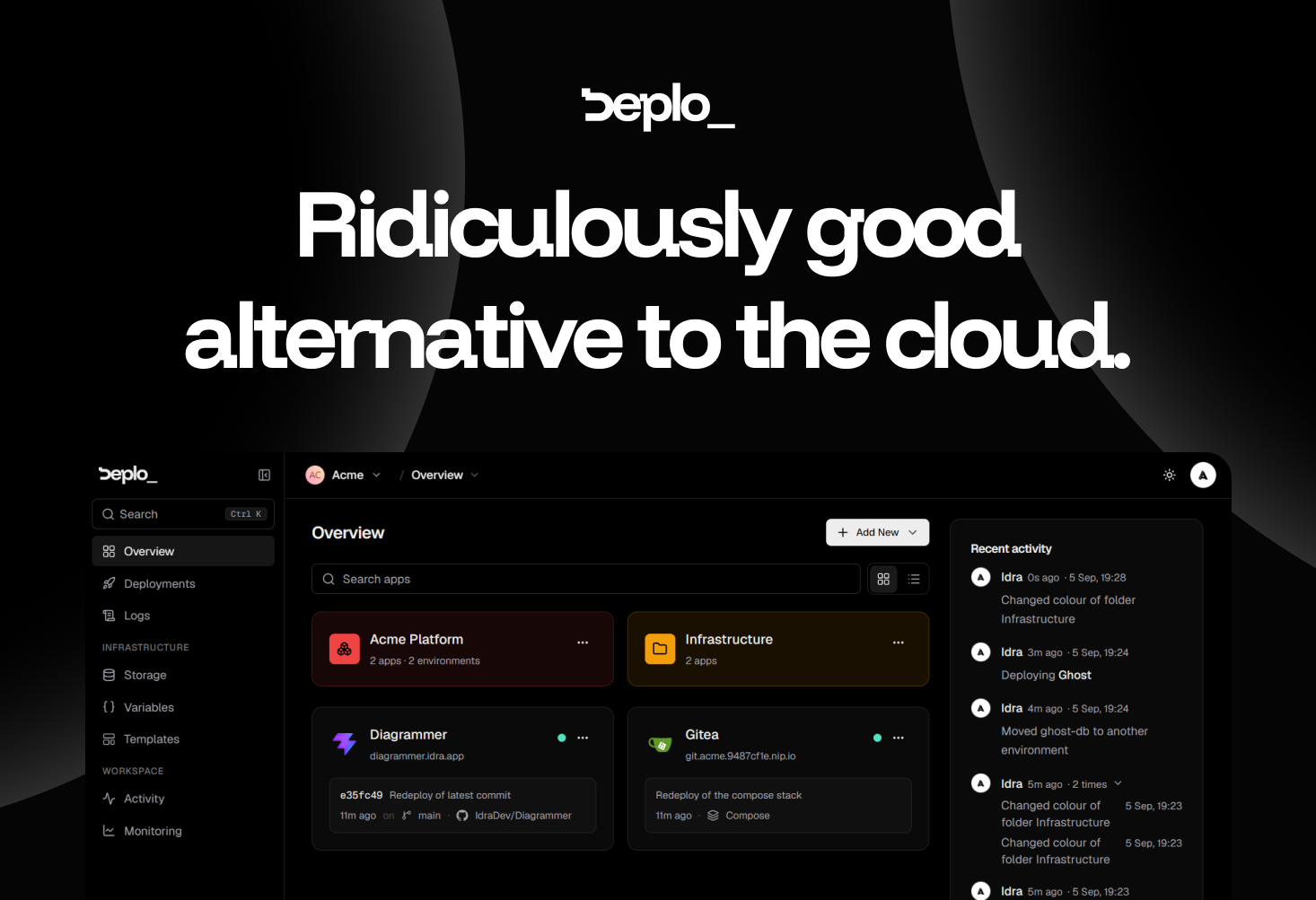
Deplo is an open-source, self-hosted alternative to cloud deployment providers. It keeps the push-to-deploy workflow developers already know — connect a repository, push code, and the application goes live — but it runs on a machine you already pay for instead of on someone else's cloud infrastructure. Installation is a single command executed on your own server. The product's homepage states the value proposition plainly: same push-to-deploy you already know, running on a machine you already pay for, with no Docker, no SSH and no invoice. Deplo is built for developers, small teams and operators who want the convenience of a modern deployment platform without giving up control of their hardware, their network and their data. Its stated purpose is to be a ridiculously good alternative to the cloud, delivering the boring operational parts already handled so that you only have to pick what to deploy. The problem Deplo addresses is the cloud bill and everything attached to it. Cloud platforms bundle deployment, TLS, backups, logs and metrics into metered services, and teams end up paying per-seat, for bandwidth, and for every additional environment. The site is candid about the psychology involved: nobody moves off a cloud bill this happily without looking for one, and it lists the six questions such a move usually raises. Deplo's answer is that you get the same push-to-deploy experience on a machine that is yours. It argues the result is usually faster, because resources are dedicated instead of shared and metered; more flexible, because anything that runs in a container runs; and cheaper, because you pay the server and nobody in between. There is also nothing proprietary to unpick the day you move it somewhere else. Deplo says that what you get on day one is deploys, backups, logs, metrics and TLS, already switched on, with nothing to buy on top and nothing to hunt down. Those are the operational basics that normally require assembling a monitoring stack, a certificate renewal process and a backup routine by hand. Deplo puts them in place as part of the platform, so a freshly installed instance is immediately useful rather than a bare server waiting to be configured. The interface supports this approach: simple by design, with a clean, intuitive UI that helps you understand what is happening without wasting time. The company frames the question of whether Deplo is another tool you have to learn as exactly what it is trying to avoid, describing the product as built to be intuitive from the start so you can understand what is happening without spending hours on another complicated interface. Two of the core workflows are shipping on every push and hosting a web application. For shipping, you connect GitHub, GitLab, Bitbucket or Gitea once. Every push to your production branch goes live, every pull request gets its own preview URL that disappears when it closes, and a bad release rolls back to the exact image that worked. The claim is that there is no CI pipeline to own, which removes a whole category of configuration and maintenance work. For hosting, you connect the repository and get a live URL with HTTPS on it; Deplo works out the framework and builds it for you, so there is no Dockerfile to write, no SSH, and nothing to hand-edit. Postgres or Redis sits next to your application in two clicks. The site notes it is the same stack you ran on the cloud — only the bill changed. Deplo is AI ready in a specific, documented way: it ships a native MCP server. You point Claude, Cursor or any MCP client at your instance, and that agent can deploy, read logs and roll back in plain language, under a token you mint and revoke. Your coding agent gets the same access a teammate gets, and the same permission checks that apply in the dashboard apply to the agent, so an agent can never do what you cannot. The capability is off by default, so it is opt-in rather than something you have to switch off after the fact. Deplo is built for a team rather than for one operator with root. It defines 46 fine-grained Capabilities, which let you express rules such as can deploy, cannot delete, and per-folder grants let you hand a member exactly one corner of the fleet. The activity trail answers who did what and when, directly in the UI, so nobody has to look in a database to find out. The site's shorthand for this is the question who did that — Deplo knows. Every action carries a name and a time on it, and you decide who is allowed to do what in the first place. Underneath, Deplo runs Docker, and the platform handles the container part for you: you deploy from a repository or a template rather than writing container configuration. There is a terminal and a compose escape hatch if you want one, and it stays out of your way if you do not — so a user really can avoid touching Docker, as the FAQ confirms. Anything that ships as a Docker image runs on Deplo, and every one of the hundred-plus templates is deployed and checked first, on the principle that a hundred that work beat a thousand that might. Templates include WordPress, Supabase, OpenClaw, Home Assistant, GitLab, Gitea, Nextcloud, Forgejo and Grafana. Deplo is open source under AGPLv3 and brings your own server: your hardware, your network, your data, with no lock-in and no pricing page to keep an eye on. The outcomes Deplo claims are straightforward. Setup is fast — ten minutes from now it is deployed, since install takes one command on a server you already pay for. The bill collapses to a single line: you pay your server provider and that is the whole cost, with no per-seat pricing, no bandwidth surprises and no charge for the tenth environment. Performance is usually better because resources are dedicated rather than shared and metered. Flexibility comes from the fact that anything that runs in a container runs. And exits are clean: your apps are standard Docker containers on a server you own, so leaving means moving containers rather than rebuilding on someone else's proprietary primitives, and because Deplo is AGPLv3 nobody can take it away or reprice it. Deplo's own use-case pages demonstrate how it is used. One is letting AI interact with your infrastructure: pointing an MCP client at your instance so an agent can deploy, read logs and roll back under a revocable token with the same permission checks as the dashboard. Another is shipping on every push, where pushes to a production branch go live and pull requests get preview URLs that disappear when they close, without owning a CI pipeline. A third is controlling who can do what on a shared fleet, using capabilities, per-folder grants and the activity trail. A fourth is hosting a web application from a repo with a generated HTTPS URL and a Postgres or Redis instance alongside it. Deplo also documents taking over an existing VPS and migrating from Coolify or Dokploy, and its template library covers services such as WordPress, Supabase, Nextcloud or Grafana. The audience is developers, small teams and operators who run their own servers or want to, and who want team-grade deployment without cloud pricing: Deplo is built for a team, not for one operator with root. Integrations explicitly named include GitHub, GitLab, Bitbucket and Gitea for repository connections, Claude and Cursor as MCP clients, and Docker as the underlying container technology. Templates cover services such as WordPress, Supabase, GitLab, Gitea, Forgejo, Nextcloud, Grafana, Home Assistant and OpenClaw. Pricing is free and open source under AGPLv3, and the only bill is whatever you pay your server provider. The product is currently in beta, with a stable release targeted for Q4 2026, and people are already using it for real workloads today. Deplo's takeaway is a single trade: keep the push-to-deploy experience you already like, move it onto hardware you already own, and stop paying a metered bill in between. With deploys, backups, logs, metrics and TLS on from day one, an MCP server for agent-driven operations, per-push shipping with preview URLs, fine-grained team permissions and an AGPLv3 open-source core, it positions itself as a simple-to-use alternative to cloud deployment that leaves your apps as standard Docker containers on a server that stays yours.
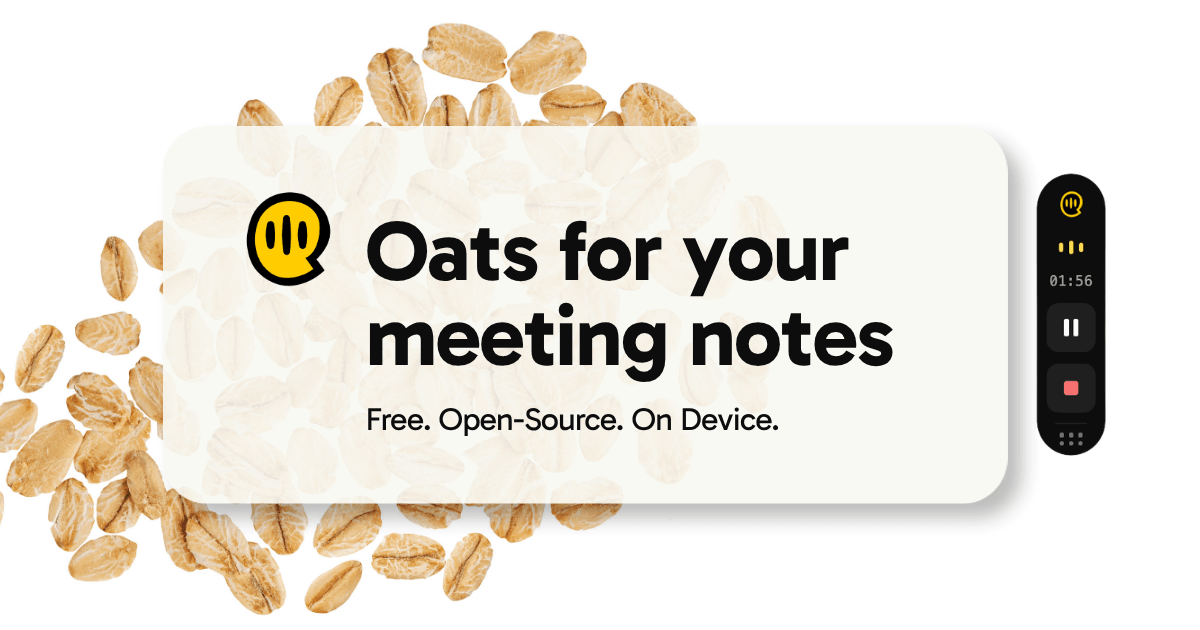
Oats is a free, open-source meeting notetaker that records your meetings right on your Mac. Instead of sending a bot into the call, Oats listens to audio your Mac can already hear, and when the meeting ends it hands you a clean summary and a todo list you can actually work through. The product is designed to not get in the way of your meetings, and its stated premise is that notes are where a meeting's work starts, not where it ends. It is aimed at people who spend their days in calls and want those calls turned into structured, actionable notes without involving a third-party cloud. Most meeting note-takers follow the same model: a bot joins the call, or a browser extension captures the audio, and the recordings are stored in the vendor's cloud behind a subscription. Oats positions itself as the open alternative to that approach. The website states that most note-takers want your recordings in their cloud, while Oats records locally, runs AI locally, and never forces your audio off-device. It also removes the usual commercial friction — no seats, no trial timer, and no paywall waiting at meeting six — and it keeps bots out of the call entirely. That combination of privacy, price, and unobtrusiveness is the problem the product was built to solve, and it is what the tagline describes as an open, free, on-device meeting notetaker. The core capability is on-device recording. Oats records directly from your Mac's audio, which means there is no browser extension, no bot, and no third-party server touching the audio stream. Because it works with any audio the machine can hear, Oats is not limited to one conferencing platform: the site lists Zoom, Meet, Teams, a phone call, and even a hallway chat as situations where Oats can turn sound into notes. The workflow is deliberately simple — hit record when the meeting starts, let Oats listen, and get notes instantly when the meeting ends. This matters because it means the user does not have to change tools, invite a participant, or change how the meeting is run in order to capture it. After each meeting Oats writes the notes for you. It produces a quick digest, a full summary, action items per person, and a quality score derived from the conversation itself. The example shown on the site is a weekly sync where the quick digest reads that the roadmap is at risk of slipping and that the team aligned on a ship date and locked pricing, while the action items are listed per owner. The quality score, shown as a "Productive" rating alongside the meeting length, gives a signal about how the conversation went. Because the notes are generated from what was actually said, they reflect the conversation rather than someone's memory of it, and the per-person action items make ownership explicit instead of leaving follow-ups buried in a document. Oats does not stop at producing text. Action items from every meeting collect in a Todos tab, and ticking one off in the notes closes it, so follow-ups actually get followed up. On the local backend, notes are stored as plain Markdown and action items as Obsidian Tasks inside a vault you choose — you can open that vault in Obsidian, sync it, or move it anywhere. Recent releases added one-click download and export, so a meeting's recording and its notes can be saved wherever you want them. Version 0.23 also added sign in with Microsoft, so a work Microsoft account can be used alongside Google from onboarding, Settings, or the menu bar. The product ships every week, with the full changelog published on GitHub. Oats can run entirely on your machine or with extra cloud capability. With a local model, recording and AI notes run on-device and zero data leaves your Mac, which keeps audio fully private. Connecting an Ariso account unlocks richer AI features, including enhanced transcription, multi-language support, speaker recognition, assessment, and coaching, plus auto-tracking of follow-ups. Speaker tagging is one of those cloud-side features: it matches each voice in a recording to the person who said it, so notes attribute statements to a name rather than "Speaker 2." The distinction is presented as a choice — keep everything local and private, or opt into the cloud backend when you want more from the AI. Oats is truly open source. Every line is public on GitHub, and the project invites users to read it, fork it, self-host it, or ship their own features on top. The site frames this as "open by design" and "inspect every line," the point being that you can audit what the software does rather than trusting a marketing page. Combined with local Markdown notes, this also removes lock-in: export anything, owe nothing, and leave whenever you want. Free forever, with no seats, no trial timer, and no paywall, is the other half of the same promise, and it is reinforced by the fact that running locally requires no subscription at all. The outcomes Oats promises follow directly from those design choices. Because recording happens on the machine, users get privacy without extra work — no bot appears in the participant list and no audio goes to a third-party server. Because action items are extracted per person and collected in a Todos tab, what was agreed in a meeting is more likely to be done, and items can be closed from the notes or from Obsidian. Because notes are searchable, a user can ask questions across their whole history — the example given is asking what was decided about pricing. And because the app is free and open source, there is no cost barrier to trying it or to keeping it. Concrete scenarios appear throughout the site. A weekly sync is shown in detail, with a quick digest noting a slipping roadmap, a locked pricing decision, and action items owned by named teammates. Standups are represented by the #standup tag on that meeting. Beyond scheduled calls, Oats handles any audio the Mac can hear: Zoom, Meet and Teams meetings, a phone call, or a hallway chat. The searchable library turns past meetings into a knowledge base you can question, and the Obsidian integration fits meeting notes into an existing note-taking and task workflow rather than creating a separate silo. Oats ships as a desktop application: a download for macOS and a Windows beta, with the code available on GitHub. Pricing is free — the app is free forever, and the site notes that no subscription is needed when running locally with an on-device LLM. Accounts are optional and only relevant if you want the Ariso cloud backend; sign-in supports Google and Microsoft, the latter added in v0.23 for work accounts. The integration surface is deliberately flat: local Markdown files, Obsidian vaults and Obsidian Tasks, and one-click export and download. The product is published by Ariso and developed in public. Taken together, Oats is a meeting notetaker built around a simple reversal: instead of pulling your meetings into a vendor's cloud, it keeps the recording and, if you choose, the AI on your own machine. Free, open source, no bot in the call, notes in plain Markdown you own, and a todo list that closes when you tick it off. For Mac users who want their meetings summarized and their follow-ups tracked without a subscription or a third party listening in, that is the whole value proposition — and it is available today, recording on your Mac in a minute.
Naoma AI Demo Agent V2 is an AI video sales agent that gives every prospect a live, personalized product demo the moment they want one. Instead of asking visitors to fill in a book-a-demo form and wait for a rep, Naoma starts the demo instantly, walks the prospect through the live product, answers their questions, qualifies them and books the meeting. It is built for B2B SaaS teams that want to run more demos without hiring more reps, and it works on a website, inside an app, or in outbound emails. Naoma speaks 33 languages, runs 24/7, and writes every session back into the CRM so no conversation is lost. The problem Naoma targets is the gap between buyer interest and buyer access. A typical book-a-demo button converts only 1-2% of website visitors; everyone else leaves without ever seeing the product. Demos also tend to be constrained by business hours, time zones and the languages a sales team can realistically staff, which means a prospect researching at 11:42 PM, 3:15 AM or 5:07 AM may simply never get a demo at all. Long enterprise buying cycles make the gap worse, because a single opportunity often involves multiple decision-makers across marketing, operations, IT, procurement and management, each with different priorities, KPIs and questions. Naoma's premise is that a demo should be available immediately, in the buyer's language, whenever the buyer is ready - not whenever a rep happens to be free. Naoma's core capability is the automated demo itself. When a visitor requests a demonstration, there is no scheduling and no waiting: the demo starts immediately, and Naoma states that demos can start in 10 seconds. The AI agent handles discovery, tailors the session to the prospect's needs, industry and role, shows the features that matter to that person, and answers questions as they come up. After the session it qualifies the prospect and routes them onward: qualified leads go straight to the CRM, high-intent buyers can be sent to checkout, and Naoma can book a meeting with the sales team, all without a manual handoff. In practice each demo ends in one of three outcomes - meeting booked, qualified, or disqualified - so the sales team receives a pre-qualified list rather than raw traffic. Hyper-personalization is what makes each demo feel relevant rather than generic. Naoma learns the product from the material the company already has: sales scripts, demo recordings, the knowledge base, sales presentations and the demo environment itself. Because it is trained on those sources, it can handle complex technical questions and adapt the conversation to the context of the specific visitor. This is what allows the same agent to demo a deep, feature-rich platform credibly without a human rep driving the screen, and it is why teams describe the experience as doing discovery for them. Language coverage is a headline feature. Naoma speaks 33 languages, on the principle that buyers prefer to explore a product in their native language, which removes friction and helps every prospect understand the product and its value in the language they think in. The website illustrates this with named agent personas such as Alexandra Chen (VP of Sales) in English, Carlos Rodriguez (Head of Customer Success) in Spanish and Sophie Martin (Product Marketing Director) in French. Teams can also choose the face of their demos: the signature Naoma agent, a branded mascot, an animated avatar, or a static realistic avatar generated from a real photo, so the demo experience fits the brand and stays memorable. Beyond revenue, Naoma captures intelligence that buyers do not usually volunteer to a rep: competitors, objections, questions and feature requests. The company frames this as intel for sales, marketing and product teams, not just a source of pipeline. Because every session runs through the agent, the objections and questions raised during demos are recorded systematically, which gives marketing and product a view of what buyers actually ask and resist. Naoma also remembers returning visitors and picks up where they left off, so a prospect who starts exploring and comes back later continues the same thread instead of starting over. Naoma describes its workflow in four automated steps. First, a prospect on the website or in the app requests a demo - no scheduling and no waiting, the demo starts immediately. Second, the AI sales agent runs a live, personalized demo tailored to the prospect's needs, industry and role, handling discovery, showing relevant features and answering questions. Third, qualified leads are routed straight to the CRM, with the option to book a meeting with the sales team or send high-intent buyers to checkout, with no manual handoff. Fourth, the agent surfaces buyer insights, including competitors, objections, questions and feature requests, for sales, marketing and product. End-user feedback from live demos is used to benchmark quality: 89% of end users mention how human the experience feels, 77% praise how it handles interruptions, and fewer than 2% of sessions hit any technical issue. The stated outcome for customers is more demos from the same traffic and the same budget. Naoma reports that typical visitor-to-demo conversion is 1-2%, while visitor-to-AI-demo conversion with Naoma reaches 6-20%. The company also positions the product around running 5x more demos without hiring more reps. Because the agent operates 24/7 and in 33 languages, prospects get demos at peak buying moments across every time zone rather than waiting for a reply. Reviewers on G2 describe the practical effect: prospects learn about the platform whenever it is convenient for them, discovery is effectively done for the sales team, and reps can focus on higher-value conversations. Naoma holds a 4.9 rating on G2 and states that 50,000+ demos have been run for B2B SaaS teams. Concrete use cases come from published case studies. Hoteza, a web-based guest engagement platform for hotels, placed Naoma behind a "Get AI demo now" button so leads arriving across every time zone and language get an interactive demo immediately; the company reports that since April, 57 hotels explored the product this way and one regional partner signed after going through the AI demo. AiSDR uses Naoma to run personalized demos of its AI sales development platform for website visitors. UXPressia uses it to demo journey maps, personas and an AI persona builder for visitors who might not discover the platform's depth in a self-serve trial. App Radar uses it to qualify visitors and surface larger accounts worth routing into a sales-assisted funnel. Mellow uses it to reduce demos run with prospects who are not the right fit, and Hoteza and Mellow both cite that same qualification goal. Naoma is aimed at B2B SaaS teams - its customer logos include Yesim, Mellow, Runwayer, MarketOwl, Magify, UXPRESSIA, AiSDR, Hoteza and App Radar - and G2 reviewers span small businesses, mid-market companies and enterprise buyers. The product routes into a CRM, a calendar or checkout, and the site points to a knowledge base covering pricing, setup, security, CRM integrations and multilingual demos. On the security side, Naoma states that it is GDPR compliant and protects both customer data and their customers' information with enterprise-grade security. Naoma has also been recognized publicly, including Product Hunt daily and monthly top-post badges, Tekpon's Top Demo Automation Software Q1 2026 and a Global Startup Award from The Ventures, alongside press coverage of a $440k pre-seed round. Prospects can start a demo directly from the website, teams can build an agent in Naoma's app, and the company offers an ROI calculator. Naoma AI Demo Agent V2 is a purpose-built AI video sales agent for instant, personalized product demos. By replacing the book-a-demo form with an agent that demos, qualifies and routes in real time across 33 languages, it turns existing website traffic into booked, qualified meetings without adding sales headcount - and it feeds the objections, questions and competitor mentions back to the teams that need them.
LinkFlick is a macOS menu bar app that switches your Apple Magic Mouse, Magic Keyboard, and Magic Trackpad between any two Macs in one click. It is built for people who move between multiple Macs during the day — a personal MacBook and a work MacBook, or a laptop and a desktop at home — and who want their Magic peripherals to come with them. LinkFlick flicks the devices over Bluetooth instead of asking you to re-pair them by hand, and it does so without iCloud, without an Apple ID, and without digging through menus. The app was built out of a specific frustration: re-pairing a Magic Keyboard and Mouse every time its maker moved between a MacBook and a work MacBook. Those two machines ran on different Apple IDs, so Universal Control was never going to work for that setup, and manual Bluetooth re-pairing was the only option left. That meant digging through menus and repeating the same tedious routine several times a day. LinkFlick replaces that routine with a single, explicit action that moves the physical hardware to the other Mac. LinkFlick lives in your menu bar, designed to stay out of your way and ready whenever you need to switch. It connects all your trusted Macs into a cluster that is instantly available for a switch, showing which machines are online and which devices are currently attached where. With one click you move your keyboard, mouse, and trackpad to the other Mac — no cables, no dongles, just a seamless hand-off of your controls. You can also trigger the switch with a customizable hotkey, or simply tell Siri to flick devices. Because control is explicit, there is no cursor drifting off the screen by accident, and the interaction feels like a native part of macOS. Unusually, LinkFlick moves the physical hardware rather than just the cursor. It re-pairs peripherals at the Bluetooth layer, so the destination Mac sees a real Magic device, not a bridged input stream. That native approach means there is no iCloud dependency, no network relay, and no limit imposed by a bridging layer. It also means no Apple ID is required: LinkFlick works between any two Macs on the same network, whether they are personal or work machines, and even when they are signed into completely different accounts. LinkFlick simply does not care which account each Mac uses. LinkFlick supports every Magic peripheral — Magic Keyboard, Magic Mouse, and Magic Trackpad — across both 1st and 2nd generation hardware, handling the hand-off so macOS does not have to. Support is intentionally limited to Apple's Magic peripherals, because those devices enter Bluetooth discovery mode automatically after unpairing. That behaviour is what allows LinkFlick to perform a silent re-pair on the other Mac without PIN codes or confirmation dialogs. Third-party devices such as Logitech or Razer are not supported. The menu bar interface also displays battery levels for your devices, and it nags you before your Magic Mouse battery dies. Under the hood, LinkFlick uses Bonjour to discover your Macs on the local subnet, so no cloud servers are involved and nothing is sent outside your home or office network. Both Macs must be on the same network — Wi-Fi and Ethernet both work — and LinkFlick must be running on each Mac you want to transfer devices between. The app runs as a lightweight menu bar extra and uses almost no resources when idle. It requires Bluetooth access to re-pair devices and Local Network access to discover other Macs via Bonjour; it does not need administrator privileges and does not read your keyboard input. Transfers typically take 5 to 15 seconds, depending on how quickly macOS processes the Bluetooth pairing request internally — by the time you turn to face the other screen, the device is usually ready. If the destination Mac is off or asleep, your devices simply stay connected to the current Mac, and as soon as the other Mac wakes and LinkFlick reconnects, it reappears in the Flick List ready for the next transfer. LinkFlick also senses your power and display status, so work starts the moment you plug in. When you connect power, LinkFlick wakes up and checks where your devices need to be. If your Magic Keyboard, Mouse, and Trackpad are still on another Mac, you get a gentle nudge that one tap resolves. The app then hands off each device silently in the background, with no pairing screens and no interruptions, so everything follows you. By the time you sit down and open your editor, your mouse is already where you left off. The outcome is that your workflow follows you between machines. Rather than stopping to reconnect hardware, you continue exactly where you left off, with your Magic devices simply present on whichever Mac you are using. Because switching happens in the background and takes only seconds, the interruption is minimal, and because the app sits in the menu bar with explicit controls, switching stays deliberate rather than accidental. There is also less battery anxiety, since device battery levels are visible and low battery warnings arrive before a mouse dies mid-task. Typical use cases include a personal MacBook paired with a work MacBook that use different Apple IDs, where Universal Control cannot help but LinkFlick can. Others use it to move a keyboard, mouse, and trackpad between a MacBook Pro and a Mac mini on the same desk, or between any two Macs on one local network. Power users with a full multi-Mac setup can connect up to five Macs under the Pro plan. The plug-in workflow suits people who dock or connect power and external displays when they sit down, since the devices follow automatically. And when the other Mac is asleep, devices remain usable on the current Mac until it returns. LinkFlick is available as a 14-day free trial with no credit card required, and pricing is a one-time purchase with free updates and no subscription. The Personal plan costs $14.99 and supports up to 3 Macs, which is described as perfect for working between a laptop and a desktop at home. The Pro plan costs $19.99 and supports up to 5 Macs for power users and full multi-Mac setups. Both plans include auto device discovery, instant switching, battery level display, trusted peers, and no cloud or account requirement. System requirements are macOS 14 Sonoma or later, with all Macs on the same local network. LinkFlick's core value proposition is simple: it removes the friction of sharing Magic peripherals between Macs. It does that natively at the Bluetooth layer, without iCloud, without an Apple ID, and without re-pairing, so switching Macs becomes a single click in the menu bar rather than a routine chore.
Work Life Panda is a task manager and a calendar combined into a single app, built so that everything you have to do and everywhere you have to be live in one calm place. Instead of starting with an empty list and asking you to rebuild your life inside it, it starts with the life you already have: you connect the calendar you already use and your week is simply there, and you capture the rest in a sentence with an AI that runs on your device rather than in the cloud. Tasks, events, calendars, notes, files and a chat on every item come together in one connected workspace, on iPhone, iPad, Android and the web, so your personal and family life, or the groups and small teams you plan with, can be coordinated from the same source of truth. Most task apps start empty and ask you to rebuild your life inside them. The reality of a normal week is more scattered than that: your week lives in a calendar, your to-dos live in a list, and your plans live in a group chat. That split means plans get duplicated, decisions get buried in messaging threads, and people end up asking where something was decided. Work Life Panda's answer is to start full rather than empty. It connects the calendar you already keep, brings the invitations already sitting in your email onto your schedule, and then gives each task and each event its own place to be discussed, planned and tracked. The result is described as one evolving operating layer for life rather than another isolated to-do app. Calendar connection is the foundation. Work Life Panda connects to the calendar you already use, with Google, Apple iCloud and Microsoft Outlook all syncing both ways, plus Fastmail and Zoho, and you can also follow any calendar published as a link. The important detail is that it stays your calendar rather than becoming a copy: change something in either place and both stay right. There is nothing to import and nothing to retype, because the week you already have simply appears inside the app. For anyone who has created a new tool only to abandon it during setup, or duplicated events between systems, this single connection removes the setup tax that usually kills a productivity app before it has a chance to help you. A related capability takes the effort out of getting plans out of your inbox. Invitations in your email become events: a booking lands in your inbox and the event lands on your calendar. Connect an iCloud or Outlook mailbox and the invitations already sitting in it become events on their own, with no forwarding and no copying. The marketing content notes that Gmail is waiting on Google's security review. This matters because confirmations, invitations and bookings are the raw material of a busy week, and they usually arrive somewhere other than the place you plan from. Pulling them into the calendar automatically means the thing you have to attend is already on your schedule when you go to plan around it. Panda AI handles capture. You turn a sentence or your voice into a task, and the AI that does the work runs on your device, not in the cloud, so your data stays with you. Because the processing is local, it also works with no internet, which means a thought captured on a plane, in a tunnel or anywhere else without a signal can still become structured around your schedule. The stated aim is to keep control while safe local AI automates the busy steps, smoothing the mechanical parts of planning without handing your life to an opaque cloud service. For people who are cautious about where their personal plans and family details are processed, running the AI on the device is the difference between trusting a tool with your life and not. Every task and every event carries its own chat. The conversation lives on the thing it is about, so you discuss and decide on the item itself, assign and hand off work, and see what moved, with files, people and tracked history attached to the item. Because the discussion is attached to the task or event rather than living in a separate messaging thread, nobody has to ask where it was decided. Shared spaces extend this to other people: share one with your partner, your family or your team, and connect a calendar into a shared space so everyone sees it. That turns a plan into something a group can actually operate from, rather than a chat thread that slowly loses the detail. Beyond tasks and events, the app is described as more than a task app, an evolving operating layer for life with several connected pieces. Notes stay connected, so you can capture ideas, lists, meeting notes or family context without losing the connection to what needs doing. People, roles, kids and rewards can be managed from the same core workflow, covering shared responsibilities, family routines, kids and reward systems. Birthdays, anniversaries and other important dates are kept in one place so the personal moments that matter do not slip through the cracks. Each of these is not a separate module you have to reconcile later, but a view onto the same connected workspace. The unifying methodology is a single connected workspace with one source of truth. Everything begins from the life you already have rather than a blank template; every item carries its own chat so context stays with the work; and the same product experience follows you across iOS, Android and web so your life does not split just because your devices change. On iPhone and iPad you capture, plan, collaborate and stay on top of life from the device already in your hand. On Android you keep the same connected workflow with the same shared model, collaboration and AI-assisted experience. In the browser you get a larger workspace for planning, reviewing and coordinating. Instead of scattering your life across separate tools, the app is where the calendar, the tasks, the notes, the people and the conversations about them meet. The benefits follow from that consolidation. Your to-dos and your whole schedule sit together, so you can see what you have to do in the context of everywhere you have to be. Invitations in your email become events, so attendance does not depend on manual copying. Capture in a sentence or by voice means the gap between having a thought and having it tracked is short enough that you actually do it. Private on-device AI means that convenience does not cost you control of your data, and offline operation means it works regardless of connectivity. A chat on every item means decisions stay attached to what they affect, and shared spaces mean the people you plan with see the same picture. The use cases described are grouped into two broad kinds of life. For personal and family life, Work Life Panda is a calmer home base covering chores, kids, plans, reminders, notes and birthdays, captured in a sentence and kept in one private place on every device you already own, with no shared wall tablet required. For teams and business, it is for trips, clubs, shared houses, side projects and small teams, giving the plan a real home where tasks, events, files and the conversation about them live together instead of being scattered across a chat thread and three tools. In both cases the mechanics are the same: connect a calendar, capture what needs doing, and discuss it on the item with the people involved. Work Life Panda works on iPhone, iPad, Android and the web, so it covers phone, tablet and desktop with the same source of truth. It syncs both ways with Google, Apple iCloud and Microsoft Outlook calendars, plus Fastmail and Zoho, and can follow any calendar published as a link. Email event import is available through iCloud and Outlook mailboxes, with Gmail pending Google's security review. The app is completely free during early access, including every Pro feature, and the content states that early members always get the best pricing later, with a direct line to shape what comes next from inside the app. The takeaway is simple: Work Life Panda does not ask you to rebuild your life in a new tool. It starts with the calendar and schedule you already have, adds a real task manager alongside it, keeps a chat on every task and event so decisions stay with the work, and runs its AI on your device so all of it stays private. Every task, every calendar, one app.
QApilot MCP for Android is a Model Context Protocol (MCP) server and CLI that lets developers automate tests on real Android devices and emulators from inside an AI coding client such as Claude, Cursor, or any MCP-compatible AI client. Rather than writing Appium code, users describe a test flow in plain English, and the AI agent builds a structured plan that QApilot executes step by step on the connected device. It is intended for mobile QA engineers, Android developers, and release teams who want Android test automation to run from the tools they already work in. The guide positions QApilot MCP around a simple premise: Android UI automation should not require hand-written Appium code. Test authors describe what they want to verify in ordinary language, and the system handles the mechanics of driving the device. The documentation also points out that step titles are generated automatically with a maximum of 50 characters and no XPath, so reports and the dashboard always stay readable. Before installation, the guide stresses that five prerequisites must be in place: Node.js 18+ (from nodejs.org or nvm), Java JDK 11+ (required by Appium, with JAVA_HOME set in the shell profile), the Android SDK or Studio (which installs adb and platform-tools, with ANDROID_HOME pointing to the SDK path), a USB device with USB debugging enabled or an AVD emulator verified with adb devices, and Appium 2.19.0 installed globally with the UIAutomator2 driver. Installation follows a documented sequence. The CLI is installed globally from the distribution package with a single npm command, then verified by running the server in stdio mode, where the server starts and waits for input without errors. Appium setup is described as a one-time task using pinned versions: Appium 2.19.0 and the UiAutomator2 Android driver 4.2.6, followed by starting the Appium server with the flags shown for chromedriver autodownload, adb shell access, the /wd/hub base path, and CORS, and confirming the device is visible through adb devices. The guide warns that other Appium or driver versions may break the MCP server and recommends keeping Appium running in a separate terminal before starting any test session. Connecting an AI client is done by pasting an MCP configuration block for Claude Desktop, Cursor, or OpenAI Codex, after which QApilot Mobile MCP appears in the client's connected tools list. Restarting the AI client is required after saving the configuration. Once connected, users register and log in through conversation. An account can be created by asking the AI to sign up with an email address; an activation link arrives by email and the login credentials follow. If environment credentials are set in the configuration, the client logs in automatically on first use; otherwise credentials can be supplied in a prompt. Users then create a project to hold their tests and launch their app by giving the Android package ID, with the default project and device selected automatically. From there, test steps are recorded by describing them: the AI builds a structured plan and executes each step on the device in real time. The guide shows example prompts for search flows, login flows with screenshots, navigation and assertions, scrolling and filtering, and form submission. A live preview returns a URL on every app launch call so the device screen can be watched in the browser as steps execute. After a successful run, the recorded steps can be pushed to QApilot as a saved test case for future replay, and only happy-path steps are saved; failures are excluded, and a failed step should be fixed and a passed report generated first. Saved test cases can be replayed one by one, in batches of IDs, or from an Excel sheet such as regression_suite.xlsx, with execution status checked on demand. Every session should end with a report, generated even on failure because it clears execution state so the next test can start cleanly. Reports capture step results, screenshots, errors, and timing, and are written to a dated session folder containing output.json and report.yaml, plus a scenario.feature Gherkin file when the session passes. The server also exposes a cache for XPaths and skills learned per app, with tools to fetch cache context for the current app and summarize what is cached for a given package, along with usage reporting for tokens and API consumption. The overall workflow is agent-led. The AI client lays out the test steps, and QApilot runs them: it finds the elements, waits for the screen to settle, retries when something moves, and caches what it learns so repeat runs are faster. Every passing run saves a Gherkin feature file and becomes a replayable test case, tying prompt-driven testing to a durable regression asset. The MCP server communicates over the Model Context Protocol, exposing dedicated tools for every capability, including account signup and login, project listing and selection, device listing and selection, app listing and launching, session start and stop, plan submission and execution, single manual actions such as tap, type and swipe, execution state, session status and info, preview URLs, accepting steps, replaying test cases, running Excel suites, generating reports, cache inspection, and usage tracking. For users, the benefits described are practical: no Appium code to write, test flows expressed in plain English, execution on real devices and emulators, readable auto-generated step titles, and replayable test cases that accumulate over time. Because caching is retained between runs, repeated executions are faster, and because reports include screenshots, errors and timing, failures are easier to inspect. The preview URL lets teams watch a run from the beginning, and the Excel-driven execution path supports regression batches without rewriting anything by hand. The documented use cases are drawn from everyday mobile app testing. A search flow can be tested by tapping Search, typing a search term such as Honda City, selecting the first result, and verifying the car detail page loads. A login flow can enter an email and password and screenshot the home screen. Navigation and assertions can go to a comparison screen, add two cars, and confirm the compare button is visible. A scroll-and-filter scenario can scroll the filters page, select Petrol as the fuel type, and apply the filter. Form submission scenarios can fill an enquiry form with a name, phone number and city, then submit. Saved suites can then be replayed individually, in sequence, or in bulk from an Excel regression sheet, with status checks in between. QApilot MCP for Android is aimed at mobile QA engineers, Android developers, and teams that already work inside AI coding agents such as Claude, Cursor, or OpenAI Codex, as well as any MCP-compatible client. It integrates with Appium 2.19.0 and the UiAutomator2 driver, the Android SDK and adb, and runs on Node.js 18+ with Java JDK 11+. A Slack community is available for questions, prompts, and setup help. The guide does not state pricing or plan details. In short, QApilot MCP for Android turns an AI coding agent into an Android test automation driver: describe the flow in plain English, let the agent plan it, and let QApilot execute, preview, accept, replay and report on it, with caching that makes the next run faster.
Youkti is an outbound revenue system that turns account knowledge and relationship data into revenue. In its own words, it is "the outbound system of thinking and action": it keeps a memory of every account, conversation, and deal, then tells a sales team the exact next move — which deal is slipping, which dormant account just fired a signal, and what to prepare for tomorrow's meeting. It is built for account executives, RevOps teams, outbound reps, and sales leaders who want to win more new logos, move more pipeline, and reactivate dormant accounts. The stated promise is intelligent outbound, live signals, and a complete memory of every account, surfaced through command surfaces tuned to each role. The problem Youkti addresses is not a shortage of sales data but a shortage of attention and timing. Deals slip out of the pipeline before anyone notices they have stalled, dormant accounts quietly launch new initiatives, and buying committees change shape without the account team knowing. Sales teams are left doing manual updates, digging for context, guessing at next steps, and missing follow-ups. Battlecards go stale, competitive context arrives too late, and CRM records drift out of accuracy unless someone maintains them by hand. Youkti positions itself against that fragmentation, and even frames its automatic CRM sync as an alternative to spending $100K+ on Salesforce Data Cloud 360 and implementations. The first layer of the product is ARYA, described as a conversational GTM builder rather than a static workflow. You tell ARYA what you want in plain English and it builds the entire flow through conversation: signal triggers, persona matching, outreach rules, and cadence. The configuration updates live as you talk, with no drag-and-drop and no if-else logic — conversation in, config out. A visible flow runs Signal, Signal Filter, Persona Match, then Auto-Sequence. Signal triggers can include Funding Raised and Hiring Surge; target personas can be VP Sales, CRO, Head of Sales, VP Marketing, and CMO. Outreach rules can branch, for example: if Funding Raised AND Hiring Surge, use an aggressive tone, a cadence every 3–4 days, and 5 emails; if Funding Raised OR Hiring Surge, use a consultative tone, a weekly cadence, and 3 emails. The interface shows a live config review that updates as you chat with ARYA, and the product describes itself as a system that learns itself. The second layer is execution through a daily cockpit. Every morning reps open one screen where accounts are prioritized, signals are overlaid, personas are matched, and sequence hooks are written — one click pushes the sequence. A sample dashboard shows 15K accounts, 892 active signals, 609 plays for the day with 61 marked high priority, 165 live sequences, and meetings tracked for the day, with tabs for Queue, Insights, Alerts, Pipeline, and Cards. Each account row shows the account and domain, the signal and why it fired now, the matched personas, the sequence hook with its step count and duration, and a push button. Once an account is pushed, it enters an Account Journey. Youkti tracks status, engagement, replies, and meetings, and surfaces the next step automatically. There are no manual updates, no digging, no guessing, and no missed follow-ups. Journeys include auto-tracked engagement, health scoring, and AI-generated next steps, with account states such as Growing, Stable, Needs Attention, and At Risk. In a sample journey, Storylane is shown with 10 emails sent, 10 replies, and 3 meetings and a recommended next step of reaching out with a relevant case study; Intuit shows 5 emails with 5 replies and a suggestion to push for a meeting; WinSupply is shown with 16 emails, 16 replies, and 22 meetings. A deep dive view gives account intelligence with deal context and next actions. Clicking into any account reveals next actions with reasoning, the latest meeting brief with talking points, stakeholder maps, a full timeline, signals, and talk tracks. The system recommends and the user decides. In the Storylane example, the board shows emails sent, replies, meetings, and LinkedIn activity, plus seven next actions such as engaging on a product update, checking in after trial onboarding, re-engaging after 25 days of inactivity, and discussing tech stack changes, alongside a dated meeting brief and a timeline. Behind this sits an intelligence layer that scores every account on readiness, ICP fit, budget, timeline, and sales cycle, then generates deal actions, strategic approach, entry points, key messages, and email templates — described as a 6-step account-based campaign in 1 click. The scorecard example shows readiness 9/10, ICP fit 8/10, high budget backed by a $250M Series F, a 1–3 month timeline for pilot approval, a 3–5 month sales cycle, high ROI potential, a high effort level, and a best timing recommendation, along with concrete next steps. Signals are monitored across the entire TAM — funding, hiring, leadership changes, lawsuits, competitive moves, and tech stack swaps — and when one fires, the system provides analysis, reasoning, and a timing window rather than just an alert. It provides confidence scoring with reasoning, a "Why It Matters" explanation for every signal, and timing guidance such as "Next 2-4 weeks." Youkti then generates complete multi-step sequences with A/B variants, each tied to specific signals and account context. Campaign strategy, messaging angles, subject lines, and email bodies are grounded in account intelligence rather than templates. A sample sequence shows 6 total steps, 12 total emails, and a 16-day duration, where Variant A leverages a customer award and Variant B focuses on an ARR milestone and tech-stack consolidation. The selected variant can be pushed to Lemlist, Outreach, or any SEP with one click, with no copy-paste. The platform module list covers Prospects & Lists for building, distributing, and tracking prospect lists at scale; Account Intelligence for 100+ parameters of contextual company intelligence in under 60 seconds with a single click; Outreach Automation for messaging angles, follow-ups, and outreach guidance tied to real signals; Competitive Intelligence for tracking competitors, comparisons, and real-time changes affecting active deals; Sales Enablement for centralizing decks, case studies, and battlecards; CRM Enrichment for automatically updating accounts, contacts, and activity; ARYA, the AI GTM agent; Account Journey for personalized, adaptive multi-touch engagement; and Execution Analytics for tracking outbound execution across every rep, account, and play. Integrations span email and calendar (Gmail, Google Calendar, Outlook, Exchange, Office 365), data (Snowflake, AWS, OneDrive, SharePoint, Google Drive), CRM (Salesforce, HubSpot, Zoho CRM, Pipedrive, Freshsales), prospecting data providers (LinkedIn Sales Navigator, Apollo.io, Lusha, Cognism, Clearbit, People Data Labs, ZoomInfo, Full Enrich, Kipplo, Prospeo, BetterContact, Clay, Bitscale), sales engagement (Outreach, Salesloft, Apollo.io, HubSpot Sales), and signals (Google Analytics, rB2B, SEMrush, Ahrefs, Hotjar). Youkti states that other tools sync with your CRM while Youkti syncs automatically. Outcomes described on the site include NeoSOFT generating $50K+ pipeline growth, Samvidh increasing revenue 20% QoQ, and Deeploop increasing selling time by 3× with Youkti. The homepage says Youkti is trusted by high-performing teams including NeoSOFT, Samvidh Tech, Deeploop, and T-Hub, and that signal-based discovery spans 100M+ companies. Contact data, buying signals, and intent are described as free, with no card and no meter, and the product promises execution from day one rather than after weeks of setup, with a demo available. Concrete use cases shown in the product include protecting an at-risk deal such as Westbridge Industrial, an $180K ARR manufacturing account awaiting board approval for 16 days with a suggested meeting; prioritizing a high-intent account such as Northfield Systems, a Series B SaaS company with a new CRO, nine open sales leadership roles, new funding, and a 96/100 ICP score; reactivating a dormant account such as Crestview Health, last contacted 94 days ago, after a digital transformation initiative launched; opening an expansion opportunity such as Brookstone Manufacturing, with a renewal in 60 days and two business units engaged; and preparing for a strategic meeting such as Everline Retail, where a CIO joined tomorrow's meeting, triggering stakeholder map review, security question resolution, and talking point preparation. Youkti is aimed at leaders, AEs, and outbound reps, each getting a command surface tuned to their job: leaders and RevOps get intelligence on deals at risk, top competitors, and client objections; AEs and sales leaders get actions and preparation for strategic conversations; reps and GTM teams get outbound execution. The core takeaway is that Youkti turns account knowledge, relationship data, and live signals into specific revenue actions — telling each seller exactly what to do next, for every deal, every account, and every stage from first signal to last touch.
TIM PG is a Windows utility designed to make the use of artificial intelligence safer by protecting sensitive information before it ever leaves your computer's local environment. Presented on timsoft365.com under the heading Privacy Guard, it is described as providing intelligent data protection and security for the safe use of artificial intelligence. The product is built for anyone who wants to use large language models and other AI tools in their daily work but cannot risk exposing personal or confidential data to those tools. Its core promise is simple: you keep working the way you already work, while TIM PG handles the protection of sensitive text and documents in the background. The rapid adoption of AI assistants and large language models has created a new kind of privacy problem. To get useful answers, people routinely paste emails, contracts, reports and other documents into AI tools. Much of that content contains personal data and confidential business information, and once it is submitted to a service it is out of the user's control. TIM PG addresses this problem directly. Instead of asking users to stop using AI, or to manually rewrite every prompt, it removes the sensitive parts automatically before the text is pasted, and puts them back afterwards. The result, according to the product, is secure local data privacy for your workflows — without giving up the productivity gains of AI. The central capability of TIM PG is automatic masking of personal data from your clipboard. As you copy text, the utility detects the sensitive elements and replaces them with masked equivalents before you paste that text into a large language model. The AI then works with the anonymized version of the content, so the model never receives the original personal data. When the AI returns its response, TIM PG seamlessly restores the sensitive data back into it, so the answer you read looks exactly as it would have if you had pasted the original text. This round trip happens without the user having to learn a new workflow or remember to anonymize anything manually, which is what makes it practical for everyday use. Beyond the clipboard, TIM PG includes document anonymization for PDF and Office files. Documents are among the most common carriers of sensitive information — contracts, invoices, reports, spreadsheets and presentations regularly contain names, addresses, identifiers and other personal data. By anonymizing these files, TIM PG allows users to work with their real documents in AI-assisted processes while keeping the underlying personal data protected. The feature extends the same protection model that applies to clipboard text to the files people handle most often in business settings, so users are not limited to protecting only short snippets of text. The product also introduces Smart Bubble technology, which protects text segments locally on your PC. Rather than sending content to a remote service for processing, the protection is carried out on the machine itself. This is consistent with the product's overall design: TIM PG is described as strictly offline and 100% AI-free. It does not rely on cloud processing to decide what is sensitive or to perform the masking. For users in regulated industries or in organizations with strict data-handling policies, that local-only approach is a significant distinction, because it means the sensitive data never travels to a third party as part of the protection process itself. What makes TIM PG distinctive is its architecture rather than any single feature. It is a strictly offline utility that runs on Windows and is explicitly described as 100% AI-free. The anonymization and restoration logic runs locally, with no cloud component, which the product summarizes as no cloud, no leaked data. This stands in contrast to approaches that ask users to trust a remote anonymization service, or that depend on a hosted model to redact text. TIM PG instead sits between the user and the AI tool, intercepting the content on the way out, masking it, and then reversing the process on the way back. The user continues to interact with their chosen LLM as usual; the protection layer is simply present in the middle. The benefits follow from that design. Users can continue using AI tools for drafting, summarizing, analysis and research without manually stripping out names, contact details or other sensitive content first. Because the original data is restored into the AI's response, the output remains directly useful rather than being filled with placeholders that have to be re-matched by hand. And because everything runs offline with no cloud dependency, organizations gain a way to adopt AI assistance that is compatible with data privacy expectations. The stated outcome is straightforward: secure local data privacy for your workflows, with no leaked data. Typical scenarios center on the everyday task of pasting text into an AI tool. A user might copy a customer email or a case note into a large language model to get a summary or a drafted reply; TIM PG masks the personal data first and restores it in the returned draft. The same pattern applies to document anonymization: a PDF or Office file containing sensitive material can be prepared for AI-assisted review while the personal data stays protected. More broadly, the product fits any workflow where a person or team wants the assistance of an AI model but needs to keep the underlying information private — a common situation in business operations, administration and any role that handles personal data. TIM PG is a Windows utility, so it is aimed at desktop users rather than mobile or browser-based users. The site presents it as the Privacy Guard component of a wider product family: TIM, described as a next-generation business platform for business operations, and TIM TL, a set of smart helper tools for daily business processes. The company behind these products emphasizes its expertise and trust, stating that its expert team provides decades of development and IT security background to guarantee business stability. The timsoft365.com site also offers a way to watch a demo of TIM PG and to request a consultation. No pricing or technology stack details are stated in the available content. TIM PG is best understood as a privacy layer for AI adoption. It does not try to stop people from using large language models; it makes that use safer by masking sensitive data before it is pasted and restoring it afterwards, entirely on the local machine. With clipboard protection, PDF and Office document anonymization, Smart Bubble segment protection, and a strictly offline, 100% AI-free design, it offers a practical route to the productivity of AI without the exposure of cloud-based data handling.