Category Focus/categories/video
Video AI Tools
Discover and compare the best video AI tools and software. Browse 112+ curated tools with reviews and rankings.
Projects tracked
112
Sort mode
RECENT
Page
1
Discover and compare the best video AI tools and software. Browse 112+ curated tools with reviews and rankings.
Projects tracked
112
Sort mode
RECENT
Page
1
OpenScreen is a free, open-source screen recorder and video editor for Windows, macOS and Linux. A raw capture goes in and a finished demo comes out: you record your screen, and the app turns the take into something presentable on the first attempt. It is built for anyone who needs to show software, a website or a workflow on screen — developers, makers, product teams and people recording demos — and who want the result to look deliberate without commissioning an editor or re-shooting. It is MIT licensed, carries no watermark, requires no account, and performs recording, transcription and rendering on your own machine. Screen recordings usually look worse than the thing being recorded. A cursor crawls across the frame at the wrong size, the desktop wallpaper competes with the interface, dead air and filler words fill the audio track, and something private can flash by in a password field. Fixing that normally means a second pass in a video editor, or a re-shoot. OpenScreen addresses the category Screen Studio defined: a tool that records the screen and then frames, zooms, captions and cuts the result so it reads as intentional rather than improvised. It continues the original OpenScreen project, which its creator archived after v1.5.0, and moves the whole pipeline — capture, transcription, styling and render — onto the local machine. Recording uses the capture path each operating system itself provides, not a workaround layered on top. macOS goes through ScreenCaptureKit, Windows through Windows Graphics Capture, and Linux through PipeWire and the ScreenCast portal; on Windows, system audio works without an extra driver. You pick a window or a display before you start. Crucially, the pointer is recorded as data rather than burned into the pixels. That separation is the reason the cursor can be restyled, resized and smoothed after the take, and the reason zooms can be planned from where you actually clicked rather than guessed at from the image. Once a take exists, the editor styles it. You can put an image, a color or a gradient behind the recording, so a narrow window or an odd desktop no longer forces a re-shoot. Framing controls include padding, motion blur, shadow and roundness, and every effect composites live while you adjust it. The cursor gets its own controls: size, smoothing, motion blur and click bounce, so every move reads on screen. Five cursor packs ship with the app — Studio Ink, Prism Glow, Pop Coral, Pixel Candy and Star Sprout — and each can be drawn as a 3D object with a shadow. Zooms are where the tool is most distinctive. Each zoom can stay flat, turn the screen left or right, or orbit it while following the zoom's focus, with depth of field softening the far side — a 3D camera move rather than a crop. Around the screen you can place device frames: a window, a laptop, a phone or a plain screen, in a light or a dark treatment, over a background animated with Drift, Aurora or Waves. Webcam layouts cover picture in picture, dual frame, vertical stack, or no webcam at all, and a Full Camera stretch can give part of the timeline to the camera as it grows to full screen and then eases back. A segmentation model separates you from the room on your own computer, with nothing uploaded, and the same area supports blur, cut out or replace. The same take can be framed for 16:9, 9:16, 1:1, 4:3, 4:5, 16:10 or 10:16. Blur regions — smooth or mosaic, as a rectangle, an oval or a freehand shape — cover an email, a key or a password before the video is shared. The timeline is where edits land. Zooms, speed ramps, trims and comments each appear as a pill on the timeline. Zooms are placed automatically: each take is zoomed where you clicked, by a fixed rule, with no AI and no network call, and this can be turned off in Record mode. Transcript editing takes a different approach — the video is edited like text. Delete a word or a silence in the transcript and the cut lands on the timeline, non-destructively. That is a faster way to strip filler and pauses than scrubbing an audio waveform, and it keeps every edit reversible. Transcription runs on your machine. whisper.cpp ships with the app, the model downloads once on first use at 264 MB, and after that it works with the network off; the audio never leaves the laptop. It covers 100 languages. What comes back is editable text: you set the typeface, the size, the color and the position, then burn it into the render. Export writes the file locally — MP4 from 720p up to source resolution, at 24, 30 or 60 fps, encoded in H.264, or a GIF. The encode runs on your machine and counts frames while it does. There is no queue, no account and no watermark, and the file is on disk when the bar fills. An AI agent goes further than the click-based zoom rule. Given a provider key that you supply — off by default, and nothing runs until you connect one — the agent reads the actual transcript and the actual timeline, so it answers with timecodes you can go and check: which spans it will cut, and how much that saves. Every edit it makes is an ordinary undoable one. The chat panel and caption translation are the places text can leave the machine, and each needs a key you provide. Taken together, the approach is: capture natively, treat the pointer as data, describe the look before you edit, and keep everything local. The finished-frame defaults — wallpaper, padding, shadow, rounded corners and a little motion blur — are on before you touch anything, so the first export already looks deliberate. Edits are expressed as objects on a timeline rather than baked into pixels, which is why a cursor can be restyled after a take and why deleting a transcript word becomes a normal cut. The AI layer, where it is used, reads that structure instead of acting as a black box. The outcome is a demo that looks finished on the first take. Because the pointer is separate data, a recording made with an awkward cursor can be restyled afterward. Because transcription is offline, sensitive audio stays on the laptop. Because export is local, there is no queue to wait in and no upload to trust. Because the license is MIT, there are no paywalls, no premium tier and no usage caps — every feature ships free for personal and commercial use. OpenScreen is one source tree with native capture on each platform. Distribution includes a Microsoft Store listing (winget install --source msstore OpenScreen) and an .exe installer for Windows; a signed and notarized .dmg for macOS, where cursor shape and clicks activate once Accessibility is granted; and .deb, .rpm, .pacman, an AppImage and a Nix flake for Linux, which needs PipeWire and xdg-desktop-portal. The .exe installer is not code-signed, so SmartScreen warns before it runs. The interface ships in 15 languages: English, Arabic, Czech, German, Spanish, French, Italian, Japanese, Korean, Russian, Turkish, Vietnamese, Brazilian Portuguese, Simplified Chinese and Traditional Chinese. In short, OpenScreen is a free and open-source answer to the screen-demo problem: record natively, frame the result automatically, restyle the cursor, cut by editing the transcript, transcribe offline and export locally — with an optional AI agent that proposes edits you can verify, and no account, watermark or upload anywhere in the process.
Skreno is an AI-powered screen recorder that runs entirely in your browser, built for capturing screens, screenshots, and meetings without installing a desktop application. It combines recording, screenshots, annotation, editing, and sharing in one place, so a capture arrives not as a raw file but as a shareable link carrying a transcript, an AI summary, and comments on the exact second. The product is described as a video studio in your browser: record, edit and share in one place, with a free full editor, no watermark on any plan, and no account needed to try. It is aimed at individuals and teams who need to explain something visually and quickly. The website frames a familiar set of friction points that Skreno is designed to remove. Recording often means installing an app just to hit record, and screenshots have to be cropped and labeled by hand. Drawing a simple arrow forces you into a separate editor, while sharing usually means uploading, waiting, and then pasting a link. Explaining a problem in writing can take three paragraphs where a quick video reply would do, and feedback ends up chased across five different threads. Engineering hand-offs stall on refrains such as "it works on my machine," "I can't reproduce it without the error," and "no stack trace, no idea where to look." In support, customers describe issues in words that don't match the screen, so each ticket takes three replies before anyone can reproduce it. Skreno records right in the browser instead of requiring an installed application. Screen recording is the core capability, and the site also covers screenshots, where Skreno grabs and labels each step rather than making you crop and label every shot by hand. Annotations let you mark things up right where you captured them, and pinpoint annotation lets you draw and mark up while you record, so you never have to open a separate editor just to draw an arrow. Instant sharing means the link is live the second you stop recording, eliminating the upload-then-paste step. A video reply lets you respond with a quick video instead of typing three paragraphs, and feedback can be collected right on the video instead of across multiple threads. Studio is a recorder and editor that runs in your browser, included with every plan, and it can download up to 4K on your own machine. Within the editing studio you can trim, caption, blur, and polish, with exports up to 4K and no download required to edit. Trimming happens right in the browser instead of downloading the raw file just to cut ten seconds. Captions, blur, and backgrounds are gathered in one editor rather than split between one app for captions and another for backgrounds. Every edit updates the same link, so you don't re-upload the whole thing after each tiny change. When recording, you can capture your screen and camera as separate tracks, then pick a layout, cut silences, and add animated captions and titles. Network and console logs are captured behind whatever broke, directly addressing debugging refrains like "it works on my machine" and "no stack trace." Bug reports come with the console log attached, and a network panel highlights failed requests with the error response body available. A Web SDK installs with a single script tag on your own site, letting you add Skreno to the products you build. You can also connect your AI assistant so it searches your recordings over MCP and acts on them. The Meeting Notetaker records the call and writes the notes, so meetings arrive with a transcript and an AI summary. Transcripts and AI generate a transcript and recap automatically, described as AI transcripts in seconds. To gather social proof, you can collect customer stories by sending a link so the customer records themselves and you receive the testimonial. A request link lets anyone record for you with no account needed. In support, you can send a Request link so customers record the bug themselves, build a library for your ten most repeated tickets, and keep recordings attached to the ticket rather than in a separate folder. Skreno's approach is to keep the whole workflow inside the browser. Recording, editing, and sharing happen in one place, and one link is used to share. That link carries a transcript, an AI summary, and comments on the second, plus the console and network log behind whatever broke. Because every edit updates the same link, what you shared stays current without re-uploading. The Studio recorder and editor runs in the browser, is included with every plan, and downloads up to 4K on your own machine, while AI produces transcripts and recaps automatically and an AI assistant can search recordings over MCP. The stated benefits follow directly from removing each friction point: no app to install, no manual labeling of screenshots, no separate editor for a single arrow, and no upload-and-wait before sharing a link. Feedback arrives on the video instead of across threads, and edits stay linked so recipients always see the current version. Support teams can get bugs reproduced with fewer back-and-forth replies, and engineering hand-offs include the console and network logs rather than a vague description. Meetings produce notes automatically, and testimonials can be collected without scheduling a call. The site lists concrete use cases: Support, where request links let customers record bugs themselves and recordings stay attached to tickets; Product & Design; Engineering, where dev logs and the Web SDK support debugging and hand-offs; Guides; Meetings & calls through the Meeting Notetaker; Testimonials, where a link lets customers record their own story; and a video editing studio for trimming, captioning, blurring, and polishing clips. Skreno targets individuals and teams who need to record, edit, and share video quickly, spanning support, product and design, engineering, and people producing guides, meetings, testimonials, or edited video. It runs in the browser and is also distributed as a Chrome Extension. Pricing is framed around free being a real plan rather than a trial: there is no credit card required, no countdown, and no watermark on any plan, with the full editor included. A separate pricing page lists additional plans. Skreno's core promise is to record once and explain nothing: capture your screen, screenshots, or meeting in the browser, then share a single link with a transcript, AI summary, second-accurate comments, and the developer logs behind any bug. With a free full editor, up to 4K exports, and no watermark on any plan, it replaces a patchwork of recording tools, editors, and feedback threads with one web-based video studio.
OpenVids is an open-source, agent-first video editor for macOS and Windows. Its premise is simple: you direct, and agents edit. Instead of building an edit by hand, you describe the film you want, and AI agents build the chapters, cut the timeline, add motion and sound, and review the render. OpenVids is built for people who want to start from a description of the story rather than from an empty timeline, while keeping the result editable. Every change an agent makes lands on a timeline you can take over yourself at any point. The problem OpenVids was built around is that the timeline grows faster than the story. Every project starts with a story, but as footage accumulates the edit becomes a list of clips to manage rather than a story to tell. The creators of OpenVids describe losing the thread somewhere around clip two hundred. They wanted the story to stay visible the whole way through, so that the narrative — not the clip count — remains the organising principle of the project. That framing shapes the whole product: the editor is designed around chapters and a story structure rather than an undifferentiated sequence of clips. At the centre of OpenVids are its agents. You describe the film, and the agents work on your behalf: building the chapters, cutting the timeline, adding motion and sound, and reviewing the render. This is why OpenVids describes itself as an agent-first editor rather than an AI-assisted one — the agents are the primary way edits get made, and you direct them in plain language. The Product Hunt listing summarises the same idea as an open-source video editor you run by chatting with AI agents. The workflow is a conversation about the film rather than a series of manual trimming operations. OpenVids organises a project through named workspaces — Agents, Media, Story Graph, Edit, Motion, Sound, Render and Licenses — which the site presents as one continuous workflow rather than separate tools. The Story Graph is where the story structure lives: on the site's own demo project the chapters are listed as Cold open, The problem, Meet OpenVids, Feature tour, In the field and Outro, each with a timecode. The Media workspace tracks the assets in the project — the example shown lists 23 assets with 1 missing — so you can see what the edit depends on and what still needs to be supplied. The Edit, Motion and Sound workspaces cover the craft layers of the edit. The example project shows media assets such as an A-roll clip, B-roll footage and a motion asset, indicating that the editor works with different kinds of material — camera footage, supporting shots and motion pieces — inside the same project. Motion assets carry their own durations, and sound is handled as its own workspace, so an agent can add motion and sound to the cut as it builds. The Render workspace is where the finished edit is produced, and the agents also review the render, closing the loop between the description you gave and the video that comes out. The unique approach is the combination of agent-driven editing with a fully inspectable timeline. Agents do the work — cutting, adding motion and sound, and reviewing the render — but nothing is hidden: every change lands on a timeline you can take over. That means you can start with a description, let the agents assemble a first cut around a story structure of chapters, and then step in and edit directly when you want to. OpenVids is also free and open source, with the code available on GitHub and downloadable builds published as releases, so the editing engine is something you can inspect and run yourself. The payoff for users is that the story stays visible from the first line of your description to the final render. Rather than losing the thread in a growing pile of clips, you keep a chaptered structure that reflects what you are trying to say. Because agents handle the repetitive work of cutting the timeline and adding motion and sound, the first version of an edit arrives without a long manual pass. And because the result is a real timeline rather than a black box, you keep control: you can take over at any point instead of accepting whatever the agents produced. Concrete scenarios follow the demo project on the site. A creator describes a short film and the agents turn it into a chaptered edit with a cold open, a problem section, a product introduction, a feature tour, an in-the-field section and an outro. Editors working with mixed material can bring in A-roll and B-roll footage alongside motion assets such as a title reveal, and let the agents place motion and sound around them. Projects that depend on many assets benefit from the Media workspace view, which surfaces the full asset list and flags anything missing before render. Finally, anyone who wants to check the result can review the render with the agents, then open the timeline and make their own changes. OpenVids runs on macOS and Windows. The site offers a download for macOS on Apple Silicon and a download for Windows, both at version 0.5.4, and points to the source on GitHub. It is free and open source, and the site's own demo work references open movies from the Blender Foundation under CC BY, along with a Licenses workspace — so projects can track the provenance of the material they use. The Product Hunt entry categorises it under Design Tools, GitHub, YouTube and Video. It suits directors, editors and creators who work on macOS or Windows and want to direct an edit with agents while retaining a timeline they can take over. OpenVids' value proposition is straightforward: you direct, agents edit. By describing the film you want and letting agents build chapters, cut the timeline, add motion and sound, and review the render — all onto a timeline you can take over — OpenVids keeps the story, not the clip count, at the centre of the edit. It is free, open source, and available for macOS and Windows.
Refs is described as the video reference library for agents: a collection of 3,032 films that moved people, each measured cut by cut and turned into blueprints and prompt recipes an AI agent can build from. The site frames the product with a simple premise — Claude is only as good as the references you give it — and positions Refs as the way to hand Claude better refs. It is aimed at people who plan and produce launch films, motion pieces and explainers and who want their agent to work from real, published work rather than a loose collection of inspiration. The archive is free to browse, while the Pro plan opens up every plate of every blueprint, a runnable recipe for every film, formulas that compare films of one format, and the Refs MCP connection. The problem it addresses is reference quality. An agent can only plan what it has been shown, and the site notes that Refs is deliberately not a mood board: it publishes measured cuts, timed beats and a recipe for each film, so that Claude copies the method rather than the footage. The archive is built from films studied at Apple, Google, OpenAI, Anthropic, Framer, Notion, Cursor, ElevenLabs, Raycast, Arc, Vercel, Linear and Perplexity, among others, gathered into a single searchable place. By the numbers shown on the site, the library contains 3,032 films, 67,695 shots measured and 28 formulas. Refs does not host the videos: every film plays from its original post and stays its maker's, while Refs publishes its own measurements and analysis and credits and links every source. Every cut is measured. The site explains that shot boundaries are found frame by frame, and that clicking a shot jumps straight to it. Each film carries a cut map with figures such as cuts per minute and average shot length — the example shown on the homepage is 36 cuts per minute with an average shot of 1.5 seconds — so the pacing of a film becomes a number a planner or an agent can reason about rather than something you have to eyeball. Playback is built for scanning: walk the archive, scroll to move through it, hover a film to play it, move to scrub and click to open, with tap-to-play on a phone. Search runs across the whole archive, so a query pulls matching films out of the 3,032 on record. Each film is taken apart into a 15-plate blueprint covering hook, beats, shots, type, colour, sound and script. The plates are designed to be flipped through: Format states what the film is in one breath; Card gives length, pace, shots and sound at a glance; Hook breaks down the first two seconds frame by frame; and Make it yours carries the instruction to swap the story and keep the method. The public FAQ describes the blueprint as containing hook, beats, shots, type, colour, sound and script, plus a prompt recipe you can hand to Claude. Free users see the first plates of every blueprint; Pro opens all 15 plates of every blueprint. A runnable recipe sits at the end of each blueprint. The recipe is written to be pasted into Claude Code and made your own — the example on the site is a prompt recipe asking Remotion to create an original 15-second, 60 fps motion-design showreel for a product, with timed beats spelled out second by second, from a point growing into the mark inside faint circular guides to a full-screen shape wipe and a warm-ivory process chart. Alongside the per-film material, Refs publishes formulas: shared patterns across the strong films of one format, 28 of them in total, with counts of how many films sit behind each. Named examples include The Music-Led Motion Showreel, The Dark Staged Product Reveal, The Live-Drawn Paradox, The Fifteen-Second Service Rescue, The Sonified Chart Relay, The Capability Proof Montage and The Price of Regret. The core mechanism is the Refs MCP. One command adds Refs to Claude Code, Codex or Cursor — the site shows a claude mcp add command pointing at the Refs MCP endpoint with an authorization header carrying a Refs key — after which Claude can search the archive, pull blueprints and formulas, and plan your film from real references. The demo on the site shows the agent calling a Refs search tool with a query and returning matching entries, such as the Lumi founder launch and product walkthrough, the Warp 2.0 founder-led launch film and the Bolt v2 founder-led product launch. The result, as the site puts it, is the same Claude with better references: ask for a film and Claude studies films that already worked, then plans and builds yours. The Refs MCP is listed as part of the Pro plan with 1,500 credits a month. Because the references are measured rather than merely admired, the output an agent produces can follow an evidenced method: the hook, the beat timings, the shot lengths, the sound and the pacing of films that demonstrably moved people. Users get a way to brief an agent with cut maps, numbers and recipes instead of adjectives, and they keep the connection to the original work, since Refs links and credits every source and films play from their original posts. The library is also browsable on its own, so the same archive works as a study tool for a person and as a retrieval source for an agent. Use cases described on the site revolve around planning and producing video. A person planning a launch film can ask Claude for a film and have it study the films that already worked before it plans and builds theirs. Someone building a motion design piece can pull a recipe such as the Remotion prompt for an original 15-second, 60 fps showreel and adapt it to their product. Searches in the demo return matches under labels like founder launch, kinetic type, silent demo, three.js and terminal, with results such as a founder-led product launch or a product walkthrough, which suggests how a specific style or format can be retrieved and studied. Others can work from the formulas to understand what the strong films of one format share, or from the cut maps to match a pacing pattern. The archive itself can be walked as a study resource, with films such as A Miniature Garden Becomes Life-Size sitting alongside dozens of others drawn from YouTube and X posts. Refs is built for people who make and commission product and brand films — launch films, motion pieces and explainers — and for the developers and designers who drive AI coding agents such as Claude Code, Codex and Cursor. Browsing is free: every film playable from its source, cut maps, hover-scrub and the numbers, the first plates of every blueprint, and search across the whole archive. Pro costs $10 a month billed yearly or $16 monthly, and includes all 15 plates of every blueprint, a runnable recipe for every film, formulas across films of one format, and the Refs MCP for Claude Code, Codex and Cursor with 1,500 credits a month. A launch offer on the site notes that the code PRODUCTHUNT takes 50% off a year of Pro. Taken together, Refs is a reference library that treats video as data an agent can use: 3,032 films measured shot by shot, 67,695 shots and 28 formulas, packaged into 15-plate blueprints and recipes and delivered to Claude Code, Codex or Cursor through the Refs MCP. Its promise is narrow and specific — give Claude better references, so the film it plans copies the method of work that already moved people, never the footage.
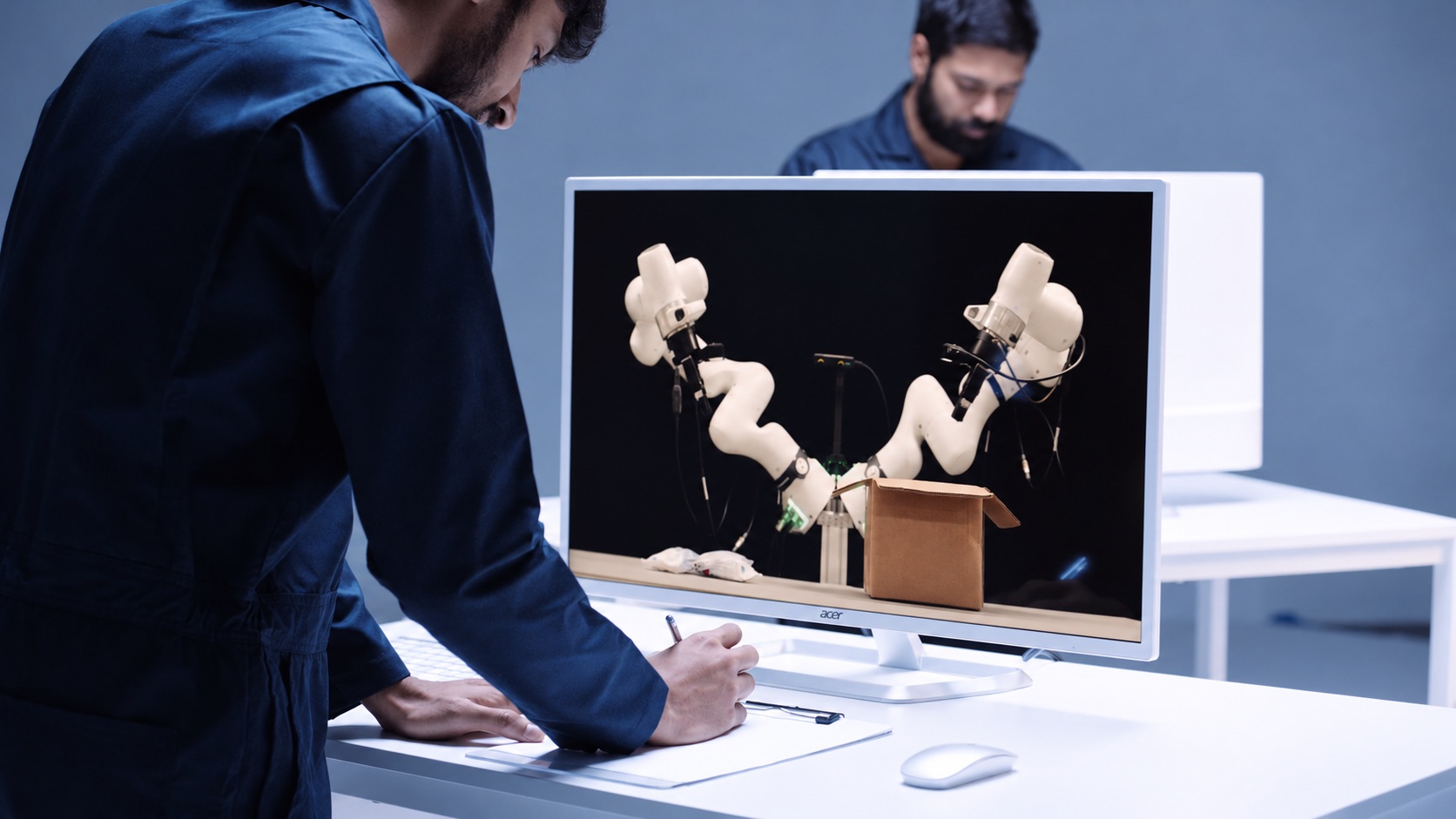
Odyssey-3 is Odyssey's most powerful foundation world model yet, described as a learned dynamical system implemented as an autoregressive diffusion transformer that predicts how objects move and interact through space and how situations evolve over time. It generates embodied environments from a prompt and predicts in real time how those environments change as a person or an agent takes actions or introduces events, using previous observations together with the latest inputs. The model is built for physical AI developers — teams building robots, humanoids, self-driving cars, drones, and other autonomous systems — who want to explore how foundation world models can accelerate their work. A research preview is available now, letting users prompt an environment, act within it, and observe how the world model responds, while developers interested in building with Odyssey-3 can get in touch for API access. The starting point for Odyssey-3 is a problem the founding team lived with for a decade. They spent that decade building driverless cars, where predicting the world was essential to determining what a car should do next. They founded Odyssey to pursue that idea far beyond the roads — to build a general-purpose technology that could bring learned world knowledge to all machines and tasks. With Odyssey-3, they believe this idea is now being realized. Physical accuracy is central to that goal, because a foundation model for physical intelligence must learn to predict how the world actually behaves rather than simply producing plausible-looking video. Odyssey-3 learns representations of physics, dynamics, and cause-and-effect from a broad dataset of visual observations, and developers use that knowledge both to simulate environments and to train policies for different physical systems. The first capability is real-time environment generation. Odyssey-3 generates embodied environments from a prompt and predicts in real time how they change as a person or an agent takes actions or introduces events, using previous observations and the latest inputs. You can move through the environment or introduce an event during generation and observe how the model responds. Today's preview provides first-person and third-person navigation alongside independent camera movement, giving you different ways to interact with and inspect the model's predictions. Physical accuracy is measured against public benchmarks. Odyssey-3 Pro sets a new state of the art on Physics-IQ Verified's video-to-video benchmark, achieving 66.1, the highest reported score. Physics-IQ tests physical behavior across fluid dynamics, optics, solid mechanics, magnetism, and thermodynamics, asking models to continue videos of real physical experiments and comparing their predictions with what actually happened. Odyssey-3 Pro also scores 54.7 in image-to-video, while Odyssey-3 improves the measured tradeoff between physical accuracy and generation cost, making it possible to generate more simulations within the same compute budget. On WorldMark, which measures control-following, visual quality, and world memory, Odyssey-3 ranks first in first-person stylized, third-person real, and third-person stylized environments, using the benchmark's own captions and the mean of its 13 reported metric scores. Odyssey-3 adapts to physical systems. Its learned world knowledge can be applied to different systems by training an action decoder or policy on paired observations and actions. These learned components translate that knowledge into the controls required by a particular machine, letting developers adapt the foundation to a new body or task. With only tens of hours of robot demonstrations, Odyssey-3 completed manipulation tasks and showed recovery behaviors absent from those demonstrations, including reorienting a gripper after a missed grasp and retrieving a dropped object in an unusual position. Flexion has built humanoid control policies on Odyssey-3 whose performance exceeded the tested VLA baselines under environmental changes and continued to perform tasks under lighting changes that caused those baselines to fail. Odyssey-3 was also adapted to drive a car on real roads in India, training a driving policy on just 20 hours of driving data while keeping the Odyssey-3 backbone frozen; the policy uses the model's visual representations to predict waypoints ahead of the car, allowing it to drive in closed loop. The model can additionally be adapted to generate observations for particular sensor arrangements — in an early experiment using the front three cameras of an autonomous-driving dataset, an Odyssey-3 training checkpoint produced driving sequences with three camera views generated together after just 100 training steps. Odyssey-3 can also help train agents. An agent is an AI system that pursues a goal by observing its surroundings, choosing actions, and using what happens to decide what to do next. A world model can provide the environment in which those decisions are made, giving a way to study how an agent responds to changing conditions and whether it can complete a task inside a world whose behavior is learned. In the task-completion demonstration, an agent receives a natural-language goal and pursues it inside Odyssey-3, observing the generated world as it works toward the task. How Odyssey-3 was built is described in the launch material. Its training data combines internet video with time-localized, schema-verified event annotations, gameplay recordings with time-aligned keyboard and mouse inputs, and simulated rigid-body interactions with captions and metadata. Together, these sources connect diverse observations with descriptions of what happens and, where available, the actions that produced it. The stated design goal was to enable dynamic, open-ended interactions with an environment that responds as the user acts. Odyssey-3 is built as a multi-step video diffusion transformer, using temporally resolved prompts and controls to guide how the world unfolds. It is then extended autoregressively through teacher forcing and causal masking, training it to continue from preceding observations and predict future states conditioned on action inputs. Finally, a post-training pipeline that combines distribution-matching and adversarial distillation produces a distilled variant of Odyssey-3 — a few-step model capable of real-time interaction. The measured results point to concrete benefits for users. Because physical accuracy and generation cost are traded off more efficiently, developers can generate more simulations within the same compute budget. Because the model can be adapted with small amounts of data — tens of hours of robot demonstrations, or 20 hours of driving data with a frozen backbone — developers can bring learned world knowledge to a new machine or task without training a world model from scratch. Because the distilled variant is a few-step model capable of real-time interaction, environments respond as the user acts rather than only after generation is complete. And because the model can provide the environment in which agents pursue natural-language goals, it offers a way to study agent behavior in worlds whose behavior is learned. Odyssey-3 appears in several concrete scenarios in the launch material. For robot arms, prompts such as "Pour the cereal into the bowl" and "Close the screwbox" were used with the model to perform manipulation. For humanoids, Flexion built control policies on Odyssey-3 and ran tasks such as "Open the blue container and take out the cardboard box" and "Move the plate to the center of the table and place the mug on top of it." For vehicles, prompts like "Take the first roundabout exit" and "Drive along the road" were used while the adapted policy drove autonomously on real roads in India. For multi-sensor data, Odyssey-3 generated driving sequences with three camera views produced together for an autonomous-driving dataset. For agents, an agent receives a natural-language goal and pursues it inside the generated world. And in the research preview, a user prompts an environment, navigates it in first or third person, and introduces events to see how the model responds. Odyssey-3 is aimed at physical AI developers — teams developing a robot, humanoid, self-driving car, drone, or any other autonomous system — as well as researchers studying world models and anyone who wants to try the research preview. Developers who want to build with Odyssey-3 are invited to get in touch for API access. The research preview, offered as "Try Odyssey-3 Flash," is available now through experience.odyssey.systems. Published evaluation details describe two model sizes: Odyssey-3 at 832×480 and Odyssey-3 Pro at 1280×720. The launch material presents Odyssey-3 as available today as a research preview, with API access offered on request; no pricing or plan details are published in the provided content. Taken together, Odyssey-3's primary value proposition is that it brings learned world knowledge to physical AI: a foundation world model that generates interactive environments from a prompt, predicts in real time how they evolve as someone acts, advances the reported state of the art in physical accuracy on Physics-IQ Verified, and can be adapted to control robot arms, humanoids, and vehicles or to serve as the environment in which agents learn and are evaluated.
tide is a simple, self-hostable video conference service that positions itself as an alternative to Jitsi, Zoom and Google Meet. Rather than renting conferencing from a hosted provider, an organisation can run tide on its own infrastructure and host meetings at an address such as meet.custom.domain. The product's own tagline describes it as "A Jitsi alternative that does a few things really well," and the site lists the core capabilities as link sharing, screen sharing and server-side recording. It is for anyone who wants to own the video meeting stack rather than depend on someone else's servers, and the site offers both a live demo and deployment documentation as starting points. Most video conferencing today happens on someone else's infrastructure. Zoom and Google Meet are hosted services: the meeting runs on the vendor's servers, under the vendor's terms, and the media travels through networks the customer does not control. Jitsi offers a self-hostable route, and tide explicitly frames itself as an alternative to it, naming Zoom and Google Meet alongside. The problem tide addresses is therefore one of ownership: whose server carries the audio and video, who holds the recordings, and who decides the sign-in rules. The website states its answer in two headline bullets — "Media stays on your server" and "Server-side recording" — arguing that a conferencing service can stay simple while still keeping the media and the resulting files inside the operator's own environment. For teams with data-residency expectations, internal security policies or a preference for self-reliance, that distinction weighs more heavily than a long feature list. Deployment is presented as one of tide's defining traits. The site lists "One Go binary" as its first bullet and calls tide a simple, self-hostable video conference service. Two links carry the practical next steps: a demo instance at demo.tide.convex.works and a Deploy link pointing to tide.convex.works/docs. The single-binary pitch means the whole service can be distributed and run as one artifact rather than as a suite of separate components the operator has to assemble and keep in sync. Go is the one technology named directly on the page, and the claim of one binary follows from that. For anyone evaluating self-hosted video, the effect is a smaller surface to install, fewer moving parts to update, and a documented entry point at the docs URL. On the meeting side, tide covers the core workflow of getting people into a call. Link sharing is named among the core features, and the interface shown on the site includes a "New room" form with fields for a Name, a Link, and a calendar shortcut. The illustrated example is a "Weekly sync" with the link meet.example.com/m/chw-pnih-sxi, and the form includes an "Add to calendar" action plus a Date block with Starts and Ends times — 10/05/2026, 07:30 PM to 08:00 PM in the example. Two actions are offered once the room is configured: "Create" and "Create & join," so an organiser can either prepare a room or start it immediately. Screen sharing is listed explicitly as a core feature, and recording is handled server-side rather than on a participant's machine — the site states "Server-side recording" both as a headline bullet and in the Product Hunt description alongside link sharing and screen sharing. Sign-in is delegated to OIDC, the fourth headline point. Using OIDC means authentication can be tied to an identity provider the organisation already operates, instead of tide maintaining its own account system, which fits the self-hosted positioning: the operator keeps control over who is allowed in. The meeting view shown on the site displays named participants — Daniel, Maya, Marcus and Nikos, marked as "You" — with a participant count of four, illustrating a small call. The overall approach tide takes is stated in its own tagline: "A Jitsi alternative that does a few things really well." Rather than competing on breadth, the product concentrates on a short, explicit list — one Go binary, media that stays on your server, server-side recording and OIDC sign-in — and repeats that framing in the Product Hunt description: "A few things, done well." The same description notes that tide lets you host your own "meet.custom.domain" for "a simple video conferencing environment with all core features you expect." The methodology, in other words, is to be a focused self-hosted service: install one binary, point a domain at it, and run meetings with link sharing, screen sharing and server-side recording under your own roof. The benefits that follow from the page's stated facts are straightforward. Because media stays on your server, meeting traffic terminates in infrastructure the operator controls. Because recording happens server-side, call recordings are produced by the service itself rather than depending on a participant capturing their own local stream. Because sign-in uses OIDC, access control can follow whatever identity system the organisation already runs instead of a separate set of credentials. Because the service is a single Go binary, deployment and maintenance are framed as simple rather than as an ongoing platform project. And because the scope is deliberately small — a few things done well — the operator does not have to weigh a long list of optional modules to get a working conferencing environment. Concrete scenarios appear on the page. The "New room" example is a recurring team meeting — a "Weekly sync" scheduled for a specific date and time with a fixed start and end — and the presence of an "Add to calendar" action indicates the intended flow of setting up a meeting and adding the appointment to a calendar. The generated link, meet.example.com/m/chw-pnih-sxi, shows the pattern of a short meeting URL that can be shared with attendees, which matches the link-sharing feature. The "Create" and "Create & join" buttons serve both the organiser who wants to prepare a room ahead of time and the one who wants to start straight away. The demo at demo.tide.convex.works provides a way to experience a call before committing to a deployment, and the site's framing of "meet.custom.domain" points to organisations that want their meetings hosted on a domain of their own. Server-side recording suits meetings that need to be captured for people who cannot attend, and OIDC sign-in suits invitations that must be restricted to members of an existing directory. The intended audience can be read from the page's own vocabulary: the three alternatives invoked — Jitsi, Zoom and Google Meet — describe both the self-hosting tradition tide belongs to and the mainstream services it is offered against. Anyone who wants to run their own "meet.custom.domain" is the stated target. In terms of stack, the site names exactly one technology, Go, in the bullet "One Go binary," and describes OIDC for sign-in. Deployment documentation is linked at tide.convex.works/docs. The page itself does not state a price, plan or licensing model, and it does not describe native mobile or desktop applications; it presents a self-hosted service with a room creation form and a shareable meeting link. Taken together, tide makes a single, deliberate claim: video conferencing that you host yourself, built around a few things done really well. One Go binary to deploy, media that stays on your server, server-side recording and OIDC sign-in, wrapped around the familiar flow of creating a room, sharing a link, sharing your screen and joining the call. For teams that want their meetings — and the recordings they produce — to remain on infrastructure they control, tide offers a focused alternative to Jitsi, Zoom and Google Meet.
EasyCut is a free video editor that runs entirely in your browser and is built around a single, specific job: finishing motion videos that Claude has made. Claude designs the video, animates it and scores it — its own motion, music and sound effects — and EasyCut then opens every part of that video as its own track inside one project. Instead of ending up with a flat file, you get a timeline where the video, the titles, the music and each individual sound effect are lined up, labelled and ready to edit. That means you can trim a scene, mute a whoosh, drop in your own track or move the titles, and you can still select one clip and ask Claude to change just that part without rebuilding the whole video. It is free, requires no sign-up, adds no watermark and never uploads your files. The problem EasyCut addresses is a familiar one for anyone making videos with AI: generation tools are good at producing something complete, but they hand back a finished artefact. Once a video has been rendered, the layers are gone. A title is baked into the frame, the music is welded to the picture, and a single sound effect that lands in the wrong place forces you to regenerate everything or start over in a conventional editor that was never designed around AI output. EasyCut's answer is to keep the structure of the AI-generated video intact. By opening each element on its own track, it preserves the ability to make targeted changes at the point where they matter, which is what finishing a video actually means in practice. EasyCut's core editing toolset covers the essentials of assembling a timeline. You can cut, trim and split clips by dragging edges, splitting at the playhead and reordering by dragging, and transitions can be added with one click. The editor is described as a real editor, with a magnetic timeline, frame-exact cuts, J/K/L keyboard controls, markers and undo for everything, so the fundamental mechanics of cutting work the way an experienced editor expects. Two features attack the most tedious part of editing. Remove pauses takes the silences out of a recording in one go, and you can also cut words by crossing them out directly in the transcript — a far more direct way of tightening a talking-head section than hunting through waveforms. Auto captions writes word-by-word captions on your computer and can save them as SRT or VTT files, which makes the output useful outside EasyCut as well. The music tools are built around fitting a track to the edit rather than the other way around: you can fit any song to the video's length and cut on the beat with its real ending, music ducks automatically under voices, and there are free music and effects libraries to draw on. EasyCut can also record directly onto the timeline — your screen, your camera, or both together with your voice — so you can capture a demo, an introduction or a reaction and drop it straight into the project without reaching for a separate app. A visual toolkit covers colour looks, green screen, split screen, blur boxes, shapes and stickers. A set of AI features — voice clean-up, background removal and an AI voice — runs on your device without uploading a thing; the only downloads are the AI models themselves, fetched once the first time you use a feature. Speed ramps let you slow one moment down or speed it up, easing smoothly in and out of the change. Layers groups every clip of a Claude video into one list, so you can find all the whooshes and mute or delete them at once. Your brand keeps your logo, colours and fonts in one place for every video, and Claude can use them too. The most distinctive part of EasyCut's approach is the hand-off from Claude to the timeline. To set it up you connect Claude once, which takes about a minute. On Claude Desktop you download the EasyCut extension — EasyCut.mcpb, 170 KB, for macOS and Windows — and open it, and Claude asks to install it: you press Install. Claude already has everything it needs to run it. On Claude Code you run a single terminal command, claude mcp add easycut -- npx -y easycut-connector@latest, which requires Node.js 18 or newer. From then on, Claude can open the videos it makes straight in EasyCut, every part on its own track. If you are using claude.ai in the browser instead, you ask for the parts as downloads and then open them from EasyCut's Claude panel. The outcome for users is speed: a change to one title or one sound effect no longer means regenerating a whole video, because the structure is still there to edit. Because everything happens locally, footage stays private — your files never leave your computer. Projects save in your browser automatically as you work, and can be moved between machines as a single .easycut file, so the work travels with you. The editor is designed to be calm: big buttons, plain words and tips everywhere mean there is nothing to learn first. Concrete uses follow directly from that workflow. A founder asks Claude for a dynamic launch video for an app, then opens it in EasyCut to trim a scene, swap in their own logo, fit a track to the edit and export wide, tall and square versions for different platforms. A creator cuts the pauses out of a screen-recorded walkthrough, adds word-by-word captions and exports the SRT alongside the MP4. A marketer takes a Claude-made promo, swaps the music for something on brand, and creates a smooth slow-motion speed ramp for a key moment. EasyCut is not limited to Claude output either: it is a full editor, so you can add your own videos, photos and music, or record your screen and camera, and cut, caption, colour and export them the same way. EasyCut is aimed at people who make motion videos with Claude and want to finish them properly — AI-first creators, indie founders, marketers and anyone producing motion content without a professional editing suite. It runs in the browser on computers; on a phone the screen is too small for a timeline, so it is explicitly a computer tool. Google Chrome and Microsoft Edge do everything, including export, while Safari 16.4+ and Firefox 130+ can edit too. Export options include MP4 up to 4K and 60 fps in wide, tall and square formats in one go, a GIF, or just the sound. Pricing is straightforward: EasyCut is free, with no trial, no watermark and no account. The through-line is a simple idea: Claude makes it, you finish it. EasyCut takes the completeness of an AI-generated motion video and restores the editability that normally disappears the moment it renders, keeping every title, scene, image, sound and element on its own track. Free, in your browser, with nothing uploaded and nothing to learn first, it is the finishing editor for AI video.
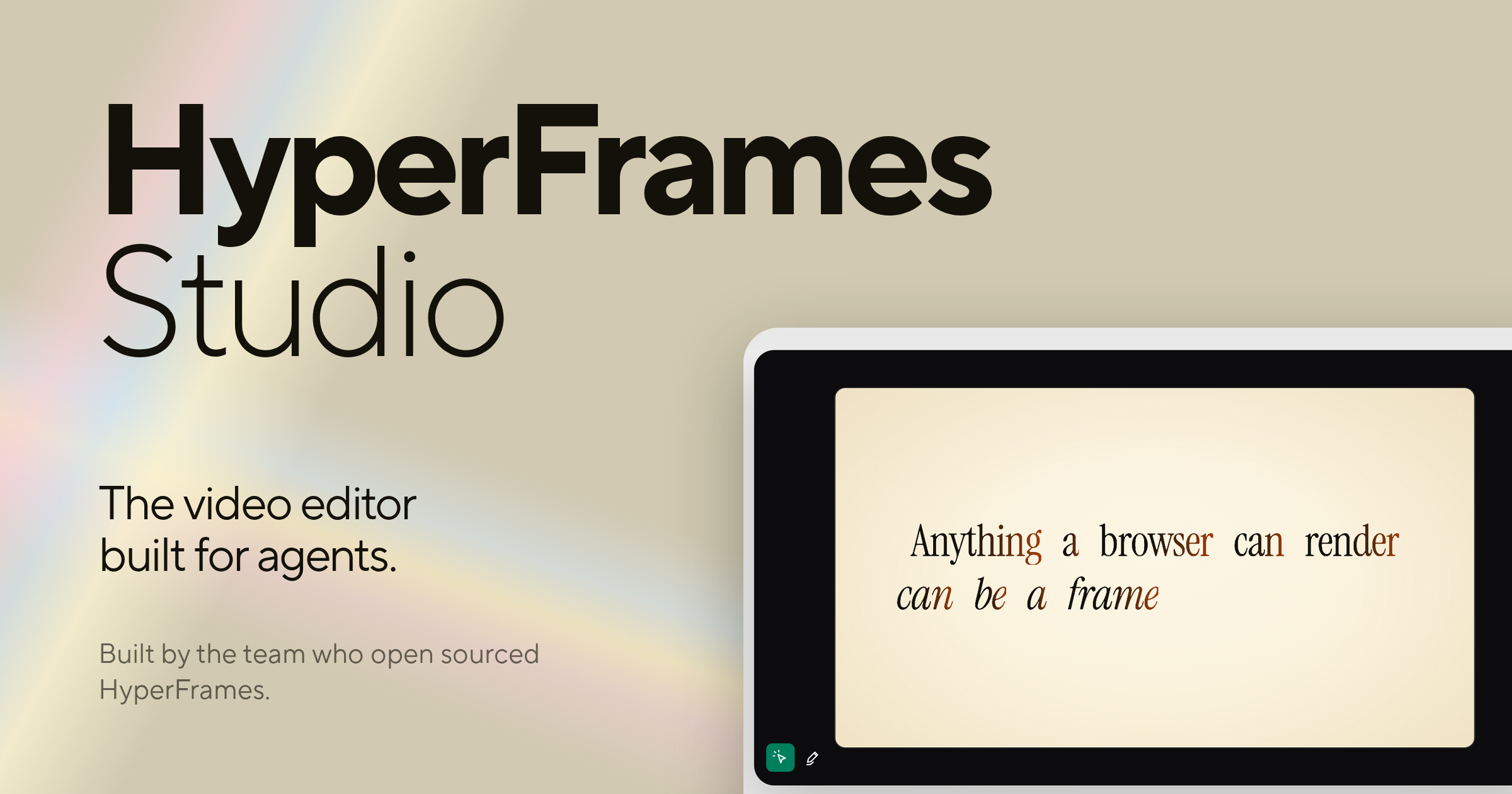
HyperFrames Studio is a desktop video editor built specifically for AI agents. Developed by HeyGen, the team who open sourced HyperFrames, it packages all of HyperFrames Studio into a single desktop application that works with your files and apps to get things done. Rather than treating AI as a side utility, HyperFrames Studio turns coding agents into video editors while the human stays in the director's seat. It is aimed at creators, developers, and teams who already work with agents such as Codex or Claude Code and want to describe a video, let their agent make it with HyperFrames, and then refine the result together inside one shared studio editor. The product exists on a foundation that the team built in the open before releasing the Studio editor. HyperFrames is open sourced under the Apache-2.0 license on GitHub at heygen-com/hyperframes, and that project has grown to 57.4k GitHub stars, 813.1k npm downloads in the last week, 5.1k forks, and 80 contributors. HyperFrames Studio is built by the same team behind that open-source work. The problem it addresses is a familiar one for anyone who has tried to produce video: editing is traditionally a manual, hands-on craft that does not fit neatly into agent-driven workflows, and most video tools assume a person is doing every step by hand. HyperFrames Studio closes that gap by making the video editor itself something an agent can operate, so the same agents people already rely on for coding work can also participate in building video, with the human retaining direction over the result. One of the core pieces of HyperFrames Studio is that it is delivered as a desktop application. The website lists a macOS download and a Linux download, while Windows and Windows on arm64 are marked as coming soon. The desktop build is described as containing all of HyperFrames Studio in one app, and it is said to work with your files and apps to get things done. This desktop-first approach matters because video work involves media files, local assets, and repeated iteration, and a native application can sit directly alongside the files and tools a user already has open. For organizations that need more than an individual download, there is also an enterprise deployment option, which is available by contacting the HeyGen sales team through the contact page, so the same studio can be rolled out beyond a single creator's machine. The defining feature of HyperFrames Studio is its support for coding agents. The Product Hunt description explains that you can bring your favorite agent, either Codex or Claude Code, and that HyperFrames Studio turns those coding agents into video editors while you stay in the director seat. This is the core reason the product exists: instead of learning a separate automation layer or writing custom scripts, a user brings an agent they already work with and gives it the ability to operate inside a video editor. The agent becomes the execution arm for editing tasks, while the person remains responsible for the creative direction, deciding what the video should be and judging whether the output matches that intent. A second key capability is the describe-and-generate workflow combined with shared editing. The stated flow is simple: describe a video and your agent makes it with HyperFrames. From there, you and your agent work on it together in one studio editor. This means the first draft does not have to be assembled by hand from a blank timeline; it can be produced from a description, and then the work continues collaboratively in the same environment. Keeping generation and refinement in one studio editor avoids handing finished work back and forth between separate tools, so the agent's output and the human's edits live in the same place and can be adjusted in the same session. HyperFrames Studio is closely tied to the open-source HyperFrames project. The framework is released under the Apache-2.0 license on GitHub at heygen-com/hyperframes, and the site provides an install command, npx skills add heygen-com/hyperframes, alongside documentation and a call to star the repository on GitHub. The open-source nature is significant because it means the underlying video framework is publicly available and community-driven, with the visible traction of 57.4k GitHub stars, 813.1k npm downloads in the last week, 5.1k forks, and 80 contributors. Developers can add HyperFrames skills to their own environments using the provided command, read the documentation, and follow or contribute to the project on GitHub, which keeps the studio connected to a larger ecosystem rather than being a closed, isolated app. The overall approach of HyperFrames Studio can be summarized as pairing a professional-style studio editor with agent-driven video creation. You access HyperFrames Studio on desktop, bring an agent such as Codex or Claude Code, describe the video you want, let the agent generate it with HyperFrames, and then continue working on the result together in one studio editor. This keeps the human in a directing role and the agent in an execution role within a single shared workspace, rather than splitting those responsibilities across disconnected tools. The combination of an open-source framework, a desktop application, and agent integration is the distinct methodology the product is built around. The benefits of this setup follow directly from how it is designed. Because the agent can take a description and produce an initial video with HyperFrames, users do not have to begin from an empty project purely by hand. Because you and your agent then work on the video together in one studio editor, the iteration loop stays inside a single environment. And because the underlying framework is open source under Apache-2.0, the work sits on a publicly available foundation with a large community behind it, which gives developers a path to inspect, extend, and integrate with the technology they are using. Concrete use cases for HyperFrames Studio center on agent-assisted video production. A user can describe a video and have their agent make it with HyperFrames, using a natural-language brief as the starting point rather than a manual build. A creator and their agent can then collaborate on that video together in one studio editor, refining the output in a shared session. Developers who want to bring HyperFrames into their own workflows can install it with the npx skills add heygen-com/hyperframes command and follow the documentation. Teams that need a managed rollout can take advantage of the enterprise deployment option by contacting HeyGen sales. And anyone working with Codex or Claude Code can add video editing to the capabilities of an agent they already use. In terms of audience and availability, HyperFrames Studio targets people who work with AI coding agents and want to produce video. The Product Hunt description frames it around users who have a favorite agent, either Codex or Claude Code, and the website frames it around staying in the director's seat while an agent does the editing work. Its open-source foundation, GitHub presence, and npm distribution point to a developer and technical creator audience, while the enterprise deployment option and HeyGen sales contact indicate it also serves organizations that need managed rollouts. The product is available as a desktop application, with macOS and Linux downloads listed, Windows and Windows on arm64 marked as coming soon, and enterprise deployment available on request. Taken together, HyperFrames Studio reinforces a single value proposition: it is the first video editor built for agents, letting you bring a coding agent like Codex or Claude Code into the editing process, describe a video and have it made with HyperFrames, and then work on that video together with your agent in one studio editor while you remain in the director's seat. Built by the team who open sourced HyperFrames at HeyGen and released under Apache-2.0 on GitHub, it combines an open-source video framework with a desktop studio designed around agent collaboration.
LaunchReel is a Claude Code plugin that edits talking-head videos and makes launch and demo videos for real products. It is built for people who record themselves talking and want a finished video without hand-editing timelines or setting up a renderer themselves. Claude does the first edit — cutting fillers, pauses and retakes, listening back to check every cut, then adding captions and zooms and building visuals around what you say. For launch films, Claude writes every scene as code from your repository, original music and voiceover are added, and a Studio lets you pin a comment on any frame or change text on the frame yourself. Export is 16:9 or 9:16, up to 4K. The problem LaunchReel addresses is the friction that appears when Claude Code on its own is asked to edit video. As the site's comparison puts it, with Claude Code alone, fixing one thing means describing it, waiting and rendering again; with LaunchReel you pin a comment on the frame and Claude fixes just that spot. A small edit, such as changing text, costs another prompt on its own, but with LaunchReel you click the text and change it with no prompt. Claude Code alone produces no sound, while LaunchReel adds original music and voiceover. Getting the Reels version means starting again in portrait, whereas with LaunchReel you say "make the 9:16 version." And getting an MP4 means setting up a renderer yourself, while LaunchReel gives you an Export button. In short, Claude does the work; LaunchReel adds the Studio, the playbook, music, voice and export. The first core capability is talking-head editing. LaunchReel cuts the fillers, pauses and retakes from a recording, then listens back to check every cut before adding captions and zooms. This means the raw recording you make, complete with the filler words, dead air and false starts, is turned into something tighter and cleaner, and the tool verifies its own cuts rather than leaving every one for you to catch. Captions and zooms arrive as part of the same pass, so the video comes back with the elements that hold a viewer's attention rather than as a bare cut. Recordings can run up to 5 minutes on the Creator plan and up to 10 minutes on Pro, which covers a typical single-take recording of a product update, explanation or pitch. The second core capability is the Studio. LaunchReel Studio runs at localhost:4747 and opens while Claude works. In the Studio you can pin a comment on any frame so Claude fixes just that spot, or click text on the frame and change it directly. The whole point is that small fixes cost no prompt: instead of describing an adjustment and waiting for another render, you point at the exact frame and leave a comment, or edit in place. The Studio also lets you play the video with sound, and a preview shows the structure the edit is building toward — Hook, Problem, Demo, Proof, CTA — with examples such as "Make this bigger" appearing as an on-frame note. The third core capability is launch videos. LaunchReel writes launch films and demos for your real product, with Claude writing every scene as code from your repository. Because the scenes are written as code from the repo, the launch video is generated for the actual product rather than from a generic template, and the scenes exist as code rather than as an opaque rendered file. Music and voice are part of the package: original music and voiceover, described in the plans as an original score and studio voices, so the finished video carries a soundtrack and narration without you sourcing either separately. The finish is the fourth piece: export in 16:9 or 9:16, up to 4K. Free trial exports are 1080p with a small watermark in the corner. Creator exports 1080p with no watermark and no end screen. Pro adds 2K and 4K export. Alongside the export settings sits the playbook — a director's playbook, described on the Creator plan as "the full playbook, always current" — which shapes how the edit is put together, plus a "What to say to Claude" prompts page that helps you phrase the instructions you give. How it works is a three-step loop. First you say one sentence, for example "Cut this recording into a reel", and Claude does the first edit. Second, the Studio opens while Claude works, so you watch the video build. Third, you make it yours: pin comments or edit on the frame, and export when it is right. Installation is two commands, pasted and run one at a time — "/plugin marketplace add gajanansr/launchreel-plugin" and "/plugin install launchreel@launchreel". Claude Code and Node 20+ are required, Claude's work uses your own Claude plan, and edits you make in the Studio do not use your Claude usage. The outcome for users is an exported video rather than a project that still needs a round of instructions. A single spot can be fixed without a full render cycle, text can be changed without a prompt, sound comes included, the portrait version is one sentence away, and the MP4 comes from an Export button instead of a renderer you configured yourself. Revisions are treated generously: a video is one project, and fixing it, re-rendering it and re-voicing it in the same month do not use another video, with the count resetting on the 1st. The tool is also explicit about storage, telling you before it starts that talking-head projects keep working copies of your recording at roughly 0.07 GB per minute of 1080p. Real use cases follow directly from those workflows. You can record a single take and turn it into a reel with one sentence. You can produce a launch film or demo for the product you actually shipped, written from your repository. You can take an existing landscape video and say "make the 9:16 version" to get the Reels or Shorts cut. You can open the Studio and fix a caption or a piece of on-screen text on a frame without writing a prompt. And if you are not using Claude Code at all, you can make a video from a template using the site's "Generate from a template" option. The target users are named by the plans themselves. Creator is "for a product's launches". Pro is "for people who ship every week" and includes 20 videos a month, 2K and 4K export, recordings up to 10 minutes, use on up to 3 computers, and new looks and features first. Creator includes 5 videos a month, no watermark and no end screen, 1080p export, talking-head editing with recordings up to 5 minutes, original score and studio voices, the full playbook and use on up to 2 computers, at $19 per month. Team, at $149 per month, is "for a studio or a product team" and adds 80 videos a month, use on up to 10 computers and one invoice for the whole team. A founding offer gives the first 10 customers 50% off their first 3 months of Creator and Pro using the code FOUNDING50, at checkout, taking Creator to $9.5/month and Pro to $24.5/month. There is a free try — one full video with every feature, exported in 1080p with a small watermark in the corner — and you can buy a key when you want more. Prices are in USD, billed monthly by the reseller Dodo Payments, which handles tax and invoices, and you can cancel anytime, with your key working until the end of the period you paid for. A live demo of setup and your first edit can be booked from the site. LaunchReel's primary value proposition is that Claude does the editing work while LaunchReel supplies the parts Claude alone does not have: the Studio for frame-level fixes, the director's playbook, original music and studio voices, and a one-press export in 16:9 or 9:16 up to 4K. It turns a raw talking-head recording and a repository into finished launch videos, demos and reels.
Smooth Recorder is a native Mac screen recorder built for people who make demos and tutorials. Its promise is simple: record once, and the recording already looks edited when you hit stop. Instead of capturing a flat, unpolished clip that you then have to fix in a video editor, Smooth Recorder adds zooms that follow your clicks, a smooth cursor and camera movement, and captions while you record. The same capture overlay also produces screenshots, GIFs, scrolling captures and copied text, and screenshots get their own editor with backgrounds, annotations and Smart Redact. It is designed for anyone who records their screen to explain something, whether that is a founder showing a product, a designer walking through work, or a developer documenting a workflow. Screen recordings are usually the fastest way to explain something, but they rarely look good straight out of the recorder. The cursor jumps around, small interface details are hard to see, and any mistake or filler word means a trip to an editing app. Searching for a tool that solves this was the experience one early user described: "I remember having a hard time looking for a tool like this, one that lets you record demos in one go without having to do much editing." Smooth Recorder is built around that gap. It treats the polish as part of the recording rather than a separate post-production step, so the zooms, the cursor motion and the captions are already in place the moment you stop capturing. Recording in Smooth Recorder covers several things at once. Automatic zooms follow your clicks, so the viewer's attention lands on whatever you just interacted with without you planning the zoom moves ahead of time. A smooth cursor and camera movement replace the jittery pointer of a raw capture, giving the video a calmer, more deliberate feel. Captions light up each word as it is spoken, which makes the video easier to follow. Version 1.1 added 3D angles, which let a recording be presented at an angle rather than flat on screen. Each of these runs as part of the recording workflow, which means the finished clip carries the polish before you review it. The most distinctive editing feature is transcript-based cutting. Speech is transcribed on your Mac, and the transcript becomes an interface for editing the video: delete a word or a sentence from the transcript and that section is gone from the video. Filler words - the ums, ers and false starts that clutter a first take - can be removed with a command that reports how many were cut, with undo available if you change your mind. On the capture side, a single shortcut opens the capture overlay. You pick an area and then choose what to make from it: a screenshot, a recording with camera, mic and system audio, a GIF that goes straight to your clipboard, a scrolling capture that produces one tall screenshot of a whole page, or a text capture that copies the words inside any area. Screenshots get the same treatment as recordings. An editor turns a plain grab into something worth posting: wallpapers, padding, corner rounding and shadow, with 76 wallpapers included, 40 of them newly added. Annotation tools - arrows, text, numbers and blur - are each assigned to a single key, and edits remain editable rather than being flattened into the image. Smart Redact scans the screenshot on your Mac, finds emails, phone numbers, card numbers, API keys and faces, and blurs them in one click before you share. A Motion section tilts the screenshot in 3D using nine presets, with fine-tuning available if you want it, and the presets shown are Flat, Left, Right and Float. Underneath, Smooth Recorder is a native macOS app built in SwiftUI and AppKit, not a Chrome extension and not a website in a window. It requires macOS 15 or later, and on macOS 26 it uses newer system features when they are available. Because it is native, it integrates with the rest of the system: the Library lives in the notch and holds every screenshot and recording with search and the recording timer; the menu bar icon opens that Library, and the Dock menu offers Capture and Recent. Shortcuts and Siri can take a screenshot, capture text, or start and stop a recording. Privacy is handled on-device: captions, text recognition and redaction all run on your Mac, and recordings do not leave it. The app can follow your Mac's appearance or be set to Light or Dark. The outcome is a demo you can share without opening an editor. Because the zoom, cursor and caption work happens during recording, the time between finishing a take and sharing the result shrinks to almost nothing. Because redaction and transcription run locally, sensitive screens and spoken content do not need to be uploaded anywhere. And because it is a one-time purchase, there is no recurring subscription to justify. The product's own comparison table positions it against Screen Studio, CleanShot X and Loom, highlighting pay-once pricing, auto-zoom on clicks, a smooth cursor, captions made on the Mac, transcript-based cutting, a screenshot editor and a native Mac app as the differentiators. One reviewer pointed at the value directly: "Just tried. You are offering a lot with lifetime deal that others charges 100s of $$$ per month." Concrete workflows for Smooth Recorder start with product demos and tutorials: record the flow once, let the zooms follow each click, and the walkthrough explains itself. It fits internal handoffs and documentation, where a scrolling capture or a looping GIF communicates faster than a paragraph, and where GIFs export at up to 24 fps straight to the clipboard for docs, chat and READMEs. It is used for sharing screens without leaking data, where Smart Redact blurs emails, phone numbers, card numbers, API keys and faces before the image leaves the machine. And it is used when a polished clip needs to go into a presentation or an edit: recordings export as MOV for Keynote and Final Cut, or as MP4 for anywhere else, at 30 or 60 fps. Smooth Recorder is aimed at Mac users who record their screen to explain things - founders and product people making demos, designers showing work, developers documenting workflows, and teams producing tutorials or support material. It is a native macOS 15+ application built with SwiftUI and AppKit, with on-device transcription, text recognition and redaction. Pricing is a single payment: $9 once during early access, reduced from $69 at launch, described as $60 off for the first 100 buyers. There is no subscription and no account. The early access price includes every update while the app is still being shaped by early users' feedback, and support runs through the support page or by email. Smooth Recorder's value proposition is narrow and clear: it removes the editing step from screen recording. The zooms follow your clicks, the cursor glides, the captions arrive on their own, and mistakes can be cut by editing the transcript - all while the app stays native to the Mac and keeps your footage on your own machine. Screenshots, GIFs, scrolling captures and copied text come from the same overlay, and the screenshot editor adds backgrounds, annotations, 3D angles and one-click redaction. At $9 once, it is positioned as the alternative to subscription recorders: your next demo, without the editing.