Category Focus/categories/image
Image AI Tools
Discover and compare the best image AI tools and software. Browse 69+ curated tools with reviews and rankings.
Projects tracked
69
Sort mode
RECENT
Page
2
Discover and compare the best image AI tools and software. Browse 69+ curated tools with reviews and rankings.
Projects tracked
69
Sort mode
RECENT
Page
2
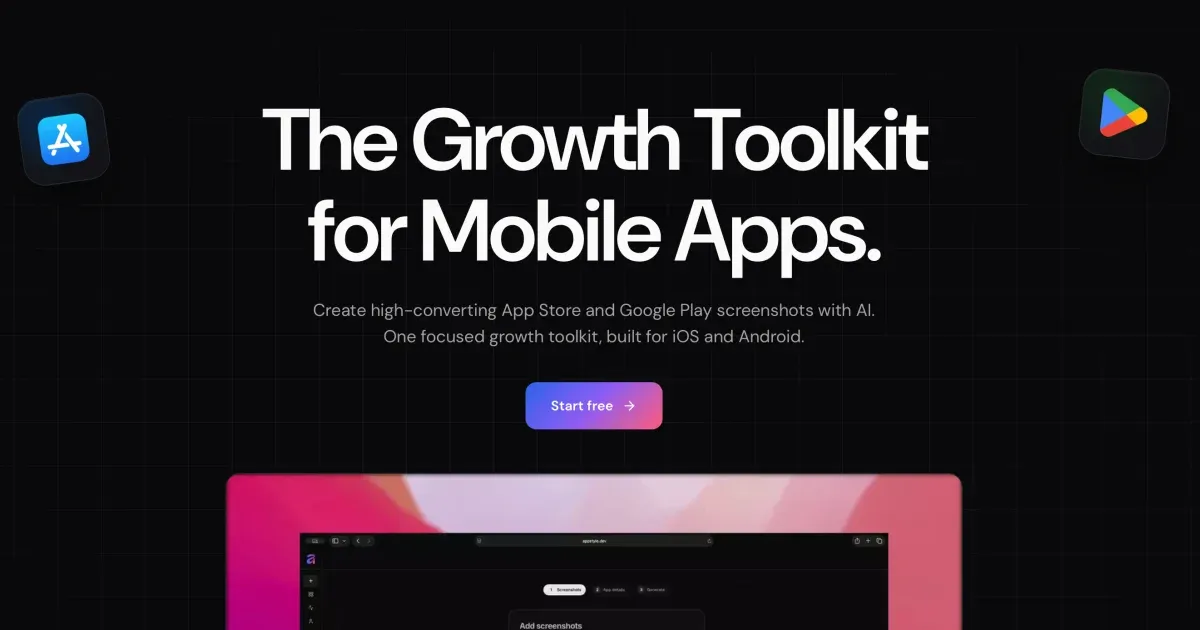
AppGrowthKit is an AI screenshot maker for the Apple App Store and Google Play. It generates App Store and Google Play screenshot sets from your real app screens, combining AI layouts and copy, localization, app icons, and store-ready export inside one workspace. Built for indie developers and teams, its core product is an AI screenshot maker: you upload your app screens, add device frames, headlines, and backgrounds, or let AI draft the layouts and copy for you, and then export store-ready assets for your Apple App Store and Google Play listings. The product positions itself as the place where polished App Store screenshots are created in minutes rather than hours, without design experience and without moving between multiple tools. The problem AppGrowthKit addresses is the fragmented store-asset workflow. Preparing a listing traditionally means stitching together several separate tools: the product itself names Figma, Canva, Fastlane Frameit, and a separate caption document as the pieces developers commonly combine just to produce a single screenshot set, followed by manual resizing and reformatting for App Store Connect and Google Play Console. General design canvases such as Figma and Canva are not store-export products, and template tools such as AppLaunchpad leave you adapting a library of templates rather than working from your real app screens. AppScreens is described as stronger at console upload automation, and AppLaunchFlow as a wider launch suite covering ASO copy, video, rank tracking, and store connections. AppGrowthKit is positioned as the focused screenshot and icon workspace that replaces the store-asset handoff between those tools, so the last mile of a launch stops being a design project. The primary feature group is the AI screenshot workflow. You drop in raw app screens and tell AppGrowthKit what your product does; AI then plans the layout, writes store copy, and applies backgrounds, device frames, and spacing directly on your canvas. The workflow is split into three explicit actions. Plan lets AI draft the layout, headlines, and style before anything changes on your canvas, so you review the direction first. Build applies edits across all of your screens from one prompt, which keeps a multi-screen set visually consistent without editing every screen individually. Chat lets you ask for ideas or feedback without touching your design. Because the draft lands on your canvas rather than in a locked template, you stay in control: you can review the draft, edit anything, and export when it looks right. A second feature group is AI localization for editable screenshot sets. You choose a market and let AI translate and adapt your editable screenshot copy. The stated behaviour is that your layouts, real app screens, and layers stay exactly where you put them, so every locale starts from a working master rather than a rebuild. Adapt generates natural localized titles, subtitles, and custom text for each market. Preserve keeps your layout, images, and editable layers intact across versions. Review lets you fine-tune each version in the canvas before exporting the final set. AppGrowthKit covers 42 App Store locales: you design the English master, pick a market, let AI adapt titles and captions for that locale, and then export each set in the sizes Apple and Google require. A third feature group is app icon generation. You describe the feeling, subject, and style you want, and AppGrowthKit AI generates several app-icon directions at once so you can compare a real set of options before choosing the one that belongs beside your screenshots. Describe starts with a simple prompt, which you can enhance when you want more art direction. Explore generates one, two, or four icon directions in a single pass. Download keeps the winners and saves the generated icons when you are ready. The product also lists Apple-ready icon exports as part of the app icon feature set, and publishes a free app icon size generator alongside the core editor. A fourth feature group is the layer-based design editor that turns raw screens into store-ready visuals. You upload your app screenshots, add polished layouts, and prepare assets for every store, layering text, backgrounds, and device frames on one canvas. Layers let you organize screenshots, frames, text, and backgrounds in a single workspace. Properties let you tune fonts, colors, spacing, and sizing without leaving the editor. Preview shows you store-ready output before you export. Custom fonts and gradients are listed as part of the screenshot feature set, and the editor is described as Figma-like with no locked grid. Device frames are handled as a dedicated capability. AppGrowthKit ships frames for iPhone 17, iPhone Air, and Pro Max, with every device frame scaled and ready to use. You pick from the latest iPhone, iPad, and Android frames, choose a finish, drop in your screenshot, and keep moving. Devices are described as kept up to date, colors let you match the frame finish to your app's look, and scale means a dropped-in screenshot is sized correctly every time. You can also use your own screenshots with these frames and customize colors, text, and layout. The export capability closes the loop. You download all your screenshots at once in the exact format Apple and Google require, with no resizing, reformatting, or second tool. Formats are built in for Apple and Google specs. Batch export pulls every screen in your project at once. Ship means you can download and upload straight to App Store Connect or Play Console. AppGrowthKit supports the Apple App Store and Google Play and exports store-ready screenshots for iPhone, iPad, and Android apps. Overall, the methodology is prompt-and-canvas rather than template-and-export. The fastest described path is to upload raw captures once, generate an AI draft, edit the first three screens, and export App Store and Google Play sizes from the same project, replacing the combination of Figma, Canva, Fastlane Frameit, and a separate caption document. AI drafts the plan before anything changes, one prompt applies edits across all screens, and chat provides ideas or feedback without touching the design, so the developer remains the decision-maker. The product states plainly that it is built for developers, not designers, and that no design experience is required: you can arrange screens and text with the layer editor, or describe your app and let AI draft layouts and copy you can fine-tune before export. Beyond the editor, AppGrowthKit publishes free tools for the rest of a launch, including an app icon size generator, an ASO character counter, and live App Store charts. The outcomes described for users centre on speed and control. Screenshots move from hours to minutes; consistent sets are produced without hand-editing each screen; localized versions start from a working master so layouts do not need rebuilding per market; and exports arrive in the exact formats and dimensions Apple and Google require, removing manual resizing or reformatting in another tool. Users can see store-ready output in preview before exporting, and can use their own screenshots, device frames, colors, and text until the listing looks the way they want. Concrete use cases described in the content include preparing a single app launch with Launch Pass and deciding on a subscription afterwards; running repeated launches, ongoing work, and iteration on Pro with 750 AI credits per month; comparing one, two, or four AI-generated app icon directions before picking one to sit beside the screenshots; localizing an App Store screenshot set into other languages by designing an English master, picking a market, and letting AI adapt titles and captions while layouts and app screens stay in place; producing store-ready iOS and Android screenshots quickly by uploading raw captures once, generating an AI draft, editing the first three screens, and exporting both stores' sizes from the same project; and using Grok Bot for competitor research and first-draft captions while AppGrowthKit places those words onto real app screens with device frames, localization, and exact store exports. On plans and audience, AppGrowthKit targets indie developers and teams. Launch Pass is a $9.99 one-time purchase for a single launch with unlimited projects, unlimited store exports, 250 AI credits, and support included. Pro is described as $8.33 per month billed at $99.99 per year (a 44% saving) and elsewhere as $14.99 per month, for repeated launches, ongoing work, and iteration, with 750 AI credits per month, unlimited projects, unlimited store exports, and support included. Both plans cover AI localization for editable screenshot sets, the design editor with layers, all device frames and models, custom fonts and gradients, AI app icon generation, and Apple-ready icon exports. The editor is focused on App Store and Google Play screenshots today, and AppGrowthKit states that is where it does its best work. In summary, AppGrowthKit's value proposition is a single AI screenshot and icon workspace for App Store and Google Play listings: upload real app screens, let AI draft layouts, headlines, and localized copy on an editable canvas, and export every size Apple and Google require in one click, built for developers and teams who want polished store assets without design software, manual resizing, or templates to fight with.
BiBimba is a Mac clipboard manager that keeps clipboard history and screenshots searchable together, in one place you can reach from the keyboard. It is built for people who copy and paste constantly — writers, developers, support teams, researchers, and anyone who has ever lost a snippet, a link, or a receipt total the moment they copied something else. Its stated purpose is simple: you do not need to remember where something was saved. Instead, you search for it, choose the item, and paste it back into the app you were using. The problem BiBimba addresses is the ephemeral nature of the clipboard and the opacity of screenshots. A normal Mac clipboard holds one item at a time; copy something new and the previous content is gone. Screenshots are harder still — they are images, so the text inside them cannot be searched, quoted, or reused without retyping it. The site describes a workflow where text lives in copied links, copied images, screenshots, receipts, and error messages, and where finding any of it later means remembering where it was stored. BiBimba instead indexes what you copy and reads the text inside what you capture, so a receipt total or an error message can be found again later and pasted as just the part you need. The first capability group is search. BiBimba searches Mac clipboard history, screenshots, text inside images, and snippets together. You open history, type a few words, and BiBimba returns matching items drawn from copied text, copied images, OCR-extracted text, and saved snippets. The site shows the search surface ranking a copied Safari URL, an OCR result labelled with the receipt total ¥12,400, and a saved snippet side by side, along with a filter such as @ocr showing a count of matching items, for example six. Navigation is keyboard-first, with ⌃N and ⌃P to move through results. Because OCR text is indexed alongside copied text, the words printed inside an image become searchable in the same way a typed sentence would be. The second group is OCR. BiBimba automatically reads text in screenshots and copied images with OCR, so the content of a picture stops being inert. Copying the text you need out of an image is one option; another is converting a detected table into Markdown, JSON, or HTML, which turns a screenshot of a table into structured data you can paste into a document, a data file, or markup. Screenshots are captured with ⌃⇧S and screen OCR runs with ⌃⇧O, so the capture-to-text path stays on the keyboard. The site's example is a receipt: BiBimba reads 'Receipt total ¥12,400' from the image, lets you search text inside screenshots, and lets you copy only the part you need rather than the whole picture. The third group is text actions. BiBimba can translate, summarize, or rewrite selected text, and it runs these actions from the keyboard rather than from a menu. The site lists translation on ⌃T, summarization on ⌃S, a business-email rewrite on ⌃M, a bullet list on ⌃L, and table formatting on ⌃R, plus saved actions on ⌃K for instructions you have stored yourself. These are described as running on-device AI on compatible Macs, so the text you are processing does not have to leave the machine. The workflow is deliberately short: recall or select the text, press the shortcut for the action, and get a result you can paste into the app you were using — for example turning a draft into a business email or condensing a long copied passage into a summary. BiBimba's overall approach is keyboard-first and local-first. The site opens with the claim that everything happens 'all from your keyboard' and lists the shortcut set that drives the app: ⌃⇧C to open history, ⌃⇧V to pick and paste, ⌃⇧B for snippets, ⌃⇧S for a screenshot, ⌃⇧O for screen OCR, and ⌃K for text actions. When an item is selected, Return (↩) pastes it and Shift+Return pastes it as plain text, with text actions available on ⌃K. Instead of switching to a separate app, the sequence is open, search, pick, paste. Storage is handled locally too: clipboard and screenshot history is stored on your Mac, you choose how many items to keep and for how long, older items are removed automatically, and you can delete anything you no longer need at any time. The site states there are no ads and no clipboard or feature-usage analytics, and that AI features run on-device on compatible Macs. The stated outcomes follow from that design. Search means you no longer need to remember where something was saved — if you copied it, or it was in a screenshot, BiBimba can surface it by typing a few words. OCR means text trapped in images becomes reusable, and because a detected table can be exported as Markdown, JSON, or HTML, it can become structured data rather than an image you have to read across the screen. Text actions mean routine rewriting work — translation, summarizing, turning notes into a business email or a bullet list, formatting a table — can be done in place with a shortcut instead of in another tool. Privacy and retention controls mean the history you accumulate stays on the Mac, with limits you set and automatic removal of older items, and the app's description notes that no ads or clipboard and feature-usage analytics are used. The one-time price model is also presented as an outcome: a single purchase covers three active Macs, with all 1.x updates included. Concrete scenarios on the site are drawn from everyday clipboard use. A receipt you screenshotted earlier can be found by searching for the total and pasted as the number alone. An error message visible in a screenshot can be OCR'd and searched later instead of being retyped into a search engine or a bug report. A copied link can be retrieved from history after you have copied over it. A snippet such as 'Thanks for reaching out.' can be stored once and pasted repeatedly. A table detected in an image can be converted to Markdown, JSON, or HTML for a document or a data file. Selected text can be translated, summarized, rewritten as a business email, turned into a bullet list, or formatted as a table. In every case, the site frames the workflow as find it, pick it, use it: search, choose an item, and paste it back into the app you were using. BiBimba requires a Mac with Apple silicon and macOS 26 or later, and it is distributed as a DMG that you move to your Applications folder and open, signed with Apple notarization. Summaries, rewrites, and some other features require a supported setup with Apple Intelligence enabled, and AI features are described as on-device on compatible Macs. The interface is available in ten languages: Japanese, English, Simplified and Traditional Chinese, Korean, Spanish, French, German, Portuguese, and Arabic. Pricing is a one-time US$9 purchase covering three active Macs and including all 1.x updates; buying again with the same email adds three more Macs. A 7-day free trial is available in the app via 'Start 7-day free trial' (⌃T), with no email, card, or automatic billing required. Refunds can be requested through Link Support from the purchase receipt, and requests made within 60 days of purchase are answered based on the circumstances. BiBimba's value proposition is a single, keyboard-driven place where everything you copy and everything you screenshot stays findable: search clipboard history and screenshots together, read text out of images with OCR, and translate, summarize, or rewrite what you find with on-device AI on compatible Macs, then paste the result straight back into the app you were using. History stays on your Mac with retention limits you choose, and the product is sold as a one-time US$9 purchase for three active Macs.
Preview a specific room change in your own photo before buying, painting, or remodeling. Upload a room photo, describe a change to furniture, walls, flooring, or style, and optionally add a product or material reference image. Free use is available, with paid image credits for additional generations.
Image to ASCII is a free browser-based converter that turns an image into a composition of characters. You can drop, paste or choose an image, adjust its width, character style, brightness, contrast and color, and then copy the result as plain text or Markdown, or export it as TXT, PNG, SVG, HTML or ANSI. The tool describes itself as an ASCII studio with three steps: upload, refine, export. It is built for people who want ASCII art they can actually use, such as a signature for a GitHub README, a mascot for a Discord server, a character-art cover for a blog post, or retro visuals for profiles, posters and landing accents. No signup is required, and images stay on your device. The underlying problem the product addresses is that ASCII art is easy to generate but surprisingly hard to place usefully. Spacing collapses in some destinations, fonts differ from the preview, and colored output does not survive as plain text. The converter handles this with a live preview, a before/after comparison, and explicit guidance that images may need a code block to preserve spaces or an image export when the destination changes the font. It also states clearly that GIF input produces a still result, not an animation, so output stays predictable. Detailed FAQ entries explain why ASCII art can look stretched, why colored ASCII does not work in TXT, and what width suits a GitHub README, giving users concrete ways to keep their text art readable after copying. Images can be uploaded by dropping, pasting or choosing a file, and the supported formats are JPG, PNG, WebP and GIF. Conversion happens locally in the browser using Canvas, so the source file never needs to leave the device. The site emphasizes this repeatedly: the image is read by your browser and converted locally with canvas, processed locally and never uploaded, and your file stays in this browser. GIF conversion uses the frame the browser provides. Alongside your own files, the tool ships with built-in sample images you can load to see real ASCII previews with their settings, including a prism portrait at 200 columns, silk in motion and a light portal at 220 columns, a glass bloom blog cover at 200 columns, an 80-column fox README mark, a 56-column Discord mascot, and a neon jellyfish demo. Output readability is controlled primarily by width and character style. The interface states that fewer columns give bolder characters while more columns give finer detail, and real examples run from 56 columns for chat code blocks to 80 columns for README marks and 200 to 220 columns for detailed editorial studies. Character styles include Detailed (a smooth photo ramp), Dense (@%#\*+=-:. ), Blocks (Unicode symbols), Simple (#*+=-. ) and Minimal (@. ), and an Invert option is available. Presets are split into two groups: visual styles such as Auto, Neon, Pixel, Gallery, Fine Art and Portrait, and presets for a destination such as Logo, README, Terminal, Social and Poster. Users can start from a preset and then fine-tune for the specific image in front of them. Under advanced tuning the tool groups light, texture and background controls. These include Tonal balance, described as recovering midtones without clipping the extremes, plus Brightness, Contrast, Sharpen, Saturation, Background Cleanup and Dither. The design intent is that the controls stay close to the preview, so you can see how every setting changes the final text art as you adjust it. A reset settings action returns you to a starting point, and the preview panel can be expanded while refining. Export options are separated into text formats and image formats. Text-side actions include Copy Plain, Copy Markdown, Copy README, Copy Comment and Copy ANSI, plus Download TXT and Download ANSI, along with a Copy Share Caption action. Image-side downloads include PNG, SVG and HTML. Color is preserved in PNG, SVG, HTML and ANSI export, while TXT, Markdown, README and comments stay plain for code blocks. The FAQ explains the distinction directly: TXT files store plain characters rather than per-character colors, so image exports should be used when the colored ASCII preview needs to travel with the artwork. Text exports keep editable characters; image exports preserve the look. Overall the product works by sampling your image in the browser, mapping brightness and detail to characters on a live canvas, and offering a comparison against the original. A compare slider lets you drag across artworks, Paper view and an expand preview option change how you inspect the result, and sample artworks can be reused with a "use this style" action. The converter compensates for tall text cells when sampling your image, which is why the documentation tells users to keep results in a monospace font and preserve line breaks, and notes that changing the column width changes detail rather than character proportions. A mobile-friendly workbench keeps upload, tuning, copy and export actions reachable on small screens. The practical benefit is ASCII art that survives its destination. For GitHub and code, the tool creates README banners, text signatures and code comment artwork. For terminals and forums it makes terminal welcome screens, Discord posts and forum text art. For retro visuals it turns a photo or picture to ASCII for profiles, posters and landing accents. Because conversion is local, users get this without uploading a personal photo or logo, and without creating an account. The site presents three purpose-built destinations with the settings and export choices that make them work. For a blog or editorial cover, a 200-column detailed color glass flower can be exported as PNG or SVG to preserve character texture and colors, while the headline stays in the blog editor so it remains readable and searchable. For a GitHub README, an 80-column simple monochrome geometric fox stays recognizable as a compact text mark, copied with Copy README for a fenced text block while project names and links stay outside the artwork. For Discord, a 56-column dense monochrome ghost mascot can be copied as Markdown and checked on a phone, or exported as PNG if the message wraps or clips. Dedicated guides cover the blog cover, GitHub README and Discord workflows. The tool also publishes preset recipes as starting points: Portrait uses a detailed ramp, dither on, mild sharpen and medium contrast; Logo uses Blocks style, a smaller width, high contrast and dither off; README uses a simple ramp around 80 columns and then Copy README or Copy Markdown; Terminal uses 80 columns with clean light backgrounds and exports ANSI or TXT; Social uses 56 columns for chat code blocks or PNG when spacing may collapse; and Poster uses a wider 200-column output exported as PNG, SVG or HTML. For GitHub READMEs the guidance is to start around 70 to 90 columns so the art fits code blocks on laptops and mobile screens, and for Discord or Slack it is to use Copy Markdown to wrap the output in triple backticks so spacing is preserved in a monospace code block. In short, Image to ASCII is a free, private, browser-based way to turn any picture into character art and then get it into the place it is meant to live. It keeps the source image on your device, gives you readable controls for width, character ramp, tone, color and dither, and offers both plain-text and color-preserving exports so the result works whether it lands in a README, a chat message, a terminal or a blog cover.
Vibe Eyes is a macOS menu bar app that turns your pet into a tiny animated avatar living in the menu bar at the top of your screen. You drop in a photo of your pet and the app gives them back to you as a small character sitting in a place you already look at a hundred times a day. The eyes follow your cursor, the avatar blinks on its own, it winks when you click, and it glances up at you when you have been idle for a while. The maker describes it plainly: small stuff, but you catch yourself glancing up and smiling. It is built for people who work at a desk all day and miss their animal while they do it. The background is personal and the maker states it directly. They work from home and their dog sleeps two rooms away all day, and they kept missing him while staring at a screen, so they put him on the screen instead. The choice of location matters: the menu bar is where you look a hundred times a day anyway, so the pet does not require you to open a window, launch an app, or change what you are doing. The problem being solved is not entertainment in a game sense, but an ambient, low-intensity presence of home during long desk sessions. That framing explains the design constraints the maker chose, which are stated as no window, no dock icon, and no permissions to grant. Nothing is added to the workflow beyond a small, persistent, friendly thing in a spot you already check constantly. The core feature is the animated avatar itself. Once a pet is in the menu bar, its eyes follow your cursor around the screen, it blinks on its own, it winks when you click, and it looks up at you when you have been away. Each of these behaviours is small on its own, and that is the point. The avatar is not a full application window competing for attention; it is a miniature, reactive character that acknowledges you in the same peripheral space where you already check the time, battery, or Wi-Fi. The cursor-following eyes and the idle glance-up make the character feel like it is aware of you, while the blink happens independently so the avatar never sits perfectly frozen. The result, as the maker puts it, is that you catch yourself glancing up and smiling without deciding to. The second feature group is bringing your own pet in from a photograph, which is the part the maker says they actually care about. The hardest engineering problem was not producing a cute head from a photo; it was the blink. As the maker explains, a generated head has its eyes wherever the model decided to put them, so the app measures the real eyeballs in the image and bakes a closed-lid frame to match. If that frame is slightly off, the result goes uncanny: white crescents show through the lid, and the fur changes colour around the eye. Most of the last few months went into that one frame, because, in the maker's words, a pet that blinks wrong stops looking like your pet. That single detail is what separates a generic cartoon animal from the animal you actually own. The third feature group is what ships out of the box. Eleven pets are built in and free, so the app is usable immediately without generating anything or supplying an AI key. Making your own pet from a photo is a one-time $14.99 unlock, and it requires you to bring your own AI key. There is no subscription. The maker also states there is no backend, so your photo goes to the provider you connect and nowhere else. Combined with the stated absence of a window, a dock icon, and any permissions to grant, the app is deliberately minimal in what it asks of your machine and your workflow, while still offering a customisation path for people who want their own animal rather than one of the eleven included pets. Overall, the app works in a straightforward sequence as described in the content. You drop in a photo of your pet; the app uses the AI provider you connect to generate a small head from that image; it measures the real eyeballs in the picture and bakes a matching closed-lid frame so the blink lines up; and the finished avatar then runs as a menu bar presence, following your cursor, blinking, winking on click, and glancing up after idle time. There is no server in the middle, no account to manage, and no subscription to maintain, which is the maker's stated choice rather than an afterthought. The approach is essentially to keep the generative work to the one thing that needs it, the head and the lid frame, and to keep the runtime behaviour light and constant in the menu bar. The benefits described are emotional and immediate rather than productivity-oriented. Because the pet lives where you already look, the maker reports catching themselves glancing up and smiling, and frames the whole thing around missing an animal that is sleeping in another room. The investment in the blink frame exists for the same reason: a pet that blinks correctly keeps looking like your pet, while a pet that blinks wrong stops feeling like yours. For someone who spends the day at a desk, the outcome the content describes is a small, regular moment of warmth woven into ordinary work, delivered without notifications, pop-ups, or any need to switch context. It is comfort as a background process. Concrete scenarios come straight from the launch thread. The clearest one is a person working from home whose dog or cat is asleep elsewhere in the house, who installs Vibe Eyes and keeps the animal in view in the menu bar all day. Another is a Mac user who simply wants to try the app before committing: they download it, use one of the eleven built-in pets for free, and decide later whether to unlock a custom avatar. A third is someone who wants their own specific animal, not a stock cartoon, and is willing to supply a photo and connect their own AI key to get a head generated from that image. The maker also invited people in the launch forum to post a picture of the pet they would put in their menu bar, and commenters responded by naming their own animals, such as a cockatoo, and asking for additions like a shiba inu. On target users and platform, the content is specific. This is a macOS app, distributed through the Apple App Store, and it lives in the menu bar. It is tagged on Product Hunt under Mac, Pets, and Menu Bar Apps, and its listing category is avatar generators. Pricing, as stated, is free with eleven pets built in, with your own pet available as a one-time $14.99 unlock plus your own AI key, and explicitly no subscription. The maker states there is no backend and that your photo never touches their server; instead it goes to the provider you connect and nowhere else. The app also asks for no permissions to grant and adds no window or dock icon, which keeps it suitable for a machine used for focused work. Anyone on Windows is out of scope for now, since commenters asked about a Windows version and the product is described as a macOS menu bar app. In summary, Vibe Eyes is a small, deliberately limited macOS menu bar app with a clear emotional purpose: put your pet where you already look all day. It combines a free set of eleven built-in pets with an optional $14.99 one-time unlock for generating an avatar from your own photo, adds cursor-following eyes, natural blinking, a wink on click, and an idle glance-up, and does it all without a backend, a subscription, or any permissions to grant. The maker's months of work on a single closed-lid frame capture the value proposition precisely: a pet that blinks wrong stops looking like your pet, and the whole point is that it does.
Picreword helps you edit text in existing images with AI. Update a promotional headline, correct a typo on a poster, change an event date, or replace wording on a social media graphic without rebuilding the design from scratch.Upload your image, specify the text you want to change, and enter your replacement wording. Picreword generates an edited version while aiming to preserve the original font style, colors, layout, and background. Review the result, compare it with the original, and download your updated image.Built for content creators, marketers, small businesses, and everyday users, Picreword makes focused text changes possible even when you only have the exported image. No editable layers or original design files are required.
Take MySeasonColors' free 16-season color analysis quiz to find your natural palette in minutes. Upgrade to the full report for a complete color and makeup guide, wardrobe strategy, and AI-generated photos of your best look.
Diiverge is a web platform that turns a single picture into an explorable world you can play. Start with any photo, painting or screenshot and it becomes a point-and-click adventure: click anything in the frame, choose what happens to it, and AI generates the next scene together with a short film of the moment in between. Each world is called a volume, and a volume is a persistent adventure that grows as people explore it. Every path a visitor takes is saved, so anyone arriving later can walk the same route, and the volume's map shows all the branches taken so far. A picture is usually a finished thing: you look at it, and that is the end of the interaction. Diiverge treats one image as a starting point instead, asking what would happen if you could reach into the frame and act on what is there. The picture already holds a scene, objects and a mood, but there is normally no way to interact with any of it or to see a consequence. Diiverge adds that layer, namely interaction, consequence, and a record of both. Because generating a new scene costs real money, each volume of the series comes with a fixed number of free scenes and stops growing once they are used up, unless sponsors add more. That constraint shapes the experience: playing and replaying are free, while new generation is limited and shared. Interaction starts with the frame. Glowing dots mark what you can interact with, so it is clear at a glance which things in the picture are live. Behind the scenes, a segmentation model cuts the things in the frame out and makes them clickable, and a vision model decides what each thing is and what it might do. Because the choices come from a model that has looked at the image's contents, the options offered relate to the actual objects in the scene rather than a fixed script. You click something in the picture, and the choices presented to you follow from what that thing has been identified as. Once you choose what happens, Diiverge generates two outputs. An image model paints the chosen event's aftermath as the next frame, so the world moves forward visually, and a video model renders the moment between the two frames as film, so the transition itself plays as a short movie. The result is an experience that alternates between still scenes you can inspect and click, and moving moments that show how the change unfolded. A judge model reads the story so far and cuts any choice that breaks its continuity, which means every branch stays consistent with what has already happened in that world. Nothing you do is thrown away. A scene you carve becomes part of the volume for good. Every path anyone takes is saved, so each world grows as visitors explore it, and the next visitor can walk the same path you did. The volume's map shows every branch taken so far, giving a view of the story as it accumulates, and a shared link lands on the exact scene it points to. Because the scenes already exist once they have been made, replaying scenes others have already carved needs nothing at all. The studio is where you build your own adventure. It turns any photo, painting or screenshot into an explorable world of your own: upload a picture, make it a world, click anything in it, choose what happens, and watch the moment play as film. The workflow is deliberately small, since you sign in with your email, buy scenes in packs, and share the link when you are ready. Until you share it, your adventure stays private. When you do share, others can follow the paths you have made, so a personal picture can become something other people explore and extend. The public side of Diiverge is organised as a series of volumes, each a world grown from one picture. A volume starts as a single seeded image and becomes a persistent point-and-click adventure. Two volumes are shown on the site. Volume II, The Crystal Pass, is presented as the latest, opened five days earlier with 2,831 scenes so far. Volume I, The Lantern Cove, is listed in the earlier volumes section with 3,033 scenes. Because generation costs real money, each volume comes with a fixed number of free scenes and stops growing once they run out, and sponsors add more for everyone. For players, the practical benefits are straightforward. Playing is free, and replaying scenes others have already carved costs nothing at all, so exploring an existing world has no threshold. Your own choices are not lost work: a scene you carve stays in the volume permanently and can be followed by later visitors, which means the world reflects everyone who has walked through it. The map turns that accumulated activity into something visible, and shared links make it easy to point someone at a precise moment. For creators, the studio offers a way to turn a picture they already own into a shareable, explorable world, kept private until they decide otherwise. The use cases described on the site are concrete. Someone can play a public volume for free, clicking through a world such as The Crystal Pass or The Lantern Cove and branching as they go. A visitor can follow a path another player already carved, walking the same route through the volume. They can consult the volume's map to see every branch taken so far. They can open a shared link that lands on the exact scene it points to. A creator can take a photo, painting or screenshot into the studio, buy scene packs, and build their own adventure before sharing the link. And a sponsor can add scenes to a chosen volume of the series so that everyone gets more to explore. Diiverge is built for people who want to play visual, branching adventures in a browser, and for people who want to make one from a picture they already have, such as a photo, painting or screenshot, without handling the technical machinery behind scene generation. Access is through the web, with email sign-in for the studio. Playing the public volumes is free, and replaying already-carved scenes is free as well. The studio works with scene packs that are bought, and sponsorships start from $25, adding about 2 scenes per dollar to the volume chosen; sponsored scenes never expire and the sponsor's name goes on the volume's frames. In short, Diiverge's promise is that one picture is enough to begin a world. The seeded image becomes a point-and-click adventure, and clicking anything in the frame, choosing what happens, and watching AI paint the next frame and render the moment as film turns a static picture into a sequence of scenes. Because every path is saved, the world keeps growing after you leave, and the map and shared links carry that growth forward to the next visitor. Play the public volumes for free, or take a picture into the studio and make one of your own.
AI Animal Identifier helps users identify animals from photos with fast AI visual recognition, species suggestions, and useful educational details.
AI Attractiveness Test is a free web tool that analyzes a face photo and returns an AI-powered attractiveness score with clear, privacy-conscious results.