Category Focus/categories/image
Image AI Tools
Discover and compare the best image AI tools and software. Browse 77+ curated tools with reviews and rankings.
Projects tracked
77
Sort mode
RECENT
Page
1
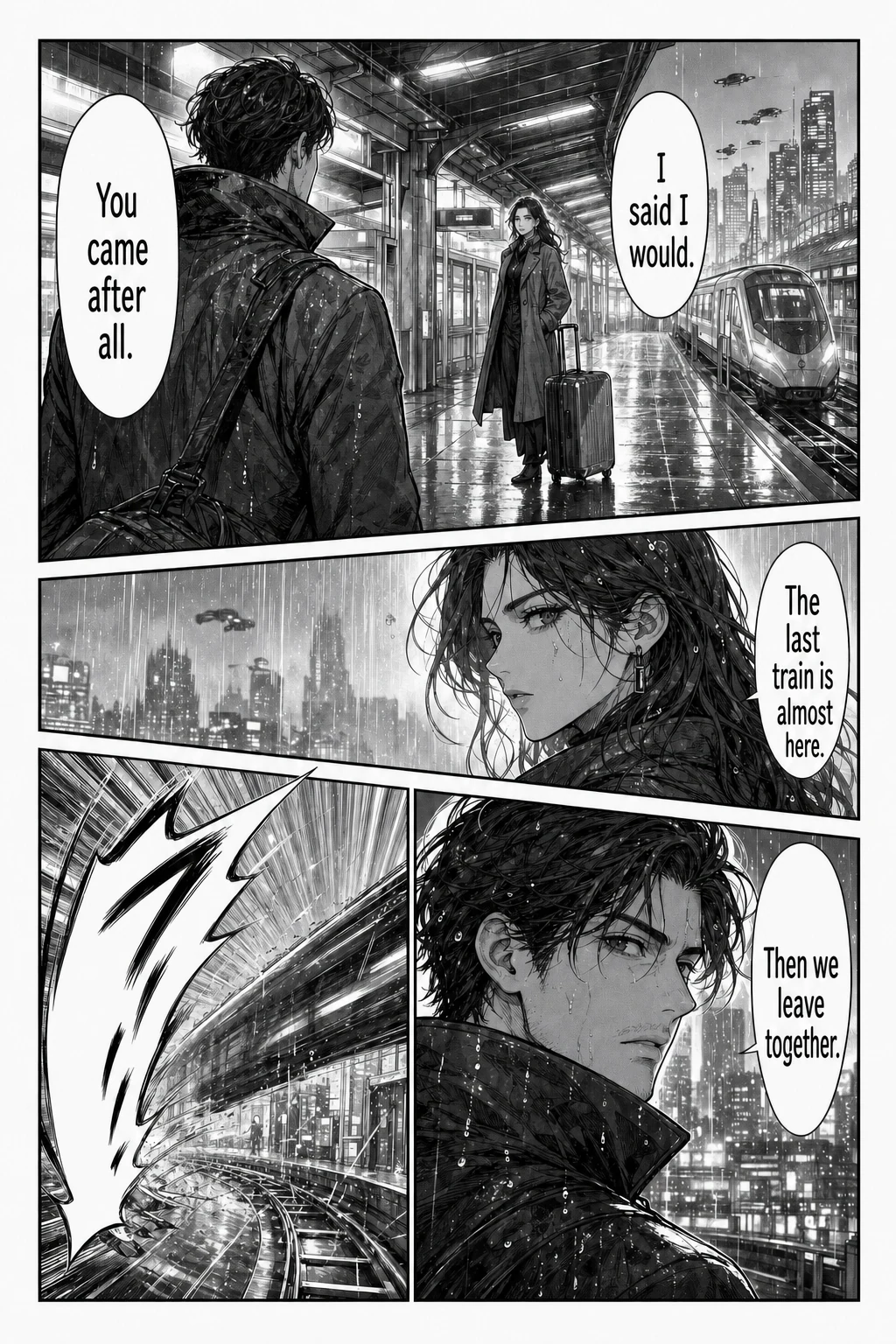
Ink Studio is an open-source desktop application for digital painting, illustration, and manga, distributed under GPL-3.0 and currently at version 1.0.2. It is built for desktop artists who want painting, comic production, and animation inside one local application: the studio pairs a WebGL brush engine with sparse-tile and vector layers, manga panels and screentones, an interactive 3D pose mannequin, cel animation, and built-in multiplayer collaboration. The site describes it as local-first with zero telemetry, with no account required, a local scratch disk, and crash recovery. Installers are offered for Windows, macOS, and Linux, and the Windows build includes automatic updates. The application is positioned as a free, open-source workspace for artists, and several product decisions follow from that positioning. It requires no account, keeps work local-first with zero telemetry, and uses a local scratch disk with crash recovery. For artists moving between tools, Ink Studio opens .clip and .csp files and imports Clip Studio Paint .sut brush presets alongside its own .inkb format, so existing brushes and saved comics can be brought into the workspace rather than rebuilt. It also opens layered .psd and .psb files, saves back to .psd, and according to the v1.0.2 release notes provides lossless PSD/PSB round-trip for blend modes. Collaboration is handled without a separate service sign-up: the app runs its own Rust WebSocket server for rooms over LAN or public invite links via Cloudflare Tunnel. The WebGL brush engine is the core of the painting experience. It responds to stylus pressure and tilt, applies velocity-driven taper, and supports dual brush tips, paper textures, wet edges, color mixing, and custom pressure curves. Brushes can be imported from Clip Studio Paint .sut files and from native .inkb presets, and the v1.0.2 release adds a Natural Paint Engine with its own dedicated Natural Paint brush category. The interface exposes a Brush tool on B, an Eraser on E, bracket keys for size, and Ctrl+Alt+Drag to resize the brush, alongside a stabilization control shown in the canvas toolbar. The v1.0.2 notes state that heavy parsing, pixel math, compression, and pen input now run in Rust over raw binary IPC, and that third-party engine optimization was performed. Layers in Ink Studio come in two kinds: raster sparse-tile layers and editable vector layers. Vector strokes support pinch, width, and simplify tools, and the v1.0.2 release upgrades VectorStroke and VectorKnot to natively store, bound analytically through cubic extrema, render with bezierCurveTo, and serialize cubic Bezier handles alongside Catmull-Rom strokes. The layer stack includes clipping and layer masks, layer styles, blend modes, Curves, Levels, and Gradient Map adjustments, CMYK soft proofing, and a 1-bit Monochrome mode suited to black-and-white manga work. The core capabilities list 17 blend modes, and the v1.0.2 release notes state that all 28 blend modes are now implemented — the 17 existing plus vivid-light, linear-light, pin-light, hard-mix, subtract, darker-color, lighter-color, hue, saturation, color, and luminosity — with lossless PSD/PSB round-trip and deduplicated GLSL shaders. Additional image tools include Multi-layer Liquify, a geometric shapes tool, a straight ruler with rotate and lock functions, and drag and drop of files from the File Explorer directly into the Layers section. Version 1.0.2 substantially expands the painting and selection toolset. Lasso and all selection tools gained Cut, Copy, Paste, and Move to New Layer (Ctrl+X, Ctrl+C, Ctrl+V, Ctrl+Shift+J) so a selected region can be extracted from a single layer into a new layer, plus Delete Section and Delete Outside Section. A Gradient Tool on Shift+G supports linear, radial, and interactive bicubic mesh gradients with multi-stop RGBA editing, presets, repeat and reflect modes, blend modes, and 4x4 Bayer dithering. A Retouch Tool on S bundles Smudge with premultiplied pickup and Finger Painting, Blur, Dodge, Burn with Shadows/Midtones/Highlights and Protect Tones, and a Clone Stamp with Alt+Click origin, aligned mode, and active or all-visible sampling. A Bezier Pen Tool on P offers true cubic Bezier curves, interactive anchor and tangent handles, symmetry breaking with Alt+Drag, de Casteljau curve splitting, closed fills, and direct editing of VectorStroke Bezier paths. The Color panel adds an interactive 3D Sphere Color Picker alongside the Color Wheel and Color Sliders, with painterly shadow, base, and highlight lighting slots, and it can be pinned into a non-blocking, draggable, resizable floating palette. Manga and webtoon production is handled with dedicated page tools rather than generic drawing features. Frame border folders support panel splitting, and parametric speech balloons place dialogue with horizontal and vertical typography for vertical-text comics. Screentones and effect lines cover the traditional manga texture and motion vocabulary, while 1/2/3-point perspective rulers snap to the brush for precise backgrounds and architecture. Finished pages can be exported as 9:16 slices into a .zip archive for webtoon publishing. The start screen offers Manga Panels and Blank Sheet options, and the sample page shown in the interface is labelled 960 × 600. An embedded Three.js viewport provides 3D reference for drawing difficult angles. It contains a posable IK mannequin with pose presets, imports .glb, .gltf, and .obj models, offers adjustable lights, and can sync the camera to a perspective ruler. A line-and-tone extraction feature, referred to on the site as LT baking, converts the 3D reference into line and tone artwork. The 3D interface was adapted in the v1.0.1 release, which also records a fix for a 3D layer import crash. A frame-by-frame cel animation timeline with onion skinning sits alongside stroke-based time-lapse recording, so an artist can produce traditional cel animation and a process video from the same session. Animation and recordings export to GIF, APNG, WebM, H.264 MP4, or PNG sequence archives; the formats section lists .png, .zip for Webtoon slices, .gif, .apng, .webm, and .mp4 as export outputs. Time-lapse recording is listed in the core capabilities as part of the same animation feature group. Real-time multiplayer is built into the application rather than added separately. A built-in Rust WebSocket server hosts rooms for up to 16 concurrent artists over LAN or through public invite links via Cloudflare Tunnel, and browser guests can join without installing the desktop app. The session provides live cursors, tile-level synchronization, and layer reservation so collaborating artists do not overwrite the same layer. Version 1.0.2 added Auto-Reconnect, Roles, and Access Rights in the collaborative room, implemented full operation and layer-tree synchronization, and refactored server.rs from a dumb relay into a single-lock linearized stateful room authority with matching client wiring. Ink Studio reads .ink, .psd, .psb, .clip, .csp, .png, .jpg, .webp, .gif, .bmp, .svg, and .sora files; saves .ink, .psd, .png, .jpg, and .webp; imports .inkb, .sut, .glb, .gltf, and .obj; and exports .png, .zip Webtoon slices, .gif, .apng, .webm, and .mp4. Version 1.0.2 removed duplicate formats and old branding tied to the .sora extension. Keyboard shortcuts are customizable in Settings (Ctrl+,) and include B for Brush, E for Eraser, Ctrl+Alt+Drag to resize the brush, Space+Drag to pan the canvas, Shift+Space to rotate it, Ctrl+T for free transform, Ctrl+Shift+R for the perspective ruler, and Tab to toggle palettes. Version 1.0.2 also added an exit confirmation dialog with per-canvas save prompts for one or multiple unsaved documents, and reworked the new canvas menu to be more user-friendly. Ink Studio is distributed as an open-source project under GPL-3.0. Version 1.0.2 (2026-11-22) ships a Windows installer of 5.4 MB and an MSI of 6.9 MB with automatic updates on Windows, and builds are offered for Windows, macOS, and Linux, though the site notes that prebuilt Linux binaries were not attached to v1.0.2 and can be built locally. Building from source requires cloning the repository, running npm install and npm run tauri build, and having Node.js 22+, a stable Rust toolchain, and the Tauri v2 OS prerequisites. The application is built with Tauri, Rust, and React, with WebGL for the brush engine and Three.js for the 3D viewport, and releases are SHA-verified via GitHub Releases. There is no paid tier described in the content; the product is presented as free and open source with no account required. Taken together, Ink Studio offers a free, local-first desktop studio that keeps painting, comic layout, 3D reference, animation, and live collaboration inside a single open-source application. Its WebGL brush engine and Clip Studio Paint brush import lower the cost of switching, its manga frames, balloons, screentones, and slice export target comic and webtoon workflows directly, and its built-in Rust multiplayer server lets small teams draw on a shared canvas over LAN or invite links without a separate service. For artists who want a lightweight, GPL-3.0 alternative with zero telemetry and full file ownership, Ink Studio presents that combination as its primary value.
Dawnroom is an open-source image studio that runs on your own machine instead of in the cloud. You describe a picture and it develops in seconds, or you drop in an existing image, describe what to change, and it edits the rest untouched. It is built for people who want to make and edit images on their own GPU without spending credits or sending files to a remote service. The product ships as a Windows Studio for people who like windows, a command line interface for people who like terminals, and an MCP server so agents such as Claude Code and Codex can generate images on your GPU. The product positions itself against credit-based, cloud-hosted image generation, and it states the promise plainly: no credits, no cloud, and nothing leaves your computer. Models are downloaded once and then work offline, so a session does not depend on an internet connection or a metered account. Because the studio is open source and the models carry open licences such as Apache-2.0 and OpenRAIL++-M, the toolchain is inspectable rather than opaque. For anyone who has watched a generation queue or a credit balance, the appeal is direct: you own the graphics card, you own the models, and you own the outputs. In the Studio the loop is a single prompt field and a Develop button. You type something like 'a red fox sleeping in fresh snow' and the image is developed on the machine in front of you. Results are shown with the recipe printed on the film edge: frame number, seed, step count, elapsed time and resolution, so a result can be traced back to the settings that produced it. One sample, a neon sign reading 'OPEN LATE' in a rainy alley at night, was rendered at 1024x1024 with Z-Image Turbo in 8 steps and 19.3 seconds. Another, a portrait of an old fisherman at golden hour, came from RealVisXL V5.0 at 1024x1024 in 28 steps and 38.0 seconds. A third, a darkroom safelight glowing amber over trays of developer, was made with FLUX.2 klein 4B at 1248x832 in 4 steps and 16.9 seconds. The Studio also lets you write your prompt while the model is still downloading, so setup time is not wasted. The editing model is instruction based as the site presents it: you start with an image and say what to change. The worked example begins with a ceramic coffee cup on a wooden cafe table by a rainy window, morning light, and a chalkboard behind it that reads FRESH BREW, rendered in 4 steps and 9.4 seconds. Then you say 'make it night with warm candle light, keep the chalkboard text.' The output keeps the chalkboard text and the rest of the composition and applies only the described change; the edit was produced in 20.3 seconds and recorded as edited from the original frame. The site shows both images untouched, side by side, as before and after. This is the part people usually reach for cloud tools to do, and here it happens on the same machine that made the original. Auto mode removes model choice from the critical path. It picks a model that runs on your machine and tells you why in one line, for example 'FLUX.2 klein 4B already loaded, fastest, about 10 s here.' The library is organised around three picks, one for each job. Z-Image Turbo is the Quality pick: described as the best all-rounder with sharp prompt-following and clean, legible text, run at 8 steps in q4 or q8, needing 4.3 GB of memory, a 6.7 GB to 9.4 GB download, and licensed Apache-2.0. FLUX.2 klein 4B is the Fast pick: vivid, crisp images in 4 steps, weaker on small text, the one of the three that does both generate and edit, running at q8 with 5.1 GB of memory, a 5.3 GB to 7.1 GB download, and an Apache-2.0 licence. RealVisXL V5.0 is the Photoreal pick: the most detailed skin and faces, but slow and unable to write text, run at 28 steps in fp16 with 5.5 GB of memory, a 7.3 GB download, and an OpenRAIL++-M licence with use restrictions. Beyond the three picks, the site points to all 34 models in the library, each with its own page. You can also bring your own model from Hugging Face with a single command, dawnroom pull hf.co//, and the download is checked before anything is installed. Model pulls are designed to survive interruptions: the Quality model, 6.7 GB, resumes if it stops, and every file is checked. Downloads are one-time, after which the models work offline. For developers the command line mirrors the Studio. The Windows installer puts dawnroom on your PATH; you start the engine with dawnroom serve and leave it running, pull a model with dawnroom pull z-image-turbo, and generate with dawnroom run 'a lighthouse at dawn', which prints the path of the PNG when it is ready, with an -o FILE flag to copy it somewhere. Every command takes --json, which matters if you are scripting generation into a build step or a pipeline. The dawnroom mcp command starts an MCP server so Claude Code, Codex and other agents can make images on your GPU; the site's example is simply asking Claude to 'make me a poster with Dawnroom.' The Product Hunt description also notes a localhost OpenAI-compatible API. Before committing to a download, the site offers a local check that runs in your browser. It identifies the graphics card this computer is using, warns when the browser reports built-in graphics such as AMD Radeon integrated graphics, and invites you to pick a separate GPU if one is installed. You can search graphics cards and chips across NVIDIA, AMD, Intel Arc, Apple and Other, and narrow by series including RTX 50, RTX 40, RTX 30, RTX 20, GTX 16, GTX 10 and DGX Spark, with an 'I don't know' option for people who would rather not look. The check is explicit that nothing is sent anywhere. On first run the Studio repeats a version of this: it checks your graphics card and offers a starter model, Quality at 6.7 GB or Fast at 7.1 GB. Measured numbers appear throughout the site, taken on an RTX 5060 Laptop. The print took 9.4 seconds and the edit 20.3 seconds in the same session. Auto's reasoning is shown as a one-liner with a time estimate, such as about 10 seconds for a fresh generation and about 18 seconds for a fast edit with FLUX.2 klein 4B. Longer recipes are labelled honestly: RealVisXL V5.0 at 28 steps took 41.6 seconds on one sample with a progress readout showing 13 of 28 real steps. Step counts range from 4 for FLUX.2 klein 4B to 8 for Z-Image Turbo to 28 for RealVisXL V5.0, and each output records its seed, so results can be reproduced or deliberately varied. Concretely, Dawnroom covers a handful of recurring workflows. Concept art and moodboards: type a scene, get a print in seconds, iterate by seed. Iterative retouching: drop in a render and ask for night lighting, warmer light or a changed detail while keeping text and layout. Agent-driven asset generation: an agent such as Claude Code or Codex calls the MCP server to produce a poster or illustration mid-task. Scripted batch work: a developer calls the CLI with --json and captures output paths for downstream processing. Privacy-sensitive work: because nothing leaves the computer, prompts and images stay on the machine. The product is aimed at people with a capable GPU who would rather run models than rent them: developers comfortable with a terminal and a PATH variable, designers and hobbyists who want a Studio window, and agent users who want their assistant to have image generation on tap. The vision and roadmap page carries where it is going. Nothing on the site describes subscription tiers; the studio is open source, the models carry open licences, and there are no credits to buy. Dawnroom's value proposition is narrow and clear: make and edit images on your own GPU, with no credits and no cloud. A one-click Studio, a scriptable CLI, an MCP server and a 34-model library all point at the same idea — the machine you already own is enough, and nothing has to leave it.
Searchunk is an AI-powered search layer for image and video archives. It reads your archive with AI wherever it lives — in cloud storage such as Amazon S3, Google Cloud Storage or Azure Blob Storage, or in folders on your own computer — and lets you find any frame by describing it in your own words. Instead of relying on file names, folder structures or hand-typed tags, you type a phrase such as "dog running on the beach" and Searchunk returns the best matching images and video frames in seconds. The product is aimed at companies and teams that keep large photo and video collections and need to retrieve a specific shot quickly. Searches work in both English and Turkish, and the original files never leave the storage the customer already uses. Most media archives are not organized around the way people actually remember images. A photo might be called IMG_4471.HEIC, DSC08812.JPG, P1030127.jpg or export-final.webp, and the moment someone needs it — a sign outside a veterinary clinic, a dog on a beach, a particular scene in a video — the file name offers no help. Folder structures capture only the broadest categories, and hand-typed tags require someone to sit down and label thousands of files in advance, which rarely happens consistently and almost never keeps pace as new material arrives. Video makes the problem sharper, because a single clip can hold dozens of distinct scenes and the relevant one may last only a few seconds. Searchunk addresses this by indexing what is actually visible in each image and each scene of each video, so retrieval depends on content rather than on how someone once named a file. A large part of an archive's meaning is written rather than photographed. Searchunk reads the text in images, so signs, labels, posters and screens become searchable. The website illustrates this with a frame showing a green veterinary clinic sign reading "SAHİL VETERİNER": typing that phrase brings the frame up, even though the file itself gives no hint of the sign. Alongside the text, the AI records what it sees in a frame — the example lists a vet clinic, a shop front, a green sign and a paw print. Searchunk also understands Turkish, including endings: a search for "kuşlar" also finds files described as "muhabbet kuşu", and typing Turkish words without Turkish letters still works. Videos are split into scenes and each scene is searched on its own. Results show timestamps such as 00:42 next to a matching clip, and clicking a result starts the video playing right at that moment rather than at the beginning. Combined with the ranking behaviour — the best frames come first, with visible match scores such as 94% or 41% — this turns a long recording into something closer to a set of individually findable shots. Because each scene is treated separately, a specific few seconds inside a longer MP4, MOV, WEBM, MKV, AVI or M4V file can be located directly by describing it, and the results page can be filtered between all results, images and videos. Searchunk connects to wherever the archive already lives instead of requiring it to be uploaded somewhere new. Supported sources include Amazon S3, Google Cloud Storage, Azure Blob Storage, OVHcloud, Wasabi, Backblaze B2, Cloudflare R2, DigitalOcean Spaces, Scaleway, Hetzner, Akamai (Linode), Exoscale SOS, IONOS, Contabo, Oracle Cloud, IBM Cloud, IDrive e2 and any S3-compatible storage, plus folders on your computer via a small agent for Windows, macOS or Linux. Setup takes a few minutes. After that, sources are checked regularly: new, changed and deleted files are handled automatically, so new files join the indexing queue on their own and the archive does not need to be re-submitted each time it grows. The workflow the website describes has three steps. First you connect your archive by selecting a storage service or installing the agent for a local folder; your files stay where they are. Second, Searchunk's AI looks at every image and every scene of your videos, capturing objects, the setting, the colours and the text on signs. Third, you search by describing what you have in mind, in English or Turkish, and the best frames come first. Every search runs in both languages. Behind this sits a semantic search model: content is indexed up front and queries are matched against what was seen, not against metadata. Because the product is an index rather than a hosting service, it does not take over the archive. Originals are not copied; only search data and small previews are kept, and the agent on a computer sends only downscaled frames. Every AI model runs on Searchunk's own servers, so images are never sent to outside AI services. Storage credentials are stored encrypted, and each company's data is kept apart and never mixes with another company's searches. A privacy notice explains which data is processed and why. Practically, this means a team gets fast, description-based retrieval without moving large amounts of media, without changing its storage provider, and without exposing its archive to third-party AI vendors. Searchunk is built for teams as well as individuals. Colleagues at a company's domain can be invited, and everyone searches the same archive. For integration into other tools, an API key unlocks the same search from an application or workflow; the documentation shows a call to the searchunk.com API endpoint with a bearer token and a JSON body containing a query such as "dog running on the beach". Accounts are opened with a company e-mail address — addresses from free services such as Gmail, Hotmail or Outlook are not accepted. Typical use is retrieval inside an existing collection: a team member remembers a sign reading "Sahil Veteriner" and finds the frame without knowing the file name; an editor needs the moment at 00:42 of a long video and jumps straight to it; a photographer searches a personal folder on their computer for a dog running on a beach. Because the same search is available through the API, the capability can be embedded in internal tools or other workflows, and because new, changed and deleted files are handled automatically, the archive stays searchable as it evolves without manual re-tagging. Searchunk indexes images in JPG, PNG, WEBP, AVIF, HEIC, GIF, BMP and TIFF, and videos in MP4, MOV, WEBM, MKV, AVI and M4V; documents such as PDFs are not indexed. Every new company account indexes its first 250 images and videos free, with no setup fee and no credit card required, and every feature is included, including inviting teammates. Files beyond the limit are not indexed while the quota stands, but searches keep working; a higher quota can be requested from the dashboard, and indexing picks up where it stopped once it is raised. The service is currently in public beta, so occasional outages and changes are expected. Searchunk's value proposition is narrow and practical: that frame in your archive is one sentence away. By indexing images and video scenes with AI, keeping originals in the customer's own storage, running every model on its own infrastructure and accepting natural language in English and Turkish, it removes the dependency on file names, folder hierarchies and manual tags. Teams connect a source, describe what they need, and get the best frames first — without moving their archive or changing where it lives.
magpie is a visual library app that brings everything you save into one place. Its own summary is direct: everything you've saved, in one visual library. Rather than leaving references scattered across apps, magpie gathers your saves from Instagram, X, TikTok, Reddit, Pinterest, Cosmos, Are.na, GitHub and your browser's bookmarks, and presents them as a single browsable collection of images, video saves and links. Each save is tagged by AI, so the library can be searched by what is actually in it, or by colour, rather than by the caption someone wrote or the account that posted it. The stated purpose is simple: give people who collect visual references a permanent, searchable home for them. It is built for anyone who saves things they intend to use later — designers, art directors, studios and other creatives working with visual references — rather than for people who save casually and never come back. The problem magpie addresses is familiar to anyone who collects references: your saves live in many different places. A poster might be saved on Instagram, a type treatment on Cosmos, a photograph on Are.na, a video on TikTok, and a repository on GitHub, with the rest arriving through browser bookmarks. Each of those platforms has its own way of organising and finding things, and none of them knows about the others. The content also has a habit of disappearing — posts get deleted, accounts go away, and the thing you saved is no longer there when you need it. magpie's answer is to keep everything you have saved, even when the post is gone, and to make the whole collection findable from one place instead of five. Capture is built around the places you already save from. The product lists Instagram, X, TikTok, Reddit, Pinterest, Cosmos, Are.na, GitHub and your browser's bookmarks as sources, and its browser support covers Chrome, Safari and Firefox. The site also describes being able to paste a link anywhere, so a reference can be added without first navigating back to the app. Everything you save lands in the same library. In the sample library shown on the site, that library holds 265 saves — a mixed set of brand identities, packaging, editorial photography, motion work, film stills and travel imagery, each shown with the domain it came from, such as instagram.com or cosmos.so. The AI layer is what makes that mixed collection searchable. Because saves are tagged by AI based on what is in them, you can search by meaning instead of by the words attached to a post — the site's example is a search for somewhere by the sea, which surfaces images of coastlines, beaches and water without relying on captions. The same tagging supports searching by colour, so you can pull together the saves that are mostly one particular blue. Combined with the promise that saves are kept even when the post is gone, the tagging is what turns a pile of bookmarks into a reference library you can actually query later. Search is presented as a single bar that doubles as an input for requests. It reads find, or ask, and is available from a keyboard shortcut (⌘K) as well as on screen. The asking side goes beyond retrieval: in the sample shown on the site, the request references for a calm hardware launch returns saves that magpie has picked, each with a reason attached, and then makes a project of them. So the same bar can either find a specific thing you remember saving or assemble a reasoned starting point for something you are about to work on. Browsing the library is flexible. The interface supports rows and cells as layout options, with grid and canvas views alongside them, plus simple zoom controls for moving between an overview of many saves and a closer look at a few. Saves can be grouped into collections — the site shows an Instagram collection of posters and prints — and video saves open and play directly inside magpie rather than sending you back to the source. Between the search bar, the AI projects and the collection views, the library can be read at several levels: everything at once, a themed subset, or a set assembled for a particular brief. The outcome magpie is built around is continuity. Because your saves are kept even when the post is gone, a reference you found two years ago is still there when a project needs it, which is not true of a bookmark pointing at a deleted account. Because everything lands in one library instead of several, you search once rather than repeating the same search across Instagram, Pinterest, Are.na and your bookmarks. And because the AI tags by content and colour, you can search for what a save looks like rather than for what you remembered typing when you saved it. Concrete uses appear throughout the product's own material. One example is finding a reference by mood: a search for somewhere by the sea, or browsing the saves that are mostly one of a particular blue. Another is assembling references for a brief by asking for them — references for a calm hardware launch — and receiving a set of saves with a stated reason for each, organised as a project. Another is reviewing a themed collection, such as posters and prints saved from Instagram, or opening a video save and letting it play in place. Another is adding to the library while browsing, either by saving from a supported platform or by pasting a link wherever you happen to be. magpie is presented as an app you download for Mac, with a free way to start, and it works alongside the browsers its users already save from — Chrome, Safari and Firefox. Its natural audience is people whose work depends on visual reference: designers collecting identities, packaging and typography; art directors gathering campaign and editorial imagery; studios building mood and direction; and anyone who treats saves as raw material for future projects rather than as a private archive to scroll once. Taken together, magpie's value proposition is that the things you save should be treated as a library, not as a feed. One visual library collects them, AI tagging makes them searchable by meaning and colour, and the saves are kept even when the original post is gone — so the references you gathered stay usable long after you saved them.
AI Manga Translator is an online tool at aimangatranslate.org that translates the text inside manga, manhwa and manhua page images and returns a translated page image. It detects speech bubbles and captions, erases the original lettering, and places the translation back on the artwork, so readers see the dialogue beside the panels instead of copying lines into a separate translator. It is built for readers of Japanese manga, Korean manhwa and Chinese comic images who want to follow a page in their own reading language, and for people who already have a chapter as image files or a CBZ/ZIP archive. The product covers single pages, batches of up to 20 images, whole chapters in archive form, image URLs, and images already loaded on a webpage through a Chrome extension. A single page translation is included with no credit card required, so a reader can judge the result before committing to a chapter. Reading a translated page usually means leaving the page. A reader takes a screenshot, copies a line, translates it somewhere else, then hunts for the same spot on the page again — all just to find out what happens next. The site describes this friction directly: copying dialogue line by line, losing track of who said what, and repeating the same steps for every page of a chapter. Short replies are especially awkward, because the speaker, the expression and the previous panel may explain more than the words alone. Unfamiliar characters should not mean more typing, and a reader should not have to crop every speech bubble by hand. Keeping the translation on the artwork preserves the context — character, expression and panel order — that gives a line its meaning, and the aim stated on the site is to reduce the manual work between seeing a page and understanding it. The single page translator is the entry point. You upload a complete PNG, JPG, JPEG or WebP page up to 15 MB, choose the language you want to read in, and receive a translated image with the dialogue placed back on the page. You can review the text and the artwork before downloading, and you can inspect a local preview of your file before signing in — starting the translation itself requires an account. The site suggests choosing a page with ordinary speech bubbles and enough dialogue to tell whether the translation is useful, rather than a cover with a single title, and using a page you know first so you can check important lines against the original. The website tools offer 133 reading languages, with English, Simplified Chinese, Japanese, Korean, Spanish, French, German and Portuguese listed among the choices. For longer material there are dedicated workflows. The batch translator accepts up to 20 separate image files at 15 MB each, processes them in queue order, and lets you download completed pages as separate images; you can open a finished translation while later pages are still processing, so you start reading before the batch finishes. If a page fails, it shows its own error message and can be retried without losing the pages already completed. The CBZ translator takes one CBZ or ZIP archive of up to 100 MB containing up to 50 supported images (15 MB per image, 200 MB extracted total), sorts numbered filenames naturally, and exports an ordered CBZ or ZIP once all selected pages finish. Original archive metadata is not retained. The manga URL translator lets you paste links and import up to 20 pages without saving files first, which suits chapters that already live online. For pages you are already reading in a browser, the Chrome extension works in Chrome and compatible Chromium desktop browsers. You install it, sign in to the website account, choose a language, and translate accessible images already loaded on the page using your credits; installation is free, translation consumes credits and requires an internet connection. The extension offers 25 languages, a smaller set than the website tools. A separate Manga Cleaner handles relettering rather than translation: it removes bubble text or all detected text from up to 20 images at 15 MB each and exports PNG, WebP or a ZIP, so another tool or an editor can place new lettering. The translator itself returns images and previews; the site states plainly that it does not include an editable glossary, an OCR correction screen or human proofreading, and that dialogue and lettering cannot be edited inside the app. Under the hood, the service detects speech bubbles and captions, erases the original lettering, and letters the translation back into those bubbles while aiming to keep the panel art and layout intact. The site is candid that fine details and text over busy backgrounds may change, and that AI can misread names, miss context, or struggle with vertical text and stylized sound effects, so a translated image is something to review rather than a guarantee that every word is unchanged. Access is credit-based: each page costs 1 credit, failed pages are refunded automatically, and one-time credit packs never expire with no subscription involved. Downloads require a purchased credit pack starting at USD 4.99. Source images and translated results are stored in the signed-in account's history, so returning to completed work does not depend on keeping an unfinished local queue open. The practical benefit is continuity of reading. Instead of juggling screenshots and separate results, you keep the page, the characters and the panel order in front of you while checking a translated version beside the original. Batch and archive workflows remove the repeated setup — you choose pages and one target language once, then read results as they finish. Because completed pages persist and failed pages are refunded and retryable, a long chapter does not have to be restarted from the beginning. For readers who only need to understand one difficult conversation, the single page tool keeps the effort to a single upload; for readers working through a chapter, the queue and archive tools keep the pages in order. Typical situations the site describes include reaching the latest raw manga chapter and needing to follow the dialogue without typing out unfamiliar characters; working through a Korean manhwa or Chinese manhua page where the artwork and colour carry as much meaning as the words; translating a whole chapter supplied as separate images or a CBZ/ZIP and getting the pages back in order; translating pages on a manga website in Chrome without downloading them first; and removing original text from pages so they can be relettered for another audience. The site also recommends testing a representative page first, because automatic translation can miss names, context and stylized lettering, and checking vertical dialogue and small background text as well as the large bubbles. The product is aimed at individual readers of raw manga, manhwa, manhua and comics, and at anyone preparing pages who needs the source lettering removed — while the site notes that a finished edition for other readers still requires your own review and image editing. It runs in the browser with no install for the main tools, plus an optional Chrome extension for desktop Chromium browsers. Pricing is one-time credit packs rather than a subscription: 1 credit per page, failed tasks refunded, packs that do not expire, downloads requiring a purchased pack, and trial credits or free-account limits that vary with the current account offer. Sign-in is required to translate and to keep results in history. The site is equally clear about what it does not do: there is no direct PDF, CBR/RAR or EPUB import, no text editor for correcting or re-lettering translations after generation, and no offline processing or unlimited free use without an account. Documents and archives need to be organised into page files first, very long strips should be prepared as readable image sections, and only content you own or have permission to process should be uploaded — the site asks users to check the privacy policy before uploading confidential work. Taken together, AI Manga Translator is a page-level reading aid: it keeps the scene in view, returns the translation inside the bubbles where it belongs, and scales from a single stuck page to a queued chapter or an exported CBZ/ZIP, with a clear per-page credit model and automatic refunds for failed pages. The advice running through the whole site is the same — begin with one page, judge how it reads in your chosen language, and move to the chapter queue when that workflow suits the material in front of you.
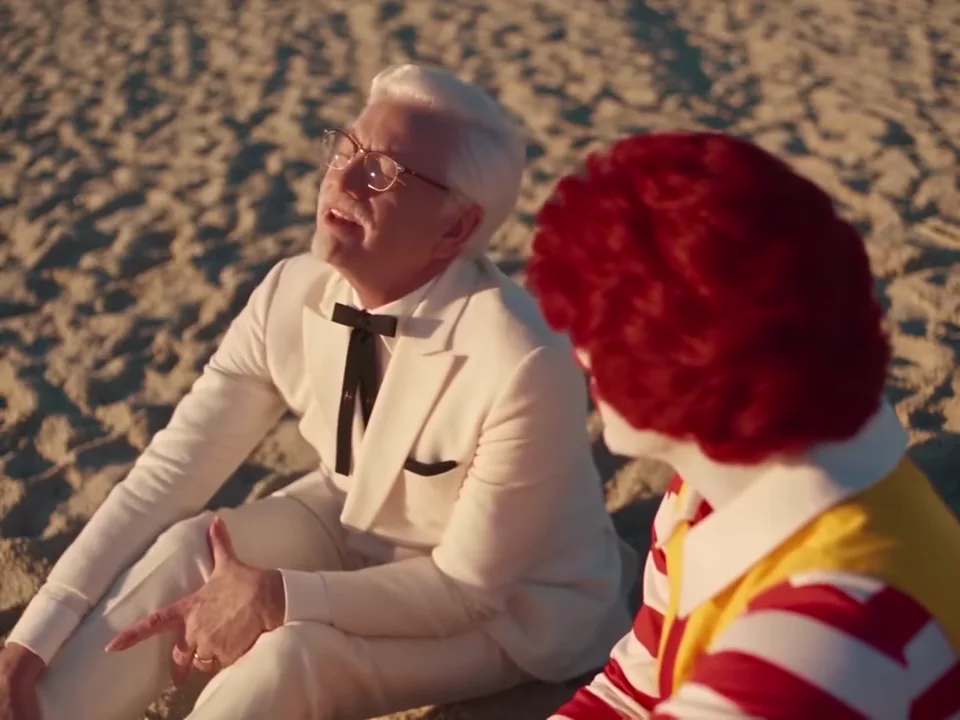
Raindance Maker is an AI video generator that turns two separate photos into a Raindance AI video set on a seaside pier. You upload one photo for each of the template's two roles, and the tool recasts the viral pier performance with those people. Photo 1 replaces the person seated at the start, while Photo 2 replaces the person who walks in and takes the close-ups. The template supplies the scene, camera moves and performance, so no filming or prompt writing is needed. You choose the duration, the model and the resolution, check the exact credit cost, and then download a finished 4:3 MP4 that includes the reference soundtrack. The product addresses a specific problem: the Raindance AI trend places two people into a sunny seaside pier performance set to "Raindance" by Dave featuring Tems, but recreating that scene normally requires filming yourself or writing prompts for a general video model. According to the site, the pier clips are fan-made AI videos, not footage from the official music video, and "Raindance" itself is not an AI song. Raindance Maker uses a prepared two-person reference, so you can make your version from separate photos without filming the scene. The site also notes it is an independent video tool with no affiliation to the artists or the creators of the reference clip. The core workflow is built around two clearly defined roles. Photo 1 replaces the person seated at the beginning of the clip, and Photo 2 replaces the person who walks in and appears in most of the close-ups. Those roles stay tied to the photos when the camera cuts or the performers change position. The generator labels each role beside the preview and offers a swap control if you want to exchange the photos. You upload one clear person per image in JPG, PNG or WebP format, up to 20 MB each, with a shorter edge of at least 300 px and an image ratio between 0.4 and 2.5. The site recommends a photo with visible eyes, hair and facial detail for the close-up role, and a waist-up or full-body photo to give more information about clothing and proportions, while avoiding faces hidden by hands, dark sunglasses or heavy filters. Settings give you control over length, model and resolution. Available durations are 5, 10, 15 or 30 seconds, with 30 seconds limited to Seedance 2.5. Two models are offered: Seedance 2.5, described as best quality, which supports 480p (640 × 480), 720p (960 × 720) and 1080p (1440 × 1080) and up to 30 seconds; and MiniMax H3, which renders 720p and up to 15 seconds for fewer credits. The default is Seedance 2.5 at 10 seconds and 720p. The generator updates the credit total before you submit, and uploading a photo or changing a setting does not start a paid generation. The 30-second template holds the reference's final frame for about two seconds, and every video is one generation with nothing stitched together. Sound is handled automatically. The finished video includes the soundtrack from the selected reference clip, so you do not need to find an audio file or line it up in an editor. The site is explicit that the download includes the soundtrack from the selected template reference and does not generate a new song or clone your voice. Mouth movement can still differ from the reference, and faces, hair, hands, clothing and lip sync can vary, especially across cuts, so the site advises listening to the result and reviewing both people through the whole clip before sharing. Beyond the pier template, the site mentions more trend templates on the same site, including Hotel Lobby, Alors on Danse, Smalltown Boy and APT. Raindance Maker also publishes supporting guides covering the Raindance AI trend, a step-by-step how-to with photo tips, models, posting to TikTok and troubleshooting, a page on whether Raindance AI is free, and an explainer on the Raindance song by Dave and Tems. Example remakes shown on the page include Shrek & Lord Farquaad, Gru & Vector, and Ronald McDonald & Colonel Sanders, each running 29 seconds with the original soundtrack, while the generator itself offers 5, 10, 15 or 30 seconds. In terms of approach, Raindance Maker relies on a prepared reference rather than free-form prompting. The site states that the template already contains the role instructions and reference performance, so users choose two photos, review the settings and generate. A reference clip supplies the scene, camera moves and soundtrack for the template; the page preview shows the first 10 seconds, and the generator can preview your selected duration. Your two photos replace its performers, and the site notes the preview is not a result made from your photos. Exact likeness is not guaranteed, and the generator updates the credit total before submission so costs are visible ahead of time. Benefits described on the site center on speed and simplicity: the template supplies the scene and performance, so no filming or prompt writing is needed, and the soundtrack is included so there is no separate audio step. The site emphasizes seeing credits before generating, with the total depending on duration, model and resolution. If a generation task fails, its charged credits are returned. Free accounts receive a moving raindancemaker.com watermark, and any purchase unlocks the saved clean original, including videos you have already made. Uploaded photos are used to make your video and are not added to the public examples on the page, and generation history and downloads require an account. Use cases described include a duet with your partner: using separate photos to put both of you into the same seaside scene, even if the photos were taken in different places. Another is a clip for your best friend, where you choose who gets the seated role and who gets the close-ups and then make a video to send to each other. The site also describes a new take on the same template by trying a different pair of authorized photos while keeping the reference performance, with the advice to review each take rather than assuming the same model will reproduce every detail. It further suggests shooting settings and framing similar to a vertical post and warns to avoid cropping out a performer when preparing a vertical post. Pricing uses site credits shared with the other tools on the site, and the total is shown before generation. A 5-second video starts at 49 credits. For a 10-second video, Seedance 2.5 costs 97 credits at 480p, 219 credits at 720p and 388 credits at 1080p; MiniMax H3 costs 97 credits at 720p. Three plans are listed: Starter at $9/mo with 240 credits per month (about 2 ten-second MiniMax H3 720p videos) for trying the trend; Pro at $29/mo with 780 credits per month (about 8 such videos) for regular creators, adding all lengths up to 15 seconds and priority support; and Enterprise at $99/mo with 2,650 credits per month (about 27 such videos) for agencies and pages, including dedicated support and custom integrations. All plans include watermark-free videos, including ones already made, and refunded failed videos. Eligible new accounts currently receive 5 credits, which may not cover a video in every model, and signup credits expire after 7 days. The tool runs in the browser, including on a phone, with no separate editing app required. In summary, Raindance Maker packages the viral Raindance AI pier trend into a guided two-photo workflow: assign the seated and close-up roles, pick duration, model and resolution, review the credit cost, and download a 4:3 MP4 with the reference soundtrack. Its primary value is letting people join the trend from photos they already have, without filming the scene or writing prompts.
Genie 4 is Google DeepMind's most realistic and interactive world model yet, described by the team as a new generation of world simulation. Rather than producing a finished video clip, it builds a world that you can walk through with your keyboard and steer with text while it runs. Text and image prompts generate photorealistic environments, and natural language lets you change those environments live: describe landscapes and events, move the camera, add new characters, or change the weather, then see what happens next. It is positioned for creators, game developers, and AI researchers who want to explore what interactive generated worlds can do, and it is currently offered as a research preview with an open waitlist. Genie 4 addresses a gap that becomes obvious once you compare it with ordinary video generation. A video generator hands you a finished clip: you write a prompt, you wait, and you receive a fixed piece of footage that plays the same way every time. Genie 4 instead builds a world you walk through and steer as it runs, which turns generation into something you can explore and revise rather than something you simply watch. Keeping such a world believable while it is being changed is the hard part. Appearance and behavior have to stay anchored in reality, and the simulation has to hold together from one moment to the next as prompts arrive. Genie 4 is presented as a response to both of those challenges, combining realism with the coherence and continuity a live, interactive world demands. The headline capability is shaping worlds in real time with natural language. You create and change worlds live by describing them: landscapes and events, camera moves, new characters, or a change in the weather. Each instruction is applied while the world is running, so the result is visible immediately as the scene continues to unfold around you. Because the interaction is conversational rather than a one-shot prompt field, you can iterate in the moment: set something in motion, watch how it plays out, then adjust it again. The page pairs this live control with keyboard-driven navigation, so you can move through the generated world yourself instead of only watching a rendered clip. For anyone used to waiting on a batch render, the shift is significant: direction happens continuously, while the simulation is alive and responding. Genie 4 also generates realistic interactive environments rather than static backdrops. In the worlds it produces, objects collide, water flows, and trees sway in the wind. Generated characters do not merely appear; they move and behave naturally within the scene. Those behaviors are what make a world feel inhabitable rather than painted. When you add a character or set an event in motion, the environment responds in ways that read as physical: things bump into each other, liquid moves as liquid, foliage reacts to air. This is the difference between a world you can look at and a world you can test, poke, and move through. It is also what makes the output useful for anyone trying to understand how a scene will behave, not just how it will look in a single frame. Beyond the visuals, Genie 4 generates native audio and live dialogue, so the worlds it builds carry sound as well as imagery, and characters can speak within the simulation as it runs. The model incorporates and builds on capabilities from the Gemini family. Gemini Omni anchors simulations in real-world appearance and behavior, which is how the worlds stay grounded in believable materials and motion. Other Gemini models provide the complex reasoning needed to help maintain a simulation's coherence and continuity over time. That division of labor matters for an interactive world: realism and consistency are separate problems, and both have to be solved simultaneously while a user is actively changing the scene. Bringing native audio and live dialogue into the same system extends that coherence past the visual layer and into how a world sounds and how its characters communicate. Taken together, the workflow Genie 4 describes is simple on the surface and technically demanding underneath. You start from a text prompt or an image prompt, and the model generates a photorealistic world. You then walk through that world with your keyboard while issuing natural-language instructions that reshape it live. Behind the scenes, Gemini models work to keep the simulation grounded and continuous. The page shows this loop in action across a wide range of prompts, and it also links to supporting material through sections on capabilities, future applications, limitations, and responsibility, along with a blog post announcing the model. The emphasis throughout is on interaction as the core of the experience: the world is not delivered to you, it runs with you. The benefits follow directly from that design. Creators get a way to explore an idea spatially, walking through a concept instead of describing it and waiting for a clip. Game developers can see environments in motion, with collisions, flowing water, swaying foliage, and characters behaving naturally, which is closer to how a playable space actually feels. AI researchers get a research preview of a world model they can interrogate interactively, changing conditions on the fly and observing what the simulation does next. Because the model handles realism through Gemini Omni and continuity through other Gemini models, users can focus on direction and observation rather than on manually reconciling a scene that keeps drifting. The result is a faster loop between an idea and a world you can stand inside. The prompts shown on the page illustrate the range of scenarios the model is demonstrated with. A crowned crane walks across snow beneath a clear dusk gradient sky in a natural, documentary style. A fully three-dimensional stained-glass landscape is generated as an explorable crystal world with translucent colored glass, dark lead outlines, and volumetric depth. A first-person, documentary-style skier speeds down an alpine course with motion blur, snow spray, and a subtle game-inspired interface layer. A top-down aerial view frames a still wooden rowboat on a dark pond ringed with lily pads and pink water lilies. Live-action-style footage follows an extravagantly dressed man backstage at an eccentric musical theatre. Other examples include a sunlit meadow with a stream of pink satin fabric winding through it, a watermelon on a stone plinth in slow motion, a first-person hot air balloon view over Antarctica, and underwater wildlife photography of pink axolotls in a clear freshwater river. Across these examples, the same pattern holds: rich environments, natural motion, and the ability to keep exploring. Genie 4 is built for creators, game developers, and AI researchers. Its technical foundation is the Gemini family, including Gemini Omni for grounding simulations in real-world appearance and behavior and other Gemini models for the reasoning that maintains coherence and continuity. Access is currently framed as a research preview, and the page invites visitors to join a waitlist. The site's navigation also flags dedicated sections on future applications, limitations, and responsibility, signaling that the model is being introduced with an explicit account of what it can and cannot yet do. No pricing or plan details are stated in the provided content, and the model is presented primarily as an interactive research release rather than a packaged commercial product. The takeaway is that Genie 4 reframes what a generative world model is for. Instead of handing you a finished clip, it hands you a living world you can walk through, steer with text, and change as it runs, complete with physics, natural character behavior, native audio, and live dialogue, all held together by Gemini. For creators, game developers, and researchers, that means exploration replaces waiting, and a prompt becomes something you can step into and reshape in real time.
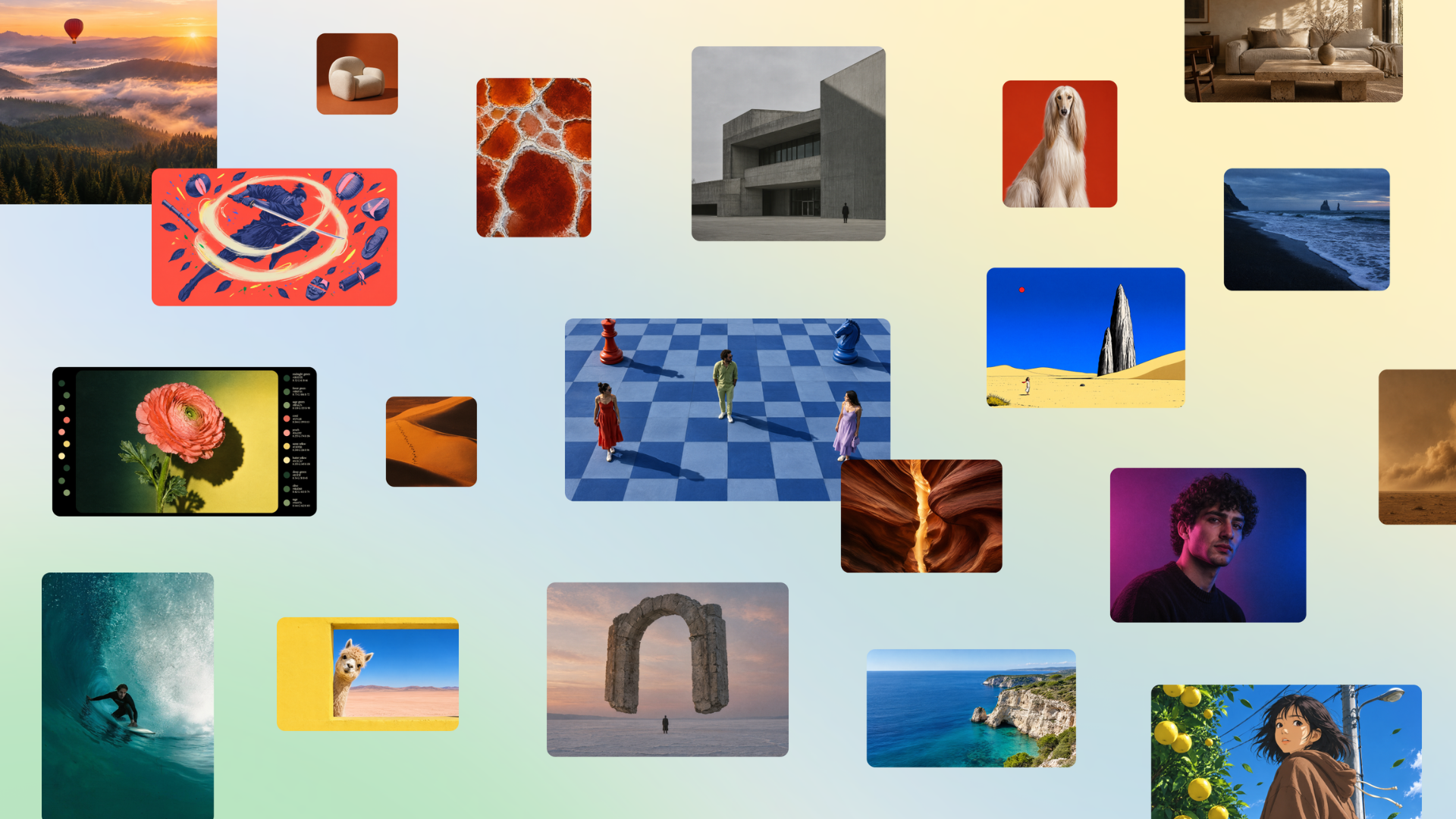
Canva Craft is Canva's first state-of-the-art image generation model, developed and trained from scratch by Canva Research, Canva's in-house AI lab. Built specifically for design, it turns prompts into images that work as designs rather than as flat pictures, producing compositions with deliberate hierarchy, alignment, spacing, crisp edges and text that lands where it should. Craft is available to all Canva users globally through Dream Lab inside Canva, and to developers and product teams through Canva's Public API. It is intended for everyone from first-time creators to professional designers, as well as marketers and product teams who need visuals they can edit, refine and reuse. Most image generation models are trained primarily on photographs and generate pixels directly from a prompt. That approach can produce attractive pictures, but it offers little control over how an image is structured, where objects sit, how text reads, or whether the result can be pulled apart and edited afterwards. Canva Craft was designed around a different assumption: that a great deal of visual output is not photography but design work such as posters, social posts, presentations, infographics and menus, where layout, hierarchy and typography matter as much as the imagery itself. The context is significant in scale, with more than a quarter of a billion people using Canva to create over 400 designs every second, and Canva states that delivering frontier-level performance at that scale required breakthroughs in both compute efficiency and inference speed. Craft's core answer to this is a two-stage architecture that separates compositional planning from image rendering. In the first stage, an image planning model interprets the prompt and writes a detailed plan of the composition: which elements appear, their spatial relationships, relative scale, visual hierarchy, and any text that needs to appear in the image. In the second stage, a dedicated image rendering model translates that plan into a high-fidelity image at up to 2K resolution across more than 30 aspect ratios. Because the model reasons about the structure of an image before generating it, it can produce complex layouts with greater accuracy, including legible text, precise object placement and consistent visual relationships. Craft gives users direct control over what ends up in the frame. Canva describes shaping images your way by treating the whole image as an intentional composition of layered elements, and perfecting every detail, with the example of asking for a purple sky, long shadows and a lone tree and getting all three with the emphasis where you wanted it. Output size is flexible too: users can choose from more than 30 aspect ratios or enter their own, to create everything from social posts or stories to posters or banners. Prompts can be written in any language, and Craft can create text in 55 languages, which makes it practical for multilingual campaigns and localized assets. That same structure enables granular editing. Because composition is explicitly modelled, Craft allows targeted changes to individual elements without unnecessarily altering everything else. Craft outputs are particularly well suited to Canva's Magic Layers, which can transform generated images into fully editable design elements. JSON boundary boxing makes it easier than ever to convert images into editable layers with Magic Layers, with more accurate and faster results. Canva also states that this architecture provides the technical foundation for more advanced editing and reference-image capabilities coming in future releases. Craft's training places a much greater emphasis on design than on photographs. Its training data includes millions of human-made templates from Canva's content library, spanning professionally designed posters, social posts, presentations, infographics, menus and typography-rich layouts. Unlike flat images, these templates teach the model exactly how layout, hierarchy and typography fit together, giving it a deeper understanding of the principles behind effective design rather than simply what finished images look like. Following pre-training, Craft was optimised through supervised fine-tuning and reinforcement learning, incorporating feedback from Canva's professional designers to improve instruction following, typography accuracy and overall visual quality. For internal evaluations, Canva's professional designers worked alongside dozens of researchers to assess more than 25,000 pairs of images in head-to-head comparisons with leading models, and when automated evaluations and human judgments differed, Canva sided with the designer. Performance work underpins the model's availability at scale. Through advanced model distillation, Canva reduced the number of inference steps required by Craft to a fraction of the original model, and it developed a custom inference engine optimised for the planning stage, making Craft an order of magnitude faster than its first internal version. These advances underpin Craft-fast and Craft-ultrafast, two upcoming variants designed to deliver high-quality image generation at a fraction of the cost of leading frontier models. On DesignArena, the largest crowdsourced assessor of AI design, Craft debuted as the fourth most advanced image generation model, ranking first globally for People & Portraits out of 87 models and for Landscapes & Nature out of 85 models, second for Abstract & Patterns and fourth for Products. Access is broad. Canva Craft is available starting today to all Canva users globally; to begin, users open Dream Lab in the bottom left panel. Craft is also available via the Public API and the Canva MCP Server, representing Canva's push to develop AI models that extend the reach of its technology beyond its core product. Developers and product teams can build Craft into their own tools, such as marketing platforms, e-commerce sites, ad builders and print services, and Canva notes the API is also the quickest way to test Craft on your own prompts and compare it with other models. Canva MCP, coming soon, connects Craft to AI assistants and automated workflows so agents can create images ready to use in a design, meaning an assistant can make a launch graphic, a product shot or a social post as one step in a bigger task. Safety is built into every stage of how Canva develops and deploys AI. Models undergo continuous testing and rigorous safety evaluations to identify and mitigate potential risks, and alongside visual quality Canva evaluates brand safety, cultural context and the potential for harmful content before release. Like all AI products on Canva, Craft is backed by Canva Shield, Canva's comprehensive approach to AI safety, which includes robust input and output moderation, privacy and safety controls, and reporting tools that allow people to flag potentially harmful or misleading content. The model is built to support a wide range of creative work. For social content and marketing assets it produces posters, social posts, flyers, presentation visuals and ads with layouts, hierarchy and text that are ready to use. For lifestyle and editorial photography it generates realistic scenes featuring people, places, food, travel and everyday moments. For illustration and digital art it covers flat, vector, painterly and hand-drawn styles. For people and characters it handles portraits, groups and fashion, including complex scenes that stay coherent. For nature and environment imagery it produces landscapes, cityscapes, interiors and architecture, and for creative and conceptual work it builds imaginative compositions that bring real and stylised elements together. The outcomes Canva describes are precision and control. Users get photorealistic images that bring together the fine detail, depth and soft transitions of real-world imagery with the thoughtful composition of design: deliberate hierarchy, alignment, spacing, crisp edges and text that lands where it should. Because generated images can become editable layers, the output feeds directly into a design workflow instead of ending as a static file, and because composition is planned first, users can make targeted adjustments rather than regenerating everything. The result is more flexibility for first-time creators and professional designers alike to bring their imagination to life. Craft's target users span marketers, creators and designers who need images that work as designs, along with developers and product teams building marketing platforms, e-commerce sites, ad builders and print services through the Public API. This first version is described as just the start: faster Craft models are already on the way, and Canva plans to keep raising the bar on quality, detail and control to improve things like fine print and technical drawings. In summary, Canva Craft's primary value proposition is that it generates design-ready images rather than mere pictures. By planning composition and typography before rendering, training on millions of human-made Canva templates, and producing 2K output in more than 30 aspect ratios with text in 55 languages, it delivers the precision, consistency and editability that design work demands, available inside Canva through Dream Lab and to developers through the Public API.
Mega Jell-EEZ Peelable Mango is a fun and flavorful jelly candy made for mango lovers. Its peelable design adds an enjoyable way to eat the soft, chewy candy while delivering a sweet and fruity mango flavor in every bite. The playful texture and easy-to-peel format make it a fun choice for candy lovers, parties, sharing, and everyday snacking. Perfect for retailers and wholesale buyers looking to add an eye-catching mango treat to their candy selection. Visit us for more information!
Redlamp is a native, open-source RAW photo editor for the Mac, built from scratch in Swift and Metal for Apple Silicon. It is currently at pre-alpha version 0.2.6 and requires macOS 26. Redlamp keeps the panels, sliders and keyboard shortcuts that photographers already know from Lightroom — including panel order, slider names, ranges, defaults and single-key shortcuts — and rebuilds everything underneath as a native, GPU-first application. It is an editor rather than a catalog: it opens folders of photos and keeps edits in small sidecar files right next to the originals. It is aimed at photographers who edit on a Mac and want Lightroom's familiar workflow without a subscription and without a cloud. The application is licensed under MPL-2.0, is free with no subscription, and runs its AI features on device. Lightroom defined how millions of photographers edit, but it is a cross-platform application that does not feel at home on a Mac, and it is tied to a subscription and a cloud. Redlamp was created to keep the workflow photographers already know and rebuild everything underneath as a native, open-source application. The name comes from the darkroom safelight: a red lamp is the one light you can work by without fogging the paper. The stated idea behind the product is that you can see and shape your photo freely, and the original is never harmed. Redlamp is Mac-first: one platform-neutral engine powers the application, with the Mac editor coming first and iPad and iPhone stated to follow from the same engine. Redlamp's Develop module covers the core of a RAW editing workflow: Basic, Tone Curve, Color Mixer, Color Grading, Detail and Effects. It carries over Lightroom Classic's shortcuts as 83 actions on 87 key bindings, and adjustments can be found by name or by the words people use. The command palette, opened with ⌘K, searches every action, every Develop slider and every picker — including white balance, treatment, Base Looks, recipes, Before/After, snapshots and history — with each action's shortcut shown beside it. Choosing a slider or picker does not close the palette; it turns into that control over the photo. Pressing Return shrinks the palette to a slider bar, where the arrow keys step the value, Shift moves ten times as far, Option adjusts more finely, and typing a name and value such as 'exposure 0.7' or 'temp 5600k' sets the slider directly. Moving through a picker previews each choice on the photo before it is applied. Masking is part of the architecture rather than an afterthought. Every edit is a layer: its own adjustments plus a mask built from components that add, subtract and intersect, as in Lightroom. Linear and radial gradients are drawn and adjusted directly on the photo, with 15 local adjustments including Texture, Clarity and Dehaze, a red mask overlay and a full mask list. Masks are evaluated per pixel inside the same GPU kernel, so 16 of them cost well under a millisecond. On the colour side, the pipeline is linear and scene-referred with a proper camera white-balance model. Temperature and Tint use Robertson's method with the camera's matrix. The Color Mixer works in OKLCh so hues move the way the eye expects, colour grading offers 3-way and individual wheels with Blending and Balance, and the tone curve is available in parametric and point modes. Some looks are measured against cameras' own renderings — Standard v3 sits within ΔE 3.26 of the camera's Provia. The Detail panel handles noise and sharpening with awareness of each photo's own noise, read from the DNG or measured from the raw data when the file opens. Luminance and Color noise reduction use Lightroom's controls, sharpening is noise-aware so the photo's grain passes through untouched, and Texture, Clarity and Dehaze are available globally and inside masks. Highlight reconstruction rebuilds clipped photosites. Recipes bring presets, profiles and LUTs into one open format: 39 bundled recipes in eight groups, the ability to type in a Fujifilm-style camera recipe card exactly as it is written, camera controls such as Dynamic Range, Color Chrome and white-balance shift, and import and export of .redrecipe, .cube and HaldCLUT files. A separate Stack workspace offers one-click focus stacking: Redlamp spots a focus bracket in a folder and offers to merge it, and frames are stacked as demosaiced camera RGB before any edit, so every Develop slider still works on the result. Auto, Smooth and Detail strategies are available, along with a depth map and retouching from any frame. Redlamp's own RAW pipeline treats LibRaw purely as an unpacker. Black levels, white balance, demosaicing and colour all happen inside Redlamp, on the GPU. Bayer sensors use the Menon demosaic by directional filtering with a posteriori decision, X-Trans is supported, hot pixels are repaired before demosaicing, and row and column banding is measured in the sensor's masked optical-black margins and subtracted with the black level. DNG gain maps are applied before demosaicing, and photosites that clipped are rebuilt from their bright unclipped neighbours. The demosaiced image is cached as a full mip pyramid so every zoom level samples the right resolution. A single fused Metal kernel applies every per-pixel adjustment, frames are delivered as IOSurfaces without a copy, and rendering never waits on the main thread. Latest-wins scheduling collapses a burst of slider events to the newest one. Responsiveness is a central design goal. Interactive renders at Fit take 0.6 to 3 milliseconds on Apple Silicon, a full 26 MP frame at 1:1 renders in about 13 milliseconds, a full-resolution export render takes 45 milliseconds, and opening a raw file takes 70 to 250 milliseconds; these figures were measured on an Apple M1 Ultra with a Release build. Because rendering and the UI are strictly separated, the interface never waits on the engine, the disk or the GPU. Exports rest between tiles when the Mac runs hot, and previews take priority over exports. AI features run on device, so photos are never uploaded. Edits are saved to small sidecar files next to each photo and the original stays exactly as it was shot, which protects a photographer's archive. Photos are supported in Sony ARW, Canon CR3, Nikon NEF, Fujifilm RAF, Apple ProRAW and Pixel DNG, plus JPEG, HEIC, TIFF and PNG. Concrete workflows follow Lightroom's habits. A photographer can add folders with the plus button, ⌘O or by dropping them on the window; folders are remembered by bookmark, so a folder that is renamed or moved is followed. The filmstrip follows the disk by itself, so photos copied in, deleted, renamed or rewritten appear, leave or update in place. Focus stacks are looked for one folder at a time in the background and remembered. Before and after comparison is available in three layouts and is cached so edits never re-render it, and the histogram can be dragged across to adjust Blacks, Shadows, Exposure, Highlights or Whites. Photographers can apply a recipe, hover to preview it, then adjust its Amount, save the current edit as a recipe with a settings checklist, and import Lightroom develop presets with a report of what came across exactly, approximately or not at all. On-device AI masks include Subject, Background, People and Sky, using Apple Vision's built-in models with nothing to download, plus Objects, Depth Range, and Landscape categories such as water, vegetation, mountains, architecture, ground and snow. Models are listed in Settings with their size and licence, are removed from there too, and photos are never uploaded. Redlamp is free with no subscription, supports development through Ko-fi, and is licensed MPL-2.0, compatible with the App Store, with algorithms implemented clean-room from papers. It is built with Swift and Metal, runs on macOS 26 on Apple Silicon, and is currently a pre-alpha release, with iPad and iPhone to follow from the same engine. It is a single macOS desktop application, not a web service. Redlamp's promise is simple: Lightroom's workflow, native to your Mac, open source. It gives photographers the panels, sliders and shortcuts they already know, renders every change within a frame, keeps edits in sidecar files beside the originals and never touches the raw files themselves, and does all of it without a subscription or a cloud. For Mac photographers who want a fast, native RAW editor built in Swift and Metal, with serious colour science, GPU-first masking, one-click focus stacking and on-device AI masks, Redlamp offers an open, free alternative at the pre-alpha stage of its development.