Category Focus/categories/developer-tools
Developer Tools AI Tools
Discover and compare the best developer tools AI tools and software. Browse 559+ curated tools with reviews and rankings.
Projects tracked
559
Sort mode
RECENT
Page
4
Discover and compare the best developer tools AI tools and software. Browse 559+ curated tools with reviews and rankings.
Projects tracked
559
Sort mode
RECENT
Page
4
m’kay is a voice interface for the AI coding agents already running on your Mac. Rather than sitting at a terminal or an editor window to check on a task, you open a browser page or pick up your phone and simply talk to Claude, ChatGPT/Codex and Cursor. It is built for developers who want to stay in touch with their coding agents when they step away from the desk, and its main purpose is to give one voice to all of your agents — not just a single assistant — while the agents themselves keep running as the real desktop apps you already use. Most voice tools for AI are designed around talking to one assistant. That model breaks down for developers, because real work is often spread across several coding agents running side by side on the same machine. m’kay was built for that reality: it talks to all of your agents rather than one. It also drives the real desktop applications instead of a remote copy, which means the sessions and projects you already have stay exactly where they are. The problem it solves is one of distance — your work lives on your Mac, but you are not always sitting in front of it, and the tools you use to reach it should not force you to relocate that work somewhere else. Getting started is described as a short linking step. A small open-source connector runs on your Mac and drives the agent apps you already use. You sign in once to link the connector, and from that point on your Mac and your browser session are connected. Because the connector is open source, you can inspect what it does, and because it works with the applications you already have installed, there is no need to move your coding sessions into a new environment or re-create your projects elsewhere. The setup is deliberately light: link once, and the voice channel to your machine is available. Once your Mac is linked, the whole product is accessed through voice. You can ask what your agents are doing, have their replies read aloud to you, and give them the next task — all from any browser or phone. That means the interface is not tied to a particular device or operating system: a phone's browser is enough. The workflow is conversational. You ask a question, you get an answer spoken back to you, and you respond with the next instruction, which is then carried out on your Mac. Reading replies aloud matters because the answers arrive where your attention already is, rather than requiring you to read a terminal window on a small screen. One voice reaching multiple agents is the core idea. Your Mac may be running Claude Code, Codex and Cursor at the same time, and m’kay lets you address all of them. You can ask which one is done, hear its reply, and tell it what to do next. This matters because the natural question when several agents are working is not what the assistant is doing, but which of my agents has finished — and the product is built to answer exactly that. Speaking to several agents through one channel removes the need to switch between separate tools or windows just to find out where each one stands. m’kay includes an explicit confirmation step before anything is sent. Nothing is sent until you say \"yes\" to a read-back, meaning the instruction is spoken back to you for approval before it is passed to the agent. For voice-controlled developer tooling this is a meaningful safeguard: spoken input is easy to mishear, and a command sent to a coding agent can change real files in real projects. The read-back gives you an opportunity to catch a misunderstanding before it reaches your codebase, so remote convenience does not come at the cost of unintended changes. You can run m’kay in two different ways. The first is the hosted voice page: you sign up and use the hosted service to talk to your Mac. The second is fully local: you clone the project and run everything on your Mac, using local models or your own API keys. There is also a menu-bar Mac app. The open-source nature of the project is central to this choice — the connector and the ability to run the whole thing locally mean you are not required to route your voice traffic through someone else's infrastructure if you would rather keep it on your own machine. The website presents both paths as equal options rather than a single mandated route. The benefit is continuity. Because m’kay drives the real desktop apps, your sessions and your projects stay where they are; nothing has to be migrated, and the state of your work does not depend on a separate environment being kept in sync. You also gain reach, because the distance between you and your Mac stops being a barrier — a browser tab is enough to check in, listen to a reply, and issue the next instruction. And because every instruction is confirmed through a read-back, that reach does not come at the cost of accidentally sending the wrong command to a live project. The scenarios described are ordinary moments of being away from the desk. You are on the train and want to know which agent has finished, so you open the voice page in your phone's browser, ask, and hear the answer. You are at the gym and want to give the next task without going home first — you speak the instruction, hear it read back, confirm it, and it is sent to your Mac. Or you are simply in another room with a laptop and would rather talk to your agents than walk back to the machine that is running them. m’kay is aimed at developers who run AI coding agents locally and want a lightweight way to reach them by voice. The Mac app requires Apple Silicon and macOS 13 or later, and there is a direct DMG download. You can also sign up free for the hosted option, or clone the project from GitHub and run it locally. The Product Hunt listing describes it as open source and lists it under Productivity, Open Source, GitHub and Menu Bar Apps, and the website presents the same fork in the road: use the hosted voice page, or keep everything on your own Mac. m’kay's value proposition is simple to state and specific in what it delivers: one voice for all of your coding agents, reachable from any browser or phone, driving the real desktop apps so your sessions and projects stay put, with a read-back confirmation before anything is sent. It does not try to replace your agents or move your work — it gives you a way to talk to what is already running on your Mac, from wherever you happen to be.
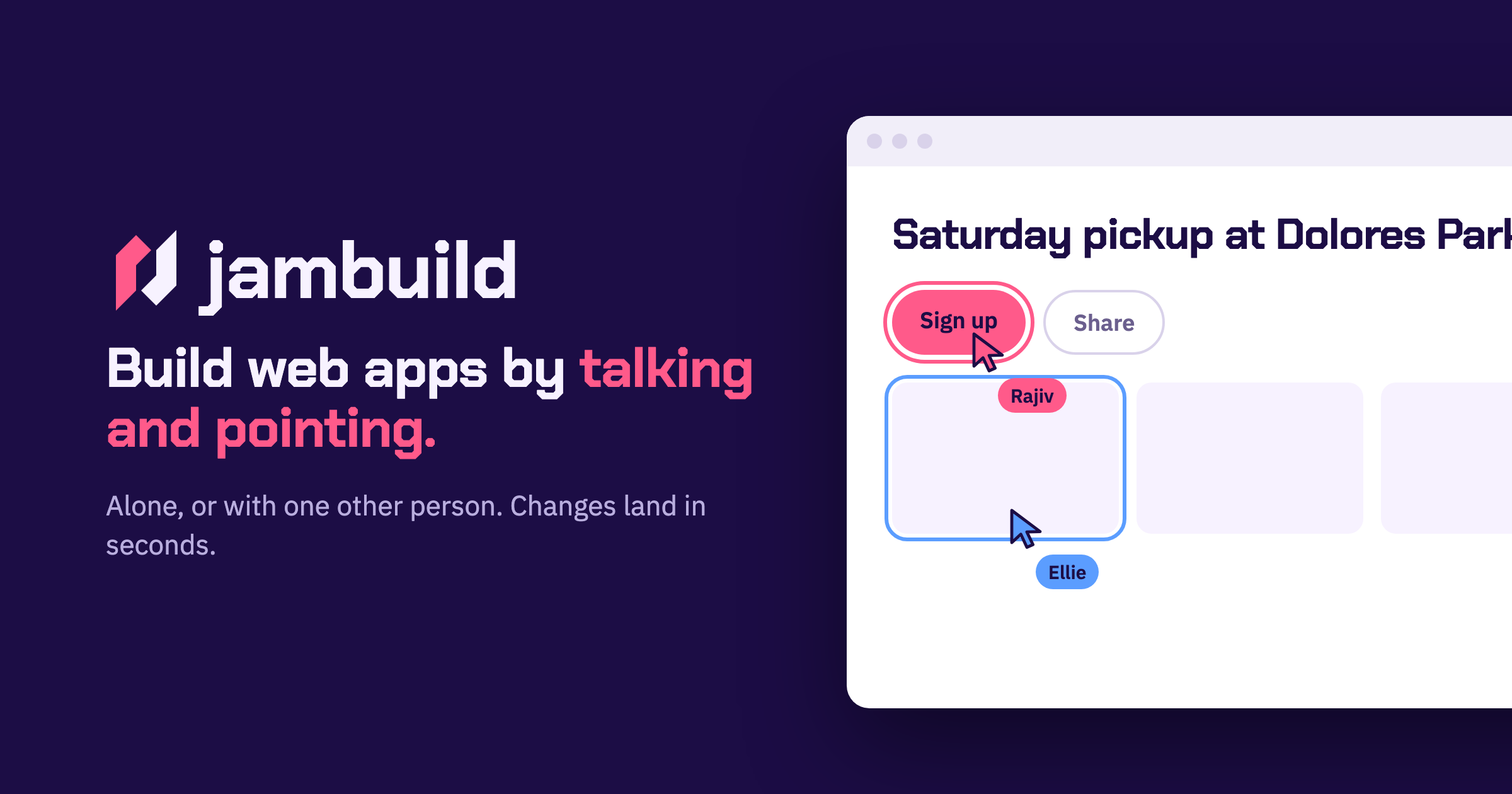
jambuild is a tool for building web apps in real time by talking and pointing. Rather than typing code or writing out long specifications, you describe what you want out loud and point at the part of the page you are talking about. The website promises that changes land in less than ten seconds and that you keep talking while they land, so the conversation with the page never really stops. You can build alone, or you can send a link and build with one other person, with both of you talking, pointing and clicking on the same page. The Product Hunt listing describes jambuild as a "multiplayer vibecoding tool where you talk and point with your mouse, and every change lands in seconds," and adds that it has limited credits to try it out, with the option to bring your own API keys to unlock more usage. The traditional path from an idea to a working web app usually runs through a keyboard. You open an editor, set up a project, and translate what you can see in your head into syntax a machine will accept. jambuild removes that translation step by making the microphone the keyboard. The stated promise is simple: describe a page and a first version appears in seconds. That speed matters because it keeps you in the idea rather than in the implementation. Because changes land in less than ten seconds, you can correct course immediately instead of waiting for a build, a refresh or a manual edit. The second problem jambuild addresses is collaboration. Building is rarely a solo activity, but screen sharing, passing a laptop back and forth, or describing a change over a call are all clumsy. jambuild instead puts two people and two cursors on one page. The first way to work in jambuild is by talking. The site frames it directly: your microphone is the keyboard. You describe a page out loud and a first version appears in seconds. In the example shown on the website, Maya describes a sign-up page out loud; her words appear in the prompt box and the window is outlined in pink while she is being heard. That pink outline is the interface telling you it is listening, so you know when your speech is being captured and turned into instructions. Because the description is spoken rather than typed, you can talk in the same loose, conversational way you would when explaining an idea to a colleague, which is exactly the kind of description jambuild is designed to turn into a working page. Talking alone is not always precise enough, so jambuild adds pointing. As you move your mouse over the page, whatever you are hovering over lights up, and it lights up for both people in the room, not just for you. That shared highlight means the other person can see exactly which element you mean before you say a word about it. Once the element is highlighted, you say what it should become. In the website's example, Sam moves over the roster, the roster lights up in his colour, and he asks for it to be split into three teams. Pointing solves the ambiguity problem in spoken instructions: instead of describing where something is on the page, you simply put your cursor on it. The third interaction is clicking. You click anything on the page and say what should happen to it, and the change lands in seconds. Clicking differs from pointing in that it selects a specific element for a specific instruction rather than simply indicating an area. The site's illustration is Maya clicking the Sign up button and asking for it to be bigger and orange. Because the click carries the target and the speech carries the intent, you can make that kind of adjustment without opening a design tool, finding the component in a codebase, or editing a style rule. The result appears and lands within seconds, which keeps the session moving. The fourth piece is the multiplayer part, and the site names it simply "Together." You send a link, and the person you invite joins you on the same page. You both talk, you both point, and it remains one page rather than two copies that need merging. The website shows Maya and Sam both talking at once, with both requests building and both changes landing. Because each participant's highlighting appears in their own colour, you can tell at a glance who is indicating what. Changes land in seconds for both of you, so neither person is working from a stale view of the page. The site's social image also describes two cursors, Rajiv and Ellie, on the same page, illustrating two people active on one page at the same time. Getting started is deliberately lightweight. You sign in with Google to start a room, and the person you invite does not need an account. That asymmetry matters for collaborative sessions: one person can create the room, share the link, and the other participant can join and contribute without going through a sign-up flow first. Once you are in, the loop is consistent — talk, point, click, watch the change land in less than ten seconds, and keep talking. jambuild holds a session to two people at a time, so it is explicitly designed for a pair rather than a crowd. Usage runs on credits: there are limited credits available to try the tool out, and you can bring your own API keys to unlock more usage beyond that. The obvious benefit is speed of iteration. Changes landing in less than ten seconds means the distance between saying something and seeing it is short enough that you never leave the flow of the conversation. The second benefit is accessibility of the building process. If your microphone is the keyboard, you do not need to recall syntax, hunt for the right file, or know where a particular style is defined — you describe what you want and the page responds. The third benefit is tighter collaboration. Two cursors on one page, both lighting up elements in their own colours, both able to speak and be heard at the same time, removes the usual back-and-forth of explaining changes to someone who cannot see your screen. The examples shown on the website suggest concrete ways to use it. A designer or product person can describe a sign-up page out loud and get a first version in seconds, which is useful when you want to react to something visible rather than a written spec. Someone working with structured layouts, like a roster, can point at the roster and ask for it to be split into three teams, reshaping structure by indicating the element rather than editing markup. For visual tweaks, clicking the Sign up button and asking for it to be bigger and orange shows how small styling requests are handled in conversation. And for pair work, two people can open the same room, both talk and point at once, and watch both sets of changes land. jambuild is aimed at people who want to build web apps without working through a code editor: it is described on Product Hunt under the topics Prototyping, Artificial Intelligence and Vibe coding, which places it with tools used for rapid prototyping and AI-assisted building. The entry point is a Google sign-in to start a room, and collaborators join through a link without needing an account of their own. Rooms hold two people, so the intended unit is a pair — a builder and a collaborator, or two people shaping a page together. On pricing, the Product Hunt listing notes limited credits to try it out, with the option to bring your own API keys to unlock more usage. No specific plan tiers or prices are stated on the website. jambuild's value proposition is easy to state because the product states it so plainly: build web apps in real time by talking and pointing. Your microphone replaces the keyboard, your cursor identifies what you mean, a click targets it, and changes land in less than ten seconds. Add one other person through a link and the same speed applies to both of you on a single shared page. For anyone whose bottleneck is the gap between an idea and a first working version, jambuild closes that gap in conversation.
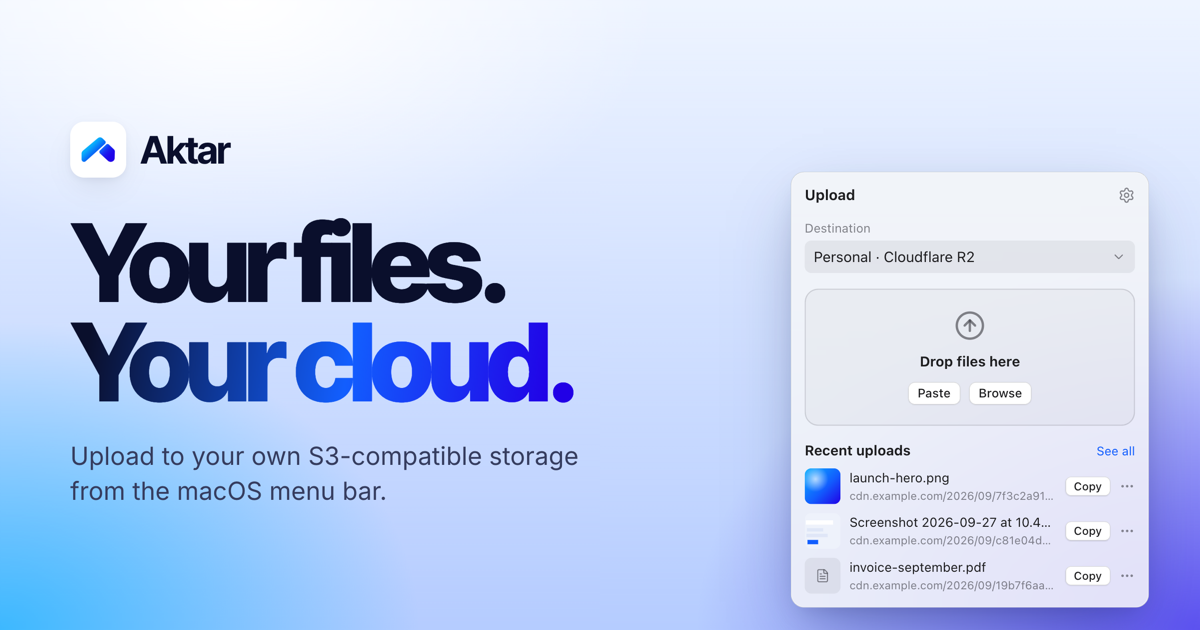
Aktar is a free, open-source app for instantly sharing files through your own S3-compatible storage. It lives in the macOS menu bar as a small native app, and is also available for Windows 10 and 11, iPhone and iPad, and as a Raycast extension. When you drop a file — a screenshot, a log, a build or a video — Aktar uploads it straight to a bucket you control and copies the shareable link to your clipboard. There is no account to create and no middleman: files travel directly from your machine to the endpoint you configure, and the resulting link is ready to paste anywhere. Most file sharing today means handing your file to someone else's service. You create an account, accept an upload limit, and end up with a link on a domain you do not own. Meanwhile, anyone who already pays for object storage — Amazon S3, Cloudflare R2, Backblaze B2, DigitalOcean Spaces or MinIO — has capacity and a domain sitting largely idle. Turning a local file into a shareable link still usually means opening a provider console in a browser or writing a script. Aktar closes that gap by reducing file sharing to a single gesture: connect a bucket once, and every future share is a drop and a paste. Because Aktar runs no servers of its own, there is nothing to sign up for, no upload limit on Aktar's side, and no intermediary that can see your files. Aktar works with the storage you already have. Amazon S3, Cloudflare R2, Backblaze B2, DigitalOcean Spaces and MinIO all have built-in presets, and anything else that speaks the Amazon S3 API works through the "Other S3-Compatible" option. Connecting a bucket takes under a minute: pick a provider, paste your access keys and bucket name, and the presets fill in the right endpoint and region for you. The destination form includes fields for Account ID, region, Access Key ID, Secret Access Key, bucket name, a Public Base URL and an object path. The Public Base URL is the address your files are served from — such as a custom domain or a CDN in front of your bucket — and Aktar joins it with the object path to build the link it copies. You can also keep multiple destinations, for example one bucket for screenshots and another for client work, and switch between them right from the popover; the app shows destinations such as Personal on Cloudflare R2, Client Work on Amazon S3 and Homelab on MinIO. The upload workflow is designed to disappear into your habits. You can drag files onto the menu bar popover, pick them from Finder, or press the global shortcut Control-Shift-Command-U in any app to upload whatever is currently on your clipboard — a file you copied in Finder or an image such as a screenshot. That shortcut works even when the panel is closed, and you can record your own combination in Settings. Aktar can upload several files at once and lets you retry failed uploads with a click. After an upload finishes, whatever you choose in Settings → Output is copied to your clipboard: the plain URL, Markdown, HTML, or your own custom template with variables such as {url}, {filename}, {name} and {ext}. Images get embed markup, while everything else gets a regular link. Object paths are templates too: the default is {year}/{month}/{uuid}.{ext}, and you can mix in other variables including {day}, {date}, {time}, {filename}, {random} and more, so your bucket keeps your naming and structure. Temporary sharing is built in. New in v0.6.0 are temporary links at upload: choose Delete after 1, 7, 14 or 30 days and the bucket's own lifecycle rules delete the file on schedule, even when Aktar is not running, so temporary shares do not pile up. Aktar sets those rules up in one click and leaves your other rules alone — for example it creates aktar-expire-1d on the tmp/1d/ prefix and aktar-expire-7d on tmp/7d/, while an unrelated archive-old-logs rule on logs/ stays untouched. When you are browsing files, you can also copy temporary links valid for 7 days, 1 day or 1 hour, which work for private buckets too. And if you shared the wrong file, you can delete it from the source: Aktar removes it from your bucket right from the history, not just from the list. The Library lets you browse your buckets rather than only the files Aktar uploaded. You can see every folder and file in your buckets, search the whole bucket, preview files, and upload, rename, move or delete without leaving the app. Upload history is searchable and shows thumbnails and previews for images, PDFs, text and Markdown, with filtering by destination so you can select several entries and copy them in bulk. Privacy is the point rather than an add-on. Aktar has no servers: there is nothing to sign up for and nothing to phone home to. Your access keys are stored in the macOS Keychain and are only used to sign requests to your own endpoint. Files travel straight from your Mac to your bucket — no proxy, no middleman. There is no telemetry, no analytics, no tracking and no account system in the app. Aktar runs in the App Sandbox with the Hardened Runtime, and every release is notarized by Apple. It is MIT licensed and open source, so you can read the code, build it yourself or send a pull request. The website itself uses Google Analytics to see how people find and use it, while the Aktar app collects nothing. The outcome for users is simpler sharing on your own terms. Your files stay in your own storage, and you pay your storage provider rather than a file-sharing service. There is no subscription, no account and no upload limit on Aktar's side. A screenshot becomes a link with two shortcuts, and a file drop becomes a pasted URL. The app also stays out of your way with optional notifications when an upload completes, an option to close the popover after a successful upload, and launch at login, plus automatic update checks against GitHub once a day and background installs that apply when Aktar quits. In practice the app fits a wide set of small workflows. A support engineer presses Control-Shift-Command-4 to capture an area to the clipboard, then Control-Shift-Command-U, and pastes the resulting link into a ticket. A developer shares a deploy.log, release notes or a build file without opening a console. Someone sending a proposal draft or invoice can drop it into a client-work bucket, while screenshots go to a personal bucket. Anyone who needs to share something only for a while picks a 1, 7, 14 or 30 day expiry instead of cleaning up later. And when a file needs managing rather than just uploading — browsing folders, previewing an image, renaming or moving an object, deleting a remote file — the Library handles that without leaving the app. Through the Raycast extension, the same actions are available from Raycast: upload the clipboard or files selected in Finder, search your history and browse your buckets, while your keys stay in Aktar. Aktar is built with SwiftUI, so it feels right at home on macOS, where it requires macOS 14 Sonoma or later; it is also available for Windows 10 and 11 and for iPhone and iPad, with an Android release noted as coming soon. It can be installed as a .dmg or via Homebrew. The app is free and open source under the MIT license, with no subscription, no account and no upload limit on Aktar's side — you simply pay your own storage provider for the bucket you use. That makes it relevant to developers, designers, support teams, freelancers and homelab users who already own S3-compatible storage and want their files to stay there. Your next link is one drop away: download Aktar, connect your bucket, and never open an upload form again.
Clink is a custom keyboard app for iPhone and iPad that replaces the default iOS keyboard with one the user sets up and controls. It bundles themes, layouts, sound packs, swipe typing, on-device autocorrect and a set of tools directly into the keyboard, so the thing you type with all day also does jobs you would otherwise switch apps for. The app runs on iOS 17 or later, downloads from the App Store, and is set up through the standard iOS path: Settings → General → Keyboard → Keyboards → Add New Keyboard → Clink, after which you hold the globe key in any app and pick Clink. Clink is for anyone who wants a keyboard that looks and behaves how they want, from people who care about privacy to people who simply want a number row, a split layout or a click that sounds like a real mechanical board. Most keyboards are fixed products: you get the layout, look, sound and behaviour the vendor decided on, and the only lever you have is turning a few settings on or off. Clink's premise is ownership — the site states plainly that this is the iOS keyboard you actually own and that nothing you type ever leaves the phone. The project answers a set of recurring frustrations: missing keys and rows, no way to change how typing feels, and privacy policies that leave users unsure what is happening with their keystrokes. To help people choose, the site publishes honest comparison guides against Apple's default keyboard, Gboard, SwiftKey and Typewise, framing the trade-offs directly — themes and ownership versus Search, GIFs and Google; offline control versus multilingual prediction and Copilot; normal layouts and deep themes versus hex privacy branding. Customisation starts with appearance. Themes cover solid colour, brushed metal, sculpted 3D keycaps and Liquid Glass; you can start from a preset and change as much of it as you like, including photo backgrounds. Layout is equally adjustable. A number row, a split keyboard and a one-handed mode are switches in settings, and the Layout editor goes further by letting you build keys, rows and whole extra pages of your own. Sound is a first-class setting too: swap the sound pack, or make one from your own recordings. Clink's haptics are its own rather than the system's, so they still work even where the system click is turned off. Together these three areas — look, layout and feel — are what make the keyboard something you configured rather than a component that was handed to you. Automations take owning your keyboard further by handling settings you would otherwise keep changing by hand. They are rules that change your keyboard automatically — split the keys in landscape, quiet the clicks at night, then return to your usual setup. You can start from a preset or choose your own conditions, and no code is needed. Plugins add features you wish your keyboard had: they are add-ons that bring new tools, typing features and effects to Clink, such as putting your typing speed on the space bar or giving keys a new look. Plugins are short Python scripts that run in the keyboard, and they cannot reach the internet or read your files. Repositories are collections of themes, layouts and plugins you can browse and install in Clink; you can add an official or community repository to find your next setup, or publish your own creations for others to use. Clink Pro adds an AI-assisted build path: describe a plugin, panel, action or automation and Clink Pro can turn the idea into a draft to review and edit. The example given on the site is a request such as making an action that turns selected text into uppercase. The build can use Apple Intelligence on compatible devices, or you can choose a cloud provider and bring your own key for OpenAI, Anthropic, Gemini or an OpenAI-compatible endpoint, with cloud usage billed separately. You can close the editor without cancelling your build and use Build tasks to check progress, open a result or retry. Typing itself leans on gestures: slide through the letters and lift for one stroke per word, and slide the spacebar to move the cursor, while autocorrect and next-word suggestions run on the phone with no network on the typing path. Dictation lets you say it or rewrite it — dictate straight into the field you are in, and proofread, shorten or change the tone of what is already there without leaving the app. The tools come with the keyboard: clipboard history, a notepad, a calculator, a translator and more, opened and used without breaking your typing flow. The site lists Emoji, GIFs, Clipboard, Notepad, Dictation, Handwriting, Translate, Dictionary, AI Tools, Text FX, Calculator, Conversion, Cling, Replacements, Profiles and Layouts as the tools. Clink supports 78 languages, each with an on-device typing pack, and you can type in all of them at once or one at a time; the app's own screens are translated separately, so Clink can be in one language while the keyboard writes another. Structurally, Clink is built around a few clear ideas. The keyboard runs its typing intelligence on the device: suggestions and predictions stay on device, and there is no network on the typing path. Full Access is optional for typing — enabling it turns on clipboard features, custom feedback and the cloud AI requests you choose to run. Plugins are short Python scripts that run in the keyboard and cannot reach the internet or read your files, which is what makes installing one a contained decision. Community packs are read from public GitHub repositories: Clink browses official shelves in the app, lets you add community ones beside them, and verifies every file before it lands on your phone. You can install a pack without making an account, and publishing your own creation means releasing it so others can add your repository by name. The benefits follow from those choices. Typing stays on the phone, so what you write is not routed through a keyboard vendor's servers by default. You get a keyboard that matches your habits instead of the other way round — the keys where you want them, the sound you like, the theme you picked. Automations remove the small recurring chores of switching modes manually. Plugins and repositories mean the feature you are missing may already exist, or can be written. Clink Pro's AI build path lowers the barrier to making that plugin yourself. And because no account is required and Full Access is optional, adopting Clink does not demand handing over an identity or extra permissions. Concrete scenarios described in the content include quieting the clicks at night and returning to your usual setup afterwards; splitting the keys in landscape for two-thumb typing; and putting your typing speed on the space bar with the WPM Spacebar plugin. The plugin example on the site expands omw into on my way and brb into be right back when you type the word and a space. Clink Pro's example request turns selected text into uppercase. Dictation is used to speak into the field you are already in, and to proofread, shorten or change the tone of existing text without leaving the app. Multilingual users can type across 78 languages at once or one at a time. Community users browse official shelves, add community repositories, and publish their own themes, layouts or plugins as releases for others to install. Clink targets iPhone and iPad users on iOS 17 or later who want control over their keyboard, including privacy-conscious typers and people who type in several languages. On the integration side, it reads packs from public GitHub repositories, supports iCloud Sync on the free tier, uses Apple Intelligence on compatible devices for AI builds, works with bring-your-own-key access to OpenAI, Anthropic, Gemini or an OpenAI-compatible endpoint, and uses on-device SpeechTranscriber for dictation when available on iOS 26 with its language resources ready — noting that the compatibility speech recognizer can send audio to Apple's servers, including while those resources download, so dictation is not always offline. Pricing is freemium: the free tier covers typing, swipe, emoji, preset themes and layouts, the number row, split and one-handed modes, language switching and iCloud Sync. Membership adds AI Tools, Clipboard, Notepad, Translate, Calculator, Handwriting and Text FX, plus plugins, pets, stickers and sound packs, themes, layouts and profiles of your own, and the fine-tuning sliders. Membership is monthly, yearly or a one-time lifetime payment, with your local price on the App Store and a possible trial for eligible accounts. Clink is a keyboard you configure rather than accept: themes, layouts, sounds, automations, plugins and repositories let you reshape the thing you type with every day, while typing stays on the device and accounts stay optional. For iPhone and iPad users who want their keyboard to feel like their own, and for developers and communities who want to publish into it, that combination of deep customisation, an offline typing path and an open pack format is the whole proposition.
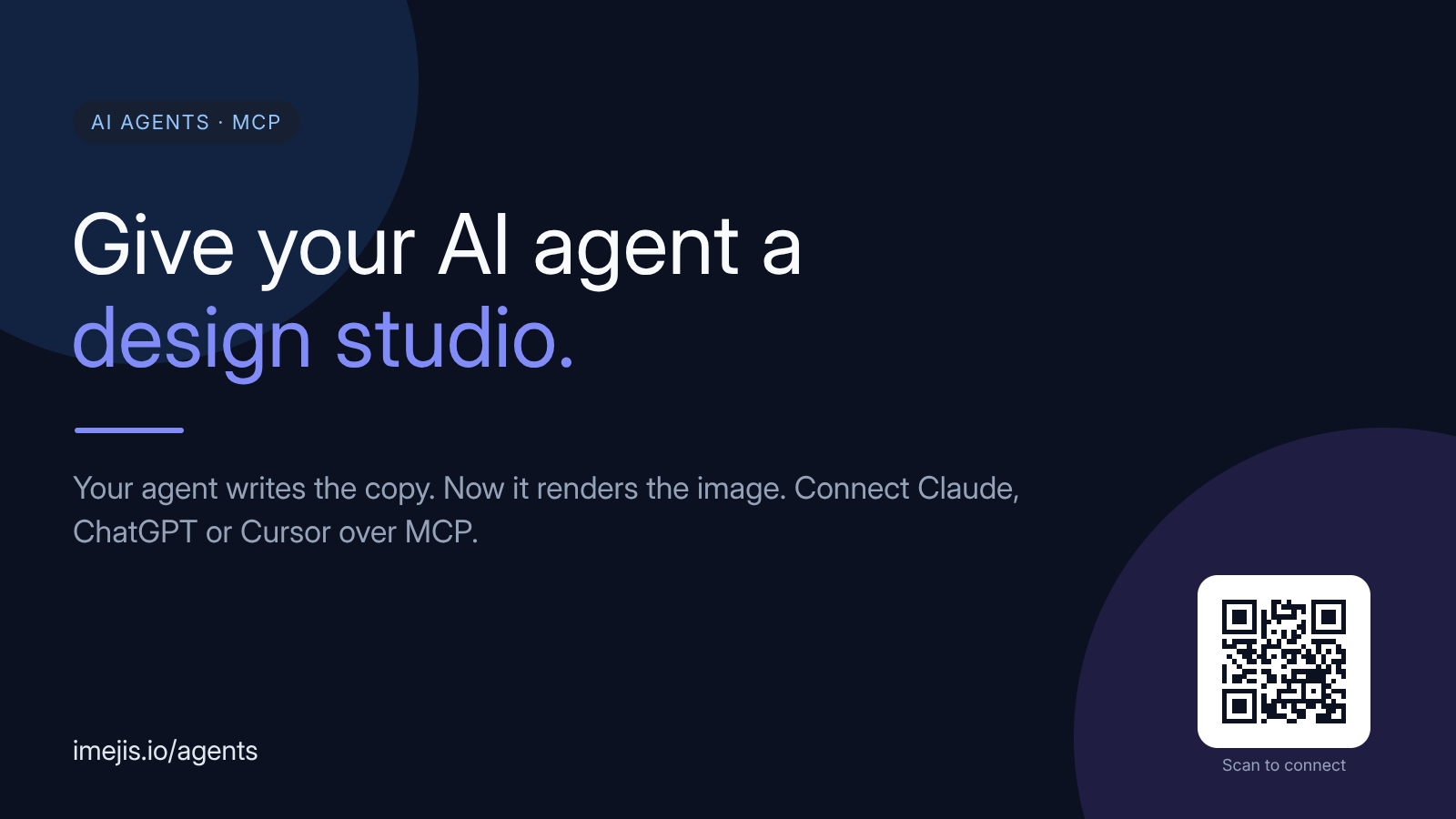
Imejis.io is a design studio built for AI agents. It connects Claude, ChatGPT, Cursor, or any Model Context Protocol (MCP) client to a remote MCP endpoint, letting the agent create, edit, preview, and export real designs on its own. The website describes it simply: your agent already writes the copy — with Imejis, it renders the image too. That means Open Graph images, social cards, marketing graphics, charts, certificates, QR codes, and more can be produced inside the agent workflow, with no screenshots and no separate design tool. The gap Imejis fills sits at the end of an AI workflow. An agent can write the copy for a post, a campaign, or a product launch, but shipping the accompanying visual has traditionally meant switching to a design tool or handing the request to someone else. Generative image models are one alternative, but they are not deterministic: the same input can produce different pixels each time, which makes it difficult to keep brand, layout, typography, and data consistent across a set of assets. Imejis takes a different approach. It gives the agent structured design components and templates that render the same way every time, so a design built once can be reused at scale while the brand stays intact. The first of three MCP tool families is Discover. Before designing anything, the agent reads get_design_guide and list_component_types, which together form a live catalog of all 27 components with their properties, defaults, and ready-made styles. According to the site, this catalog is generated from the same registry the renderer validates against, so the agent's understanding of what it can build can never drift from what the renderer will actually accept. That matters because the agent is designing blind otherwise — it needs an accurate, current description of every component before it writes any structured JSON. The Design family handles creation and editing. The agent calls create_design or create_design_from_template, then uses update_design to place text, images, charts, QR codes, tables, and shapes as structured JSON. Crucially, preview_design lets the agent check its own work before shipping, so it can iterate on a layout inside the conversation rather than producing a final asset blind. Because the design is expressed as structured JSON rather than as pixels, every element stays addressable — the agent can move a logo, retitle a chart, or swap a text field without rebuilding the whole composition. The Render family turns a finished design into a real file. export_design returns a completed image in a single call, selectable as PNG, JPEG, WebP, or single-page PDF. get_render_url goes further: it returns a permanent, signed URL that renders fresh on every request and accepts field overrides, so the agent can wire a template once and have every row or recipient render on demand. Alongside these, list_templates helps the agent find a starting point, upload_file and upload_font bring in custom assets, and get_credit_balance provides a read-only check of the plan's remaining credits. What the agent can actually build spans a broad component library. The content lists text, images, QR codes, barcodes, tables, ratings, progress indicators, and shapes, plus 22 chart types including bar, line, pie, radar, sankey, treemap, funnel, and candlestick. Each one is fully described to the agent with properties, defaults, and ready-to-render sample JSON. The site notes that the agent sees exactly the same 27 component types and 75+ styles as the editor, so output created through MCP matches what a person would build by hand in the Imejis editor or component library. Under the hood, Imejis runs a remote MCP server as a Streamable HTTP endpoint at https://api.imejis.io/api/mcp. It advertises a discovery card at a well-known server-card URL so compatible clients can find and connect to it automatically. Setup is described as taking about 60 seconds: add the single remote MCP server and authorize once over OAuth 2.0, after which the agent acts as the user. Because the system is deterministic, the same input produces the same pixels — an unusual property in this category, and the foundation for brand-safe, repeatable output. The benefit for users is continuity. The agent that drafts the copy also produces the visual, so a marketing task that once required two tools and a handoff happens in one conversation. Deterministic rendering keeps brand, layout, typography, and data consistent across an entire series of images, which is exactly what generative models struggle with. And because renders are metered the same way as the API — discovery, designing, and previews are cheap, while each finished export or render-URL request draws from a plan's render quota or credits — cost scales with actual output. The site offers concrete prompts that show the workflow in practice. A user might ask for a 1200×630 Open Graph image for a blog post titled "How MCP works," with a logo top-left and a subtle blue-to-purple gradient, exported as PNG. Another prompt generates a QR code linking to a URL, dark navy on white with rounded modules. A third builds a bar chart for "Q1 signups" from inline data with brand-blue bars. A fourth creates a reusable certificate of completion template with a name field and today's date, then returns a permanent render URL to call per recipient. Imejis also works without an agent. The same render endpoint powers no-code automations: wire a template once, then feed it data from anywhere. With n8n, a render can be triggered from any workflow node — a new row, a webhook, or a schedule — and the returned image dropped into email, Slack, or storage. With Zapier, a Zap connects a CRM, sheet, or form to a single render call, so every new lead, sale, or signup becomes a branded image automatically. With Make or a cron script, one endpoint call with a JSON body of overrides returns the image inline, with no webhooks and no polling. Any MCP-enabled client can connect, which the content spells out as Claude (Desktop and Code), ChatGPT's MCP connectors, Cursor, and custom agents built on the MCP SDK. Imejis is free to start, with 100 free renders per month and no credit card required. Renders are metered the same way as the API, and the balance can be checked from inside the agent with get_credit_balance. For teams that prefer automation platforms, the documented integrations are n8n, Zapier, and Make, all pointed at the same single render endpoint. Imejis.io is best understood as giving an AI agent a design studio rather than a picture generator. It supplies discovery, design, preview, and render tools over MCP, backed by 27 components and 75+ styles that match the editor exactly. The result is deterministic, brand-consistent imagery produced inside the agent's own workflow — no screenshots, no separate design tool, and a free tier to try it.
Arsaze is an AI-native video editor built for agents and humans alike. It describes itself as a real multi-track video editor — "think Cursor for video editing" — where you can cut, rewrite, generate, grade and review footage by hand, or let Claude and ChatGPT drive the exact same timeline. The product is designed for people who want a genuine non-linear editing environment rather than a black-box generator, and for teams who want an agent to operate real editing software. Its core purpose is to put AI video editing, AI video generation and agent-driven video editing on one real timeline, so that work does not have to be shuffled between separate tools or re-imported after generation. The problem Arsaze addresses is fragmentation. AI video, image and audio generation normally lives in separate products, which means tab-hopping between several subscriptions and downloading and re-importing files before they can actually be edited. At the same time, AI editing tools are often opaque: you describe what you want and hope for the best, with no timeline, no manual control and no clean way to undo a bad decision. Arsaze answers both issues by being a full manual NLE first — timeline, trim modes, color wheels, keyframes — with the agent acting as an operator you can hand the controls to rather than a requirement. Everything the agent does stays on a real, editable timeline. The first of the four power tools is Rewrite, which lets you edit video like a document: delete the words and the cut happens. Every clip is transcribed word by word, so you can select a sentence and cut it out, find retakes, strip filler words and shorten pauses, with the timeline following the transcript automatically. This makes text-based editing, retake detection and the removal of fillers and silence a single operation rather than a manual chore. Because the transcript drives the timeline, an editor — or an agent — can make precise structural changes to a talking-head recording without scrubbing through every second of footage. Playground is a node editor for generation, built for both you and your agents. You chain prompts, AI image models and AI video models into reusable graphs — for example, Gemini Image feeding into Seedance, or two stills combined into one transition — and drop the result straight onto your timeline. Because the graphs are reusable, a workflow you build once can be run again and again. A single credit balance covers AI video, image and audio generation on every paid plan, so there is no downloading and re-importing between tools. Supported video models listed by Arsaze include Veo 3.1, Seedance 2.5, Kling 3.0 and PixVerse v6. Color is a full grading stack that you can drive by hand or by asking. It includes a keyer, shot match, light controls, wheels, curves, HSL qualifiers, film-stock LUTs and finishing tools, all non-destructive, applied per shot and rendered on export; you can also import your own .cube files. Shot matching lets you match one shot's look to another, while film and creative LUTs supply ready-made looks. Remarker, the fourth power tool, handles frame-accurate client review: you share a link, clients pin comments to the exact frame and version, reply in threads and rate scenes, and your agent can read every note and make the fix. Feedback therefore survives the next cut instead of getting lost. Underneath, Arsaze runs a dual engine: two renderers, one project. Engine one is a real-time multi-track timeline with unlimited video and audio tracks, frame-accurate trims, keyframes, transitions and live preview — the NLE you already know. Engine two is code-to-video rendering, where title cards, kinetic type and animated scenes are written as code, by you or your agent, and rendered frame-perfect onto the timeline. Both engines sit side by side in the same edit, so traditional cutting and programmatic motion graphics coexist in one project, driven by either a human or an agent. Getting an agent to edit is deliberately simple. You connect your agent by adding Arsaze as a custom connector in Claude, ChatGPT or Grok over MCP — the documentation states this takes two minutes and requires no code. Then you say what you want, in plain language: cut the silences, add b-roll where I mention the car, grade it teal and orange. The agent edits the real timeline, and its tool calls play back live in your editor. At any point you can step in manually, share a review link, and export MP4 or FCPXML for DaVinci Resolve and Premiere Pro, with cuts, transitions and captions intact. Alongside the four power tools, Arsaze ships the everyday tools an editor needs, each of which is also available as a tool your AI can call. Auto captions are word-timed and use styles you can reuse across a project, and they are editable like any other clip. Cut silences and filler words removes dead air and ums from a talking-head recording in one pass, with fine-tuning afterwards on the timeline. AI b-roll and generation puts generated video, images, voiceover, music and sound effects straight onto the timeline. Color grading offers wheels, curves, HSL secondaries and LUTs. Clean audio covers voice isolation, noise reduction, loudness normalization and automatic ducking under speech. Version history versions every edit as it happens, so you can branch, compare and return to any earlier cut, and export works to MP4, local Windows export, or FCPXML. The payoff is control without losing the speed of AI. Because every edit is versioned automatically, nothing the agent does is one-way — if it makes a bad edit you can step back to any earlier state. Because exports render on Arsaze's servers by default, you do not need a fast machine: the editor is just a browser tab. If you would rather use your own PC, the Windows app can export locally, free and without a watermark. And because footage is not used to train models without your consent, uploads, generated video and voice models stay tied to your account. Concrete scenarios follow directly from the toolset. An editor working through a long interview or talking-head recording uses Rewrite to find retakes and strip filler words, then cleans up audio with voice isolation and noise reduction. A creator who needs b-roll builds a Playground graph that generates images and animates them into clips, dropping them straight onto the timeline. A colourist grades per shot with wheels, curves and HSL qualifiers, matches one shot to another, and applies film-stock or creative LUTs non-destructively. A freelancer shares a Remarker review link so a client can pin notes to exact frames, then asks an agent to read those notes and make the fixes before the next version. Arsaze runs in the browser, with a downloadable Windows app for local exports. On the integrations side, Claude, ChatGPT and Grok are supported today over MCP; the site also displays logos for Codex, Gemini, Cursor, Windsurf, Zed, Copilot and Perplexity. Pricing starts with a free plan that includes 50 welcome AI credits for audio analysis of your videos — transcripts, captions and silence detection — and requires no credit card. AI generation (video, image, voice and music) and the built-in AI assistant come with the paid plans, which add monthly AI credits and cloud export hours. Credit top-ups never expire, and exports rendered on your own PC with the Windows app are always free. Arsaze's core promise is a single, real timeline that both humans and AI agents can operate. It combines a professional non-linear editor, generation models, a code-to-video renderer, colour grading and frame-accurate review in one place, so teams can stop scrubbing and start directing — hand the work to an agent when that helps, and take the controls back whenever it does not.
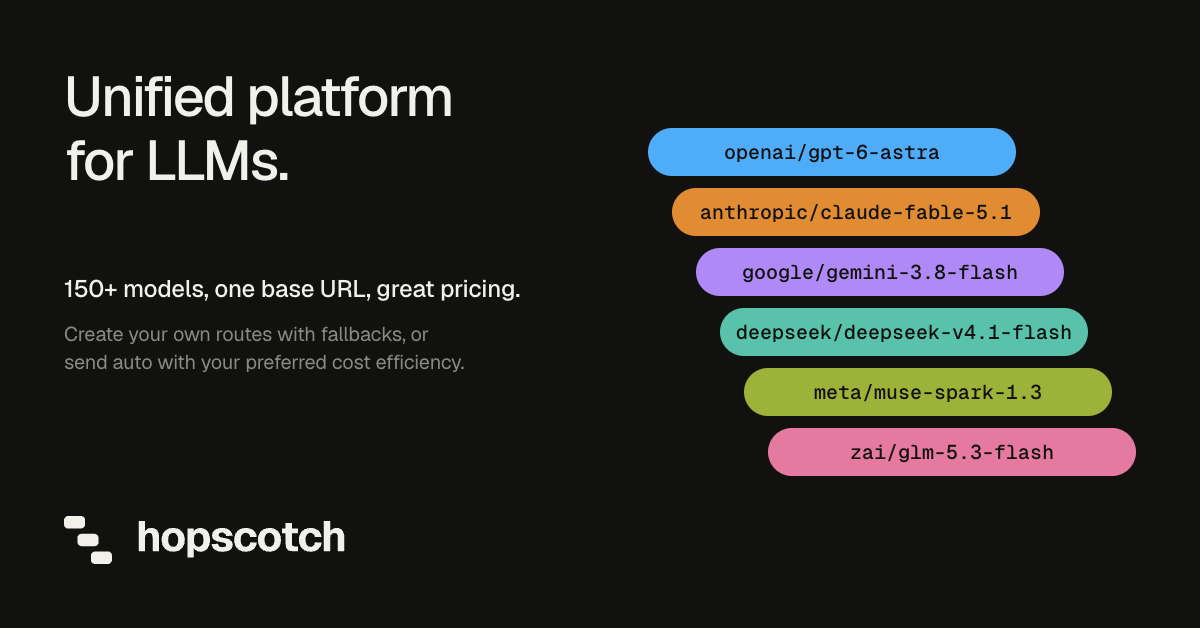
Hopscotch AI is a developer platform that provides access to more than 500 AI models from providers including Anthropic, OpenAI, Google, DeepSeek, Moonshot AI, Qwen, and Meta through a single API. Rather than maintaining a separate integration, account, and bill for every provider, developers send requests to one base URL with one key and one balance. The platform is aimed at developers and engineering teams building applications on top of large language models who also need to understand and control what those applications spend. Its stated purpose is simple: control AI costs and access top models through one API. The problem Hopscotch addresses is operational sprawl. A team that wants to use several model providers usually ends up managing a different SDK, a different set of credentials, a different dashboard, and a different invoice for each one. Model quality, speed, and price change constantly, so teams want to move between Claude, GPT, Gemini, and open-weight models as their needs shift, but every switch means more integration work. Hopscotch describes itself as the intelligence layer for AI and has raised $7.5m to build it. It consolidates provider access into one connection so that choosing a model becomes a configuration change instead of a project. The core of the product is a single API that aggregates provider access. You set a new base URL and key in the OpenAI SDK you already use, and after that switching models means changing the model name, with no new SDK to install. Model names are provider-prefixed, such as anthropic/claude-sonnet-5, and Hopscotch guarantees that the model you name is the model that runs; the Activity log shows which provider served it. Supported endpoints include chat completions and the Responses API, plus a models endpoint that lists every model you can call. A curl example and a Python quickstart are provided in the documentation. Routing profiles let you define backups. In the example shown on the site, Sonnet runs first, then GPT, then Gemini if the earlier attempts fail. Resilience works in layers: if a provider returns a 429 rate-limit response, Hopscotch moves the request to another of its keys for that provider, then to the next model in your routing profile. During an outage, Hopscotch retries your request first, then moves to the next model on your list if you use a routing profile, and for chat requests a final attempt runs your model through a backup provider. If every attempt fails, you receive an error. The Upstreams view shows how requests are distributed across providers, such as 40% Anthropic, 19% OpenAI, 15% Google, 13% DeepSeek, and 8% Moonshot AI in the example given. Spending controls are the other half of the product. You can give each key a credit limit that resets daily, weekly, or monthly, set monthly limits for individual teammates and for the whole workspace, and cap how fast the account can spend, $50 per minute by default. A request that would cross a limit is refused before it reaches the provider, which the Activity log records with a rejected outcome, zero attempts, and no upstream fetch. An owner can also pause all spending at once. This matters most for agents: if an automated loop runs unattended, the limits stop it from draining the balance. Visibility comes from three connected views. Keys show who may call, Requests show what happened, and Usage shows what it cost. The Activity log lists every request with the model, the provider that served it, the outcome, the number of attempts, total tokens, cost, and latency, and it exports to CSV. Usage breaks spend down by model, provider, key, and teammate, so costs can be attributed. Your code can also look up any request's tokens and cost through the API. Logged outcomes include successful calls, client aborts, truncated responses, and requests rejected before fetch. The playground lets you run one prompt on up to three models side by side, billed through your key like any other request, so you can compare answers and the cost of each before changing your code. The model catalog is the reference behind that comparison: each of the 500+ models lists its context window and its price per million tokens, and where several providers serve the same open-weight model, the catalog shows each provider and its price. Example entries include anthropic/claude-sonnet-5 at 2.00 in and 10.00 out per million tokens, openai/gpt-5.6 at 4.00 in and 20.00 out, and deepseek/deepseek-v4-flash at 0.44 in and 1.32 out with four upstreams. Hopscotch does not alter your requests. Prompts reach the model as written and answers come back unchanged, and by default the platform never stores your prompts or the model's responses. Some features that providers run on their own servers, such as web search, audio, and hosted tools, are not supported through Hopscotch's provider accounts, and the docs list them. You can also bring your own provider keys: add an OpenAI key, and Hopscotch sends that provider's requests on your key, with the provider billing you directly and Hopscotch charging nothing for those requests. If your key fails, Hopscotch does not silently switch to its own key. Taken together, the design keeps every part of multi-provider work, including access, routing, budgeting, and reporting, inside one connection. Your application speaks the OpenAI-compatible chat completions API it already uses; behind that endpoint Hopscotch holds the provider relationships, applies your routing profile, enforces your limits before a request is forwarded, and records the result. Because billing is pass-through, you pay each provider's list price per token with no markup and no added fees, and providers that bill you directly through your own keys cost nothing on the Hopscotch side. The result is that the model can change without the code, the budget, or the reporting changing with it. The practical benefit is less integration work and more predictability. Moving between any models in the catalog, from any provider, keeps your key, balance, and limits the same, so experimenting with a new model costs one line of code rather than a new integration. Spend limits refuse over-budget requests before they reach a provider, which protects prepaid balances from runaway agents and unexpected usage. Because the Activity log and Usage views record the model, provider, tokens, cost, and speed of every request, cost questions can be answered with data rather than estimates, and CSV export makes that data usable in spreadsheets and reports. Concrete workflows follow from those capabilities. A team evaluating a cheaper model can run a prompt on three candidates in the playground, compare answers and per-request cost, then change one line to move production traffic. A team worried about provider outages can define a routing profile, with Sonnet first and GPT then Gemini if it fails, and let Hopscotch handle retries, rate limits, and backup providers automatically. A platform owner can issue a key per environment or teammate with a monthly credit limit, set a workspace ceiling, and watch spend broken down by model and provider. A team with existing provider contracts can attach its own keys and keep paying those providers directly while still using one endpoint and one log. Hopscotch is built for developers and engineering teams, and its Product Hunt listing appears under Developer Tools and Artificial Intelligence. Integration is deliberately minimal: any client that can point at https://api.hopscotchlabs.ai/v1 and send a bearer token works, including the OpenAI SDK for Python and curl. There are no plans or subscriptions; you add prepaid credit by card starting at $5, and auto top-up can refill your balance when it drops below an amount you choose. As a Product Hunt launch offer, the first 250 Product Hunt users to sign up receive $50 in free model credits by redeeming code HOPSCOTCH50OFF in the Billing tab. The takeaway is a single connection that replaces many. Hopscotch AI turns 500+ models from Anthropic, OpenAI, Google, DeepSeek, Moonshot AI, and others into one OpenAI-compatible API, adds routing profiles and retries so a bad provider does not become a bad user experience, and enforces per-key, per-teammate, and workspace spend limits before requests are forwarded. You pay provider rates with no token markup, you can bring your own keys, and every request is logged with its model, provider, tokens, cost, and speed. For teams that want model choice without provider sprawl or surprise bills, that combination is the whole point.
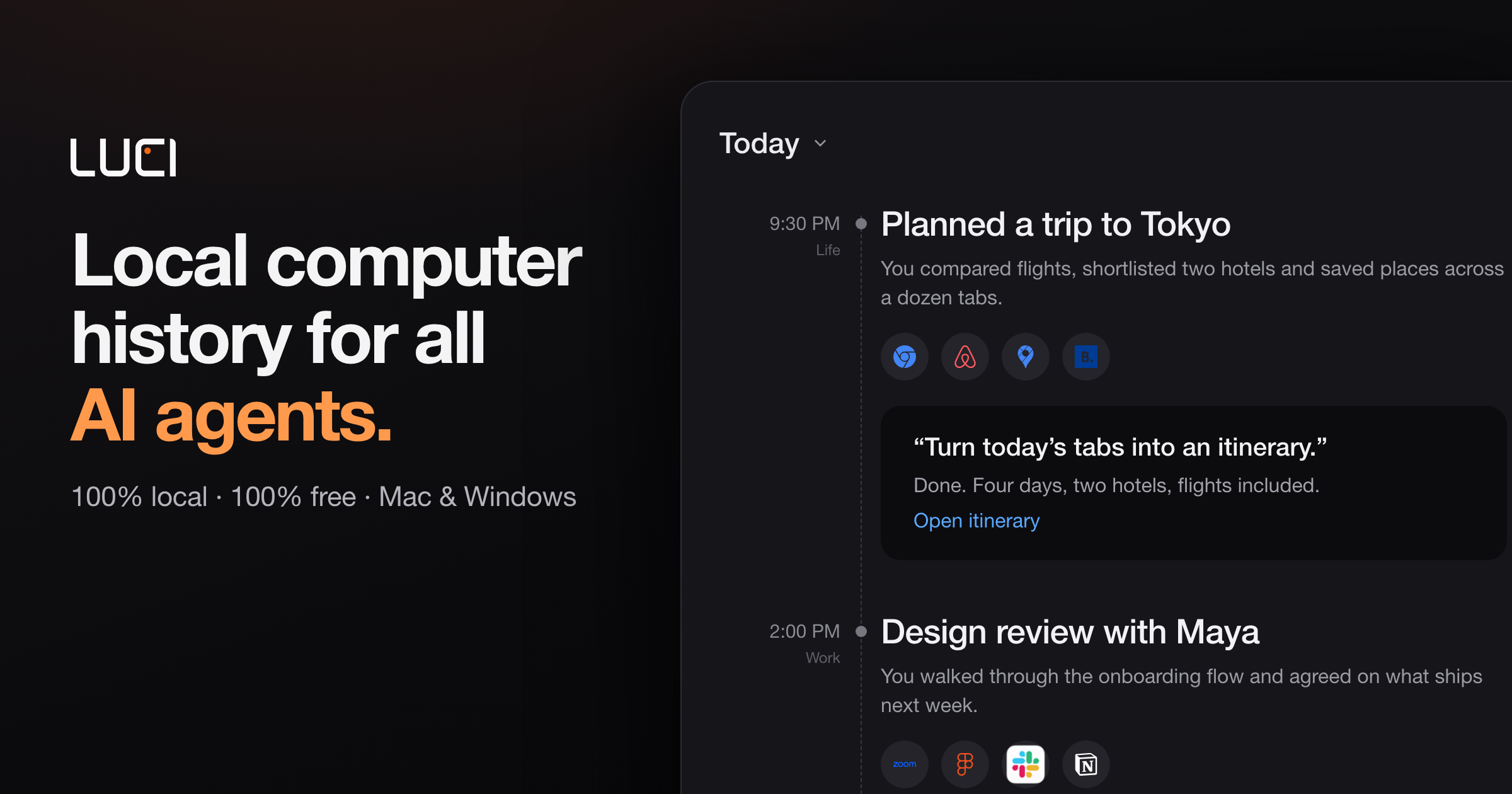
LUCI is a desktop memory layer that remembers your whole day on the computer and hands that memory to the AI agents you already use. It captures meetings, code, email, and everything in between — your screen history and your meeting transcripts — and stores it locally on your machine. Rather than being a standalone assistant, LUCI acts as a shared record that agents such as Claude Code, Cursor, Codex, and Gemini can draw on when you ask them for help. It runs on Mac and Windows, is free to download, and is built for anyone whose workday spans many apps, calls, and conversations that no single chat window can hold. The problem LUCI addresses is the repeated loss of context. Context windows reset between sessions, so agents forget what you were doing, what you decided, and what you already looked at. People end up copy-pasting error traces, Figma specs, client constraints, and meeting decisions back into their tools, or spending Friday afternoons reconstructing decisions from scattered calls and threads. Connector-based approaches add another layer of friction, because each tool needs its own OAuth flow, API keys, and configuration to stay in sync — and internal tools and private docs rarely have connectors at all. LUCI takes a different route: it reads directly from your screen and your calls, so every app you open is already part of the record. LUCI builds a chronology of your day, laying it out end to end so you can walk back to any moment instead of trying to remember it. Its visual memory reads and understands what is on screen, on your device, and keeps it findable — so the page you forgot to bookmark, or the reference you scrolled past on Tuesday, can be described later and found again. Alongside the screen, LUCI captures voice and transcripts: every word, yours and theirs, in meetings and calls, attached to the day it happened. On-device transcription is included, so meeting transcripts are produced on your machine rather than in the cloud. Once the day is captured, your agent distills it. LUCI turns the raw day into a short written record — a daily report and summary — and files it in your Life folder as plain files. The product surfaces tracked days, total samples, average capture hours per day, and meetings logged, with each day summarized in a sentence or two alongside the people, projects, and organizations involved. Search and insights let you ask in plain English across screen and meetings, and see where the day actually went. Because a day's report is a readable file rather than a locked database entry, it stays useful and portable over time. Privacy is handled on-device. LUCI uses local models — Phi, Qwen, Llama, and DeepSeek are named — and you can pick one, switch whenever you like, and your memory stays where it is. Zero-leak redaction blacks out cards, keys, and passwords before anything is saved, so secrets never touch the record. Retention is yours to set: keep a week or keep a year, and deleting a day removes it entirely. The site states that everything LUCI remembers lives on your machine, encrypted at rest, with no cloud copy, and that LUCI is GDPR compliant and SOC 2 Type 2 certified. The core mechanism is the Agent Bridge. LUCI connects itself to your agents, with nothing to set up, nothing to paste, and no per-agent configuration to keep in sync — add a new agent tomorrow and your memory is already there. There are zero connectors: no OAuth, no API keys, and nothing to configure, because LUCI reads directly from your screen and your calls. That means every app you open is already supported, including internal tools and private docs. The agents and tools named on the site include Claude Code, Cursor, Codex, Gemini, Copilot, Windsurf, Zed, opencode, Amp, Cline, Kilo Code, Warp, VS Code, and Grok, plus any agent you install next. The outcome is continuity. Agents can resolve "this" and "that" across sessions, letting you pick up where you left off and jump straight to the right source. A staff software engineer reports no longer copy-pasting error traces and Figma specs into Cursor, because the agent queries LUCI for what was on screen five minutes ago. A head of product says an agent now distills the whole week into the project log in seconds. A founder describes an agent that writes the Life folder each evening with an honest summary of where time actually went. A principal AI engineer notes that although context windows reset between sessions, LUCI remembers — so Codex can recall why a specific architecture pattern was chosen three weeks earlier. The site frames four questions you will ask on day one: ask about whatever is in front of you on screen; catch up on a call and get every word, yours and theirs, without taking notes; recap your week as your agent distills the day into plain files in your Life folder; and search what you saw by describing it the way you would to a colleague. In practice this covers recalling a decision from a call, finding a page you forgot to bookmark, pulling the exact constraints a client mentioned into a proposal draft, and tracing the exact thread, screen, and decision behind a support ticket. LUCI is built for anyone whose day does not fit in a chat window: developers who resolve references across sessions, founders who want an agent personalized to them and an honest picture of their week, researchers who need everything read and watched to stay findable weeks later, consultants whose calls are written up without manual notes, designers who revisit a reference by describing it, and support and ops teams who need the context behind a ticket without asking three people. Applications shown in the interface include Slack, Notion, Linear, Zoom, Google Meet, Microsoft Teams, Gmail, Chrome, Figma, YouTube, and Discord. LUCI is free for Mac and Windows, and daily summaries are produced with Microsoft Foundry Local. LUCI's value proposition is straightforward: your whole day on the computer, remembered on your machine, fully local, free, and handed to whichever agent you ask.
Harness Router is a decision layer for agent harnesses. It is built for AI coding agents such as Codex and Claude Code, and its purpose is to route tool calls before they run. Instead of letting the model reason through every closed-choice tool selection, Harness Router decides which tool to call and returns that decision. It works two ways: use the skill to stop model reasoning about obvious tool calls, or let PreToolUse intercept and route calls automatically. Fast route handles ordinary choices, while real ambiguity can escalate to Jev-backed MCTS. It ships as a native stdio MCP server with two tools and it is MIT open source. The problem it addresses is the cost of reasoning about the obvious. The site's core instruction is to stop reasoning about obvious tool calls, explaining that with the skill, Codex can delegate closed-choice tool selection to Harness Router instead of spending a full model reasoning step on an obvious choice. The headline statistics are 2 MCP tools, 1 Jev prior max in MCTS, and 0 extra model reasoning required before hook routing. That matters because a routing decision is far narrower than a generation step. The site compares Jev with GPT-6 Astra: Jev input is about 238× cheaper, at $0.042 per million input tokens versus $10, and Jev output tokens are free while GPT-6 Astra is $50 per million output tokens, so the total request-cost gap can be substantially larger depending on output usage. The stated point is not to replace Codex's planner: Jev handles the narrow, closed-choice routing step, while Codex keeps the broader reasoning and execution loop. The first feature group is the two ways into the router. Use the skill when you want explicit control, or use the hook when you want every tool call checked automatically. With the skill, Codex can delegate closed-choice tool selection to Harness Router instead of spending a full model reasoning step on an obvious choice. Prefer automatic enforcement? The PreToolUse hook applies the same routing layer before execution without requiring the model to invoke the skill explicitly. The site illustrates typical decisions with a few simple transitions: a known file leads to read, an edit that has finished leads to test, and four plausible tools lead to route. Compact state goes in and one tool choice comes out. The second feature group is the native MCP server and its tools. Codex gets a native stdio server instead of a heavy helper flow. There are 2 MCP tools, route and route_mcts. route takes a compact goal, the latest observation, and a small shortlist. The server keeps its provider alive, reuses connections, and returns a tiny structured result. Registration is done by adding a mcp_servers.harness-router block to ~/.codex/config.toml with the harness-router-mcp command and the OPENROUTER_API_KEY environment variable, then restarting Codex and verifying both tools with /mcp. The third feature group is route_mcts, for when one move is not enough and the product needs to search. route_mcts explores a supplied side-effect-free state graph. Jev can seed the root once, and the remaining simulations are local. The server never executes simulated writes, shell commands, browser mutations, or network mutations; it selects only the first real action. A representative benchmark profile is described as 4,096 sims at depth 3, with 1 Jev prior max in MCTS. The site shows a small example tree with branches such as quick at 0.60, invest at 0.78, verify at 0.31, and an inspect path leading to finish at 1.00 or a fallback. The fourth feature group is the project hooks and their safety behavior. You choose Codex or Claude Code. The project hook prepares a session tool catalog, then uses Harness Router to check tool choices before execution. The installer runs in your project root, adds the hook scripts, merges the configuration, and keeps generated state out of Git; it keeps existing settings and other hooks, backs up changed files, and is safe to run again. For Codex, the startup hook discovers its MCP tool inventory and builds the session catalog. For Claude Code, the startup hook discovers native tools from claude mcp serve and configured MCP tools through the SDK control interface, then publishes the live registry via HARNESS_ROUTER_TOOL_REGISTRY, and discovery makes no model call. Behavior is fail open and keeps approvals: each PreToolUse call uses fast route first, and when that decision is uncertain and a side-effect-free graph provider is configured, the hook can escalate to route_mcts. Without a graph provider it never invents an MCTS tree. The same choice, a fallback, a timeout, or a router error lets the original call continue, while a different confident choice blocks only that call and asks your agent to re-plan once. Sandbox and approval rules remain untouched. Overall, the rule is one router with two ways in: skill or hook. The router validates the call against the discovered tool inventory before execution, keeps deterministic transitions cheap while still checking the selected tool, and returns one tool choice from compact state. Simple decisions stay on the fast path and route_mcts is brought in only when the choice needs deeper search. Installing takes three steps. First, install the latest main branch globally and isolated through uv tool with the mcp>=2,<3 dependency and the harness-router git URL. Second, expose your OpenRouter key to the local MCP process by exporting OPENROUTER_API_KEY; the server can load without it, but Jev routing needs it when route is called. Third, register the stdio server in Codex with codex mcp add harness-router -- harness-router-mcp, then verify with codex mcp list. Project hook installation is a separate step that runs the installer in your project root with a provider flag for Codex or Claude Code. The reported outcomes are about decision latency, measured on 26 Sep 2026 with two experiments of 24 paired decisions each, using four, eight, or sixteen candidates, where timing stopped at the choice and selected tools were never executed. For route on ordinary tool choices, Harness Router was 9.5× faster on observed mean latency, 3,842.1 ms for Codex versus 404.5 ms; 10.2× faster on median, 3,384 ms versus 332 ms; and 9.0× faster on p95, 6,435 ms versus 718 ms, with 24/24 choices matching Codex. For route_mcts on three-step trees with 4,096 sims, it was 12.3× faster on mean, 4,772.4 ms versus 388 ms; 11.6× faster on median, 4,328.5 ms versus 372.5 ms; and 12.8× faster on p95, 6,958 ms versus 545 ms, with 24/24 optimal at 100%. The methodology notes that Codex chose a name only and its timer includes response generation, host scheduling, and dispatch, while router timings include MCP transport and the provider round trip, with MCTS also including local search; graph preparation, pure reasoning time, and task completion time were not measured. These exploratory runs used different workloads in an existing Codex conversation, matching choices measure agreement, and the MCTS test checks the highest-reward branch. Concretely, the workflows shown on the site include routing a known file straight to read instead of reasoning about it; keeping deterministic post-edit transitions such as edit finished to test cheap through fast routing while still checking the selected tool; handling a shortlist of four plausible tools by sending compact state in and getting one tool choice out; escalating a three-step decision to route_mcts over a supplied side-effect-free state graph that selects only the first real action; and installing a project hook so a session tool catalog is prepared and every tool choice is checked before execution for either Codex or Claude Code. Harness Router is aimed at developers and teams running AI coding agents such as Codex and Claude Code who want tool selection to be faster, cheaper, and more reliable before execution. It integrates through MCP as a native stdio server, supports project hooks for Codex and Claude Code, requires Python 3.11+ in the project root for hook installation, uses uv tool for an isolated global install, and needs OPENROUTER_API_KEY when Jev routing is called. It is released under the MIT license and is free to install and use. In short, Harness Router keeps simple decisions fast and brings in route_mcts only when the choice needs deeper search, routing tool calls before they run through either a skill or a hook.
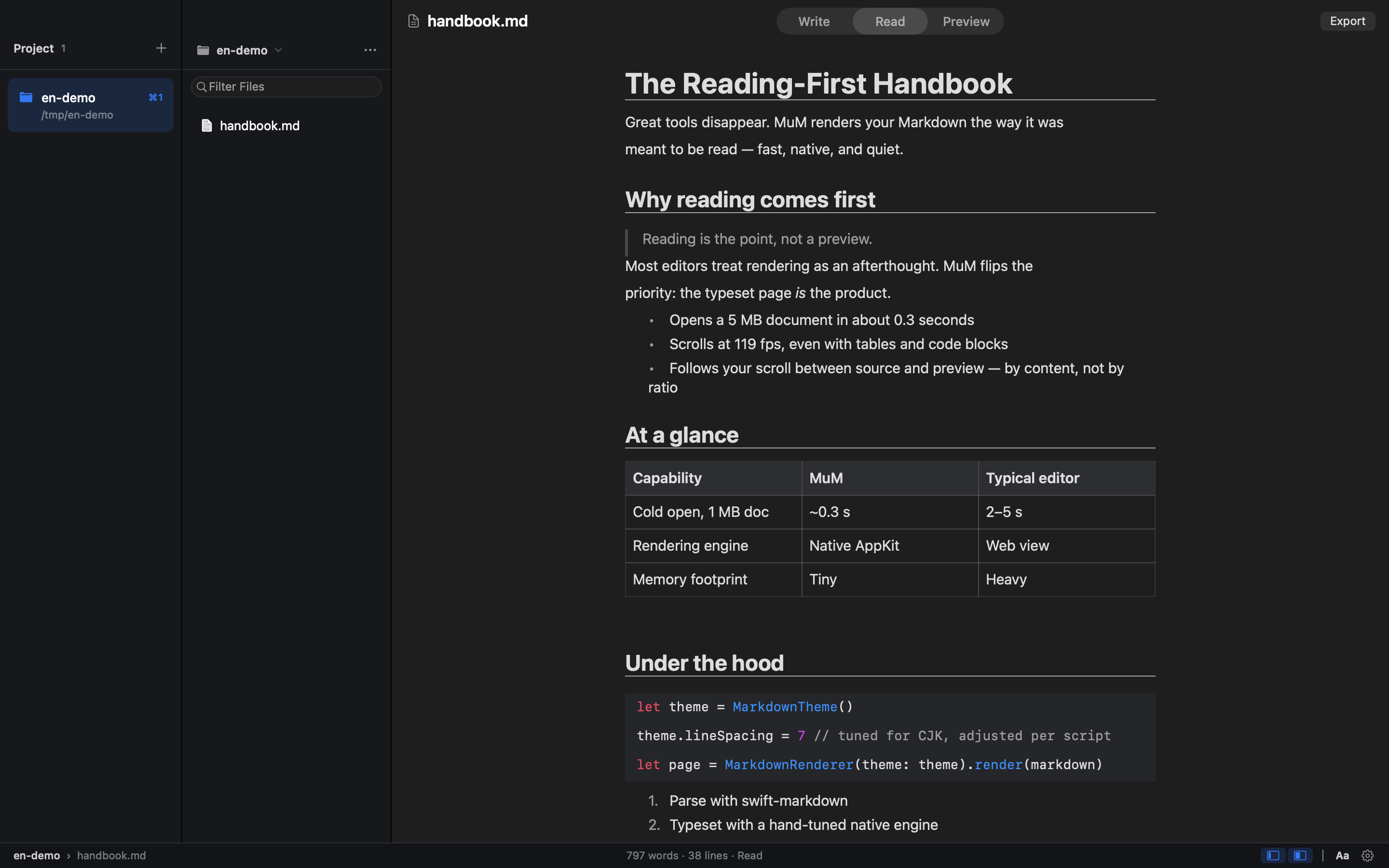
MuM is a reading-first Markdown engine for macOS. It is a native macOS reader built entirely with hand-built AppKit typesetting, with no web engine inside, and it is designed for people whose Markdown already lives in a dozen different folders. Most of the time you don't want to write — you just want to read one section. MuM takes the opposite approach from the typical Markdown editor: instead of being a writing app with a preview pane, it opens several projects at once, each remembering where you stopped, and lets you search across all of them. A companion CLI renders the same content for agents. The starting point for MuM is a simple observation: every Markdown tool is a writing app with a preview pane, yet reading is a different job. Markdown documents accumulate across project folders, notes directories, repositories and documentation trees, and the moment you want to consult one of them you are forced through an editing interface that was never designed for that purpose. When you only want to read a single section, the writing-oriented workflow of windows, sidebars and live preview adds friction rather than removing it. MuM treats reading as the primary activity and builds the whole application around it, which is why it presents itself as the opposite of the conventional Markdown editor. Multi-project support is the core of how MuM answers the question "where am I". You can keep several projects open at the same time and switch between them with ⌘1 through ⌘9, so the context of each folder stays separate instead of collapsing into one undifferentiated file list. Each project remembers where you stopped reading, so returning to a document resumes at the position you left rather than at the top. Reading history is available on ⌘[ and ⌘], letting you move backward and forward through what you have been reading. Together these behaviours make a set of scattered Markdown folders feel like a single, continuous reading environment rather than a series of separate files. Finding things in MuM is handled by several distinct commands rather than one overloaded search box. ⌘P fuzzy-finds files by name, which is the quickest route when you know roughly what a file is called. ⌘⇧F searches names and contents across every project, streaming results as they are found, so a concept can be located even when you have no idea which folder holds it. For work inside a single document, ⌘F finds text and ⌘⇧O opens the outline, giving you a structural view of the headings in the current file. The combination means search works at three levels: file name, cross-project content, and document structure. Typesetting in MuM is tuned for CJK as well as Latin scripts. Line height, punctuation compression and mixed-script spacing are measured rather than guessed, which matters when Chinese, Japanese or Korean text is mixed with Latin words and the default spacing of a Western layout approach would look wrong. The app also reads a lot of formats beyond plain Markdown: it highlights code, renders CSV and TSV as tables, and displays RTF, images, PDF and srt/vtt subtitles. Office files are not rendered; instead they get a page that points you to the default application. HTML embedded in Markdown is handled semantically — , and super/subscripts render as intended while the tags themselves stay out of sight. Day-to-day use is shaped by a few deliberate behaviours. Single-file mode means that double-clicking a lone file folds both sidebars away so you can simply read; the folder is not turned into a project and your project list stays clean. Export with ⌘⇧E turns the current document into a tall PNG or a paged PDF, and page-break hints written into the document become real page breaks in the output. File management is available directly in the tree: ⌘N creates a new file, while new folder, rename and move to Trash live in the ··· and right-click menus. One click opens a shell at a deeply nested folder, auto-detecting Ghostty, then iTerm, then Terminal.app. Updates download in-app from a banner: the DMG mounts itself and you drag MuM into Applications. MuM is quiet — no accounts, no telemetry, no plugin store. For agents, MuM offers windowless rendering from the command line. The same hand-built typesetting engine — with its CJK spacing, code highlighting and reading themes — is exposed through the CLI and writes straight to PNG or PDF, for example `mum render README.md --png cover.png`. Outline, search and check commands emit stable JSON with classified exit codes (0/1/2/3/4), so an agent never has to parse prose. A `mum outline README.md --json` call returns structured entries with level, location and title fields, as shown in the documented example output. This makes the reading engine usable in automated pipelines as well as by a human at the keyboard. MuM's architecture is what makes its reading experience possible. There are zero web engines inside the application: all typesetting is hand-built AppKit, which is why it can measure CJK spacing and control rendering at a level a browser-based preview cannot. The published figures are a 0.3-second cold start to window, 100+ frames per second when scrolling a 5 MB document, and a 1.7 MB installer. Those numbers describe a native application that opens instantly and stays smooth on large files, in contrast to Markdown tools that load a browser engine and inherit its weight. The same engine is shared between the GUI and the windowless CLI renderer, so what an agent renders matches what a reader sees. The outcome for users is a Markdown tool that behaves like a reading tool rather than a text editor. Because several projects stay open simultaneously and each remembers its own reading position, you spend less time re-locating documents and more time reading them. Cross-project search removes the need to remember which folder a note lives in, and CJK-aware typesetting means mixed-script documents render correctly. Export to PNG and PDF turns a reading session into something shareable or archivable. The whole application stays quiet: no accounts, no telemetry and no plugin store, so the tool is not louder than the content it displays. Concrete uses follow from these behaviours. A developer with documentation and READMEs spread across many repositories keeps each as a project, switches with ⌘1–⌘9, and uses ⌘⇧F to find a term across all of them. Someone reviewing a long specification scrolls a 5 MB document at 100+ fps, uses ⌘⇧O to jump through the outline, and exports a paged PDF for review. A CJK reader opens a mixed Chinese and English document knowing the line height, punctuation compression and spacing were measured. A reader double-clicks a single file in Finder, reads it in single-file mode with both sidebars folded away, and never pollutes the project list. An agent calls `mum render` or `mum outline --json` in a pipeline and consumes structured output instead of prose. MuM is aimed at macOS users who already have a body of Markdown and mostly read it: developers working across repositories, documentation writers and anyone maintaining notes in several folders, particularly those working in CJK languages. It ships as a native macOS application built with AppKit and no web engine, and it is open source under the MIT licence, so it is free to download and use. The installer is 1.7 MB, and updates are delivered through an in-app banner. A CLI companion shares the same rendering engine for automating PNG and PDF output and for emitting JSON that agents can consume. MuM's proposition is narrow and deliberate: Markdown is something you read, not only something you write. By building a native macOS reader with hand-built AppKit typesetting, no web engine, multi-project memory, cross-project search and CJK-tuned rendering, it removes the editing overhead that surrounds most Markdown tools. The same engine is exposed to agents through a CLI that emits stable JSON with classified exit codes. The result is a fast, quiet, open-source reading environment for the Markdown you already have.