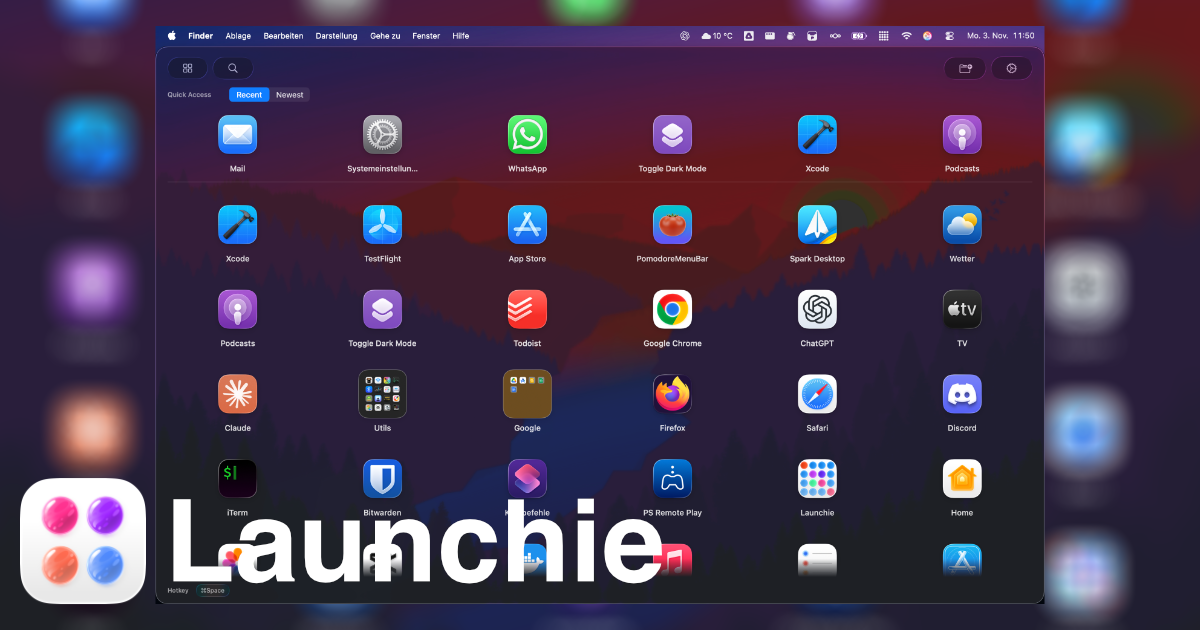
Launchie is a Launchpad replacement for macOS 26 Tahoe and macOS 27 Golden Gate, built to bring back the full-screen grid of app icons that Apple removed. It shows every installed application in a visual launcher that you arrange yourself, with drag-and-drop ordering that sticks, so the layout you build keeps the positions you gave it. Launchie is made for people who browse their apps by eye instead of typing a name, and who want folders, separate Spaces for different kinds of work, and instant search in one place. It is available on the Mac App Store and through Homebrew, and it requires macOS 26 Tahoe.
Apple removed Launchpad in macOS 26 and kept it out of macOS 27, replacing the familiar full-screen icon grid with a different way to launch apps. For long-time Mac users, that change took away a launcher they had used since the feature arrived in OS X Lion. Launchie's own comparison of the situation lists what went missing: no icon rearranging, with apps stuck in alphabetical order; no custom folders; a fixed grid layout that fits nobody in particular; no customization; no backup options; and no smart features. The result was a basic grid that could not be shaped around a person's own habits. Launchie exists to close that gap - not by imitating the old launcher exactly, but by restoring the visual grid and then adding the options the original never had.
What Launchie does first is give you back the grid. It is a full-screen arrangement of your apps that you position yourself, and drag-and-drop reordering lets you move any icon to any spot with the order staying where you put it. Flexible layouts mean the grid is not locked into one fixed size for everybody. If some apps are ones you never open, you can hide them so the launcher stays clean while the apps themselves stay installed on the Mac. This matters because a launcher is one of the surfaces you look at most often during the day; a grid that mirrors your own priorities is faster to scan than one sorted alphabetically by a system you cannot control. Screenshots on the site show the grid, the Spaces view, search, organizing apps, quick access, and appearance settings, so each part of the workflow is visible before you install anything.
Spaces are separate sections inside Launchie, each one holding its own apps and folders. The pitch on the site is simple: work apps in one place, everything else in another, so a large library stops being one long wall of icons. The site notes that the old Launchpad never had this. Folders work alongside Spaces - you can make as many folders as you like, drop apps into them, and group software by project or by category so the grid reflects how you actually think about your tools. Search runs across the launcher so you can find and launch any app in seconds when you know the name you are after, even when you have hundreds of applications installed. Hiding apps, folders, and search combine into one idea: the launcher is curated by you, not by a fixed alphabetical sequence.
Launchie adds a quick access section that uses Smart Lists to show recently used, most used, or newest apps on top, giving you shortcuts to the things you open most without hunting through the grid. Instant Access opens Launchie with the Command + K shortcut or your own custom shortcut, and Hot Corner Activation lets you open it by moving the pointer into a corner of the screen. Quick Close returns you to whatever you were doing - press Esc or click outside the launcher. For appearance, you can choose between a modern Liquid Glass UI and a traditional sheet look, and the app offers a broad set of customization options covering hotkeys, themes, icons and more. Backup and Restore saves your Launchie setup and restores it at any time, so the layout you built does not have to be rebuilt from scratch when you move to a new machine.
The underlying approach is to treat the launcher as a visual, personal surface rather than a keyboard-first command palette. Launchie organizes everything around the grid: apps sit in the positions you give them, folders group what belongs together, Spaces split the grid into separate pages of apps and folders, and Smart Lists pull the apps you use most into a quick access area at the top. It runs on macOS 26 Tahoe and is ready for macOS 27, and it installs either from the Mac App Store or with Homebrew using the command brew install --cask launchie. The same developer also makes OffKit, an iPhone and iPad app blocker, and the Launchie site publishes comparison pages such as Launchie vs LaunchOS, Launchie vs AppGrid, and Raycast vs Launchie, which frame visual launching and keyboard productivity as different solutions to different Mac workflow problems.
The outcomes users describe are practical. Reviewers on the Mac App Store say Launchie includes more features than Launchpad ever did, with sorting tools built in, additional folders, and the ability to hide apps you do not want to see. One reviewer writes that it is easy to quickly find and open needed apps even with hundreds installed, and another says folders and organization of apps were all they wanted. iDownloadBlog's Ankur Thakur calls it the best Launchpad alternative for macOS Tahoe and says it is the closest you can get to an actual Launchpad on a Mac running macOS 26. Launchie currently holds 4.6 out of 5 from 141 ratings on the Mac App Store, and it has been mentioned by iDownloadBlog, Mac & i 6/2025, and MacGadget.
Typical scenarios start with an upgrade. You move to macOS 26 Tahoe or macOS 27 Golden Gate, discover that Launchpad is gone, and install Launchie to get a familiar grid back, at which point the Command + K shortcut or a hot corner brings it up on demand. From there you shape it: drag apps into the order you prefer, create folders for projects or categories, and use Spaces to keep work apps separate from everything else. If you maintain a large library, search and Smart Lists carry the load, with recently used and most used apps surfaced at the top and unused icons hidden from view. When you set up a new Mac, Backup and Restore puts your previous layout back in place instead of starting over. The site also publishes guides aimed at specific searches, including bringing back Launchpad on macOS Tahoe, choosing the best macOS Launchpad replacement, and finding a Golden Gate launchpad replacement.
Launchie is aimed at Mac users on macOS 26 Tahoe or macOS 27 Golden Gate who miss the visual app grid, particularly those who prefer browsing by eye over typing an app name. It is a Mac app delivered through the Mac App Store and Homebrew - brew install --cask launchie - and it requires macOS 26 Tahoe. Launchie is free to use, with a Pro version sold as a one-time purchase; reviewers note that even the free tier carries many features and configuration options. The website lists locales for English, German, French, Spanish, Italian, and Dutch readers, and the project publishes release notes, Launchpad replacement guides, and blog coverage without noisy marketing.
For anyone who lost Launchpad to macOS 26 or macOS 27, Launchie's value proposition is straightforward: bring back the full-screen grid, let you arrange it exactly your way, and then add the folders, Spaces, Smart Lists, shortcuts, and backup tools that the original launcher never provided. It restores a familiar habit and improves on it at the same time.
Publisher
A
admin
Launch Date2026-09-21
Platformdesktop
Pricingfreemium