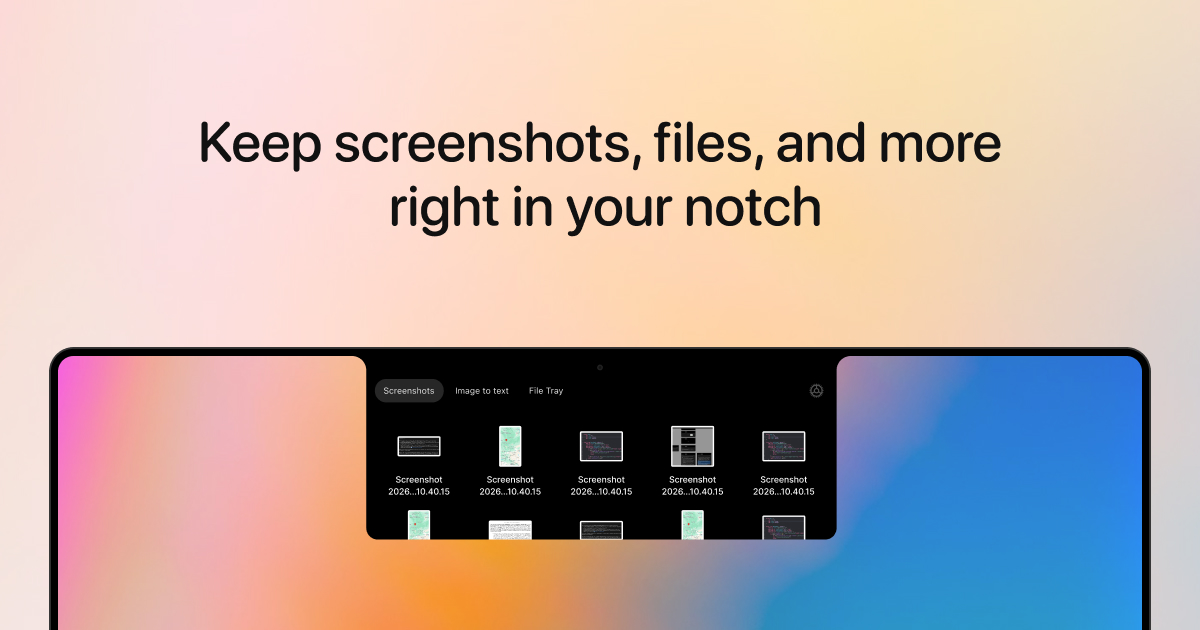
Archie is a native macOS app that keeps your screenshots in your Mac's notch, ready to edit and drag wherever you need them. It describes itself simply: "I keep your screenshots ready to edit and share right in your notch." The app adds a small shelf to the notch area of the screen with three tabs — Screenshots, Image to Text, and File Tray — so the captures and files you are working with stay one hover or one tap away. Archie is built for Mac users who take screenshots constantly and want them close at hand without letting them pile up across the desktop. It works with a notch and also offers a "Without Notch" display mode, requires macOS 13 Ventura or later, and is sold as a $9.99 one-time purchase with a free 3-day trial and no credit card required.
Screenshots have a habit of scattering. They land on the desktop, get buried in a default folder, and multiply until the desktop itself becomes the clutter you were trying to avoid. Archie's approach is summed up in its own framing: "Keep screenshots close, without keeping them everywhere. Save the useful ones. Let the rest go when you are ready." The product page puts it as a small checklist for a calmer desktop — put screenshots in one place, pin the ones you want to keep, and copy the text you need from an image. The app also promises "a little less clutter" and "a little more room for what you are working on," positioning itself around a clear desktop and a faster path from capture to use.
The Screenshots tab is the center of the app. New macOS screenshots and recordings save to a dedicated screenshots folder (shown in settings as ~/Desktop/Screenshots), which Archie describes as keeping your desktop clear of screenshots. From the notch shelf you can hover an item and act on it, with a context menu offering Pin (⌘P), Copy (⌘C), Open With, Image to Text (⌘T), Show in Finder (⌘F), and Move to Trash (⌘⌫). Listing entries can be grouped by date, with dividers such as Today, Yesterday, and Previous 7 days, so you can find screenshots by when you took them. Pinning keeps the screenshots you want to save — pinned items stay even when auto-clean runs.
Auto-clean is the housekeeping layer. Described as "clear old captures on your schedule," it moves old screenshots and recordings to Trash, including existing ones, while pinned items stay put. The setting offers a Never option alongside time-based choices such as 7 days. Related settings let you control the capture flow itself: screenshot notifications show a toast when a new screenshot is saved, auto-copy new screenshots copies each new capture for pasting with ⌘V, and "Skip Floating Thumbnail" applies system-wide, even when Archie isn't running, with Never, 1 day, 3 days, 7 days, and 30 days options. Group by date is also exposed as a setting.
Image to Text turns screenshots into copy you can use. The tab invites you to "Drop a screenshot here to grab its text" or to use the currently selected screenshot, then shows an analyzing state before presenting the extracted text with a Copy action. It is presented as a way to copy text straight from a screenshot, which means you can pull a line out of an image without retyping it. The same capability is reachable from the screenshot context menu through the Image to Text shortcut (⌘T), so the transformation is available directly from the shelf.
File Tray is the third tab and works as a holding area for non-screenshot files. You drop files in or press ⌘V to paste, and Archie describes it as "holding your files here for later, always available from notch." You hover on the tab to open it, and files sitting in the tray can be copied, shown in Finder, removed individually, or cleared from the File Tray altogether. The demo shows mixed items such as a text file, a Figma file, and a zip archive living alongside folders, so the tray can hold working material that is not an image at all.
The built-in editor is where screenshots get turned into something shareable. Four tools are described on the site. Hide private details lets you blur names, emails, and anything you want to keep private. Highlight what matters lets you point things out with arrows, shapes, and drawings. Crop the extra keeps just the part you want to share. Add context lets you add a note or guide someone through numbered steps. The editor window shows undo and redo controls, a Copy & Close action, and fit and zoom controls, so a capture can be annotated and sent without opening a separate image editor.
Archie's overall approach is proximity. Instead of a separate window, a menu bar dropdown, or a desktop folder you have to navigate to, the shelf lives in the notch and is reached by hovering or tapping. The same surface holds your recent screenshots, your OCR tool, and your file tray, and the app offers both a notch and a non-notch presentation so the shelf still works on Macs without a notch. Because it is a native macOS app, the screenshots folder, notifications, floating thumbnail behavior, and Finder integration all tie into standard Mac conventions — the app can even skip the floating thumbnail system-wide when it isn't running.
The benefits follow from that design. Your desktop stays clear because captures go to a dedicated folder rather than scattering across it. Old captures clear themselves on a schedule you choose, so the folder does not silently grow forever, while anything you pin survives. Screenshots remain available for editing and dragging from the notch, image-to-text saves you from retyping what is already visible in an image, and the file tray keeps working files at hand instead of buried in a downloads folder. Payment is a single $9.99 purchase with no subscription, and you can try it free for three days without a credit card.
Concrete workflows map onto the tabs. Capture a screenshot, hover the notch, and drag it straight into a chat or document. Take a screenshot of a receipt, invoice, or error message and run Image to Text to copy the contents instead of typing them. Screenshot a dashboard and use the editor to blur revenue figures or names before sharing, then add arrows and numbered steps to walk a colleague through what changed. Keep a set of reference files in the File Tray and paste them into an email with ⌘V. Let auto-clean sweep week-old captures into the Trash while pinned screenshots for an ongoing project stay exactly where you left them.
Archie runs on macOS 13 Ventura or later and is distributed as a direct Mac download. It is aimed at people who work screenshot-first — designers referencing interfaces, developers capturing errors and settings, support and sales people sharing annotated visuals, and anyone who wants a tidier desktop without adopting a full asset management system. Everything the app does happens around the notch shelf: capture organization, image-to-text extraction, file holding, and quick annotation, tied together by keyboard shortcuts and a settings panel for folder location, auto-clean, notifications, auto-copy, grouping, and the floating thumbnail.
In short, Archie's value proposition is a small, focused Mac app that keeps screenshots close without keeping them everywhere. It replaces a scattered desktop with one dedicated folder, a notch shelf, and a set of editing and text-extraction tools reachable in a hover — for a one-time $9.99, with a free 3-day trial to see whether the notch earns its place in your workflow.
Publisher
A
admin
Launch Date2026-11-09
Platformdesktop
Pricingpaid